
Overview
During the account setup, you can have employees download the mobile app and join your account by scanning a QR code.
Accessing the QR Code
Step 1: Login as an administrator or managerStep 2: Go to the My Team icon and select "Team Directory."
Step 3: Click "Add Team Members."
Step 4: Select "Add using QR Code."
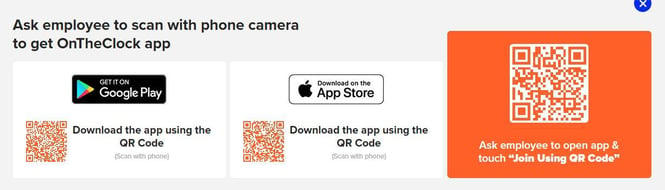
After completing the above steps, please follow the mobile instructions by clicking the mobile app tab to complete the QR code setup.
web:end
app:start
The QR code can be found on the website's account. Please take a look at the Browser instructions first. Your employee must have the app installed on their iOS or Android device first. Then, they can follow the steps below.
Adding Employees with a QR Code
Step 1: Open the mobile app.Step 2: Select "I am an employee."
Step 3: Tap "Join using QR code."
Step 4: Scan the QR code with the phone camera.
Step 5: Fill in the new employee information.
What to Expect
Your employee must have the app installed on their iOS or Android device. They can then click the link "Join using QR Code" on the app. The QR code can only be found on the browser in your account. Once an employee scans the QR code, they can enter their general information.
- First Name
- Last Name
- Email/Username
- Password
- Mobile phone
The general information will allow them to begin clocking in and out. From there, an admin or manager must complete the employee profile setup for other settings like overtime rules, PTO, and security restrictions.
app:end
Q&A
Q: When I scan the QR code, it doesn't take me anywhere; why?
A: In order for the QR code to bring you to the general information page you need to have installed the app and have the mobile app running on your phone.