
Overview
If you switched to OnTheClock Payroll from another payroll provider, you may need to link imported payroll employees to existing employee profiles in OnTheClock.
This process ensures employee names are matched correctly before running payroll.
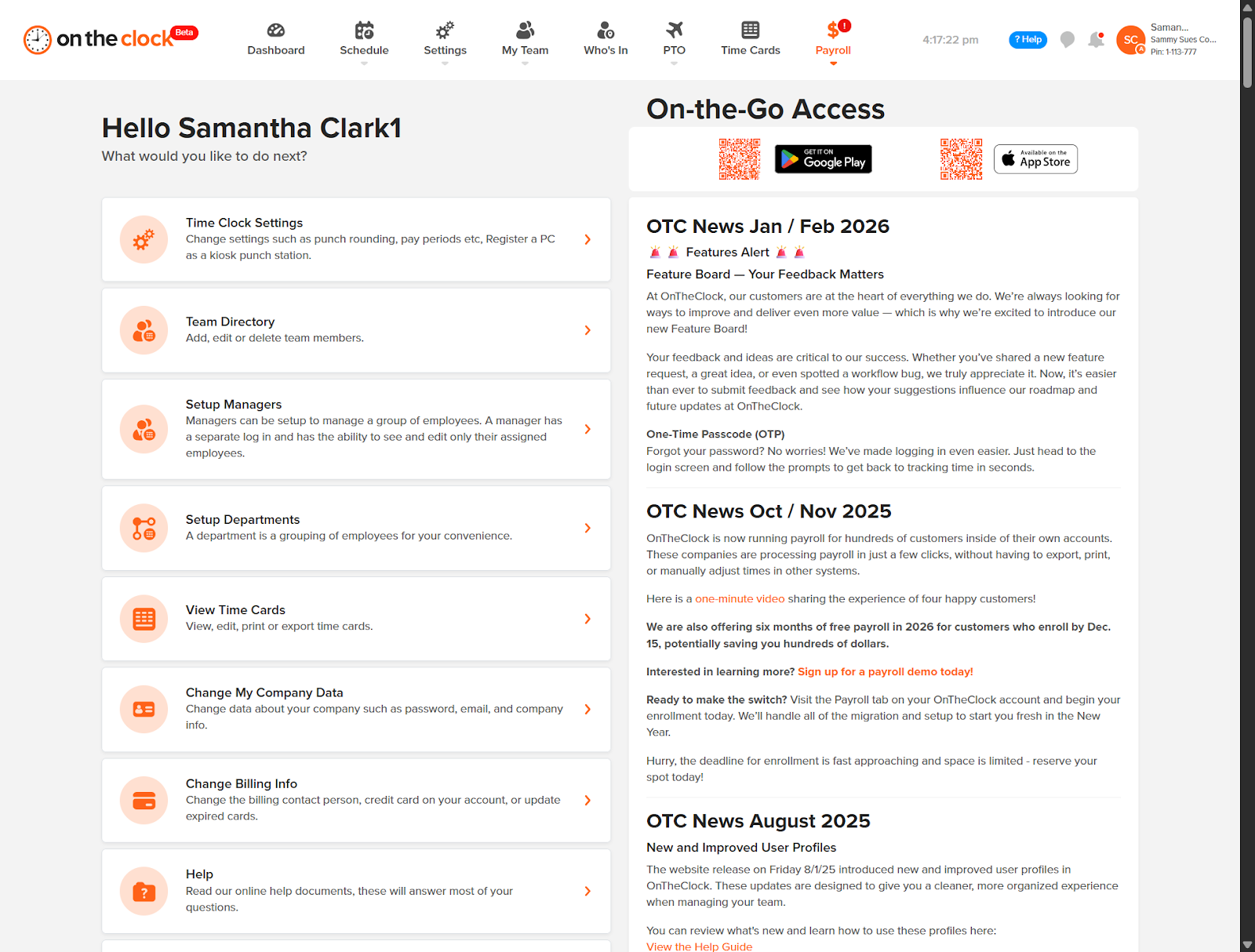
Step 1: Go to Payroll
From the main navigation, click Payroll.
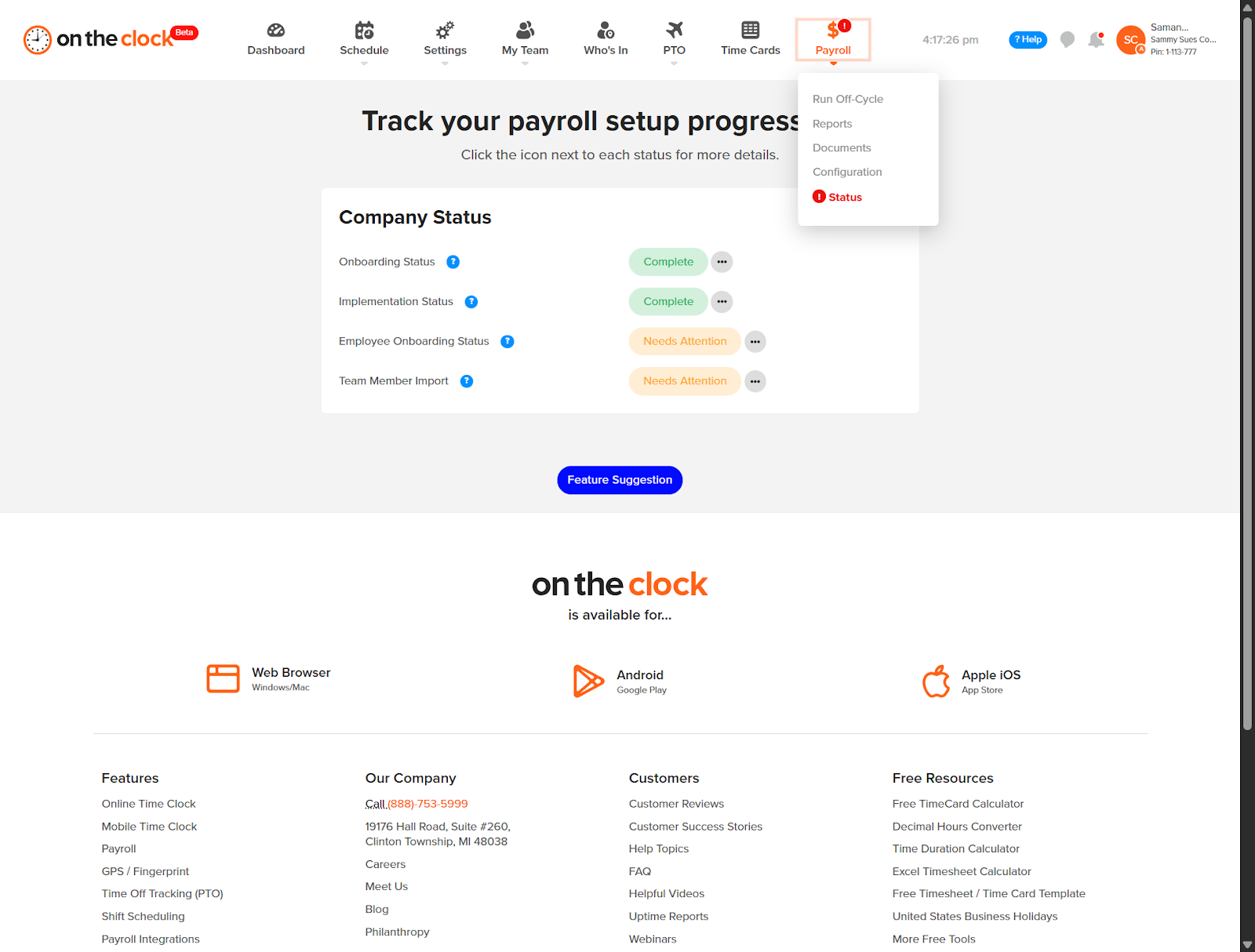
Step 2: Locate Team Member Import
Under Company Status, look for Team Member Import.
If it shows Needs Attention, action is required.
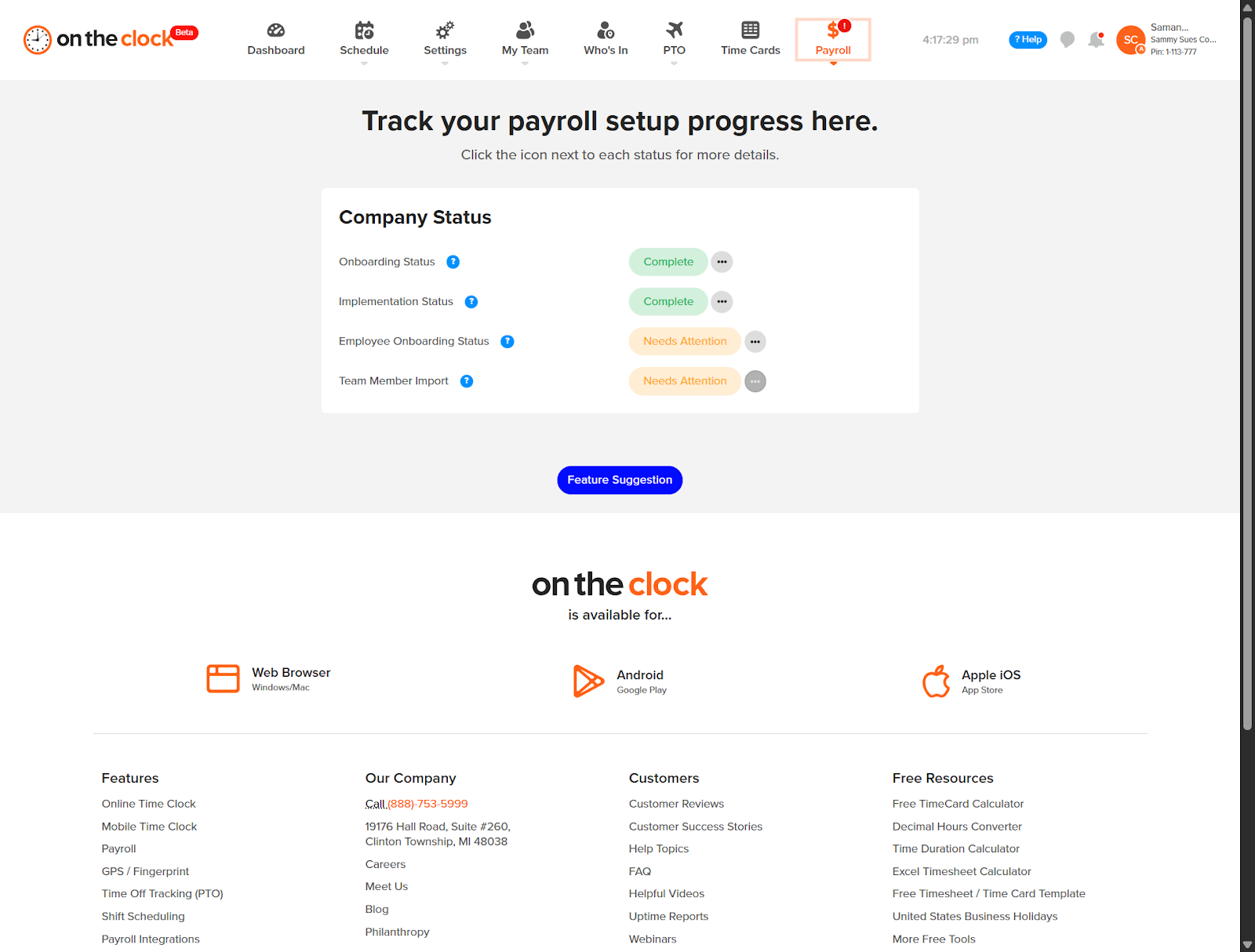
Step 3: Open the Import Options
Click the ellipsis (⋯) next to Needs Attention.
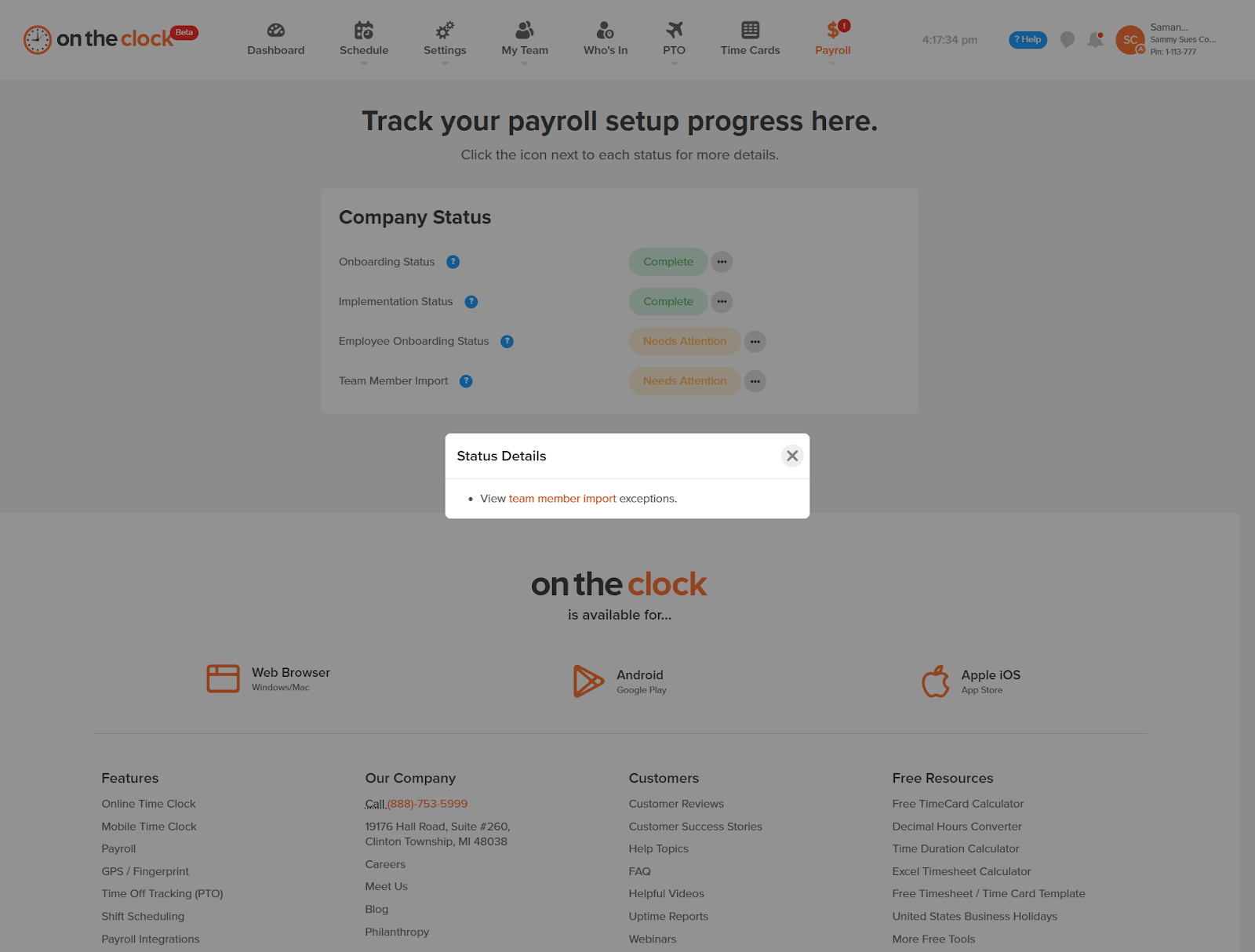
Step 4: Click Team Member Import
Select Team Member Import from the dropdown.
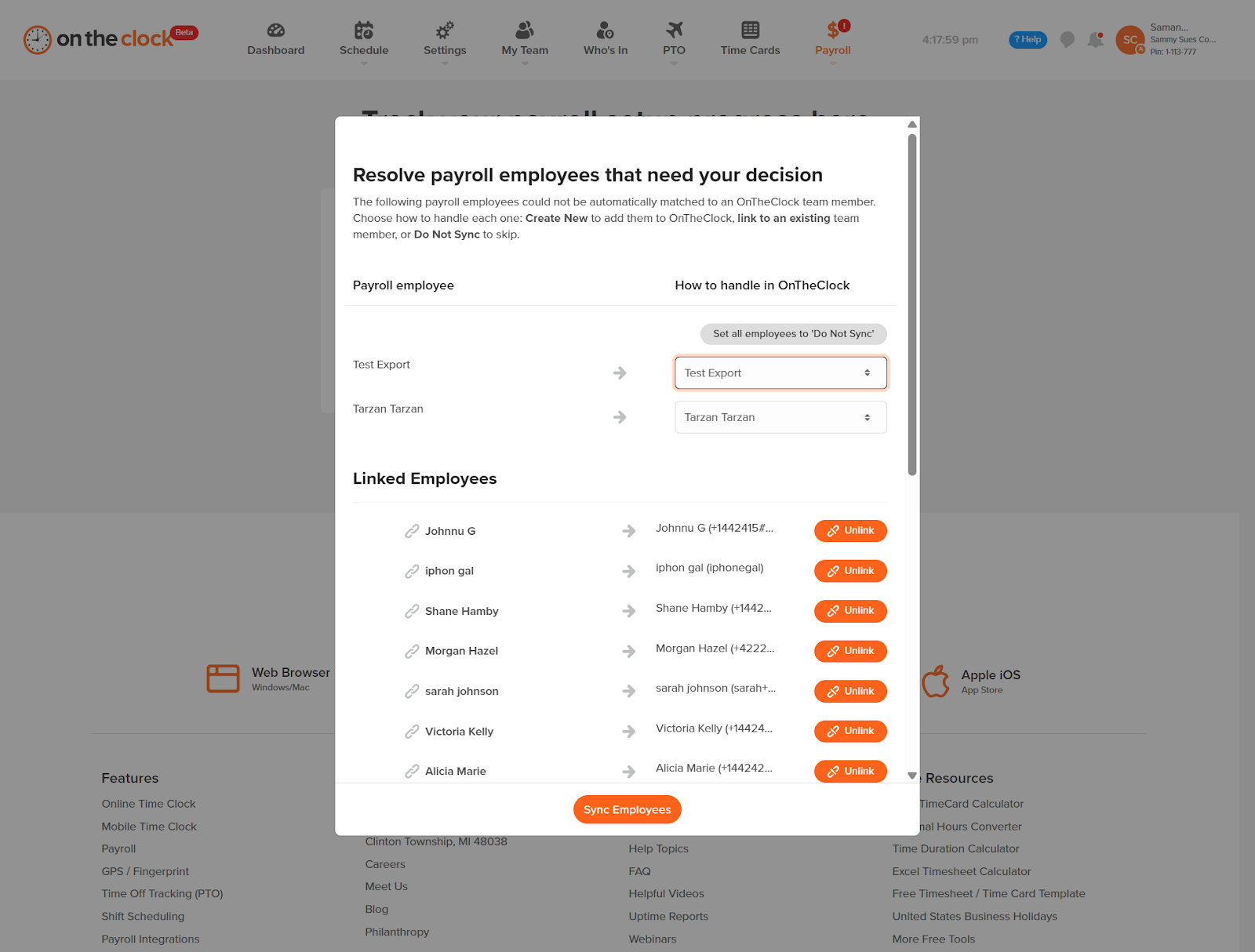
Step 5: Choose How to Handle Each Employee
For each employee, select how they should be handled in OnTheClock:
- Match to Existing Employee – Link to an existing profile
- Create New Profile – Create a new employee record
- Do Not Sync – Exclude the employee from syncing
Review carefully before proceeding.
Step 6: Sync Employees
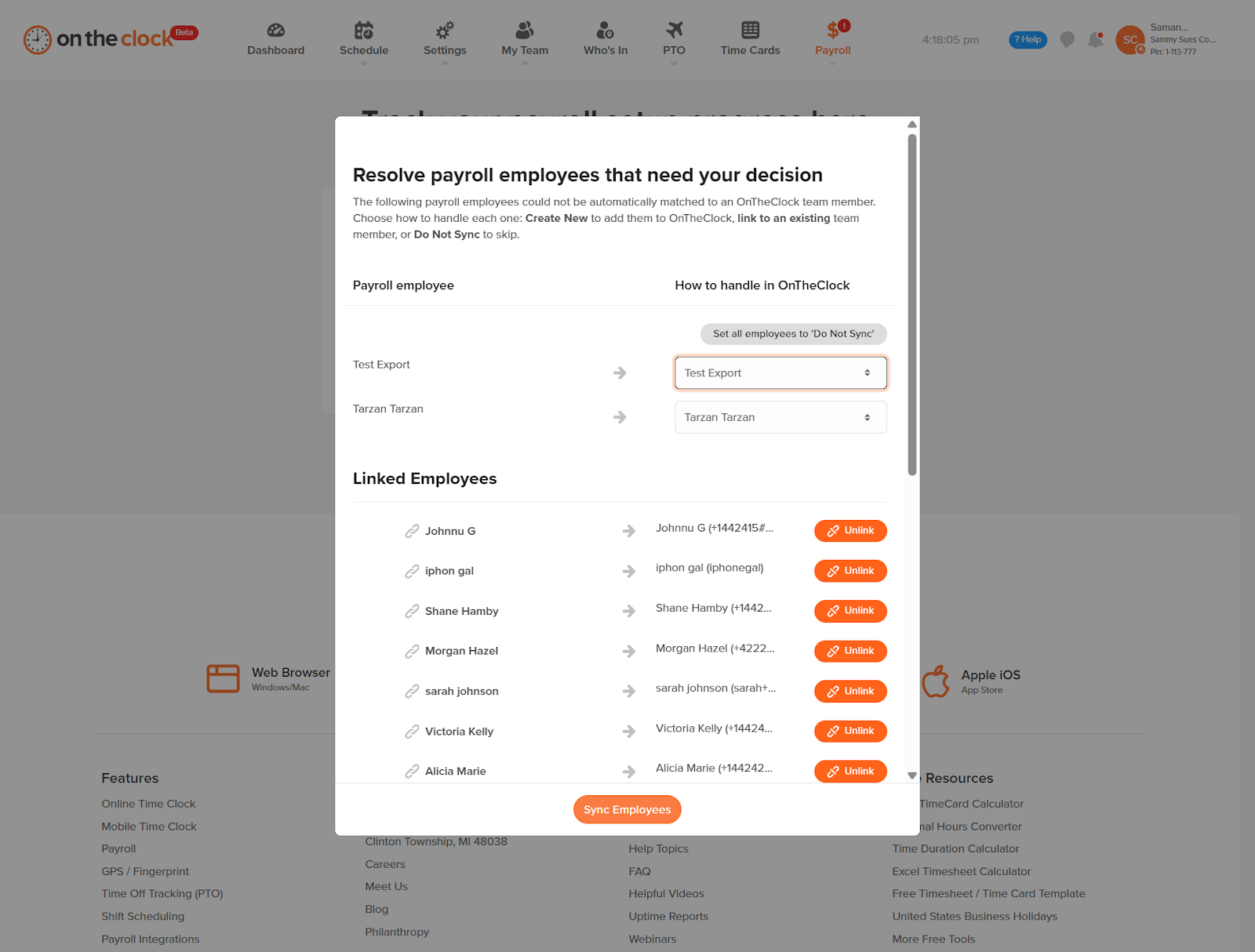
Click Sync Employees to complete the process.
Important Tips
- Always double-check employee matches before syncing.
- Incorrect matches can cause payroll reporting errors.