
Overview
OnTheClock makes it easy to seamlessly process payroll by connecting with select payroll software and services.
Setup
Connect to your Payroll Provider
Step 1: Log in as an administrator via browser.Step 2: Navigate to “Settings,” then “Time Clock Settings.”
Step 3: Click the “Integration's” tab.
Step 4: Click the green “Connect” button under the software or service you’d like to connect.
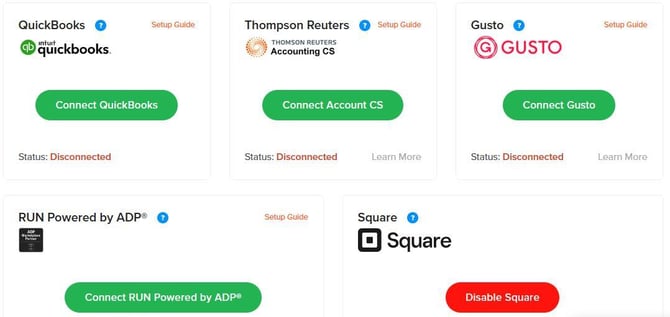
We offer direct software integration with QuickBooks Online, Thomson Reuters, Gusto and direct service integration with ConnectPay and Payroll Connect. If you’re using a different payroll provider, you can export time card data for easier payroll processing —
Export Time Cards
Step 1: Log in as an administrator via browser.
Step 2: Navigate to “Time Cards.”
Step 3: Click “More” (next to the box labeled “Options”).
Step 4: Select your report format to export.
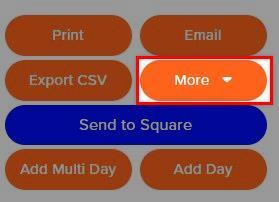
If your payroll provider is not listed, click the “Export CSV” button to download your time card data. Then, follow your provider’s instructions for importing CSV files to their interface.
web:start
You can also send time card data as an email attachment directly from your OnTheClock account.
Send Time Cards
Step 1: Log in as an administrator or manager.Step 2: Navigate to “Time Cards.”
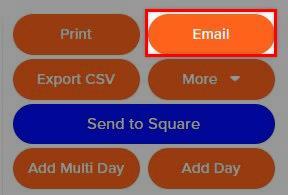
Step 3: Click the “Email” button.
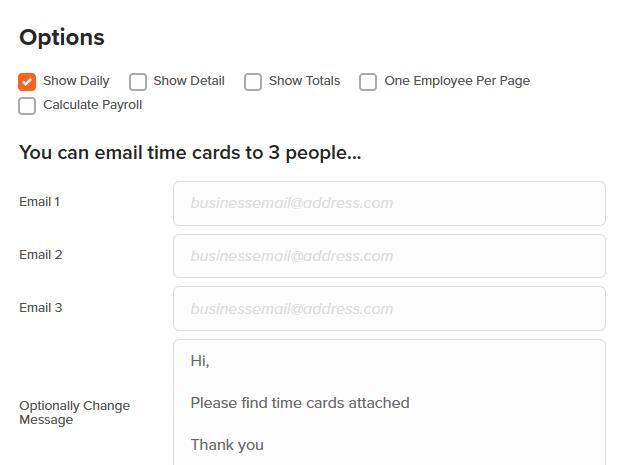
Step 4: Set your options.
Step 5: Enter up to three email recipients.
Step 6: Optionally, type a custom message.
Step 7: Click “Send Email.”
web:end
app:start
Send Time Cards
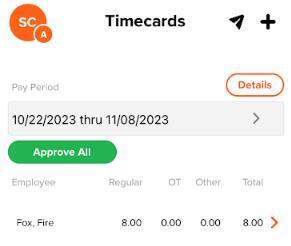
Step 1: Log in as an administrator or manager.Step 2: Tap on “Time Cards.”
Step 3: Tap the send icon (paper airplane) in the top right corner.
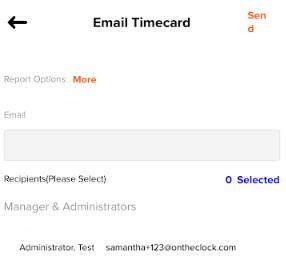
Step 4: Enter an email recipient, and/or select administrators and managers as recipients.
Step 5: Click “Send” in the top right corner.
app:end
Q&A
Q: My email is not sending to my accountant.
A: Check your junk or spam folders to ensure they are not caught up in a filter.
Q: Can I send hours to connected payroll providers from the app?
A: No —you will need to launch into the mobile browser and go to time card to send over to a connected payroll provider.