
Overview
The fixed schedule feature is a great option for employees who work the same shifts each week. You can also use the fixed schedule to automatically deduct breaks from employees’ shifts. Currently, fixed schedules can only be set up when accessing OnTheClock as an administrator or manager via browser.
Setup
Step 1: After logging in, navigate to Schedule, then Fixed Schedule.
Step 2: Click Add Schedule.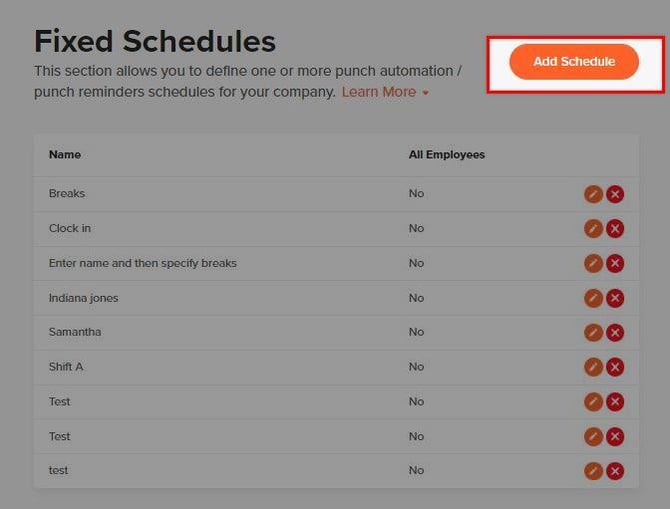
Step 3: Name your schedule (e.g., “Day Shift”).
Step 4: Specify number of breaks.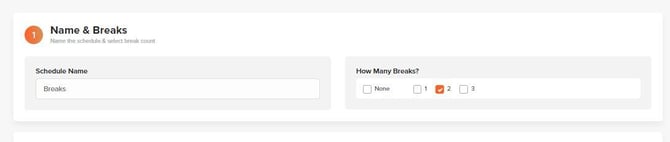
Step 5: Set start and end times for each day.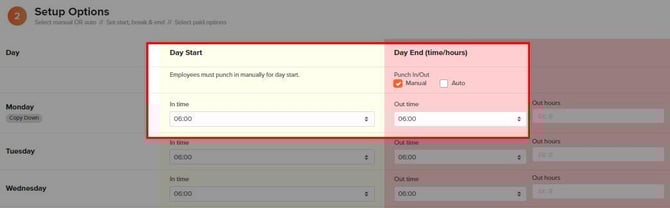
Step 6: Select the employees for this schedule.
Step 7: (Optional) Toggle Punch Reminder on to send clock-in/out reminders.
Exporting Fixed Schedules
The Fixed Schedules page lets you create and manage punch automation or punch reminder schedules for your company. You can also export your schedules into a CSV file for reporting, sharing, or archiving.
How to Export Fixed Schedules
Step 1: Go to the Fixed Schedules page in your OnTheClock account.
Step 2: Locate the Export button in the upper-right corner.
Step 3: Click Export and select CSV.
Step 4: The file will download to your device. Open it with Excel, Google Sheets, or another spreadsheet tool.
What the Export Includes
- Name – The title of each schedule (e.g., “Breaks,” “Automate clock out”).
- All Employees – Shows if the schedule applies to all employees (
YesorNo).
Use Cases
- Audit & Compliance – Keep a record of automation schedules for regulatory or internal review.
- Manager Review – Share the export with managers to confirm schedules are correct.
- Data Analysis – Sort, filter, or create reports in Excel or Google Sheets to analyze scheduling practices.
- Archiving – Save exports as backups to track historical scheduling changes.
- Cross-Team Alignment – Provide HR, payroll, or compliance teams with an updated schedule list.
What to Expect
After you have added your fixed schedule, manual breaks, auto breaks, in and out times will show in the employee profile for when it is queued to take place. You can also check if reminders have been sent as an administrator by checking out the raw log for the account.
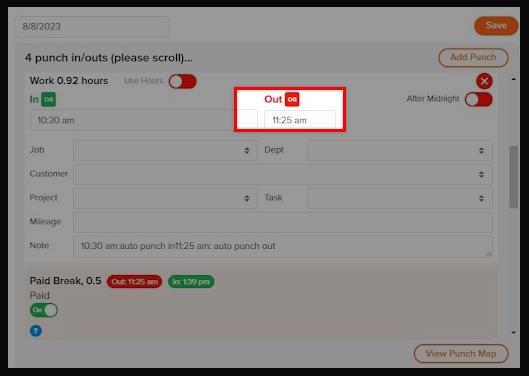
Automatic breaks will display in your time card entry with an “OA” to indicate this was an automatic clock in from the system.
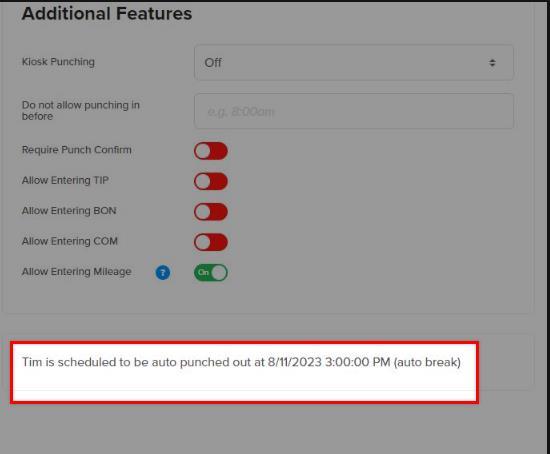
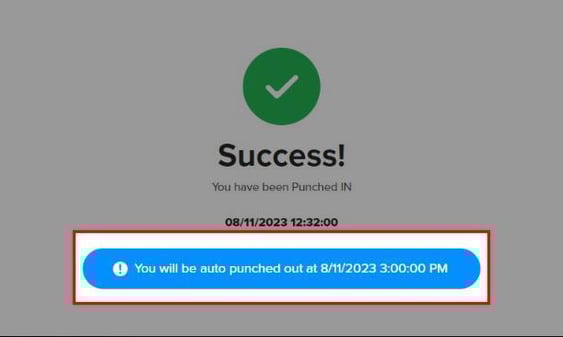
Employees will see they are scheduled for an automatic clock in or out. They will also receive a message with their scheduled break time on their clock-in screen.
As an administrator you can review your account activity log to see that reminders were sent.
Q&A
Q: Can I set up multiple fixed schedules?
A: Yes — you can create multiple fixed schedules. However, an employee can only be assigned to one fixed schedule at a time.
Q: What if my employees work different hours?
A: You can create a fixed schedule specific to each employee and assign them to it.
Q: Why can't I see the fixed schedule times on my employee schedule?
A: The fixed schedule and employee schedule do not integrate. The employee schedule is a tentative schedule for employees with shifts that may vary each week. The fixed schedule is for employees who follow the same schedule each week.
Q: When are punch reminders sent?
A: If you enabled punch reminders, your employee will get a reminder to clock in or out 10 minutes before the designated time.
Q: What is the difference between "out hours" and "out time" on the fixed schedule?
A: Out time is how you specify an exact time of day for the schedule to end. For example you can enter “5:00 PM”. Out hours is how you specify a number of hours you would like worked before clock out. For example you can enter “8.00” to specify 8 hours should be worked before receiving notice and being auto clocked out.
Q: Will the In time automatically clock employees in at that time?
A: No — we do not automatically clock employees in for attendance purposes. Automation can only take place when an employee initiates a clock-in for the day.
Q: What is the difference between the options "Manual" and "Auto?"
A: Selecting “manual” means the employee will need to clock in or out at the specified time. Selecting “auto” means that the clock in and out will be handled automatically by the system.
Q: What do the options by "paid" mean when setting breaks up in the fixed schedule?
A: Selecting “no” means this break when taken is not paid and will be logged under “UBR” (unpaid break). Selecting “some” means you can enter in a specified amount that is to be paid and anything over will not be. Selecting “yes” means that the entire duration entered will be paid.
Q: What is the difference between the "view schedule" and "fixed schedule?"
A: The “fixed schedule” is intended for employees that consistently work the same schedule each workweek. “View schedule” is a dynamic schedule builder that will allow you to create schedules with various shifts. You can add locations and details on this schedule.
Q: How can I view breaks that are unpaid?
A: You will want to adjust your time clock settings to include the “UBR” column on the timecards. This column will tally the time duration for unpaid breaks.