
Overview
In this article we will discuss how you can update employee pay rates. In OnTheClock you manage an hourly pay rate for an employee or a salary.
Click here to learn about how to set up salaried employees.
Adding Pay Rates
web:start
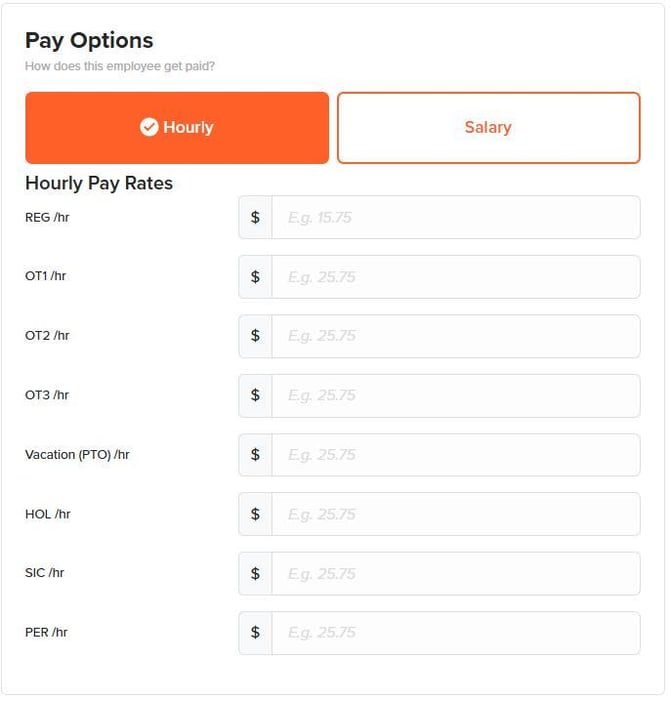
Add Hourly Pay Rates
Step 1: Log in as the administrator.Step 2: Navigate to the screen's top and click "My Team."
Step 3: Select the employee you want to set up.
Step 4: Go to "General" and the section "Pay Options."
Step 5: Select "hourly". Enter the various pay rates for each type of hour (e.g., regular hours, overtime).
Step 6: After entering the pay rates, click the "Save Settings" button to save your changes.
Step 7: To view the total value for hours worked multiplied by the pay rate, go to "Time Cards."
Step 8: In the "Time Cards" section, click the "Payroll" checkbox.
Note: We currently only track a single pay rate for an employee.
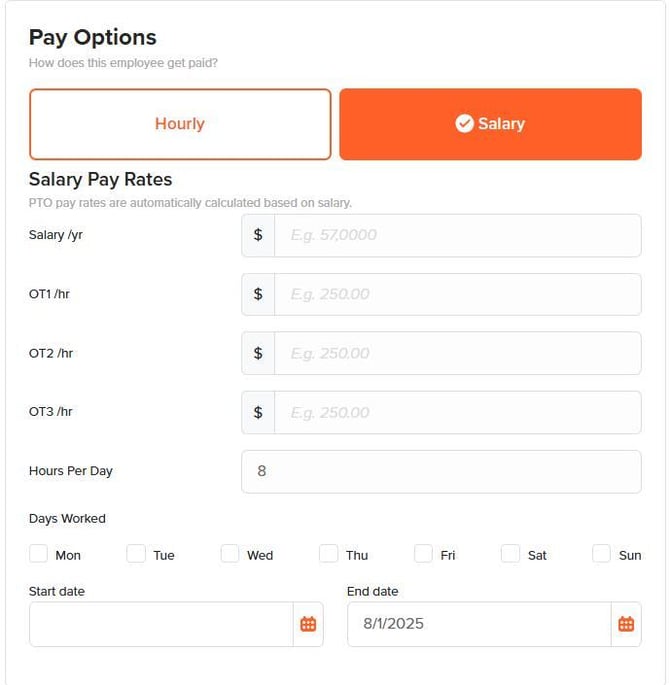
Adding an Employee Salary
Step 1: Log in as the administrator.
Step 2: Navigate to the screen's top and click "My Team."
Step 3: Select the employee you want to set up.
Step 4: Go to "General" and then "Pay options".
Step 5: Click "Salary", accept the prompt for applying 40/hr per week to employee profile.
Step 6: Enter the amount the employee earns per year.
Step 7: PTO amounts are automatically calculated.
What to Expect
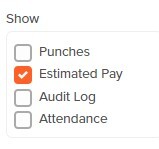
You can now preview the total gross dollar amount based on each employee's hours.
Step 1: Navigate to the Time Cards.
Step 2: Under "Show...," check off estimated pay.
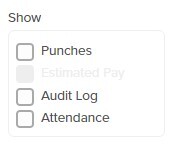
If you are enrolled in OnTheClock Payroll estimated pay will not be available. It will be grayed out.
web:end
app:start
Add Pay Rates
Step 1: Log in as the administrator or manager.
Step 2: Navigate to the screen's top and tap your initials.
Step 3: Tap settings and select employees.
Step 4: Select the employee to whom you want to add a pay rate.
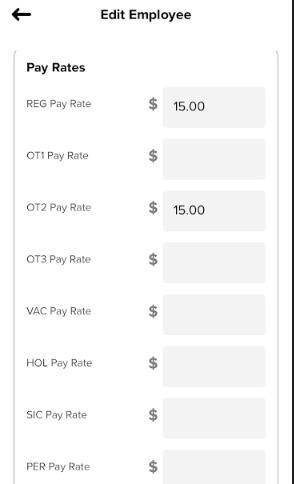
Step 5: Scroll to pay rates.
Step 6: After entering the pay rates, tap the "Save" button to save your changes.
Step 7: To view the total value for hours worked multiplied by the pay rate, tap "Time Cards."
Step 8: Tap the airplane symbol and tap more next to Report Options
Step 9: Toggle calculate payroll to on and tap send.
app:end
What to Expect
Now that pay rates are assigned to your employees, you can run reports to show the gross total by selecting "calculate payroll" when sending your time card reports.
Q&A
Q: Can I pull a report that shows pay rates?
A: Yes —under the more icon, select the connectpay by department or jobs report. This report will show the pay rate you have assigned to an employee.
Q: Do pay rates show in job & costing reports?
A: No —currently the pay rates cannot be added to job & costing reports.
Q: Can you assign a pay rate to a specific job?
A: No —at this time, we only track pay rates based on payroll items. Ex. Overtime, Vacation.
Q: Can we track multiple pay rates in OnTheClock for an employee?
A: We only track one pay rate per employee.
Q: Why is my estimated pay box grayed out?
A: If the estimated pay is grayed out you are most likely enrolled into payroll.