
Overview
You can restore employees by accessing your employee recycle bin. This makes seasonal and temporary employees easy to maintain and manage.
Setup
web:start
Step 1: Log in as an administrator or manager.
Step 2: Click “My Team” at the top of the screen.
Step 3: Select “Team Directory.”
Step 4: Adjust the filter under "Status" to show "inactive" employees.
Step 5: Select “Restore” next to the team member you want to recover.
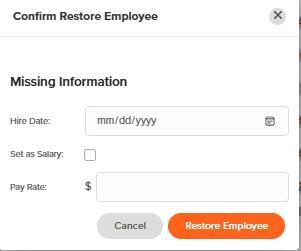
Step 6: Enter the employees rehire date.
Step 7: Check the box to set a salary or enter in the employees pay rate.
Step 8: Click restore employee.
What to Expect
Once you have restored an employee, their profile will come back the same way it was when you removed them. The employee will now be seen in all filter lists in the time cards. The employees will be billable once they are restored and on your active employee list.
web:end
app:start
Step 1: Log in as the administrator or manager
Step 2: Tap "More."
Step 3: Tap "Settings."
Step 4: Tap "Employees."
Step 5: Tap the slider to "Inactive" to view the list.
Step 6: Tap the "Employee."
Step 7: Tap "Activate."

What to Expect
Once you have restored an employee, their profile will come back the same way it was when you removed them. The employee will now be seen in all filter lists in the time cards. The employees will be billable once they are restored and on your active employee list.
app:end
Q&A
Q: After restoring an employee do all their settings remain from before?
A: The employee's profile settings will be the same as before you deleted them. You should review their profile settings after restoring to ensure that they are still up to date. An excellent example of this is restoring a salaried employee profile. You will want to update the "End Date" field to allow their timecards to auto-populate again.
Q: After restoring an employee are all their previous time records still on the system?
A: Yes. We do not delete any timecards after an employee is removed from the employee list, so you can still find them even after restoring them.
Q: When I restore an employee profile, are the employee settings still there from what I had before, or do I need to set up the settings again?
A: The employee's profile settings will be the same as before you deleted them. You should review their profile settings after restoring to ensure that they are still up to date. An excellent example of this is restoring a salaried employee profile. You will want to update the "End Date" field to allow their timecards to auto-populate again.
Q: When I restore an employee profile, will their previous timecards still be available or associated with their profile?
A: Yes —We do not delete any timecards after an employee is removed from the employee list, so you can still find them even after restoring them.