
Overview
You can customize your OnTheClock account to grant permission to users to approve time cards. Time card approval processes are a great way to ensure your payroll is accurate. Asking your employees to approve their own time cards promotes clear communication and transparency. Only administrators can modify time card approval permissions.
Setup
Enable Time Card Approval
Step 1: Log into your account via browser.
Step 2: Navigate to “Settings,” then “Time Clock Settings.”
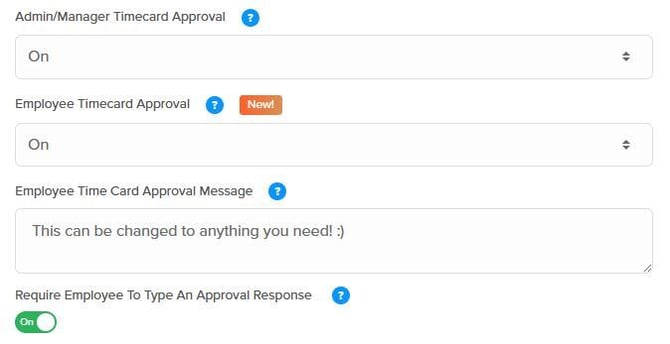
Step 3: Under “Options,” there are two settings for time card approval.
Step 4: Toggle “Time Card Approval” for admins/managers and employees.
Step 5: Click “Save Settings.”
web:start
How To Approve Time Cards as an Admin or Manager
Step 1: After logging in, click on “Time Cards.”
Step 2: Review your time cards for accuracy.
Step 3: Under “Time Card Approval,” toggle “Select All Time Cards” on.
Step 4: Click “Approve” to approve all time cards displayed.

How To Approve Time Cards as an Employee
Step 1: After logging in, navigate to “My Time Cards.”
Step 2: Choose the pay period to review.
Step 3: When ready, click “Approve Time Card.”
Step 4: If prompted, you can enter a text response for confirmation.

web:end
app:start
How To Approve Time Cards as an Admin or Manager
Step 1: Open your app and click on “Time CardsStep 2: Review your time cards for accuracy.
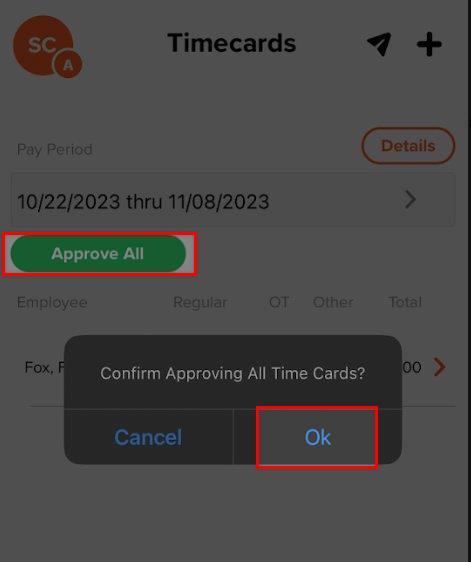
Step 3: Tap “Approve All” to approve all time cards displayed.
Step 4: When prompted to confirm approval, tap “OK.”
How To Approve Time Cards as an Employee
Step 1: After logging in, navigate to “Time Cards.”
Step 2: Choose the pay period to review.
Step 3: When ready, click “Approve Time Card.”
Step 4: If prompted, just enter a text response for confirmation.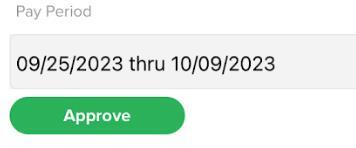
app:end
Q&A
Q: How do I know if an employee approved their time card?
A: You’ll see a green check mark next to time cards approved by employees.
Q: Is there a way to electronically sign time cards?
A: No — however, a PDF export of the time card will show an employee’s name and the time stamp of their approval.
Q: What happens if a time card is not approved?
A: If an employee does not approve a time card, no green check mark will appear. You can still process the time card for payroll.