
Overview
When the holidays or days off for the year are known in advance, they may be easily added to the time cards in advance for one or more employees. Instructions are for holiday, but vacation, personal, sick, etc. all work the same.
Setup
Adding Hours in Bulk
Step 1: Log in as the administrator or manager.
Step 2: Click "PTO" at the top of the screen.
Step 3: Select "Add Bulk PTO."
Step 4: Check the box next to the employees to be given holidays or time off.
Step 5: Choose the year from the drop-down menu.
Step 6: Enter the hours for each holiday in the “HOL” field.
Step 7: Optionally, adjust hours for non-holiday pay.
Step 8: Click "Save PTO."
Step 9: Verify the successful addition of holiday hours under the respective dates in time cards.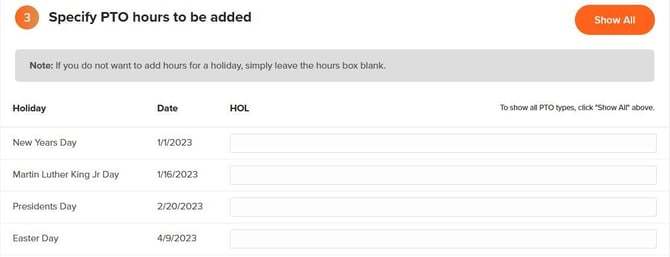
Add Custom Dates in Bulk
Step 1: Log in as the administrator or manager.
Step 2: Click “PTO” at the top of the screen.
Step 3: Select “Add Bulk PTO.”
Step 4: Check the box next to the employees to be given holidays or time off.
Step 5: Select the year from the drop-down menu.
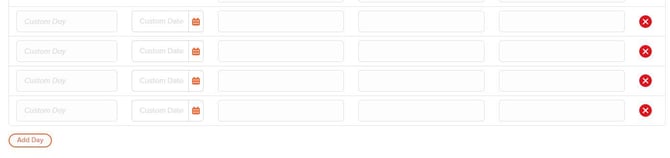
Step 6: Fill in the desired Holiday hours. At the bottom, click "Add Day" for more fields.
Step 7: Click the “Save PTO” button near the bottom.
Step 8: Confirm additions by clicking “Time Cards” at the top of the screen and choose the appropriate pay period to view.
Step 9: Verify the successful addition of holiday hours under the respective dates in time cards.
What to Expect
In the "time cards" section, you will find a note on the date when PTO was added. It will appear as follows: "This time card entry was bulk added on [Date and Time]." This note helps you identify the PTO entries that were added using the Bulk PTO feature. If you have previously added Bulk PTO hours using this page and need to make corrections, please keep the following in mind:
- Overwriting PTO Hours: If you add Bulk PTO hours again for the same days, the PTO for the selected employee/date will be overwritten with the new PTO hours specified during the second entry.
- Avoid Using 0 Hours: Please note that you cannot use "0" for the amount of time when making corrections.
Delete Paid Time Off Entry
Step 1: Go to the "Time Cards" section.
Step 2: Delete the PTO entries for the respective employee(s) on the specific days.
Q&A
Q: Can I enter in more than one year at a time of holidays?
A: Yes, you can enter the next year in advance by using the years drop down and selecting a future year to fill out.
Q: Do holidays show up in the PTO Calendar?
A: Yes, all bulk added entries will still show in the PTO Calendar.
Q: Can I remove the bulk entries all at once?
A: No, but you can override/rewrite the number of hours in the bulk add screen. If the time cards already exist and you need to update the number of hours you can simply go back into the bulk add area, enter the new number and save.
Q: What if a holiday falls on the weekend and we observe it on a Monday or Friday?
A: In the bulk add grid there will be 3 custom data fields that you can enter in the date for the observed Holiday and save.
Q: What if a holiday worked is considered overtime or double time, can that be automatically set up?
A: In the bulk add the screen on step 3 simply click the gold “Show All” button, this will populate additional fields like OT1 and OT2. If you know the employee will work this Holiday you can enter in the number of hours they will receive that is overtime or double time and save.
Q: Where do I view the holidays I entered to make sure they are all accounted for?
A: To view the holidays you bulk added you can go to the PTO calendar for a quicker reference of the holiday's employees are receiving. We currently do not save this information on the bulk add screen itself.