
Overview
Punch locations are a way to ensure your employees are onsite. When you enable punch locations, you can create a geofence at your work site. Currently, punch locations can only be enabled by an administrator. Here’s how to set it up.
Punch Location Geofencing
web:start
Add Locations
Step 1: Log in and click “Settings” at the top of the screen.
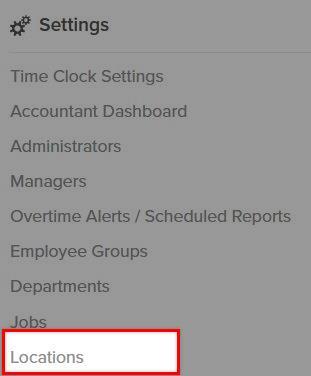
Step 2: Select “Locations,” then “New Locations.”
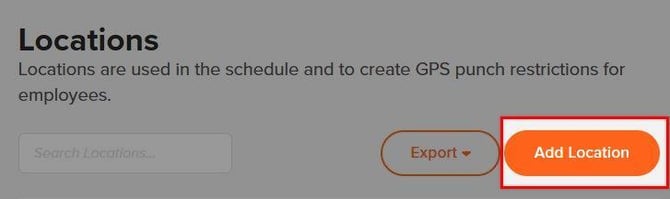
Step 3: Name your location (i.e., “Coffee Shop”).
Step 4: Toggle “Create Mobile GPS Punch Location” on.
Step 5: Enter the location’s street address (or its latitude and longitude).
Step 6: Set the proximity to create a geofence around the location.*
Step 7: Click “Save.”
Archiving Locations
Step 1: Log in and click “Settings” at the top of the screen.
Step 2: Select “Locations.
Step 3: Click the red icon on the right of the edit pencil.
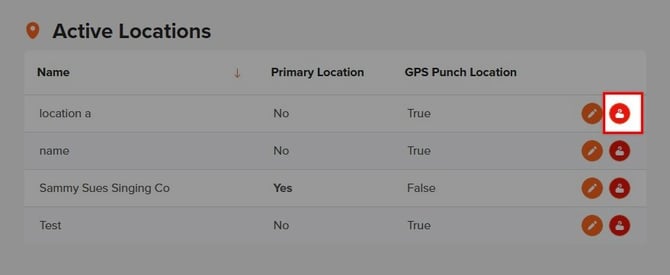
Step 4: Your location will now be moved to the Archived Locations area.
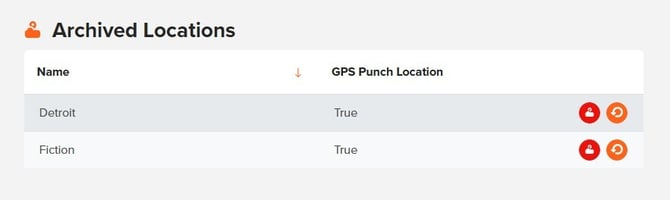
Restoring or Deleting an Archived Location
Step 1: Click the orange icon to the right of the red icon.
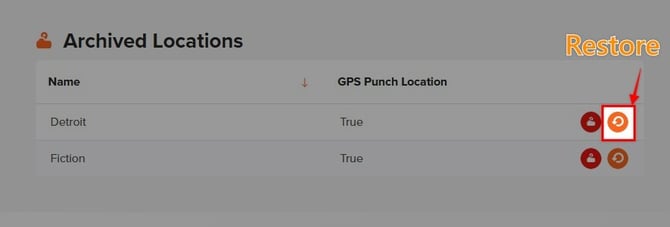
Step 2: You archived location will automatically move up into the active locations.
Step 3: To delete and archived location click the red icon.
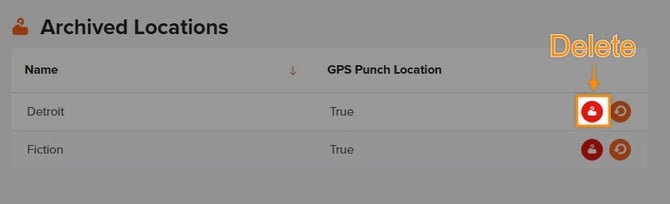
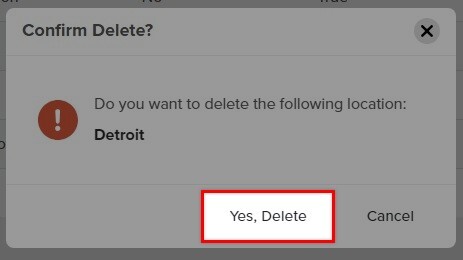
Step 4: Confirm delete.
Export Locations
Step 1: At the top of locations click export.
Step 2: Choose your export type: (Excel, PDF, CSV).
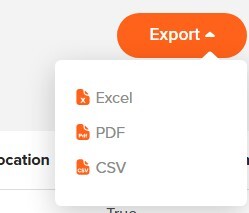
Step 3: Download and save your file.
Step 4: Below is a sample PDF report. 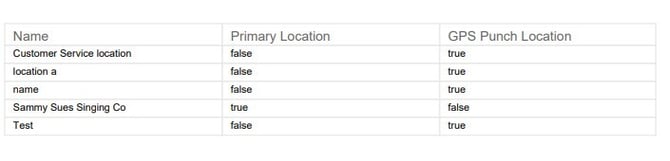
web:end
app:start
Add Locations
Step 1: After opening the app, tap on your initials and navigate to “Settings.”
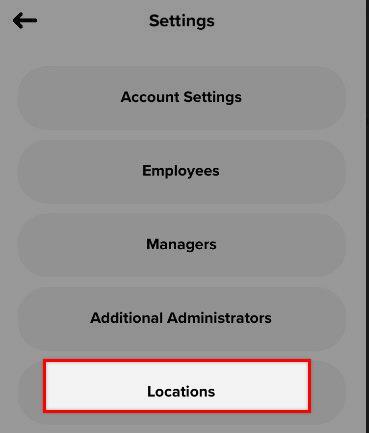
Step 2: Tap on “Locations.”
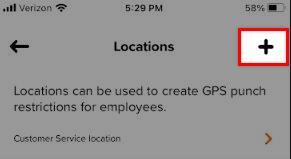
Step 3: Click the + icon to add a new location.
Step 4: Name your location (i.e., “Coffee Shop”).
Step 5: Toggle “Create Mobile GPS Punch Location” on.
Step 6: Enter the location’s street address.
Step 7: Set the proximity to create a geofence around the location.*
Step 8: Click “Save.”
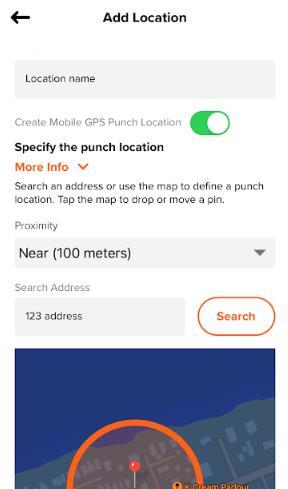
Note: Setting higher proximity may resolve the issue if employees have trouble clocking in onsite due to GPS interference.
What to Expect
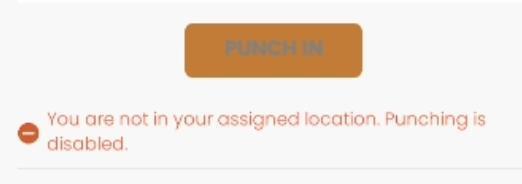
If an employee is not within the designated proximity, they will not be able to clock in or out. If they are still able to do so, please ensure that their mobile settings are configured to "Record GPS Coordinates, Disable Punch if Not at GPS Location(s)". In case the employee is not at the designated location, they will receive a message indicating so.
A company location is necessary for tax purposes because it helps determine:
-
Tax Jurisdiction: Different regions (cities, states, or countries) may have specific tax rates, rules, and obligations that apply to your business.
-
Payroll Taxes: The location dictates the calculation of employee payroll taxes, including income tax withholding, unemployment taxes, and other local taxes.
-
Business Taxes: The company location impacts corporate tax rates, sales tax collection, and reporting requirements.
-
Regulatory Compliance: Certain permits, licenses, and compliance requirements are location-specific.
-
Apportionment of Income: For businesses operating in multiple locations, the company location helps allocate taxable income correctly across jurisdictions.
Adding Work Location
Step 1: Click “Settings” at the top of the screen.Step 2: Select “Locations,” then “New Locations.”
Step 3: Name your location (i.e., “Coffee Shop”).
Step 4: Toggle “Address location” on.
Step 5: Optionally, toggle "Create GPS mobile location" on. GPS locations are most effective when used to restrict employee clock-in and clock-out to specific locations.
Step 6: Enter the location’s street address (or its latitude and longitude).
Step 7: Check the box for company primary location, if this is your companies main location.
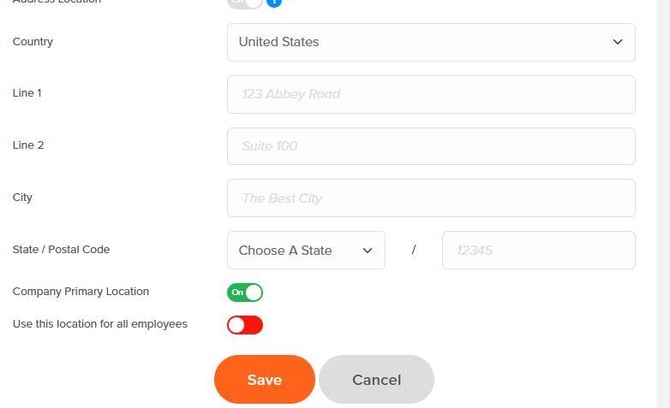
Step 8: Toggle use this location for all employees on, if this address applies to all staff.
Step 9: If location is used for GPS restrictions, set the proximity to create a geofence around the location.*
Step 10: Click “Save.”
app:end
What to Expect
GPS Restrictions
If an employee is not within the designated proximity, they will not be able to clock in or out. If they are still able to do so, please ensure that their mobile settings are configured to "Record GPS Coordinates, Disable Punch if Not at GPS Location(s)". In case the employee is not at the designated location, they will receive a message indicating so.
Primary Work Location
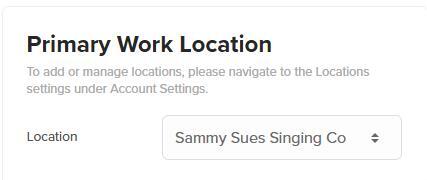
You will now be able to view the employees primary work location in their profile under location and security.
The primary work location just indicates the office location the employee is employed at. This is collected to ensure payroll tax accuracy for customers utilizing OnTheClock Payroll.
Q&A
Q: How can I see the GPS coordinates on the map?
A: We will display the "name" when you hover the proximity bubble. You can name the location and address, which will appear on your punch map.
Q: I don't know the latitude and longitude of the location.
A: That's okay. You can enter the address in the map's search bar, and we will fill in the coordinates for you.
Q: Will my employee automatically clock in or out when entering or leaving the geofence?
A: No — currently we do not offer this capability.
Q: Can my employee switch jobs when not at the authorized location?
A: Jobs are not tied to the geofence restriction.
Q: I'm receiving a message that says I'm not at the authorized location, but I am.
A: First, check that the location is entered correctly in the settings. If the problem persists, you can clear the cache on the app for stored locations.