
Overview
OnTheClock’s Paid Time Off (PTO) Calendar makes it easy to quickly view employees’ requested days off. Currently, this feature is only available when logged in as an administrator or manager via browser.
Setup
View Calendar
Step 1: Navigate to “PTO,” then “PTO Calendar.”
Step 2: Under “Status,” check “Pending.”
Step 3: Set the rest of your filter options, if needed.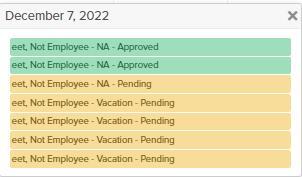
Step 4: Click the request to review.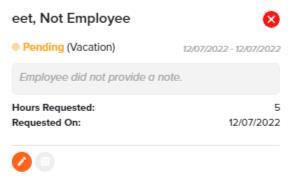
Step 5: Click the edit icon at the bottom left.
Step 6: Review the request.
Step 7: If needed, add notes to the employee and manager.
Step 8: Click “Approve” or “Deny” to complete the request.
Note: If you hit “Cancel,” no changes will be saved, and the PTO request will remain pending.
What to Expect
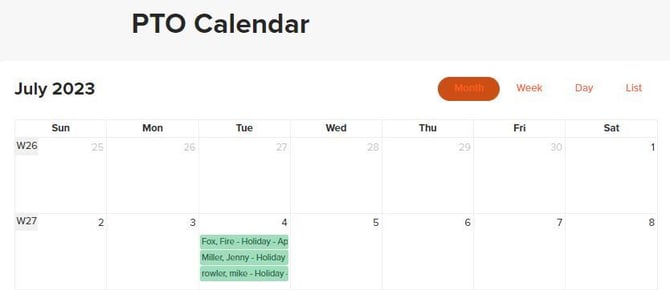
To view the PTO calendar, navigate to “PTO,” then select “PTO Calendar.” From there, you can filter the PTO Calendar view by date, employee, department, time off type, and request status.
Q&A
Q: Can employees view the PTO calendar?
A: No — at this time, the PTO calendar is only viewable to administrators and managers.
Q: Will time off on the PTO calendar be reflected on the employee schedules?
A: No — the PTO calendar and schedule are separate.
Q: What does the red text with an asterisk mean?
A: This text provides additional information about the PTO request’s origin — for example, if the request was added in bulk, or manually added to time cards without a submitted request.