
Overview
Permanently deleting an employee will delete all stored information about the employee inside of OnTheClock. Performing a permanent delete means you can no longer retrieve records or data from the system. OnTheClock or administrators cannot undo the permanent deletion.
The action of permanently deleting an employee should only be completed when you have done the following:
- Downloaded all time card records.
- Downloaded all PTO reports.
You may also use this when a past employee requests their information be deleted from the system to comply with CCPA laws.
Setup
Permanently Delete an Employee
Follow the steps below to deactivate and permanently delete employees. If you already deactivated the employee skip to Step 5.
Step 1: Log in and navigate to “My Team" then click "Team Directory"
Step 2: On your Team Directory list, locate the employee you wish to deactivate.
Step 3: Click the red circle with an X next to the employee’s name.
Step 4: Confirm the delete and accept.
Step 5: Filter your "status" to "Inactive" and find the recently delete employee.
Step 6: On the right hand side of the employee you wish to permanently delete and click "Delete Forever"
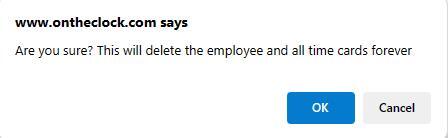
Step 7: You will be asked to confirm deletion, accept the message that time cards will be deleted forever.
Q&A
Q: Can I restore this employee if I permanently delete?
A: No — this action cannot be undone. Once you perform this action OnTheClock no longer has any data related to this employee.
Q: What is CCPA?
A: Check out more about CCPA click here