
Overview
Attachments are a great way to supplement a shifts work with photos. With this feature you can add up to four images for each clock in and out and employee makes.
My Camera/Webcam is not Working
Make sure to click “allow” when asked to access the camera/webcam when using OnTheClock. If you click “deny,” go into your browser’s settings and update the camera permission for the website. Closeout of any other applications, browsers/tabs, or devices that may be using the camera.
Feature Limitations
- Internet Explorer is not compatible with the attachments feature.
- If you utilize the OnTheClock Fingerprint reader software, employee will not be able to upload any attachments because IE is not compatible.
- Accepted file formats for upload include JPEG, PNG, and GIF.
- Reports will not include any time card attachments. You will need to view these on the Time cards page.
- Currently, uploading attachments cannot be made a requirement for the employee to clock in/out.
- Accepted file formats for upload include JPEG, PNG, and GIF.
web:start
Allow Attachments on Time Cards for Employees
Step 1: Log in as an administrator.
Step 2: Go to Settings.
Step 3: Navigate to Time Clock Settings.
Step 4: Scroll down to "Photo Attachments."
Step 5: Select "On" or "On, Camera only."
Step 6: Click "Save Settings."
Editing or Adding Attachments
Step 1: Log in as the admin or manager.
Step 2: Click the Time Cards icon.
Step 3: Click the paperclip icon next to the desired time entry to view attachments.
Step 4: To view a full-size of the attachment, click the magnifying glass.
Step 5: To remove an attachment, click the red X.
Step 6: Click the "+" symbol to add a new attachment.
Step 7: Browse for a file or take a new photo.
Step 8: Click "Save" to save the changes.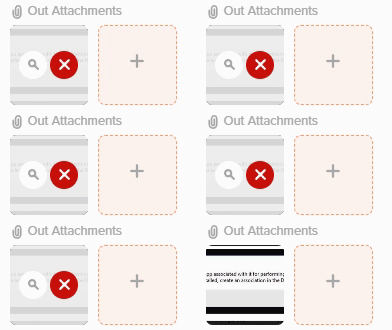
What to Expect
Viewing Attachments in Time Cards
Step 1: Log in as the admin or manager.Step 2: Click the Time Cards icon.
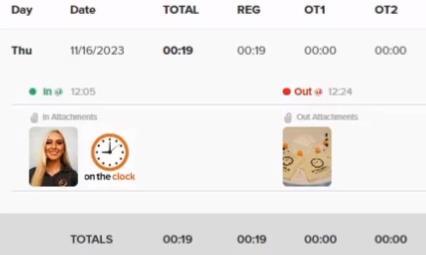
Step 3: Locate the paperclip icon displayed on the left of the time card.
Step 4: Click the paperclip icon to view details of the attachments.
Step 5: The attachments will be displayed under "in" or "out" to indicate the punch it was for.
web:end
app:start
Editing or Adding Attachments
Step 1: Log in as the admin or manager.
Step 2: On the Dashboard, tap "Time card" under "Hours Worked."
Step 3: Tap an employee's time card to view.
Step 4: Tap the entry you want to review.
Step 5: In the time card entry, tap the hours listed under "Punch Log."
Step 6: Tap the photo to view the full image.
Step 7: Tap "Close" to exit.
Step 8: To remove the photo, tap "Delete."
Step 9: Save the changes.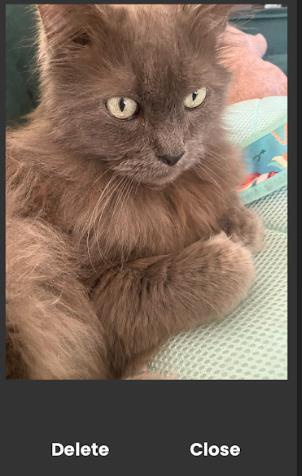
What to Expect
Viewing Attachments in Time Cards
Step 1: Log in as the admin or manager.
Step 2: Tap "Time card" in the "Hours Worked" section.
Step 3: Tap on an employee's time card to view.
Step 4: Tap the entry you want to review.
Step 5: In the time card entry, tap the hours listed under "Punch Log."
Step 6: Attachments will be displayed under each "In" and "Out" to indicate which punches the attachment was for.
Step 7: Tap on the photo to get the full image display.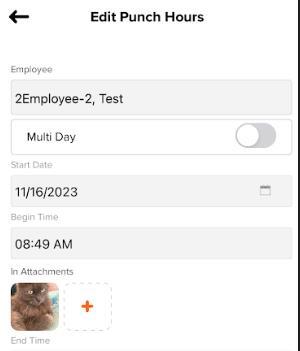
app:end
Q&A
Q: Can I download attachments?
A: You can open the image and save it to your PC.
Q: Can I require an attachment for clock in?
A: No —currently you cannot require an attachment to be added before clock in/out for an employee. but you can adjust the settings so the image has to be taken live and not submitted from the photo galary on a device.