
Overview
Communicate with your team by sending messages through OnTheClock.
Setup
web:start
Create and Send a Live Message
Step 1: Log in as an admin, manager or employee.
Step 2: Click on the chat icon in the upper right corner.
Step 3: Click the “New” button to begin a message.
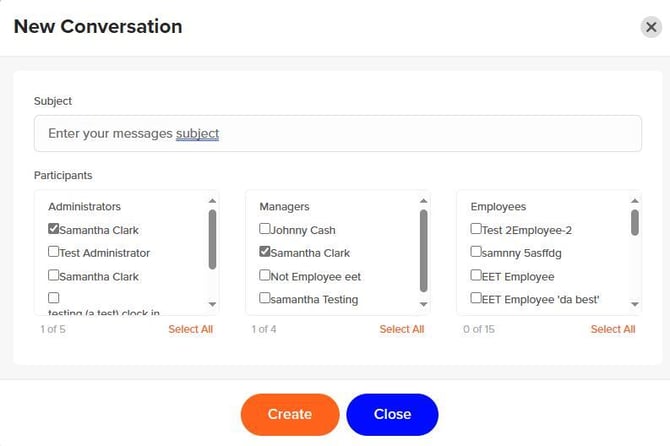
Step 4: Enter a “Subject” and select the “Participants” to receive your message.
Step 5: Click “Create.”
Step 6: Enter the message and click “Send.”
View and Reply to a Live Message
Step 1: Log in as an admin, manager, or employee.
Step 2: Click the chat bubble icon at the top-right, displaying a red badge indicating unread messages are available.
Step 3: Click “View.”
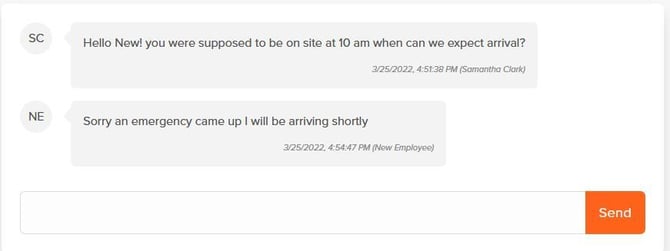
Step 4: Enter the response and click send.
Step 5: The "new" tag disappears once viewed, and the badge will no longer display.
Notifications for New Messages
No email or text alerts are sent to staff, notifying them of new messages. A new message can be identified by the tag “new” by the date.

web:end
app:start
Create and Send a Live Message
Step 1: Log in as an admin, manager or employee.
Step 2: Tap the chat bubble in the top right of the screen.
Step 3: Tap the “+” button to begin a new message.
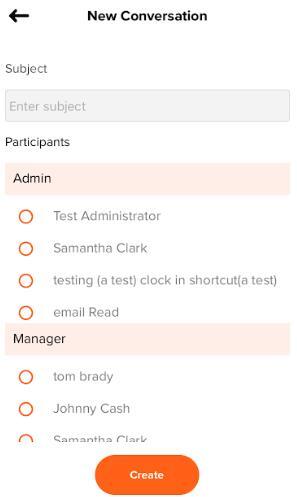
Step 4: Enter the “Subject” and choose your “Participants.”
Step 5: Enter the message and tap “Send.”
View and Reply to a Live Message
Step 1: Log in as an admin, manager, or employee.
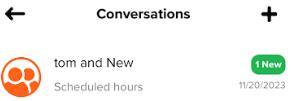
Step 2: The chat icon will display a red badge with a number to indicate unread messages.
Step 3: Click the chat bubble icon.
Step 4: Select the desired conversation.
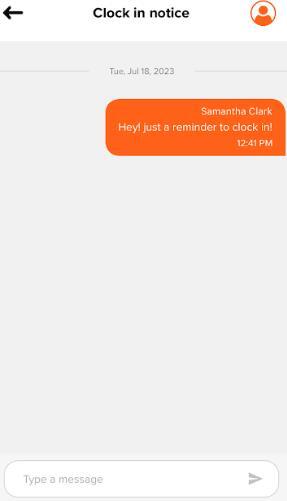
Step 5: Enter the response and click send.
Step 6: The "new" tag disappears once viewed, and the badges will no longer display.
Notifications for New Messages
No email or text alerts are sent to staff, notifying them of new messages. A new message can be identified by the tag “new” on your app'. If the app is closed or running in the background when a new message is sent, you will receive a push notification from OnTheClock. Please check your device’s notification settings for the OnTheClock app to allow for this.
app:end
Q&A
Q: Can we download all the messages?
A: Currently, we do not have a way to download the messages, but all the messages stay in the system.
Q: Can I turn off the capability for employees to message each other?
A: No, as of right now messaging is open for everyone to communicate with one another.