
Overview
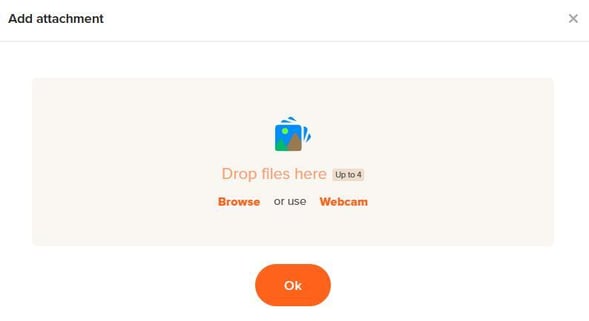
Permissions set by an administrator may allow for an employee to add attachments to a time card. They may be able to browse for photos to add at any time or they may only get the option to a photo at the time of clock in/out. Up to four photos can be added per clock in and out.
web:start
Step 1: Log in using your username/password.
Step 2: Tap the square with the “+” icon.
Step 3: Take a photo with the camera/webcam or click "browse" to attach a file.
Step 4: If using the camera, click "take a photo"; if browsing, upload the desired photo.
Step 5: Click “OK” to accept the selected photo.
Step 6: Finally, click "punch in/out" to complete the process.
Editing Attachments
Step 1: Log in using your username/password.
Step 2: Click “My Time Card.”
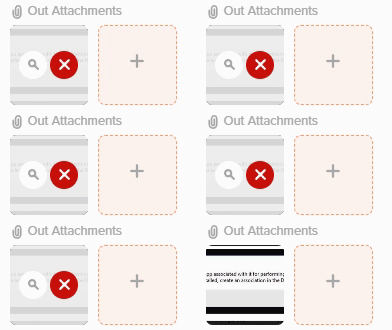
Step 3: Click on the entry with the attachment that needs to be updated.
Step 4: Move your cursor over the image and click the red X to remove it.
Step 5: Click in the blank box with the "+" symbol to upload a new image.
Step 6: Save the changes
What to Expect
Viewing Attachments
Step 1: Log in using your username/password.
Step 2: Click “My Time Card.”
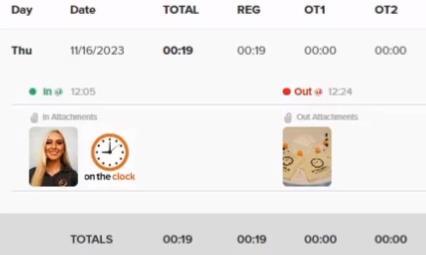
Step 3: Photo attachments will be displayed under the "in" and "out" times.
web:end
app:start
Adding an Attachment at Clock In/Out
Step 1: Log in using your username/password.
Step 2: Tap the "Punch in/out" button.
Step 3: Tap the square with the “+” icon.
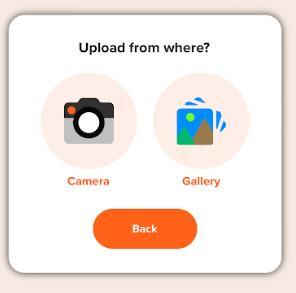
Step 4: Take a photo with the camera/webcam or click "browse" to attach a file.
Step 5: If using the camera, click "take a photo"; if browsing, upload the desired photo.
Step 6: Click “OK” to accept the selected photo.
Step 7: Finally, click "punch in/out" to complete the process.
Editing Attachments
Step 1: Log in using your username/password.
Step 2: Tap "Time cards."
Step 3: Tap on "Details.”
Step 4: In Time Card Detail, tap a time card to view.
Step 5: In the Time card Entry, tap the hours under "Punch Log."
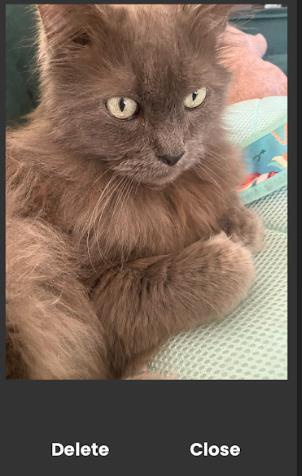
Step 6: Tap the photo to get the full image display.
Step 7: Tap "Close" to exit your view or tap "delete" to remove the attachment.
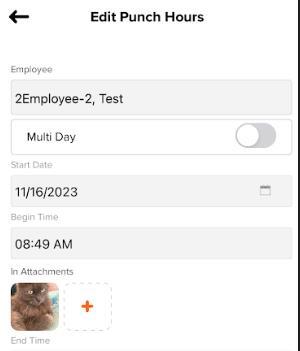
Step 8: Tap the "+" symbol to upload a new image.
Step 9: Save the changes.
What to Expect
Viewing Attachments
Step 1: Log in using your username/password.
Step 2: Tap "Time cards."
Step 3: Tap the entry you wish to view.
Step 4: Inside the entry, tap "punch" under punch log.
Step 5: Under punch hours, you will see all your attachments.
app:end
Q&A
Q: How do I download my attachments?
A: You can click on the pictures and then save them to the PC.
Q: I'm not able to edit my attachments or remove them.
A: If you cannot make edits to the attachments or delete them this may be due to your permission level and you will want to contact your administrator.