
Overview
This guide walks you through how to connect your OnTheClock account to QuickBooks Online. Once connected, your payroll and time tracking data can sync automatically for accurate pay runs and streamlined accounting.
Before You Begin
Make sure you are logged in as an Administrator on your OnTheClock account. Only administrators can manage integrations.
Connect to QuickBooks Online
Step 1: Log in to your OnTheClock account.
Step 2: Click Payroll.
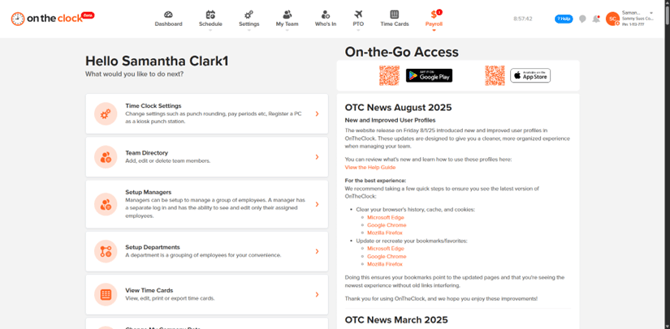
Step 3: Click Configuration under the Payroll section.
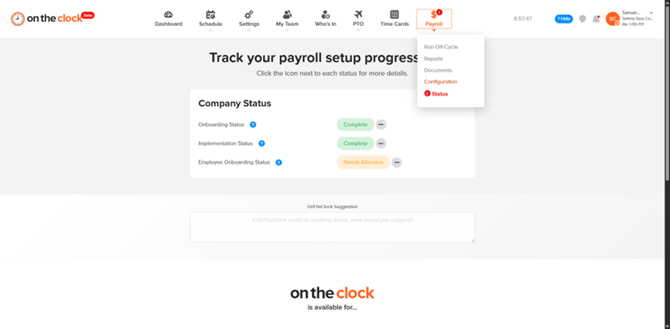
Step 4: Select Accounting Setup.
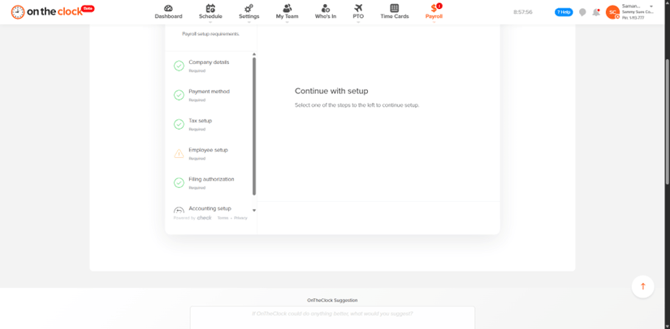
Step 5: Choose QuickBooks Online.
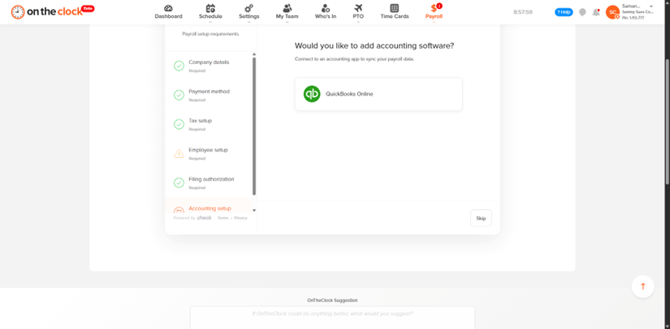
Step 6: Click Connect to start the QuickBooks authorization flow.
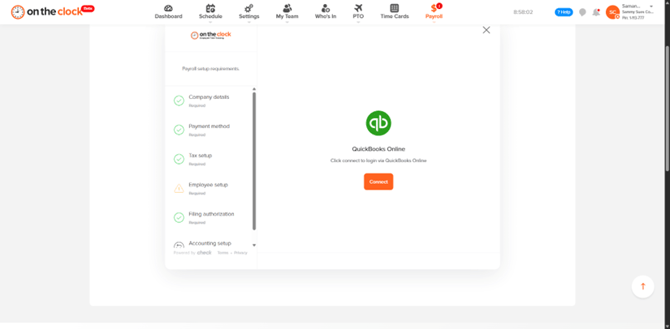
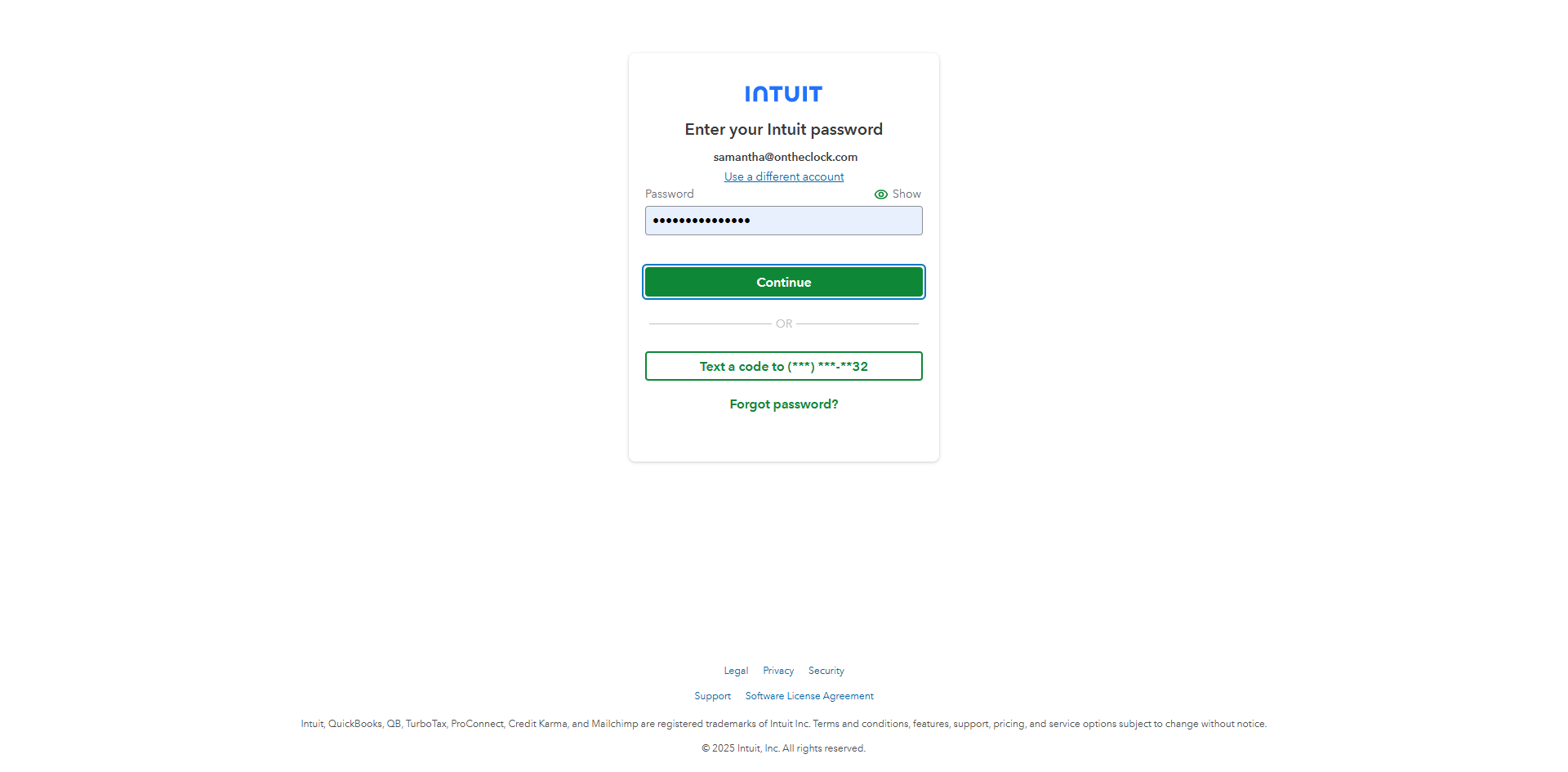
Step 7: Sign in to your QuickBooks Online account. Enter your QuickBooks credentials when prompted. You’ll be asked to authorize OnTheClock to connect.
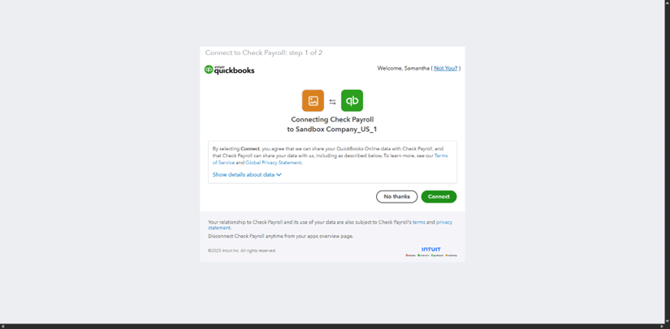
Step 8: Select your QuickBooks company and click Connect to authorize access.
Step 9: Once connected, return to OnTheClock and confirm your QuickBooks connection.
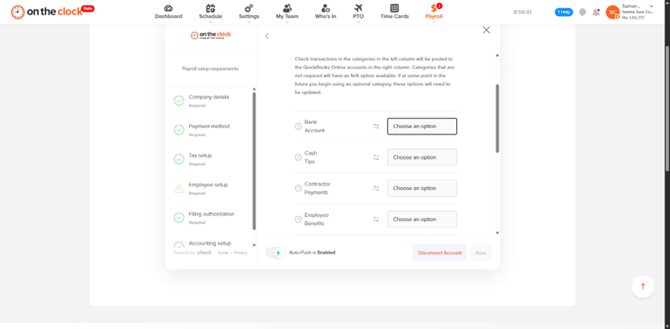
Step 10: Map your QuickBooks accounts to OnTheClock payroll categories. For example, assign your “Wages and Salaries” account to employee earnings.
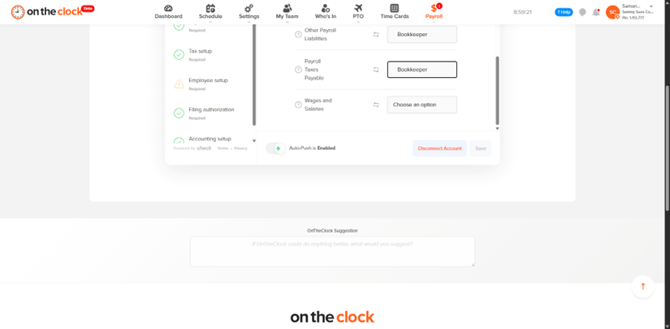
Step 11: Click Save to finish setup.
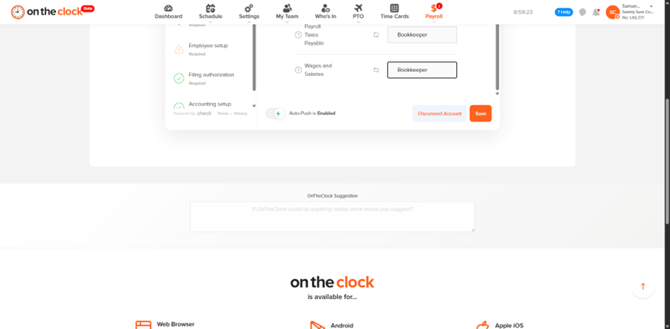
Step 12: Click Return to Main Menu to complete the setup.
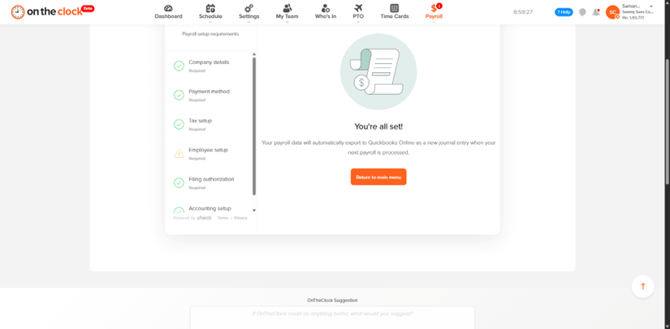
After saving, your OnTheClock and QuickBooks accounts will be connected. You can now export payroll data directly from OnTheClock into QuickBooks for faster, error-free accounting.
Frequently Asked Questions
Who can connect OnTheClock to QuickBooks Online?
Only account Administrators can connect or manage the QuickBooks integration. Managers and employees do not have access to this feature.
What type of QuickBooks account is required?
You need a valid QuickBooks Online account with administrator access. The integration does not currently support QuickBooks Desktop or QuickBooks Self-Employed.
How often does OnTheClock sync with QuickBooks?
Data is synced each time you send payroll data or manually export time card information. The connection stays active until it’s manually disconnected.
How do I disconnect QuickBooks from OnTheClock?
Go to Payroll > Configuration > Accounting Setup and click “Disconnect QuickBooks Online.” You can reconnect at any time.
What data is sent to QuickBooks Online?
OnTheClock exports employee hours, earnings, and pay items that are mapped to your QuickBooks accounts. PTO, overtime, and other pay types are also included if configured.