
Overview
When you enable the time card audit trail, you can view changes made to time cards in the raw activity log.
Setup
Step 1: Log in as an administrator via browser.
Step 2: Navigate to “Settings,” then “Time Clock Settings.”
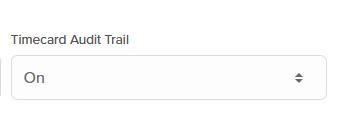
Step 3: Under “Options,” ensure the time card audit trail on.
Step 4: Click “Save Settings.”
Download Audit Report
Step 1: Log in as an administrator or manager via browser.
Step 2: Navigate to “Time Cards.”
Step 3: Click “More” (next to the box labeled “Options).
Step 4: Click “Audit Log Export” to begin downloading a PDF of the audit log.
Step 5: Locate your file on your computer and open it.

Viewing Changes
Step 1: Log in as an administrator via browser.
Step 2: Navigate to “Settings,” then “Time Clock Settings.”
Step 3: Click “View Raw Activity Log.”
Raw Activity Log Export
The Raw Activity Log Export allows administrators to download a complete history of account activity in OnTheClock. This report provides visibility into who performed actions such as log-ins, punches, time card edits, PTO adjustments, and employee record updates. It is an essential tool for audits, compliance, and troubleshooting.
Note: Only Administrators have access to this export.
How to Access the Raw Activity Log
Step 1: Log in to your OnTheClock account as an Administrator.
Step 2: Navigate to Settings > Time Clock Settings.
Step 3: Stay on the Basic Settings tab.
Step 4: Scroll to the bottom of the page.
Step 5: Click Raw Activity Log (next to the Save button).
Step 6: Use the Export button at the top-right of the screen to select your preferred file format: PDF or CSV.
Filter Your Results
Before exporting, you can use search filters to narrow down the activity displayed.
Punch Date: Select a start and end date range.Manager / Employee: Choose a specific person or leave set to “All.”
Activities: Check one or more of the following options:
Auto Punch In/Out
Employee Record Updates & Deletes
Website Log Ins
SMS (text) Messages
Time Card Settings Updated
Punch In/Out
Email Messages
After setting your filters, click Apply Filters to generate the results.
Sample Reports
PDF Export Example: Displays a formatted, printable summary with columns for date, time, user, activity, and IP address.
CSV Export Example: Provides structured data for deeper analysis in Excel, Google Sheets, or Power BI.
Business Use Cases
Audit Trail: Track all administrator and employee actions for compliance verification.
Security Review: Identify unfamiliar IP addresses or login attempts during off-hours.
Policy Enforcement: Confirm that punch and time-card update procedures are being followed.
Payroll Verification: Cross-check employee updates before processing payroll.
Support Troubleshooting: Validate whether changes were system-generated or user-initiated.
Q&A
Q: What does the audit log record?
A: The audit log will show any changes made to a time card entry, along with who made the changes. Additionally, the audit log will show changes to attachments and deletions of time card entries.
Q: What can be reviewed in the raw activity log?
A: The raw activity log records who added or edited a punch, punches from deactivated employees, and modifications to PTO. Additionally, if you have punch rounding enabled, the log will show the real-time of the punch. Finally, you’ll see any SMS messages or email alerts sent to employees.