
Overview
Punch rounding policies automatically adjust an employee’s punch time. Punch rounding is meant to simplify payroll processing and is regulated by federal law. Your OnTheClock account offers 6 and 15-minute punch rounding options. Here’s how to set it up.
Setup
web:start
Set Punch Rounding Rule
Step 1: Log in as an administrator.
Step 2: Navigate to “Settings,” then “Time Clock Settings.”
Step 3: Under “Options,” set your punch rounding rule.
Step 4: Click “Save.”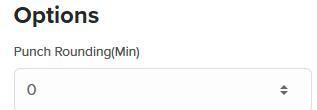
web:end
app:start
Set Punch Rounding Rule
Step 1: Log in as an administrator.
Step 2: Tap on your initials in the upper left corner.
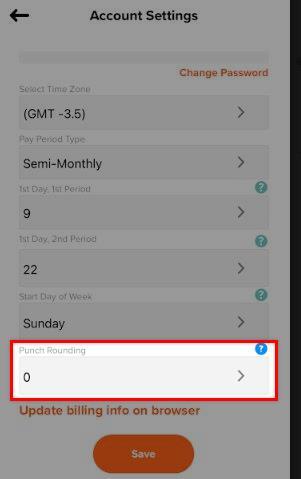
Step 3: Navigate to “Settings,” then “Account Settings.”
Step 4: Set your punch rounding rule.
Step 5: Click “Save.”
app:end
What to Expect
0 punch rounding gives exact clock in and out times.
Examples are in this format for our examples. Hour: Minutes: Seconds 7:56:59
6-minute punch rounding works like this:
Employee punches in at 7:57:00 thru 8:03:00 it rounds it to 8:00
Employee punches in at 7:56:59 it rounds to 7:54
Employee punches in at 8:03:01 it rounds to 8:06
15-minute punch rounding works like this:
Employee punches in at 7:52:30 thru 8:07.30 it rounds to 8:00
Employee punches in at 7:52:29 it rounds to 7:45
Employee punches in at 8:07:31 it rounds to 8:15
Q&A
Q: How does 6-minute punch rounding calculate?
A: The 6-minute punch rounding rule rounds your punches to the nearest 10th of an hour. Learn more about punch rounding on our blog.
Q:How does 15-minute punch round calculate?
A: The 15-minute punch round rule rounds your punches to the nearest quarter of an hour. Learn more about punch rounding on our blog.