
Overview
You can customize the way time is displayed in your OnTheClock account. View time in a 24-hour format (a.k.a. military time), or switch from a decimal format to hours and minutes (i.e., HH:MM). Here’s how to set it up.
Setup
Step 1: Log in as an administrator via browser.
Step 2: Navigate to “Settings,” then “Time Clock Settings.”
Step 3: Click on the “Advanced Settings” tab.
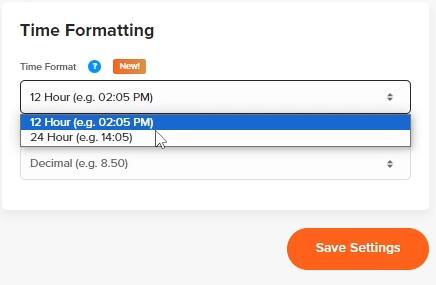
Step 4: Under “Time Formatting,” select your preferred format for time and hours.
Step 5: Click “Save.”
What to Expect
Time Formatting in HH:MM

Time Formatting in Decimal

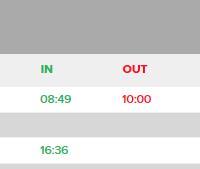
24 Hour Formatting (Military)
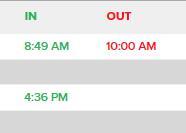
12 Hour Formatting
Q&A
Q: Why do I not see HH:MM displayed on my app?
A: HH: MM (Hour: Minute) will only show on the website currently.
Q: When I download the CSV file, why is it still displaying decimal hours?
A: The CSV will display in decimal format because Decimal format allows for a more precise and accurate representation of hours worked than Hours and Minutes. Payroll providers and services, like QuickBooks Desktop, require that timesheets be in the most precise format, making it easy for you to use our CSV file for integration for payroll processing.