
Overview
The Overtime Report helps you understand where overtime is occurring, how much overtime is being worked, and the potential cost impact.
Use this report to monitor trends, identify risk areas, and manage labor more effectively.
Where to Find It
- Log in as an Admin or Manager
- Navigate to Reports
- Select Overtime Report
How to Run the Overtime Report
- Log in to your account as an Admin or Manager
- Click Reports in the top navigation
- Select Overtime Report
- Choose a date range or pay period
- (Optional) Apply filters such as Department
- Review overtime hours and totals by employee
- Save your view to revisit later or export the report to share
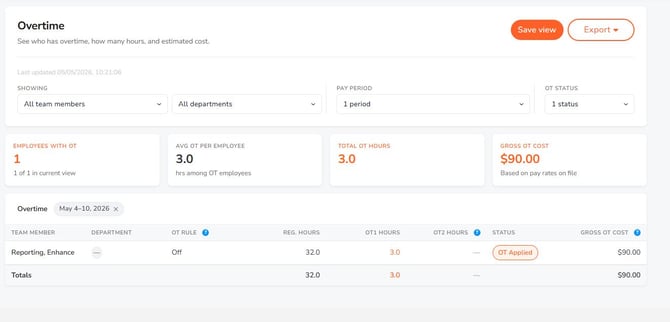
Tip: Use pay periods when reviewing overtime for payroll.
What This Report Shows
The Overtime Report provides a breakdown of overtime by employee based on your account’s configured overtime rules.
You’ll see:
- Overtime hours per employee
- Total overtime for the selected date range or pay period
- Department-level breakdowns (if used)
- Average overtime and total overtime cost (if pay rates are enabled)
How to Use the Report
1. Select a Date Range or Pay Period
Choose the time frame you want to analyze:
- A specific date range
- A single pay period
- Multiple pay periods
2. Apply Filters
Refine the report to focus on specific groups:
- Department (if applicable)
- Employee (if available)
Tip: Use department filtering to quickly spot where overtime is concentrated.
3. Review Overtime Totals
Scan for:
- Employees with high overtime hours
- Total overtime across the company or department
- Patterns across the selected time period
4. Identify Trends and Risks
Use the report to answer:
- Who is consistently working overtime?
- Which departments are generating the most overtime?
- Is overtime increasing over time?
Understanding the Data
Overtime Is Based on Your Rules
Overtime calculations are determined by the rules configured in your account.
This may include:
- Weekly overtime (e.g., over 40 hours)
- Daily overtime (if configured)
- Other defined overtime rules
If your totals don’t match expectations, review your overtime settings.
Overtime Cost
If pay rates are enabled:
- The report may include estimated overtime cost
- This helps with labor cost analysis and forecasting
Department Breakdown
If departments are assigned:
- Overtime can be grouped by department
- Useful for identifying operational inefficiencies
Payroll Review
Quickly confirm total overtime before running payroll.
Labor Cost Control
Identify where overtime is increasing and take action:
- Adjust schedules
- Reassign work
- Reduce unnecessary overtime
Compliance Monitoring
Monitor overtime to help stay aligned with company policies or labor regulations.
What to Expect
- Data updates based on your selected date range or pay period
- Results reflect recorded time cards
- Overtime totals depend on your configured rules
- Some fields (like cost) only appear if wages are entered and permission is granted
Limitations
- This is a pre-built report (not customizable)
- Edits must be made from the Time Cards page
- Accuracy depends on your configured rules and recorded time
Access and Permissions
- Admins: Full visibility
- Managers: Limited to assigned employees and pay rate permission