
Overview
Learn how to export your OnTheClock time cards and import them into Paychex Flex for payroll processing.
Setup
Set Payroll Code for Paychex
Step 1: Log in as the administrator.
Step 2: Click “Settings" at the top of the screen.
Step 3: Click on “Account Info.”
Step 4: Enter your Customer ID in the Payroll Code field.
Step 5: Click “Save”.
 '
'
Mapping Pay Components Field
Step 1: Log in as the administrator.
Step 2: Click “Settings" at the top of the screen.
Step 3: Click on "time clock settings" then "Advanced."
Step 4: Under time card columns rename your export fields to match what your Paychex Flex pay codes are.
Step 5: Click Save Settings.
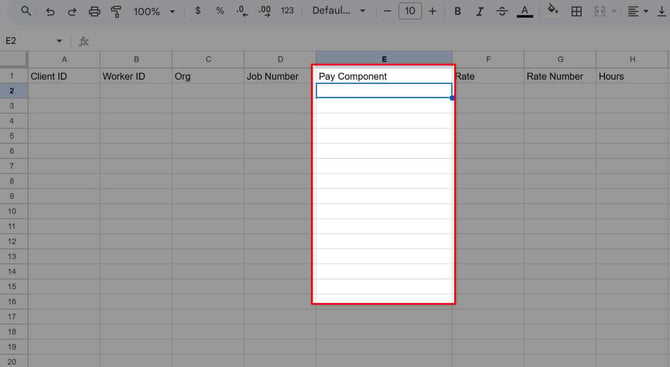
When you export the Paychex Flex report, your pay components field should reflect the changes made under the time card columns.
Export Your Time Cards
Step 1: Log in as the administrator or manager.
Step 2: Click “Time Cards” at the top of the screen.
Step 3: Click on “More”, and then “Paychex Flex Export”.
Step 4: Import into Paychex Flex.
After downloading the Paychex flex export, you are now ready to upload the file into your Paychex payroll account.
Q&A
Q: I received an error message, "Please set the payroll code in account settings to your Paychex Client ID." What do I do now?
A: To set your payroll code, you will want to go to Settings, then choose Account Info from the drop-down menu. There, you may enter the Payroll Code. Press Save afterwards.
Q: Where is my client ID?
A: Your client ID should be in your paychex flex account. copy and paste this to add in OnTheClock.