
Overview
As an administrator, you can quickly determine whether an employee requesting PTO may use it by approving, denying, or marking it as unpaid. If a mistake is made during the approval, you can scroll to the bottom to learn how to undo an approved request.
web:start
Approve or Deny a PTO Request
Step 1: Log in as the administrator or manager.
Step 2: Click on the PTO icon.
Step 3: Select PTO Requests.
Step 4: Scroll to active requests.
Step 5: Click the pencil icon to open the request.
.jpg?width=631&height=232&name=PTO%20Requests%20list%20page%20(NEW).jpg)
Step 6: Review the date, request date, and hours per day.
Step 7: Optionally mark it as unpaid or leave a note.
Step 8: Negative hours trigger a warning message that you can bypass to approve or deny.
Step 9: Approved hours appear on the time card and are deducted from the balance.
Step 10: Employees are alerted via email or SMS.
Mark a Request as Unpaid
Step 1: This action must be done in a web browser. App users should tap their initials and launch in a browser.
Step 2: Marking a PTO request as unpaid does not deduct from the employee's PTO balance.
Step 3: In the request form, under “Please review the hours below for accuracy,” check the box for UnPaid Time.
Step 4: Total hours will go blank, and the PTO balance remains unchanged.
Step 5: Click Approve.
Undo the Approval of a PTO Request
Step 1: Log in as the administrator or manager.
Step 2: Click PTO.
Step 3: Select PTO Requests.
Step 4: Scroll to the bottom.
Step 5: Select the Employee and the status Approved.
Step 6: Click the pencil icon.
Step 7: Select Undo.
Step 8: A message will confirm that time card entries will be deleted. Click OK to proceed.
Exporting PTO Requests
The PTO Requests page displays current employee requests for vacation, holidays, and other time off. You can also export these requests into a CSV file for tracking, reporting, or sharing.
How to Export PTO RequestsStep 1: Go to the PTO Requests page in your OnTheClock account.
Step 2: In the upper-right corner, click the Export button.
Step 3: Select the format (CSV).
Step 4: The file will download to your device. Open it using Excel, Google Sheets, or another spreadsheet tool.
What the Export Includes
- Employee – The employee who submitted the PTO request.
- Requested Dates – The date(s) of the requested time off.
- Total Hours – The number of hours requested.
- Type – The type of PTO requested (e.g., VAC = Vacation, HOL = Holiday).
- Status – The request status (Approved, Pending, or Denied).
Use Cases for Businesses
- HR and Payroll Review – Verify PTO requests for accurate payroll processing.
- Manager Approvals – Ensure managers review PTO requests consistently.
- Compliance Tracking – Maintain records of approvals and denials for audits.
- Employee Planning – Identify overlapping requests to improve staffing coverage.
- Trend Analysis – Use Excel or Google Sheets to analyze PTO usage patterns.
- Archiving – Save monthly or yearly exports for historical records.
What to Expect
Approved PTO requests will appear in the time cards for the applicable pay period. The PTO summary will reflect the new balance after approval. If a request is undone, the associated time card entry is deleted, and hours are returned to the employee’s PTO bank.
Requests marked as unpaid are not deducted from the employee's available PTO balance.
web:end
app:start
Approve or Deny a PTO Request
Step 1: Log in as the administrator or manager.
Step 2: On the dashboard, scroll down to the paid time off section and tap “pending.”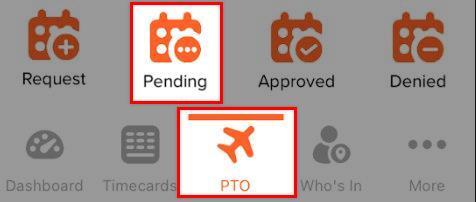
Step 3: Tap the pending request you want to approve.
Step 4: Scroll to the bottom and tap "approve" or "deny."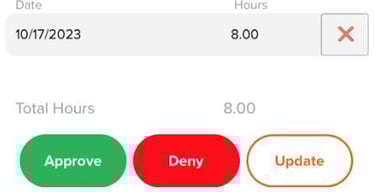
Step 5: Approved hours create a time card and are deducted from the balance.
Step 6: A text or email goes to the employee.
Step 7: Denied hours will not be added to the time cards, and the employee will be notified of the denial.
Undo the Approval of a PTO Request
Step 1: Log in as the administrator or manager.Step 2: On the dashboard, scroll down to the paid time off section and tap "Paid Time Off."
Step 3: Select the employee.
Step 4: Tap "Approved."
Step 5: Select the request.
Step 6: Tap "Undo Request."
Step 7: Adjust the time card yourself; back out of the PTO screen by tapping the back arrow in the top left corner.
Step 8: Tap on "Time Cards" at the bottom.
Step 9: Tap on the date to adjust.
Step 10: Tap "delete."
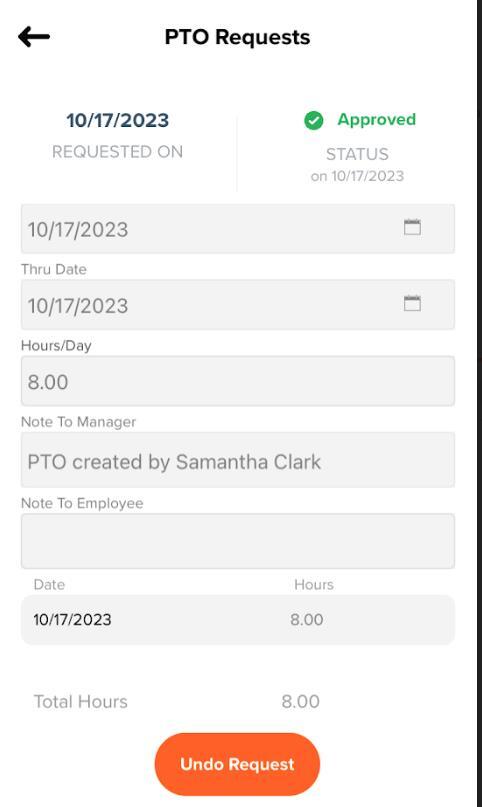
What to Expect
If you approve an employee's request, you can expect to see it logged in the time cards during the pay period, which includes the approved PTO days or times. The PTO summary will reflect the new balance after a PTO request is approved. If you undo a request, the time card associated with the approved request will automatically be deleted. Then, the time will be returned to the available PTO bank.
If a request is marked as unpaid, it will not be deducted from the employee's available PTO balance.
app:end
Q&A
Q: Can I delete a PTO request?
A: No. If a request was approved, you will need to follow the steps to undo the request to remove it from time cards and add it back to the available balance.
Q: Can an employee request time off as unpaid?
A: Not at this time. The workaround is to have the employee specify he or she would like the time off to be unpaid in the request message. When an administrator or manager goes to approve the request, there will be a box marked “Unpaid” that he or she can check. The employee will not get paid for those hours, and the hours will not be deducted from the employee’s balance.
Q: Can you just use time off requests and not log PTO?
A: Yes. Turn on a category by selecting the “allot x hours per year” option and enter an allotment of “0” hours. Then, join in a start/stop date and click save. This will allow employees to request time without having time available.
Q: Can an employee add his or her own PTO on his or her time cards?
A: For an employee to be able to add PTO to a time card, he or she would need to have the “Manual Time Entry & Adjustment” setting enabled under “Additional Options” on the “General” page of his or her employee profile. This would allow the employee to create his or her own PTO day without needing approval first. (This setting also allows employees to manually add and edit their own time).
Q: Can I run a report on PTO requests?
A: Currently, there is no report for PTO requests themselves. However, at the bottom of the “Current PTO & Requests” page, you can view a log of all PTO requests. You can also filter requests by “employee,” “pending,” “approved,” or “denied.”
Q: Do employees receive a notification when a time off request is approved or denied?
A: Yes. If the employee has an email address listed within his or her username (in his or her employee profile on the “General” page), an email will be sent. If a mobile phone number is listed in the employee's profile, there is an option to check “Notify employee via text” (at the bottom of the page) to send him or her a text notification.
Q: Can I set a specific manager to receive PTO request notifications?
A: Yes. To do this, assign the manager who should receive the notifications to the employees he or she supervises.