Key Takeaways
- ✔ Time Clock Wizard is best for simple time tracking and scheduling, but lacks scalability for growing businesses needing advanced payroll and support.
- ✔ Essential features, like PTO, GPS, and payroll, are hidden or locked behind premium plans, reducing usability on lower tiers.
- ✔ Customer support is limited and inconsistent, especially for users on the free or lower-tier plans, which can delay issue resolution.
- ✔ The mobile and web apps are easy to use, but key tools require too much scrolling and manual activation.
- ✔ Onboarding and employee setup are flexible and fast, making it easy for small teams to start using the platform quickly.
Time Clock Wizard is an online time tracking and workforce management software designed to help businesses track employee hours, manage schedules, handle payroll reporting, and more — all from a web-based platform or mobile app.
Verdict: Is Time Clock Wizard Worth It?
Score: 6.5/10
Time Clock Wizard is a straightforward time tracking platform that delivers on the basics: tracking hours, managing schedules, and giving small to mid-sized businesses a clear way to monitor employee time. It's web-based, easy to get started with, and the core experience — clock-ins, shift scheduling, and employee setup — feels simple and functional without being overly complicated.
The platform is especially suited for businesses where punch accuracy and shift coverage matter most, such as retail, hospitality, education, and other schedule-driven environments. Onboarding is quick, adding employees is easy (including upload options), and the mobile app provides a reliable way for employees and managers to interact with schedules and timecards on the go.
That said, Time Clock Wizard starts to feel limited once you move beyond basic time tracking. Key tools, like PTO management, GPS settings, and payroll-related features, are either buried in the interface, disabled by default, or only truly useful when paired with paid upgrades. Payroll, in particular, is more "payroll reporting" than payroll automation unless you invest in the costly Paycheck Wizard add-on. Customer support also feels uneven, especially for users on lower-tier plans or those using the mobile app.
Overall, Time Clock Wizard is a solid option for teams with simple needs and predictable workflows, especially those drawn to a free time tracking plan. But for businesses that want a more streamlined, scalable workforce system with built-in payroll automation, easier access to features, and consistent support, it may feel more like a starting point than a long-term solution.
The following comprehensive review scores Time Clock Wizard from every angle and explains exactly how I landed at this rating.
How Much Does Time Clock Wizard Cost?
Score: 5/10
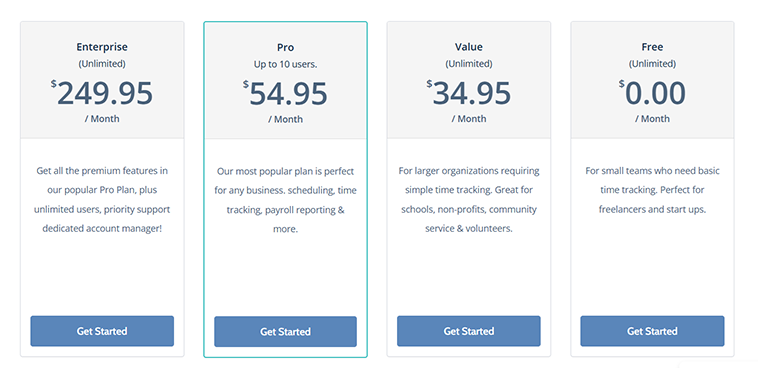
Time Clock Wizard offers four pricing tiers. A free option grants unlimited users free access to time tracking. A "Value" option offers time tracking and support for unlimited users for $34.95 per month. The “Pro” plan offers scheduling, time tracking, payroll reporting, and more, with pricing based on team size. Plans range from $54.95 per month for smaller teams to $119.95 per month for 31–50 users. The Enterprise option grants unlimited users priority support and a dedicated account manager for $249.95 per month. Annual payments are also available for each paid plan.
While free time tracking is nice, users are expected to navigate the system without any assistance; thus, any setup questions or procedural issues will likely go unanswered/unaddressed. The pricing for the paid plans is fairly steep when compared to other options, such as OnTheClock, especially for companies with fewer than 10 employees. The lack of customer support must be considered for smaller companies, which often lack the manpower to resolve nagging time-tracking issues.
How Do You Get Started on a Web Browser?
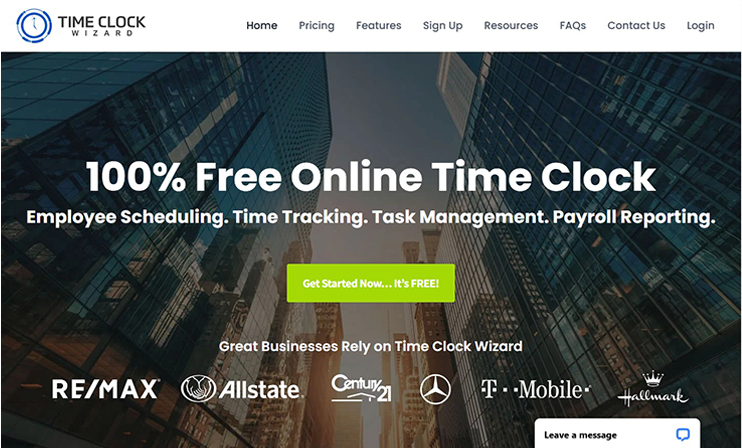
I started by visiting the Time Clock Wizard website (timeclockwizard.com) to create an account. There, I was greeted by a banner identifying the product as a "100% Free Online Time Clock." The company gains social influence by claiming to do business with reputable brands, including Re/Max, Allstate, Mercedes-Benz, T-Mobile, and more.
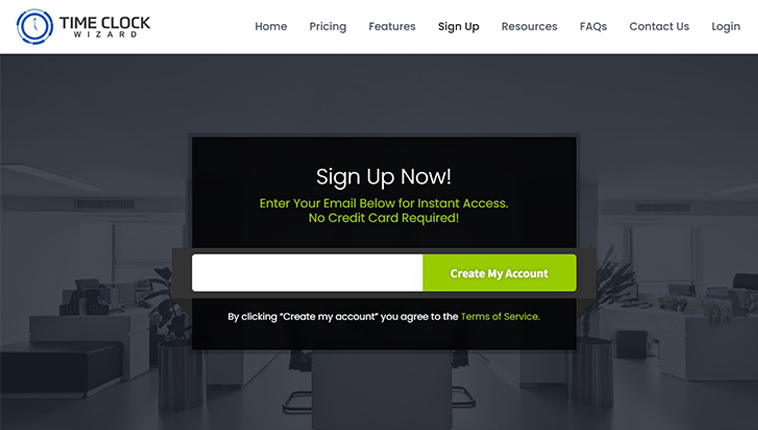
I was offered instant access by simply providing an email address. This access was promised without entering a credit card number. One concerning factor: There was no mention of whether a trial period was offered or, if so, how long it would be.
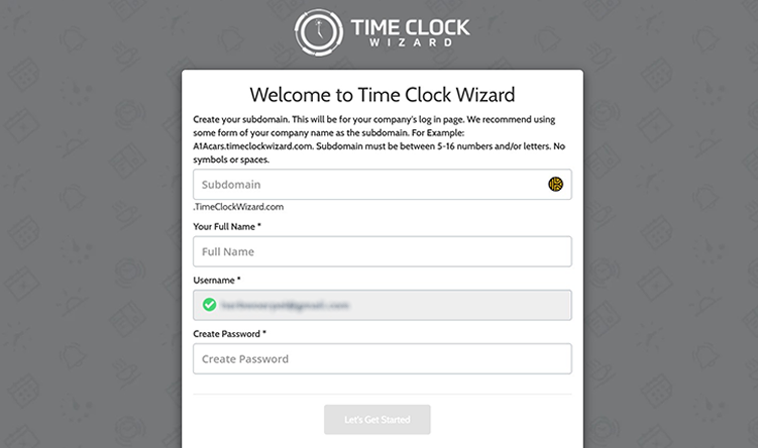
Upon starting a new account, I was prompted to enter my company's subdomain (unique URL), my full name, and create a password. Additionally, I needed to input a company name, identify my business type from a drop-down menu, input my time zone, and toggle the number of individuals my company employs.
Then, I was prompted to enter my business name, mobile phone, time zone, date preference, company size, etc.
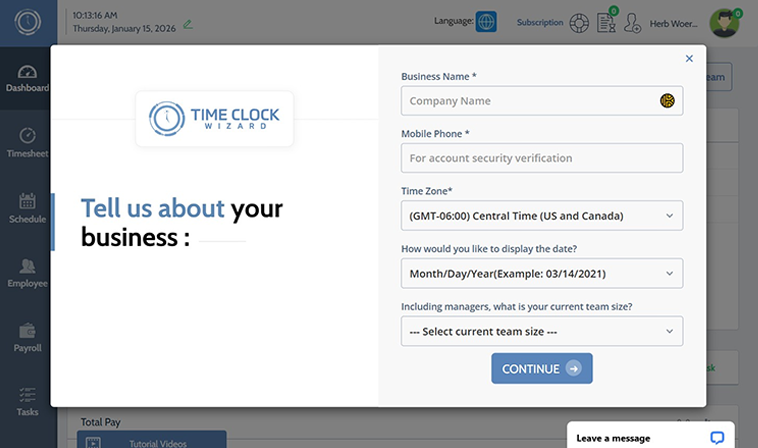
To see all the shortcut icons (located along the left edge of the screen) on a single page, I had to reduce my screen to 67%. While not the biggest hurdle, it would be annoying to have to do this every time I log in to the software. That said, the process was smooth and simple, though I still have no idea how long the trial is or what it entails.
How Do Employees Get Started on the Mobile App?
Downloading the mobile app was easy. It took only a few seconds, and I was up and running. I was prompted to log in using my email address. There wasn't an option to log in using my Apple/Google ID or anything else.
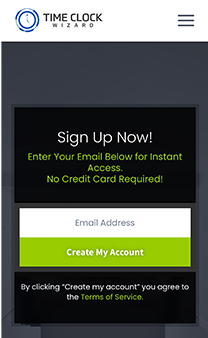
Once I logged in, I was prompted to enter my company's subdomain (unique URL), my full name, and create a password, much like I was on the web. The same "Tell us about your business" prompts: business name, mobile phone, time zone, date format, and team size, followed.
The bottom of the screen offered me shortcuts to the schedule and timecard icons. Clicking the schedule icon allowed me to preview my week's schedule (assuming one has been created), and the timecards icon displayed timecards by day. The dates of the current pay period were clearly listed in the top left corner.
A hamburger menu in the top left offers shortcuts to the timecards, schedule, settings, notifications, and the ability to log out.
The dashboard appeared next, with a shadowed circle encouraging me to take a look around. From there, a plethora of information is available upon a scroll from top to bottom.
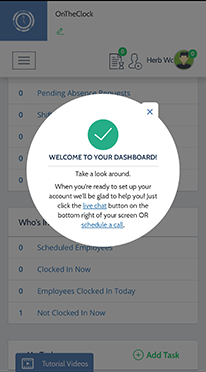
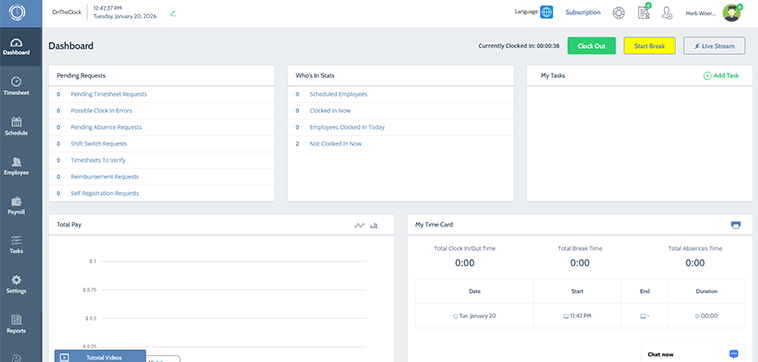
The dashboard showed whether the individual was clocked in (and for how long) and all pending requests. A hovering "Help" tab houses numerous multimedia help tools.
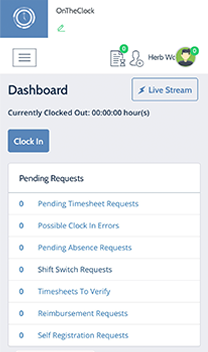
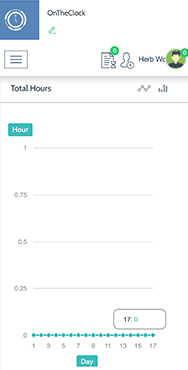
Scrolling down, a screen captures all total hours and allows the user to toggle between days. Even lower, users are met with "My Time Card," which showcases total clock-in/-out time, total break time, and total absence time.
A time sheet search section allows users to seek out time data by employee, location, and job.
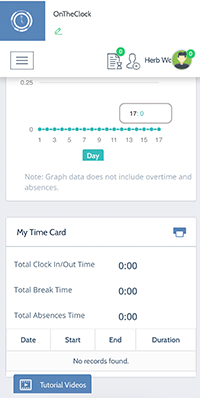
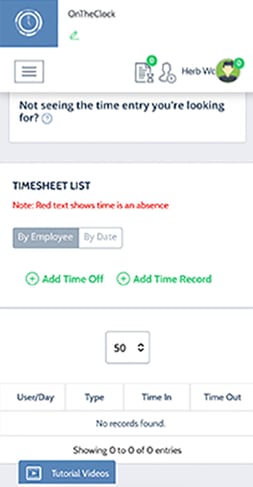
The next screen upon my scroll allowed me to view time sheets by employee or date, as well as add time off or a time record.
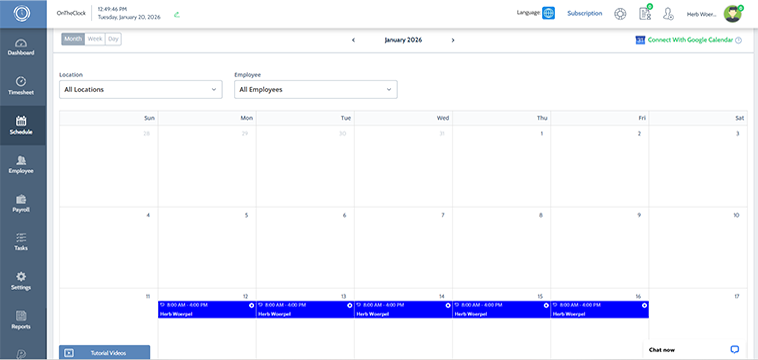
The next screen showed the company's schedule, with a monthly calendar as the default view.
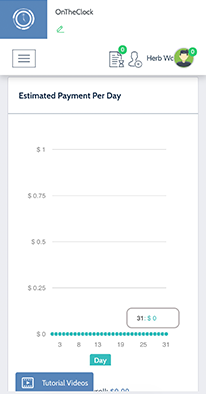
Additional scrolling led me to an "Estimated Payment Per Day" screen that summarized the amount due to employees. The data is sortable by day.
Further down, an Employee page allows users to seek employees by name and/or email address. A list of employees grants instant access to the company's staff.
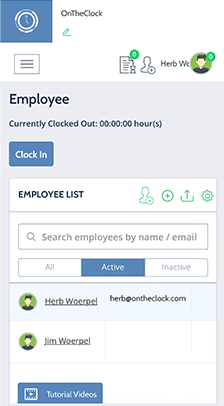
Overall, the dashboard serves its purpose, though scrolling through page after page to find what you want can be overwhelming. And, geofencing, PTO, GPS tracking, and other options are hidden until the admin toggles them on. The interface is simple – almost too simple compared to alternative options.
How Do Admins Get Started on the Mobile App?
Immediately after logging in, a dashboard displayed total clock-in/-out times, total break times, and total absences.
Four blue boxes show pending requests, including time sheets, absences, reimbursements, and pending switches.
Below that are "Who's In" stats, showing any new messages and scheduled employees.
A final screen shows a graph noting Total Pay.
The bottom of the screen offers five shortcut icons, including time sheets, schedule, dashboard, payroll, and more.
The more tab opens a list of options, including Reimbursements, Messages, Notifications, GPS, Quick Clock-In, Schedule Requests, Tasks, and Feedback.
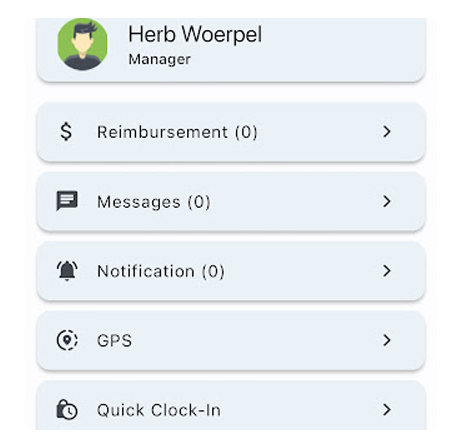
The biggest difference between the admins and the employees lies in the More tab. Admins have control over GPS, schedule requests, tasks, and more.
How Do You Add Employees?
Score: 9/10
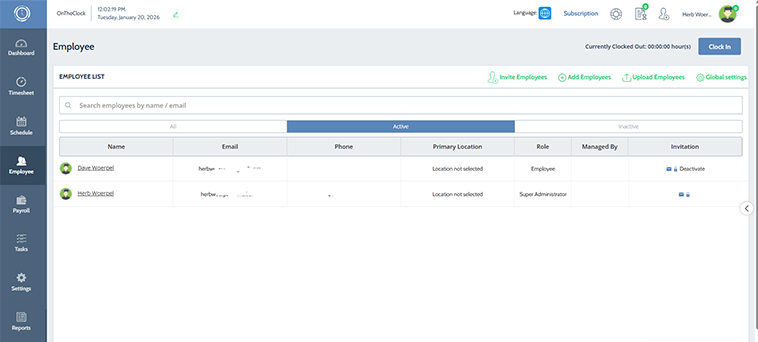
To add employees, an admin has to navigate to the Employee tab. From there, three options exist: Invite employees, add employees, or upload employees.
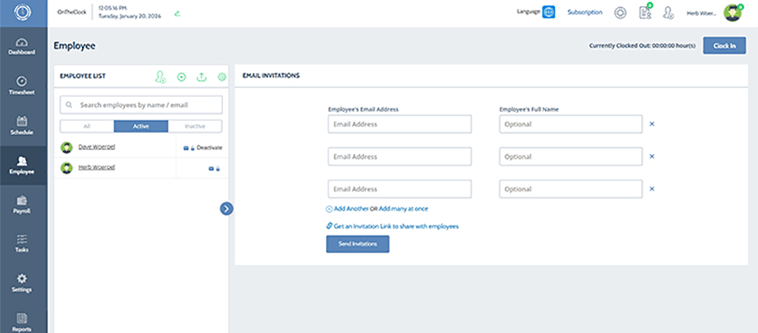
Clicking the Invite or Add Employees tabs lets users invite up to three employees to the app by their email addresses. A user may also obtain an invitation link to share with employees. When my added employee clicked the link, he was directed to a self-registration page that asked for his name, password, birthday, address, phone number, and more.
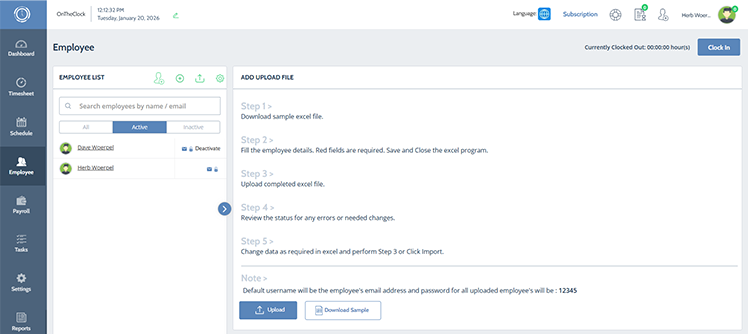
The Upload Employee option provided a five-step process for onboarding an employee from an Excel file. A sample is available as well, simplifying the process.
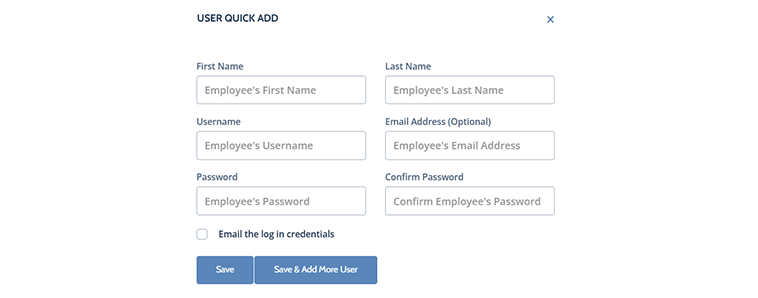
On a web browser, admins can click the human silhouette/plus sign in the top-right corner to open the "Quick Add" option. All that is needed is a name, username, and password. Adding an email address is optional, and, once added, the employee's credentials may be emailed if selected.
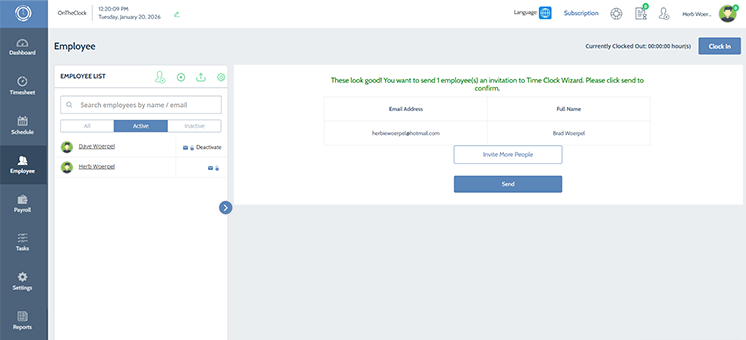
Adding employees was easy and simple. When I provided an email address, it appeared to be sent, but I actually had to hit the send button before it was sent. While this was user error, I wonder how many others may also errantly skip this step.
How Do You Clock In and Out?
Score: 9/10
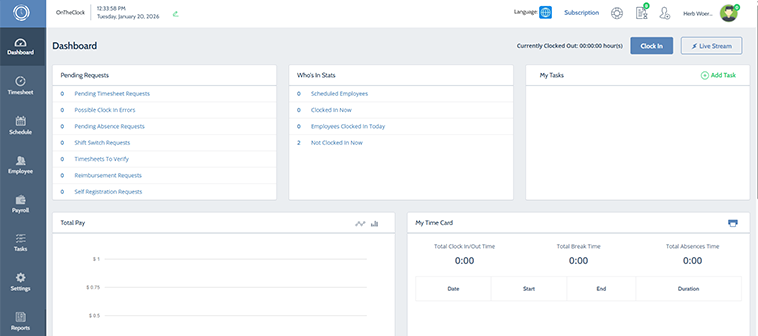
Clocking in is simple. A blue box in the top-right corner of the screen lets employees clock in. Once pressed, the button separates into two buttons, "Start Break" and "Clock Out," with a time counter showing how long the employee has been clocked in.
Once clocked in, an employee can add a note simply by tapping and typing in the appropriate thread.
How Does Scheduling Work?
Score: 8/10
Clicking the schedule tab opens up a large calendar.
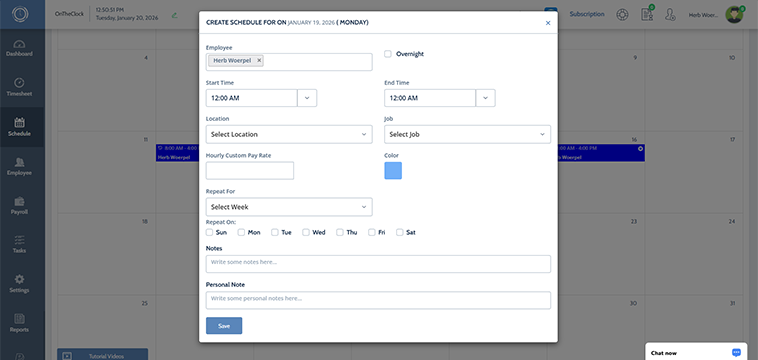
To create a schedule, simply click a day. From there, a widget appears that lets you fill in the details, including start and end times, location, job, a custom pay rate, and whether the schedule should repeat. A user can also enter any notes they deem pertinent.
Once I set the schedule, it appeared in blue with the employee's name and hours. A daily schedule can be dragged and dropped from day to day and can easily be copied and pasted to any future dates.
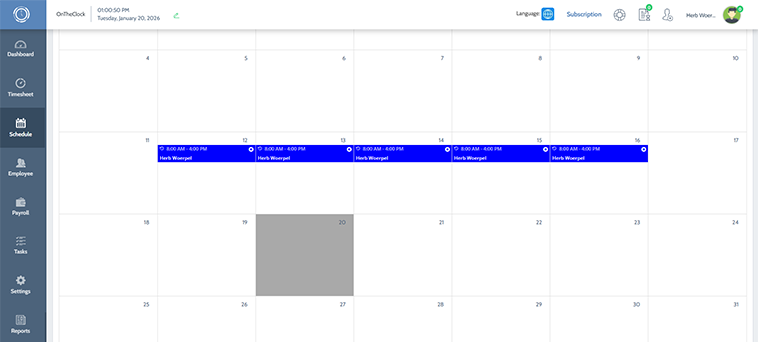
Overall, the scheduling process was simple to navigate. One primary downfall is the inability to change the view; otherwise, the process was fairly smooth.
How Do Timecards Work?
Score: 7.5/10
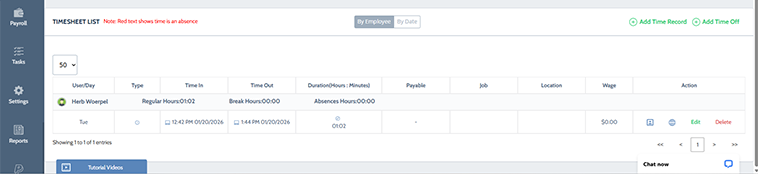
The solution's timecards (Time Clock Wizard calls them time sheets) are somewhat convoluted.
A table shows the employee, and then lists the worker's regular hours, break hours, and absence hours. Times in and out are listed with the time and date. Visually, this is somewhat difficult to decipher due to the block of text printed within each punch.
What Kind of Customer Support Does Time Clock Wizard Offer?
Score: 4.5/10
Support is a very important part of any time tracking company. Having a real person to talk to when I have a question(s) about the system is crucial.
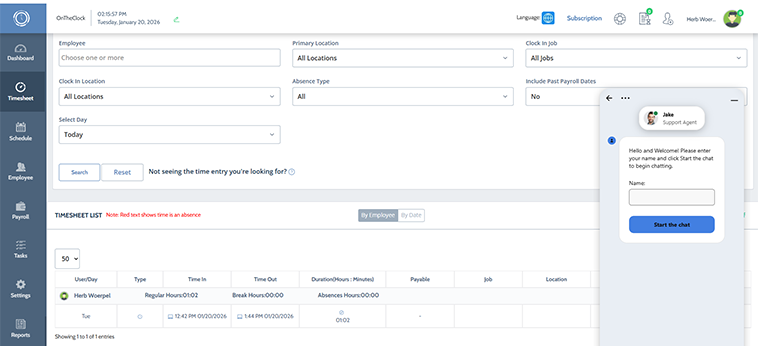
A chat now button led me to a LiveChat bot. I asked, "Are you a real person or an AI bot?" After several minutes, "Jake" responded: "I'm a real agent. How can I help you?" Assuming this is correct, it's nice to know that live support is available.
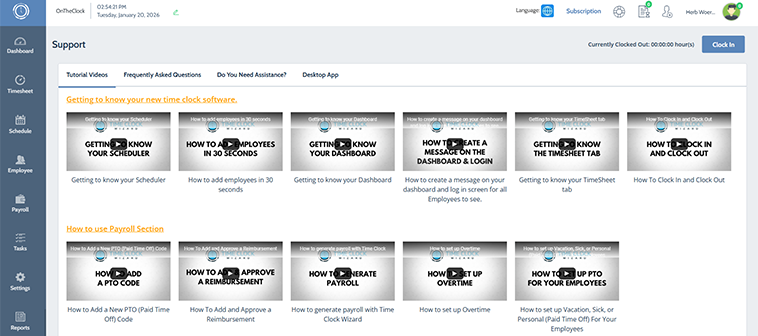
Clicking the "Support" shortcut icon on the left side of the screen led me to a help section with numerous videos. A Frequently Asked Questions tab also offered guidance.
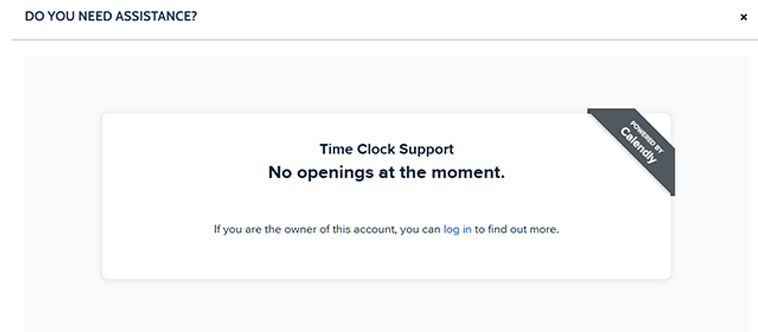
While logging in near the end of my trial, I was immediately prompted with a Calendly invite to book time with the company's support team; however, it appeared there were no available openings for the foreseeable future.
Finally, support on the go is not an option, as there is no easy way to access support from the mobile app.
How Does In-App Chat Work?
Score: 0/10
Time Clock Wizard does not currently support a chat feature.
How Do You Manage Time Off?
Score: 6/10
It may be easier to find Waldo than it is to locate Time Clock Wizard's PTO functionality. There are no shortcuts or links on the dashboard. To find the PTO feature, a user must click an employee's profile and select the Paid Time Off tab. One problem is that the PTO tab is the ninth tab (from left to right) and was completely hidden on my screen at 100% size.
Time Clock Wizard supports three types of time off: holiday, sick, and personal. To set it up, click an employee's name and then click the Paid Time Off tab.
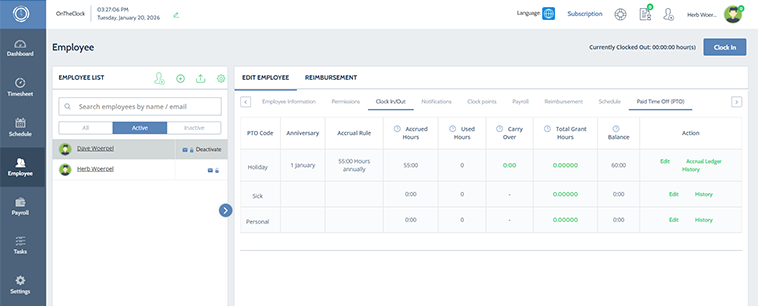
Inside the PTO interface, admins may alter the selected employee's PTO attributes by clicking the highlighted word "Edit." From there, all values, including Code, Frequency, Beginning Balance, Hours Awarded, Reset timeline, etc., may be altered.
PTO can be toggled to be included in overtime calculations (or not), and the option to use it or lose it may also be triggered on this screen. Finally, employees' reset dates can be toggled to reflect the fiscal year, hire date, or anniversary date.
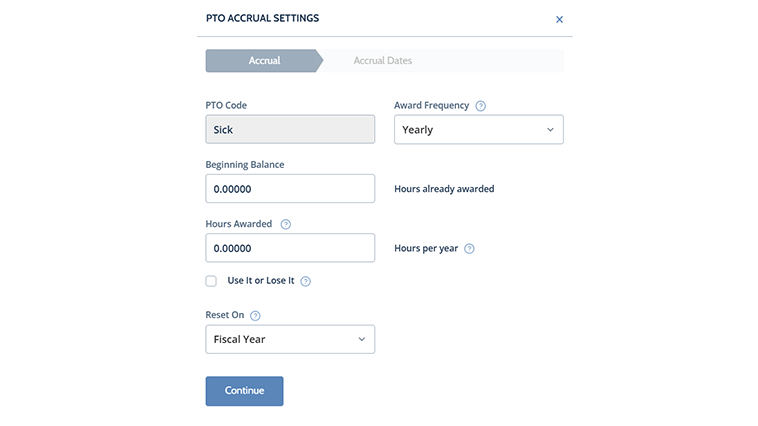
Once everything's set up, the PTO function runs rather smoothly. However, locating the functionality may be a challenge for some.
How Does Payroll Integration Work?
Score: 4/10
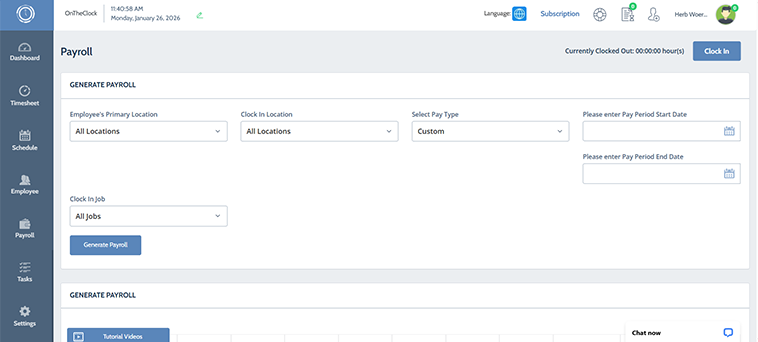
Time Clock Wizard's payroll function serves as a guideline, not an actual payroll function. The interface allows admins to enter a variety of payroll information, including locations, pay type, pay period dates, job, and more.
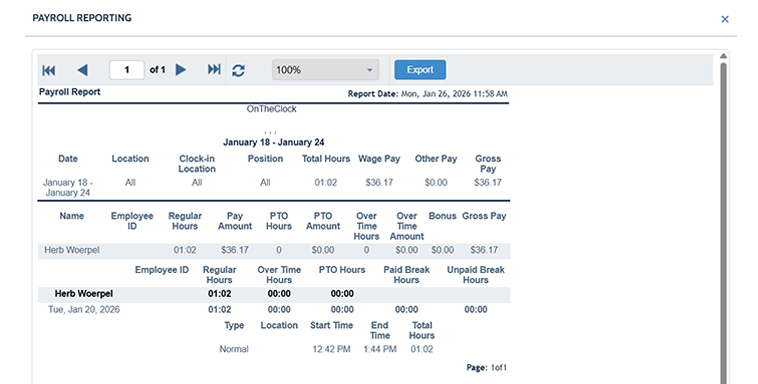
A payroll report can be generated based on a user's desires. The report offers a look at hours worked, the employee's rate, PTO hours, gross pay, and more. While this information is helpful, it doesn't include net pay, tax calculations, or a way to actually pay anyone. It's essentially a general overview of an employee's hours, gross pay, overtime, and PTO. A company could run payroll using this data, but work remains in calculating and submitting taxes, printing and sending checks, etc.
What Add-Ons Does Time Clock Wizard Offer?
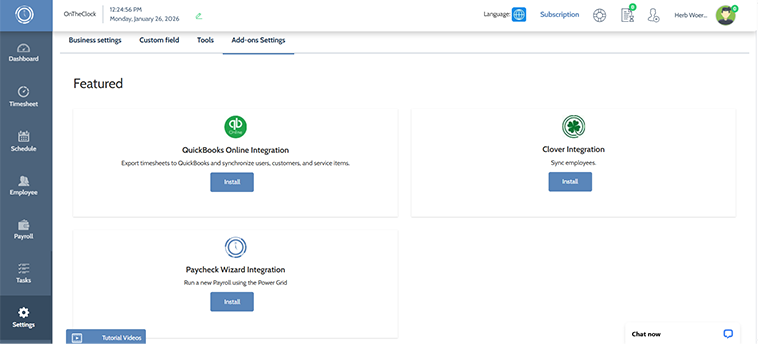
Time Clock Wizard offers limited add-on services, including QuickBooks Online and Clover Integration as well as Paycheck Wizard Integration. The Paycheck Wizard Integration is a full-service, automated payroll solution integrated directly into the Time Clock Wizard platform, allowing users to automatically export employee time data for direct deposits, tax filings, and reporting. The integration, designed for Pro/Enterprise users, is quite expensive, costing $59.95/month plus $12 per employee.
How Does Time Clock Wizard Handle Follow-Ups and Outreach?
After signing up for Time Clock Wizard, the company's email outreach focused heavily on prompting immediate setup and employee activity.
I received eight emails from the Time Clock Wizard staff in my first 10 days, including a welcome message, a focus on features, examples of how customers commonly use the software, trial reminders, and more.
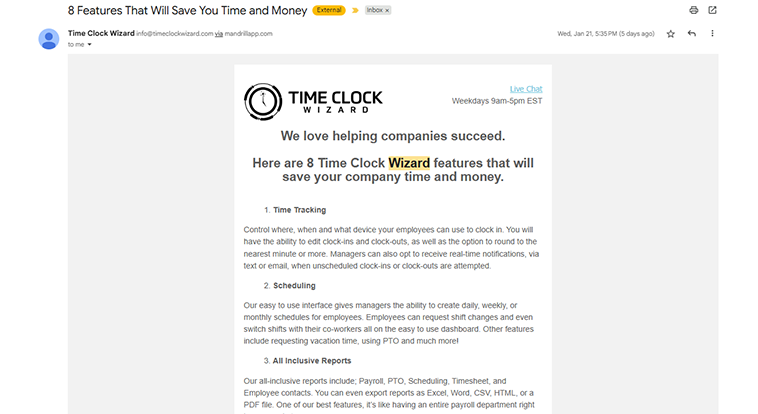
Overall, Time Clock Wizard's onboarding emails are task-driven and aim to be helpful. They prioritize keeping a user on task and provide clear steps for activating the account and using it as a user sees fit.
While eight emails in 10 days are plentiful, the outreach proved helpful and straightforward, though it was largely focused on setup mechanics rather than broader use cases or long-term value.
What Are the Pros of Using Time Clock Wizard?
Time Clock Wizard is a capable time tracking tool for businesses with basic needs, but its limitations in payroll, support, and scalability make it better suited for simple use cases rather than growing operations that need an all-in-one workforce solution.
Pros
- Free Time Tracking Option (Unlimited Users) – Time Clock Wizard's free plan allows unlimited users to track time, which is appealing for very small businesses or organizations with tight budgets that only need basic punch-in and punch-out functionality.
- Simple Employee Clock-Ins and Scheduling – Clocking in and out is intuitive across both web and mobile platforms. Scheduling is equally straightforward, with drag-and-drop shifts, repeat scheduling, and the ability to assign locations, jobs, and custom pay rates.
- Easy Employee Onboarding – Admins can add employees via email invites, manual entry, or bulk uploads using Excel templates. The process is quick and flexible, making it easy to get teams up and running without much friction.
- Clean, Lightweight Interface – The interface is minimal and easy to learn, especially for users who want a no-frills experience. Employees can quickly see schedules, timecards, and total hours without navigating complex menus.
- Decent PTO Customization Once Enabled – Once located and configured, PTO tracking is flexible. Admins can manage accruals, rollover rules, reset dates, and whether PTO counts toward overtime calculations.
- Helpful Setup-Focused Onboarding Emails – Email outreach after signup is consistent and task-oriented, guiding new users through setup steps and encouraging early adoption of core features.
Cons
- Limited Support on Lower Plans – Customer support is restricted unless you're on higher-tier plans. In my trial, I couldn't find a clear path to live help from inside the product. Additionally, there is no assistance, live chat access is inconsistent, and support is not easily accessible from the mobile app.
- Payroll Is Reporting-Only Without Costly Add-Ons – Time Clock Wizard does not offer built-in payroll. Its payroll functionality is limited to reports showing gross pay and hours worked. Full-service payroll requires an expensive Paycheck Wizard integration.
- Features Hidden or Disabled by Default – Key tools like PTO, GPS, and advanced settings are buried deep within menus or disabled until manually activated by admins, making them easy to miss.
- No True In-App Chat – Despite references to messaging and notifications, Time Clock Wizard does not offer real-time in-app chat between admins and employees.
- Interface Requires Excessive Scrolling – Both the web and mobile dashboards rely heavily on vertical scrolling, which can feel overwhelming and inefficient when trying to quickly locate specific data.
- Poor Scalability for Growing Businesses – As workforce needs expand, requiring advanced reporting, GPS enforcement, integrated payroll, and responsive support, the platform becomes less cost-effective and more limited compared to all-in-one workforce management solutions.
- Pricing Can Be Steep for Small Teams
Paid plans are priced higher than many competitors when factoring in the lack of included payroll and support, especially for businesses with fewer than 10 employees.
What Do Real Users Say About Time Clock Wizard?
Time Clock Wizard's reviews run the gamut across numerous sites.
While the solution is commonly praised for its user-friendly interface, some users report that the app sometimes fails to register punches, leading to discrepancies such as being clocked in for too long or missing punches.
For example, the most relevant review on G2, where Time Clock Wizard has a 4.6-star average rating out of 60 ratings, comes from Selena G. On Dec. 3, 2025, she writes the app is, "Exceptionally easy to use for new employees. I found it very easy to use and understand; however, I'm not a fan of the website's logo or the font used for the title."
On Apple, where Time Clock Wizard has a 3.5-star rating on 186 reviews, Bethh589 wrote, on July 1, 2024, "Where'd everyone go? We've been with Time Clock Wizard for five years. Service has been typically quick – less than a 24-hour turnaround on questions. I'm wondering if they've folded. In the last two and a half weeks, I've tried to chat - not active anymore. I've left a message, with no response. No Calendly openings in June or July. I called, but no one answers. … What happened? Zero support these days."
On Capterra, Time Clock Wizard owns a 4.4-star rating on 106 ratings. Jeffrey G. wrote, on Dec. 16, 2024, "My overall experience with Time Clock Wizard has been a great one. Would Def recommend to others."
How Does Time Clock Wizard Compare to OnTheClock?
| Feature | Time Clock Wizard | OnTheClock |
|---|---|---|
| Mobile-Friendly Design | Mobile app is fast and functional, but features like PTO, GPS, and advanced controls must be manually enabled and are buried in menus. | Fully featured mobile app with real-time access to timecards, schedules, PTO, and payroll-related data. |
| Desktop Clock-Ins | Supported via a web browser. | Fully supported on desktop and laptop devices. |
| Payroll Integrations | Payroll is reporting-only unless users purchase the Paycheck Wizard add-on, which is expensive and sold separately. | Payroll is available as a paid add-on and seamlessly integrates with QuickBooks, Gusto, ADP, Paychex, and more. |
| User Roles Without Extra Charges | Tiered pricing; access to advanced features, support, and controls depends on plan level. | No extra charges for admins, managers, or view-only users. All subscribers receive full functionality. |
| Support | Limited support on lower tiers; priority and dedicated support reserved for Enterprise plans. | Live, U.S.-based support via phone, chat, and email for all customers. |
| Time Clock Kiosk | Supports shared devices using PINs and QR codes. | Dedicated kiosk mode for shared devices with full admin controls. |
| API Access | Limited and generally restricted to higher-tier plans. | Open API access is available without forcing upgrades. |
| Pricing Transparency | Tiered pricing with base fees, feature gating, and costly add-ons. | Flat base fee plus low per-employee cost with no surprise fees or gated essentials. |
For a closer, feature-by-feature breakdown of these two platforms, see our full Time Clock Wizard vs. OnTheClock comparison. If Time Clock Wizard doesn't look like the right fit after reading this review, our Time Clock Wizard alternatives guide covers six other time tracking options worth considering.
Frequently Asked Questions
Is Time Clock Wizard free to use?
Yes. Time Clock Wizard offers a free plan with unlimited users for basic time tracking. Paid plans start at $34.95/month for the Value tier and include features such as scheduling, payroll reporting, GPS, and PTO management.
Does Time Clock Wizard include payroll?
Not by default. Time Clock Wizard's built-in payroll tools generate reports on hours and gross pay only — they don't calculate taxes or issue payments. Full payroll processing requires the separate Paycheck Wizard add-on, which costs $59.95/month plus $12 per employee.
Is Time Clock Wizard good for small businesses?
It works well for very small teams with simple, predictable schedules, thanks to the free plan and straightforward clock-in/scheduling tools. Businesses that need integrated payroll, GPS enforcement, or consistent live support may outgrow it quickly.
Does Time Clock Wizard have a mobile app?
Yes, for both iOS and Android. The mobile app covers clock-ins, schedules, and timecards, though features like PTO and GPS settings must be enabled by an admin and can be buried in menus.
What's the Final Verdict on Time Clock Wizard?
Time Clock Wizard is a workable solution for businesses that need basic time tracking and scheduling without a steep learning curve. It's easy to set up, simple for employees to use, and the free plan makes it accessible for very small teams or organizations with minimal operational complexity.
However, as soon as a business's needs expand beyond clock-ins and schedules, the platform's limitations become hard to ignore. Core features like PTO tracking, GPS controls, and payroll-related tools are either difficult to find, disabled by default, or require paid upgrades. Payroll functionality remains limited to reporting unless users invest in the costly Paycheck Wizard add-on, and consistent access to live customer support is largely reserved for higher-tier plans. As a result, costs rise while clarity and scalability decline.
For companies with predictable workflows and modest requirements, Time Clock Wizard can serve as a starting point. But for growing businesses that want a more streamlined, scalable workforce system, with built-in payroll automation, intuitive feature access, and reliable support, it may feel more like a temporary solution than a long-term platform.
OnTheClock is built for businesses that expect their time tracking system to grow alongside them. By combining time tracking, scheduling, PTO, and payroll into one unified platform, without gating essential features, OnTheClock removes friction, reduces manual work, and provides consistent visibility for both employees and managers.
Want to see how OnTheClock compares for your team? Try it free and experience the difference for yourself — no credit card required.
