
Overview
When an employee leaves your organization, you may want to remove him or her from your account. Removing an employee eliminates his or her ability to clock in and out. After the employee is removed, you will still be able to access the deactivated employee’s time cards. You can also restore an employee's profile if you need to.
Setup
web:start
Step 1: Log in and navigate to “My Team”, select "View Team Directory."Step 2: On your full Team list, locate the employee you wish to deactivate.
Step 3: Click the red X next to the employee’s name.
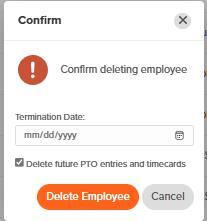
Step 4: Check off the box to “Delete Future PTO Entries and Time Cards,” which will remove any future paid time off. Remove the check in the box to keep future PTO records.
Step 5: Enter in the employee termination date.
Step 6: Confirm deleting the employee by clicking "Delete Employee".
What to Expect
Removing an employee from OnTheClock does not permanently delete the account. Using the method above will place your employee on an inactive list. If you'd prefer to permanently delete an employee from your account, please see permanently deleting an employee.
If you deactivated an employee by mistake or need to reactive the employee so he or she can track time again, please see Restore/Reactivate an Employee.
Once an employee is removed from your active employee list, you can no longer filter by his or her name in time cards. You can only see the employee's time cards within the pay periods he or she worked.
Once an employee is removed, you can no longer pull his or her PTO summary through current PTO and requests.
web:end
app:start
Step 1: Open your app and tap on your initials in the top corner of the screen.
Step 2: Select “Settings.”
Step 3: Select “Employees.”
Step 4: Locate the employee you’d wish to deactivate and tap on their name.
Step 5: Scroll to the bottom of their employee profile and select “Deactivate Employee".

You will receive a prompt to confirm your decision to deactivate an employee.

All recorded future PTO entries will be deleted by deactivating your employee on the mobile app.
What to Expect
Removing an employee from OnTheClock does not permanently delete them forever. Using the method above will place your employee into an inactive list.
If you decide to permanently delete from your account, please see 'permanently deleting an employee.' Permanent deletes, can only be done from the browser.
If you deactivated an employee by mistake or need to reactive the employee so they can track time again, please see 'Restore/Reactivate an Employee.'
Once an employee is removed from your active employee list, you can no longer filter by their name in time cards. You can only see their time cards in pay periods where they worked.
Once an employee is removed, you can no longer pull their PTO summary through current PTO and requests.
app:end
Q&A
Q: When will my billing adjust after deactivating an employee?
A: If an employee is deactivated on the 8th of the month or before, you will not be charged. If an employee is deactivated after the 8th of the month, you will be charged.
Q: Can I transfer an employee to a different OnTheClock account?
A: Yes. We can help with that. Contact support@ontheclock.com to get started.
Q: Will deactivating an employee delete their time cards?
A: No. Even after deactivating an employee, his or her time cards will remain available for payroll processing and your records. You will not be billed for maintaining these records.
Q: Do I need to download my deactivated employee's time cards?
A: We highly encourage you to download your employee’s time cards for your records before deactivating an account. While time cards will be stored indefinitely, they are not easily accessible from your Employee page. You can temporarily restore an employee to access their time cards, but you may be billed for their seat.
Q: Can I permanently delete an employee?
A: Yes. However, if you permanently delete an employee, you will no longer be able to recover his or her information. If you need to permanently delete an employee, navigate to your Employee page. Then, select “Restore Employees.” Finally, locate the employee you wish to permanently delete and select “Delete Forever.”
Q: What if I accidentally delete the wrong employee?
A: Don’t worry! You can restore his or her profile like nothing ever happened. Here’s how.
Q: Can I reuse a deactivated employee's number?
A: Yes, if you remove the deactivated employee’s number first. The easiest way to do this is to change the deactivated employee’s number to one you’re certain you won’t use (i.e., if the current number is 4, change it to 1004). If needed, you can restore your deactivated employee in order to make changes to his or her profile.