Skip to content

Time Tracking Software for Lawn Care

GPS-verified punches. Hours by property. Payroll in minutes.

See when and where employees punch in, so paid time starts at the job site, not 20 minutes earlier at the shop. 
No credit card required
Cancel anytime
5-minute setup

ontheclock-lawn-care
16,000+
Companies rely on OnTheClock Every Day
160,000+
Employees Punching in Daily
★★★★★
4.8
Capterra
★★★★★
4.5
G2
THE LAWN CARE PROBLEM

Landscaping Crews Need More Than a Basic Time Sheet

It’s 6:30 a.m. on a Tuesday morning. Three trucks should be rolling, and all nine guys are already on the clock.

One is still loading a trailer. Two are at the gas station. The north crew is waiting on a mower that won’t start. The first blade doesn’t hit grass until 7:15 a.m.

You paid for all of it. By Friday, nobody remembers it happened.

That’s the problem with clipboards and group texts. They show hours worked, but not where the time went. Shop delays disappear into the week, and a $50 property that keeps taking too long can still look fine on a basic time sheet.

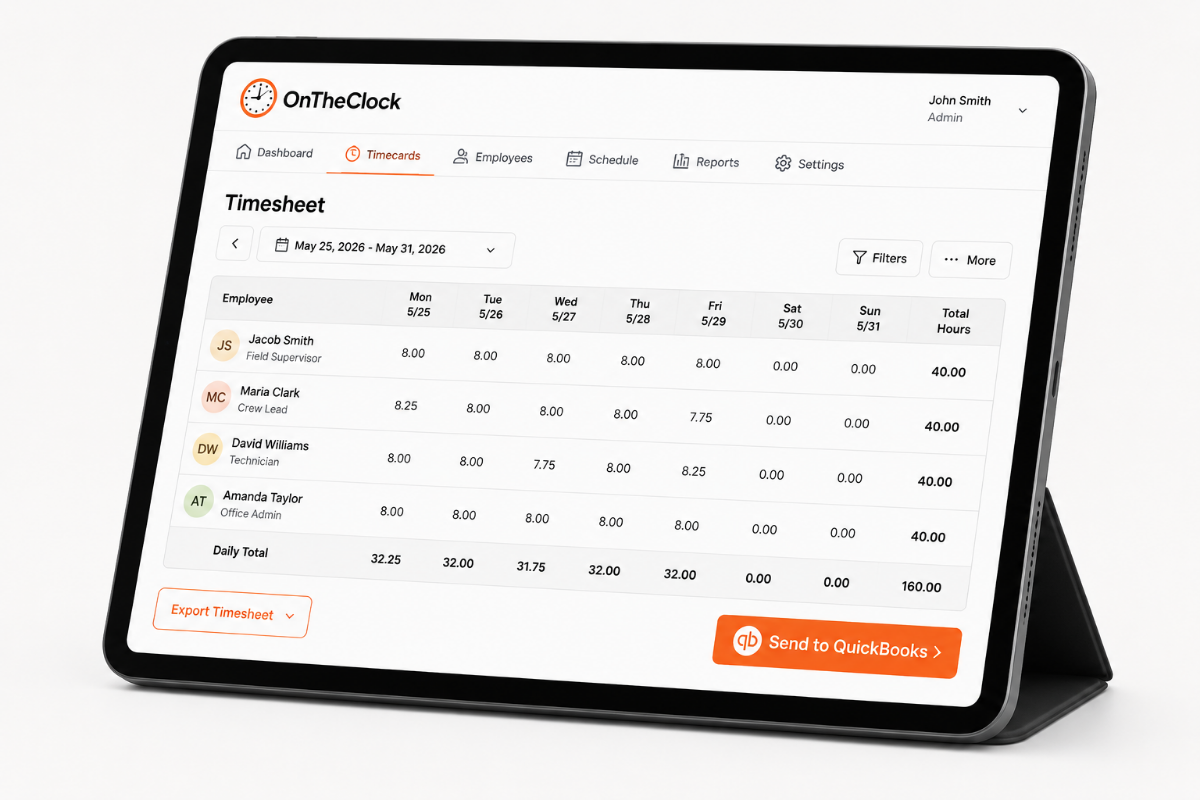
OnTheClock ties punches to time, location, and job. You can see where crews are, track labor by property, and approve hours without trying to reconstruct Tuesday from memory.
ontheclock-quickbooks-timesheet-export-ipad-1
DESIGNED FOR CREWS ON THE MOVE

Keep Crews Moving and Labor Costs Under Control

Confirm Locations with GPS

 Every clock-in and clock-out records the time and location from the crew’s phone. You can see exactly when the day started and where they were. 

Stop Early Clock-Ins

 Block employees from clocking in before their scheduled start time. You stay in control of when paid time begins. 

Track Hours by Property

 Assign hours to each property and see how much labor every job actually takes. If a $50 yard keeps eating up 70 minutes, you’ll see it in the numbers. 

See Every Crew

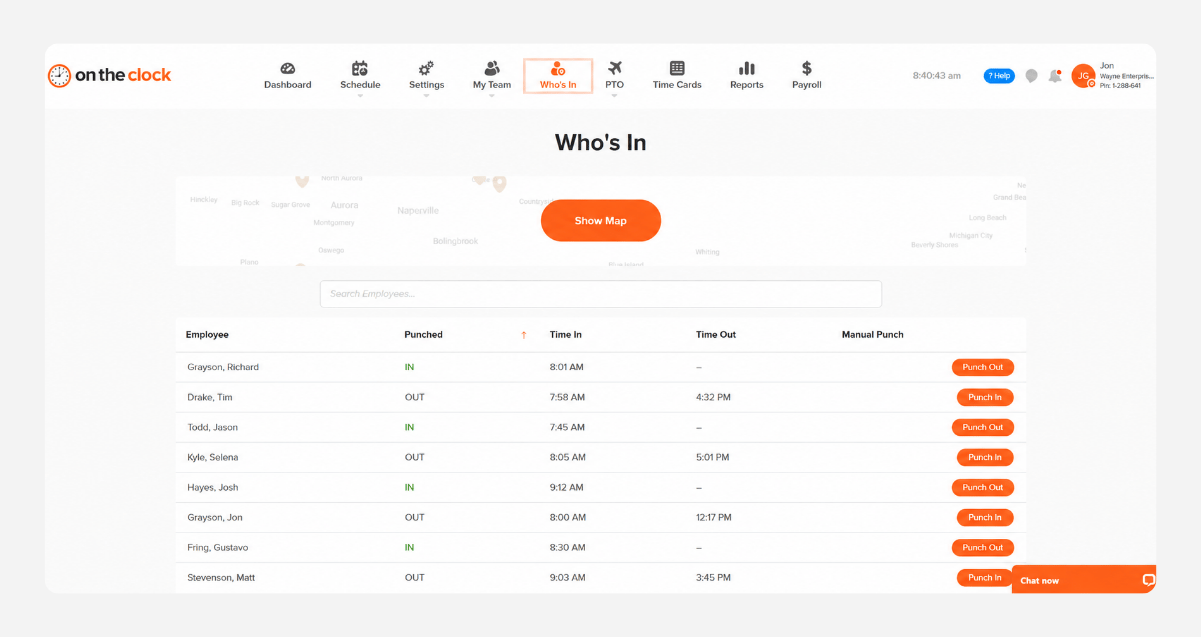
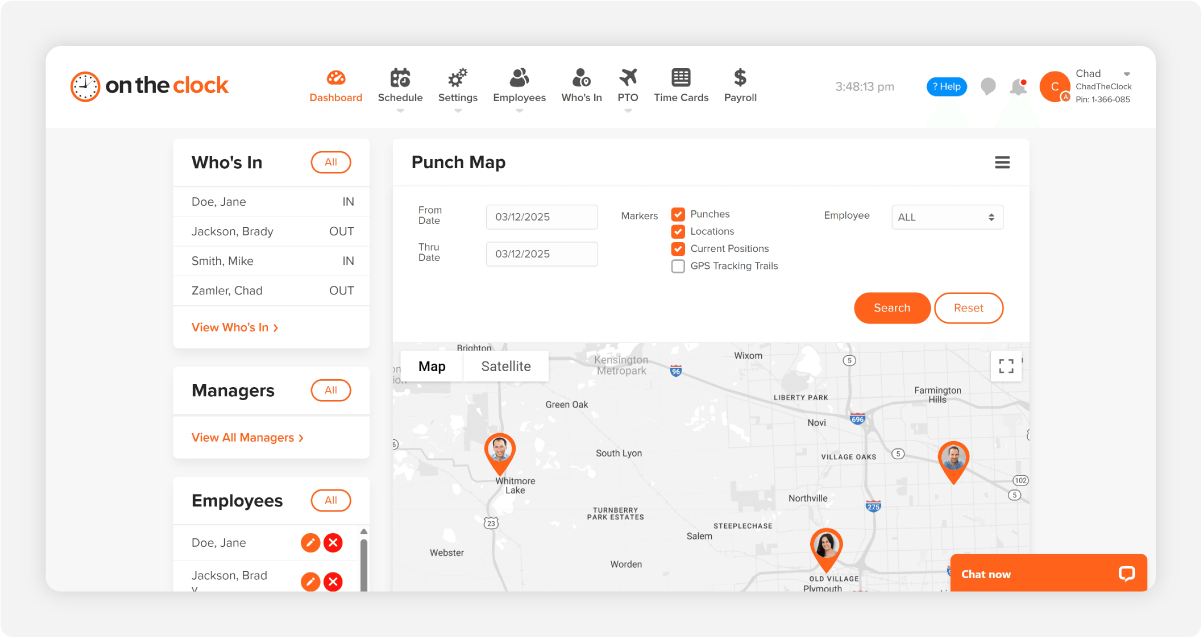
 Use the location map and Who’s In dashboard to see who’s clocked in and where crews are working. You’ll know a route is falling behind without calling around. 

Catch Overtime Early

 Get an alert when someone is getting close to 40 hours instead of finding out after payroll. During busy season, that gives you time to move work before overtime hits. 

Send Hours to Payroll

Approve timecards once and send hours to QuickBooks, Gusto, ADP, Paychex, or Square. You may also opt to run payroll directly within OnTheClock. Sunday night no longer becomes a data-entry shift.
BEFORE & AFTER

Sound familiar? 

Here’s the real cost of running a shop without OnTheClock.

Without OnTheClock
With OnTheClock
The guys punch in at 6:30 a.m., but the truck doesn’t leave until 6:52 a.m. That’s 22 paid minutes daily, per truck.
Prevent early clock-ins before the shift starts, and use fingerprint punching so one guy can’t clock in for the whole crew.
He says he was at the Henderson job at 9 a.m.; however, his time sheet says he was at the gas station on Route 6.
GPS records where each punch happens, so you can see where the crew actually clocked in.
You priced that yard for 50 minutes. Historically, it's taken 70 minutes since April, and you didn’t catch that discrepancy for 30 weeks.
Track hours by property or job, so you can see which jobs are taking longer than you planned.
It’s 1:15 p.m. A customer calls asking where the crew is, and now you’re calling three guys trying to figure it out.
Open the crew map or Who’s In dashboard and see who’s working and where they are.
It’s Thursday, and the crew is already at 47 hours. You don’t notice until you’re running payroll on Friday.
Get overtime alerts before someone hits 40 hours, while there’s still time to adjust the schedule.
Sunday night, you’re trying to read handwritten times off a clipboard and typing everything into a spreadsheet.
Review the timecards; approve them; and export the hours to QuickBooks, Gusto, ADP, Paychex, or Square.
How it works
01
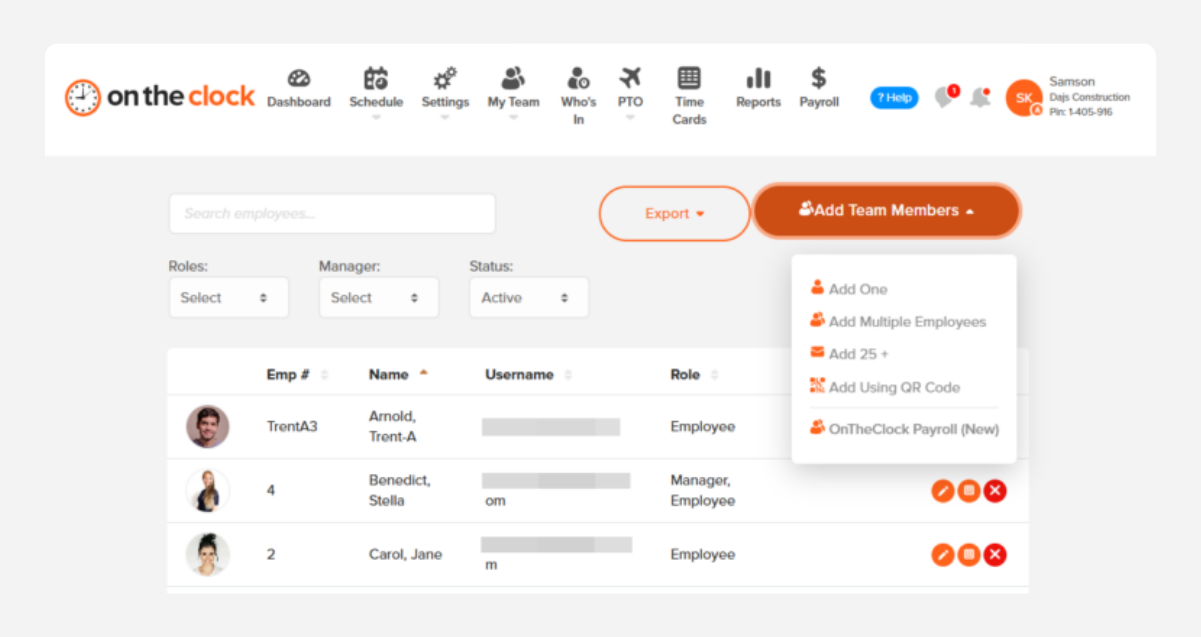
Input your crews and properties
Add everyone, group them by truck or route, and enter the properties you service. Set your pay period, overtime rule, and the earliest anyone can punch in.
add-team-member-screenshot
02
Crews punch in when they get to the job site
Team members clock in from the OnTheClock app on their own phones and pick the property they're on. The punch records the time and GPS location and won't go through before the scheduled start.
who-is-in-screenshot
03
Watch the routes run from your phone
The crew map shows who's punched in and where. Overtime alerts reach you as a truck nears 40 hours, and job costing shows what the labor on each property is adding up to.
b12c23e0-de9f-4556-99fe-fc955f820d04
04
Approve timecards and run payroll
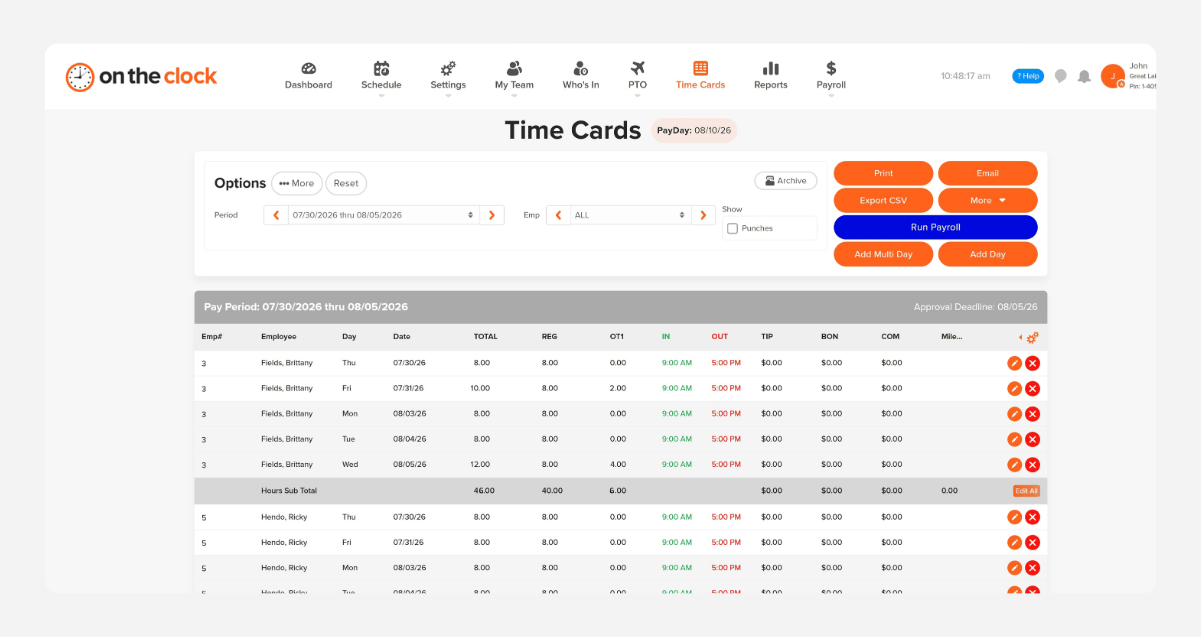
Review the week, fix what needs fixing, and approve. Hours go to QuickBooks, Gusto, ADP, Paychex, or Square in one click, or run payroll inside OnTheClock with direct deposit and tax filings handled.
payroll-export-screenshot-1

How OnTheClock compares

A feature-by-feature look at OnTheClock, Workyard, and ClockShark for lawn care businesses.
Feature OnTheClock Workyard (Starter) ClockShark (Standard)
 Starting price (10 employees) 
$45/month
$110/month $130/month
Monthly base fee $5 $50 $40
Labor cost by property ✓ Included ✗ Not included ✗ Not included
GPS-verified punches ✓ Included ✓ Included ✓ Included
Built-in payroll ✓ Included ✗ Not available ✗ Not available
Free trial 30 days 14 days 14 days
OnTheClock is best for lawn care businesses that want GPS-verified punches and labor by property without a $50 base fee or a plan upgrade to get them.
FROM REAL Lawn Care Businesses

What Landscaping Businesses Say About OnTheClock

★★★★★
"It's easy to use and a great way to keep track of all my employees' time, as well as PTO time. This has helped alleviate the burden of making sure all my employees' timecards are totaled correctly and has saved me so much extra time that I was spending each week."

MM
M. McDaniel
★★★★★
OnTheClock is a great tool for any small business or independent contractor to manage time spent on projects. I highly recommend it - especially to any independent contractors out there!  "

JN
James Nichols
★★★★★
"We only have a couple of contract employees, but this saves me a lot of time in figuring checks. A+"

KF
Kathy Fortner
Transparent pricing

Simple pricing. No feature tiers. No surprises.

Time tracking costs $5/month base fee + $4 per employee. GPS-verified punches, labor tracking by property, the crew map, overtime alerts, and scheduling are included from day one. There are no tiers or per-feature upgrades.
$0 /mo
0 active employees

Need payroll, too?

OnTheClock Payroll runs $40/month plus $6 per employee, with direct deposit, automated tax calculations, and the same dashboard your crew already uses for time tracking.

There are no feature upgrades. No plan switching. No "GPS is a Pro feature" surprises.
Start your free 30-day trial
No credit card is required at sign-up.
Get Started Today

Your crews are ready. Setup takes five minutes.

More than 16,000 businesses use OnTheClock to track hours, verify punches, and run payroll in one place.

Common Questions

Common Questions About Time Tracking for Lawn Care Crews 

 For a 10-person crew, OnTheClock costs $45 a month. That includes the $5 base fee plus $4 for each active employee. GPS punches, property labor tracking, the crew map, overtime alerts, scheduling, and PTO are all included. There aren’t different feature tiers to worry about. Payroll is optional and costs another $40 a month plus $6 per employee. 
 No. Your crew needs an internet or Wi-Fi connection to clock in or out. If they’re working somewhere with no signal, they can enter or adjust the time once they’re back in coverage. Any change is recorded in the audit log. If your crews spend a lot of time in areas with poor service, that’s something to consider before starting a trial. 
A crew lead can clock in each person from the same device, one at a time. That works well if the crew shares a phone at the truck. If you want each punch tied to the employee who made it, have everyone clock in from their own phones. That way, the GPS location for each punch belongs to that employee rather than the crew lead.

No. Location tracking only applies while employees are on the clock. OnTheClock can record their locations when they clock in and out, and breadcrumb tracking during the shift is optional. You decide whether to turn it on. Location isn’t recorded during lunch breaks or after someone clocks out, and employees can see the same location information you can.

Yes. Your crew can assign their time to a property when they clock in, so you can see exactly how many hours are being spent on each job. Job costing reports also show the labor cost behind those hours. That makes it much easier to spot the $50 lawn that keeps taking 70 minutes instead of letting it disappear inside the rest of the week.
You pay only for active employees. If you deactivate most of your seasonal crew in November, your bill drops to the base fee plus the fees for the employees who are still working. When spring comes around, you can reactivate everyone, and their history is still there. There’s no contract or annual seat commitment, so you’re not paying for people who aren’t working.
 Yes. Jobber can handle things like estimates, routes, and invoicing while OnTheClock handles employee time and payroll. There isn’t a direct integration between the two, so you won’t have hours automatically pushed into Jobber. Instead, you can export hours from OnTheClock to your payroll provider. If a native Jobber connection is important to you, it’s worth knowing that before you start. 
No. OnTheClock is month-to-month, so you can cancel whenever you want. New accounts also get a 30-day free trial, and you don’t need a credit card to sign up. That gives you time to see how it works with your actual crews and routes. If it doesn’t fit the way your business runs, you can close the account.