
Overview
OnTheClock administrators (or admins) have complete control over account settings, including billing, payroll service connection, and location restrictions.
Setup
web:start
We recommend adding additional administrators. This way, if at any time someone leaves, another person can access and make necessary changes.
Step 1: Log in as an administrator.
Step 2: Navigate to “My Team,” then “Team Directory.”
Step 3: Click the “Add a Team Member” button.
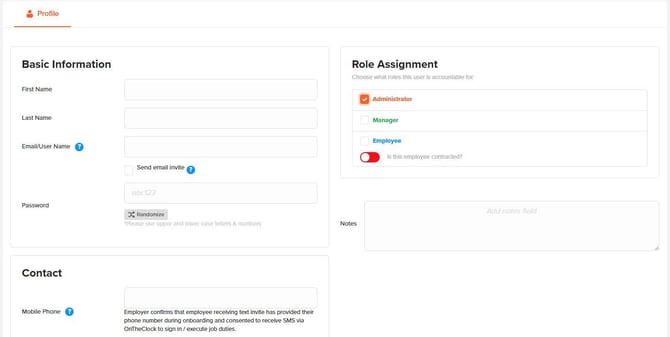
Step 4: In "Profile" under "Role Assignment," check the box Administrator.
Step 5: Check “Send text invite” to send an invitation via mobile or “Send email invite” to send an email invite.
Step 6: Click “Save.”
Removing Additional Administrators
Step 1: Log in as an administrator.
Step 2: Navigate to “My Team” then “Team Directory.”
Step 3: Click the red X next to the administrator you’d like to modify.
What to Expect
Additional administrators will receive welcome emails allowing them to log in and access the account. Administrator permissions will grant users the same privileges as the primary administrator. After removing an administrator from the list, they will no longer be able to log in and access the OnTheClock account. The main administrator cannot be deleted and must be replaced on the account.
web:end
app:start
Step 1: Log in as an administrator.
Step 2: Navigate to “Dashboard.”
Step 3: Scroll down and tap on “Add Something New.”
Step 4: From the “Quick Add” menu, select “Admin.”
Step 5: Add the user’s information to the form.
Step 6: Check “Send text invite” to send an invitation via mobile or “Send email invite” to send an email invite.
Step 7: Click “Save.”
Removing Additional Administrators
Step 1: Log in as an administrator.
Step 2: Tap on your initials in the top left corner.
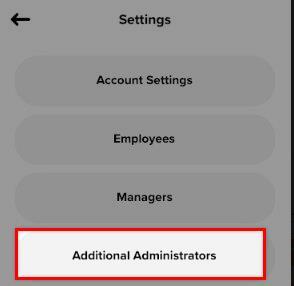
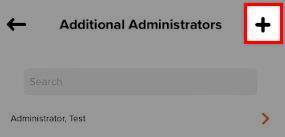
Step 3: Tap on “Settings,” then “Additional Administrators.”
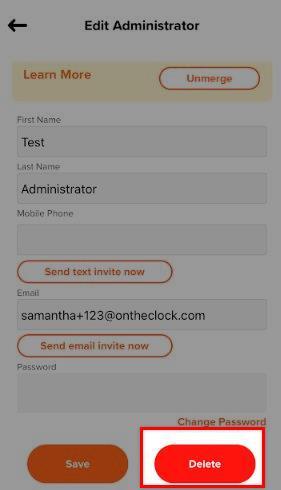
Step 4: Tap on the administrator you wish to modify.
Step 5: Tap “Delete.”
app:end
What to Expect
Additional administrators will receive welcome emails allowing them to log in and access the account. Administrator permissions will grant users the same privileges as the primary administrator. After removing an administrator from the list, they will no longer be able to log in and access the OnTheClock account. The main administrator cannot be deleted and must be replaced on the account.
Q&A
Q: Does it cost extra to add additional administrators?
A: No — administrators are free to add. However, if the admin account is linked to an employee account, you will be billed for their seat as an employee.
Q: How can my admin clock in and out?
A: If you’d like your administrator to be able to clock in and out, you must add them as an employee.
Q: Our administrator left the company and now no one has access. How can we get in?
A: Please contact us at 888-753-5999 and we can assist with getting you access.
Q: When I enter in an email address for the admin it says this email is already in use?
A: If you receive a message stating that an email address is in use, it is possible the email exists in another OnTheClock account. You will want to use a different email