
Overview
There are three kinds of OnTheClock users: administrators, employees, and managers. Managers can add/remove employees, adjust paid time off, create schedules, and adjust employee settings. Managers can also be linked to an employee account to clock in and out.
Setup
web:start
Add a Manager
Step 1: Log in as an administrator.
Step 2: Click “My Team” in the top menu, then select “Team Directory” from the dropdown.
Step 3: Click the “Add New Team Member” button.
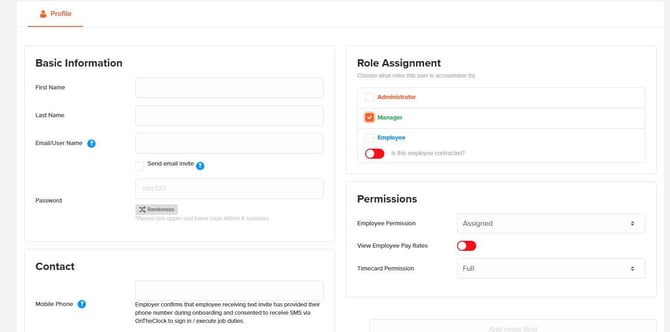
Step 4: Fill out the team member’s profile information.
Step 5: In the Role Assignment section, select “Manager.”
Step 6: Configure the manager’s permissions in the permissions panel that appears.
Step 7: Choose “Send Text Invite” and/or “Send Email Invite.”
Step 8: Click “Save.”
Add a Manager as an Employee
Step 1: Click “My Team” in the top menu, then select “Team Directory” from the dropdown.
Step 2: Open the profile of the team member you want to update.
Step 3: In the Role Assignment section, check the box for the additional role you want to assign (e.g., Administrator, Manager, or Employee).
Step 4: If assigning the Manager role, configure the permissions in the permissions panel that appears.
Step 5: Click “Save.”
Assign a Manager to an Employee
Step 1: Click “My Team” in the top menu, then select “Team Directory” from the dropdown.
Step 2: Open the profile of the team member you want to assign to a manager.
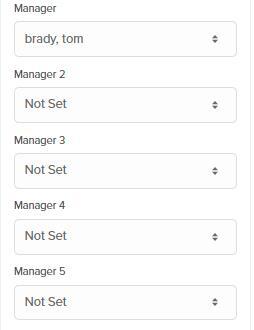
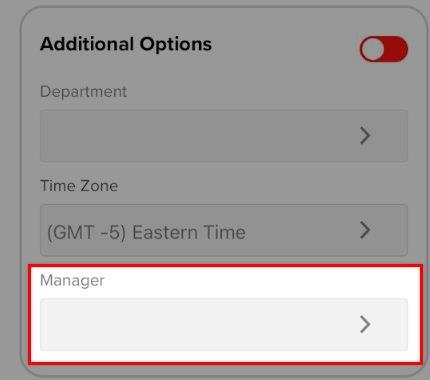
Step 3: Under "General" and “Additional Options,” select the manager from the dropdown list.
Step 4: Click “Save.”
To remove the Manager role (but keep the user as a team member):
-
Click “My Team” in the top menu, then select “Team Directory” from the dropdown.
-
Open the profile of the manager whose role you want to remove.
-
In the Role Assignment section, uncheck the “Manager” box.
-
Click “Save.”
To permanently delete a manager from the account:
-
Click “My Team” in the top menu, then select “Team Directory” from the dropdown.
-
Locate the manager in the list.
-
Click the red X next to their name.
-
Confirm the deletion when prompted.

What to Expect
Once you’ve added managers to the system, they can manage team members’ time based on the permissions you assign to them.
If a manager also needs to track their own time, this can now be handled from the same profile—there is no longer a need to create separate profiles for different roles.
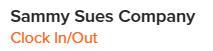
When logged in as a manager on the desktop, they can clock in and out by clicking their initials in the top-right corner and selecting “Clock In/Out” from the dropdown menu.
Once a manager's profile is deleted, they will no longer have access to the account.
web:end
app:start
Add a Manager
Step 1: Log in as an administrator.
Step 2: Navigate to your dashboard.
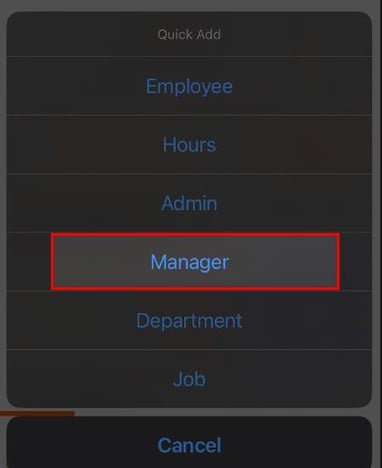
Step 3: Click the + icon in the box labeled “Add Something New.”

Step 4: Select “Manager.”
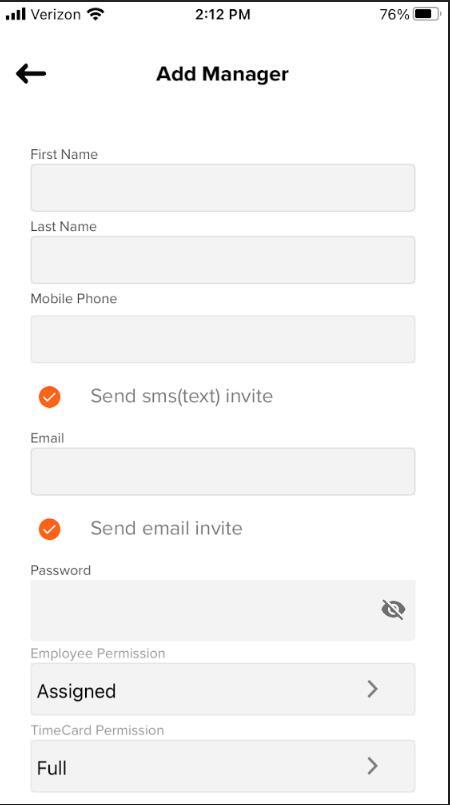
Step 5: Fill out the manager’s profile and set permissions.
Step 6: Check off “Send Text Invite” and/or “Send Email Invite.”
Step 7: Tap “Save.”
Add a Manager as an Employee
Step 1: Tap your initials in the top left corner.Step 2: Tap “Settings,” then “Employees.”
Step 3: Tap the + icon in the top right corner, then “Add One.”
Step 4: Under “General Settings,” copy over the exact information from the manager profile.
Step 5: Click “Save.”
Assign a Manager to an Employee
Step 1: Log in as an administrator.
Step 2: Navigate to your dashboard.
Step 3: Click the + icon in the box labeled “Add Something New.”
Step 4: Select “Manager.”
Step 5: Fill out the manager’s profile and set permissions.
Step 6: Check off “Send Text Invite” and/or “Send Email Invite.”
Step 7: Tap “Save.”
Delete a Manager
Step 1: Tap your initials in the top left corner.
Step 2: Tap “Settings,” then “Managers.”
Step 3: Tap on the manager you wish to delete.
Step 4: Scroll to the bottom and tap the “Delete” button.
Step 5: Confirm you’d like to delete this manager.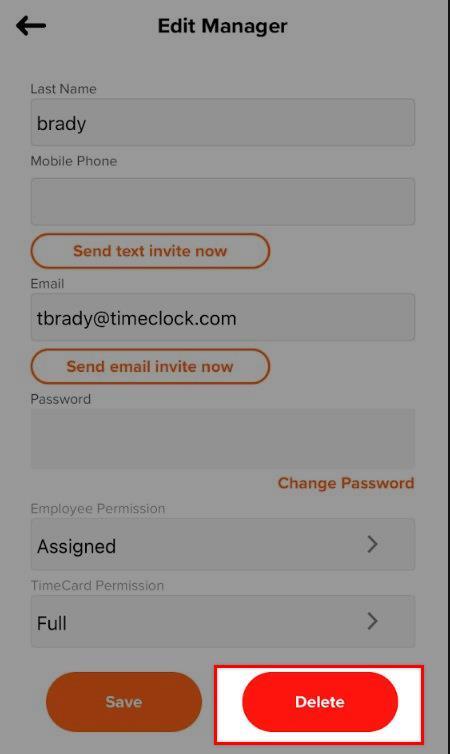
What to Expect
Once you've added your managers to the system, they can manage employee times based on the permissions granted to them. Should you have a manager who is also an employee, they'll need to create separate profiles for each user type. Once a manager's profile is deleted, they will no longer have access to the account.
app:end
Q&A
Q: If I am a manager and an employee, can I use the same email address?
A: Yes absolutely!
Q: Am I charged for managers?
A: You can have as many managers on the account as needed at no additional cost.
Q: What type of permissions can a manager have?
A: All managers have the ability to do the following unless restricted. Add, delete and change employee records. View, edit, and export timecards of employees. View and approve PTO of employees. Add departments and jobs to better categorize your employees and timecards. Add & delete jobs codes for job costing. Approve timecards.
Q: I logged in but can't see any employees.
A: Please ask your administrator to check your permissions. If your permissions are set to "assign," then your administrator will need to assign employees to you or update your permission to "all."
Q: I'm logged in as a manager but can't see my own time.
A: If you're not assigned to manage yourself, then please log in with your employee credentials to view your time cards.