
Overview
Your OnTheClock account can have both hourly and salaried employees. When you set up an employee as salaried, they won’t need to punch in and out, but a time card will still be created for them. Salaried employees can also request PTO.
Setup
Step 1: Log in as an administrator or manager via browser.
Step 2: Navigate to “My Team,” then select the employee you’d like to modify.
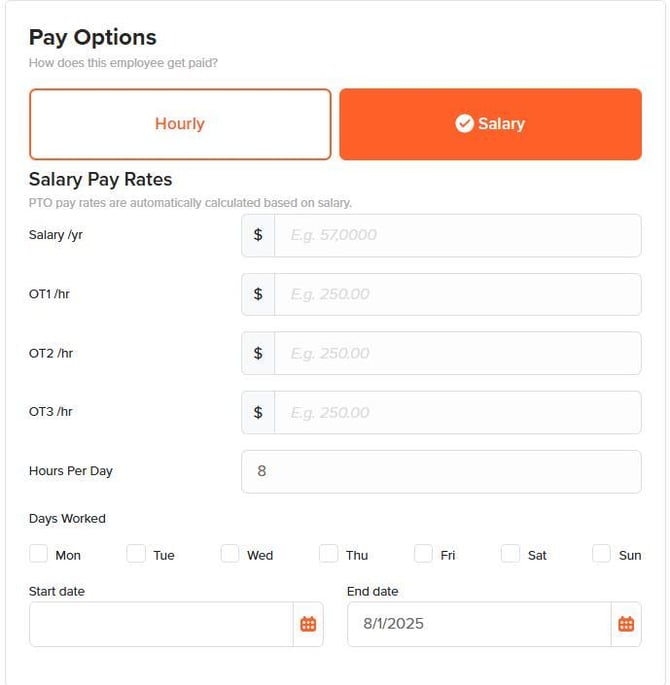
Step 3: Go to "General" and “Pay Options.”
Step 4: Click "Salary."
Step 5: Enter your salary rate and the hours per day worked (i.e., 8).
Step 6: Select the days of the week the employee will work.
Step 7: Enter the start date for this employee.
Step 8: If the employee is no longer with the company, or no longer salaried, enter an end date. Otherwise, leave this field blank.
Step 9: Click “Save Settings.”
What to Expect
When you apply the days, number of hours , and the start date for a salaried employee profile the time cards will now be populated automatically for the current pay period.

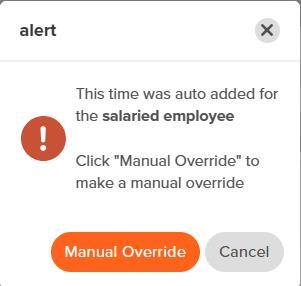
Edits to a time record that is salaried will display a manual override message. You will need to go in and override any changed to these time cards.
Applying an end date to your salaried employees settings will ensure that no more time cards populate beyond the end date given.
Q&A
Q: Is there a way for salaried employees to indicate when they start work?
A: Yes — you can enable check-ins to get notifications when the employee starts work.
Q: Can I remove the clock in and out option for a salaried employee?
A: Yes — navigate to the employee’s profile. On the “General” tab, view “Additional Options.” Then, toggle “Allow Clock In/Out” off.
Q: Can I switch an employee from hourly to salary midway through the year?
A: Yes — you can turn the “Is Salaried” feature on and off based on the dates you specify. Be sure to archive your time cards before making any changes.