Key Takeaways
- ✔ 7Shifts delivers strong restaurant scheduling and labor forecasting tools that help managers build shifts quickly, monitor projected wages, and compare labor costs to sales in real time.
- ✔ 7Shifts limits important workforce features to higher pricing tiers, requiring upgrades for time clocking, PTO accrual tracking, payroll, and advanced compliance tools.
- ✔ 7Shifts uses a separate 7punches app for time tracking, which adds setup friction and makes punch approvals less intuitive for managers.
- ✔ 7Shifts pricing can increase as businesses add locations or upgrade plans. Premium bundles several advanced tools, but payroll still carries a per-employee charge.
- ✔ 7Shifts works best for restaurants focused on scheduling efficiency, while businesses seeking simpler pricing and fully integrated time tracking and payroll may prefer a more unified workforce platform.
7Shifts is a workforce management platform built for restaurants and hospitality businesses, offering tools for scheduling, time tracking, and team communication. In this honest review, we break down what 7Shifts does well, where it creates friction, and how it compares to other workforce platforms — including OnTheClock. The goal is simple: give you a clear, real-world view of the software so you can decide whether it fits your team, budget, and workflow.
Verdict: Is 7Shifts Worth It?
Score: 7.8/10
7Shifts is a restaurant-first workforce management platform that combines scheduling, labor forecasting, team communication, and time tracking in a system designed specifically for hospitality. It excels at helping restaurant managers build schedules quickly, manage front- and back-of-house roles, monitor projected labor vs. sales, and coordinate shift coverage in real time.
Scheduling is clearly the platform’s strongest area. Drag-and-drop scheduling, open shift pools, shift swapping, and built-in labor visibility tools make it well-suited for restaurants where staffing changes directly impact service quality and profitability. The ability to view projected wages and compare labor to sales adds practical operational insight that many general workforce platforms don’t emphasize.
The mobile experience is also solid. Employees can view shifts, request time off, pick up open shifts, and message managers directly from the app. Managers get scheduling controls, labor reporting, messaging tools, and log book features, all aligned with hospitality workflows.
That said, 7Shifts starts to feel less “all-in-one” once you move beyond scheduling. Time clocking requires higher-tier activation and relies on a separate 7punches app, which adds friction during setup and daily use. Payroll is only available on the Premium plan, and several advanced tools, including PTO accrual tracking, compliance features, tip management, and task management, require plan upgrades or paid add-ons.
Overall, 7Shifts earns a 7.8/10 because it delivers excellent restaurant-specific scheduling and labor management tools, but tier gating, add-on pricing, and the separate time clock experience reduce its value as a streamlined workforce platform.
If you’re a restaurant that prioritizes scheduling and labor forecasting, 7Shifts is a strong option. If you want integrated workforce management with simpler pricing and fewer feature gates, you may prefer a more unified system.
How Much Does 7Shifts Cost?
Score: 6/10
7Shifts offers a free Comp plan for qualifying small restaurants, along with paid Essentials and Premium plans.
The Comp plan allows up to 15 employees at a single location to use the software for free. It includes basic scheduling, availability management, and time-off requests.
The Essentials plan costs $49.99 per month per location for up to 30 employees when billed monthly. It includes advanced scheduling, team messaging, basic and advanced time clocking tools, and customizable permissions.
The Premium plan costs $149.99 per month per location when billed monthly and supports unlimited employees. It includes everything in Essentials, plus employee training, tip management, payroll access, a manager log book, task management, labor compliance features, and PTO accrual tracking. Businesses using 7Shifts Payroll pay an additional $6 per employee paid.
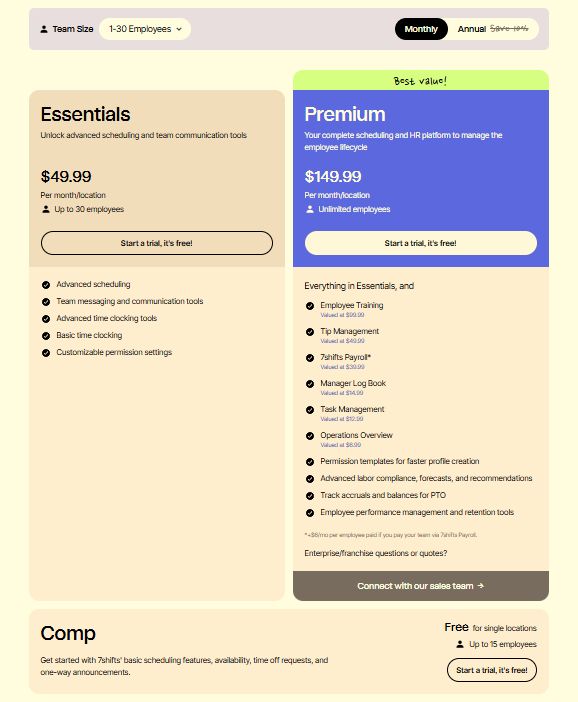
For a team of 10 employees at one location, monthly pricing starts at $0 for Comp, $49.99 for Essentials, and $149.99 for Premium, excluding payroll charges. If all 10 employees are paid through 7Shifts Payroll, Premium would cost $209.99 per month. By comparison, OnTheClock's time tracking plan costs $45 per month for 10 employees with all core features included — no tier upgrades or add-ons required.
How Do You Get Started on a Web Browser?
Score: 8/10
I started by visiting the 7Shifts website (www.7shifts.com) to create an account. The homepage positions the product as a fast scheduling solution for hospitality with messaging that emphasizes significant time savings.
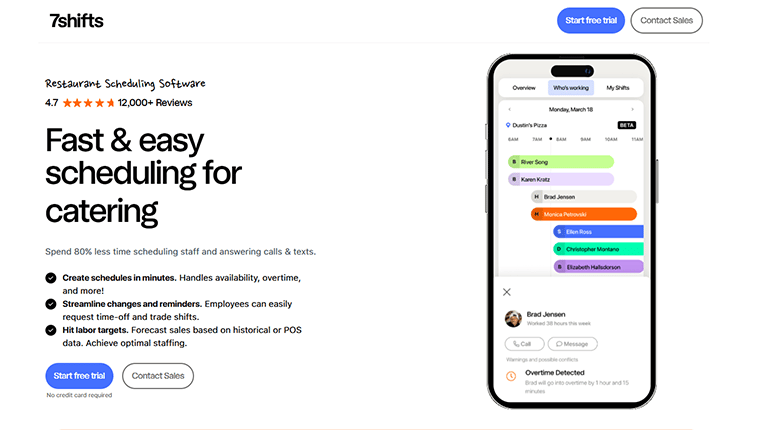
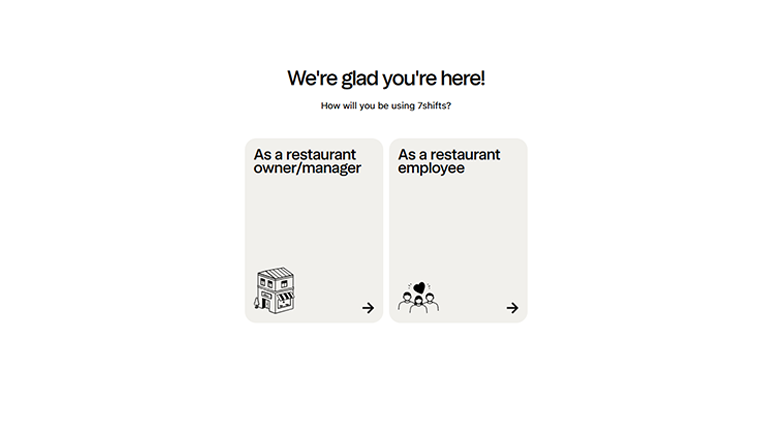
Starting the trial was straightforward. I selected whether I was an owner/manager or employee, entered basic account details, and saw that the trial includes Pro features for 14 days with no contract. After that, I customized the experience by selecting my priorities (scheduling, time tracking, and/or payroll), role, and basic restaurant info.
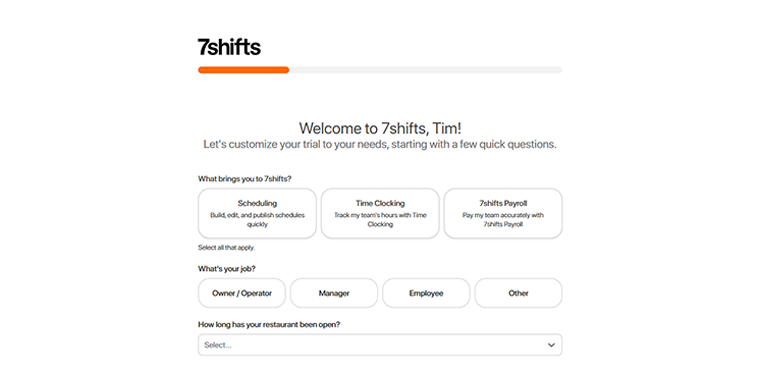
Then, I was asked to customize my trial by selecting my primary features (scheduling, time tracking, and/or payroll), specifying my role (owner, manager, employee, or other), and noting how long my restaurant has been open.
The next screen helped me personalize my trial experience. I was asked to enter my restaurant’s name, address, type of restaurant, number of locations, and the average number of employees.
From there, I was prompted to create my first schedule by identifying how I currently maintain the restaurant’s schedule, the POS I use, my payroll provider, what day of the week my schedules start, and my typical hours.
One standout moment: During setup, I could upload a CSV/JPG/PNG schedule to help auto-populate scheduling. This is a great touch for customers who want a more hands-off start.
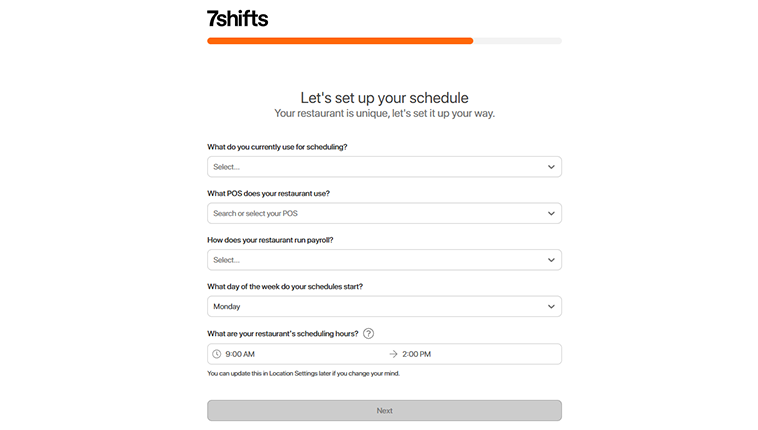
The next screen allowed me to identify my front- and back-of-house roles. I was able to sift through a number of popular hospitality positions using a pull-down menu.
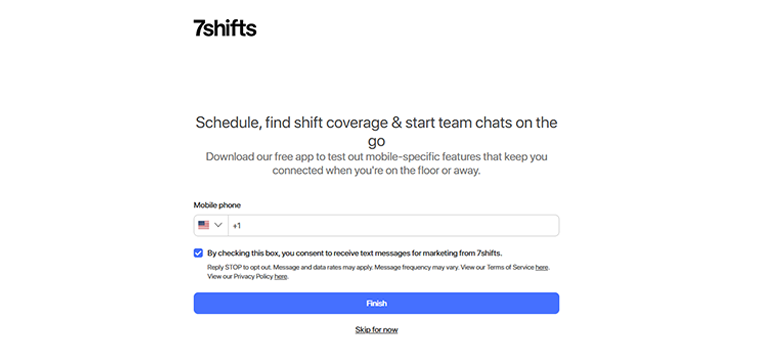
Then, I was prompted to enter my phone number, so the solution could send me an invite to download the mobile app.
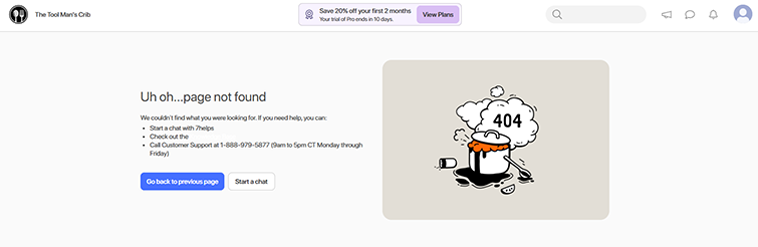
One drawback: when I tried logging back in after a weekend away, I encountered a 404 Page Not Found error. That kind of instability is a real concern for a tool that restaurant managers depend on daily. The upside is that a chat shortcut was available on the error page.
How Do I Get Started on the Mobile App?
Score: 8/10
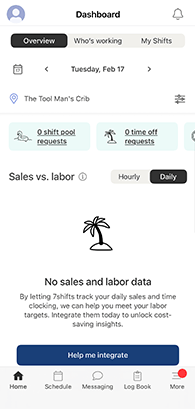
After adding an employee, I switched to mobile and downloaded the 7Shifts app. The dashboard provides a quick snapshot of shift activity, time-off requests, and sales vs. labor comparisons.
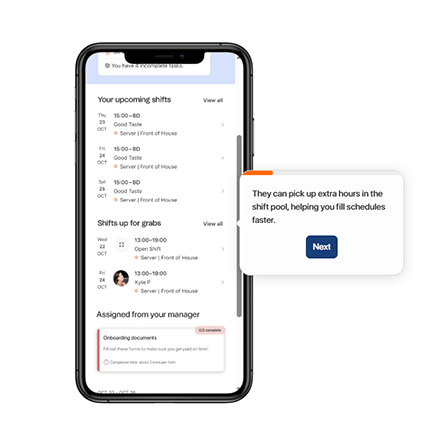
The app’s dashboard (home) showed me an overview that showcased any shift and time off requests as well as sales vs. labor comparisons. The sales and labor data took up more than half of the screen, which is a ton of real estate on the screen most users will originate on.
A vertical scroll reveals the actual labor and sales amounts compared to projected figures.
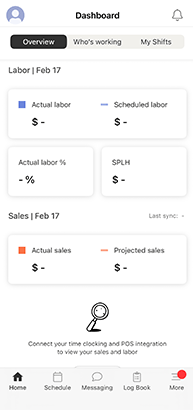
There are three tabs along the top of the screen: Overview, Who’s working, and My Shifts. As a wordsmith, I found it weird that the word “Working” was not capitalized like the others
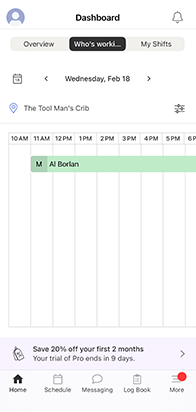
The Who’s Working tab provides a view of the team scheduled for the day and the shifts they’re assigned to. The view can be filtered by day, granting access to previous days as well.
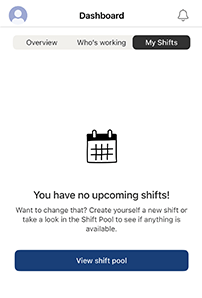
The MyShifts tab displays upcoming shifts and lets the user browse the open shift pool.
The bottom of the mobile app featured five shortcuts, each providing a portal to home, schedule, messaging, log book, and more.
The app was easy to navigate and offered me a comprehensive experience, from clock-ins to scheduling to customer support and more. While the dashboard layout could be improved, the experience is simple and easy to use.
How Do You Add Employees?
Score: 8.5/10
Once I completed the setup process, I landed on a dashboard that provided a step-by-step guide to further establish my account.
The first step was to add employees and establish their wages. I was prompted to enter each employee’s first and last names, email addresses, and phone numbers.
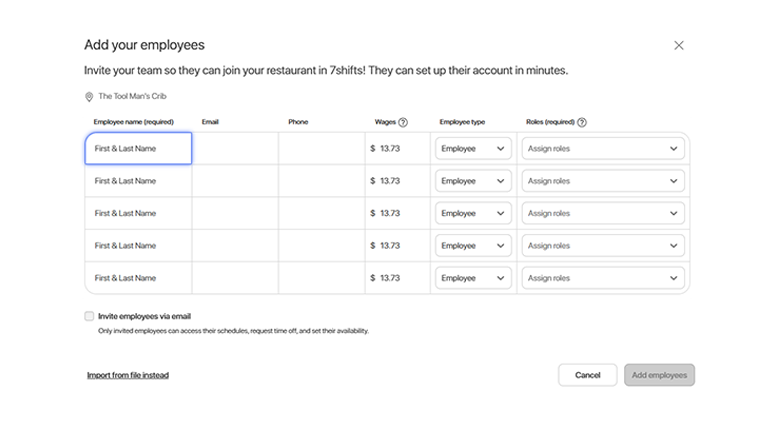
To add a team member, navigate to the Team tab (the smiley face emoji) and click the blue “Add employee” button.
Then, input the employee’s name, email (optional), mobile number (optional), role, hire date (optional), locations, departments, and more.
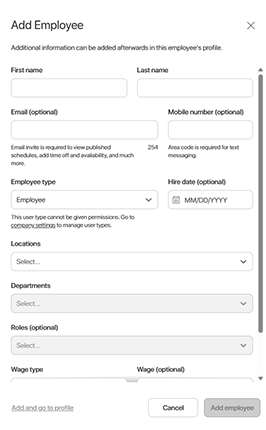
Once I entered this information, the employee received an email and was asked to create a password. Once confirmed, the employee was added to the team.
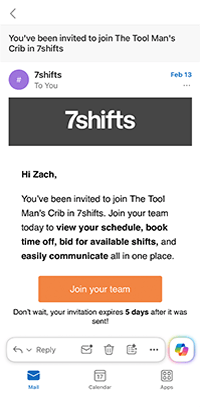
In the mobile app, when logged in as an admin, I tapped the More shortcut at the bottom of the screen, then tapped the plus sign in the top-right corner. I was then asked to enter the employee’s name, email address, phone number, role, and assignments. An HR and payroll thread allowed me to enter the employee’s hourly wage, set a maximum weekly hours limit, include employee and/or punch IDs, and more.
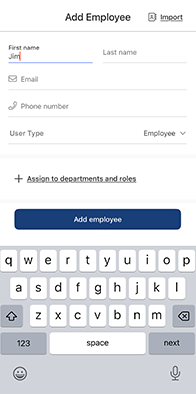
I then had to enter the employee’s name, email address (optional), role, and then decide whether to send the email invite.
Overall, I was able to add employees quickly and easily. The process was executed without any failures or hiccups.
How Does Scheduling Work?
Score: 9/10
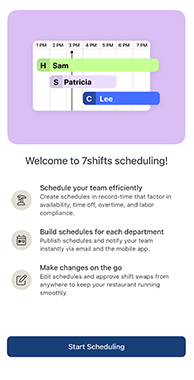
Scheduling is where 7Shifts shines. The calendar view makes it easy to add shifts, assign roles, include breaks/notes, and copy shifts across multiple days.
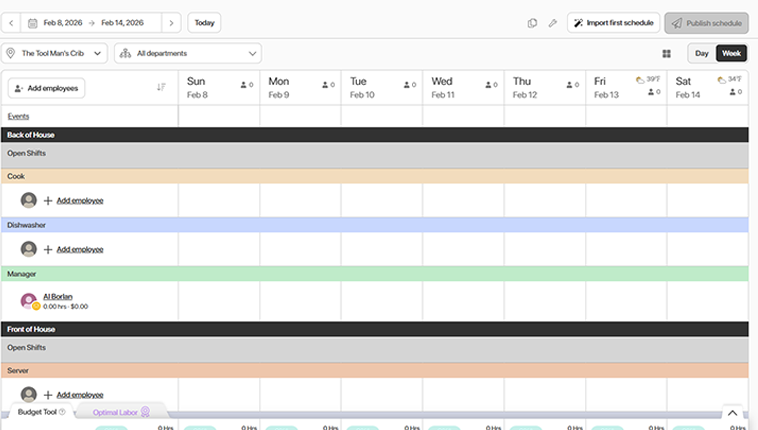
To create a schedule, I clicked on the Schedule tab along the left margin. I was prompted with a horizontal calendar that depicted the current week. To add a shift, I simply clicked the plus sign on the day in the matrix that matched my specific employee.
One notable feature: The local weather forecast and temperature were provided for each calendar day.
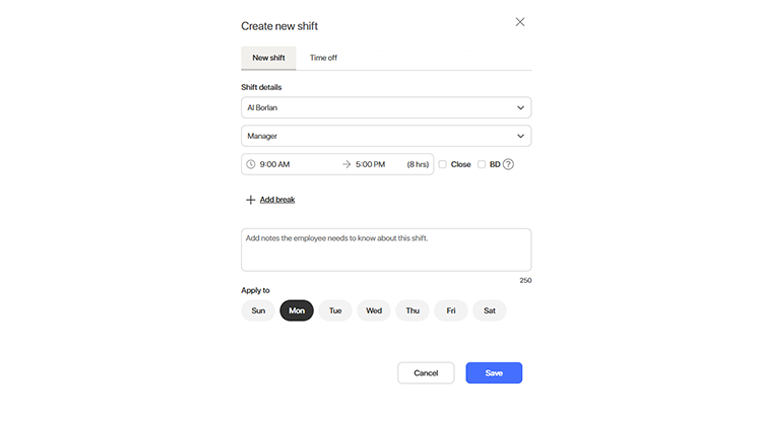
When I clicked a specific day, a “create new shift” prompt appeared, prompting me to identify the employee the schedule will represent, their role, the start and finish times, any breaks, and any notes. The schedule can be copied and applied to any day within the calendar week by clicking that respective day, which was a nice touch.
Additionally, by clicking the Close or Business Decline (BD) buttons, the employee represents that, for certain shifts, the end time may fluctuate depending on the establishment's level of business that day. These are extremely helpful in managing fluctuations in the business based on occupancy and surges.
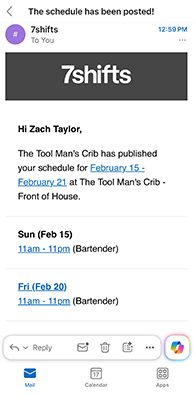
I assigned an eight-hour shift to Al Borlan during weekdays and a 12-hour shift to Zach Taylor on Friday, Saturday, and Sunday. Upon clicking the blue “Publish Schedule” button, I was notified that the schedules for both back-of-house and front-of-house employees would be published. I was then asked whether I wanted to notify all employees or none at all. I opted to notify all employees and confirmed that each employee received an email.
Open shifts can be assigned to any day or department, allowing employees to pick up shifts when available.
Schedules can be toggled to show specific departments, days, etc.
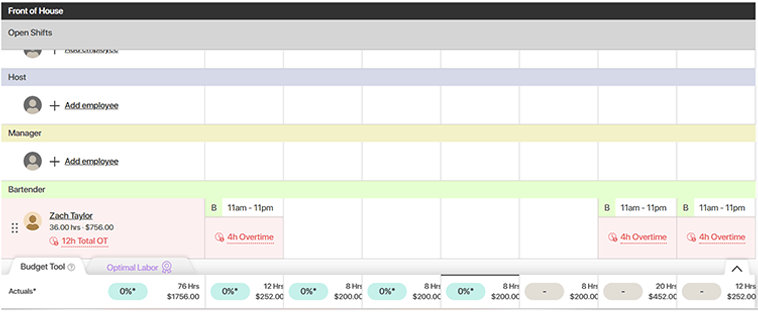
Each employee’s projected salary is shown beneath their respective profile. That amount is updated in real time as hours change. At the bottom of each day, the total projected pay is also displayed, another nice feature for administrators seeking daily awareness of money going out and/or their bottom lines.
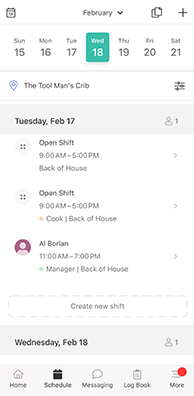
On the mobile app, shifts are shown by day, with any open shifts listed first. The schedule can be filtered by location, department, role, and employee.
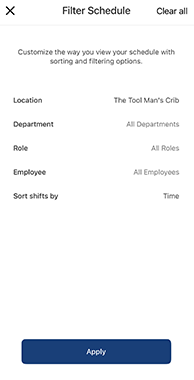
Shifts may also be sorted by time, department, role, or employee – providing the user with a great deal of control.
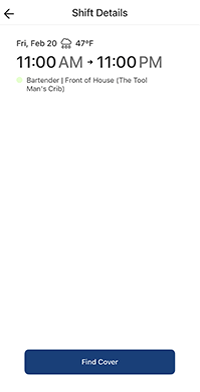
On a future shift, if an employee needs coverage, he or she can simply click that day and select the “Find Cover” button near the bottom of the screen.
The solution’s scheduling feature is fairly easy to navigate. The ability to easily create a shift and assign it to a specific employee was a nice feature. Drag-and-drop functionality is another nice option. Overall, the schedule function is a wonderful tool, albeit the interface can appear a bit cluttered and busy.
How Do Timecards Work?
Score: 6.5/10
Time tracking requires activating time clocking and setting up a pay schedule.
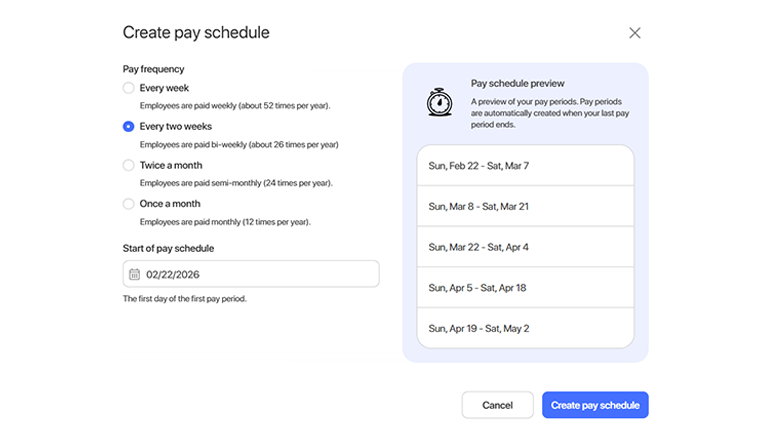
After that, I was prompted to download 7punches, which is a separate time clock app.
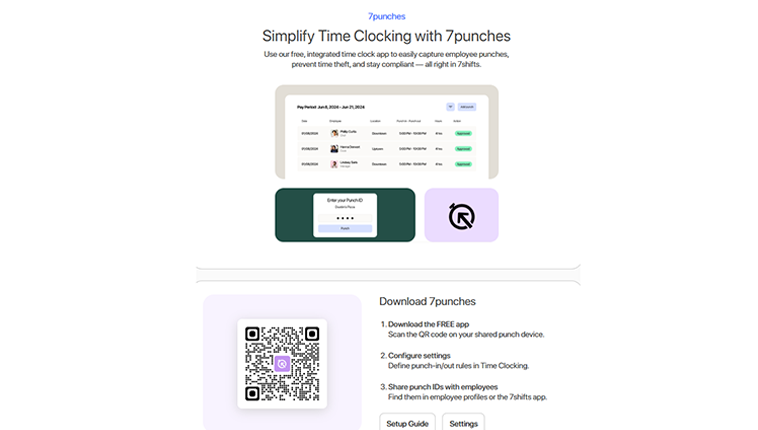
In the 7punches app, I was prompted to enter my Punch ID. This was problematic, as I had no idea what my punch ID was. Thus, I had to visit a web browser and obtain this information before proceeding. And, a visit to my profile showed that my admin did not have a Punch ID set up, nor could I enter one from the settings page.
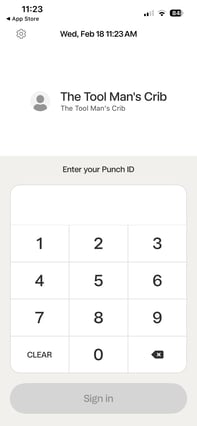
I was able to find my employee's Punch ID and, once entered, I was prompted to clock in.
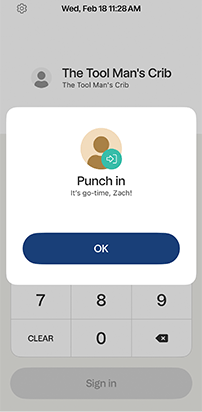
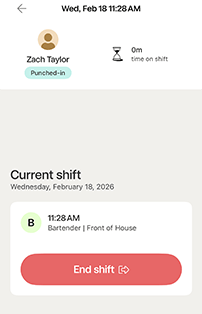
Once clocked in, I was shown the number of minutes/hours the employee had worked, the individual’s role, and the punch time. A prominent red button allowed the employee to clock out, or, using 7punches’ terminology, “End shift.”
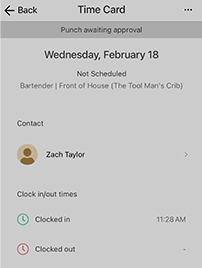
From an admin view, I could see my employee’s punch within the Menu > Time Clocking tab. I noticed the punch hadn't been approved and couldn’t find a place to do so within that view. I clicked around the screen for several minutes and even started a help chat before finding the approval screen hidden behind the three lines in the top-right corner.
Then, when I attempted to approve the punch, I encountered an error screen. This could be problematic as managers pivot to busy dining rooms and may forget to revisit this punch.
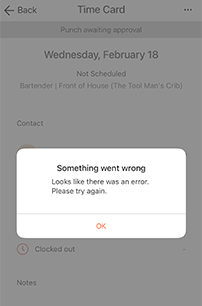
In summary, the time clock feature is not among 7Shifts' strongest offerings. It has to be downloaded separately, is not included in the free Comp plans, and the core necessity of a punch approval was largely hidden and proved to be faulty in my test run.
What Kind of Customer Support Does 7Shifts Offer?
Score: 8/10
Support is a very important part of any time tracking company. It’s crucially important to have a real person available if/when problems arise.
I located the support icon under the profile and then clicked Support and What’s New. Inside, I found a search prompt with all the software’s help guides, covering a plethora of topics, including product guides, FAQs, payroll, and more.
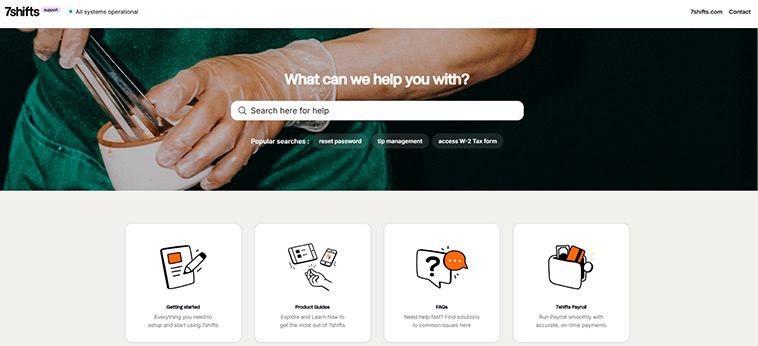
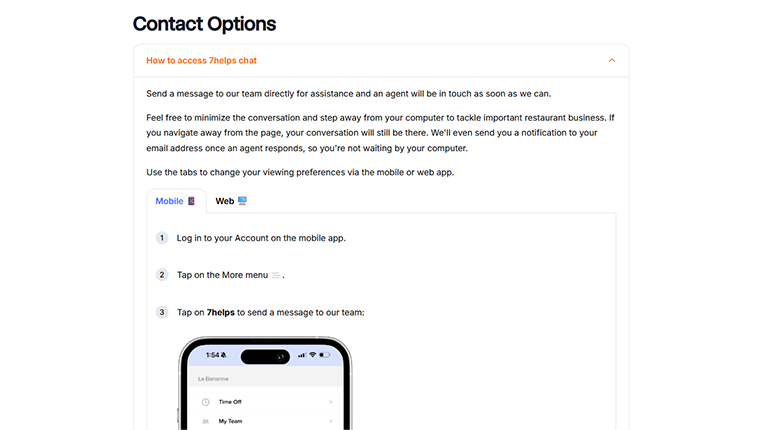
There was no live chat option, so I sought it out. I clicked the Contact Us prompt in the top-right corner of the help page. This took me to a landing page that housed the help chat, but not the chat itself. The page did include step-by-step instructions that led me to the live chat.
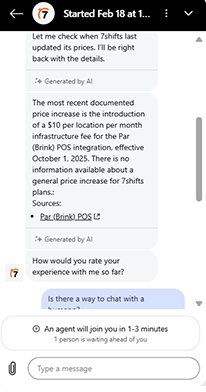
Once I connected to the live chat, I was asked to provide my email address for identification purposes. I then asked, "When was the last time 7Shifts raised its prices?" The AI bot pointed to a $10 per location per month infrastructure fee introduced Oct. 1, 2025, for the Brink (PAR) POS integration. This is an additional integration fee, not a general subscription price increase. I confirmed the charge in 7Shifts' official documentation.
I tested the chat’s parameters and requested a live agent. A human responded in about 10 minutes. I let them know I worked for a competitor and asked, “What is your No. 1 issue your support team deals with?” The agent, very honestly, responded with payroll support and tip management. This chat thread was also sent to my email address, which provides a written record of the interaction – a very nice touch!
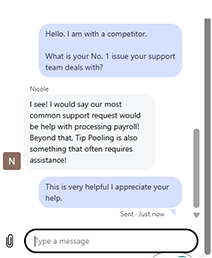
The software’s help section is thorough, with lots of resources. The AI agent was helpful, and the live agent was responsive to my questions, even after identifying as a competitor. Overall, 7Shifts’ customer support passed the test!
How Does In-App Chat Work?
Score: 8/10
Clicking the quote bubble in the top-right of the screen opened the chat prompt. Within, I was allowed to create a chat group and add team members.
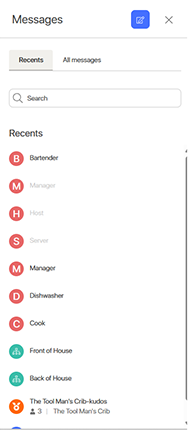
The messaging screen allowed me to send messages to specific roles (bartenders, dishwashers, cooks, etc.) or to front and/or back of the house. There’s also a kudos tab that houses celebratory messages. Though it does look like these messages must originate at the end of a shift, and only through the mobile app.
To start a new message, click the blue “New Message” option. Within, I was able to search for specific employees, filter by those who are scheduled today or tomorrow, or select employees by name.
I sent employee Zach Taylor a message, asking if he could work on Thursday.
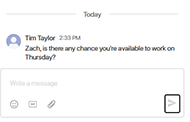
Overall, the process is easy to use once you get the hang of it. It’s a nice feature that allows for internal communication at no extra cost.
How Do You Manage Time Off?
Score: 7/10
To access an employee’s paid time off (PTO) account, I clicked the Schedules tab on the far-left margin, then clicked Time Off. This led me to an introductory screen that explained the time off functionality.
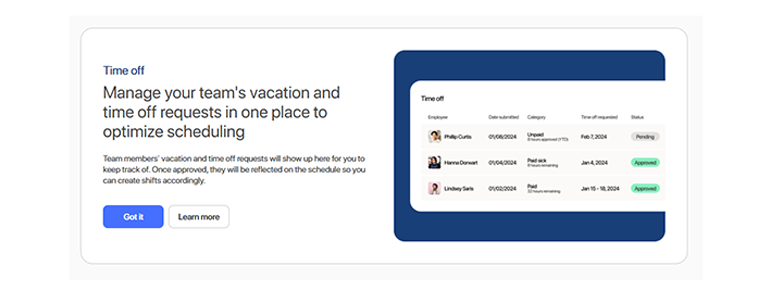
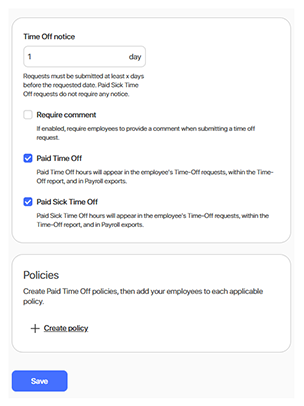
Before establishing time off, the company’s policies must be established. To accomplish this, I clicked the Settings tab and scrolled over to Time Off.
This screen allowed me to establish the number of required days' notice to request time off, whether a comment must be included, and if time off and sick time are paid.
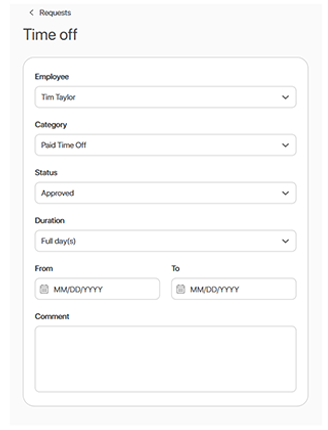
To add time off as an admin, I simply clicked the blue “Add time off” button in the top-right corner of the time off screen. From there, I was able to select the employee, choose the type of PTO to assign, confirm the request status (approved or denied), indicate whether it was a full or partial day, select the exact date range, and add a comment.
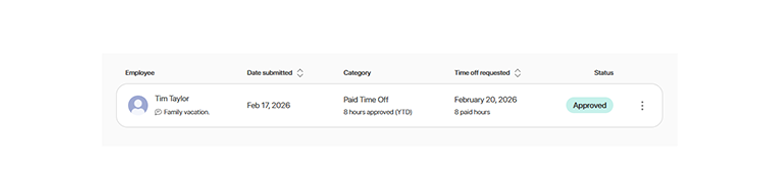
Once approved, the PTO request appeared as a single-line item, making it easy to identify when the request was made, when the employee will be off, and whether it has been approved or denied.
However, oddly enough, when I navigated back to the Time Off interface, the PTO request page defaulted to pending requests. I believe companies would be better served if this page showed all requests (pending, approved, and denied).
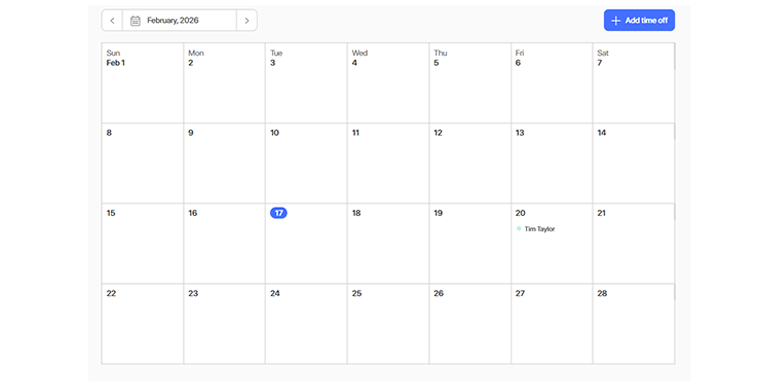
When approved, the time off appears on the time off calendar as well.
How Does Payroll Integration Work?
Score: 6/10
To access 7Shift’s payroll function, I clicked the Payroll tab along the left margin. A pop-up offered some quick help, covering topics such as what’s included, costs, etc.
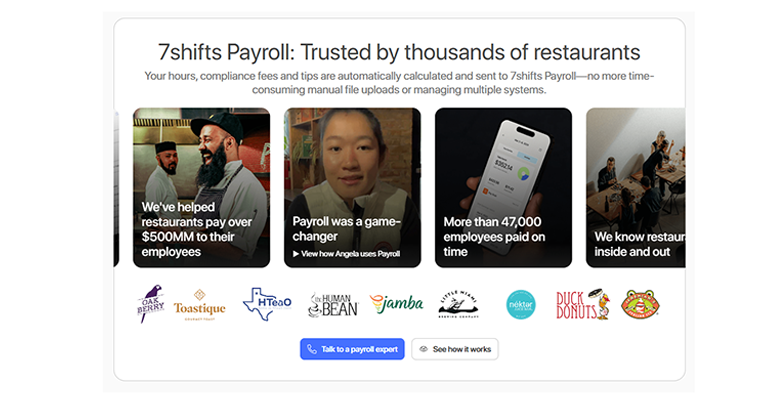
A scroll down revealed that 7Shifts offers payroll functionality through its Premium plan. Under the current pricing structure, Premium costs $149.99 per month per location with monthly billing, with an additional $6 charged for each employee paid through 7Shifts Payroll.
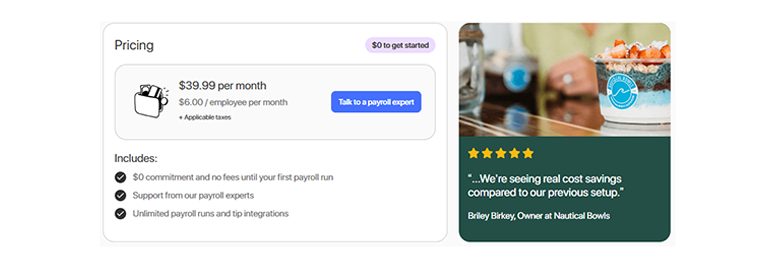
The payroll add-on seems very beneficial, touting numerous features, including employee pay stubs, tax forms, paperless W-2s, QuickBooks integration, direct deposits, multiple EINs, and more.
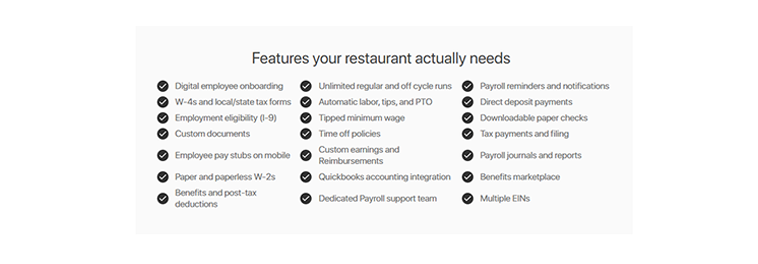
While I wasn’t able to test the payroll offering, it seems adequate, covering most everything small businesses need to run a simple payroll.
What Add-Ons Does 7Shifts Offer?
Score: 6/10
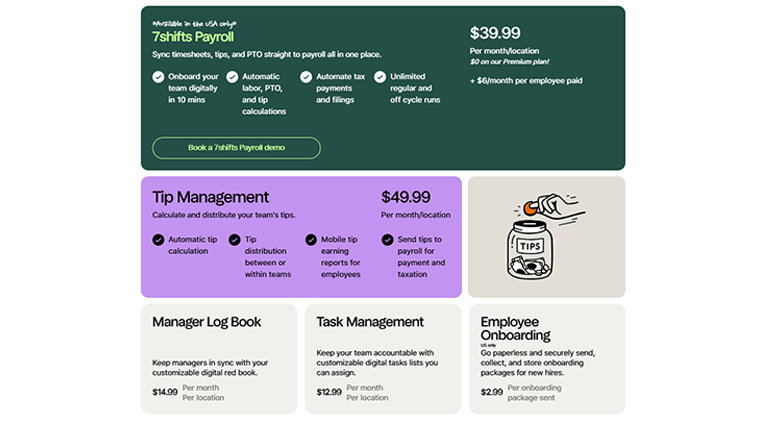
7Shifts offers several features through its Premium plan that were previously sold as separate add-ons, including tip management, a manager log book, task management, and employee training. Premium costs $149.99 per month per location with monthly billing. Businesses using 7Shifts Payroll also pay $6 per employee paid.
While the bundled features provide additional value, businesses should consider the full cost of Premium, employee-based payroll charges, and any other optional services when comparing plans.
How Does 7Shifts Handle Follow-Ups and Outreach?
Score: 6/10
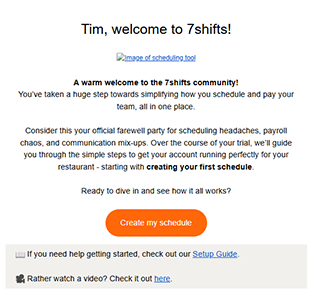
After signing up, I received multiple onboarding emails in the first few days, including a welcome message, payroll pitch, schedule completion messages, etc. Unfortunately, they landed in my spam folder, which reduces their usefulness and can cause customers to miss important setup guidance.
What Are the Pros and Cons of Using 7Shifts?
7Shifts is a restaurant-focused platform that excels in scheduling and labor visibility, but its tier structure and add-ons can increase complexity over time.
Pros of Using 7Shifts
- Restaurant-Specific Scheduling Tools – 7Shifts is built for hospitality. Features like Close and Business Decline shifts, front- and back-of-house role separation, and local weather forecasting directly support restaurant operations.
- Strong Labor Forecasting and Sales Integration – The dashboard prominently displays projected labor vs. actual sales, giving managers immediate visibility into performance and labor cost ratios.
- Easy Drag-and-Drop Scheduling – Creating, copying, and publishing shifts is simple. Open shifts and shift swapping are intuitive, and employees can request coverage directly from the app.
- Role-Based Messaging and Communication – In-app messaging allows communication by department, role, or individual employee. The kudos feature adds a team-building element as well.
- Flexible Employee Setup – Admins can quickly add employees, assign departments, establish wages, restrict weekly hours, and configure punch IDs with minimal friction.
- Comprehensive Mobile Experience – Managers and employees can access schedules, labor data, time-off requests, and messaging from a centralized mobile app.
- Tiered Options for Growing Restaurants – Multiple plan levels allow restaurants to start small and scale into more advanced tools, like PTO accrual tracking, compliance features, payroll, and tip management.
Cons of Using 7Shifts
- Key Features Locked Behind Higher Tiers – The free Comp plan offers basic scheduling, while time clocking requires a paid plan. Advanced capabilities, including PTO accrual tracking, payroll access, and labor compliance tools, are included in Premium.
- Separate Time Clock App (7punches) – Time clocking requires downloading a separate app, adding complexity to onboarding and daily use.
- Hidden or Confusing Timecard Approvals – Time punch approvals are not immediately obvious within the interface, and errors during testing raise concerns for busy managers.
- Higher Tiers Increase Costs – Businesses needing payroll, tip management, task management, and other advanced features may need the more expensive Premium plan. Payroll also carries an additional per-employee fee.
- Interface Can Feel Busy – The scheduling screen and mobile dashboard contain a high volume of information, which may feel cluttered for new users.
- Support Requires Navigation Effort – While live chat exists, it is not immediately visible. Users must navigate through the help sections to access it.
- Trial and Email Instability Issues – During testing, login issues (404 errors) and spam-folder onboarding emails created minor friction during setup.
What Do Real Users Say About 7Shifts?
To better understand 7Shifts’ real-world performance, it’s important to look beyond feature lists and marketing claims. Reviews across platforms like Capterra, G2, Google Play, and the Apple App Store consistently highlight 7Shifts as a strong scheduling and labor-management solution, especially for restaurants and other shift-based teams that want hospitality-friendly workforce tools without adopting a full HR suite.
Many users praise 7Shifts’ restaurant-focused scheduling, labor forecasting visibility, and team communication tools, noting that it helps reduce scheduling headaches and improve day-to-day coordination. However, reviews also mention occasional app glitches, feature gating by tier, and workflow friction around time tracking (including clock-in/out and punch management). Overall, user feedback suggests 7Shifts performs best for teams that prioritize scheduling efficiency and labor awareness and are comfortable navigating tier-based feature access.
For example, the most relevant review on G2, where 7Shifts has a 4.5-star review out of 121 ratings, comes from Brent S. On Oct. 21, 2025, he writes, “We’ve been using 7Shifts at Engrained Brewing Company for several years now, and it’s been an absolute game-changer for managing our team. The platform makes scheduling fast, intuitive, and accurate. I love how easy it is to forecast labor costs, track punches, and communicate with the team all in one place. … Overall, it’s one of the best technology investments we’ve made as a restaurant. It saves time, improves communication, and gives me the visibility I need to run the business more efficiently. Highly recommended to any restaurant looking to simplify operations and take scheduling to the next level!”
On Google Play, where 7Shifts has a 4.6-star rating on 8,510 reviews, the most recent review came from Carol McGuire, who wrote, on Feb. 3, 2026, “We set up the app and it worked yesterday; however, it won't open or go to sign-in screen. Why? It wasn't easy to set up yesterday. I appreciate the developer for caring enough to solve this problem. I love the simplicity of working with this app.”
On Apple, where 7Shifts has 4.8 stars on 25,000-plus ratings, Tbull97 wrote, on Nov. 25, 2025, “I genuinely enjoy using the app – it’s an excellent tools or scheduling. I can easily see my upcoming shifts, who I’ll be working with, and request time off whenever I need to. The app is reliable and makes managing my schedule simple and stress-free. My only suggestion for improvement would be the ability to clock in and out directly through the app. … Overall, it’s a great app that could be even better with that added functionality.”
How Does 7Shifts Compare to OnTheClock?
|
Feature |
7Shifts |
OnTheClock |
|
Mobile-Friendly Design |
Strong mobile experience built for restaurants, with scheduling, labor forecasting, messaging, and log book access. The dashboard can feel busy and overly sales-focused. |
Fully featured mobile app with real-time access to timecards, schedules, PTO, and payroll-related data in a clean, simplified interface. |
|
Desktop Clock-Ins |
Supported, but requires activation of time clocking and often the separate 7punches app for full functionality. |
Fully supported on desktop and laptop devices without requiring a separate time clock app. |
|
Time Tracking |
Requires at least the Essentials plan. Time clocking is handled through 7punches (separate download). Advanced approvals and controls require higher tiers. |
Included as a core feature with built-in approvals, edits, and reporting. No separate app required. |
|
Payroll Functionality |
7shifts Payroll is available through the Premium plan, which costs $149.99/month per location with monthly billing. An additional $6 fee applies per employee paid through 7Shifts Payroll. |
Integrated payroll available as an add-on with seamless connections to QuickBooks, Gusto, ADP, Paychex, and more. |
|
User Roles Without Extra Charges |
Permission settings and advanced controls depend on plan level. Advanced management tools vary by plan, with some features reserved for Premium. |
No extra charges for admins, managers, or view-only users — full functionality for all subscribers. |
|
Customer Support |
The help center is thorough. Live chat is available but requires navigation to locate. AI chat is often the first touch. |
Live, U.S.-based support via phone, chat, and email for all customers. |
|
Time Clock Kiosk |
Available through the 7punches kiosk mode with Punch ID setup required. A separate configuration adds onboarding friction. |
Dedicated kiosk mode for shared devices with full admin controls built directly into the system. |
|
API Access |
API access is available but may require a higher-tier subscription and technical setup. |
Open API access without forcing upgrades. |
|
Pricing Transparency |
Tiered pricing by location and employee count. Key features, such as time clocking, PTO accruals, payroll, tip management, and a log book, require plan upgrades or add-ons. |
Flat base fee plus low per-employee cost with no gated essentials or surprise fees. |
What’s the Final Verdict on 7Shifts?
7Shifts is an excellent scheduling and labor visibility platform for restaurants. If you run a hospitality business where shift coverage, labor forecasting, and role-based scheduling are constant priorities, 7Shifts delivers real value, and it’s built for your world.
Where it falls short is in becoming a truly unified workforce platform across tiers. Time tracking is less seamless than scheduling due to the separate 7punches app and approval friction, and payroll + key advanced features are gated behind Premium or add-ons. That means the product can become more expensive and complex as you scale locations or require more tools.
Bottom line: If scheduling and labor forecasting are your top priorities, 7Shifts is a strong option. If you want time tracking, PTO, and payroll to feel simpler, more unified, and less tier-dependent, you may prefer a platform with more inclusive feature access and cleaner pricing, like OnTheClock. Try OnTheClock free at www.ontheclock.com — no credit card required.
