

Jump to section
Try OnTheClock Free
Save time and make payroll effortless with our easy-to-use, affordable employee time tracking app.
Try It FreeKey Takeaways
- ✔ Choose contractor-focused software that matches field workflows, supports mobile clock-ins, and simplifies payroll exports.
- ✔ Use GPS tracking for accountability to confirm job site hours, reduce disputes, and improve visibility for mobile crews.
- ✔ Track labor by job codes to understand true project costs, compare estimates vs. actuals, and protect profit margins.
- ✔ Reduce time theft with controls, like geofencing, required job selection, and approval workflows to limit inaccurate time entries.
- ✔ Adopt simple mobile apps that crews can use quickly, since ease of use improves accuracy and long-term adoption.
As your business grows, manual processes are usually the first to break.
What worked when you had three people on one job site often stops working when you’re juggling multiple crews, rotating foremen, and trying to ensure they all get paid on time. One of the first processes to break down is employee time tracking. Paper timecards get lost, texted hours don’t match reality, and payroll turns into late-night math, because you still don’t fully trust the numbers.
Unfortunately, most time tracking tools aren’t built for field crews. They assume employees stay in one location, follow predictable schedules, and clock in from a desk. Job sites don’t work that way. Crews move, work runs long, phones lose signal, and foremen get pulled in 10 directions.
Choosing the right time tracking software for contractors comes down to understanding how your crews actually work and picking a tool that supports that reality, not one that looks good in a demo.
In this guide, we’ll walk you through how to choose time tracking software that fits real job sites, so you can run payroll faster, track job costs more accurately, and stop chasing hours every week.
Why Time Tracking Software Fails for Construction Teams
Usually, the failure of a system doesn’t come down to one issue.
In construction, time tracking crumbles because job sites are unpredictable, and most software is not built to handle how field crews actually work. From what we’ve seen, contractor time tracking usually fails for three main reasons.
Reason No. 1: Contractors don’t work in one place
Most time tracking systems are designed for employees who stay in one location all day.
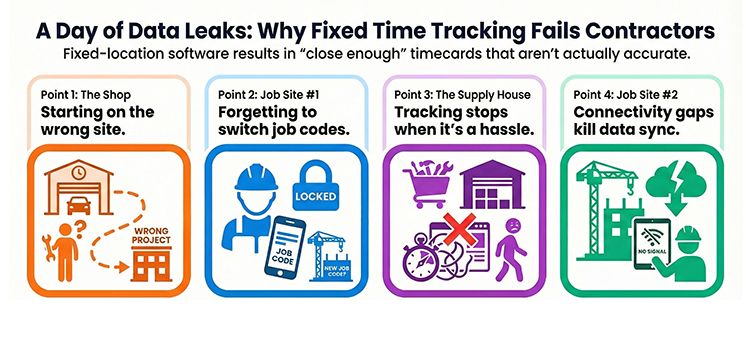
That approach works fine for offices, retail stores, or warehouses, but not so well for contractors. Your team might start the morning at the shop, drive to a job site, stop at a supply house, and finish the day somewhere else.
When the software assumes work happens in one fixed location, it creates problems immediately: Employees clock in at the wrong site, forget to switch jobs, lose service, and the app stops working. Once these problems compound, employees simply stop using it because it feels like a hassle.
That is how you end up with timecards that look “close enough,” but are not accurate.
Reason No. 2: Payroll problems usually start on the job site
Payroll issues usually begin long before the office ever touches a timecard.
Most contractor payroll problems start with small breakdowns in the field. An employee forgets to clock in, a foreman writes down hours on paper and loses the sheet, or someone switches job sites but never updates the job code.
None of these problems seem like a big deal in the moment, but by the end of the week, they pile up.
That is when payroll becomes a problem. Suddenly, you’re fixing missing punches and piecing together the truth from texts and memory.
Reason No. 3: Bad labor data can quietly destroy your profit margins
Many time tracking systems fail because they collect hours but do not collect clean labor data.
On paper, the timecards look complete; everyone has hours, and payroll can run, but the information is not detailed enough to be useful.
If your system does not track hours by job, crew, or location, the data becomes blurry very quickly. That is how you end up with time tracking that technically “works” but still leaves you guessing.
When labor data is inaccurate, job costing becomes unreliable. You stop knowing which jobs are profitable, which crews are performing well, and where your margins are leaking.
Over time, that creates a bigger problem than payroll. It makes it harder to price future jobs with confidence because your past labor numbers were never clean to begin with.
💡 Expert Tip: The 'Two-Click' Rule
If you want clean data, the app you pick must pass the "Two-Click" test. In my experience, if a foreman has to tap more than twice to switch tasks or log a location, they won't do it in real time.
My advice: Hand the app to your most tech-averse foreman. If he or she can’t log a change in 30 seconds while wearing work gloves, the rollout will fail. No amount of management pressure can fix a tool that feels like a chore.
Key Factors that Matter Most in Time Tracking Software for Contractors
Once you understand why time tracking fails in contracting, the next step is knowing what to pay attention to when choosing a system.
The mistake we see most often is contractors comparing software features instead of comparing how well the software fits. What matters is not what the tool can do in theory, but whether it matches how your business actually operates day to day.
Before you look at demos or pricing pages, step back and look at your operations. These are the factors that should guide every decision you make about time tracking software.
-
How your crews move throughout the day: Do your teams work at one job site or multiple sites? Do they start at a shop, a yard, or travel directly to and from the job site?
-
How many active job sites you manage at once: The more locations you run, the more important it is to switch jobs quickly and accurately. If changing job sites is confusing, labor data breaks down quickly.
-
Who is responsible for time accuracy: Decide whether accuracy lives with employees, foremen, or the office. Systems fail when responsibility is unclear, and everyone assumes someone else will fix it.
-
How you track labor by job: Tracking hours alone is not enough. You need a clear way to tie labor to the correct job, especially when crews split time between projects.
-
Job site conditions and connectivity: Poor signals, rural locations, and personal devices are normal elements in contracting businesses. Your system needs to handle real-world conditions without losing hours.
-
Payroll and reporting workflow: Time tracking should reduce payroll work, not add to it. Clean exports, clear overtime visibility, and simple approvals matter more than advanced dashboards.
-
Ease of use for crews and foremen: If clocking in takes too long or approvals are a hassle, adoption drops. A system only works if people actually use it.
Focusing on these factors upfront helps you narrow your options quickly and avoid tools that look good in a demo but fail once they hit a real job site.
Must-have features for most contractor teams
Once you understand what your business needs, the next step is narrowing down the features that actually matter.
A lot of time tracking platforms look impressive on a pricing page. They throw in scheduling, messaging, dashboards, project tools, and dozens of reports. But most contractors do not need a long feature list; they need a system that gets the basics right.
Here are the must-have features we recommend for most contractor teams.
Essential Contractor Features
The tools you need to manage your crew and protect your bottom line.
| Must-Have Feature | Why It Matters for Contractors | What to Look For |
|---|---|---|
| Mobile Time Clock | Your crew is rarely near a computer. Mobile clock-ins keep hours accurate and reduce missed punches. | Simple clock-in screen, minimal steps, works on iOS and Android |
| GPS Stamping | Confirms where work happened and helps reduce confusion across multiple job sites. | Location stamp tied to punches, map view, clear reporting |
| Job Tracking | Tracks labor by job, so you can understand true job costs and profitability. | Job codes, project selection, and the ability to switch jobs mid-day |
| Approval Workflow | Keeps timecards clean before payroll runs and reduces disputes. | Foreman approvals, edit permissions, approval history |
| Overtime Tracking | Prevents surprise overtime costs and helps you manage labor budgets week to week. | Overtime alerts, daily/weekly overtime reporting, and clear totals |
| Payroll-Ready Exports | Saves hours of admin work and reduces payroll errors. | Export formats that match your payroll provider, easy report downloads |
If a platform is missing even one of these features, it usually creates extra work somewhere else. And, in the trades, extra work almost always ends up landing on the office team at the worst possible time: the day payroll is due.
💡 Expert Tip: Prioritize the 'Front-End' First
It’s tempting to focus on office-side features, like reports and payroll tools, but in real contractor rollouts, the mobile clock-in experience matters first. If crews find the app slow or confusing, they won’t use it.
My advice: start with a tool that makes clock-ins and GPS stamping dead simple. Once the field data is clean, everything else becomes easier to fix and automate.
Nice-to-have features for specialized contractor operations
These features are not required for most contractor teams, but they can be extremely valuable in the right situation. We usually recommend treating them as “bonus upgrades” and not deal breakers.
The key is making sure these features solve real problems in your business. Otherwise, they just add cost and complexity without improving your time tracking processes.
Here are the nice-to-have features that could make the biggest difference for your operations.
Advanced Contractor Tools
Nice-to-have features for scaling your business operations.
| Nice-to-Have Feature | When It’s Worth Paying For | What to Look For |
|---|---|---|
| Photo clock-ins | Useful when you need visual proof of job site presence, especially for remote crews or high-dispute jobs. | An optional fast-capture photo requirement that may be stored with time punches |
| Facial recognition | Helpful for high-turnover teams or large crews where identity issues create payroll problems. | Quick scan, low error rate, and works on mobile devices |
| Mileage tracking | Valuable for service tradespeople who travel constantly between customer locations. | Easy mileage logging, job-based mileage records, and exportable reports |
| Equipment and asset tracking | Useful if you manage expensive tools or equipment across multiple crews and job sites. | Check-in/-out tracking, assignment history, location notes |
| Advanced job costing dashboards | Best for larger companies that need deeper labor analysis across multiple projects. | Labor cost breakdown by job, crew comparison reports, and project-level summaries |
If your time tracking software includes one or two of these features, it can improve accountability and job visibility. But, for most contractors, the goal is still the same: keep the system simple enough that crews actually use it while giving the office clean data that does not require cleanup every week.
A Step-by-Step Process to Help You Choose the Right Tool
Once you understand what features matter, the next step is choosing a tool that actually makes sense for your contracting business.
This is the step-by-step process we recommend. It helps you narrow down your options quickly, avoid wasting time on the wrong demos, and test the software in a way that gives you a real answer before you roll it out company-wide.
Step 1: Identify how your crews actually work
Before you compare software, you need to get clear on how your business operates day to day.
Most contractor time tracking failures happen because the owner buys a tool based on what sounds good, not how the crew actually works. So, before you look at features, take 10 minutes and map out how time moves through your business.
Start by asking yourself if your crews stay on one job site all day, or if they move between multiple locations. A company running one large project for weeks will need a different setup than one running service calls and bouncing between jobs.
Next, think about how work gets assigned. Some companies run dispatch-style operations where schedules change constantly, while others run project-based work where crews stay on the same job for long stretches.
This matters because the more your crews move, the easier it is for job tracking to break down. If employees forget to switch job codes or clock into the wrong project, your labor data becomes unreliable.
Once you understand how your crews actually work, it becomes much easier to eliminate tools that won’t fit your operation.
💡 Expert Tip: The 'Gate-to-Gate' Audit
Mapping your workflow on paper helps, but it usually misses the “transition gap,” those 10–15 minutes when crews are loading up, driving, or cleaning up between sites. That’s where job costing can get messy.
My advice: Spend one morning following a crew from the shop to the last site. Watch how often they realistically pull out their phones. If the system requires constant job switching, your data will fall apart.
Step 2: Choose your job tracking method
Once you understand how your crews move throughout the day, the next decision is how you want to track labor by job.
This step matters more than most contractors realize. Even if your time tracking looks clean, weak job tracking will leave you guessing when it comes to job costs and profitability.
There is no single “proper” method. The right choice depends on how your work is structured, and how much detail you need.
Here are the three most common job tracking methods contractors use:
-
Tracking by job code: This works best for project-based contractors running longer jobs. Employees select a job code when they clock in or switch tasks.
-
Tracking by customer location: This is common for service companies handling multiple calls per day. Time is tied to a customer or address instead of a formal job code.
-
Tracking by crew assignment: This works well when crews stay together and move as a unit. Time is tracked under the crew, and a foreman assigns the crew to the correct job or project.
Choosing the right method upfront helps prevent job costing problems later and keeps your time tracking system simple enough to maintain.
Step 3: Decide who owns timecard approvals
Once you choose how labor is tracked, the next decision is identifying who is responsible for approving timecards.
This step is critical because approvals are where most payroll issues either get solved or get passed along. If no one clearly owns approvals, mistakes slip through, and payroll turns into a weekly cleanup job.
There are three common approval models used by contracting companies. The right one depends on how hands-on your foremen are and how much control the office needs.
-
Foreman-led approval model: In this setup, foremen review and approve timecards for their crews. This works well because foremen are closest to the work. They know who was on site, when the crew arrived, and which job the hours belong to. The tradeoff is that approvals must be fast and simple, or foremen will avoid them.
-
Office-led approval model: Here, the office team handles all approvals before payroll runs. This can work for smaller teams or businesses with very structured schedules. The downside is that the office often lacks real-time job site context, which can lead to more back-and-forth when something looks off.
-
Mixed approval model for fast-growing teams: Many growing contractors use a combination of both. Foremen approve timecards first, then the office does a final review. This adds a layer of protection without slowing payroll too much, as long as the workflow is clear.
The most important thing is choosing one model and sticking to it. When approval responsibility is unclear, everyone assumes someone else will catch the mistakes.
Step 4: Confirm payroll and accounting requirements
Before you fall in love with any platform, make sure it fits your payroll and accounting process.
This is where a lot of contractors get burned. The software looks great in a demo, but once payroll week arrives, the reports are messy, exports do not match what your payroll provider needs, and the office ends up doing manual cleanup anyway.
If your goal is to save time, payroll has to be part of the decision from the start.
At a minimum, you want to confirm that the system can produce clean reports for:
-
regular hours and overtime
-
job-based labor breakdowns
-
employee totals by pay period
-
approval history and edit tracking
If you use a payroll provider or accounting software, like QuickBooks, this step becomes even more important. A tool that does not export correctly will create more work, not less.
Step 5: Build a shortlist of three to five time tracking tools
Once you know what your business needs, your next move should be narrowing the field.
This is where many business leaders waste the most time. They sit through demo after demo, compare pricing pages, and still end up confused because everything looks similar on the surface.
Instead of trying to evaluate every option, build a shortlist of three to five tools that clearly match your workflow.
At this stage, you should eliminate any software that:
-
makes job tracking difficult or unclear
-
requires too many steps for employees to clock in
-
lacks strong mobile support
-
does not support approval workflows
-
cannot produce payroll-ready reports
A shortlist keeps the process simple. It also makes it easier to compare tools side-by-side instead of trying to remember what you liked about ten different demos.
💡 Expert Tip: The 'Mobile First' Filter
The fastest way to eliminate the wrong tool is to ignore the desktop dashboard and focus only on the mobile app.
Leaders of trade companies get sold on clean reports and integrations, but if the clock-in process is slow or frustrating, your crew won’t use it. And if the crew won’t use it, nothing else matters.
My advice: download the app and try clocking in while walking to your front door. If GPS lags, buttons are hard to hit, or it takes more than a few seconds, cross it off your list.
Step 6: Score your shortlist using a contractor comparison scorecard
Once you have a shortlist, the goal is no longer to “learn” about the tools. The goal is to compare them objectively.
This is where a contractor comparison scorecard helps.
Instead of relying on gut feeling or whichever demo sounded best, score each tool against the same criteria. This keeps the decision focused on how the software will perform in your business, not how polished the sales pitch is.
At this stage, you should score each tool on things like:
-
How easy it is for crews to clock in
-
How well it handles job tracking and job switching
-
How clean the approval workflow is
-
How reliable the mobile experience feels
-
How clear and usable the reports are
-
How easy payroll exports are
Giving each tool a simple score forces tradeoffs into the open. One platform might have strong reporting but poor crew adoption. Another might be easy to use but weak on job tracking.
Below, you’ll find a downloadable contractor scorecard template you can use to compare tools side-by-side without overthinking the decision.
This step usually narrows your list down to one or two finalists worth testing in the field.
Step 7: Run a real-world job site test on your top one or two tool(s)
Once you narrow your list to one or two finalists, it’s time to test them where it matters most: on a real job site.
This step is not about setting up every feature or training your entire team. The goal is to see how the software holds up during normal workdays with real crews, schedules, and distractions.
Choose one crew or one job site and run a short test. Pay attention to how the system behaves when things get busy.
During the test, focus on the same elements you use in the scorecard.
You want to see how the tool performs when it's being used by people who are trying to get work done, not people who are trying to impress you in a demo.
Step 8: Roll it out in phases to prevent crew resistance
Once you choose your tool, the worst thing you can do is to roll it out to everyone overnight.
Most contractors do not fail because they picked the wrong software; they fail because they introduced the software in a way that created pushback.
A phased rollout keeps the process simple and prevents the crew from feeling like time tracking is suddenly “one more thing” they have to deal with.
Start with your foremen or supervisors first. If they understand the system and support it, the crew will follow. If they ignore it, the rollout is dead before it starts.
Then, roll it out to one crew at a time, fix the small issues early, tighten your job tracking setup, and make sure approvals are working. Once the process feels smooth, expand it.
Recommended Time Tracking Software Based on Contractor Type
To help you navigate the selection process, we’ve put together a shortlist of time tracking tools that tend to work well for different types of contractor operations.
The goal here is not to crown one “best” platform for every contractor. The right choice depends on how your crews work, how many job sites you manage, and how important job costing and payroll reporting are in your business.
Use this section as a starting point. If a recommendation matches your contractor type, it’s a strong sign that the software is worth adding to your shortlist and scoring with the comparison scorecard.
OnTheClock: Best for small contractor crews under 10 employees
If you have a small team, OnTheClock fits the way you work without adding unnecessary complexity.
Small contractor crews need time tracking that just works. No long setup, confusing screens, and heavy training. At this stage, the goal is simple: capture accurate hours, keep payroll clean, and track labor by job without slowing your crew down.
Who this is best for
-
Contractors with fewer than 10 employees
-
Service-based teams with frequent job changes
-
Businesses where the owner or office manager handles payroll
-
Crews that move between job sites during the day
-
Teams that need a straightforward mobile time clock
What features matter most
-
Mobile time clock
-
GPS stamping
-
Approval workflow
-
Payroll-ready exports
For smaller operations, OnTheClock gives you the essentials without overcomplicating the process. It keeps clock-ins simple for crews while giving the office clean labor data they can actually trust.
Workyard: Best for contractors running multiple job sites
For blue collar businesses that manage crews moving between multiple job sites every day, Workyard is a great fit. It focuses heavily on accurate GPS-based tracking, which helps confirm where hours were logged and keep labor tied to the right location.
Who this is best for
-
Contractors with multiple active job sites per day
-
Teams that need precise location-based time tracking
-
Operations where knowing who is on-site matters for job costing
What features matter most
- High-accuracy GPS tracking
- Automatic job site assignment
- Mobile app for field crews
- Reliable job switching
- Strong reporting and export options
If your crews move constantly and your labor data depends on location accuracy, Workyard is a strong option. It gives you cleaner job site records and fewer questions at payroll time.
BusyBusy: Best for contractors who need job costing and profitability
For contractors where job costing and profitability are top priorities, BusyBusy is a time tracking solution built with those exact concerns in mind. It goes beyond simple clock-ins and ties labor and equipment time directly into job cost reporting so you can see whether a project is making money — not just whether hours were logged.
Who this is best for
- Contracting businesses that need real-time visibility into labor costs for profitability analysis
- Teams tracking both crew and equipment hours against jobs
- Operations where job cost clarity drives bidding and budgeting decisions
- Businesses seeking time tracking that directly supports financial insights
What features matter most
- Integrated job costing
- Daily cost insights
- Mobile time tracking
- Equipment time tracking
- Clear reporting
For companies where accurate job costing is a business priority — not a “nice to have” — BusyBusy gives you the labor visibility and cost breakdowns needed to protect profit margins and price future work with confidence.
Common Mistakes Contractors Make When Choosing Time Tracking Software
Most tradespeople don’t choose the wrong time tracking software because they are careless; they choose the wrong software because the buying process is confusing, demos look polished, and every platform claims it's “built for contractors.”
But time tracking software does not fail in the sales process. It fails on Monday morning, when the crew is trying to get to work.
Here are the most common mistakes we see contractors make when choosing a system.
- Choosing a platform built for offices instead of job sites: Office tools assume stable schedules, reliable internet, and employees working in one location. Job sites do not work that way. If the software is not mobile-first and field-friendly, adoption will collapse quickly.
- Ignoring foreman buy-in and expecting crews to comply: Foremen control what gets enforced in the field; however, if they do not use the system, the crew will not use it either. Contractors often roll out software without training foremen first, then wonder why clock-ins are inconsistent.
- Choosing software with weak job tracking and guessing job costs later: Tracking hours is not enough; contractors need labor tied to the correct job. If job tracking is confusing or easy to skip, you end up with timecards that look complete but provide useless job costing data.
- Letting too many people edit timecards: Too much flexibility creates messy records. If everyone can edit punches, change job assignments, or adjust hours without accountability, time tracking becomes unreliable fast. Clean systems have clear permissions and approval workflows.
- Buying based on features instead of payroll workflow: A tool can have every feature in the world and still fail if payroll is difficult. If your office still has to clean up timecards every Friday, the software is not saving you time. Payroll exports and reporting should be part of the decision from day one.
- Rolling out company-wide before testing on one crew: This is one of the fastest ways to create resistance. If the rollout starts with confusion, the crew will label the software as “a waste of time,” and adoption becomes an uphill battle. Testing with one crew first gives you a smoother rollout and fewer mistakes.
If you avoid these pitfalls, your chances of choosing a tool that actually works in the field increase dramatically.
How Much Does Contractor Time Tracking Software Cost?
If you look across the most contractor-friendly time tracking platforms, the average cost lands around $8–$15 per employee per month for plans that include the features most contracting businesses actually use.
However, the most important part is not the monthly price. It is the return you get from cleaner timecards, faster payroll, and more accurate job costing.
Most contractors do not lose money because the software is expensive; they lose money because bad time tracking forces the office to spend hours fixing timecards, resulting in job costing numbers that are too messy to trust.
That is why the smartest way to evaluate cost is to calculate the return on investment.
A simple way to do that is to compare two numbers:
- What you spend each year on the software?
- What you save each year in time, payroll cleanup, and labor accuracy
If your annual savings are higher than your annual software cost, the decision is easy.
What to Look for in a Free Trial Before You Commit
As you narrow down your options, make sure the free trial lets you test the software in a realistic way.
A free trial is only useful if it feels like real work.
If the trial is limited, locked behind demos, or missing key features, you will not get a clear answer.
A good trial should not just let you click around; it should give you enough time to test the system the way contractors actually work.
That means clocking in on a real job site, running approvals through a foreman, and pushing the data all the way through payroll.
If you cannot test the full workflow, you are not really testing the tool; you are just watching it.
Start Tracking Time for Free With OnTheClock
If you’re ready to stop chasing hours and start trusting your labor data, the next step is simple.
OnTheClock's time tracking software is built specifically for small businesses and blue-collar teams that work in the field. The goal is not to overwhelm administrators with features; it’s to give you a system that crews actually use and payroll teams can trust.
With OnTheClock, you can:
- Track time from real job sites using mobile devices
- Assign hours to the correct job or location
- Review and approve timecards before payroll
- Export clean reports that match your payroll workflow
Users can start with a free trial and test the system the right way — on a real job site, with a real crew, during a real workweek. No credit card is required, and setup takes just a few minutes.
If you want to see whether OnTheClock fits your operation, the best way to find out is to try it yourself.
FAQs About Time Tracking Software for Contractors
What is the best time tracking software for contractors?
The best time tracking software for contractors is the one that matches how your crews work in the field and simplifies your payroll process. Contractors often choose tools that offer mobile clock-ins, GPS or geolocations, job tracking, approval workflows, and payroll-ready exports. OnTheClock, Workyard, and BusyBusy are examples of systems that are built for contractor realities rather than office-only settings.
Do contractors need GPS time tracking?
GPS time tracking is highly valuable for contractors because it confirms where hours are logged on a job site. It is especially useful if your crews work at multiple locations per day, if you want to reduce timecard disputes, or if you need better visibility into field labor activity. It’s not required for every contractor, but it’s a strong advantage for mobile crews.
What is job costing in time tracking software?
Job costing refers to the way labor hours are tied to specific jobs, projects, or tasks. Time tracking software that supports job costing captures hours by job code or location, so you can calculate the true labor cost of each project. This helps you understand profitability, compare actual expenses vs. estimated costs, and price future work more accurately.
Can time tracking software prevent time theft?
Time tracking software can reduce the opportunity for time theft by using features such as GPS stamping, mandatory job selection, geofencing, and approval workflows. These features make it harder for employees to clock in from outside job sites or log time they did not work. While no system eliminates every risk, better tracking significantly reduces disputed hours and improves accountability.
What is the easiest time clock app for construction crews?
The easiest time clock apps for construction crews are those with simple mobile clock-ins, minimal steps, and clear job selection screens. Apps designed with field crews in mind — like OnTheClock — let employees start and stop work quickly without confusing menus or complicated forms. Ease of use encourages adoption and keeps timecards accurate.
Is time tracking software worth it for small contractors?
Yes — for most small contractors, time tracking software pays for itself by saving office time, reducing payroll cleanup, and improving job cost visibility. Even if you have a few employees, eliminating manual errors, lost timecards, and guesswork with clean labor data can save hours every week and protect your profit margins.
What is the best time tracking method for subcontractors?
For subcontractors, the best method depends on how they bill and how they work with your crews. A common approach is job code tracking plus crew assignment — subcontractors log time under a job code tied to the project, and a supervisor confirms accuracy. This gives visibility into labor costs while respecting subcontractor workflows.
How long does it take to switch to time tracking software?
The time it takes to switch depends on a team's size and how detailed the tracking needs to be. For many contractors, setup takes a few hours to configure jobs, employees, and approval workflows, and the first full pay period with the new system usually takes about one week to feel natural. A phased rollout (starting with foremen or one crew) makes the transition smooth and reduces resistance.
