Key Takeaways
- ✔ Deputy excels at scheduling and time tracking, offering advanced automation, flexible shift planning, and one of the strongest time sheet approval systems available.
- ✔ It works best for shift-based industries, like retail, hospitality, and health care, that rely on labor forecasting and real-time workforce visibility.
- ✔ Payroll is not built in, requiring third-party integrations, which adds setup steps and can increase long-term costs.
- ✔ Pricing can rise quickly as teams grow, since advanced features like Analytics+, Messaging+, and HR tools require higher tiers or paid add-ons.
- ✔ Overall, Deputy is a strong scheduling-focused platform (7.5/10), but it may feel limited for businesses seeking a fully unified, all-in-one workforce management solution.
Deputy is an online workforce management software designed to help businesses schedule employees, track time and attendance, and streamline team communication. The web- and mobile-based platform emphasizes scheduling automation and workforce visibility, making it especially popular with hourly, shift-based workplaces that need flexible scheduling tools, labor insights, and real-time communication to manage staffing demands efficiently.
Verdict: Is Deputy Worth It?
Score: 7.5/10
Deputy is a scheduling-forward workforce management platform that combines time tracking, shift planning, and team communication into a polished and highly customizable system. The platform excels at helping businesses build complex schedules, automate shift coverage, and maintain clear visibility into employee attendance. The interface is modern; onboarding is relatively fast; and core workflows, such as creating schedules, approving time sheets, and managing employees, are intuitive once users understand the platform’s structure.
Deputy is particularly well-suited for shift-based industries, where labor forecasting and schedule flexibility are critical, including retail, hospitality, health care, and service-based operations. Its scheduling automation tools, workforce insights, and detailed time sheet approval features are among the strongest in the time tracking software space. The mobile app also provides employees with reliable access to shifts, messaging, and time tracking while giving managers real-time operational oversight.
However, Deputy begins to show limitations when businesses expect it to function as a fully unified workforce management solution. Payroll is entirely integration-dependent, requiring businesses to rely on third-party providers rather than a native payroll experience. Additionally, several advanced capabilities, such as enhanced analytics, messaging controls, and HR tools, are separated into add-ons or higher pricing tiers, which can increase costs as teams grow. The platform’s location and area hierarchy can also create a learning curve during setup, and customer support, while available, can be difficult to locate and often begins with AI-driven assistance.
Overall, Deputy earns a 7.5/10 because its scheduling and timecard functionality are among the best available, but its reliance on payroll, add-on pricing, and support accessibility reduces its full value as an all-in-one workforce solution.
It’s a strong option for businesses that prioritize advanced scheduling and detailed time tracking functionality. But for organizations looking for a fully consolidated workforce management platform with transparent pricing, built-in payroll, and simpler feature accessibility, it may feel more like a specialized scheduling solution than a comprehensive all-in-one system.
The following comprehensive review scores Deputy across every major category and explains exactly how this rating was determined.
How Much Does Deputy Cost?
Score: 6/10
Deputy offers three pricing tiers: Lite, Core, and Pro. The Lite tier offers basic scheduling and time tracking; the Core package offers advanced scheduling, automated time sheet approval, and more; and the Pro offering includes everything in the Core package, including the Analytics+ and Messaging+ add-ons.
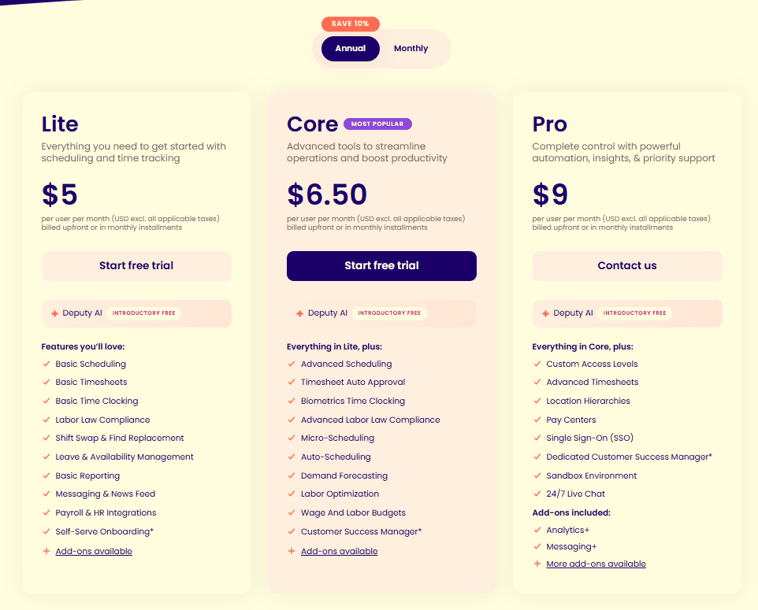
For a team of 10, the monthly costs are $50 for Lite, $65 for Core, and $90 for Pro. For comparison, 10 employees with OnTheClock costs $45 per month, with all core features included — no tier upgrades or add-ons required.
It's also worth noting that users must spend at least $30 per month to use the product, effectively excluding the smallest companies from consideration.
How Do You Get Started on a Web Browser?
I started by visiting the Deputy website (www.deputy.com) to create an account. There, I was greeted by a claim that, with Deputy, “Managing a happy team never felt so easy.” The website claims that more than 355,000 workplaces utilize the solution, and that a schedule can be created and shared in mere seconds.
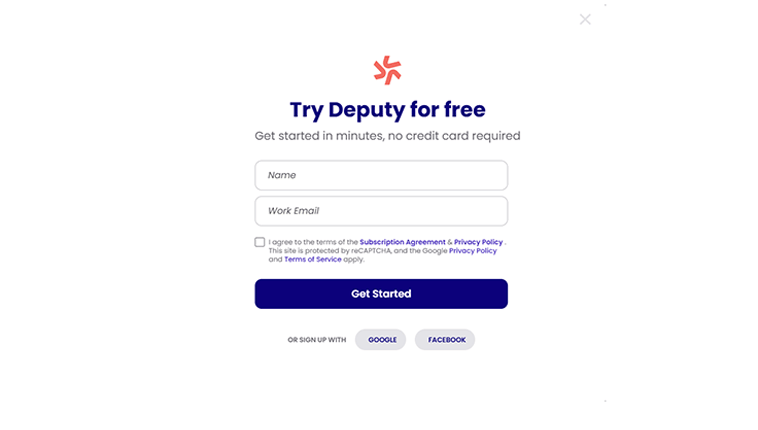
I was able to start my 31-day, free trial simply by entering (and verifying) my full name and an email address. An option to proceed with an existing Google or Facebook account was also offered.
Oddly enough, my first attempt to start a trial account resulted in a “Sorry, we couldn’t find what you’re looking for” error screen. While this may have been a one-off issue, it created a rough first impression during onboarding.
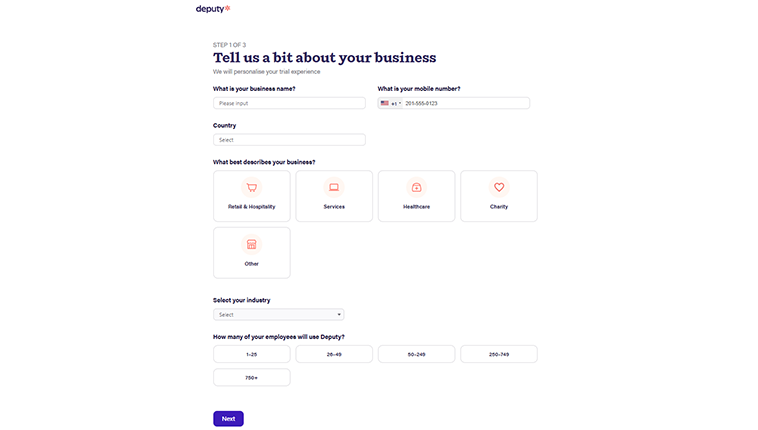
Once I finally got in, I was prompted with a three-part setup process. I was asked to enter my business’s name, my mobile phone number, my country, the scope of my business, the industry my company best represented, and the number of employees.
The next screen helped me personalize my trial experience. I was asked to select my primary purpose (scheduling, time tracking, or payroll) and to identify my current payroll provider.
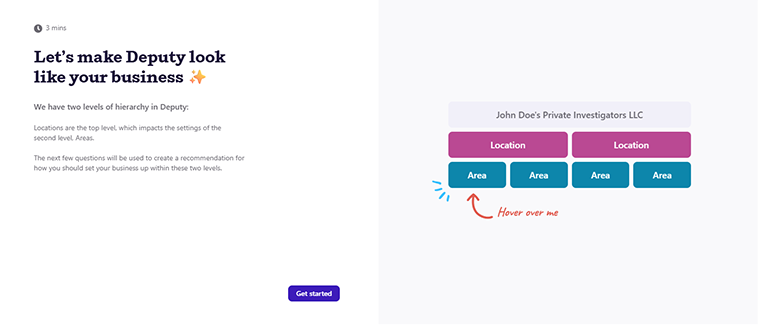
A pop-up window informed me that Deputy has two hierarchy levels: locations and areas. This all seemed kind of confusing at first, but I got the hang of it eventually.
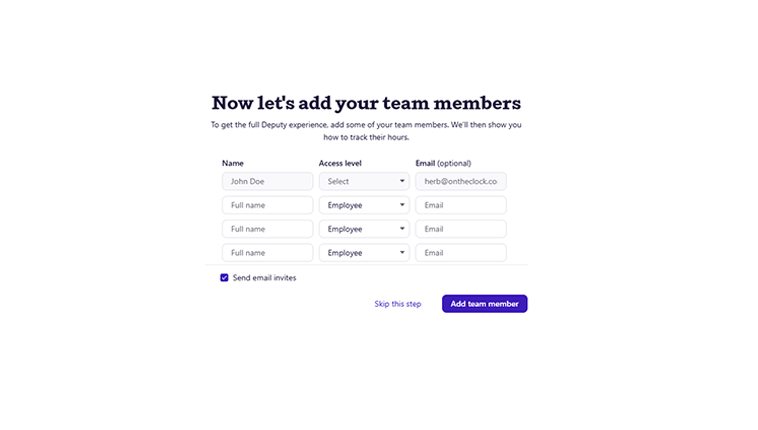
Then, I was asked to add team members. There were threads for four employees, but more could be added by simply clicking the “Add Team Member” button. After adding a team member, my setup was complete. In summary, the process was easy to navigate and quick to complete.
How Do I Get Started on the Mobile App?
Upon signing up for an account in a web browser and entering my phone number, I received a text message encouraging me to install the Deputy app.
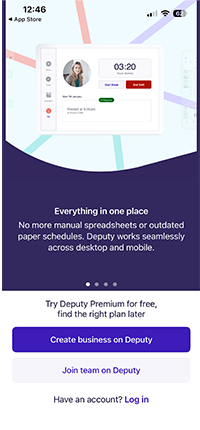
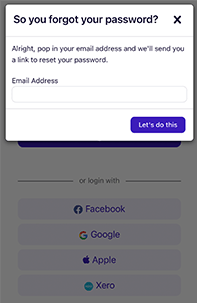
Once I’d downloaded the app, I attempted to “Join a Team on Deputy” using the appropriate prompt. Unfortunately, the mail app I was directed to wasn't the one I used to set up the account, so I ended up chasing my tail a bit. I attempted to log in, but I was not prompted to create a password during account creation. To proceed, I had to request a “Forgot Password,” which never landed in my inbox. This required a password reset that didn’t initially arrive, creating minor onboarding friction.
The mobile app’s dashboard features a large clock at the top of the screen, with any shifts listed below. A green button let me start an unscheduled shift if I wanted to.
A "shifts" prompt showed me any upcoming or available shifts. I could also access my time sheets from this screen. The next three vertical boxes focused on time off, tasks, and documents.
Along the bottom of the app are five shortcuts: Home, Messaging, Schedule, Timesheets, and People.
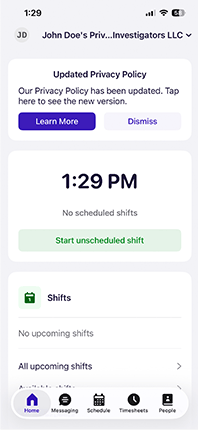
Once resolved, the mobile app was easy to navigate and functioned reliably. The vertical scrolling was a bit much, but I’ve seen much worse interfaces in other time tracking software. .
How Do You Add Employees?
Score: 9/10
As mentioned previously, employees may be added through the initial setup process.
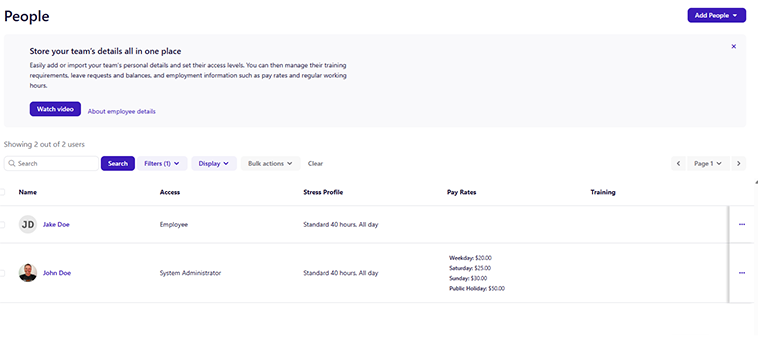
Another route exists on the web by clicking the People tab. Inside, I could simply click the “Add People” tab. When activated, I was prompted to onboard a new hire, add a team member, add multiple team members, import, bulk import, and import leave requests and balances.
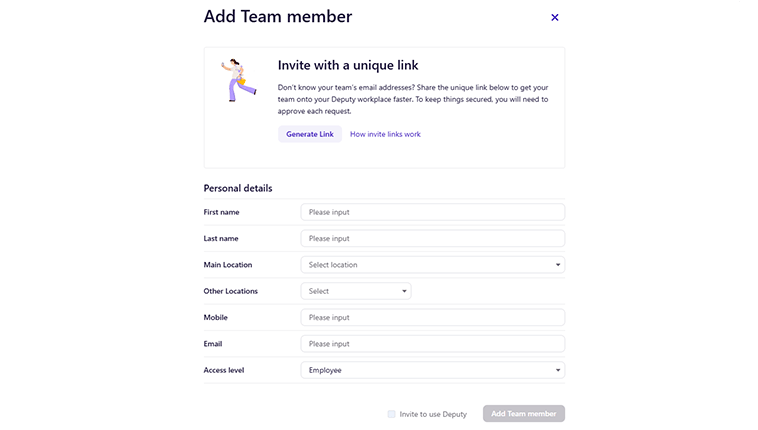
To add a team member, enter the individual’s first and last name, a main location, mobile phone, email, and role (called access level). I was also prompted to generate a link and allow the employee to enter his or her own information.
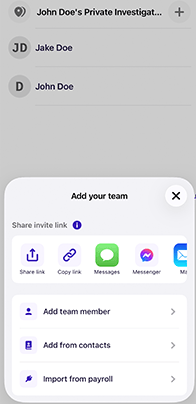
In the mobile app, when logged in as an admin, I clicked the People tab at the bottom of the screen, then tapped the (+) sign in the top-right corner. Once that occurred, I was prompted with the "Add your team" menu.
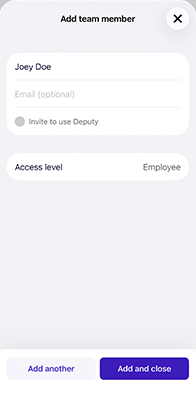
I then had to enter the employee’s name, email address (optional), role, and then decide whether to send the email invite.
How Does Scheduling Work?
Score: 8/10
To create a schedule, I clicked on the Schedule tab at the top of my web browser. Inside, I was met with a weekly calendar view. This view can be customized by day, week, two weeks, month, or team member. Additionally, open shifts could be viewed together.
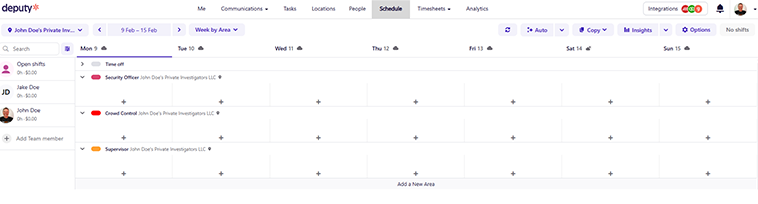
The week was divided into three “areas,” corresponding to the groups I assigned during my setup. Each day included a plus sign within the calendar. When pressed, I was prompted with options to assign the shift to an employee, leave it open, or create an open shift with approval.
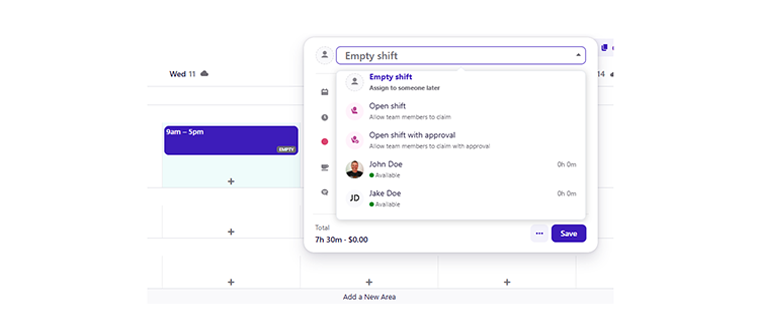
I assigned a 7.5-hour shift to John Doe. Once approved, the hours and proposed pay for that shift were added to his name and photo along the left edge of the calendar. Once scheduled, his status turned yellow, ensuring he was not booked twice for the same time period.
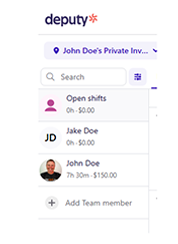
An auto function allows admins to create a schedule for all team members with regular working hours. Another option allows a schedule to be built based on required staff or past schedules, and an auto-fill option recommends empty shifts to team members.
A Copy prompt allows admins to copy a week’s schedule or create/load a template. An Insights option presents statistics, coverage, or hours in areas, and allows admins to provide feedback.
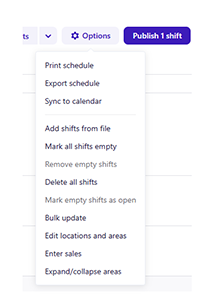
When publishing schedules, the user is prompted to select which “areas” will be notified and which staff will be alerted (and if confirmation is required). Once the schedule has been published, a notification states just that.
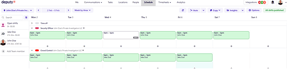
Employees can sync their shifts with their personal calendars, so they know when and where they need to be, which was a nice touch. Shift swaps may also occur, if needed.
All of these options are pretty incredible. In fact, this level of customization was among the best I’ve experienced with any time tracking app. Businesses that rely heavily on labor forecasting and schedule optimization may see measurable efficiency gains.
How Do Timecards Work?
Score: 9.5/10
Upon clicking on Deputy’s Time Sheets tab, a dropdown menu prompted me to approve or export time sheets.
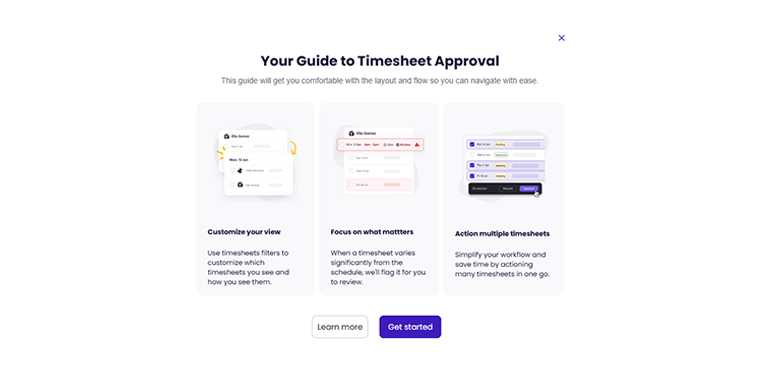
When clicking the Approve option, I was prompted with a guided pop-up tour, which walked me through the process, showing me how to select a team member; filter by status; group time sheets by team member, data, or area; and more.
The approval screen easily demonstrated each employee’s hours, breaks, role, and company. To approve, I simply had to click the appropriate button on each day at the far right.
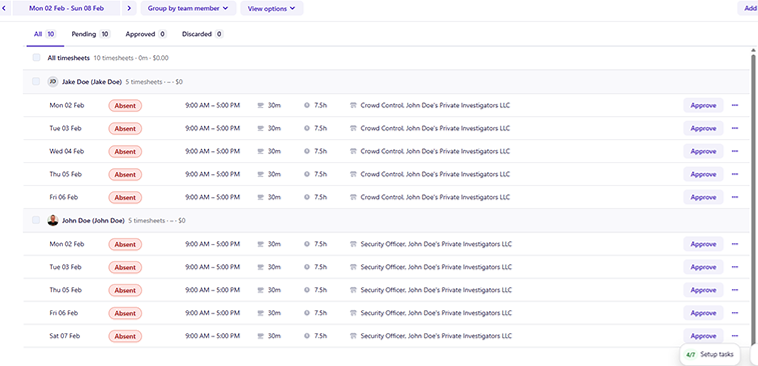
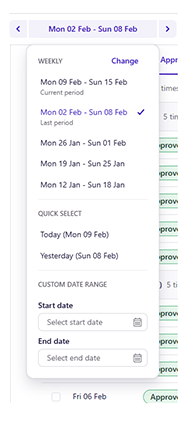
Time sheets can be filtered by all, pending, approved, and discarded. If I preferred to see times in decimal form, that could be arranged by clicking a button. The calendar could easily be pushed ahead or back, and by clicking on the date, time sheets from any of the last several weeks could be viewed.
In all of the time sheets I’ve reviewed, I think Deputy’s are among the most impressive. The simple yet comprehensive approach works beautifully.
What Kind of Customer Support Does Deputy Offer?
Score: 7.5/10
Support is a very important part of any time tracking company. It’s crucial to have a real person available if/when problems arise.
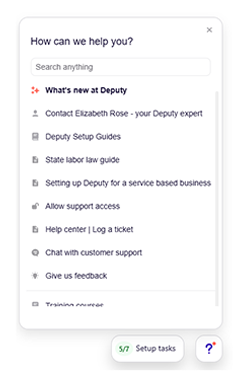
Clicking the question mark in the bottom-right corner of the web browser opened a “How can we help you” prompt. This pop-up offered numerous forms of assistance, including the ability to directly connect with my Deputy expert, setup guides, labor law guides, support access, a live chat, and more.
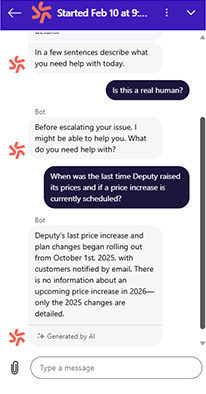
I clicked the chat function to test its parameters. I was greeted with an AI assistant. A note informed me that I’d only be escalated to a human if I requested one.
I asked, “When was the last time Deputy raised its prices, and if a price increase is currently scheduled?” The AI prompt informed me that prices went up in October 2025 and that no details regarding a 2026 increase were available.
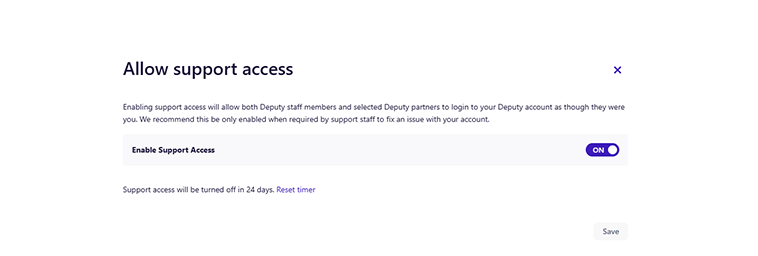
Clicking the “Allow Support Access” prompt granted all my team members access to Deputy’s support team. This was admissible only in emergencies or critical situations; thus, in most cases, support is limited to admins.
While the support options are plentiful, support is difficult to find – housed behind a question mark in the bottom-right of the web page – and is throttled for employees.
How Does In-App Chat Work?
Score: 8/10
To access Deputy’s in-app chat, click the Communications tab. Inside that tab, I was prompted with two options: messaging and news feed.
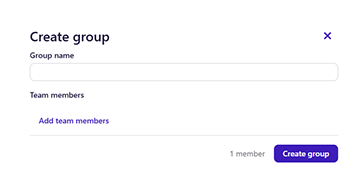
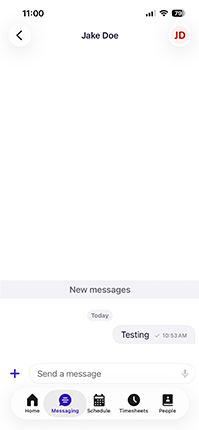
Clicking the messaging tab opened the chat prompt. Within, I was allowed to create a chat group and add team members.
The setup process allowed me to decide whether to limit who could post in the workplace channel and whether to create groups.
To send a message, simply click on the user’s name, type a message into the scroll bar at the bottom of the screen, and press enter. The targeted user will then receive the message.
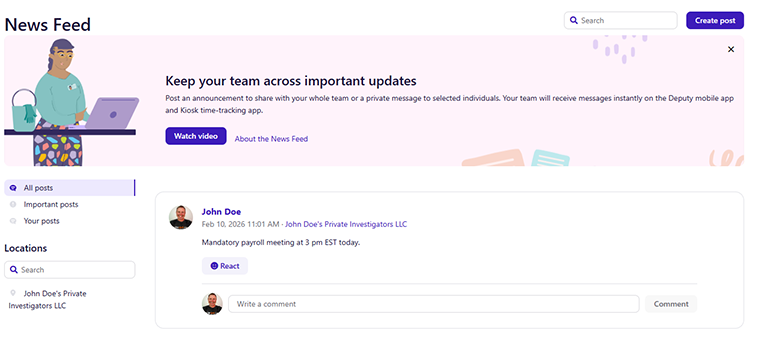
The news feed tab allows admins to send global messages to the team. I created a payroll meeting alert and, once published, it appeared on all Deputy users’ accounts. I also received a push notification on my phone highlighting the announcement.
How Do You Manage Time Off?
Score: 6/10
To access an employee’s paid time off (PTO) account, I had to click the employee’s profile, then select “Leave.” This opened a screen that showed leave balances and requests.
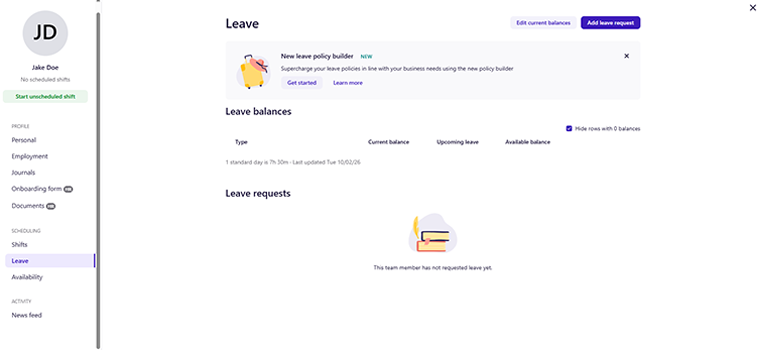
A policy builder guide promised to “supercharge my leave policies.” Clicking that link led me to a 6-plus-minute video. While the video promised PTO guidance, it only briefly addressed the topic near the end of the clip.

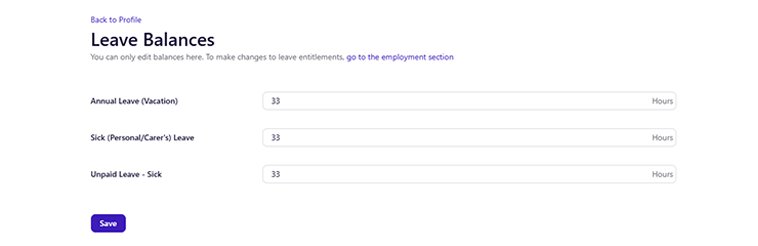
To set up PTO, I clicked “Leave Balances” and edited employees’ amounts across three categories: annual leave (vacation), sick (personal), and unpaid sick.
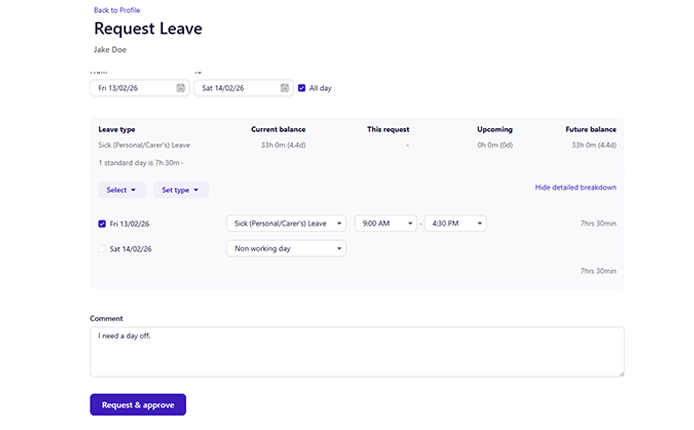
To request time off, I clicked Request Leave. Once a timeframe is selected, the time off could then be toggled by type. The number of hours could also be adjusted based on the actual time. Before submitting, a comment must be added. Once submitted, I received an email noting the request.
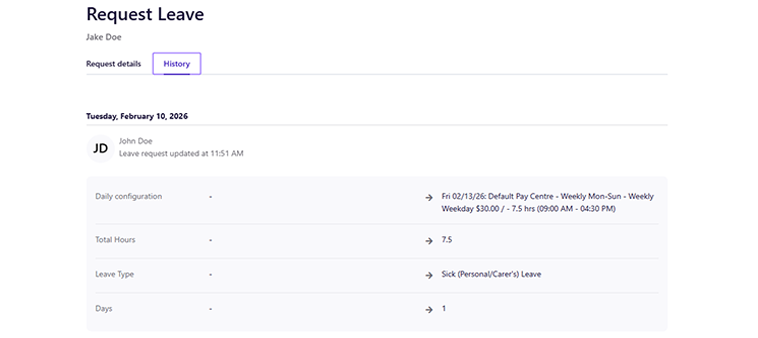
A history tab shows the date, rate, and hours (all on one line, unfortunately), the total hours, and the number of days for each request.
Once set up, everything worked rather smoothly. The ability to quickly and easily set up the system is definitely a plus; however, the inability to assign PTO in bulk (more than one employee at a time) is a minus.
How Does Payroll Integration Work?
Score: 3/10
Deputy does not offer an in-house payroll solution.
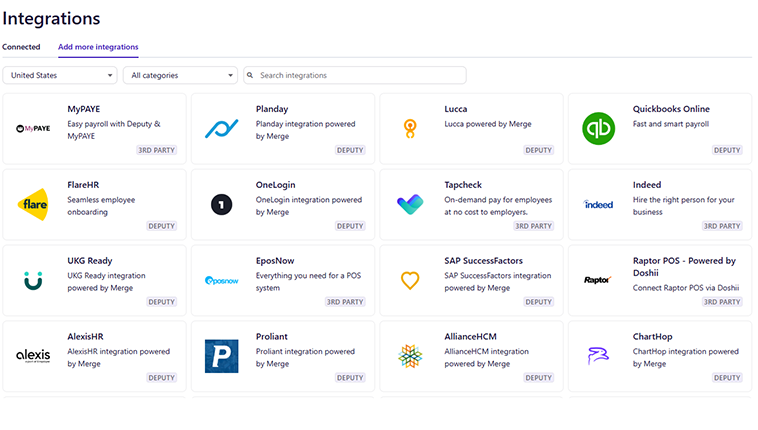
That said, it offers integrations with dozens of third-party providers, including QuickBooks Online, Gusto, Paylocity, and more.
Once I clicked my preferred provider (QuickBooks Online), I was taken to a landing page with a help guide to simplify the integration process.
Deputy continues expanding its analytics and workforce visibility tools, suggesting the platform is investing heavily in scheduling intelligence rather than payroll consolidation.
What Add-Ons Does Deputy Offer?
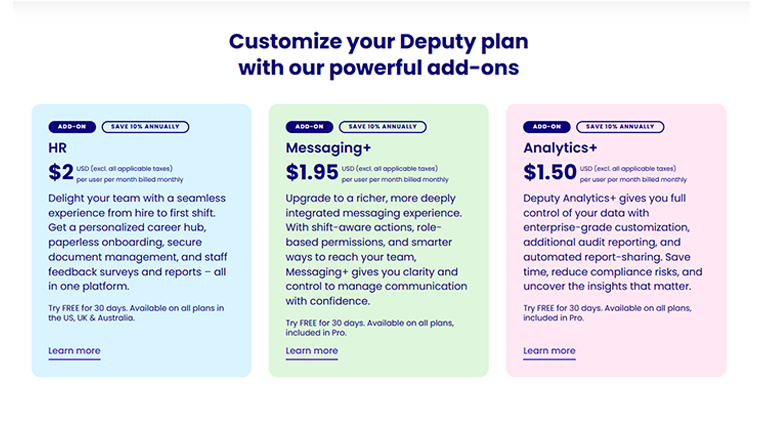
Deputy time tracking offers three paid add-ons to enhance its core scheduling and attendance features. These include HR features for onboarding and document management. The cost for this feature is $2 per user per month.
Messaging+ offers advanced team communication through a more deeply integrated messaging experience with role-based permissions, integrated messaging, and more for $1.95 per user per month.
Finally, Analytics+ offers audit reporting, automated report sharing, data insights, and more for $1.50 per user per month.
Each of these add-ons can be trialed for 30 days before being charged.
How Does Deputy Handle Follow-Ups and Outreach?
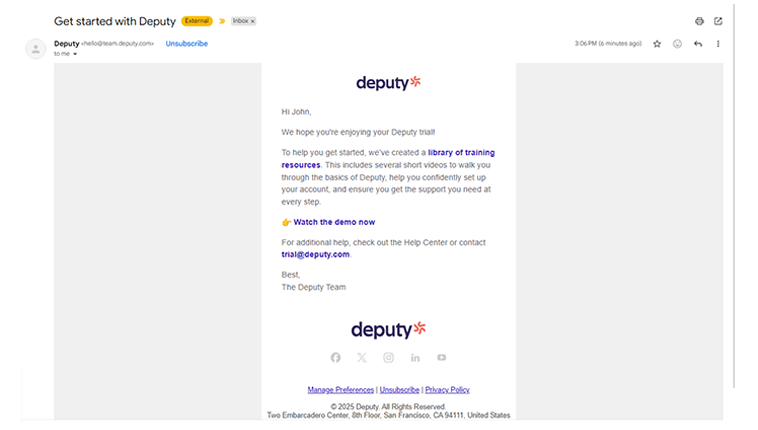
After signing up for Deputy, I received three emails in the first 10 days, including a welcome message, setup email, and promotional email. The number of emails I received from Deputy paled in comparison to many of its competitors; though, I may have missed a few due to my aggressive spam filter add-on.
What Are the Pros and Cons of Using Deputy?
Deputy offers a robust workforce management platform with strong scheduling, time tracking, and communication tools. However, like most software solutions, it comes with trade-offs that may impact certain businesses more than others. Below is a quick breakdown of Deputy’s biggest strengths and potential drawbacks based on hands-on testing, user feedback, and feature analysis.
Pros of Using Deputy
- Powerful Scheduling Automation – Deputy offers advanced scheduling tools, including auto-fill shifts, template scheduling, coverage tracking, and workforce insights.
- Strong Time Sheet Approval System – Time sheets are easy to review, filter, and approve, with clear visibility into hours, breaks, roles, and locations.
- Reliable Mobile App Functionality – Employees can clock in, view schedules, and communicate easily, while managers can oversee operations on the go.
- Built-In Team Communication Tools – Messaging and company news feeds allow teams to communicate directly within the platform.
- Large Integration Marketplace – Deputy integrates with many payroll, HR, and accounting providers, helping businesses connect existing systems.
- Flexible Employee Onboarding Options – Admins can add employees individually, bulk import staff, or allow employees to complete onboarding themselves.
- Helpful Labor Insights and Reporting – Scheduling insights and workforce analytics help managers identify coverage gaps and labor cost risks.
Cons of Using Deputy
- No Native Payroll Solution – Deputy requires third-party payroll integrations, which can increase costs and setup complexity.
- Key Features Locked Behind Add-Ons or Higher Tiers – Advanced messaging, analytics, and HR tools require additional subscriptions.
- Pricing Can Increase Quickly as Teams Grow – Per-employee pricing, add-ons, and minimum monthly costs can make budgeting less predictable.
- Initial Setup Can Be Confusing – Deputy’s location and area hierarchy can take new users time to fully understand.
- Mobile Login and Setup Friction – Some users may encounter password reset or authentication challenges during onboarding.
- Limited PTO Management Features – Leave tracking works but lacks advanced automation and bulk assignment capabilities.
- Support Is Somewhat Hidden and Admin-Focused – Support resources exist but can be difficult to locate, and employee-level support is limited.
- Must Be Connected – The Deputy app does not work appropriately when offline.
What Do Real Users Say About Deputy?
To better understand Deputy’s real-world performance, it’s important to look beyond feature lists and marketing claims. Reviews across platforms like Capterra, G2, and other software review sites consistently highlight Deputy as a strong scheduling and attendance solution, especially for businesses that want workforce management tools without committing to a full HR platform.
Many users praise Deputy’s mobile-friendly design, flexible pricing structure, and reliable scheduling tools that support fast-paced, shift-based workplaces. However, reviews also commonly mention limitations with reporting depth, occasional software glitches, and slower-than-expected support response times. Overall, user feedback suggests Deputy performs best for businesses that prioritize scheduling efficiency and are willing to work around some technical and support challenges.
For example, the most relevant review on Capterra, where Deputy has a 4.6-star average rating out of 765 ratings, comes from Caitlin X. On Jan. 29, 2026, she wrote, “It's so easy to use on both a manager and employee POV. It's so user-friendly! I love that you can assign shifts, remove shifts, swap, and edit shifts easily. You can also very easily time track employees, which makes payroll much easier. That said, the mobile app vs. desktop experience is a bit different, and I found notifications hard to manage sometimes.”
On G2, where Deputy has a 4.6-star rating on 663 reviews, Fabio R. wrote, on Jan. 16, 2026, “Deputy is a vibrant solution that helps with shift scheduling, which in turn facilitates collaboration and a smoother workflow. The program is intelligent and supports accurate attendance tracking, and this is handled automatically. Deputy also offers efficient mobile accessibility, allowing users to submit or request leave, receive alerts, and manage other tasks on the go. In addition, Deputy supports HR and payroll integration, ensuring that major changes are applied automatically. Overall, Deputy is fruitful and helps maintain automated compliance and transparency at every step. However, it doesn’t offer fast live customer support, and that ongoing delay keeps frustrating users. Also, the pricing is set per active user, which can make the total cost skyrocket.”
Deputy’s mobile app maintains a 4.7-star rating across more than 4,000 App Store reviews, with users frequently highlighting scheduling convenience and usability. Disappointed Laura. wrote, on Dec. 1, 2025, “I clock in at the same location every time I go to work. Several times, the app has pinned me in a different location far from the site. This is very frustrating and annoying.”
How Does Deputy Compare to OnTheClock?
| Feature | Deputy | OnTheClock |
|---|---|---|
| Mobile-Friendly Design | The mobile app is strong for scheduling, messaging, and time tracking, but navigation can feel cluttered, and some features require additional configuration or add-ons | Fully featured mobile app with real-time access to timecards, schedules, PTO, and payroll-related data |
| Desktop Clock-Ins | Supported through a web browser with multiple punch methods and admin controls | Fully supported on desktop and laptop devices |
| Time Tracking | Included in base plans, but some advanced tracking, analytics, and workforce tools require higher-tier plans or add-ons | Included as a core feature |
| Payroll Functionality | No native payroll; relies on third-party integrations, such as QuickBooks Online, Gusto, Paylocity, and others | Integrated payroll available as an add-on with seamless connections to QuickBooks, Gusto, ADP, Paychex, and more |
| User Roles Without Extra Charges | Tiered pricing structure; some permissions, messaging tools, and advanced capabilities depend on plan level or add-ons | No extra charges for admins, managers, or view-only users — full functionality for all subscribers |
| Customer Support | Support resources are available but can be difficult to locate; employee-level support is limited, and AI chat is often the first response | Live, U.S.-based support via phone, chat, and email for all customers |
| Time Clock Kiosk | Available through shared device clock-ins with PIN, photo verification, or facial recognition, depending on setup | Dedicated kiosk mode for shared devices with full admin controls |
| API Access | An API is available, but it typically requires technical setup and may depend on subscription level | Open API access without forcing upgrades |
| Pricing Transparency | Per-employee pricing with multiple tiers, add-ons for messaging, analytics, and HR features, and minimum monthly spend requirements | Flat base fee plus low per-employee cost with no gated essentials or surprise fees |
What’s the Final Verdict on Deputy?
Deputy is a powerful, scheduling-focused workforce management platform that shines at building complex schedules, automating shift coverage, and maintaining strong visibility into employee attendance. It’s modern, flexible, and particularly strong in industries where staffing demands change frequently. For retail, hospitality, health care, and other shift-driven teams that prioritize advanced scheduling and detailed time sheet approvals, Deputy delivers a polished, capable experience.
However, some limitations become more noticeable as workforce needs expand. Payroll is entirely integration-dependent, requiring businesses to rely on third-party providers rather than a native payroll solution. Many advanced capabilities, such as enhanced analytics, messaging controls, and HR features, are offered as add-ons or at higher pricing tiers, which can increase long-term costs. The platform’s location and area structure can also create a learning curve during onboarding, and customer support, while available, can be difficult to locate and often begins with AI-based assistance.
For businesses with complex scheduling requirements, Deputy can be a strong operational tool. But for organizations looking for a fully unified workforce management system — one that combines scheduling, time tracking, PTO, and payroll into a single, transparent, and easy-to-scale platform — OnTheClock offers a more complete long-term solution. Try OnTheClock free at www.ontheclock.com and experience how simplified workforce management can be — no credit card required.
