An Honest Review of ClockShark
ClockShark is a workforce management platform built primarily for construction, field service, and skilled trade teams. It combines time tracking, GPS monitoring, scheduling, and job management tools into a system designed for crews working outside the office.
In this honest review, we break down what ClockShark does well, where it creates friction, and how it compares to other workforce platforms — including OnTheClock. The goal is simple: give you a clear, real-world view of the software so you can decide whether it fits your team, budget, and workflow.
Verdict: Is ClockShark Worth it?
Score: 7.4/10
ClockShark is a field-first workforce management platform that blends time tracking, GPS verification, scheduling, and job-based workflows into a system built for construction and mobile crews. It excels at helping managers assign jobs, track time by task, and verify punch locations in real time.
Scheduling is one of ClockShark’s strongest areas. The drag-and-drop calendar makes it easy to assign shifts, attach jobs, publish schedules, and move work between employees. The deep integration between jobs, tasks, notes, attachments, and conversations makes it particularly useful for teams operating across multiple workspaces.
The mobile experience is clean and intuitive. Employees can clock in, switch jobs, start breaks, and view schedules quickly. The built-in map view adds accountability by showing punch locations, which is valuable for field-based businesses managing remote teams.
That said, ClockShark begins to feel more segmented as you move beyond core time tracking. There is no built-in payroll, so reliance on third-party integrations is required. PTO tracking, advanced job costing, compliance forms, and personalized onboarding are locked behind the Pro tier, increasing the total cost for growing teams.
Pricing is also on the higher end of the market. With a base fee plus per-user cost, expenses scale quickly compared to flatter pricing models.
Overall, ClockShark earns a 7.4/10 because it delivers strong field-oriented scheduling, job tracking, and GPS accountability tools, but tier-based feature gating, payroll limitations, and higher pricing reduce its value as a fully unified workforce solution.
If you operate in construction or field services and prioritize job-based tracking and GPS visibility, ClockShark is a strong contender. If you prefer integrated payroll, simplified pricing, and fewer feature tiers, you may find more value in a more consolidated workforce platform.
How Much Does ClockShark Cost?
Score: 5/10
ClockShark offers two pricing tiers: Standard and Pro.
The Standard plan costs $42 per month (base fee) plus $9.50 per user per month. It includes time and attendance tracking, GPS, job tracking, drag-and-drop scheduling, and more.
The Pro plan costs $63 per month (base fee) plus $11.50 per user per month. It includes everything in the Standard plan plus PTO, advanced job costing, compliance forms, and more.
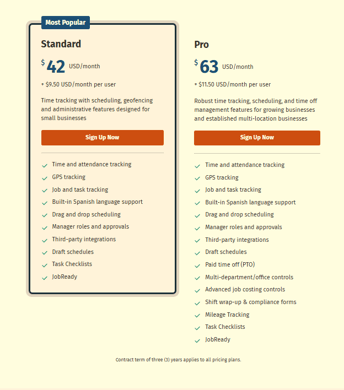
For a team of 10 employees, the Standard plan costs $137 per month, while the Pro plan costs $178 per month. By comparison, OnTheClock's time tracking plan costs $45 per month for the same team size.
By comparison, OnTheClock’s flat pricing model keeps total cost significantly lower. With OnTheClock, 10 employees cost $45/month, with all core features included — no tier upgrades or add-ons required. For cost-sensitive teams, this pricing structure may represent a meaningful difference compared to flatter pricing models that include core features without tier upgrades.
ClockShark also requires a three-year contract for both plans, which may be a consideration for businesses seeking more flexible subscription terms.
How Do You Get Started on a Web Browser?
Score: 8/10
I started by visiting the ClockShark website (www.clockshark.com) to create an account. The homepage identified ClockShark as “The Industry’s #1 Time-Tracking App.”
Scrolling down the page showcases ClockShark’s capabilities, spanning time tracking, paperless job management, team and employee scheduling, time reporting, and more. The verbiage highlights job costing with 99.9% accuracy, which is quite an astounding claim.
Further down the page, I discovered the number of integrations ClockShark offers, including QuickBooks, Gusto, Sage, Paychex, and more; written and video testimonials; industry landing pages; reviews; awards; and more.
I was also met by an AI bot that prompted me to book a meeting and/or ask a question.
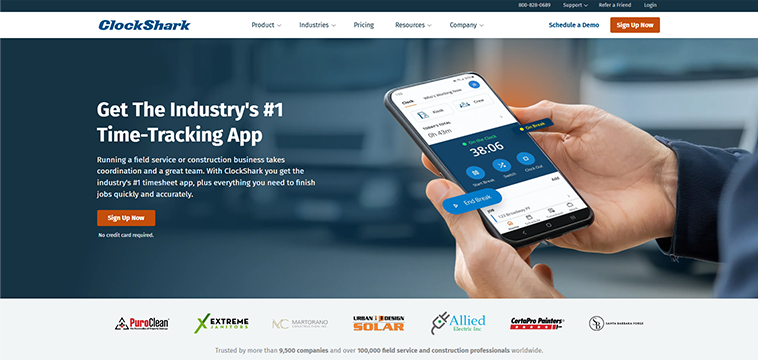
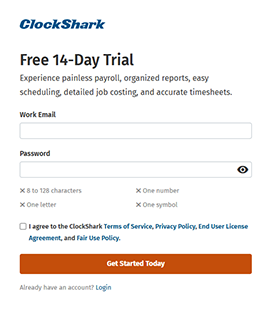
Upon beginning my 14-day free trial, I was asked to input my name, work phone, company name, industry, number of employees, and country. Then, I was prompted to enter my phone number, which granted me access to the mobile app via text.
After entering my information, I was prompted with a short, 1-minute video that demonstrated the most basic elements of clocking in and out, location settings, time sheet details, and more. The video was chock full of information, and having a real person introduce the software was a nice touch.
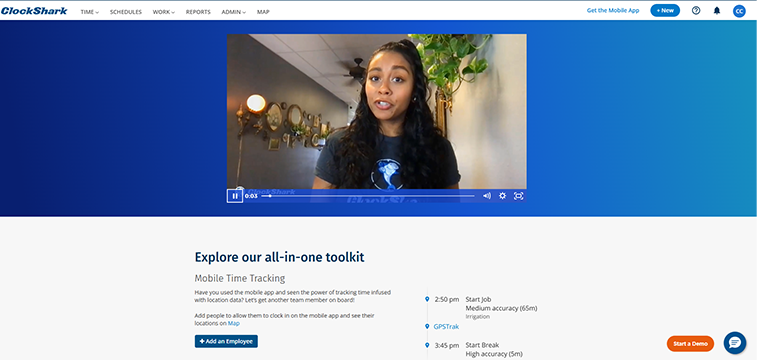
Scrolling down allowed me to add an employee, a job, and a quote. These prompts helped me begin setting up my company at my own pace.
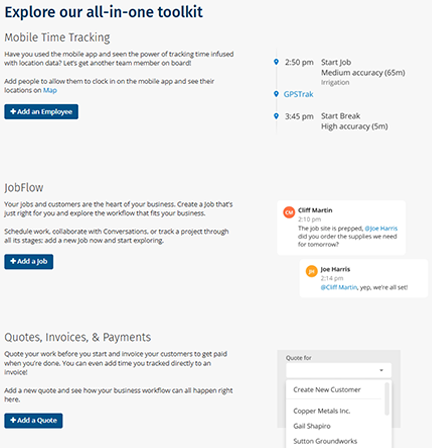
The top-left menu bar on the web interface features shortcuts to time, schedules, work, reports, admin, and map. The top-right portion prompted me to download the app and add a new customer, job, task, invoice, employee, etc., and offered access to the help center, among other things.
The web setup was fairly simple and well-organized. I appreciated that the interface allowed me to prioritize the setup at my cadence. Overall, I was fairly impressed.
How Do I Get Started on the Mobile App?
Score: 8/10
Once I entered a phone number on the web setup, I received a text to sign up for the mobile app.
I was prompted to share my location and given instructions on how to do so.
Then, the first screen I encountered was a simple Clock In screen. Tapping the button let me select a job and a task. Once those threads were selected, I could complete my clock-in.
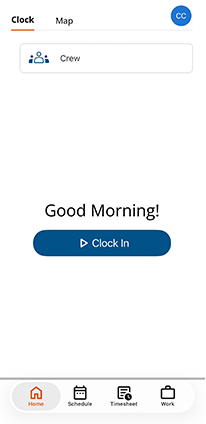
The app’s dashboard is very simple. The top of the screen offered two options: Clock and Map. Along the right margin is a circle that houses my account settings.
Clicking the map showed my current location, assuming I allowed my phone to collect such data.
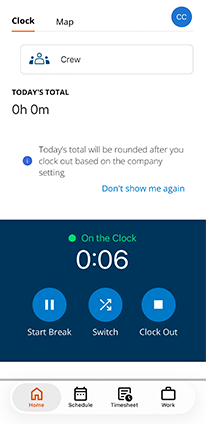
The middle of the screen displayed the time I’ve spent working today as well as the ability to start a break, switch jobs, or clock out. The bottom of the screen offers four shortcut icons: Home, Schedule, Time Sheet, and Work.
Scrolling down, I discovered the ability to add notes, attachments, jobs, and tasks.
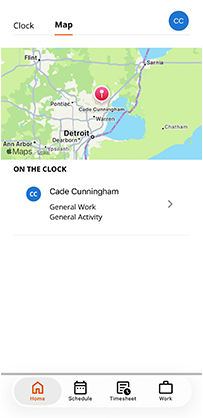
The mobile app is very, very simple, allowing a user to easily navigate the time clock, map, and other ancillary features.
How Do You Add Employees?
Score: 8.5/10
To add an employee, I simply clicked the Add an Employee prompt in the middle of my setup screen on a web browser. I could also have clicked the +New button in the top-right corner of the screen.
A 41-second video popped up demonstrating how to add an employee. The video showed how employees could be customized from the settings tab, granting control over roles, compensation, and more.
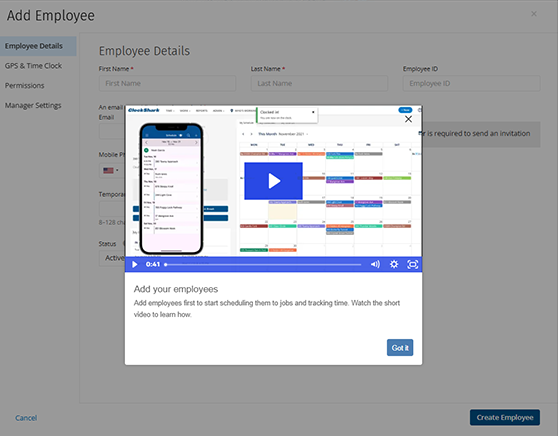
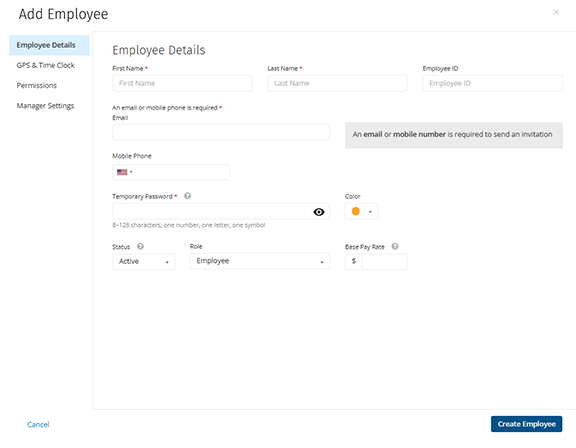
An Add Employee pop-up screen requested my new employee’s name, ID number, email, phone number, temporary password, status, role, and base pay. The base pay, noted for reporting purposes only, proved confusing because the pay rate (hourly, salary, etc.) was not specified.
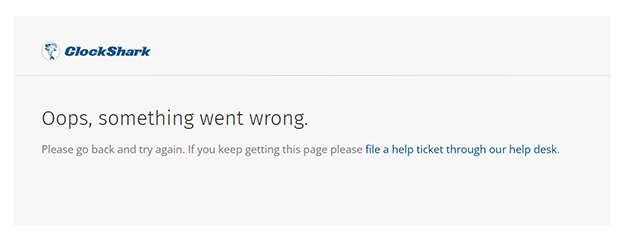
One thing worth mentioning — I did receive an error code when attempting to advance at this point. I would assume this is not a universal issue, but felt it would be worth mentioning for the sake of this review.
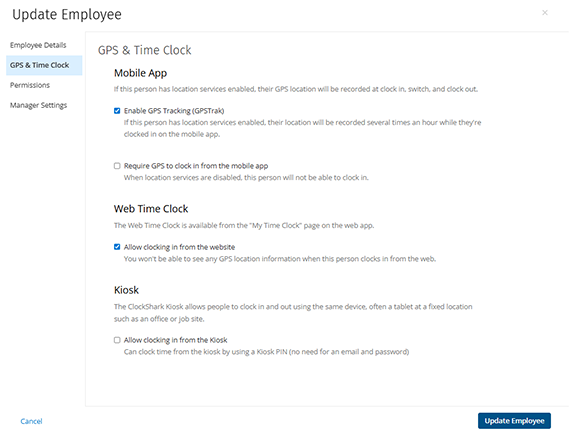
After a refresh, I was able to access the Employee prompt, which allowed me to set GPS and time clock permissions, as well as manager settings.
The GPS prompt allowed me to enable GPS tracking, time clocking from the web, set up a kiosk station, and more.
Once I entered the necessary information, my employee was added. The process was fairly easy to navigate and complete.
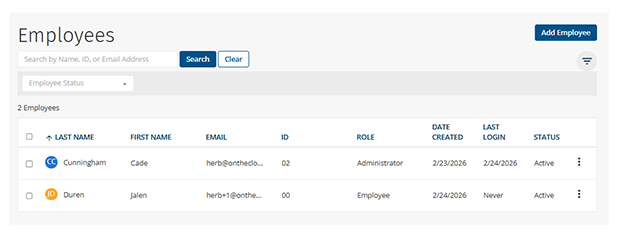
Despite searching for several minutes, I was unable to find a way to add an employee on the mobile app.
How Does Scheduling Work?
Score: 9/10
To access ClockShark’s scheduling tool, I clicked the word Schedules in the top navigation bar.
I was greeted with a calendar view that displayed each employee and the workweek ahead. To add a shift, I could either click the “Add Shift” button in the top-right corner or click the individual employee/day within the calendar matrix.

When adding a shift, I was prompted to confirm the day, shift duration, and if the shift repeats. Additionally, I added any other details, specifically identifying the job, task, and any notes. To finalize the schedule, I simply pressed the Publish button.
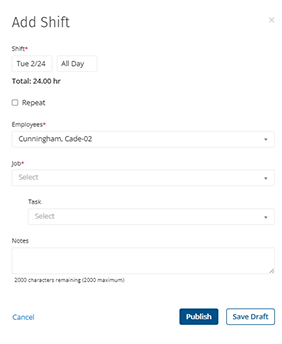
Each day’s shift can be dragged and dropped across days and/or employees. This is a nice option, especially when shifts need to be passed to other employees. Additionally, schedules can be shared via phone or email; employees can subscribe to ClockShark’s calendar; and the schedule can be easily printed. Finally, the view can be filtered by timeframe, employee, and job.

I could also update a specific job by clicking the +Add Job tab along the left margin. Within this interface, I was able to identify the job by name and location. Additionally, I could edit the job's parameters, including the stage, files, invoices, etc., by clicking the Actions button.
Once a job has been established, it can be dragged and dropped to any employee/day. While the Job function is its own unique feature, it was nice that it was so accessible from the scheduling interface.
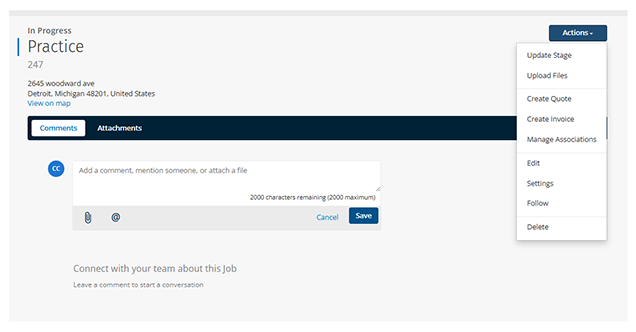
The scheduling tool itself is easy to handle. The job functions, quotes, invoices, associations, and everything else associated with that part of the interface can be confusing at first. Overall, the scheduling tool was quite exceptional.
How Do Timecards Work?
Score: 7.5/10
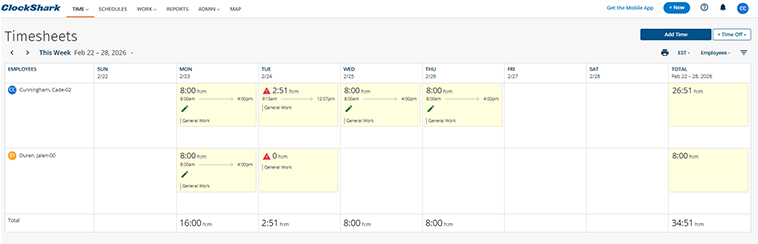
To access time sheets, click the Time prompt and scroll down to Timesheets.
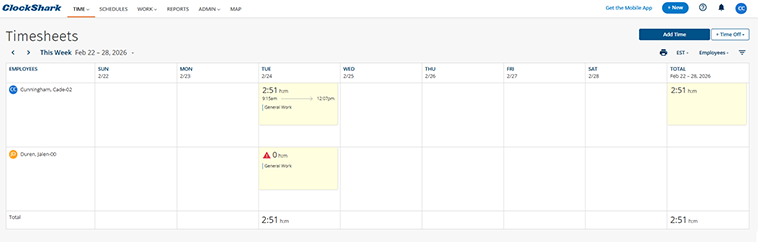
The time sheets interface is presented in the same way as the schedule, on a workweek calendar. Each employee’s respective time worked is shown on the matrix. The far-right column shows the total hours worked for the week.
The date range can be adjusted, either historically or into the future, by clicking the arrows near This Week. The time zone could also be altered by clicking the EST tab.
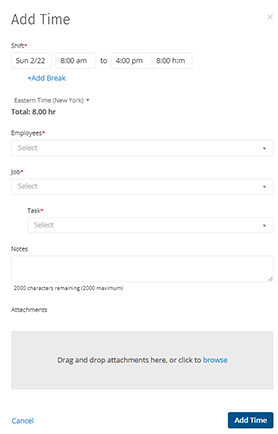
To add time, I simply clicked the Add Time button in the top-right corner. Within this interface, I was able to add time by day and assign it to an employee, job, and task. I could also include a note (up to 2,000 characters) and a photo attachment, if I elected to.
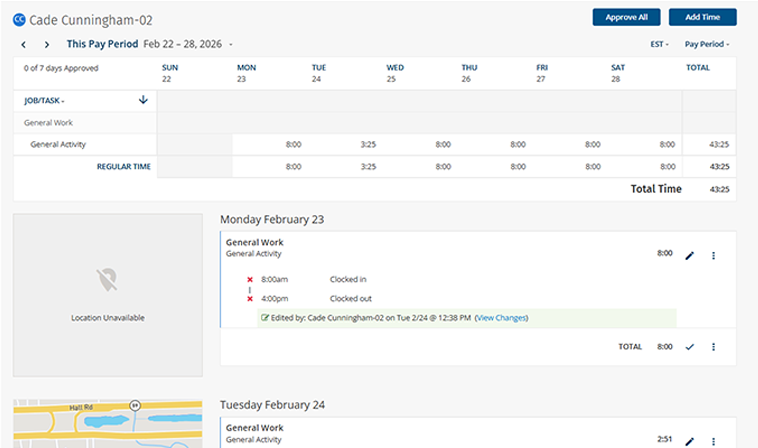
To approve a time sheet, I clicked Time and Approve. From there, I was able to review each day’s punches, hours, and locations. A map is shown to the left of each day, documenting pinpoint locations for each punch. Once a time sheet was approved, I received an alert confirming the approval.
Additionally, if I wanted to add time off to any employee’s time sheet, I could do so by clicking the Time Off tab. To use the PTO feature, I first had to set up a policy (see Time Off section below).
In summary, ClockShark’s time sheets are clean, visual, and easy to approve. The map-based verification adds meaningful accountability, though the editing workflows and feature depth may not feel as robust as those of some fully unified workforce platforms.
What Kind of Customer Support Does ClockShark Offer?
Score: 7/10
Support is a very important part of any time tracking company. It’s crucially important to have a real person available if/when problems arise.
I located ClockShark’s customer support by clicking the circled question mark in the top-right corner of the screen.
The first options I encountered led me to ClockShark’s Help Desk, which offered a plethora of written resources, including setup instructions, how-to articles, product portals, and more.
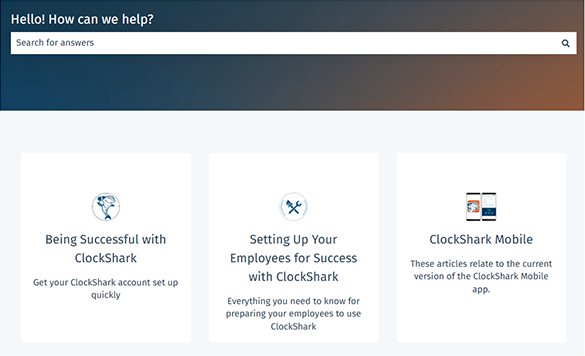
A What’s New section offers updates on ClockShark bugs and news. Another tab allows users to submit feedback via a Productboard-powered portal.
The final offering is Contact Support. This feedback interface allows users to share thoughts or complaints via an email-like interface.
Unfortunately, a live chat option wasn’t available with a single click. That said, the AI ClockShark Expert pop-up did reappear on this page. Testing its capabilities, I asked it, “When was the last time ClockShark raised its prices?” The bot was unable to answer my question and instead encouraged me to visit the Pricing page.
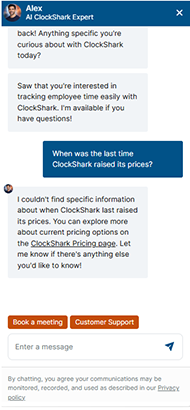
When I asked if there was a way to connect with a real human, I was redirected to the Contact Us page. This is counterintuitive, seeing that this tab was titled “Contact Support.”
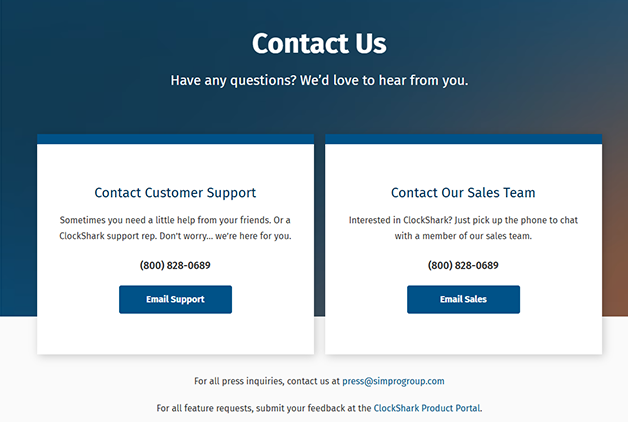
Upon visiting the Contact Us page, I was prompted to email or call support and sales; however, no live chat option was available.
Finally, I did locate the live chat – it was hidden within a blue quote cloud in the bottom-right corner. I asked the same pricing question and was prompted to provide my email address.
I understand requiring my email address allows them to collect data; however, none of the other time tracking apps I've reviewed required me to identify myself before answering my support question.
Finally, a ClockShark support representative responded to my question, explaining that the company had raised prices in June 2025 and had no additional increases planned at the time. However, ClockShark has since raised its published rates, with the Standard plan now starting at $42 per month plus $9.50 per user, and the Pro plan at $63 per month plus $11.50 per user.
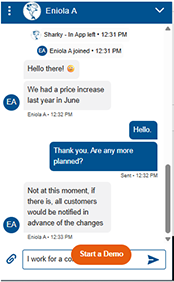
I also discovered that only Pro plan customers can schedule time with a customer success representative during account setup. Standard plan users do not have access to that level of onboarding support.
This tiered approach, combined with the hidden live support and somewhat unhelpful AI chat bot, diminishes the effectiveness of ClockShark’s customer support.
How Does In-App Chat Work?
Score: 8/10
To access the chat function, I visited Product > Conversations. The landing page touted the ability to update everyone on a job's progress and centralize job and customer communications.
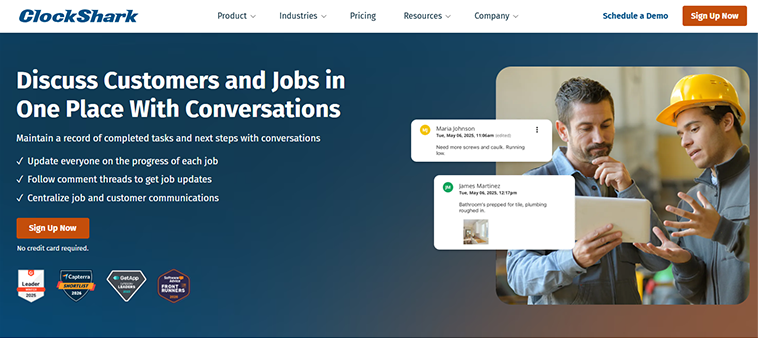
Unfortunately, I struggled to locate the messaging feature online. A help article showed me that the conversation feature must originate within a specific Job. While this is not conducive to general conversation, it is helpful for tracking progress on a specific task or worksite.
Once I defined the chat boundaries, I added a comment to the Practice job I set up. It was posted as suspected.
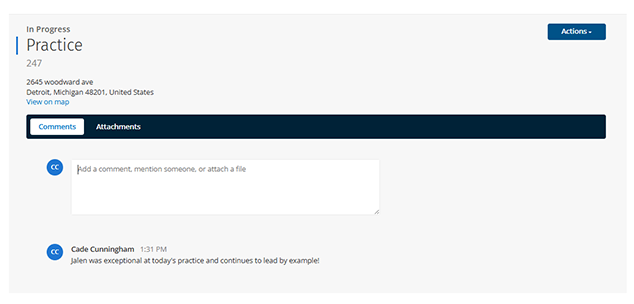
It’s unfortunate that there is no global chat feature on the web or within the mobile app. That said, the ability to communicate specifically within each job is appreciated.
How Do You Manage Time Off?
Score: 7/10
To access an employee’s paid time off (PTO) account, I clicked the Time tab and scrolled down to Time Off. Before proceeding, I had to set up my company’s time off policies.
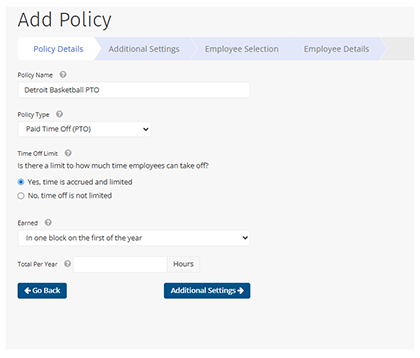
The Add Policy prompt guided me through a four-step process. I was initially asked to give the policy a name, select a policy type, determine whether time off is limited, establish how it’s accrued or allotted, and define the total hours given per year. Additional settings included establishing a wait period and establishing a carryover limit.
Once established, PTO limits can be disseminated to all employees or assigned individually.
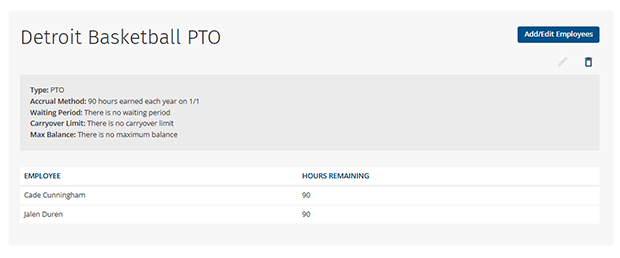
After the policy is finalized, a summary screen displays the rules and the hours remaining for all employees.
To request PTO, an admin can click Add Time Off
Then, identify the employee, policy, dates, and add a description. The admin can then toggle the request from pending to approved if they wish.
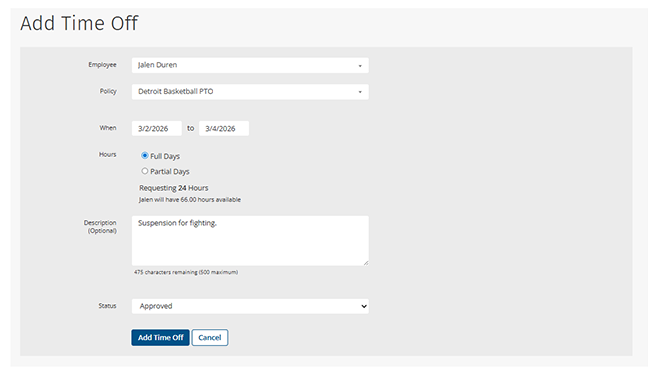
Once approved, a final screen summarizes the request.
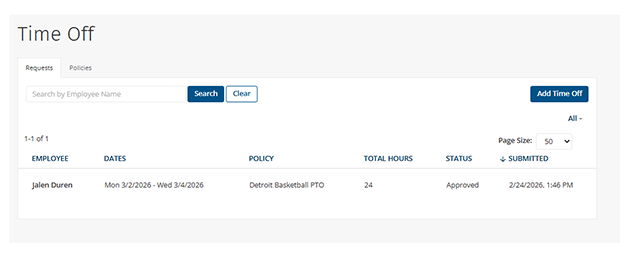
To request time off on the app, click Schedule, then Time Off. Click the plus sign, then enter the employee’s request. Once approved, a success screen confirms the request and shows the employee’s remaining PTO balance.
How Does Payroll Integration Work?
Score: 6/10
ClockShark does not offer an in-house payroll element.
It integrates with several third-party providers, including QuickBooks, Xero, and Sage. To access them, I clicked Admin and then Integrations.
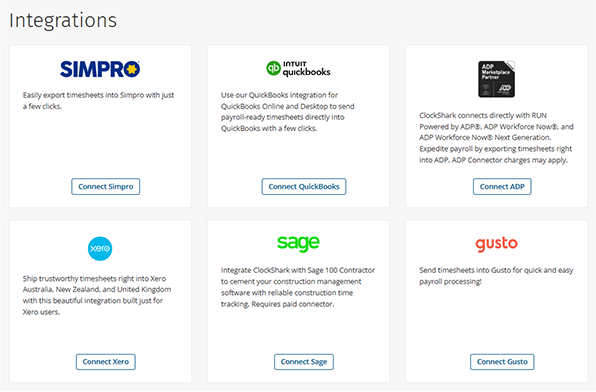
Clicking one of the integrations opens a list of instructions for connecting my account to that integration.
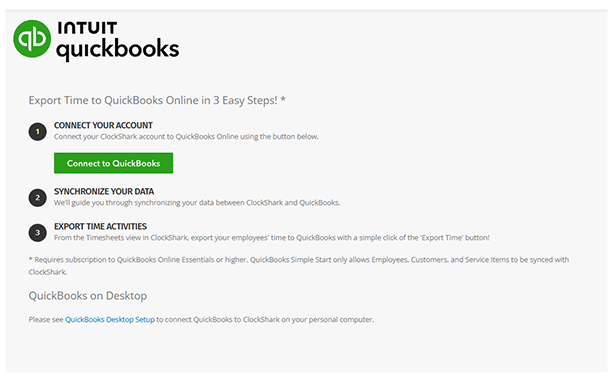
While several integrations are available, the overall integration ecosystem is more limited than some broader workforce platforms.
What Add-Ons Does ClockShark Offer?
Score: N/A
It doesn’t appear that ClockShark offers any specific stand-alone add-ons.
That said, key features, such as PTO and personal onboarding, are only available to Pro subscribers, so they could be considered add-ons.
How Does ClockShark Handle Follow-Ups and Outreach?
Score: 6/10
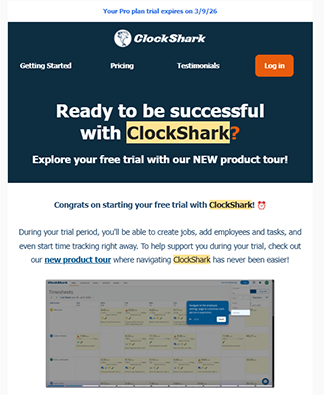
After signing up, I received three emails from ClockShark within the first three days, including a welcome message, a product tour, and instructions on adding shifts. These messages did land in my inbox, not my spam folder, unlike many other time-tracking competitors’ emails.
What Are the Pros and Cons of Using ClockShark?
ClockShark is a construction- and field-service-focused time-tracking platform that excels at job-based scheduling and GPS accountability, but its pricing structure, payroll limitations, and tier-based feature access create friction for growing teams.
Pros of Using ClockShark
- Strong Field-Focused Scheduling Tools – The drag-and-drop calendar is one of ClockShark’s strongest features. Managers can quickly assign shifts, attach jobs and tasks, publish schedules, and move work between employees with ease.
- Job-Centric Workflow – Jobs are deeply integrated into scheduling, time tracking, notes, attachments, quotes, invoices, and conversations. For construction and field teams, this centralized job structure is powerful.
- Simple, Clean Mobile App – The mobile experience is very straightforward. Clocking in, switching jobs, starting breaks, and viewing schedules are intuitive. The map feature clearly shows punch locations.
- Detailed GPS Tracking & Time Approvals – Time sheets include mapped punch locations for each entry, helping verify where employees clocked in and out. Approval workflows are simple and clear.
- Helpful Onboarding Videos – Short instructional videos appear throughout setup (adding employees, getting started, etc.) to reduce friction for first-time users.
- Integrated Job Conversations – Messaging within specific jobs keeps communication tied directly to worksites and tasks, preventing scattered communication across channels.
- Third-Party Payroll Integrations – Integrations with QuickBooks, Sage, Xero, ADP, Gusto, and others allow exported time for payroll processing.
Cons of Using ClockShark
- Higher Overall Cost – At $42 + $9.50/user (Standard) and $63 + $11.50/user (Pro), ClockShark quickly becomes expensive. A 10-employee team pays $130-$170/month, making it one of the pricier options in the time tracking space.
- No In-House Payroll – ClockShark does not offer built-in payroll. Users must rely on third-party integrations, which add setup steps and potential friction in data syncing.
- Key Features Locked Behind Pro Plan – PTO management, advanced job costing, compliance forms, and personalized onboarding are restricted to Pro users, effectively functioning as tier-based add-ons.
- Limited Employee Setup Clarity – During testing, compensation fields were not clearly labeled for the duration of the pay requested and were identified as “for reporting purposes only,” which may confuse users looking for structured pay-type configuration.
- No Global Messaging Feature – Conversations must originate within a specific job. There is no company-wide or department-wide chat functionality.
- Mobile Admin Limitations – Adding employees appears to be limited to the web interface, restricting flexibility for managers who work primarily in the field.
- Customer Support Navigation Friction – Live chat exists but is hidden behind a small icon, and assistance requires email verification. Lower-tier users do not receive dedicated onboarding support.
- Interface Can Feel Complex in Job Section – While scheduling is intuitive, the broader job management area (quotes, invoices, stages, files) can feel layered and slightly overwhelming initially.
What Do Real Users Say About ClockShark?
Looking beyond marketing claims, user reviews paint a fairly consistent picture of ClockShark.
Across platforms like G2, Capterra, Google Play, and the Apple App Store, many customers praise ClockShark’s GPS tracking, job-based clock-ins, and map visibility. Managers especially value being able to verify punch locations and tie hours directly to jobs and tasks. For construction and field service teams, that level of accountability is a major selling point.
Scheduling also receives positive feedback. Users frequently mention that the drag-and-drop calendar makes it easy to assign work and move shifts between employees.
That said, reviews highlight a few recurring friction points:
- No built-in payroll (requires third-party integration)
- Feature gating by tier (PTO and advanced tools require Pro)
- Occasional mobile app reliability complaints
- Limited geofencing enforcement controls
Overall, real users tend to agree: ClockShark works best for field-based businesses that prioritize GPS accountability and job tracking. If you’re looking for a more unified workforce system with built-in payroll and fewer feature tiers, you may prefer a simpler all-in-one alternative.
For example, the most relevant review on G2, where ClockShark has a 4.6-star review out of 312 ratings, comes from Valerie H. On Feb. 6, 2026, she writes, “This is map-based team tracking and job-specific clock-ins made easy. I like being able to see on a map where my team members are, and that they can clock in and out for different jobs. I wish it offered payroll services.”
On Google Play, where ClockShark has a 3.8-star rating based on 981 reviews, the three most recent reviews were all one-star. On Jan. 6, 2026, Raymond D. wrote, “I believe someone will access your account through this app and use up your data!”
On Apple, where ClockShark has 3.2 stars on 51 ratings, EBELL1110 wrote, on Feb. 7, 2026, “I have talked to support multiple times, and all they have to say is, ‘We’ve been hearing that from a few customers,’ and ‘unfortunately, the app can’t do that.’ It would be nice to be able to limit what time people can clock in at and make the geofences restrict clocking in outside of the set limit instead of just sending me hundreds of emails.”
How Does ClockShark Compare to OnTheClock?
| Feature | ClockShark | OnTheClock |
|---|---|---|
| Mobile Experience | Designed specifically for field crews. Employees can clock in by job, switch tasks, and view mapped punch locations. Conversations are job-based rather than company-wide. | The mobile app supports time tracking, scheduling, PTO, and payroll workflows through a simplified interface. Includes broader team visibility beyond job-specific communication. |
| Desktop Clock-Ins | Supported, with configurable permissions for GPS, kiosk mode, and web punching. | Fully supported across desktop and laptop devices with built-in admin controls and minimal configuration required. |
| Time Tracking | Core functionality includes job-based clock-ins, GPS verification, mapped punches, and approvals. Advanced job costing tools are available only with the Pro plan. | Core time tracking includes approvals, edits, reporting, PTO tracking, and user permissions without requiring tier upgrades for essential tools. |
| Payroll Functionality | Does not offer built-in payroll. Integrates with providers such as QuickBooks, Gusto, ADP, Paychex, Sage, and others for payroll processing. | Offers integrated payroll as an optional add-on, allowing timecards and payroll data to operate within the same system. Also integrates with major payroll providers if preferred. |
| User Roles & Permissions | Role-based permissions are available. Some onboarding and advanced support features are limited to Pro subscribers. | Admin, manager, and view-only roles are available without additional tier requirements. |
| Customer Support Access | The help center includes articles and onboarding resources. Phone, email, and chat support are available, though dedicated onboarding is reserved for Pro users. | Phone, chat, and email support are available to all subscribers. |
| Time Clock Kiosk | Kiosk mode available with configurable GPS and punch permissions. | Dedicated kiosk mode designed for shared devices with built-in admin controls. |
| API Access | API available with configuration required for custom integrations. | API access available for businesses needing custom workflows or integrations. |
| Pricing Structure | Base monthly fee plus per-user cost. Key features, such as PTO, advanced job costing, compliance forms, and dedicated onboarding, are included in the Pro plan. | Flat base fee plus per-employee cost, with core time tracking and scheduling tools included without feature gating across tiers. |
What’s the Final Verdict on ClockShark?
ClockShark is a strong field-service and construction-focused time tracking platform. If you manage crews across multiple job sites and need GPS visibility, job-based time tracking, and drag-and-drop scheduling, ClockShark delivers real operational value. The scheduling interface is one of its biggest strengths, and the integration between jobs, tasks, and mapped punch locations makes it particularly appealing for mobile teams.
Where ClockShark begins to feel less unified is beyond core time tracking and scheduling. Payroll is not built in, so third-party integrations are required. Key features, such as PTO tracking, advanced job costing, compliance forms, and personal onboarding, are restricted to the Pro tier, which increases costs as teams grow. For small- to mid-sized companies, the base fee plus per-user pricing can scale more quickly than flat pricing models.
Support is available and responsive once reached, but live chat is not immediately visible, and lower-tier customers do not receive the same onboarding resources as Pro subscribers. Additionally, while job-based messaging is helpful, the lack of a global communication feature limits broader team collaboration.
Bottom line: ClockShark is a strong option for construction and field-service businesses that prioritize GPS accountability and job-based scheduling. However, companies seeking built-in payroll, flatter pricing, and fewer feature gates may find it less unified than alternative workforce platforms.
Try OnTheClock free at www.ontheclock.com — no credit card required.
