
Overview
Enabling GPS tracking allows you to track employees in real-time and create a geofence. The purpose of this feature is to improve job costing and time efficiency. It’s important to introduce your employees to GPS tracking in a way that encourages mutual trust and transparency. Currently, only administrators can enable GPS tracking; both administrators and managers can view employee locations.
Setup
web:start
Step 1: After logging in, navigate to “My Team.”
Step 2: Select an employee to open their profile.
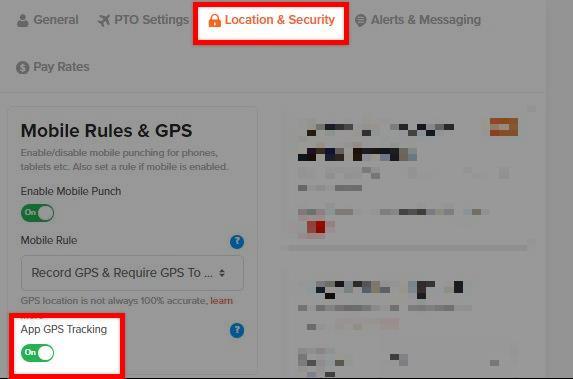
Step 3: From the employee profile, navigate to “Location & Security.”
Step 4: Under “Mobile Rules & GPS,” toggle “App GPS Tracking” on.
Step 5: Click “Save Settings.”
What to Expect
GPS tracking will only work if the employee keeps the app running, they cannot log out of the app. Logging out will stop tracking.
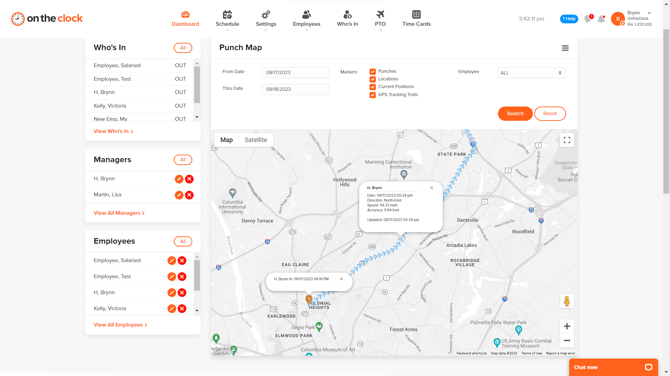
Step 1: After logging in, navigate to “Dashboard.”
Step 2: On the “Punch Map,” check the box marked “GPS Tracking Trails.”
web:end
app:start
Step 1: Open your app and click on your initials/user icon.
Step 2: Click on “Settings,” then “Employees.”
Step 3: Tap on an employee to open their profile.
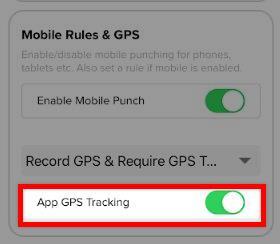
Step 4: Under “Mobile Rules & GPS,” toggle “App GPS Tracking” on.
Step 5: Tap “Save.”
What to Expect
GPS tracking will only work if the employee keeps the app running, they cannot log out of the app. Logging out will stop tracking.
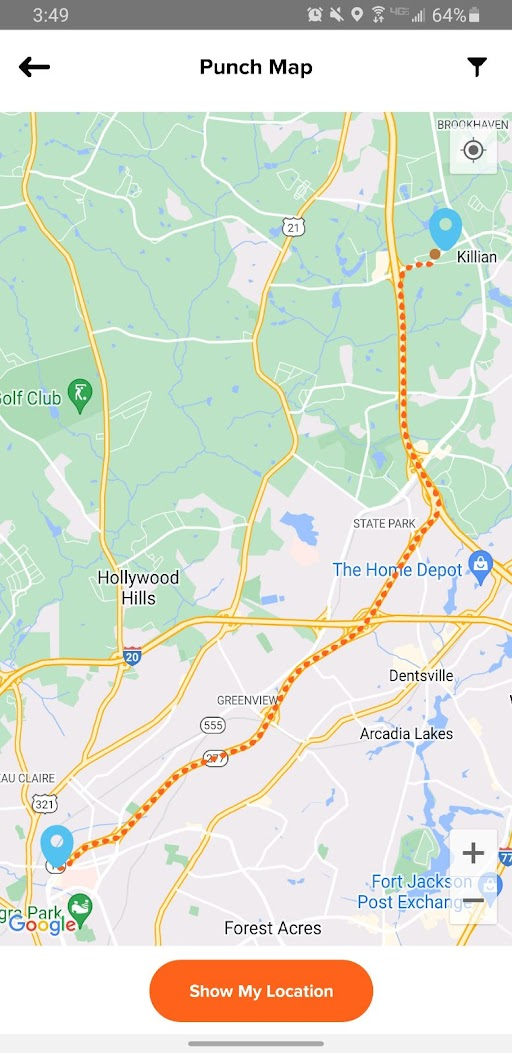
Step 1: Open your app and tap “More.”
Step 2: Navigate to “Today’s Punch Map.”
Note that GPS Tracking Trails record and display every 200 meters of employee movement, as well as their speed and direction.
app:end
Q&A
Q: Does this feature track employees when they’re off the clock?
A: No — your employees’ locations will only be tracked while they’re clocked in. We do not record location information for users while they’re clocked out.
Q: Do I need my employees’ permission to track their location?
A: Yes — your employee must agree to share their location on their mobile device. You can set your Mobile Rule to require GPS in order for an employee to punch, but you cannot record their location without their consent. Your employees will be able to see GPS Tracking is enabled when viewing their OnTheClock app.
Q: Do I need my employees’ permission to track their location?
A: Yes — your employee must agree to share their location on their mobile device. You can set your Mobile Rule to require GPS in order for an employee to punch, but you cannot record their location without their consent. Your employees will be able to see GPS Tracking is enabled when viewing their OnTheClock app.
Q: It’s not working on my employee’s Android phone — why?
A: Android 10/11 users must have location permission for OnTheClock set to “Allow all the time” in order for GPS tracking to work while the app is in the background or closed. If permissions are set to “Allow only while using the app,” GPS tracking will only work while the app is being used. Your employee will still be able to punch in.