


Jump to section
Stop Losing Money on Padded Hours
Get accurate, real-time records and seamless payroll integrations with OnTheClock.
Try It FreeKey Takeaways
- ✔The best time tracking software depends on your team’s work setting, payroll needs, and biggest timekeeping problem.
- ✔Accurate time tracking reduces payroll waste by preventing missed punches, buddy punching, and unplanned overtime.
- ✔Office, remote, shift-based, and field teams need different tools because their clock-in methods and oversight needs vary.
- ✔The true cost depends on base fees, per-user charges, add-ons, and modules rather than the advertised starting price.
- ✔Testing the software for one full pay period shows whether it can handle real punches, overtime, job rates, and payroll exports.
Picture a 20-person crew where each worker pads five minutes on the clock in and five on the way out through a shared tablet nobody watches.
That's 10 minutes a day per person. Across 22 working days at $22 an hour, you just paid for roughly 80 hours of work that never happened, close to $1,800 a month. For a growing business, the best time tracking software does three things at once: it creates a clearer record of when and where employees clock in, flags overtime before it breaks the budget, and hands payroll cleaner numbers.
Running a business today means keeping a close eye on time. Missed punches, manual time sheets, and late payroll don't just waste money, they drain your energy as a manager. Time tracking software solves this by providing accurate records, real-time insight, and seamless payroll integrations, all without chasing employees or double-checking spreadsheets. Reviewers on G2 and Capterra keep raising the same handful of pains: staff clocking each other in at a shared station, overtime that turns into a compliance risk, and messy hours across shifts and sites that wreck payroll.
No single tool wins for every business. Below are nine picks, each matched to a real situation, starting with the one for small teams.
What Businesses Actually Want From Time Tracking
Businesses want proof first. A punch has to tie to one real person, not a station tablet any employee can tap for a coworker. That single need shapes almost every other choice here.
After proof comes the math. Overtime, breaks, and one worker splitting hours across jobs or rates all have to land right, then move into payroll without hand keying. The Department of Labor counts hours and overtime by the worker, so the tool has to keep up.
And it has to survive a busy day. The right pick shifts with what you need most: stopping buddy punching, staying compliant on overtime, or just ending the payroll scramble every other Friday.
Quick Picks: The Best Time Tracking Software at a Glance
-
OnTheClock: Best for small business management
-
GoodDay: Best for project management with built-in time tracking
-
Deputy: Best for shift-based teams
-
QuickBooks Time: Best for payroll
-
Connecteam: Best for remote workforces
-
Beebole: Best for project tracking and performance
-
ExakTime: Best for heavy-duty tracking
-
ClockShark: Best for construction and field services
-
Jibble: Best for companies seeking GPS functionality
How We Evaluated the Best Time Tracking Software
We judged each tool on what actually matters day to day, not on feature-sheet length. We compared every option against the seven needs business owners and managers keep raising, what we call the OnTheClock Time Tracking Checklist:
-
Ease of use: employees can clock in and out with little or no training.
-
Accuracy and controls: GPS, geofencing, or photo verification to help reduce unauthorized or inaccurate punches.
-
Mobile access: a strong app for field teams, remote staff, and managers on the go.
-
Scheduling and PTO: shift planning, leave requests, and overtime alerts in one place.
-
Payroll and integrations: clean connections to the payroll and accounting tools you already run.
-
Reporting and compliance: clear reports for labor costs, job costing, and record-keeping.
-
Price for the team you have: the real monthly cost once you count heads, sites, or modules.
OnTheClock earns the small-business label here because it covers all seven of these needs in a single base plan: GPS and geofencing, kiosk punching, scheduling, PTO, and overtime alerts, with none of the core features held back for a higher tier. That breadth at the base price is the basis for the label, not a ranking against the other picks. Each of the others serves its own situation best.
The Best Time Tracking Software
Below, the best time tracking software, with the right pick for each situation. For each one, we cover who it fits best, where it stands out, and where it may not be the right move.

OnTheClock: Best for Small Business Management
Available on: Web, iOS, Android
Why OnTheClock Is Best for Small Business Management
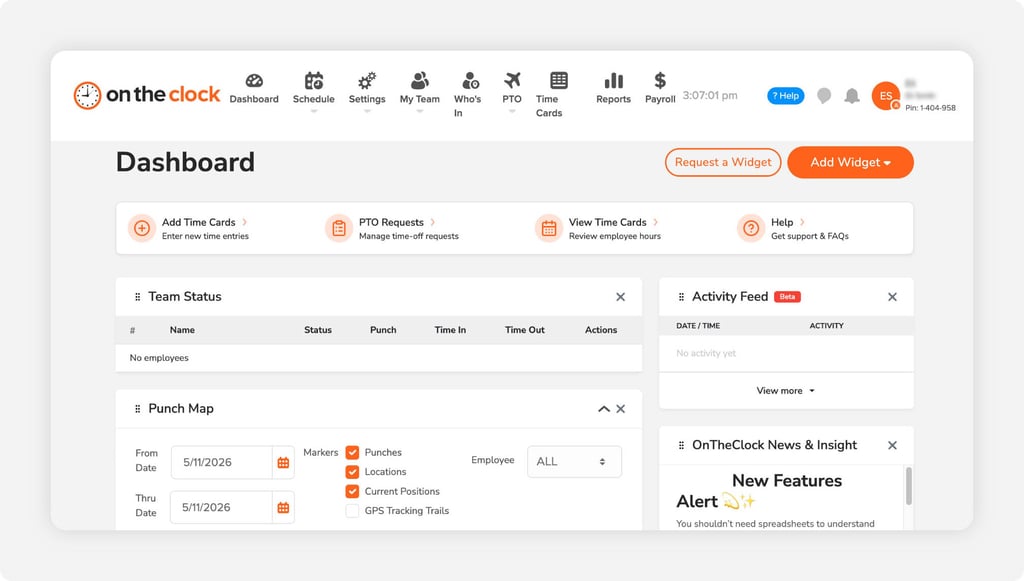
OnTheClock is a cloud-based time tracking and workforce platform built with small businesses in mind. It goes beyond basic punch in and out, giving owners everything they need to oversee teams, simplify payroll, and stay compliant, all in one system. The buyer here is the owner or office manager who wears the payroll hat too.
It meets every need on the checklist in the base plan. Managers see where employees work, how hours are logged, and how time is assigned to jobs, while employees get mobile clock-ins with GPS, easy PTO requests, and clear schedules. Most teams start in minutes with no IT department, and it connects to QuickBooks, ADP, and Gusto so wages process without late-night math.
Why OnTheClock Is Different for Small Business
One plan, no fine print. It's $5 base a month plus $4 per user, and the core features come included, not gated behind a pricier tier. A 15-person team pays $65 a month, and slow weeks don't sting because billing only counts active users.
Owners who got burned by a heavier platform tend to land here for the simplicity. The honest trade-off: self-service editing is limited by design, and the reporting is lighter than an enterprise suite built for deep workforce analytics.
Key Features
Pros
Cons
Pricing
- 30-day free trial, no credit card
- $5/month base plus $4 per user/month (see how OnTheClock pricing works)

GoodDay: Best for Project Management With Built-In Time Tracking
Available on: Web, Windows, macOS, Linux, iOS, Android
.png?width=1024&height=581&name=goodday-homepage-screenshot%20(1024%20x%20581%20px).png)
Why GoodDay Is Best for Project Management with Time Tracking
GoodDay is a strong choice for teams that need project management software with time tracking because it connects recorded hours to tasks, projects, and reports. Users can track time with a built-in task timer or add entries manually.
The platform also helps understand how project effort is distributed. Advanced reports and visual analytics show where time is being spent. Combining project management and time tracking eliminates duplicate data entries and gives teams a clear view of progress. Coordinate projects and connect hours to tasks. GoodDay combines built-in time tracking with comprehensive project management features.
Key Features
Pros
Cons
Pricing
- Professional at $4 per user/month
- Business at $7 per user/month
- Enterprise with custom pricing

Deputy: Best for Shift-Based Teams
Available on: Web, iOS, Android
Why Deputy Is Best for Shift-Based Teams
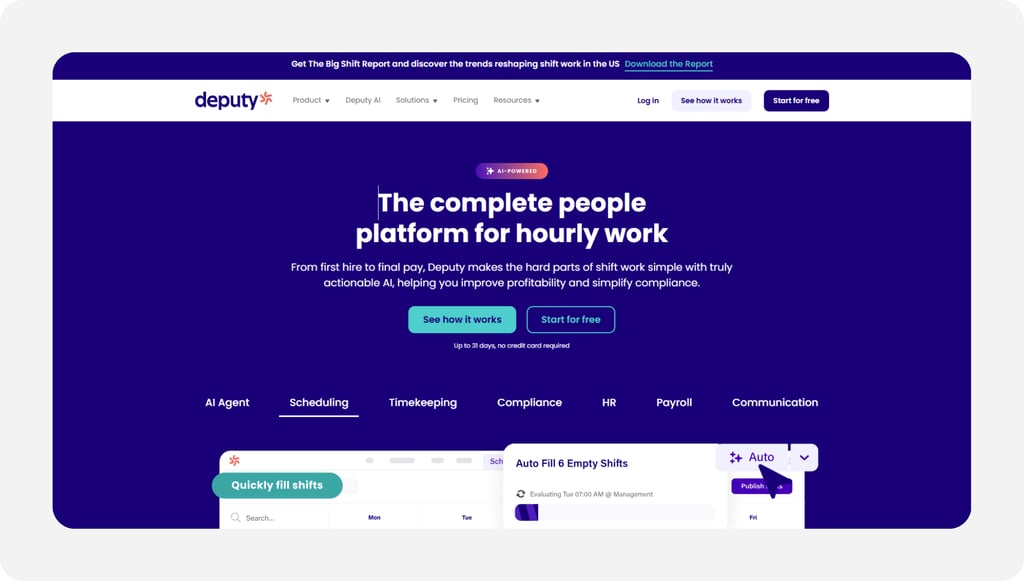
Deputy fits the shift-based business that lives on last-minute schedule changes, restaurants, retail shops, clinics, and hospitality teams where time tracking can't be separated from scheduling and compliance. The buyer is the manager who answers for both coverage and labor law.
Where it stands out is bringing attendance, fair scheduling, and compliance into one system. Employees clock in with location stamps, managers get alerts when someone is late or absent, and pay rules like overtime and meal breaks apply automatically. Schedules build and share in minutes, and everything flows into time sheets and payroll. The caution is polish: reviewers note occasional lag, mobile glitches, lighter PTO tools, and slower support at times.
Key Features
Pros
Cons
Pricing
- Free trial available
- Starts at $5 per user/month

QuickBooks Time: Best for Payroll
Available on: Web, iOS, Android
Why QuickBooks Time Is Best for Payroll
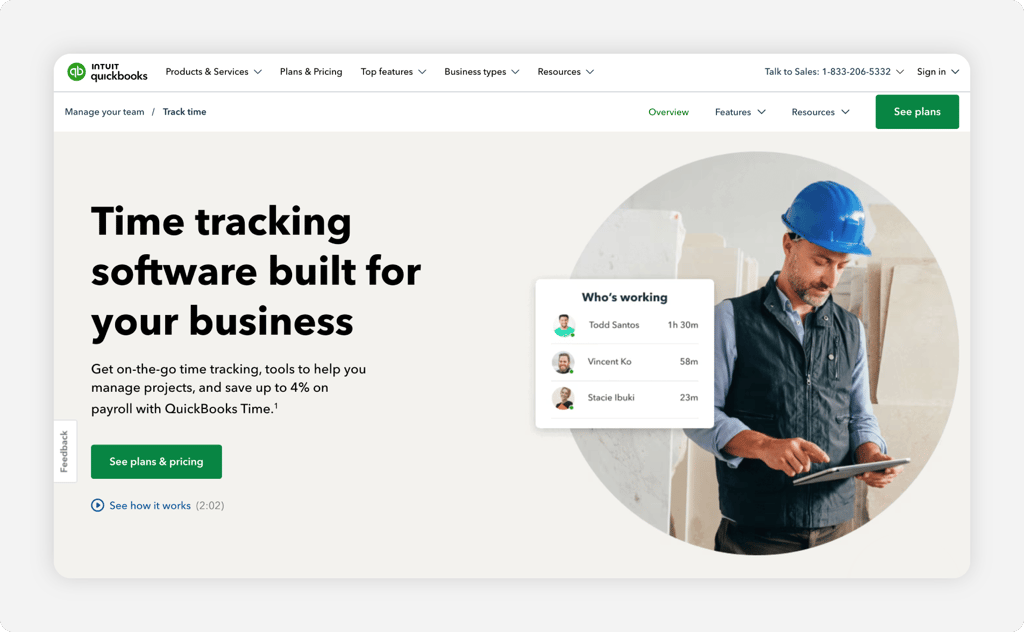
QuickBooks Time, formerly TSheets, is built to take the stress out of payroll. It captures accurate hours and sends them straight into pay without the manual entry that causes disputes and delays. For businesses already using QuickBooks, it's the most seamless option on the market. The buyer is the owner or bookkeeper for whom payroll accuracy is non-negotiable.
Where it stands out is closing the gap between time tracking and payroll. Employees clock in from a phone, browser, or shared kiosk, GPS and geofencing confirm where staff are working, and managers export approved time sheets to payroll in a few clicks. The caution is cost and complexity: it's pricier with add-ons, support draws complaints, and advanced use carries a learning curve.
Key Features
Pros
Cons
Pricing
- Plans start at $20/month plus $10 per user/month. A QuickBooks Online account is required

Connecteam: Best for Remote Workforces
Available on: Web, iOS, Android
Why Connecteam Is Best for Remote Workforces
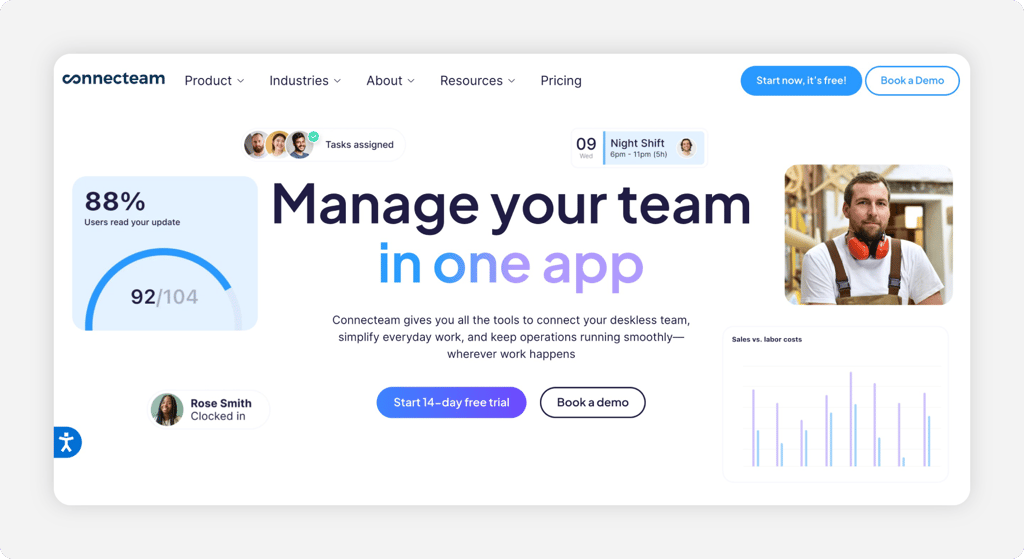
Connecteam fits the business with dispersed teams that need more than a punch clock. Employees clock in from their phones, record jobs, and message managers all in one app, so remote and field staff stay connected and accountable. The buyer is the operations lead keeping crews aligned across locations.
Where it stands out is breadth for deskless teams: GPS tracking, mobile forms, task checklists, chat, and scheduling in one hub, so there are fewer tools to juggle. The caution is the structure. Connecteam splits features across separate hubs, so a business that wants time, communication, and HR may pay for more than one, and reviewers note constant upgrade prompts and a steep early learning curve.
Key Features
Pros
Cons
Pricing
- 14-day free trial available
- Paid plans start at $29/month for the first 30 users when billed annually, with pricing per hub.

Beebole: Best for Project Tracking and Performance
Available on: Web, iOS, Android
Why Beebole Is Best for Project Tracking and Performance
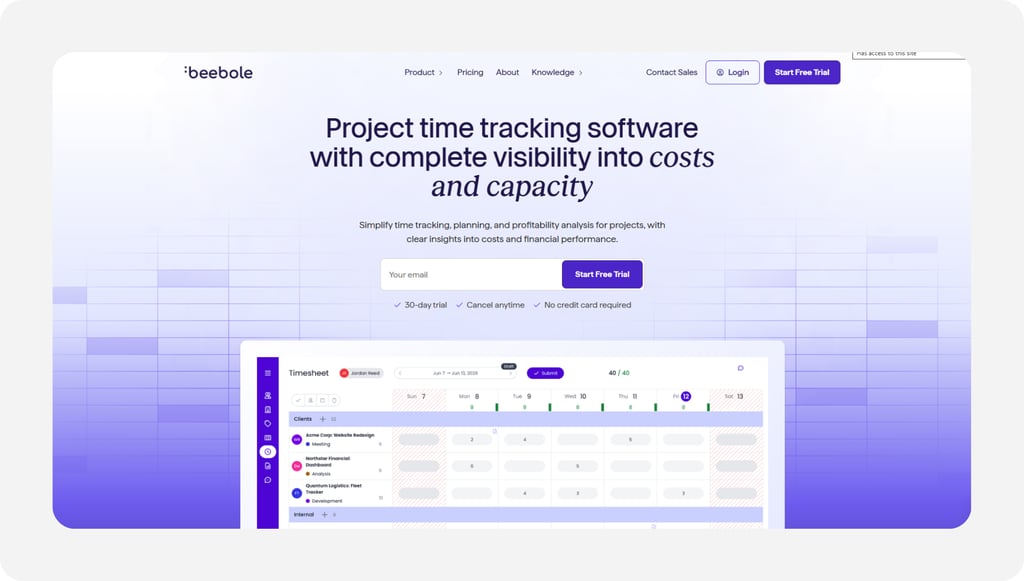
Beebole combines time tracking with project financial management, so project managers and finance teams see cost, billing, and margin data without waiting on month-end reports. The buyer is the finance controller or project manager who needs real-time project health data and to know whether a project is profitable before the invoice goes out, not after.
Why Beebole Is Different
Resource planning connects directly to the timesheet. Managers assign work in the planning view, and those planned entries appear pre-populated in each employee's timesheet — employees confirm or adjust rather than starting from a blank grid, and managers see deviations between planned and actual time as they happen. Cost and billing rates can be set at the person, project, task, and tag level simultaneously, with rate effective dates so historical calculations stay correct even after a rate changes mid-contract. Multi-stage approval chains (manager, then project lead, then admin) and hierarchical tags let the tool match how an organization is actually structured, rather than forcing a fixed workflow.
Key Features
Pros
Cons
Pricing
- Free plan: up to 5 users
- Essential: $9/seat/month (annual) or $10/seat/month (monthly)
- Advanced: $18/seat/month (annual) or $20/seat/month (monthly)
- 30-day free trial, no credit card required

ExakTime: Best for Heavy-Duty Tracking
Available on: Web, iOS, Android
Why ExakTime Is Best for Heavy-Duty Tracking
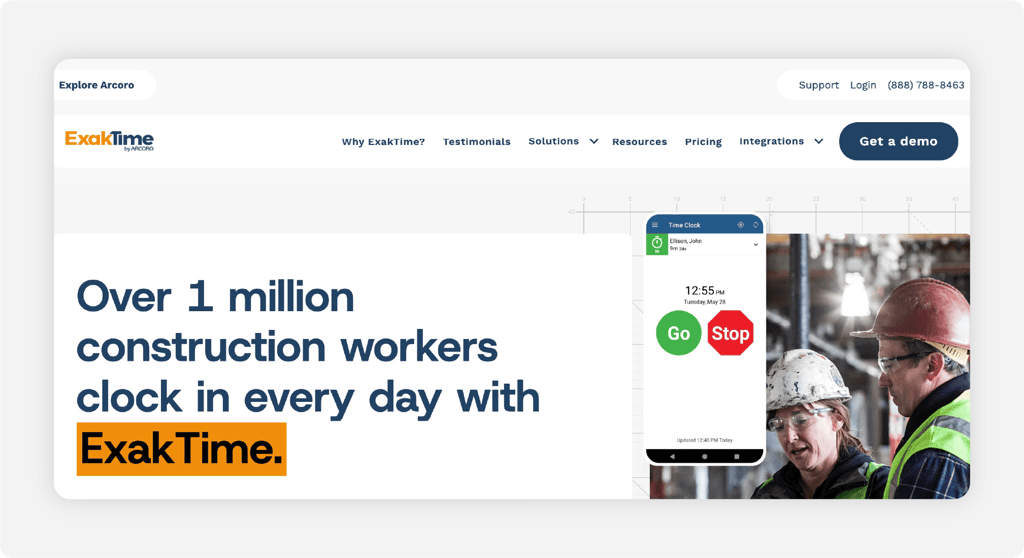
ExakTime is built for the tough environments where construction and field crews actually work. Unlike lighter apps, it thrives on heavy-duty job sites where dust, weather, and unreliable connectivity wreck less durable systems. The buyer is the contractor or construction manager who needs accurate punches in the mud, under blazing sun, or at a remote site.
Where it stands out is durability paired with strong anti-buddy-punching proof: biometric ID and photo verification make sure only the right person clocks in, saving thousands in labor costs over time. The caution is polish and price. Reviewers report app glitches and lag, occasional import and integration issues, limited report customization, and cost concerns.
Key Features
Pros
Cons
Pricing
- Plans start at $9 per user/month plus a base fee

ClockShark: Best for Construction and Field Services
Available on: Web, iOS, Android
Why ClockShark Is Best for Construction and Field Services
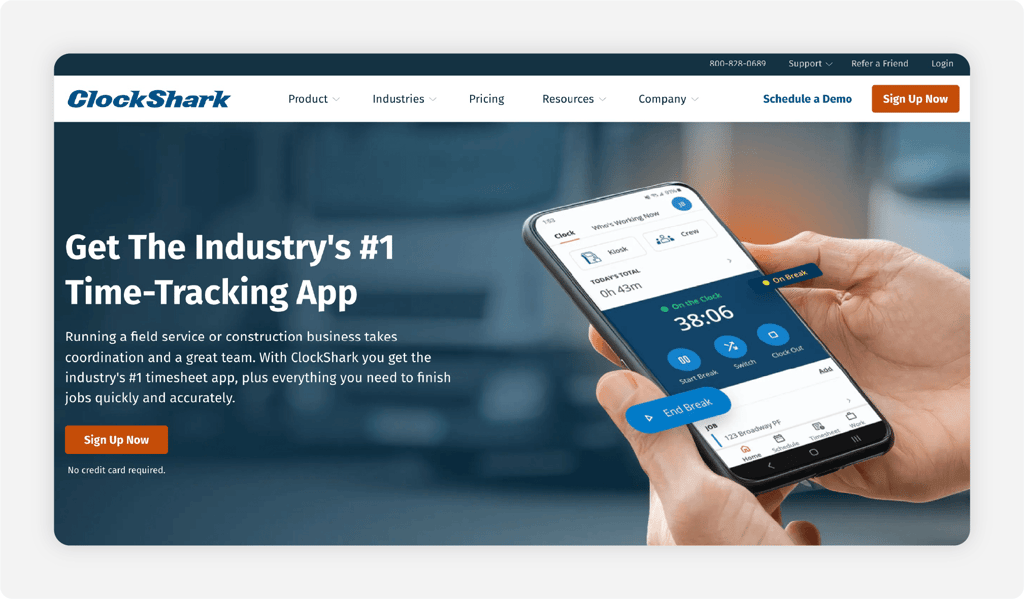
ClockShark is a time tracking and scheduling app designed specifically for construction, field services, and other industries where employees are always on the move. Most of the work happens out in the field, not behind a desk, so hours, jobs, and locations get messy fast without the right tool. The buyer is the contractor keeping projects on track and profitable.
Where it stands out is solving the biggest field pain points at once: workers clock in from their phones with GPS-stamped records, and geofencing, job codes, and crew scheduling show who's working where and on what. Time sheets flow into payroll and job costing to avoid disputes. The caution is a higher price point, occasional GPS reliability issues, limited report customization, and sync hiccups.
Key Features
Pros
Cons
Pricing
- 14-day free trial available
- Standard plans starts at $42/month + $9.50/user/month

Jibble: Best for Companies Seeking GPS Functionality
Available on: Web, Windows, macOS, iOS, Android, Kiosk
Why Jibble Is Best for Companies Seeking GPS Functionality
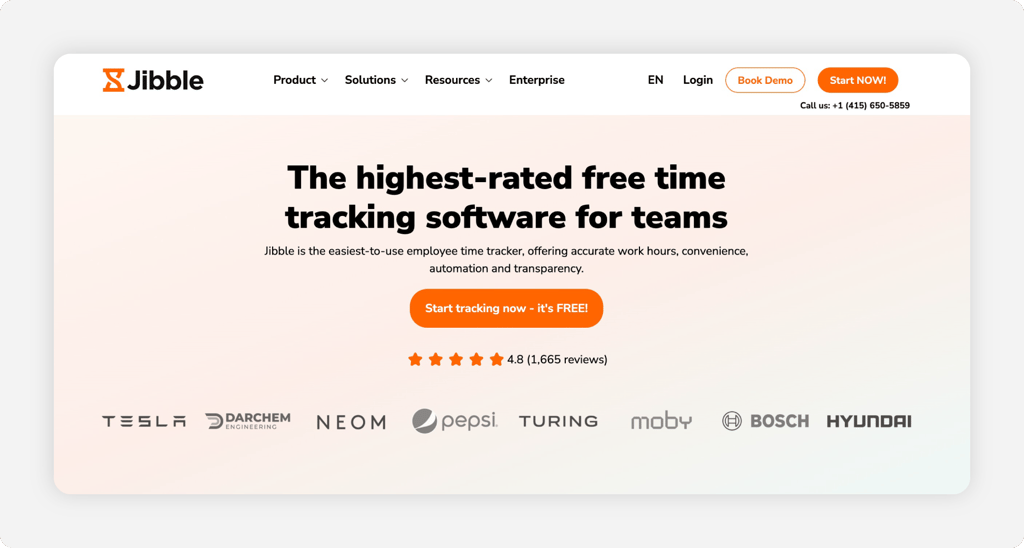
Jibble is a comprehensive employee time sheet app that lets users maintain accurate time sheets and keep track of their team’s working hours while on the move. Backed by an impressive 4.8 stars out of 5 based on 1,910 reviews, it incorporates robust tracking with facial recognition and GPS capabilities.
Where it stands out is in its flexibility and approachability. The platform offers broad compatibility across multiple devices and systems, from desktop to mobile to a physical kiosk app. It ensures high levels of support through a dedicated help center, a phone number, and a user feedback form. The free plan provides highly sought-after features like GPS tracking and kiosk mode, as well.
Key Features
Pros
Cons
Pricing
- Free plan for unlimited users
Side-by-Side Comparison
| Tool | Best For | Pricing | Key Strengths | Top Integrations |
|---|---|---|---|---|
| OnTheClock | Best for small business management | $5 base + $4/user/month | Kiosk and GPS punch proof, scheduling, PTO, audit trails | QuickBooks, ADP, Gusto, SAGE, Square |
| GoodDay | Project management software with time tracking | From $4/user/month | Task timer, reports, and task connectivity | Google Workspace, Slack, Microsoft Teams, GitHub, Zapier, API |
| Deputy | Shift-based teams | From $5/user/month | Auto pay rules, drag-and-drop scheduling, attendance alerts | ADP, Gusto, BambooHR, Lightspeed, NetSuite |
| QuickBooks Time | Payroll | $20 base + $10/user/month + required QuickBooks Online subscription | GPS tracking, real-time who's working, payroll sync | QuickBooks, Gusto, BigTime, Shopify, Square |
| Connecteam | Remote workforces | Free up to 10; $29/month for first 30 per hub (annual billing) | GPS clock, forms, chat, scheduling for off-site staff | Gusto, Xero, Paychex, ADP, Wix |
| Beebole | Project tracking and performance | From $9/user/month (billed annually) | Project tracking, billable hours, custom reports | Microsoft 365, Google Workspace, Zapier, free API |
| ExakTime | Heavy-duty tracking | From $9/user/month + base fee | Rugged clocks, photo ID, job cost tracking | Sage, QuickBooks, ADP, Viewpoint, Procore |
| ClockShark | Construction and field services | 14-day trial; ~$29/month for 30 | GPS, job and task tracking, crew scheduling, job costing | QuickBooks, ADP, SAGE, Xero, Zapier |
| Jibble | Companies seeking GPS functionality | Free plan | GPS tracking, facial recognition, attendance management | Various payroll providers |
Comparison data verified Septmeber 2026 against each vendor's own site; subject to change by respective providers.
What's the Best Time Tracking Software for Your Business?
The best option isn't the longest feature list. It's the one that fits how your team actually works. Start with one question: where do your employees clock in?
That answer points you fast.
- Run a small business and wear the payroll hat too, and OnTheClock covers proof, scheduling, and payroll exports in one base plan.
- Manage shifting coverage day to day, and Deputy builds pay rules and scheduling into one system.
- Live and die by payroll accuracy, and QuickBooks Time closes the gap between hours and pay.
The right tool removes friction from the problem you hit most, then gets out of the way.
What Time Tracking Software Actually Does
Time tracking software is a digital tool that records your employees' work hours, breaks, and overtime in one system. Instead of chasing paper time sheets or doing late-night payroll math, you see everyone's hours in real time, accurate and ready for payroll.
At its core, it replaces outdated methods like punch clocks, spreadsheets, and handwritten notes. Employees clock in and out through a mobile app, computer, or kiosk, and the system stores every record automatically. That means no more lost timecards, no more arguments about missing hours, and fewer mistakes when you run payroll.
Who Needs Time Tracking Software?
If you manage people who punch a clock, track shifts, or submit hours, you need time tracking software. It's not just for big corporations, and small businesses often feel the pain most when hours get lost or payroll errors pile up.
Construction crews clock in from their phones with GPS across multiple job sites. Restaurants and retail keep schedules, clock-ins, and labor costs aligned as shifts change fast. Healthcare offices cut manual entry on complex rotations. Remote and field teams gain accountability from anywhere. And small business owners automate hours so they can run the business instead of chasing time sheets. The common thread is simple: if payroll mistakes, compliance worries, or lost hours create stress, this software gives you control.
Why Businesses Lose Money Without Good Time Tracking
Work happens across long days, changing shifts, and more than one site. Small errors there don't stay small. A few padded minutes per worker, multiplied across a full schedule, turns into thousands of dollars a month in hours nobody worked.
The old way also breaks on compliance. Labor laws around overtime, breaks, and paid time off are hard to follow when records live on paper, so manual math misses it. A real time clock flags overtime early and proves breaks, which protects both pay and the budget. You can pair it with employee scheduling so hours and shifts finally match.
Key Features Time Tracking Software Should Have
Before comparing prices, make sure any tool covers the basics a business leans on.
-
Mobile and GPS clock-ins: punch from a phone while confirming the right location, essential for off-site crews.
-
Overtime and PTO tracking: real-time alerts and leave balances in one place, no juggling emails or calendars.
-
Photo or biometric verification: a PIN, photo, or biometric so one worker can't clock in another.
-
Job and project tracking: assign hours to a project or cost code to see where the budget goes.
-
Payroll and HR integrations: clean data into the payroll you already run, cutting out double entry.
-
Reports and dashboards: instant summaries of hours, overtime, and costs for the visibility managers need.
How to Choose the Proper Time Tracking Software for Your Business
Step 1: Count your team and locations, then do the pricing math. Pricing splits several ways, and it changes the bill a lot. Per-user tools charge by head, some add a base fee, and some bill per module. A 25-person team on a $4 per-user plan with a $5 base pays $105 a month. The same team on a per-module tool can look cheaper until you add the modules you need. Run your real headcount and site count before you compare a single feature.
Write down both numbers now: how many people punch, and how many locations they punch from. A single office and a field service with three territories will land on different tools even at the same headcount. The model, not the sticker price, decides the winner.
Step 2: Name your single biggest problem. Pick the one leak that hurts most: buddy punching, overtime compliance, or the payroll rebuild. Your answer points straight at a tool. If workers cover for each other at the station, ExakTime photo verification or OnTheClock PIN and kiosk close that door. If payroll accuracy keeps you up at night, QuickBooks Time closes the gap.
Don't try to solve all three at once. Fix the costliest one first, then confirm the tool handles the other two well enough. A clear top problem keeps you from paying for features you'll never turn on.
Step 3: Match the punch method to where people work. Decide where employees actually clock in. An office or shop wants a fixed kiosk with a PIN or photo. A field service wants a phone punch with GPS that stamps the job address. Test the method during a real shift change, when everyone is in a hurry.
If your team splits between a building and the field, pick a tool that does both from one account. OnTheClock and Connecteam both cover kiosk and mobile, so a mixed team doesn't run two systems.
Step 4: Verify accuracy and compliance. Set up your overtime, break, and rounding rules, then confirm the software applies them correctly. Check that edits are logged with an audit trail so you always know who changed what. The Department of Labor sets the federal floor, and many states stack stricter rules on top.
Ask each vendor to show the overtime setting, not just claim it. A tool that only counts weekly overtime will miss daily and other rules and leave you exposed. This is the step most generic time clocks fail.
Step 5: Handle multiple rates and job costing. A worker who floats between two roles, or logs hours against different jobs, has to be paid and costed right for each. Confirm the tool clocks one worker at more than one rate and keeps job costs straight. Then check those rates and codes carry through to the payroll export, not just the on-screen report.
Run a quick test with a sample split shift across two rates. If the totals come out clean, the tool can handle a real schedule. If they don't, you'll be fixing it by hand every period.
Step 6: Confirm the payroll connection. Check that the tool exports hours, overtime, and multiple rates to your payroll, whether that's QuickBooks, ADP, Gusto, or Paychex. Run a sample export and verify the data matches. OnTheClock also offers built-in payroll if you'd rather keep everything in one place.
A clean connection is where the time savings actually show up. The goal is one approval, then hours flow to pay without rekeying. Confirm the exact integration you need exists before you buy, not after.
Step 7: Run a free trial through one full pay period. Run the tool live through a real pay period, nights and weekends included, so you see punches, overtime, and the payroll export under pressure. Most picks here offer 14 to 31 days free, and OnTheClock gives 30 days with no credit card. Have your actual staff clock in, not just an admin testing on a laptop.
Watch what happens at the messy edges: a missed punch, a swapped shift, a split across two rates. The tool that handles your worst day, not your average one, is the one to keep.
Tips for Rolling Out Time Tracking in Your Business
-
Start with one team, not the whole company. Pilot the time clock on a single location or shift, work out the kinks, then roll it wider with a short how-to the team can trust.
-
Explain the "why" upfront. Show employees this is about accuracy and fairness, not surveillance. Clean records mean fewer disputes and faster paychecks.
-
Set the rules to match labor law. Build your overtime plan and break rules into the tool from day one. The Department of Labor sets the federal floor, and many states stack stricter rules on top.
Frequently Asked Questions
What is the best time tracking software?
For small business management, OnTheClock is the best fit. It puts GPS punching, scheduling, PTO, and payroll exports in one plan at $5 a month plus $4 per user. Shift-based teams may prefer Deputy, payroll-first businesses may prefer QuickBooks Time, and construction teams may prefer ClockShark, each matched to a specific situation in the list above.
How much does time tracking software cost?
Pricing depends on team size and features. Most providers charge a base fee plus a per-user fee, usually ranging from $2 to $8 per employee per month, while some bill per module. OnTheClock charges a $5 base plus $4 per user, so a 15-person team costs $65 a month. Count your team and locations before you compare.
Can employees clock in from their phones?
Absolutely. Mobile apps with GPS verification are common, giving both managers and employees flexibility without sacrificing accuracy. GPS and geofencing confirm the worker is at the right location when they punch in.
Can time tracking software stop buddy punching?
Yes. A PIN, photo capture, geofence, or biometric ties each punch to one real person, so a worker can't clock in a coworker. OnTheClock uses PIN, photo, and GPS, while ExakTime adds biometric ID and photo verification for field crews.
Does time tracking software integrate with payroll systems?
The best tools connect directly with payroll providers like QuickBooks, ADP, and Gusto, so hours flow into payroll automatically with no manual entry. Confirm the exact integration you need exists before you buy, then run a sample export to verify the data matches.
What happens if an employee forgets to clock in or out?
Most time clock apps flag missed punches. Managers can adjust them manually, and the system records who made the change for accountability. Setting real-time missed-punch alerts helps you fix the issue during the shift instead of on payroll night.