Homebase is a workforce management platform designed primarily for small businesses with hourly employees. It combines scheduling, time tracking, payroll, hiring, and team communication into a single system that simplifies day-to-day operations. Many small businesses turn to platforms like Homebase when they’re tired of juggling scheduling, time tracking, and payroll across multiple tools.
In this honest review, I break down how Homebase performs across core areas, like usability, pricing, scheduling, payroll, and overall functionality. The goal is simple: give you a clear, real-world understanding of where Homebase works well, where it creates friction, and whether it’s the right fit for your business.
Key Takeaways
- ✔Use Homebase for simple workforce management: It combines scheduling, time tracking, payroll, hiring, and team messaging into one platform built for small teams.
- ✔Rely on its strong scheduling tools: Managers can quickly create shifts, track availability, and manage labor costs with an intuitive interface.
- ✔Start with the free plan but expect limits: Core features are free, but tools like PTO, GPS tracking, and advanced scheduling require paid tiers.
- ✔Watch pricing as your business grows: Costs increase per location and with add-ons like payroll, which can make scaling expensive.
- ✔Choose it if you run a single-location team: It works best for small, shift-based businesses that prioritize scheduling and communication over advanced payroll integration.
Verdict: Is Homebase Worth It?
Score: 8.6/10
Homebase delivers a well-rounded workforce management platform with a strong emphasis on scheduling, team communication, and day-to-day operations for small businesses. For companies managing hourly employees, it provides a comprehensive toolkit that includes time tracking, hiring, payroll, and built-in messaging — all in one system.
Scheduling is where Homebase truly stands out. The interface is intuitive and flexible, allowing managers to quickly build schedules, assign shifts, and make real-time adjustments. Features like shift swapping, availability tracking, and labor cost visibility make it especially effective for businesses with dynamic, shift-based teams.
Time tracking is also straightforward and easy to manage. Managers can review hours, edit timecards, and monitor attendance with minimal effort. The clean, modern interface makes it easy to understand employee activity at a glance, which is a major improvement over manual processes.
One of Homebase’s biggest advantages is its integrated communication tools. Messaging, announcements, and team updates are built directly into the platform, helping businesses keep everyone aligned without relying on separate apps.
Homebase also offers a generous free plan, which provides a low-risk entry point for small businesses just getting started with digital workforce management.
That said, the platform becomes more tiered as you move into advanced functionality. Features like PTO management, advanced scheduling tools, and GPS tracking are only available on higher-tier plans, which can increase costs as your needs grow.
Pricing is based on location rather than employee count, making it cost-effective for single-location businesses. However, costs can scale quickly for companies operating across multiple locations.
Homebase does include built-in payroll, but it comes at an additional cost and requires a separate setup process. While functional, it may not feel as seamless as platforms with payroll fully integrated into the core experience.
The mobile experience is solid for everyday use, allowing employees to clock in, check schedules, and communicate with their teams. However, the setup process and certain workflows can require a few extra steps compared to the desktop experience.
Overall, Homebase earns an 8.6/10 for its strong scheduling capabilities, built-in communication tools, and accessible entry point for small businesses. While some features are gated behind higher tiers and pricing can increase with scale, the platform offers a powerful and practical solution for managing hourly teams.
If you’re running a small business, especially with a single location, and want scheduling, communication, and time tracking in one place, Homebase is a strong option. If you’re looking for more predictable pricing, fewer feature restrictions, and deeper payroll integration, you may want to explore more consolidated workforce management platforms.
How Much Does Homebase Cost?
Score: 8/10
Homebase offers four pricing tiers: Basic, Essentials, Plus, and All-in-One – all are available to unlimited employees at their respective price points.
The Basic plan is free. It includes basic scheduling and time tracking, POS integration, and more.
The Essentials offering is available for $30/location. It offers advanced scheduling, time tracking, team communication, and more.
The Plus plan is available for $70/location and offers AI-powered scheduling, PTO and time-off, departments and permissions, and more.
Finally, the All-in-One plan costs $120/location and offers employee onboarding, labor cost management, HR & compliance, and more.
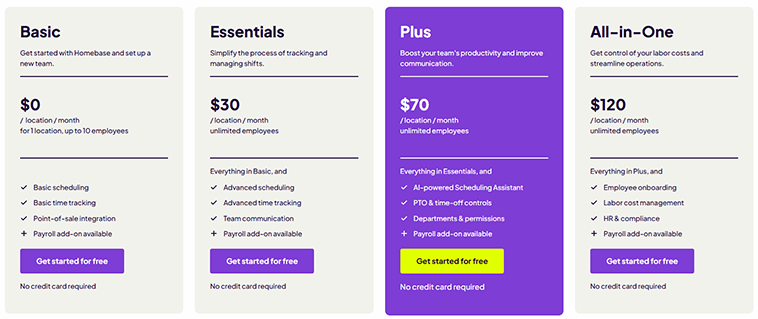
For a team of 10 employees, the Basic plan is free; Essentials costs $30; Plus, $70; and All-in-One, $120. While the ability to add unlimited employees to each plan is nice, costs really start to increase when companies add numerous locations, as the base price doubles for each new address.
Additionally, internal chat or “advanced” time tracking and scheduling aren’t available until the Essentials tier. The basic function offers clock-ins and outs, time sheets, and alerts, while the advanced functionality adds GPS and geofencing, payroll integrations, departments and permissions, shift swapping, recurring shifts, and more.
It’s also worth mentioning that PTO isn’t available until the Plus tier.
By comparison, OnTheClock’s simple per-employee pricing keeps total cost significantly lower. With OnTheClock, 10 employees cost $45/month, with all core features included — no tier upgrades or add-ons required. For cost-sensitive teams, this pricing structure may represent a meaningful difference compared to tiered models that lock core features behind upgrades.
How Do You Get Started on a Web Browser?
Score: 8.5/10
I started by visiting the Homebase website (http://joinhomebase.com) to create an account. The primary headline screamed: “Schedule. Manage. Pay. All From One Easy App.”
The website also proclaims: “Put payroll, scheduling, time tracking, and HR all in one place with Homebase,” positioning itself as a one-stop shop for small businesses seeking a comprehensive workforce management solution.
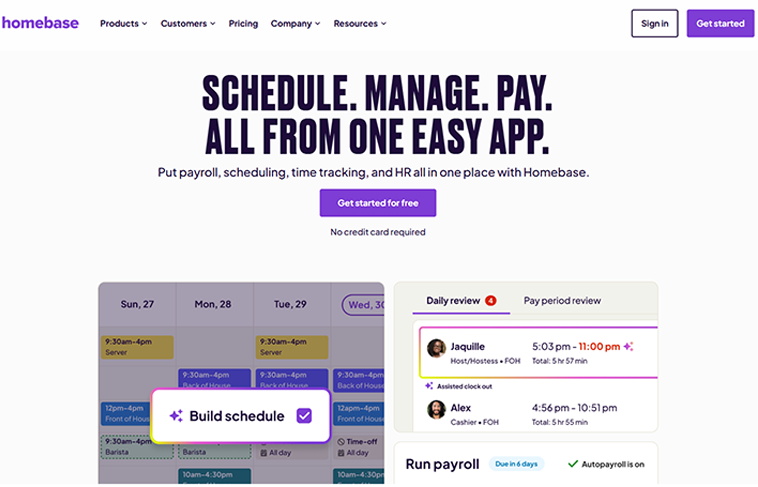
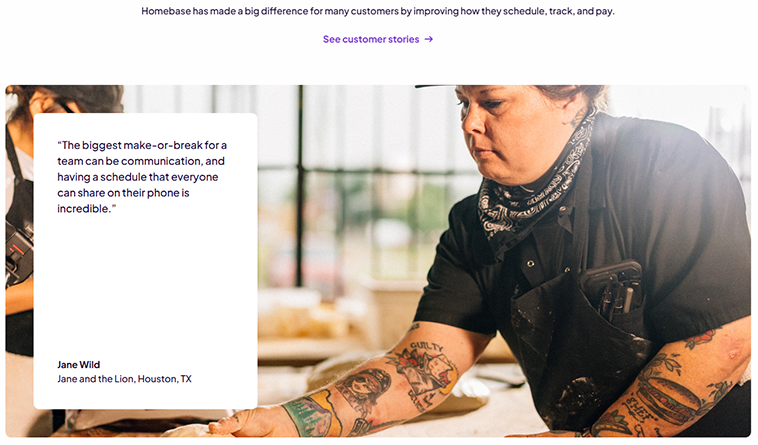
Scrolling down the page, I encountered scheduling, time tracking, and payroll landing pages as well as dynamic graphics for those three topics, plus hiring. The remainder of the page was filled with statistics, more landing pages, and customer reviews – all featuring outstanding photography!
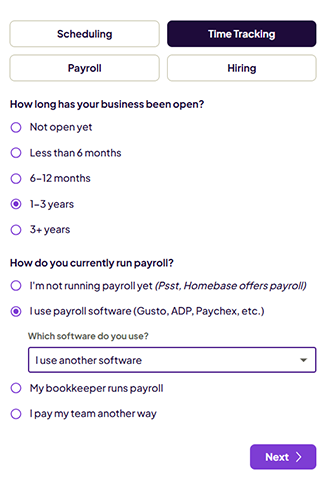
Clicking the Get Started button led me to a sign-up page. To proceed, I had to choose whether I was managing a business or working as an employee. From there, I was asked which features I was most interested in, how long my company’s been in business, and how I’m currently running payroll.
I then entered my business’s name, zip code, industry, number of employees, and number of locations. The final step was to enter my email address, password, phone number, and agree to the terms and services.
Once established, I clicked Dashboard and found any new, upcoming, or completed schedules as well as paid hours, wages, sales, and labor percentages.
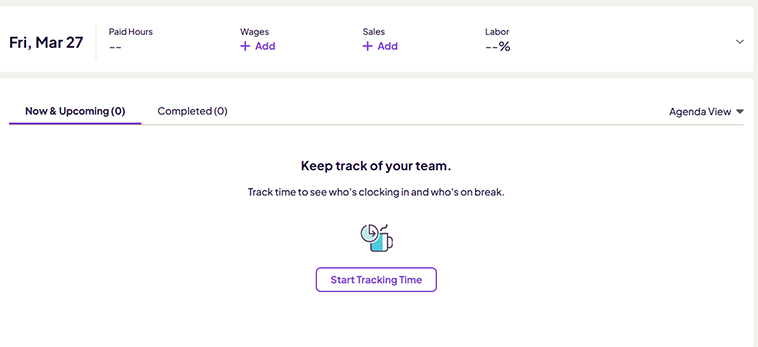
Overall, the web setup process was quick and easy, taking less than five minutes.
How Do I Get Started on the Mobile App?
Score: 8/10
I downloaded the Homebase app and logged in using the account credentials I had just created on the web.
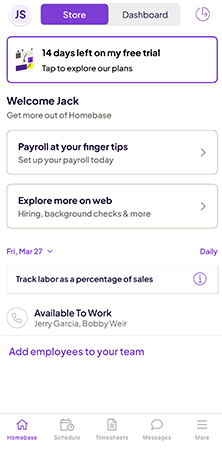
The entry screen (identified as “Store”) informed me that I had 14 days left on my trial account. It also encouraged me to set up payroll and explore the software’s HR tools. Near the bottom of the screen was a list of employees who were currently available to work.
At the very bottom of the screen were icons granting me access to the Schedule, Time Sheets, Messages, and More.
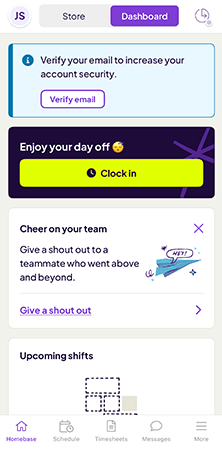
I clicked the Dashboard button, which led to a verification screen and a bright yellow “Clock In” button. The middle of the screen allowed me to send a “shoutout” to a team member. Scrolling down led me to upcoming shifts and a referral link.
After verifying my account via email, I clicked the Clock In button, which opened a location-tracking screen. Clicking continue prompted me to allow Homebase to track my location via my phone’s settings. Once confirmed, I was able to clock in.
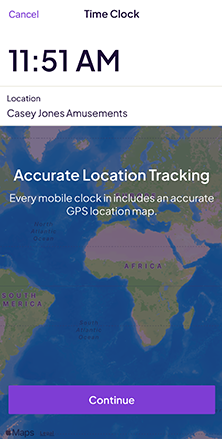
Getting up and running on the mobile app was fairly easy. After leaping hurdles in the form of email verification and granting location access through my phone’s GPS settings, I was good to go pretty quickly.
How Do You Add Employees?
Score: 8.5/10
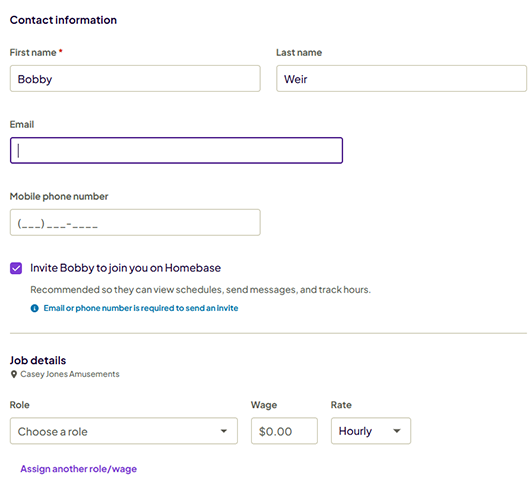
To add an employee, I clicked the Team tab on the menu prompt and then clicked Add Team Member.
The pop-up screen encouraged me to input a new employee’s full name, email address, and phone number, as well as the employee’s role and wage. Once that individual was added, an invite was sent.
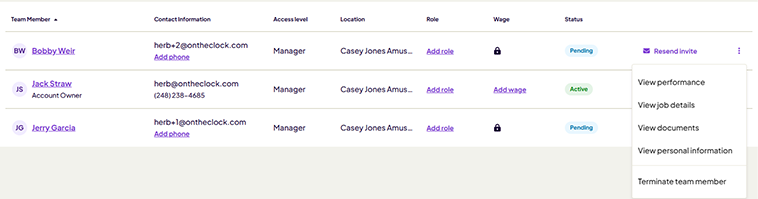
Once employees are added, admins can click each employee’s profile to view performance, details, documents, and personal information, or to terminate them.
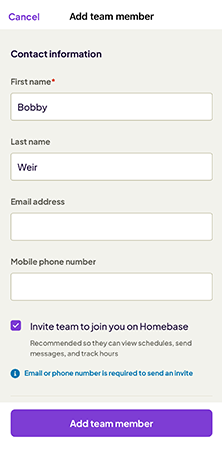
On the app, adding employees was fairly simple. I clicked the Team tab and then the + icon in the top-right corner. From there, I was asked whether I wanted to add a team member manually or via my contacts list. When adding an employee, I was asked to enter his or her name, email address, and phone number. I could also toggle on an alert asking them to join via the app.
How Does Scheduling Work?
Score: 9.5/10
After setting up my account and adding employees, I navigated to the Schedule tab to begin creating a schedule.
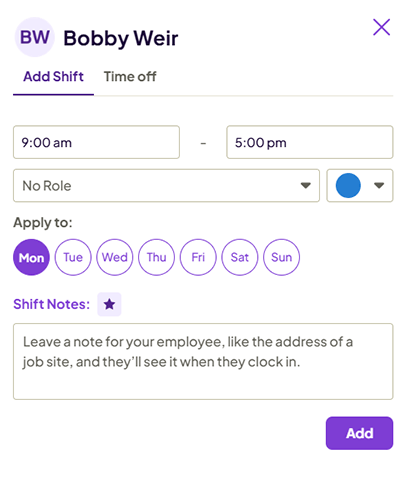
The workweek was presented as a matrix, with days in columns and employees in rows. To create a schedule, I simply hovered my mouse over the date that intersected with the specific employee and clicked the plus sign. From there, I was able to add a shift and role and apply them over a certain number of days.
Once the shift was complete, it auto-populated on my screen. Total hours and pay are shown based on the employee’s wage.
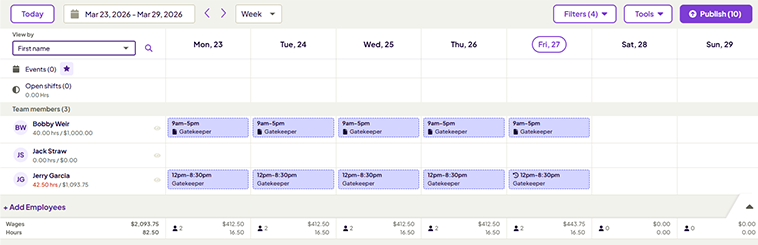
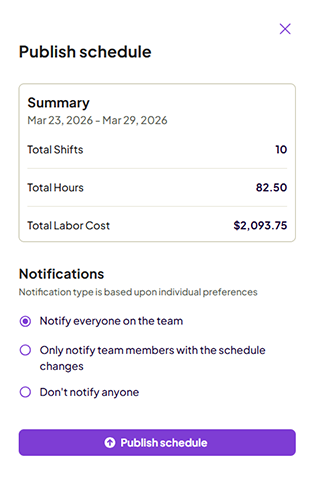
Once the schedule is complete, it can be shared with employees by hitting the Publish button. Before finalizing, the manager is aware of the total number of shifts, hours, and labor costs. The notification can be toggled so that everyone, only team members scheduled, or no one can be notified.
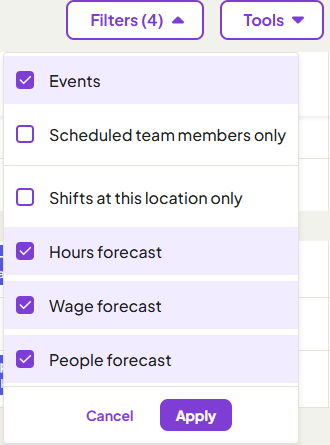
Schedules can be filtered by those scheduled to work, shifts at a specific location, and forecast by hour, wage, and people. Additionally, they can be copied to another week, saved as a template, printed, etc.
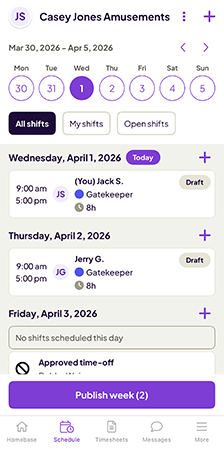
Shifts can also be categorized by My Shifts, All Shifts, and Open Shifts, allowing employees to see their own schedules, the entire team’s, and grab unoccupied shifts. An employee can also place availability within the scheduling software.
One nice feature worth mentioning is the ability to resend publish notifications. If, for whatever reason, employees didn’t receive the published schedule, the notification can be resent with ease.
On the app, the experience was very similar. Simply press the + sign affixed to each day to enter a new shift. Employees can be selected via a drop-down menu, and the entire schedule can easily be published when it’s ready.
One cool feature on the app is the ability to rate a shift using a five-star rating system. This provides managers with immediate feedback on the work culture. 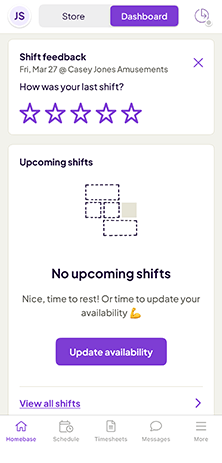
The scheduling tool was extremely intuitive. I was able to quickly make a schedule, copy it for the following week, and inform employees effectively and efficiently. Well done, Homebase!
How Do Timecards Work?
Score: 8.2/10
Punches and time records are accessible via the left-margin menu, under Timesheets.
The first time I clicked into the Timesheet tool, I was prompted to set up my time clock.
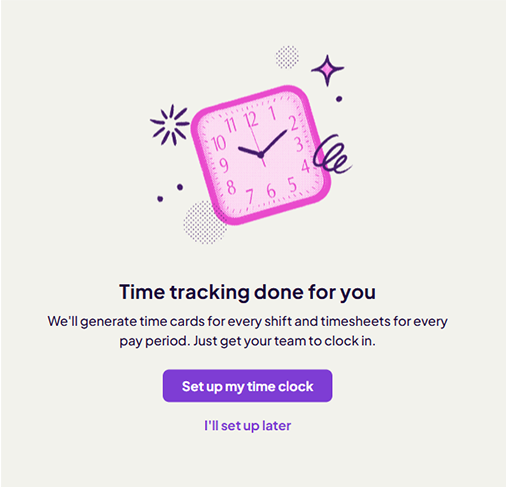
I was asked whether my employees wanted to primarily use their phones or a shared device. I was then asked to enable location services and then invite my team members.
The time sheet interface showed me all employees’ hours, total paid and unpaid breaks, any issues, etc.
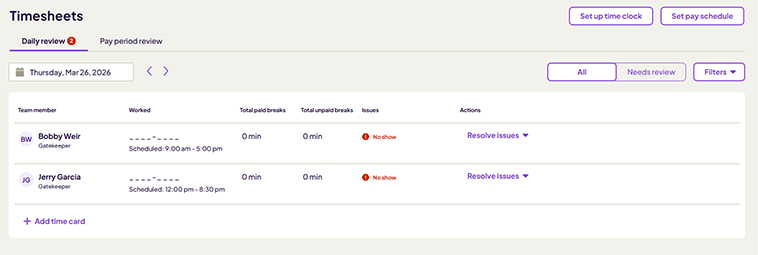
To edit any hours worked, I simply clicked the Worked thread for that specific employee. A pop-up allowed me to manually enter any hours worked, breaks, tips, etc.
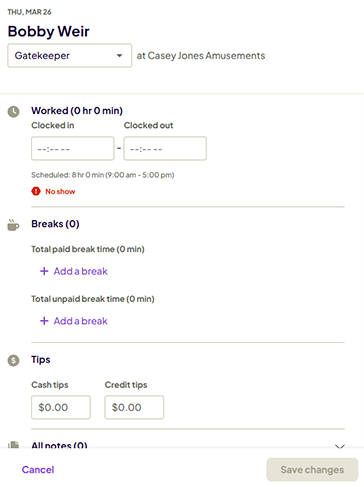
To retroactively add a timecard, I simply clicked “Add Time Card” on a day that had already occurred. A pop-up allowed me to enter the employee’s name and hours worked (in five-minute increments), as well as any cash or credit tips, photos, etc.
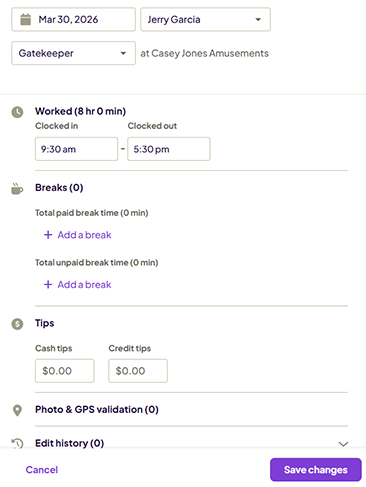
Clicking the Payroll summaries button led me to a view of the last seven days, including the number of timecards entered, hours worked, and estimated wages.

Time sheets on Homebase’s app are just as easy to navigate. The default view shows a daily review, while the pay period review provides a cumulative view of the entire work week.
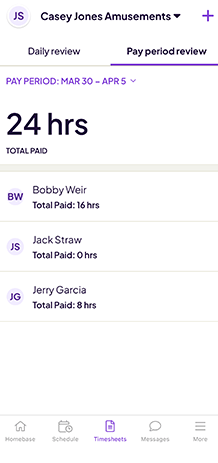
Homebase’s time sheets were easy to navigate and digest. Overall, I was a fan of the modern, simple view, including the ability to automatically punch in upon login.
What Kind of Customer Support Does Homebase Offer?
Score: 7.8/10
Support is a very important part of any time tracking company. It’s crucially important to have a real person available if/when problems arise.
I located Homebase’s customer support by clicking the Help tab. Within, I discovered a help center with a number of articles and videos.
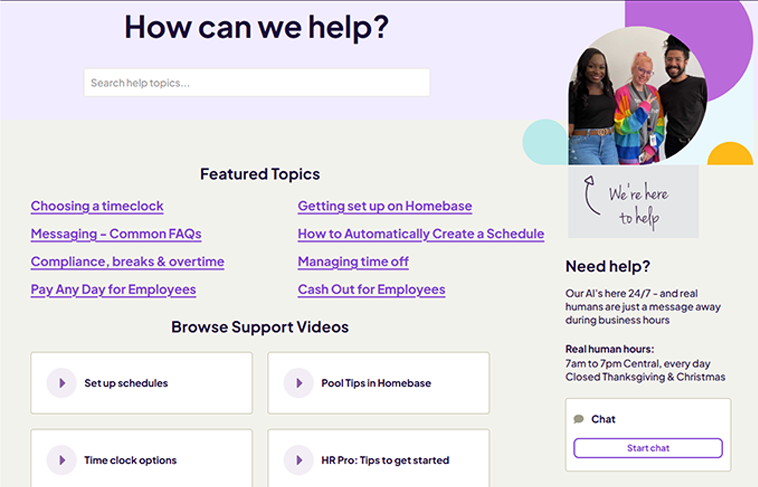
An AI chat was offered, with human response hours listed from 7 a.m. to 7 p.m. CT. I clicked the chat and asked, “When was the last time Homebase raised its prices?”
The AI chat was unable to answer the question. So, I escalated the conversation to a live support rep. I was told the expected wait time was approximately 30 minutes.
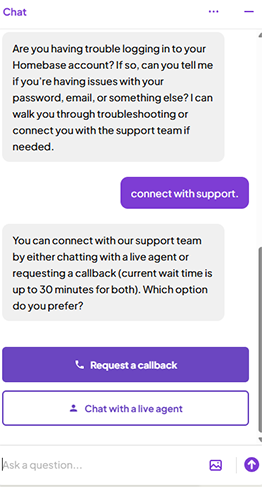
While I was waiting, I opened the mobile app and was pleased to discover a very similar support atmosphere, complete with a live chat, help guides, etc.
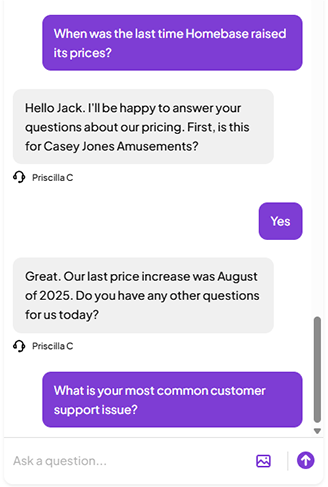
I was unable to locate a phone number or email address to reach the Homebase team on its help page. And, I missed the live agent, because I navigated away from the chat window – which I’m sure happens a lot as customers are forced to wait.
I reinitiated the chat, and Priscilla C responded promptly. She informed me that prices were last increased in August 2025 and that the most common customer support issue revolves around login issues and/or customers not having the right browser.
How Does In-App Chat Work?
Score: 9/10
To access the chat function, I clicked the Quote bubble in the top right corner of the website. The pop-up prompt allowed me to easily send a message to the entire team, all managers, or a celebration post.
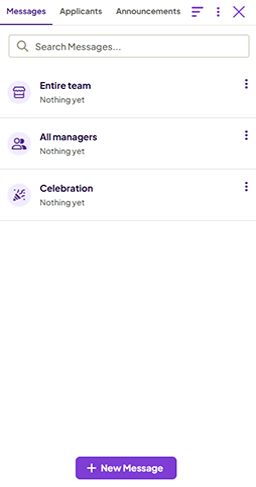
Once I sent a message to the entire team, it was timestamped, and a metric showed how many of my employees had viewed it, which was a nice feature! 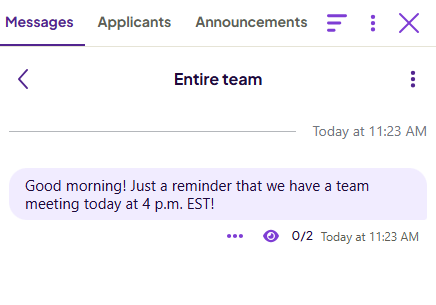
Admins may also send an announcement to the entire team, employees, or managers. These announcements can be sent immediately or delayed for a day. Additionally, they can be pinned to an announcement board and/or require employee acknowledgment. 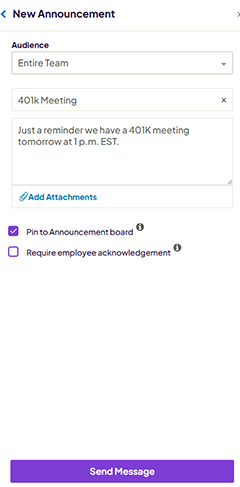
Of all the time tracking solutions I’ve reviewed, I believe Homebase’s chat function may be the best. Very nicely done, Homebase!
How Do You Manage Time Off?
Score: 8.2/10
To implement time off, I clicked Team, my targeted employee, and then View All Time Off. From there, I set up my PTO policy by clicking Create Policy. 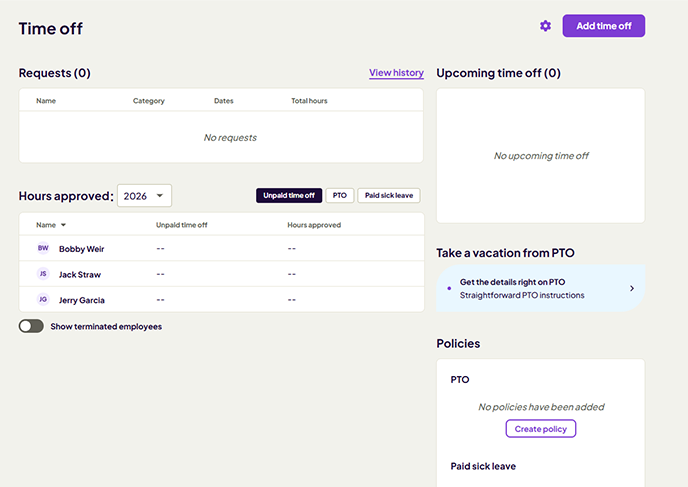
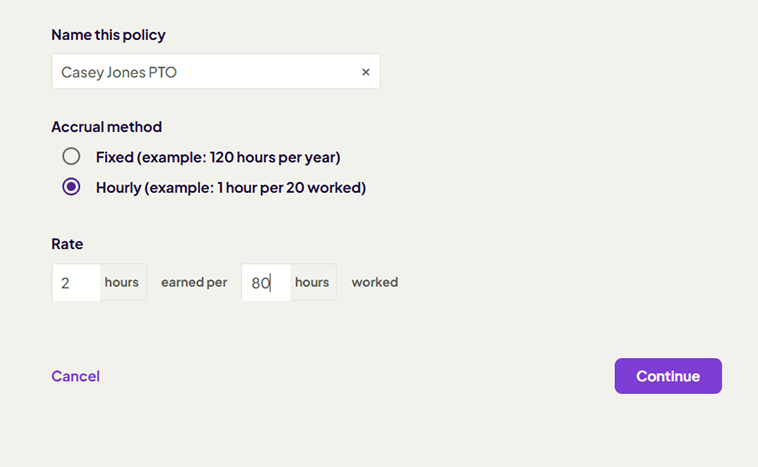
I had to name the policy and assign an hourly or fixed accrual method along with the rate. Additional customizations focused on maximum balances or accruals per year, maximum use per year, carryover limits, waiting periods, tenure accrual, and more.
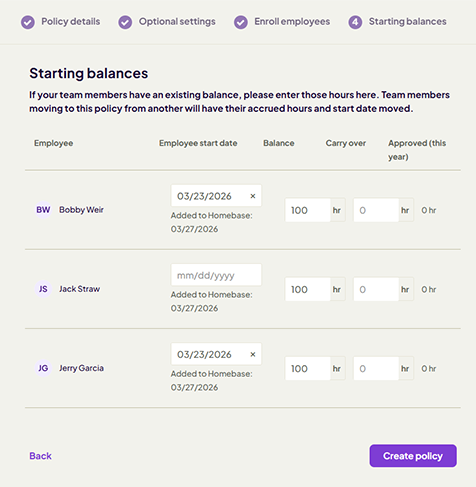
The final screen allowed me to set starting dates for each employee’s PTO and establish starting balances, carry-over amounts, and hours that have been approved so far this year.
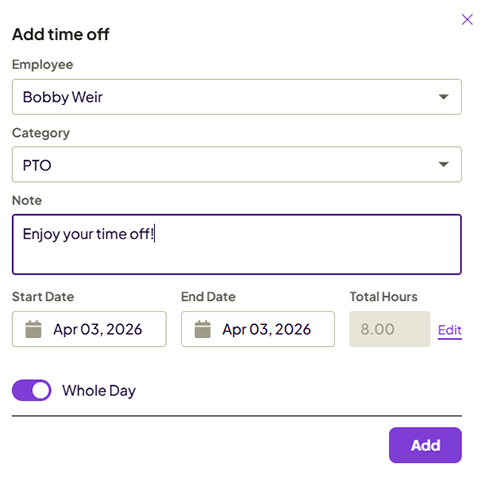
Once I had established the policy, I could begin requesting PTO for my employees by clicking Add Time Off. The prompt allowed me to select an employee, the time off, hours/days, and add a note, if applicable.
Once approved, clicking the PTO tab on the Balances screen displayed the employee’s new PTO balance.
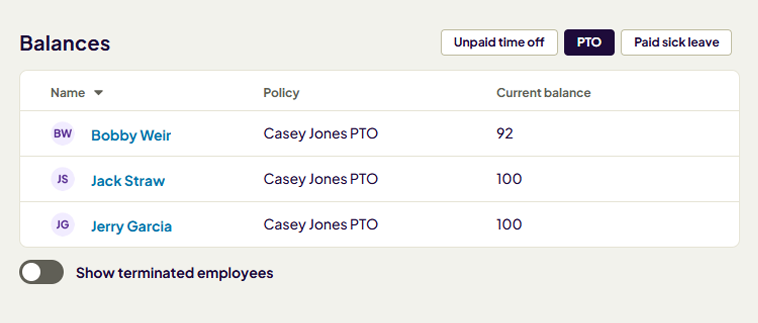
Homebase’s PTO feature worked brilliantly. Establishing a policy was simple and straightforward, and adding time off was even easier. Very impressive!
How Does Payroll Integration Work?
Score: 8/10
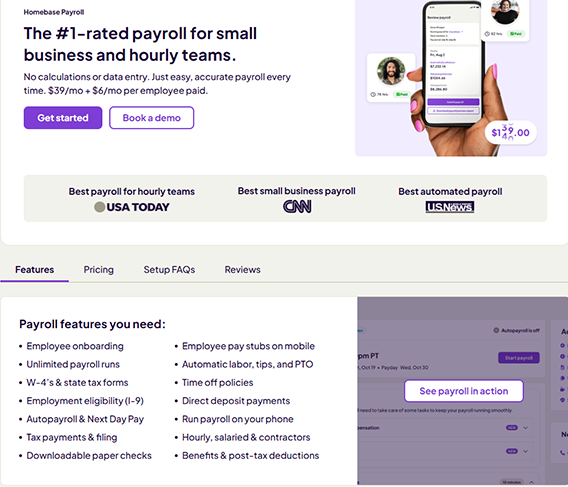
Payroll is available for $39 per month plus $6 per employee per month. Features include onboarding, unlimited payroll runs, state tax forms, next-day pay, and more. The landing page also includes pricing details, FAQs, written and video reviews, and more.
While getting set up, I was prompted to share whether I had paid my team before, identify a signatory, input my FEIN, trade name, average payroll amount, industry, website, etc.
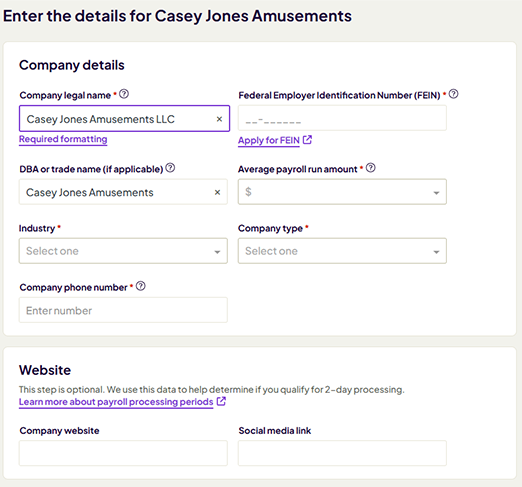
Unfortunately, my demo company does not have an actual FEIN, so the setup system wouldn’t allow me to proceed further. If my company didn’t have an FEIN and I needed to apply for one, Homebase provides a link to apply.
The setup process was easy to navigate, and, assuming I had an active FEIN, I believe I could have completed it all in just a few minutes.
What Add-Ons Does Homebase Offer?
Score: 7.5/10
Homebase offers an impressive array of core options, but it also has numerous add-ons.
Payroll is available for $39 per month plus $6 per employee per month.
Additionally, HR/compliance and hiring assistance, which is designed to streamline everything from job posts to interviews, is available for $30/post. The solution’s tip manager, a tool that automatically pulls tips from your POS and assigns them to time sheets, costs $25/month.
Background checks can be run for $30 each. A Task Manager, which allows managers to oversee each step of a specific task, costs $13 per location. Job post boosts start at $50 per post.
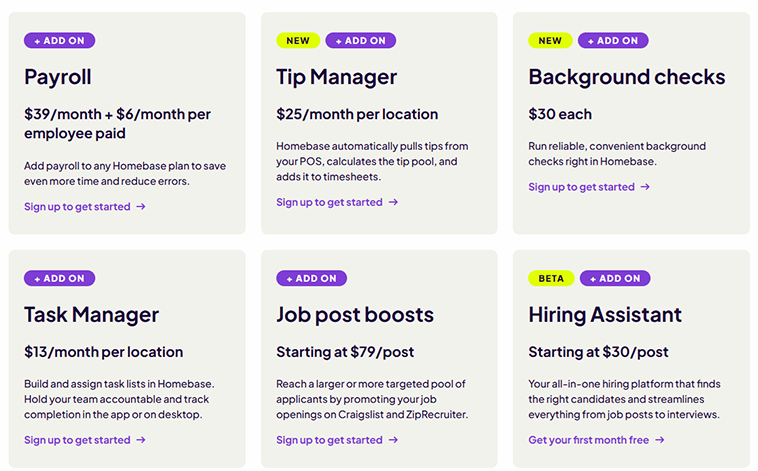
All of these add benefit, but at a cost. If a 10-person company were to add all of these (with only one background check, task manager, job post boost, and hiring assistant post), it’d cost $247 per month – a hefty price to pay!
How Does Homebase Handle Follow-Ups and Outreach?
Score: 7.5/10
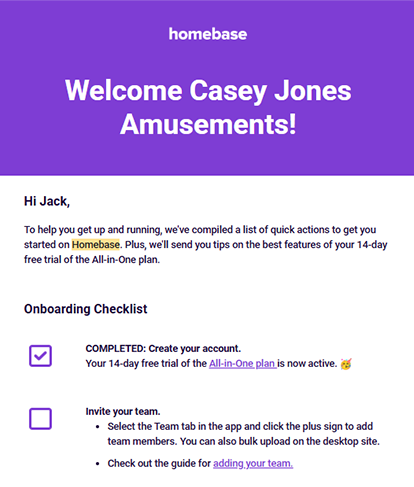
I received a number of email messages from Homebase upon signing up, focusing on onboarding, upgrading to Homebase’s in-house payroll, compliance, and hiring.
Additionally, Homebase sends out a daily report that summarizes the number of employees, shifts, timecards, etc. It also told me how many days I have remaining on my trial.
I also received a phone call from a sales rep regarding my interest in Homebase Payroll. While I politely declined, explaining I worked for a competitor, the person on the other end of the line was extremely cordial and nice, which was a great touch, considering her sales lead was dead on arrival.
What Are the Pros and Cons of Using Homebase?
Homebase is a workforce management platform designed for small businesses with hourly employees. It brings together scheduling, time tracking, hiring, payroll, and team communication into a single system, making it a practical tool for managing day-to-day operations. Its strong scheduling features and built-in messaging make it especially appealing for shift-based teams, but tier-based feature access and location-based pricing can create limitations as businesses grow.
Pros of Using Homebase
- Free Plan with Core Functionality – Homebase offers a free plan that includes basic scheduling, time tracking, and POS integrations. For small businesses just getting started, this provides a low-risk way to move away from manual processes.
- Excellent Scheduling Tools – Scheduling is one of Homebase’s strongest features. Managers can quickly build schedules, assign shifts, track availability, and share updates with employees. Features like shift swapping and labor cost visibility make it highly effective for dynamic teams.
- Built-In Team Communication – Homebase includes messaging, announcements, and team updates directly within the platform. This reduces the need for separate communication tools and helps keep everyone aligned.
- Simple and Modern Interface – The platform is clean and easy to navigate. Managers can review hours, edit timecards, and monitor attendance without a steep learning curve.
- Integrated Hiring and Onboarding Tools – Homebase includes hiring features like job postings and applicant tracking, helping businesses manage the entire employee lifecycle from one system.
- Flexible Time Tracking Options – Employees can clock in via mobile devices or shared terminals, with options for location tracking depending on plan level.
Cons of Using Homebase
- Feature Restrictions Across Pricing Tiers – Key features like PTO management, advanced scheduling tools, and GPS tracking are only available in higher-tier plans, which can limit functionality for businesses on lower tiers.
- Location-Based Pricing Can Scale Quickly – While pricing per location works well for single-site businesses, costs increase significantly for companies with multiple locations.
- Payroll Comes at an Additional Cost – Homebase offers built-in payroll, but it is not included in base plans and requires a separate setup and monthly fee.
- Mobile Experience Has Some Friction – While functional, the mobile app requires additional steps for setup and verification, which can slow down onboarding for new users.
- Advanced Features Can Get Expensive – Add-ons like payroll, hiring tools, and compliance features can increase total monthly costs, especially for growing teams managing multiple locations.
- Support Access Can Be Limited – Support is primarily accessed through chat and help articles, and response times can vary depending on availability.
What Do Real Users Say About Homebase?
Looking beyond marketing claims, user reviews paint a fairly consistent picture of Homebase.
Across platforms like G2, Capterra, Google Play, and the Apple App Store, many customers highlight Homebase’s ease of use, strong scheduling tools, and built-in team communication features. Users frequently mention how quickly teams can get up and running without extensive training. The ability to manage schedules, track time, and communicate with employees all in one place is often cited as a major advantage.
Managers often point to the value of scheduling automation, shift management, and real-time labor visibility. Features like shift swapping, availability tracking, and integrated messaging help streamline daily operations and reduce the need for multiple tools. For businesses transitioning from manual scheduling or disconnected systems, Homebase can significantly improve efficiency.
That said, reviews also reveal a few consistent friction points. Some users note that key features, such as PTO management, advanced scheduling tools, and GPS tracking, are only available in higher-tier plans. Others note that costs can increase as additional locations are added, and that payroll requires additional setup and fees. There are also occasional comments about mobile app friction and limited access to support.
Overall, real users tend to agree that Homebase is best suited for small businesses that want an easy-to-use platform with strong scheduling and communication tools. Companies looking for more predictable pricing or fewer feature restrictions across plans may prefer a more fully unified workforce management solution.
For example, the most relevant review on G2, where Homebase has 4.5 stars out of 330-plus ratings, comes from Maureen B., who wrote on April 1, 2026, “I use Homebase for employee time clock, and it easily keeps accurate time, which is great for our operations. I really like how easy it is to use for both me and my staff. The geofence feature is fantastic because it keeps everyone honest by ensuring that staff can only punch in and out while on the property. The initial setup was very easy as well, which I appreciated. Overall, I’m so impressed with Homebase that I rate it an 11 out of 10 for recommending it to a friend or colleague.”
On Google Play, where Homebase has a 4.2-star rating based on 23,900-plus reviews, Barbara S. writes, “I love having Homebase because it keeps me up on my schedule, and it helps me keep up with my work days.”
On Apple, where Homebase has 4.8 stars on 91,000-plus ratings, Chef Justice wrote, on March 30, 2026, “I really love this app. I’ve been using it for two years, and I truly enjoy it. It makes scheduling simple and even tracking labor costs while I build the schedule. Received it from Clover. I don’t even have Clover anymore, and I’m continuing to use it.”
How Does Homebase Compare to OnTheClock?
| Feature | Homebase | OnTheClock |
|---|---|---|
| Mobile Experience | The mobile app allows employees to clock in, view schedules, send messages, and manage timecards. While it handles day-to-day tasks well, setup and certain workflows require extra steps, and visibility into team-wide activity is somewhat limited compared to desktop. | The mobile app supports time tracking, scheduling, PTO, and payroll workflows through a streamlined interface. Managers can also access broader team visibility and administrative controls directly from the app. |
| Desktop Clock-Ins | Employees can clock in through the web browser or shared devices, with optional location tracking depending on plan level. The desktop experience integrates closely with scheduling, time tracking, and team management tools. | Fully supported across desktop and laptop devices with built-in admin controls and minimal configuration required. |
| Time Tracking | Homebase offers time tracking with timecards, attendance monitoring, and basic reporting. While easy to use, advanced features like GPS tracking, departments, and permissions are limited to higher-tier plans. | Core time tracking includes approvals, edits, reporting, PTO tracking, and user permissions without requiring tier upgrades for essential tools. |
| Payroll Functionality | Homebase provides built-in payroll, but it is an add-on that requires separate setup and monthly fees. Businesses can also export time data or integrate with third-party payroll providers. | Offers integrated payroll as an optional add-on, allowing timecards and payroll data to operate within the same system. It also integrates with major payroll providers, if preferred. |
| User Roles & Permissions | Role-based permissions are available, including managers and employees, with more advanced controls tied to higher-tier plans. | Admin, manager, and view-only roles are available without additional tier requirements. |
| Customer Support Access | Support is available through a help center, chat, and limited live assistance. Response times can vary, and phone support is not prominently available. | Phone, chat, and email support are available to all subscribers. |
| Time Clock Kiosk | Homebase supports shared device clock-ins, allowing employees to punch in from a central location, with optional location tracking available at the plan level. | A dedicated kiosk mode is designed for shared devices with built-in admin controls. |
| API Access | Homebase offers integrations and limited API capabilities depending on plan level, allowing connections with POS systems and payroll providers. | API access is available to businesses that need custom workflows or integrations. |
| Pricing Structure | Homebase uses a location-based pricing model with a free plan and multiple paid tiers. While the free plan includes basic functionality, features like PTO, advanced scheduling, and GPS tracking are locked behind higher tiers, and costs increase as additional locations are added. | Pricing uses a flat base fee plus a per-employee cost, with core time tracking and scheduling features included without locking key tools behind higher tiers. |
What’s the Final Verdict on Homebase?
Homebase is a well-rounded workforce management platform built for small businesses that rely on hourly employees. It combines scheduling, time tracking, hiring, payroll, and team communication into a single system, making it a practical solution for managing day-to-day operations.
Where Homebase stands out most is in scheduling and team communication. The scheduling tool is intuitive, flexible, and easy to use, allowing managers to quickly build shifts, track availability, and share updates with employees. Features like shift swapping and labor cost visibility make it especially effective for businesses with dynamic schedules.
The platform also benefits from robust built-in messaging tools that help keep teams aligned without relying on separate communication apps. Combined with a clean interface and straightforward time tracking, Homebase makes it easy for businesses to move away from manual processes and spreadsheets.
Another advantage is its free plan, which provides a low-risk entry point for small businesses exploring workforce management software for the first time.
However, Homebase becomes more tiered as you move beyond basic functionality. Key features like PTO management, advanced scheduling tools, and GPS tracking are only available in higher-priced plans. Pricing is also based on location rather than employee count, which can cause costs to scale quickly for businesses with multiple locations.
Payroll is available in Homebase, but it's an add-on that requires separate setup. While functional, it may not feel as seamless as platforms where payroll is more tightly integrated into the core experience.
Homebase is best for:
- Single-location businesses
- Restaurants/retail
- Teams prioritizing scheduling + communication
Homebase is not ideal for:
- Multilocation businesses
- Companies needing flat pricing
- Teams that want a fully integrated payroll
Overall, Homebase earns an 8.6/10 for its strong scheduling capabilities, built-in communication tools, and accessible starting point for small businesses. It’s a great fit for single-location teams that prioritize scheduling and communication.
If you’re looking for a simple way to manage shifts, communicate with your team, and track hours in one place, Homebase is a solid option. If you need more predictable pricing, fewer feature restrictions, and a more fully integrated workforce management system, you may benefit from a more fully consolidated workforce management platform.
If you’re looking for a more streamlined way to manage time tracking, scheduling, and payroll without tiered feature restrictions, try OnTheClock free for 30 days. No credit card required. For more information, visit www.ontheclock.com.
