
Jump to section
Try OnTheClock Free
Save time and make payroll effortless with our easy-to-use, affordable employee time tracking app.
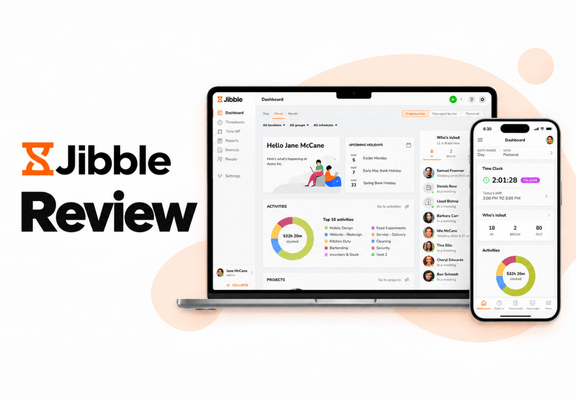
Try It FreeJibble is a time tracking and attendance platform. It helps businesses track employee hours, check attendance, and manage schedules. It combines automated time sheets, GPS tracking, activity tracking, and scheduling tools for both office and remote teams.
In this honest review, I break down what Jibble does well, where it creates friction, and how it compares to other workforce platforms — including OnTheClock. The goal is simple: provide a clear, real-world look at the software so you can determine whether it fits your team, budget, and workflow.
Key Takeaways
- Jibble's free plan covers unlimited users and includes automated time sheets and GPS time tracking.
- When I tested Jibble, paid time off (PTO) accruals, group management, multilevel approvals, and live location tracking required a paid plan.
- The mobile app works, but the dashboard offers very little information.
- Jibble does not include built-in payroll. Businesses must rely on QuickBooks Online, Xero, Gusto, or another integration.
- Overall score: 7.3/10.
Verdict: Is Jibble Worth It?
Score: 7.3/10
Jibble provides several flexible ways to capture time, including web, mobile, kiosk, and browser-based clock-ins. For teams looking for a low-cost entry point into digital time tracking, Jibble's free plan is one of its most attractive features.
Time tracking itself is simple and easy to understand. Managers can quickly review employee hours, approve time entries, and export reports. The time sheet interface is clean, and filters make it easy to view hours by employee, schedule, group, or pay period.
The scheduling system is also fairly capable. Managers can establish work schedules, overtime rules, breaks, and holiday policies from a single screen. Optional features, like geofencing, facial recognition, and location tracking, help managers keep teams on track.
Tutorials and walkthrough prompts guide new users through activities, projects, and client setup. These guides reduce some of the friction that comes with setting up a new time tracking system.
Unfortunately, this is where Jibble starts to show its limits. When I tested it, several features were only available on higher pricing tiers. These included PTO accruals, group management, multilevel approvals, and live location tracking. As teams grow, the need to upgrade plans can raise costs.
The mobile app also feels underdeveloped. Employees can easily clock in and view time sheets; however, the dashboard offers little information and leaves most of the screen unused.
Jibble also does not provide built-in payroll. Businesses must export time data or use third-party integrations, such as QuickBooks Online, Xero, or Gusto, to complete payroll.
Overall, Jibble earns a 7.3/10. It delivers easy time tracking, flexible clock-in options, and a strong free plan. Unfortunately, tier-based feature limits, no built-in payroll, and a minimal mobile experience keep it from being a complete workforce tool.
Jibble is a practical option for businesses that want an affordable entry point into digital time tracking. Businesses that want built-in payroll, better mobile tools, and fewer feature limits may find more value in a more complete platform.
How Much Does Jibble Cost?
Score: 7.5/10
When I tested Jibble in March 2026, it offered four pricing tiers: Free, Premium, Ultimate, and Enterprise.
The Free plan is offered at no cost. It includes automated time sheets, GPS time tracking, notifications, and more.
The Premium plan cost $5.99 per user per month and included group management, unlimited schedules, leave accruals, and more.
The Ultimate plan cost $10.99 per user per month and offered individual permissions, live location tracking, prioritized support, and more.
The Enterprise plan is built for very large customers and does not advertise a price.
Jibble's pricing does change. In fact, a support agent told me that Jibble increased its prices the same day I tested it. As of October 2026, Jibble's website no longer shows a public pricing page, so it's important to confirm current prices with Jibble before buying.
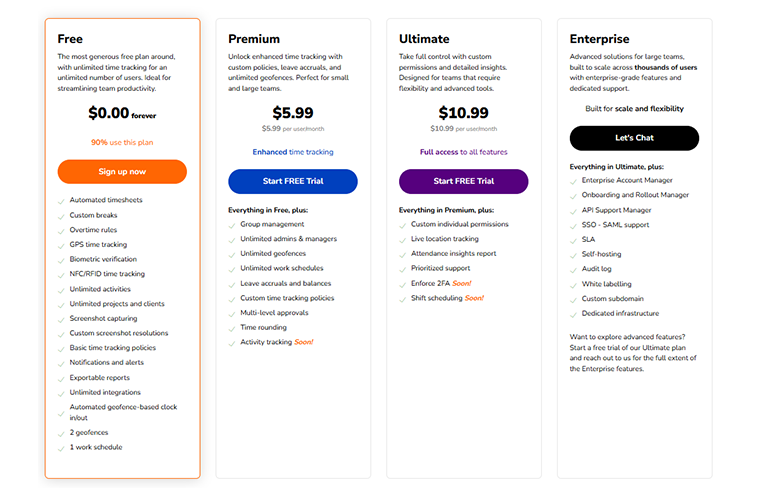
For a team of 10 employees, the Premium plan cost about $59.90 per month, and the Ultimate plan cost about $109.90 per month. Enterprise pricing is custom.
However, upon reviewing these options, I discovered the Premium plan is missing several elements, including live location tracking, attendance insight reports, and prioritized customer support.
By comparison, OnTheClock's flat pricing model keeps total costs lower. With OnTheClock, 10 employees cost $45 per month, with all core features included — no tier upgrades or add-ons required. For cost-sensitive teams, that is a meaningful difference.
How Do You Get Started on a Web Browser?
Score: 8/10
I started by visiting the Jibble website (www.jibble.io) to create an account. When I tested Jibble in March 2026, the homepage identified Jibble as "Powerful Time Tracking Made Easy." The website also proclaimed the software is "Free forever for unlimited users." This is incredibly pertinent for teams seeking time tracking on tight budgets.
Scrolling down the page showcases a number of reviews and awards from sites such as SaaSworthy, Capterra, Forbes, GetApp, and more.
A 13-minute video provides a walkthrough of the software, including time tracking, time sheets, reports, and more. This proved helpful as I prepared to set up the software.
Further down the page, I discovered several landing pages that led to time tracking tutorials, industry pages, integrations, and more.
The bottom of the page highlights a plethora of customer reviews and frequently asked questions.
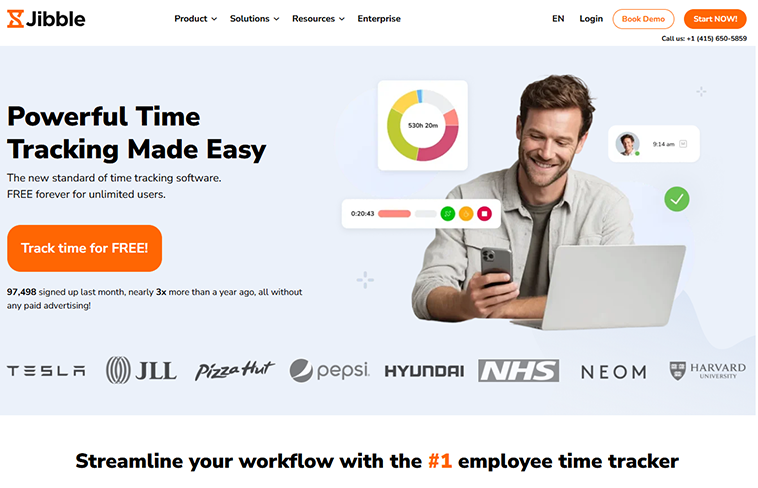
Clicking the Start Now button led me to a sign-up page. To proceed, I entered my name, email address, phone number, and established a password. After agreeing to the terms, my account was successfully established.
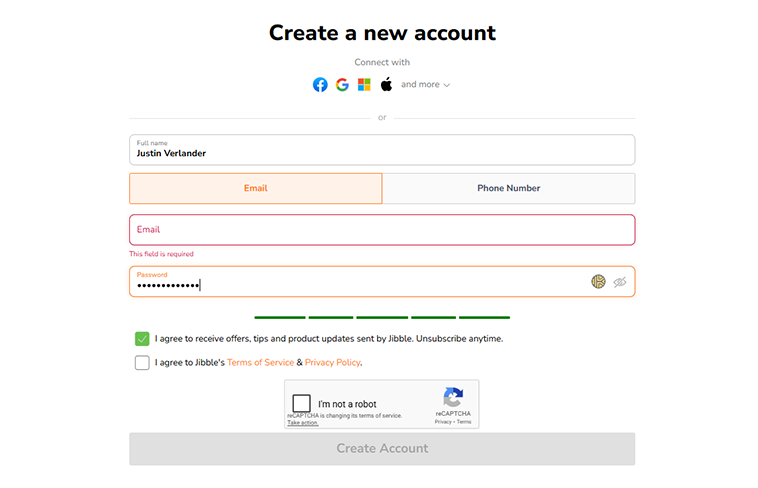
I was then prompted to create or join an organization and to identify how my team will use the solution (web, kiosk, app, or web app). The next page encouraged me to share how I heard about Jibble.
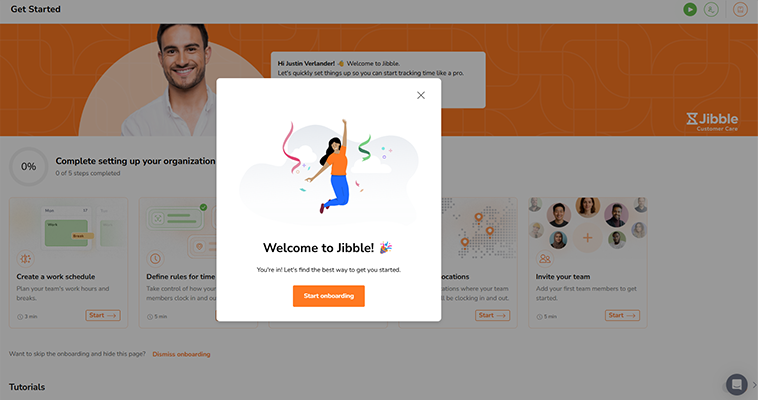
That was all it took to begin my 14-day Jibble trial – no credit card was required. The setup process was easy to navigate, and I was up and running in a matter of minutes.
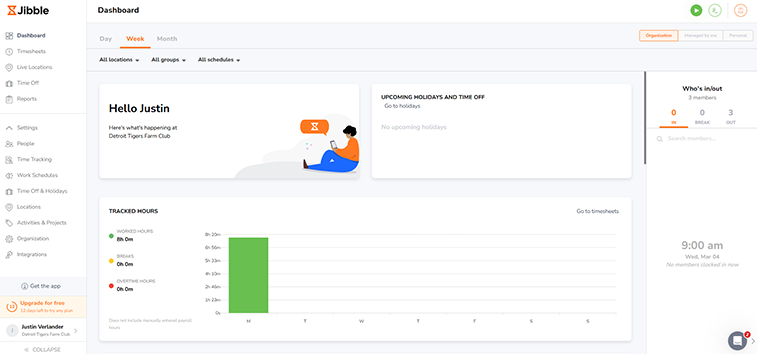
The dashboard serves as an adequate infocenter for users. The left margin includes shortcuts to Time Sheets, Live Locations, Time Off, Reports, and more. An additional Settings section provides quick access to People, Time Tracking, Work Schedules, Time Off & Holidays, Locations, Activities & Projects, Organization, and Integrations.
A notes section provides updates, upcoming holidays, and time off, clearly showcasing any pending absences. Further down, a bar graph shows employees' time on the job.
How Do I Get Started on the Mobile App?
Score: 4.5/10
I downloaded the Jibble app and immediately experienced an issue logging in using the account credentials I had just created on the web.
After trying (and failing) numerous times, I turned to the site's customer support – an AI chatbot. There, I was told an invitation must be sent and accepted before I could utilize the app. This seems like an unnecessary barrier for small business owners — why make users jump through any unnecessary hoops? In fact, I could see administrators turning away from this app because of this obstacle.
To proceed, I clicked the "Get the App" button in my web browser, which led me to the App Store website. This was not the most functional solution, since I was using a web browser rather than a mobile device.
After more than 15 minutes of attempting to log in, I elected to try my phone number. No success. Then I added my phone number with a 1 before the full number. Finally, Eureka! That worked!
The app's dashboard leaves a lot to the imagination. More than 90% of the screen is open space. A small, green "Clock In" button sits at the bottom-right of the screen, with a red "Add hours" prompt hanging beneath it.
The bottom of the screen includes five shortcut icons: home, time clock, time sheets, approvals, and menu.
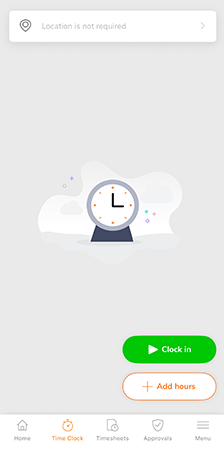
There are no additional screens to scroll or options to navigate. That basic screen is all you get. The mobile app is too simple. There is a ton of missed opportunity to include live data, views, and metrics – instead, Jibble only offers blank space, which is truly unfortunate.
How Do You Add Employees?
Score: 8.5/10
To add an employee, click People and then Add members.
The pop-up screen encouraged me to input a new employee's full name, email address, and phone number. Once that individual was added, an invite was sent.
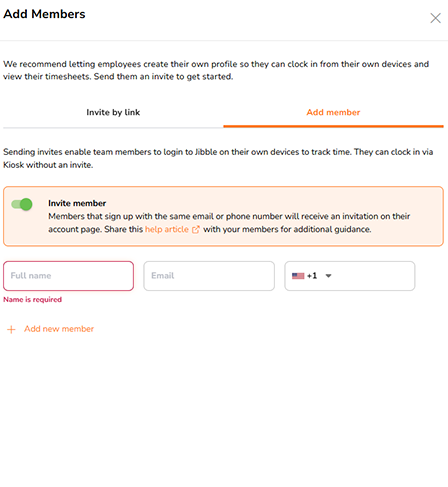
When verifying employees, each was asked to provide a phone number and set a password before proceeding.
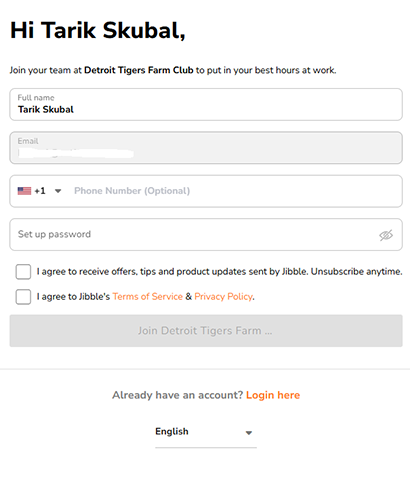
In the mobile app, I tapped the More tab, then Members, to access my team page. From there, I clicked the + sign in the top-right corner to add a new member.
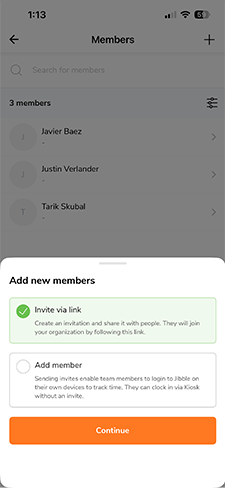
Adding employees was fairly simple on both the mobile app and a web browser.
How Does Scheduling Work?
Score: 7.5/10
Upon clicking the Work Schedules tab, I was prompted with a tour.
The schedule interface asked me to name my schedule, identify which days of the week, specify the typical time duration for each day, and indicate any breaks (paid or unpaid).
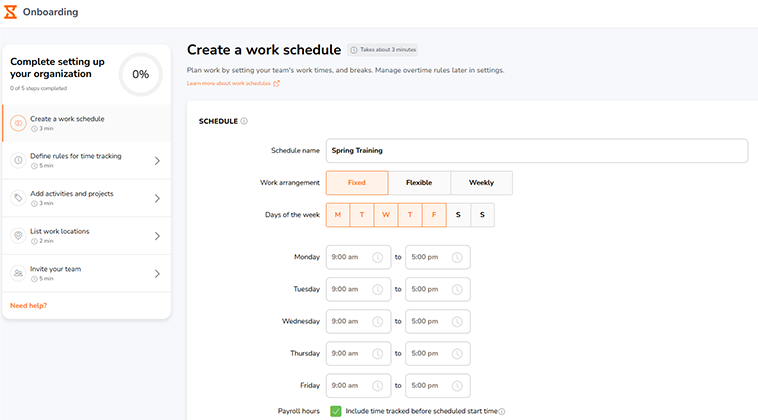
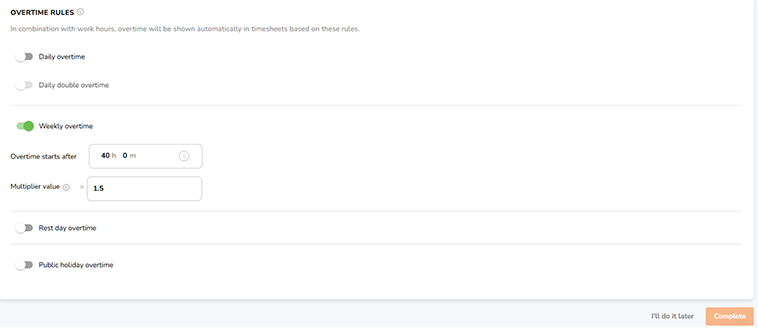
I was also able to easily establish my company's overtime rules. I selected whether overtime was calculated daily or weekly, whether rest or public holidays qualified for overtime, and whether double overtime was available at my business.
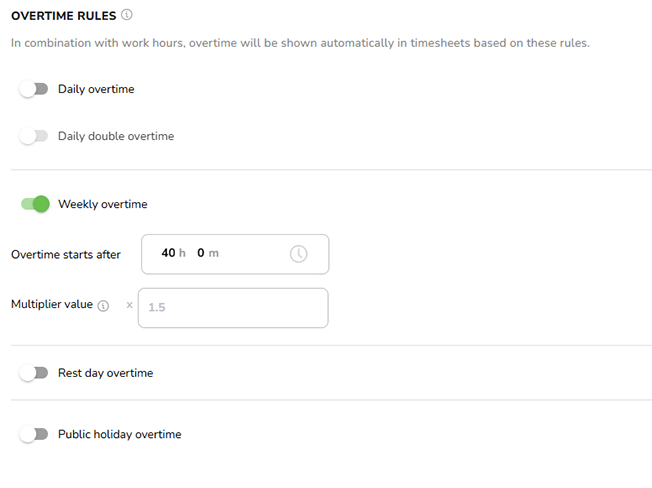
While completing this page, I was unable to click continue. I went through every thread, double-checking my entries, but was still unable to proceed. While I hope this issue is not universal, it did set me back. It led me to click "I'll do it later" instead of proceeding with the schedule I had just created.
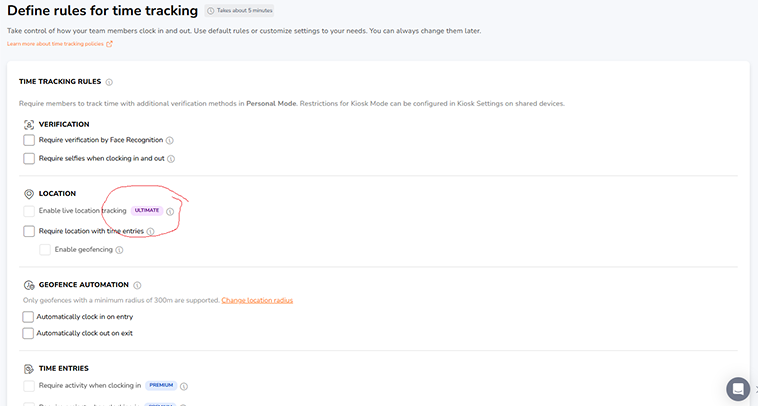
The next screen allowed me to set up face verification, enable live tracking, geofencing, and other rules. Unfortunately, this setup screen revealed that some of Jibble's most valuable options are only available to subscribers on its premium service tiers. For example, live location tracking is only available on the Ultimate plan, and required activity or a project when clocking in is only available on the Premium tier.
Next, I was prompted to add activities, projects, and clients. A pop-up tutorial explained what these terms mean and how to set them up effectively.
Once my activities and projects were set up, I could assign them to clients.
Then, I was able to add a location. Finally, the last step in the tutorial prompted me to add team members. Once that was done, the process was complete, and I was encouraged to "start Jibbling," a verb I've never encountered before!
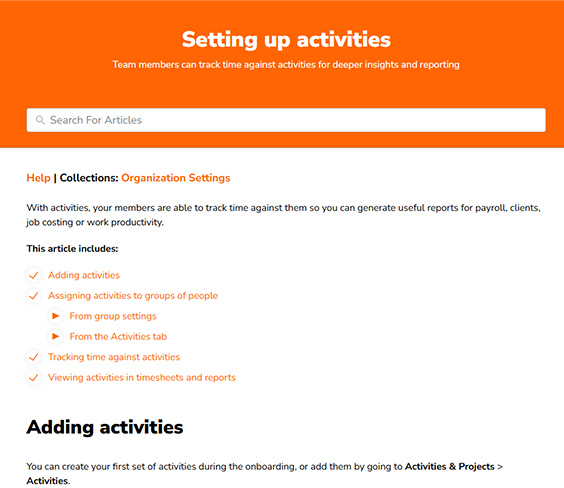
The scheduling tool itself was fairly easy to handle. The activities and project tools took some research to understand. Luckily, a pop-up tool helped walk me through it.
How Do Timecards Work?
Score: 7.5/10
To access Jibble's time sheets, I clicked the Time Sheets tab on the left margin.
The interface presents a calendar matrix with one column for each day of the week and one row for each employee.
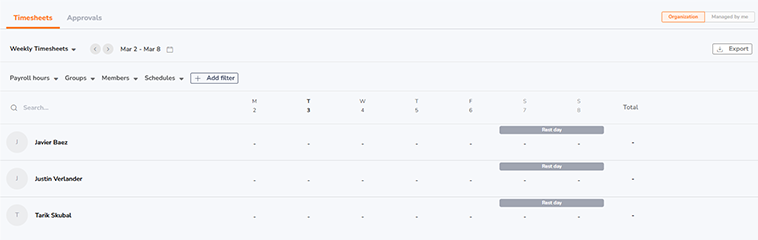
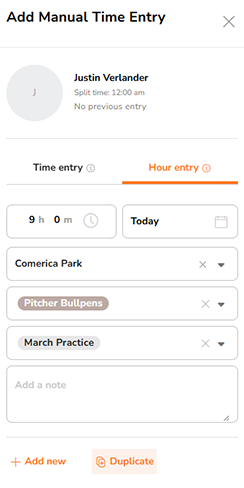
To create a time entry, I clicked the plus sign in the corresponding matrix square for the day and employee name. Within that pop-up, the time, hours, day, location, activity, and project can be edited. Additionally, a note can be added, and the entire entry can be duplicated upon request.
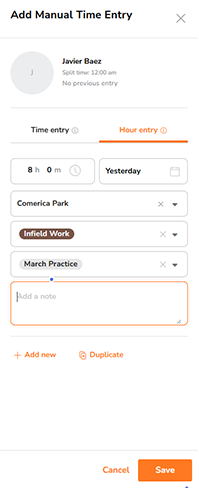
Once created, I struggled to find a way to duplicate the entry. That said, when creating a new entry, I could easily copy it; however, it only allowed me to paste it into previous days.
The timeframe can easily be toggled by clicking the arrows in the top-left corner of the interface. Additionally, filters allow views to be cycled by payroll hours, groups, members, schedules, and more.
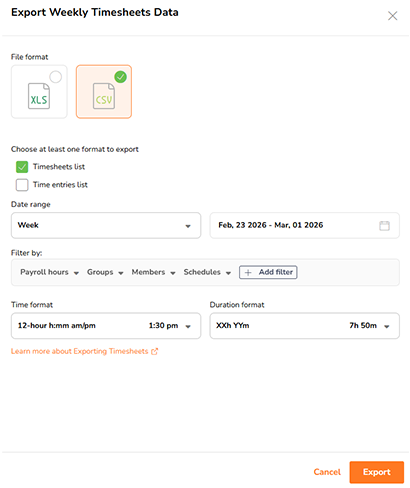
Time sheets can be exported via XLS or CSV files. The interface allows you to filter entries by the same categories it uses. The time format can be adjusted to reorder months and days, as well as hours and minutes.
Finally, clicking the Approvals tab opened up the pay period settings.
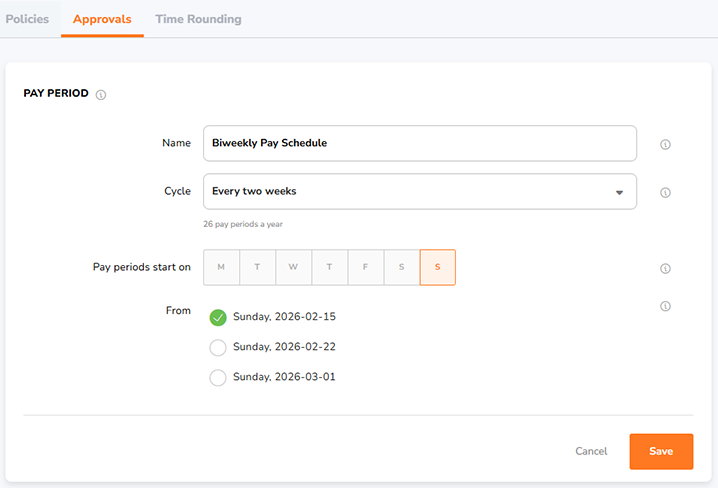
Once I established my pay periods, I was able to approve my time sheets. To do so, I simply clicked the green-and-white check mark at the far right of the time sheet.
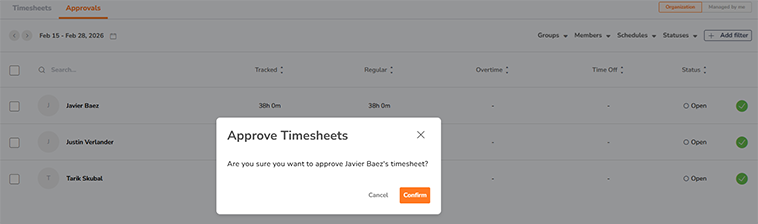
In summary, Jibble's time sheets are fairly self-explanatory. The multiple filters allow users to dictate exactly what they see. Overall, the time sheets are clean, visual, and easy to approve.
What Kind of Customer Support Does Jibble Offer?
Score: 6.5/10
Support is a very important part of any time tracking company. It's crucially important to have a real person available if/when problems arise.
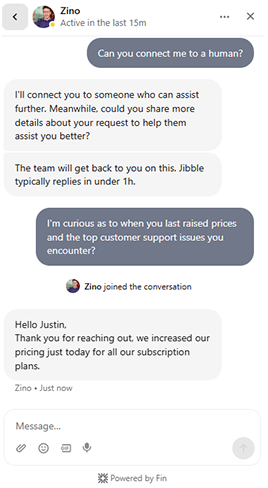
I located Jibble's customer support by hovering over the circled quote in the bottom-right corner of the screen. This led me to an AI chatbot.
I asked, "When did Jibble last increase its prices?" but the chatbot couldn't provide the answer.
I requested a human and was told that Jibble typically replies within one hour. This is a lengthy time period, especially if I had an emergency or encountered a pressing issue. I waited 18 minutes, and as I was preparing to leave, Zino jumped on and informed me that Jibble had actually increased its prices that same day.
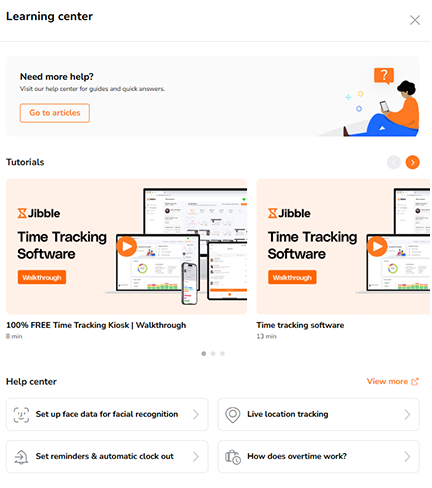
In the top-right corner, I discovered Jibble's Learning Center, which offered a plethora of written and video resources.
A help center offered tutorials on facial recognition readers, live location tracking, reminders, overtime, and more.
I was unable to find a phone number to reach the Jibble team. The support@jibble.io email address was provided when the AI chatbot was unable to answer my question.
Unfortunately, users have to pay for expedited support, as Jibble doesn't offer "prioritized support" until the Ultimate tier.
How Does In-App Chat Work?
Score: N/A
Jibble does not offer an internal team chat or employee-to-employee messaging system.
How Do You Manage Time Off?
Score: 6/10
To implement time off, I first had to establish a policy in the Time Off & Holidays setting.
Unfortunately, this is where Jibble starts to show its inefficiencies. When setting up my PTO policy, I was unable to tag it to specific members, as that option is only available to Premium-tier subscribers.
Additionally, establishing PTO accruals as well as the exclusion of public holidays and non-working days is limited to Premium subscribers.
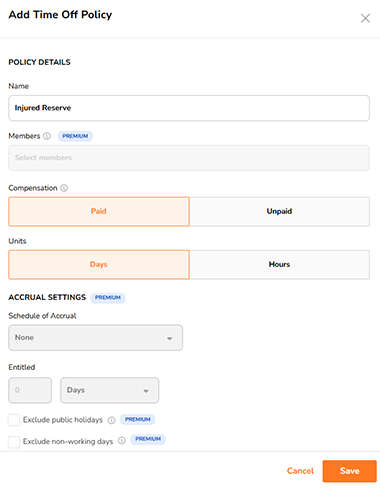
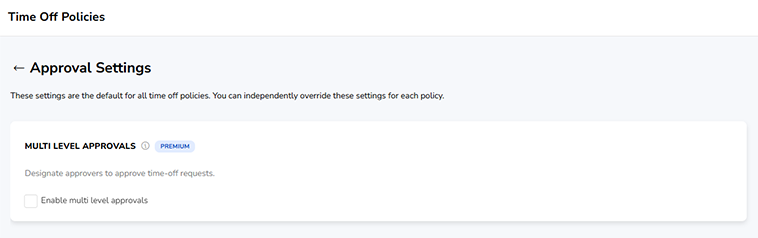
On the policy page, I was given the option to grant multilevel approvals; however, that option was also limited to Premium subscribers.
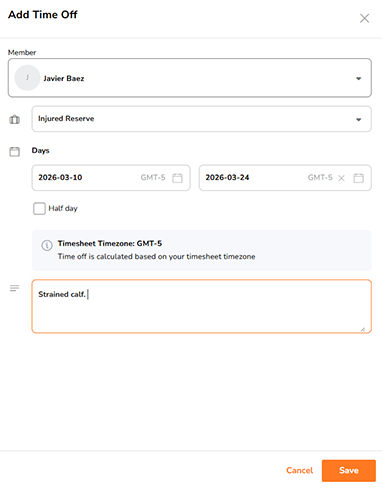
To begin tracking PTO, I clicked the Time Off tab. Then I clicked Add Time Off and entered my request by selecting the policy, specifying the days, and including a note.
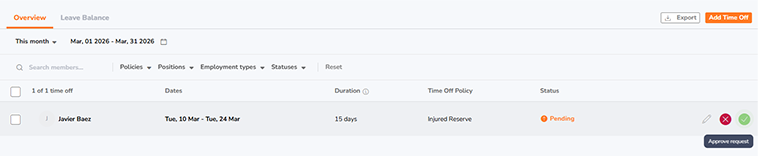
To approve the PTO request, I visited the Time Off calendar and scrolled to the week in question. Then I was presented with a red X or a green check mark to approve or deny the request.
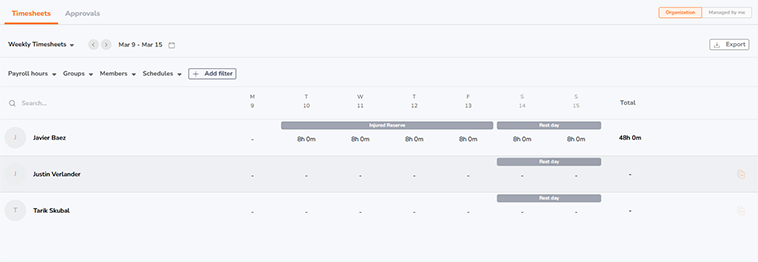
Once the PTO request was approved, it appeared on the calendar. Though it was confusing to see the "rest days" and PTO days totaled together to equal 48 hours.
Jibble's PTO feature worked adequately; however, it is not available to all users, which is unfortunate.
How Does Payroll Integration Work?
Score: 6/10
Jibble does not offer an in-house payroll solution.
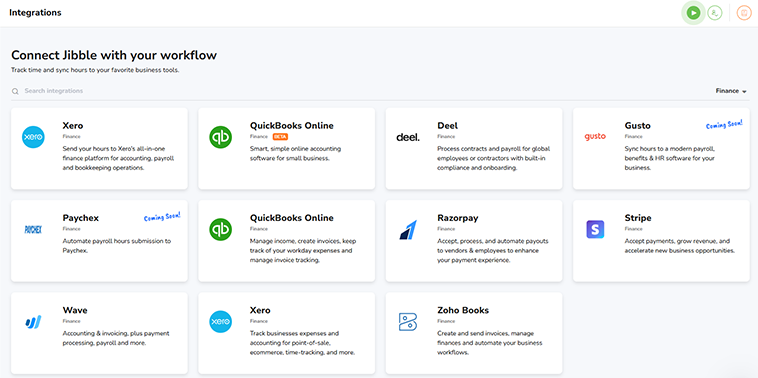
The software does integrate with a number of third-party providers across categories, such as Communication, Productivity, Finance, and Collaboration.
Clicking the Finance toggle reveals a handful of payroll integrations, including QuickBooks Online, Xero, Gusto, and others. While there are a few, the list is small compared to many competitors.
What Add-Ons Does Jibble Offer?
Score: N/A
It doesn't appear that Jibble offers any stand-alone add-ons.
That said, key features, such as group management, time rounding, live location tracking, and PTO accruals, were only available on higher tiers when I tested Jibble. That makes them essentially add-ons.
How Does Jibble Handle Follow-Ups and Outreach?
Score: 3/10
Surprisingly, aside from the verification messages, I did not receive any welcome messages from Jibble. This is a huge missed opportunity for both the software and its users.
What Are the Pros and Cons of Using Jibble?
Jibble is a time tracking and attendance platform built around automated time sheets, GPS tracking, and activity tracking. Its free plan and simple interface make it appealing to small teams. That said, feature limits across pricing tiers and a few usability issues may create friction for growing businesses.
Pros of Using Jibble
- Free Plan With Strong Core Features – Jibble's free tier includes automated time sheets, GPS tracking, notifications, and attendance monitoring. For small teams testing time tracking software for the first time, this "free forever" model lowers the barrier to entry.
- Straightforward Time Tracking Interface – The time sheet interface is clean and easy to understand. Managers can quickly view hours worked, approve entries, and export reports with minimal training.
- Flexible Tracking Methods – Jibble supports several clock-in methods, including web, mobile, kiosk, and browser-based tracking. This flexibility allows teams in different work settings to adopt the system.
- Built-In GPS and Location Controls – Location tracking, geofencing, and optional face checks help businesses confirm attendance for remote or field employees.
- Helpful Setup Tutorials – Throughout setup, pop-up walkthroughs explain activities, projects, clients, and other settings. These guides make setup easier for first-time users.
- Scheduling and Overtime Configuration – Managers can set up working hours, overtime rules, breaks, and holiday policies right in the platform.
- Third-Party Integrations – Jibble integrates with payroll platforms, such as QuickBooks Online, Xero, and Gusto. It also connects with collaboration tools, like Slack and Microsoft Teams.
Cons of Using Jibble
- Feature Restrictions Across Pricing Tiers – Several useful features are limited to higher plans. When I tested Jibble, PTO accruals, multilevel approvals, group management, and live location tracking were restricted to the Premium or Ultimate tiers.
- Mobile App Feels Underdeveloped – The mobile dashboard is extremely minimal. It leaves large parts of the screen unused and shows little about team activity, reports, or metrics.
- Login and Invitation Friction on Mobile – New users must often be invited before they can access the mobile app. This can confuse admins who want to roll out the software quickly.
- Customer Support Primarily AI-Driven – Support begins with an AI chatbot, and reaching a human agent may take some time. I was unable to find a phone number, and prioritized support is only available on the Ultimate plan.
- Limited Payroll Integration Options – While integrations exist, the list is fairly small compared to some competitors.
- No Built-In Employee Messaging – Jibble does not include internal team chat or employee messaging. Companies that need communication tools must rely on platforms like Slack or Microsoft Teams.
- Occasional Setup and Navigation Friction – During testing, certain setup steps (such as schedule creation) did not work as expected. I had to skip ahead and revisit those settings later.
What Do Real Users Say About Jibble?
Looking beyond marketing claims, user reviews paint a fairly consistent picture of Jibble.
On platforms like G2, Capterra, Google Play, and the Apple App Store, many customers praise Jibble's ease of use, flexible clock-in options, and simple time tracking screen. Users often mention how quickly teams can adopt the software without much training. The ability to track time from phones, computers, kiosks, and web browsers is also a common highlight.
Managers often point to GPS tracking, activity tracking, and automated time sheets as ways to keep teams on track and speed up approvals. For businesses moving away from paper time sheets or spreadsheets, these features can make attendance tracking much easier.
That said, reviews also reveal a few common problems. Some users mention that features like advanced reporting, live location tracking, or PTO management require a higher pricing tier. Others point to limits in the mobile app or the need to rely on third-party payroll integrations.
Overall, real users tend to agree that Jibble works best for teams looking for simple, flexible time tracking with a low barrier to entry. Businesses that want built-in payroll or fewer feature limits may prefer a more complete platform.
For example, as of October 2026, Jibble has a 4.7-star rating from 678 reviews on G2. One of the most relevant reviews comes from Filipe C.
On Jan. 6, 2026, he wrote, "What I like most about Jibble is how easy it is to use and how flexible it is. I can install it on any device, whether it's a computer or a mobile phone, which makes time tracking very convenient. The interface is simple and intuitive, so it doesn't require much training, and the whole team can start using it quickly without any hassle."
On Google Play, Jibble has a 4.6-star rating based on more than 5,100 reviews. On Feb. 12, 2026, Pur Ple. wrote, "Simple and easy to use. The Basic free tier functions as promised. We don't feel duped. Keep up the good work!"
On the Apple App Store, Jibble has 4.8 stars from more than 1,500 ratings. On Nov. 5, 2025, Owner wrote, "Even though we are currently using the free version, this app has already given me hours back to my day to be more productive. It's easy to use, so no push back from my employees."
How Does Jibble Compare to OnTheClock?
| Feature | Jibble | OnTheClock |
|---|---|---|
| Mobile Experience | Employees can clock in, view time sheets, request time off, and track locations, if enabled. The app is very simple, but the dashboard shows little about team activity. | The mobile app supports time tracking, scheduling, PTO, and payroll tasks in one simple interface. Managers can also see their whole team and use admin controls right from the app. |
| Desktop Clock-Ins | Employees can clock in through a web browser, kiosk mode, or the mobile app. Web clock-ins can include GPS checks, activities, and projects, depending on setup. | Fully supported on desktops and laptops, with built-in admin controls and very little setup. |
| Time Tracking | Jibble focuses on automated time sheets, attendance tracking, GPS checks, and activity tracking. Some tools, such as live location tracking and deeper reports, require higher-tier plans. | Core time tracking includes approvals, edits, reports, PTO tracking, and user permissions, with no tier upgrades needed for key tools. |
| Payroll Functionality | Jibble does not offer built-in payroll. Users must export time data or connect a payroll provider, such as QuickBooks Online, Xero, or Gusto. | Offers integrated payroll as an optional add-on, allowing timecards and payroll data to operate within the same system. It also integrates with major payroll providers, if preferred. |
| User Roles & Permissions | Admin, manager, and member roles are available. Some advanced permissions and group management tools, however, require higher pricing tiers. | Admin, manager, and view-only roles are available on every plan. |
| Customer Support Access | Support starts with an AI chatbot and help articles. Human support is available by chat or email, but prioritized support is reserved for higher tiers. | Phone, chat, and email support are available to all subscribers. |
| Time Clock Kiosk | Jibble offers a kiosk mode that lets employees clock in on a shared device. Facial recognition and GPS checks can be turned on for extra security. | A dedicated kiosk mode is built for shared devices, with admin controls included. |
| API Access | Jibble offers API access for companies that want to connect other systems or build custom integrations. | API access is available to businesses that need custom workflows or integrations. |
| Pricing Structure | Jibble offers a free plan plus Premium and Ultimate tiers. The free plan covers core time tracking, but tools like live location tracking, group management, and prioritized support require a paid plan. | Pricing is a flat base fee plus a per-employee cost. Core time tracking and scheduling are included, and key tools aren't locked behind higher tiers. |
What's the Final Verdict on Jibble?
Jibble is a simple time tracking and attendance platform. It focuses on automated time sheets, GPS tracking, and flexible clock-in methods. Employees can clock in through the web, the mobile app, a kiosk, or a browser, which makes it work for both office and remote teams. The free plan is one of Jibble's biggest selling points, giving small businesses a low-risk entry point into digital time tracking.
The time tracking interface is clean and easy to understand. Managers can quickly review hours worked, approve time entries, and export reports without much effort. Features like geofencing, facial recognition, and activity tracking also help businesses that need stronger attendance checks.
Unfortunately, Jibble feels less complete beyond basic time tracking. When I tested it, PTO accruals, group management, live location tracking, and prioritized support were limited to higher pricing tiers. The free plan provides a solid foundation, but many businesses will need to upgrade to unlock tools that other platforms include as standard.
Jibble also does not provide built-in payroll. Companies must export time data or rely on payroll integrations, such as QuickBooks Online, Xero, or Gusto, to complete payroll.
Customer support is available through a chatbot and a help center, with human help through chat or email. Unfortunately, prioritized support is limited to higher-tier plans, and I was unable to find a phone number.
In summary, Jibble is a practical option for businesses that want simple time tracking, flexible clock-in options, and a free entry point. Businesses that prefer integrated payroll, flatter pricing, and fewer feature restrictions, though, may find other platforms more complete. For more options, see our list of the best Jibble alternatives.
Frequently Asked Questions About Jibble
Is Jibble Really Free?
Yes. Jibble's free plan covers unlimited users and includes core tools like automated time sheets and GPS time tracking. That said, when I tested Jibble, features like PTO accruals, group management, and live location tracking required a paid plan. The free plan works best for small teams with simple needs.
How Much Does Jibble Cost per Month?
When I tested Jibble in March 2026, the Premium plan cost $5.99 per user per month, and the Ultimate plan cost $10.99 per user per month. Enterprise pricing was custom. As of October 2026, Jibble's website no longer shows a public pricing page, so confirm current prices with Jibble before buying.
Can Jibble See Your Screen?
Jibble offers a screenshot tool that captures periodic screenshots to monitor work. An employer must turn it on, so it does not run by default. I didn't test this feature, so check Jibble's help center to see which plans include it and how often it captures screens.
Is Jibble a Time Tracker?
Yes. Jibble is a time tracking and attendance platform. Employees can clock in through the web, the mobile app, a kiosk, or a browser. Managers can then review and approve time sheets, export reports, and establish work schedules and overtime rules.
Does Jibble Integrate With QuickBooks?
Yes. Jibble integrates with QuickBooks Online, along with other payroll and accounting tools like Xero, Gusto, Paychex, and Wave. That said, Jibble does not offer built-in payroll. Businesses must export time data or use one of these integrations to complete payroll, which adds an extra step to the process.
Does Jibble Have a Mobile App?
Yes. Jibble offers a mobile app for iPhone and Android. When I tested it, employees could easily clock in and view time sheets. Unfortunately, the dashboard offered very little information, and logging in for the first time took me more than 15 minutes. I gave the mobile app a 4.5/10.
