QuickBooks Time is a time tracking solution designed to work closely within the QuickBooks ecosystem. It focuses on accurate time capture, job tracking, and seamless data flow into accounting and payroll systems, making it a popular choice for businesses already using QuickBooks products.
The platform, formerly known as T-Sheets, combines time tracking, scheduling, GPS tracking, and reporting into a single system with a strong emphasis on payroll readiness and administrative efficiency. Many businesses turn to QuickBooks Time to reduce manual data entry, improve payroll accuracy, and keep their financial and workforce data aligned.
In this honest review, I break down how QuickBooks Time performs across key areas like usability, pricing, time tracking, payroll integration, and overall functionality. The goal is simple: to give you a clear, real-world understanding of where QuickBooks Time delivers value, where it creates friction, and whether it’s the right fit for your business.
Verdict: Is QuickBooks Time Worth It?
Score: 7.2/10
QuickBooks Time is a reliable, well-integrated time tracking platform, especially for businesses already operating in the QuickBooks ecosystem. Its biggest strength lies in how seamlessly it connects time tracking with accounting and payroll workflows, helping reduce administrative work and improve accuracy.
Time tracking itself is strong and dependable. Features like GPS tracking, job and project tracking, and automated time sheets make it easy for managers to monitor hours worked and prepare payroll with confidence. For businesses with field employees or job-based workflows, this level of visibility is a clear advantage.
Another key benefit is its payroll alignment. When paired with QuickBooks Payroll, the platform creates a relatively smooth process from time capture to paycheck, eliminating much of the manual work that often slows down payroll processing.
However, QuickBooks Time is not a fully unified workforce management solution. Payroll requires a separate subscription, and broader workforce tools, such as PTO management, reporting depth, and advanced features, can feel segmented or tied to higher-tier plans. Costs can also add up quickly as more users, features, and QuickBooks products are added.
The platform is also less intuitive than functional in certain areas. While the core tools work well, navigation and setup can feel less streamlined compared to simpler, more modern workforce management platforms.
Overall, QuickBooks Time earns a 7.2/10. It’s a strong option for businesses that want tight integration with QuickBooks and reliable time tracking tied to payroll. But, for companies looking for a more complete, all-in-one workforce management system with fewer moving parts and more predictable pricing, there are more streamlined alternatives, including platforms like OnTheClock, that combine time tracking, scheduling, and payroll in a single system without requiring multiple subscriptions.
If you’re already using QuickBooks for accounting and want a time tracking tool that fits directly into that workflow, QuickBooks Time is a logical choice. If you’re looking for a more consolidated system that combines time tracking, scheduling, and payroll in one place, it may be worth exploring an alternative that manages these functions without added complexity.
How Much Does QuickBooks Time Cost?
Score: 8/10
QuickBooks Time offers two standalone time tracking tiers: Premium and Elite. The base fee includes one admin.
Time Premium: $20 per month (base fee) plus $10 per employee. Elite adds features such as geofencing, mileage tracking, project tracking, project estimates versus actuals, and time sheet signatures.
Time Elite: $40/month (base fee) plus $12 per user per month. The base fee only includes one admin. Additional services offered in this tier include geofencing, job costing, mileage, and more.
Businesses that also need payroll can choose from QuickBooks Workforce plans that bundle payroll and time tracking. Pricing varies by plan, with additional per-employee fees. Because Intuit periodically changes its plans, pricing, and introductory offers, businesses should check QuickBooks' current pricing before choosing a package.
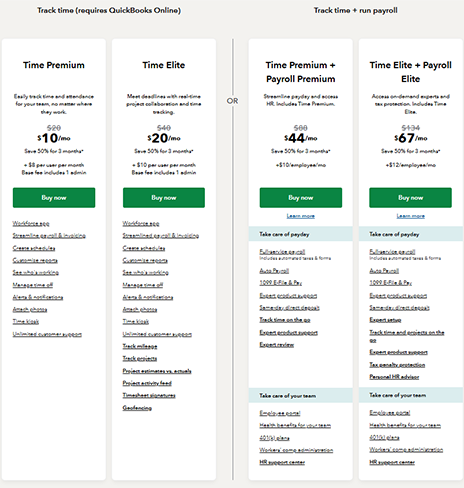
By comparison, OnTheClock’s flat pricing model keeps total costs significantly lower. With OnTheClock, time tracking for 10 employees costs $45 per month, with core time tracking and scheduling features included without requiring a higher service tier. Payroll is available separately. For cost-sensitive teams, this pricing structure creates a meaningful gap compared to OnTheClock, where core features are included upfront, and payroll doesn’t require additional subscriptions.
How Do You Get Started on a Web Browser?
Score: 8.5/10
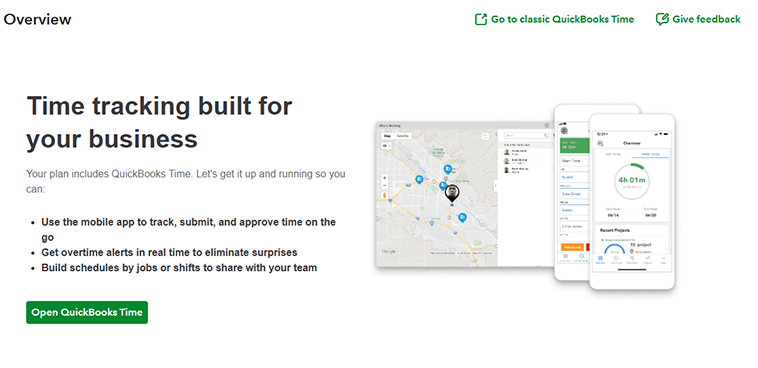
I started by visiting the QuickBooks website (https://quickbooks.intuit.com/time-tracking/) to create an account. The website identified QuickBooks Time as “Time Tracking Software Built for Your Business.”
The introductory page doubled down by advertising up to a 4% savings on QuickBooks’ payroll solution.
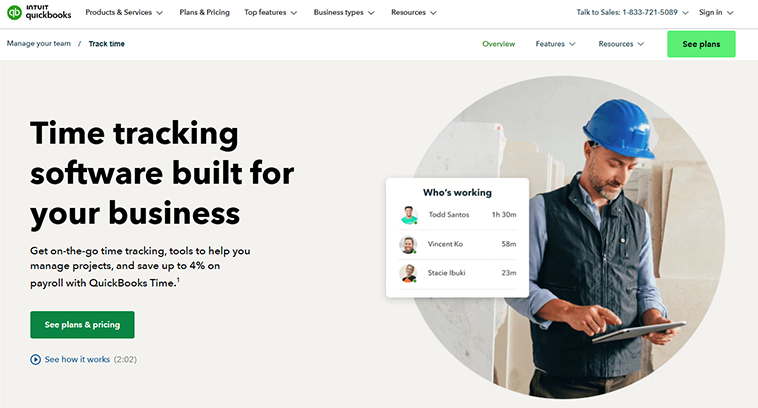
Scrolling down the page, I encountered landing pages offering more information on time sheets, time tracking, integrations, and more. A grouping of statistics touted 10% savings in billable time by using time tracking and, again, offered the 4% payroll savings.
Further down, I encountered links to schedule a demo, explore the mobile app, and more information on kiosk stations, along with industry pages, frequently asked questions, and more.
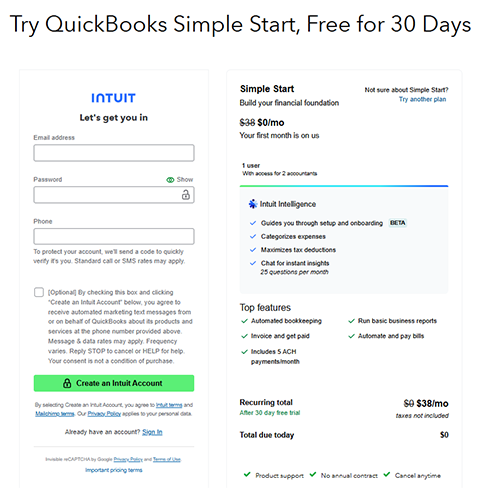
Clicking the "Start Free Trial" button led me to a startup page. Here, I was able to begin my trial by entering my email address, password, and phone number. After verifying the two-step verification via a text message, I was sent to a sign-in page.
During my April 2026 test, I was required to enter a credit card number before beginning my trial. Intuit's current QuickBooks Time offer advertises a 30-day free trial with no credit card required, so the signup process may have changed since this review was conducted.
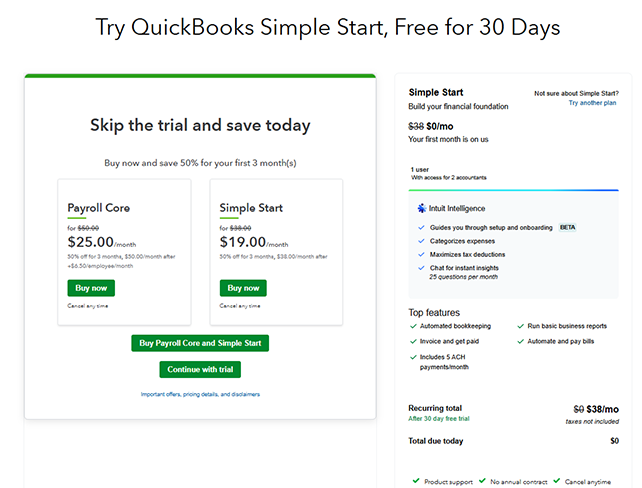
Once I entered my credit card information, I was prompted to skip the trial and choose their Payroll Core or Simple Start payroll option. As a result, I was offered a 50% discount on my first three months — yet another payroll pitch.
The setup process required my legal business name, previous payroll provider, website address, industry, business tax type, last year’s annual revenue, role, number of employees, and more. I was also prompted to schedule a one-on-one call with an expert, which was a nice touch, especially for novices who may be feeling overwhelmed at this point.
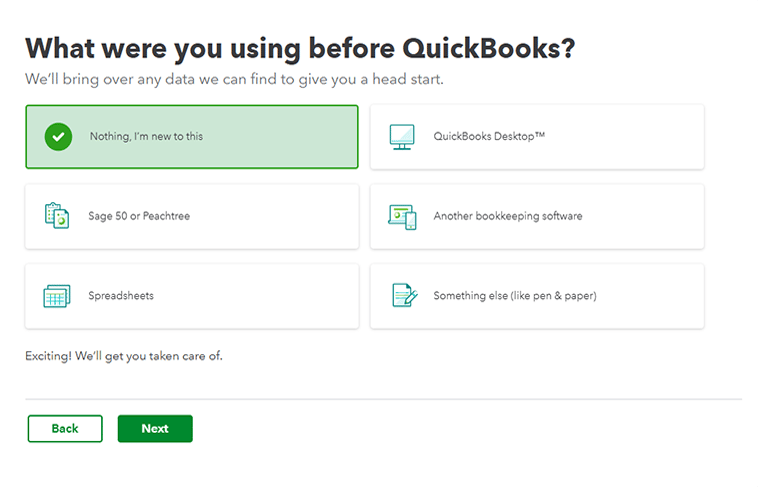
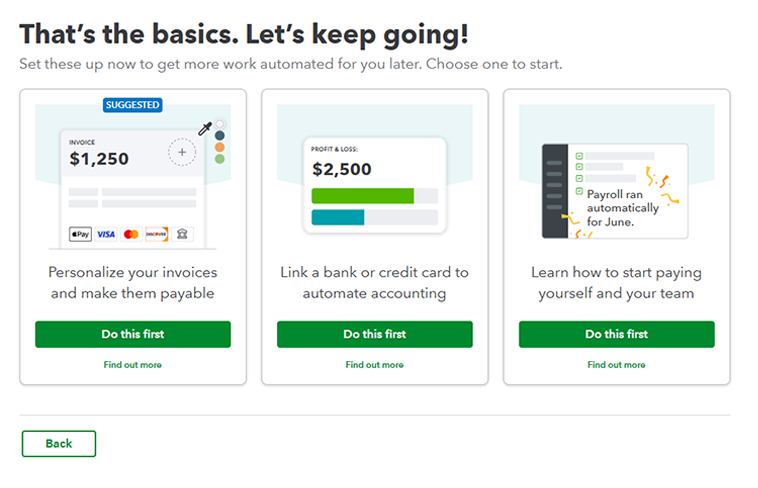
I was then prompted to choose my next step: personalize invoices, link a bank or credit card to automate accounting, or learn how to run payroll. Unfortunately, tracking time was not an option. So, I picked the first option and began skipping through screens until I encountered time tracking.
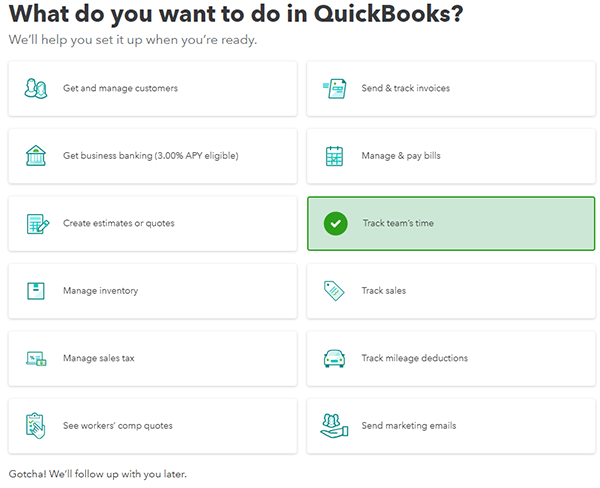
After clicking through several payroll screens, I was prompted to choose how I wanted to use QuickBooks, and I selected time tracking.
Finally, after nearly 15 minutes, I landed on the dashboard page. And, wow, the page is incredibly busy, colorful, and quite distracting. The menu along the right margin offers numerous tasks for the user to complete, which is overwhelming!
The bottom offers connections to bank accounts, profits/losses, invoices, widgets, and more. There is a lot to digest here!
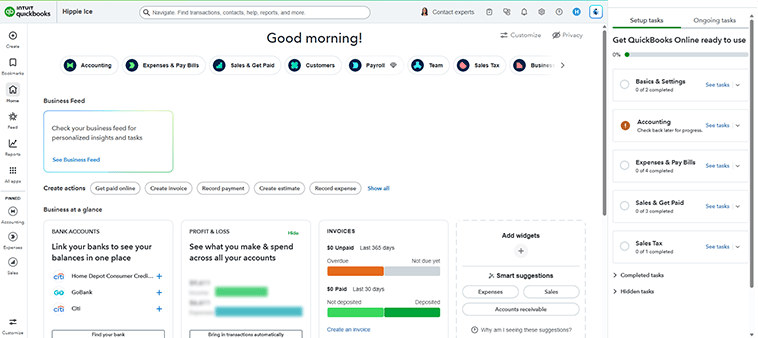
In summary, the web setup took quite some time, required a credit card number, and forced me to jump through numerous payroll hoops and pitches before landing on the dashboard. This was not an efficient experience.
For businesses that simply want to track time and run payroll, this many layers feels unnecessarily complex, especially compared to OnTheClock, where you can get started in minutes without entering a credit card.
How Do I Get Started on the Mobile App?
Score: 8/10
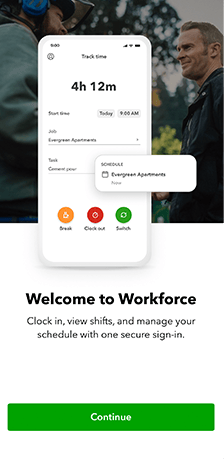
I wasn’t able to locate QuickBooks Time on the App Store, so I downloaded QuickBooks Workforce instead. Luckily, this was the proper app. Once the software was installed, I was prompted to confirm my credit card information before proceeding.
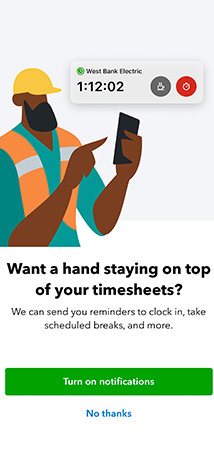
I was then prompted to turn on notifications, so I would receive all push notifications (punch reminders, breaks, overtime alerts, etc.).
The dashboard is very simple, showcasing the total hours worked, whether I was off or on the clock, and my current schedule. The bottom of the app provided icon shortcuts to the overview, time tracking, schedule, time off, and more.
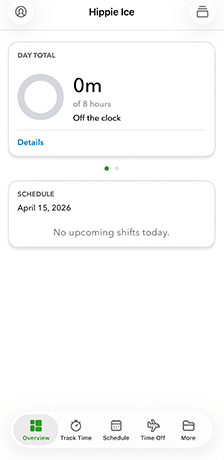
Overall, the initial app experience was simple to navigate, albeit quite basic, especially compared to QuickBooks’ busy web interface.
How Do You Add Employees?
Score: 8.5/10
To add an employee, I clicked the My Team tab and then Add Team Members.
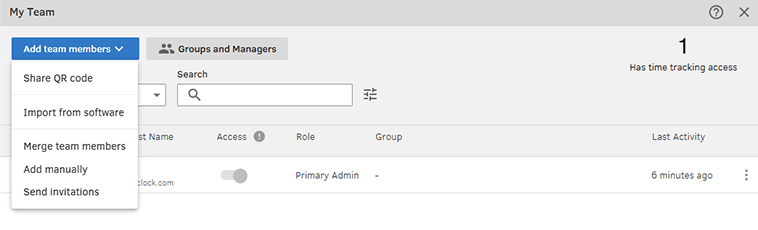
When I attempted to add employees manually, I was told to do so directly in my QuickBooks account. This meant I had to navigate a separate interface to complete the action. This extra step is not ideal, adding yet another layer, especially if I’m not interested in anything outside of tracking time.
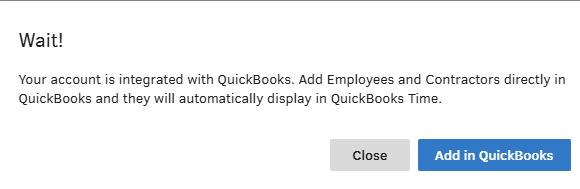
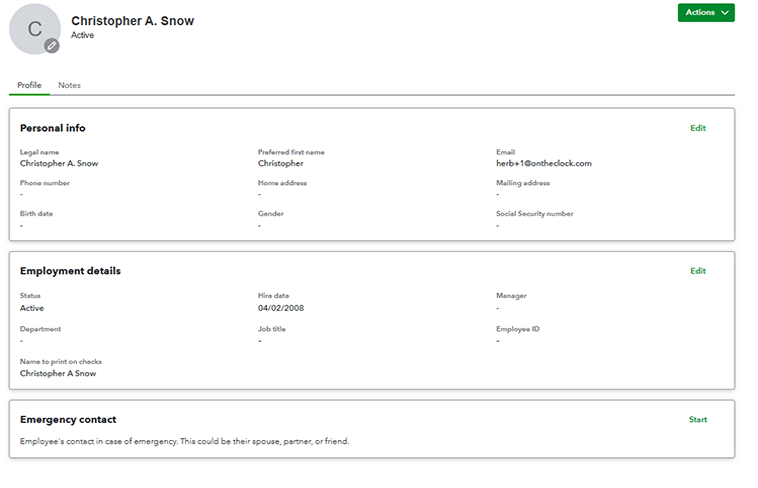
In QuickBooks, I entered my new employee’s name, date of birth, and email address. Then, I was asked to edit the individual’s personal information, employment details, and emergency contact information.
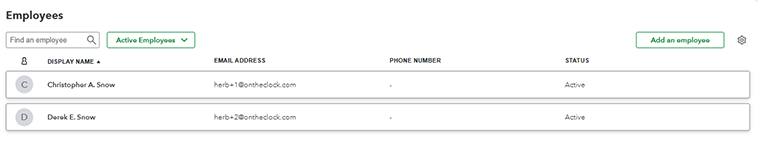
Once all employees were added, I could view my entire team by clicking Employee List.
I attempted to add an employee on the app but was told the employees wouldn’t sync, so I didn’t bother.
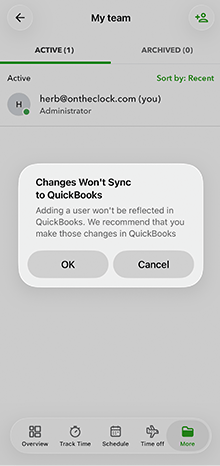
In summary, adding employees was a bit cumbersome, as I had to return to QuickBooks’ native app and couldn’t add them there seamlessly. Additionally, I was surprised I didn’t have to confirm employees’ existence via email – they just appeared when added. Admittedly, I’ve had better experiences with other apps.
How Does Scheduling Work?
Score: 8/10
After setting up my account and adding employees, I navigated to the Schedule tab to begin creating a schedule.
Within the scheduling interface, I encountered a matrix with the days along the top, in rows, and the employees occupying columns along the left.
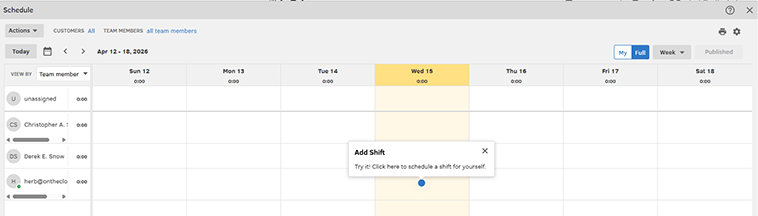
To create a schedule, I clicked the square that meshed with the employee and day. Then, I was asked to input a title, start date, start and end times, location, and notes.
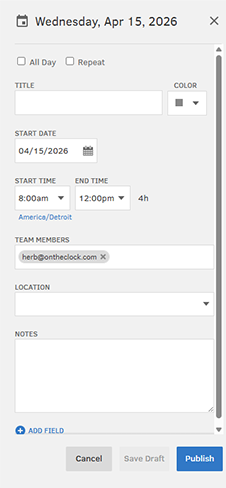
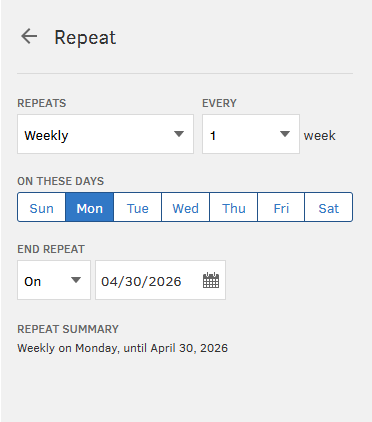
Unfortunately, there was no clear way to copy or duplicate the shift I created. I did discover a way to repeat a shift, but, oddly enough, that had to be established before I created the shift.
Additionally, clicking the Actions button allowed me to save the entire week as a template or copy the previous week.
The schedule defaults to showing all team members’ shifts, but it can also be filtered by group or individual. Another option allows admins to select individual (or groups of) customers or team members. Additionally, the schedule can be sorted by day, week, or month.
The total hours scheduled for all employees for each day are listed under each date.
On the app, the schedule is stacked vertically. The view can be filtered to show the entire team’s schedule or the individual employee’s schedule. To add a new shift, I simply pressed the + sign in the top-right corner of the screen.
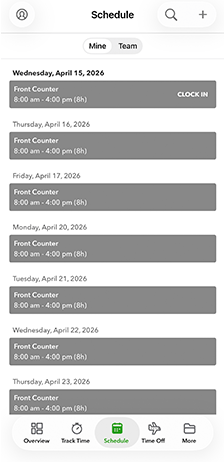
The scheduling tool was fairly easy to use. I was able to make a schedule in just a few moments. That said, the tool is very basic and fairly archaic – no shift duplication after creation, AI, automation, or open shifts/claims.
How Do Timecards Work?
Score: 8.2/10
Punches are accessible via the left-margin menu, under Time Entries.
The initial screen shows each employee’s time records, duration, customer, location, attachments, and notes.

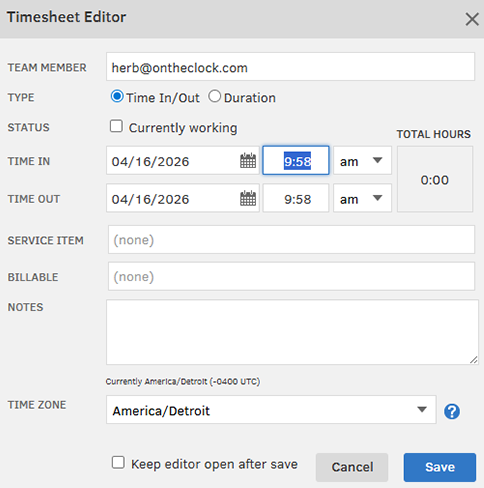
To add a time entry, I clicked + Add Time. A pop-up window allowed me to manually record time, including dates, service items, billables, notes, time zone, and more.
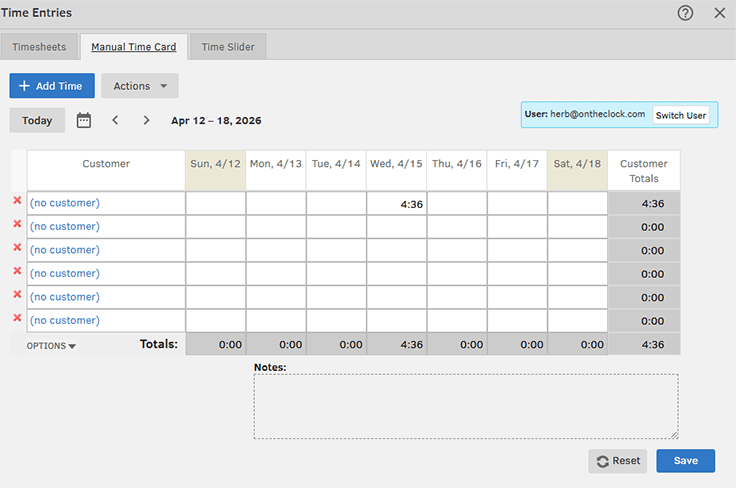
Clicking the Manual Time Card prompt allowed me to add time in bulk, choosing the customer, day, time frame, and more.
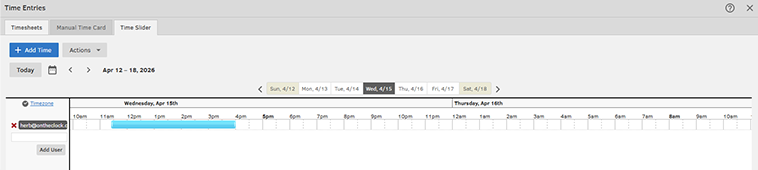
A Time Slider tool allowed me to edit a time entry, view GPS, or delete a time sheet. Users may also be added to this interface.
Time sheets can easily be viewed for today, the week, or any specific day. Clicking the Actions button allows an admin the ability to view manager edits.
A search prompt allowed me to find any specific team member and easily access their time records.
The interface was very similar on the app, offering a vanilla view and experience.

While fairly basic, QuickBooks’ time sheets were easy to navigate and understand. They provided the essential time records but lacked any automation, exporting tools, etc. No automated approvals, no rule-based edits, and limited payroll prep flexibility.
What Kind of Customer Support Does QuickBooks Time Offer?
Score: 7.8/10
Support is a very important part of any time tracking company. It’s crucially important to have a real person available if/when problems arise.
Clicking the question mark in the top-right corner of the screen led me to a Product Help page. Within, I found a list of common questions covering a range of topics.
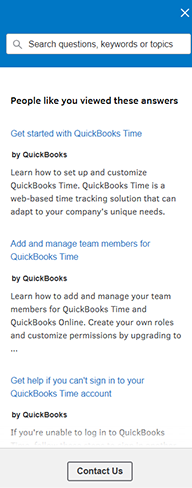
Clicking the Contact Us link opened a chat box. Inside, I typed “When was the last time QuickBooks Time raised its prices?”
I was then placed into the queue, which noted about a 5-minute wait. Agent Daryl C. appeared almost instantaneously. He shared that the Premium and Elite offerings have been consistent since QuickBooks Time became a part of Intuit.
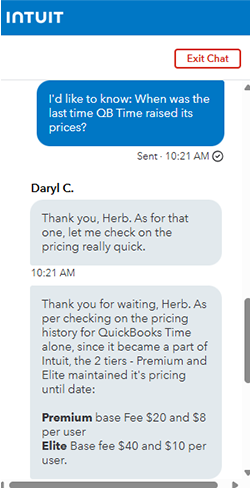
The chat was archived and emailed, creating a record of the interaction.
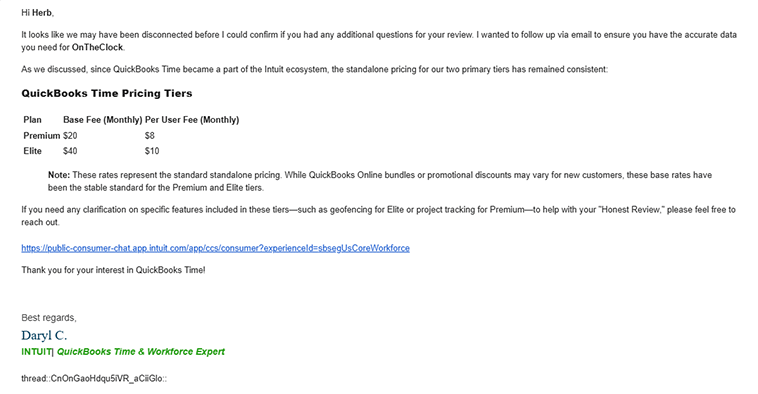
The support team was quick to reply and thorough. Overall, the service I received was efficient and effective.
How Does In-App Chat Work?
Score: N/A
QuickBooks Time does not have an internal, real-time messenger for employees to chat with each other, though it features a "who's working" tracker for visibility.
How Do You Manage Time Off?
Score: 8.2/10
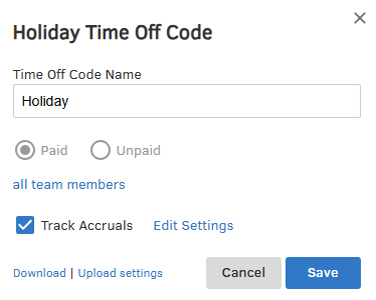
To implement time off, I clicked the Time Off tab. Before assigning time off, I had to set up the necessary codes.
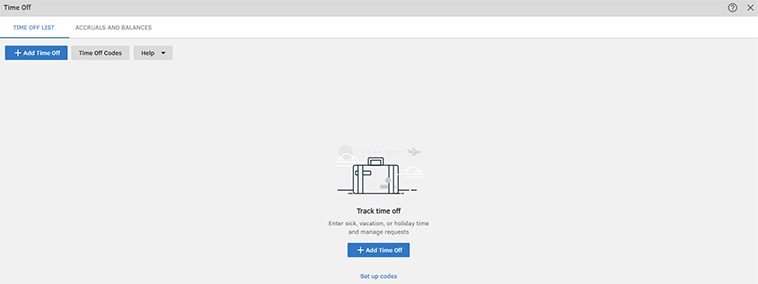
When setting up the codes, I was prompted to customize the name, whether the time off is paid or unpaid, which team members the policy applies to, whether accruals should be tracked, and more.
I was also able to set up any unpaid time off, if applicable. Additionally, clicking the Actions box allowed me to download time off balances, upload new balances, and set accrual reminders.
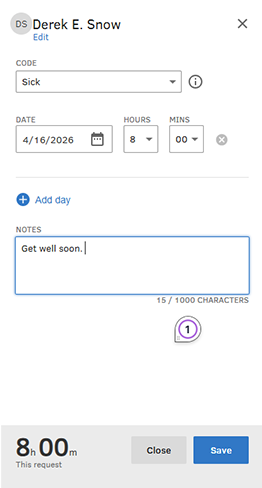
To request time off, I clicked the Add Time Off button. Within, I selected the specific team member, the type of time off, the date, the number of hours, and could enter a note.
Once approved, the employee’s PTO was displayed in the Time Off interface. All balances could also be viewed near the top-right side of the screen.

Overall, the time off tool was simple enough. I was able to set it up and assign time off in just a few minutes.
How Does Payroll Integration Work?
Score: 8/10
By clicking Reports and Payroll Report, I accessed QuickBooks Time’s payroll function. Before proceeding, I was then prompted to set up the parameters of my payroll.
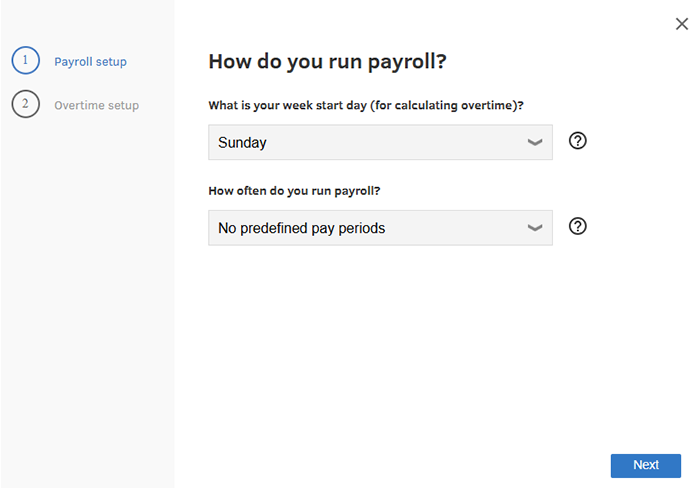
Once they were set up, I elected to run the report. From there, I selected the employee, how to display the hours, and whether to hide team members with no hours.
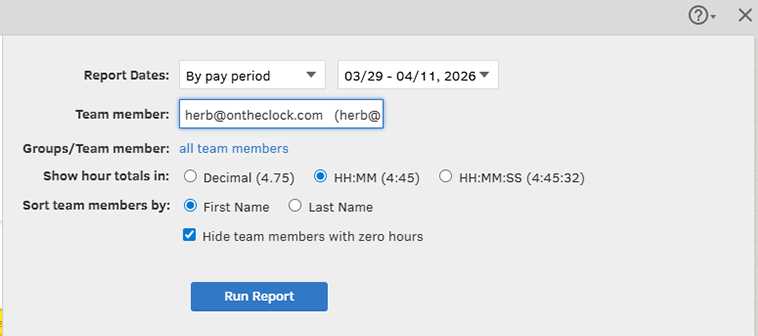
The report offers a quick glance at all time, including regular hours, overtime, time off, and total paid hours. The report can also be printed, downloaded, or opened as a PDF.

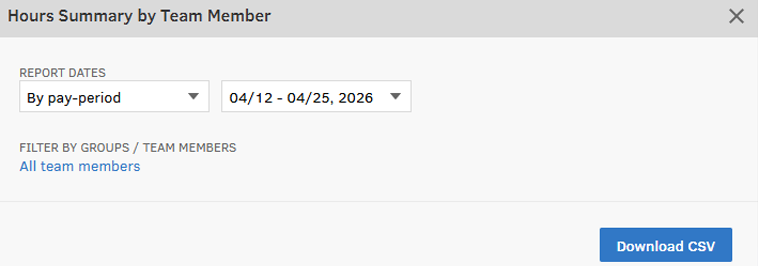
Clicking further into the tool led me to the Payroll tab, where I could see hours summarized by team member. This data can be filtered by group or team members and can be downloaded as a CSV file.
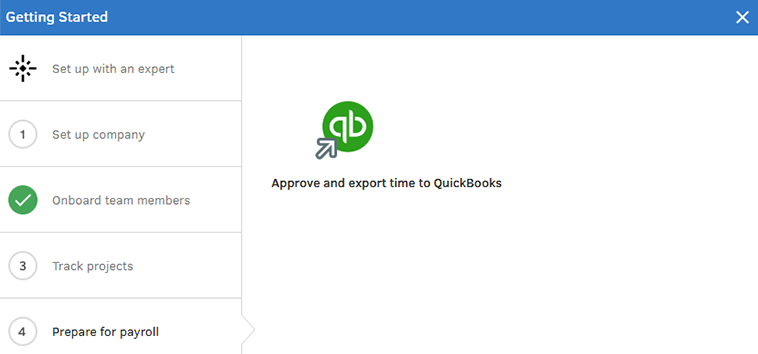
QuickBooks Time integrates with Intuit’s ecosystem, especially QuickBooks Online, making it easy to export data without additional formatting or reconciliation.
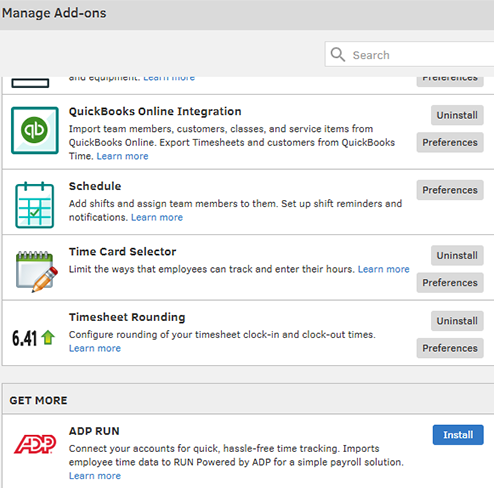
Beyond Intuit’s tools, QuickBooks Time connects with a wide range of payroll platforms, including QuickBooks Online, Gusto, Xero, and others. To access them, I clicked Feature Add-Ons, Manage Add-Ons, and selected the preferred add-on.
Overall, the payroll reporting tools were fairly easy to use. QuickBooks Time also integrates closely with Intuit's payroll products, although the exact workflow and cost depend on which QuickBooks Time, accounting, and payroll plans a business uses.
What Add-Ons Does QuickBooks Time Offer?
Score: 7.5/10
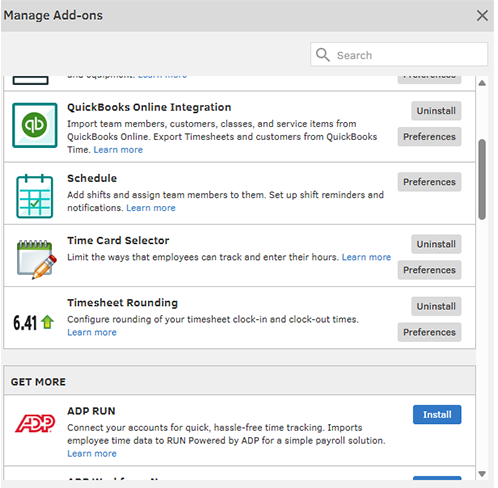
QuickBooks Time extends its core functionality with a set of add-ons that give businesses more control over time tracking, payroll preparation, and workforce visibility. Features like Approvals and Break tracking help standardize time sheet workflows, while tools such as Custom Fields allow for more detailed tracking — whether that’s job codes, projects, or specific tasks. Overtime Alerts add a layer of cost control by notifying managers before hours get out of hand, and the Time Clock Kiosk provides a simple way to centralize clock-ins for teams working from a shared location.
On the operational side, built-in scheduling and optional GPS tracking (with geofencing in higher tiers) give managers better oversight of when and where work is happening. For more advanced needs, elite-level features, such as project tracking, time sheet signatures, and location-based alerts, provide deeper accountability and reporting capabilities.
All of this is supported by strong integrations, particularly with QuickBooks Online and QuickBooks Desktop, as well as payroll providers like ADP RUN and Gusto. An open API also allows businesses to connect QuickBooks Time with other tools in their tech stack, making these add-ons flexible enough to fit a variety of workflows.
How Does QuickBooks Handle Follow-Ups and Outreach?
Score: 7.5/10
Upon signing up, I immediately received a welcome email and a tutorial focused on invoices. The email included a human-led video, which was nice, providing me with step-by-step instructions on how to proceed.
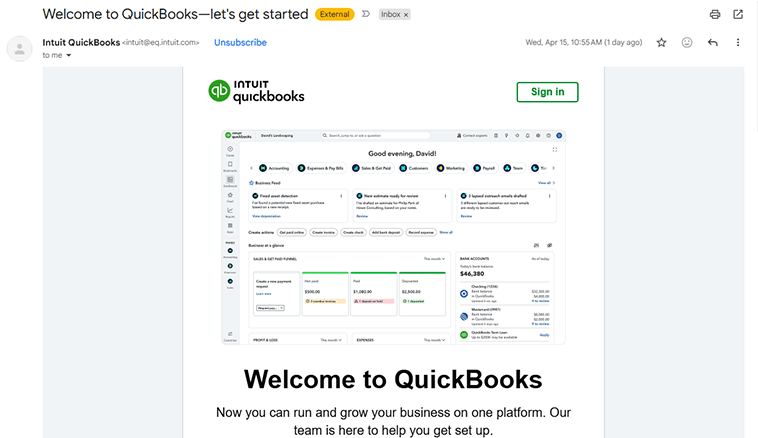
The emails were succinct and to the point. I was pleasantly pleased that my inbox wasn’t inundated with messages.
What Are the Pros and Cons of Using QuickBooks Time?
QuickBooks Time is a time tracking solution built to integrate closely with accounting and payroll workflows. It focuses on accurate time capture, streamlined approvals, and seamless data transfer into payroll systems, making it especially useful for businesses already using the QuickBooks ecosystem. While it delivers strong payroll alignment and reliable tracking tools, certain features are tiered or require add-ons, which can increase costs and limit flexibility for some teams.
Pros of Using QuickBooks Time
- Seamless Payroll Integration – QuickBooks Time does not run payroll independently, but it connects directly with QuickBooks Online and payroll providers like Gusto and ADP RUN to streamline the process. This is a major advantage for businesses already operating within the QuickBooks ecosystem.
- Automated Time Sheet Submissions – Employees don’t need to manually submit their time. Timesheets are automatically compiled from employee clock-ins and clock-outs, and managers are prompted to review and approve them.
- Strong Time Tracking and Oversight Tools – Features such as GPS tracking, geofencing (available in higher tiers), and overtime alerts give managers better visibility into employee activity and labor costs, particularly for field-based teams.
- Flexible Tracking with Custom Fields – Businesses can tailor time sheets with custom fields for job codes, projects, or tasks, making it easier to track labor against specific work and improve reporting accuracy.
- Kiosk and Mobile Accessibility – With options like a shared time clock kiosk and mobile clock-ins, QuickBooks Time supports both centralized workplaces and teams on the go.
Cons of Using QuickBooks Time
- Add-Ons and Tiered Features Increase Cost – Many features, such as advanced tracking, geofencing, and project reporting, are only available in higher-tier plans or as add-ons, which can drive up the total cost as needs grow.
- Limited Built-In Payroll – While it integrates well with payroll providers like Gusto and ADP RUN, QuickBooks Time does not function as a full payroll system on its own, requiring additional software to complete the process. The software requires multiple systems to fully manage time tracking and payroll, rather than offering a single, unified solution.
- Scheduling isn’t as Robust as Competitors – Scheduling features are included, but they’re relatively basic compared to platforms that prioritize scheduling as a core function.
- Can Be Overkill for Simple Time Tracking Needs – Businesses looking for a straightforward clock-in/clock-out solution may find the integrations and feature set more complex than necessary.
- Setup and Configuration Can Take Time – While basic time tracking is easy to start, setting up custom fields, permissions, and integrations can require a more involved onboarding process.
- User Interface Can Feel Dated – While functional, parts of the interface can feel less modern than those of newer workforce management platforms.
What Do Real Users Say About QuickBooks Time?
Looking beyond marketing claims, user reviews paint a fairly consistent picture of QuickBooks Time.
Across platforms like G2, Capterra, Google Play, and the Apple App Store, users frequently highlight the platform’s ability to connect time tracking directly with payroll and accounting workflows. Many businesses appreciate how it reduces manual entry, minimizes errors, and keeps financial data aligned, especially for teams already using QuickBooks.
Customers also cite the reliability of its time tracking tools. Features such as GPS tracking, job and project tracking, and mobile clock-ins make it easier to manage employees in the field while maintaining accurate payroll records. The mobile app, in particular, is often noted as a strong point for teams that need flexibility on the go.
That said, reviews also surface a few common friction points. Some users say the platform can feel more functional than intuitive, especially when navigating beyond basic time tracking. Others note that costs can increase when layering on additional QuickBooks products, such as payroll, or when upgrading to higher-tier plans. There are also occasional comments about the platform's setup complexity and the need to fully understand the QuickBooks ecosystem to get the most value from it.
Overall, real users tend to agree that QuickBooks Time is best suited for businesses that want tight integration between time tracking and accounting. Companies looking for a more standalone, all-in-one workforce management solution may find that it requires more moving parts than expected.
For example, the most relevant review on G2, where QuickBooks Time has a 4.5-star review out of 1,440-plus ratings, comes from Merlyn M. On April 7, 2026, who writes, “What stands out most about QuickBooks Time is how seamlessly it connects time tracking with payroll and accounting, eliminating duplicate work and reducing errors. It offers accurate, real-time tracking with GPS support, a strong mobile app for teams on the go, and useful reporting for labor costs and productivity. On top of that, it’s generally easy to use and includes scheduling and PTO tools, making it a solid all-in-one solution for managing employees and projects efficiently.”
On Capterra, where QuickBooks Time has a 4.7-star rating based on 6,950-plus reviews, Rena D. writes, on April 3, 2026, “It worked great for my needs. As a professional in the accounting industry, it is a good way to keep your employees' time linked with your QuickBooks payroll.”
On Apple, where QuickBooks Time has 4.6 stars on 184,000-plus ratings, Gumbie666 wrote, on March 18, 2026, “I love the simplicity of the program for employees. You sign in, and everything is at your fingertips. Excellent layout and functionality.”
How Does QuickBooks Time Compare to OnTheClock?
| Feature | QuickBooks Time | OnTheClock |
|---|---|---|
| Mobile Experience | The platform offers a robust mobile app that lets employees clock in, track time by job or project, and manage schedules on their phones. It’s especially useful for teams already working within the QuickBooks ecosystem, though some users may find navigation less intuitive when accessing more advanced features. | The mobile app supports time tracking, scheduling, PTO, and payroll workflows through a streamlined interface. Managers can also access broader team visibility and administrative controls directly from the app. |
| Desktop Clock-Ins | Employees can clock in via web browser or mobile app, with kiosk functionality available. The desktop experience is functional but primarily designed to support time tracking rather than broader workforce management workflows. | Fully supported across desktop and laptop devices with built-in admin controls and minimal configuration required. |
| Time Tracking | QuickBooks Time includes GPS tracking, geofencing (on higher tiers), job and project tracking, and automated time sheets. It integrates closely with accounting workflows, though some advanced features are tiered or require upgrades. | Core time tracking includes approvals, edits, reporting, PTO tracking, and user permissions without requiring tier upgrades for essential tools. |
| Payroll Functionality | QuickBooks Time integrates closely with QuickBooks payroll, and time tracking is included with QuickBooks Workforce Premium and Elite. Businesses using standalone QuickBooks Time may require additional QuickBooks subscriptions depending on the services they need. | Offers integrated payroll as an optional add-on, allowing timecards and payroll data to operate within the same system. It also integrates with major payroll providers, if preferred. |
| User Roles & Permissions | Role-based permissions are available, allowing admins, managers, and employees to access different levels of functionality. Some advanced controls and customization options may depend on plan level or integration setup. | Admin, manager, and view-only roles are available without additional tier requirements. |
| Customer Support Access | Support is available through chat, phone, and help resources, though response times and access levels can vary depending on your subscription and QuickBooks ecosystem usage. | Phone, chat, and email support are available to all subscribers. |
| Time Clock Kiosk | QuickBooks Time offers a kiosk feature called Time Kiosk that allows employees to clock in on a shared device using PINs or photos for verification. | A dedicated kiosk mode is designed for shared devices with built-in admin controls. |
| API Access | QuickBooks Time provides API access and integrations, especially within the QuickBooks ecosystem, allowing businesses to connect accounting, payroll, and other tools. | API access is available to businesses that need custom workflows or integrations. |
| Pricing Structure | QuickBooks Time uses a base fee plus a per-user pricing model, with additional costs for payroll, advanced features, or higher-tier plans. Costs can increase as more functionality is layered in. | Pricing uses a flat base fee plus a per-employee cost, with core time tracking and scheduling features included without locking key tools behind higher tiers. |
What’s the Final Verdict on QuickBooks Time?
QuickBooks Time is a reliable time tracking solution that integrates seamlessly with the QuickBooks ecosystem. At its core, it’s designed to feed accounting workflows, not to manage your workforce end-to-end. It focuses on accurate time capture, job tracking, and smooth integration with accounting and payroll, making it a practical tool for businesses looking to streamline payroll preparation and reduce manual data entry.
Where QuickBooks Time stands out most is in its integrations. For companies already using QuickBooks Online or QuickBooks Payroll, the connection between time tracking, accounting, and payroll is a major advantage. Time data flows directly into payroll workflows, helping reduce errors and simplify administrative processes.
The platform also performs well in core time tracking. Features like GPS tracking, mobile clock-ins, job and project tracking, and automated time sheets provide reliable visibility into employee hours, especially for teams working in the field or across multiple job sites.
Another benefit is its familiarity. Businesses already operating within the QuickBooks ecosystem will find it relatively easy to adopt, since it extends tools they’re likely already using rather than introducing an entirely new system.
That said, QuickBooks Time is not a fully unified workforce management platform. Payroll requires a separate QuickBooks subscription, and additional features, such as advanced reporting or project tracking, are tied to higher-tier plans. As a result, costs can increase as you add users, upgrade plans, or layer in other QuickBooks products.
The platform can also feel more functional than streamlined. While the tools are effective, navigation and setup may take more time than with simpler, all-in-one workforce management systems designed with ease of use as the primary focus.
Additionally, on a subsequent login, I was unable to access my time tracking account. I’m unsure if this is a universal occurrence, but I’m mentioning it because it happened.
A banner at the top of the page states that all time tracking elements will be moved to QuickBooks Online very soon. This change could be extremely disruptive to customers who do not use that tool.
QuickBooks Time is best for:
- Businesses already using QuickBooks for accounting or payroll
- Teams that need reliable time tracking with strong payroll alignment
- Companies managing job-based or field work with GPS tracking
QuickBooks Time is not ideal for:
- Businesses looking for a fully all-in-one workforce management platform
- Companies that want built-in payroll without additional subscriptions
- Teams that prefer simple, predictable pricing without layered costs
Overall, QuickBooks Time earns a 7.2/10. It’s a strong option for businesses that want accurate time tracking tightly connected to their accounting system. However, for companies looking for a more complete, streamlined solution that combines time tracking, scheduling, and payroll in one place, there are alternatives that may offer greater simplicity and value.
If you’re already invested in QuickBooks, QuickBooks Time is a natural extension of your workflow. If you’re looking to simplify operations and reduce the number of systems you manage, it may be worth exploring consolidated workforce management platforms that combine time tracking, scheduling, and payroll in a single system.
If you’re looking for a simpler way to manage time tracking, scheduling, and payroll without switching between systems, layering in add-ons, or managing separate payroll tools, try OnTheClock free for 30 days. No credit card required.
