
.png)
Jump to section
Try OnTheClock Free
Save time and make payroll effortless with our easy-to-use, affordable employee time tracking app.
Try It FreeQuick Verdict
Clockify is a flexible, affordable time tracker for project-based teams, but payroll still requires exports, and the Free plan now caps at five users.
- Overall score: 7.0/10
- Starting price: $0 for up to 5 users · Paid plans start at $3.99 per seat/month billed annually ($4.99 monthly)
- Best for: Project-based teams and businesses that track billable hours
- Not ideal for: Teams that want built-in payroll or advanced scheduling
- Tested: May 28, 2026 · Last updated: Sept. 22, 2026
Scores at a Glance
Most time tracking tools focus on recording hours worked. Clockify takes a broader approach, connecting those hours to projects, clients, billable work, and reporting. In this Clockify review, I looked at how well those tools work in practice and how easily businesses can manage everyday time tracking and workforce tasks.
Clockify is a time tracking and timesheet app owned by CAKE.com, which also offers the team communication app Pumble and project management platform Plaky.
I tested Clockify hands-on across its web and mobile apps on [dates], working through account setup, employee onboarding, time tracking, scheduling, time off, reporting, customer support, payroll workflows, and key admin tasks.
Verdict: Is Clockify Worth It?
Score: 7.0/10
Clockify is a flexible time tracking platform that works particularly well for businesses managing projects, billable work, and client-based workflows. Its biggest strength is the number of ways users can track and organize time across projects, tasks, clients, and different types of work.
Time tracking itself is strong and versatile. Users can record hours using timers, timesheets, calendars, kiosks, and manual entries, while organizing data by projects, tasks, clients, and tags. Reporting is also one of Clockify's stronger areas, offering detailed breakdowns that help businesses better understand where time and resources are being spent.
The employee onboarding process is also relatively painless. Team members can be invited via email and begin tracking time with minimal setup. For smaller teams or businesses transitioning from spreadsheets, getting started is fairly straightforward.
Clockify's biggest weakness isn't missing features; it's workflow efficiency. Important actions often live in separate sections of the platform, requiring users to move between Time Tracker, Reports, Approvals, Invoices, and administrative screens to complete what should sometimes be a simple task. As needs grow, the experience can begin to feel more fragmented.
Payroll is another area where Clockify falls short of a true all-in-one workforce solution. While it can calculate hours, rates, and costs, payroll itself is not built into the platform. Businesses still need to export data or rely on third-party systems to complete the process.
The free plan still works for solo users and teams of up to five users that need basic time tracking. However, teams with six or more users need a paid plan. Businesses that bill clients or need features such as data exports, scheduling, advanced reporting, approvals, GPS tracking, and broader workforce management tools will also need to move into Clockify's paid tiers.
Overall, Clockify earns a 7.0/10. It is a strong option for businesses that need flexible, project-based time tracking and detailed reporting. However, growing teams may find themselves moving into paid tiers quickly, while businesses seeking integrated payroll, simpler workflows, or broader workforce management tools may eventually outgrow the platform.
How Much Does Clockify Cost?
Score: 7.2/10
Clockify offers a free plan along with four paid tiers: Basic, Standard, Pro, and Enterprise. The platform also offers the CAKE.com Bundle, which includes the Enterprise versions of Clockify, Pumble, and Plaky.
Clockify's Free plan costs $0 and supports up to five active users, including the workspace owner. It still includes unlimited time tracking and projects, along with reports (limited to a 31-day range) and PDF exports, making it a practical option for solo users and very small teams with basic time tracking needs. However, Kiosk, billable rates, CSV and Excel exports, and several management features now require a paid plan.
Clockify's paid pricing depends on whether businesses choose annual or monthly billing. Annual plans are priced per seat per month but are prepaid for the year.
Clockify's Basic plan adds features such as Kiosk, billable rates, project estimates, bulk editing, required fields, CSV and Excel exports, project templates, and additional administrative controls. Standard introduces time off, invoicing, approvals, attendance and overtime tracking, manager roles, and additional reporting tools. Pro adds scheduling, forecasting, expenses, labor cost and profitability reporting, budgeting, custom fields, GPS tracking, and other productivity features. Enterprise adds advanced administrative and security tools, including single sign-on (SSO), audit logs, and account controls.
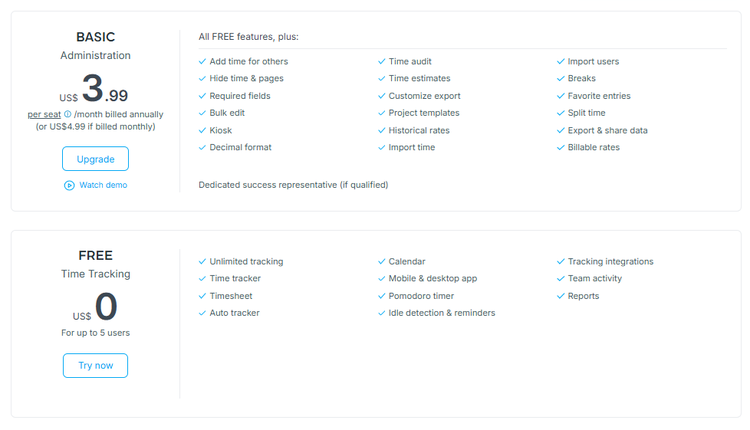
Businesses using Clockify's Kiosk also need to account for limited-member seats. These employees do not have their own Clockify login and can only clock in and out through a shared kiosk. Limited seats are charged separately on top of the underlying paid plan.
By comparison, OnTheClock currently charges $4 per employee per month plus a $5 monthly base fee. That puts a 10-employee team at $45 per month, with time tracking, scheduling, paid time off (PTO) management, GPS and location controls, overtime calculations, payroll integrations, and other core workforce management tools included without moving through multiple feature tiers.
For a 10-person team on Clockify's Pro plan, the cost is $99.90 per month with monthly billing or the equivalent of $79.90 per month with annual billing. By comparison, the same 10-person team costs $45 per month for OnTheClock's core time tracking plan. While Clockify remains attractive for project-based time tracking and reporting, businesses should look beyond the Free plan when comparing costs because team size and required features can move them into the paid tiers fairly quickly.
What Changed in Clockify's Free Plan in 2026?
Clockify made several changes to its Free plan in 2026 that make it more limited for teams and businesses that use the platform for client work.
The biggest change is the new five-user limit. New Clockify workspaces begin with a trial that includes all paid features and allows businesses to invite more than five users. Once that trial ends, however, only the workspace owner and the first four invited users remain active. Any additional users are automatically deactivated unless the business upgrades to a paid plan.
Reporting is also more restricted. Free users can still view and export reports, but each report is limited to a maximum 31-day date range. PDF exports remain free, while CSV and Excel exports and shared report links now require a paid plan.
Several tools that are especially useful for client-based and hourly teams also require a paid subscription. These include billable rates, Kiosk, project estimates, and invoicing. Billable rates and project estimates start with the Basic plan, while invoicing requires Standard or higher.
For businesses using Clockify's application programming interface (API) or custom integrations, the Free plan is now limited to 30 API requests per hour and three webhooks per workspace.
In practical terms, Clockify's Free plan still works well for solo users and small teams that mainly need basic time tracking and PDF reports.
How Do You Get Started on a Web Browser?
Score: 6.5/10
I started by visiting the Clockify website to create an account. The homepage introduced the platform's time tracking tools and showed how Clockify works across web, desktop, mobile, and kiosk apps.
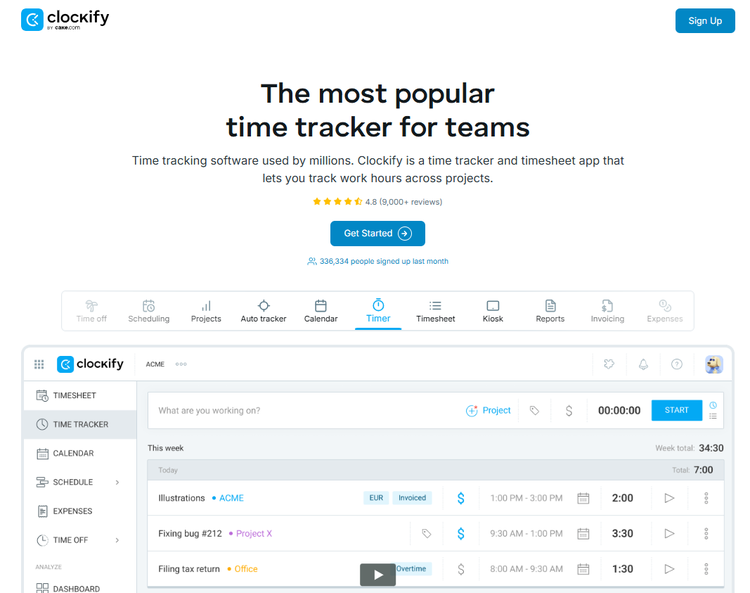
Clicking the Sign Up button allowed me to continue with Google, Microsoft, or Apple. From there, I entered my name and company name before being congratulated with a bizarre flying bunny.
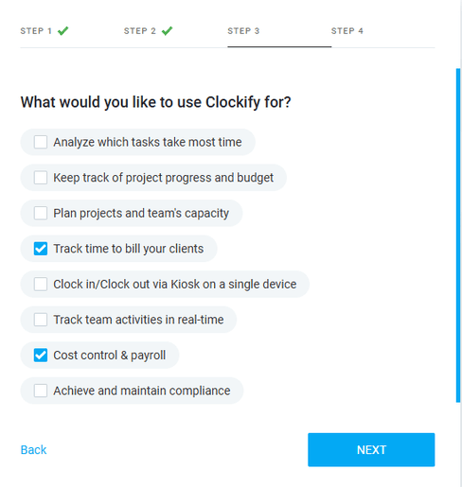
Clockify then asked a few questions about my business, including the number of employees, my industry, how I planned to use the platform, and how I heard about the company.
Once setup was complete, Clockify automatically started a seven-day free trial. The trial includes all paid features and does not require a credit card. If you don't upgrade when it ends, the workspace automatically moves to the Free plan.
There is one important catch for teams. Clockify allows you to invite more than five users during the trial, but the Free plan only supports five active users. When the trial ends, the workspace owner and first four invited users remain active, while any additional users are automatically deactivated unless you upgrade.
Overall, getting started was fairly straightforward. The setup process itself didn't create much friction, but businesses testing Clockify with larger teams should understand the five-user limit before inviting everyone during the trial.
How Does Clockify Handle Follow-Ups and Outreach?
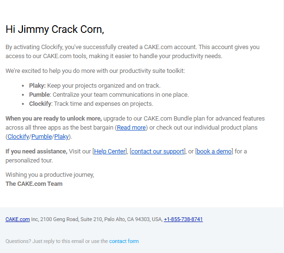
Clockify was also fairly active with follow-up after signup. I received a welcome email followed by several messages introducing features, offering time tracking help, and sending reports and reminders. Within three days, I had received 17 emails from Clockify, plus a LinkedIn request, which started to feel like a lot.
How Do I Get Started on the Mobile App?
Score: 6.8/10
I was able to download the Clockify app from the App Store without issue and was prompted to log in with Google, Microsoft, or Apple.
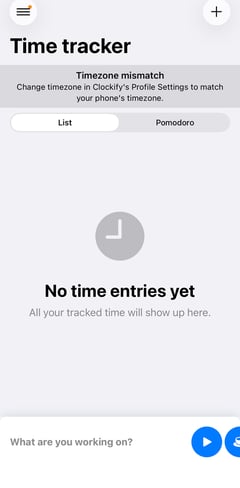
Upon logging in, I was taken to the Time Tracker screen. The view was pretty basic, showing a placeholder for time entries.
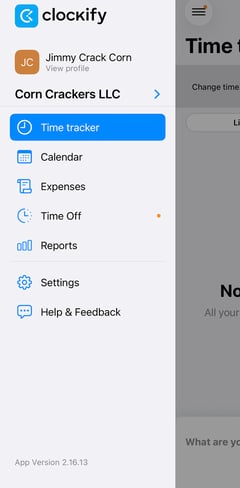
A hamburger menu in the top-left corner offered me access to multiple options, including Calendar, Expenses, Time Off, Reports, and more.
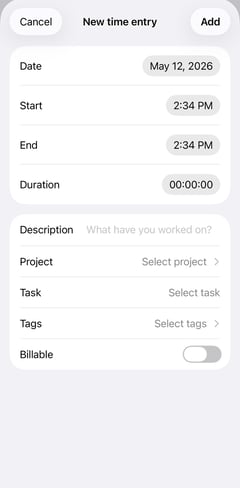
The plus sign in the top-right corner let me add a new time entry. Time entries are noted by date, start and end times, and duration.
I was also able to edit the entry's description, project tasks, tags, and make the entry billable, if I so chose.
Near the bottom of the screen, I was prompted with quick-tap “What are you working on?” buttons to start a break or punch in with one tap.
My test did not uncover any major syncing problems, but some Clockify users report a different experience. Reviews on G2 and Capterra repeatedly mention occasional lag and delays when syncing the mobile app with other devices, particularly when moving between phone and desktop.
Overall, the initial app experience was simple to navigate, albeit a bit basic. The dashboard simply allowed tracking time and viewing basic activity. While many ancillary options are available in the hamburger menu, the dashboard lacked some of the bells and whistles commonly offered by competitive software solutions.
How Do You Add Employees?
Score: 8.5/10
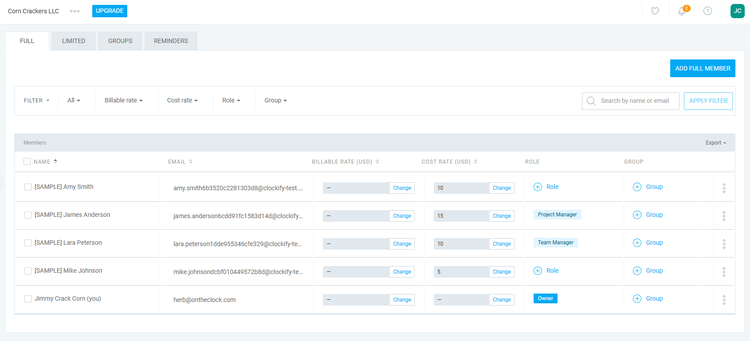
To add an employee, I clicked the Team tab and then clicked Add Full Member.
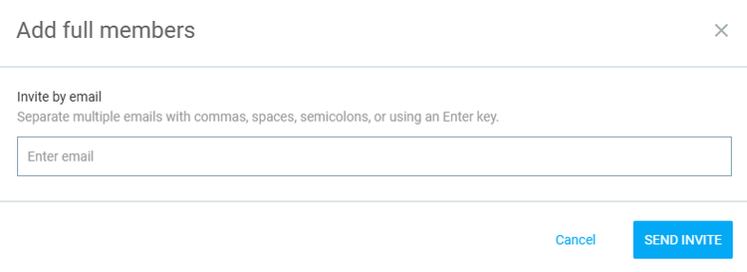
The pop-up screen encouraged me to enter my employee’s email address to invite them to the solution.
As my employee joined via email, he was asked to input his name, and that’s all. A subsequent email welcomed him to the team and provided shortcut links to help him get started.
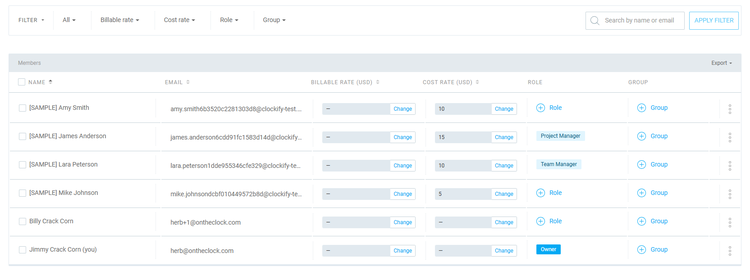
Once the employee was added to the team, his name replaced the previous status of (not joined yet). The employee was added to a list of sample employees, which provided a guideline.
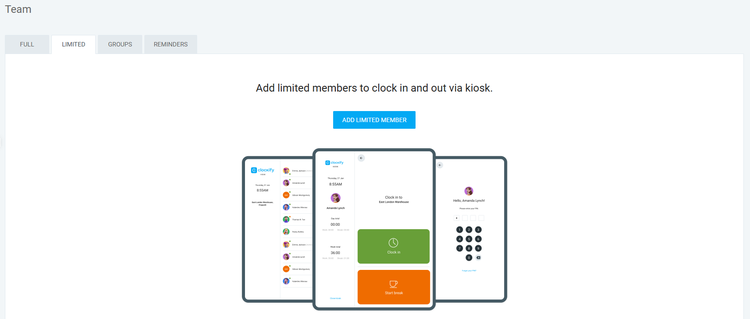
Clockify also supports “limited members,” who do not have their own email login and can only clock in and out through a shared kiosk. Limited members require a paid plan and are billed separately for each active limited seat.
Once added, team data can be filtered by a number of fields, including billable hours, cost rate, role, group, active/inactive, billable rate, and more.
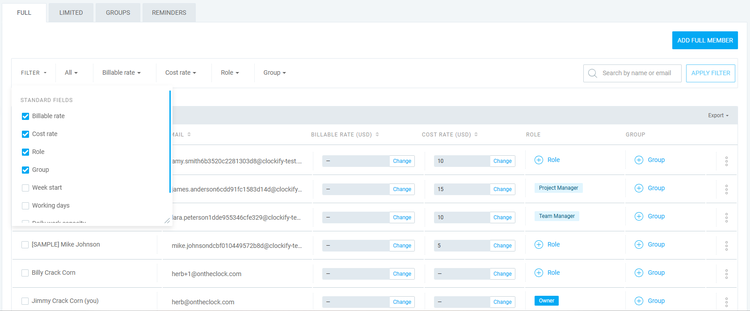
Adding employees was fairly simple. Approval via email was easy, and everything went smoothly, as planned. The added filters and views were also appreciated. Good work, Clockify!
How Does Scheduling Work?
Score: 7.2/10
After setting up my account and adding employees, I navigated to the Schedule tab.
Scheduling is only available on Clockify's Pro plan and above, which costs $7.99 per seat per month when billed annually or $9.99 with monthly billing.
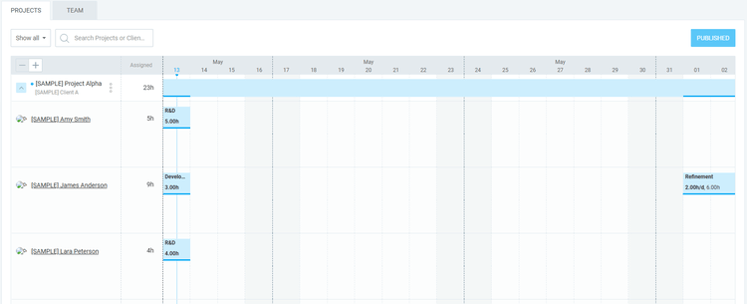
The scheduling view is set up to track by project. Clicking the project opens each day, including the work scheduled for that day (including R&D and development work).
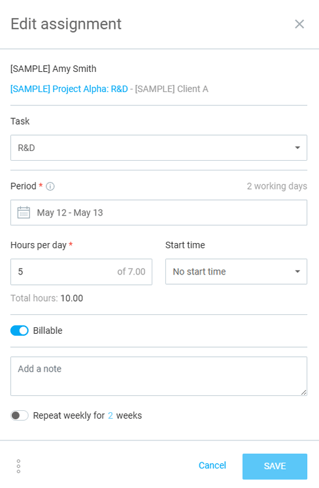
Clicking the individual work opens a pop-up that allowed me to edit the work to be done, including the task, time period, hours per day, start time, and more. However, I was unable to edit the project name in this view, as all project edits needed to occur in the Projects tab, which was a bit cumbersome.
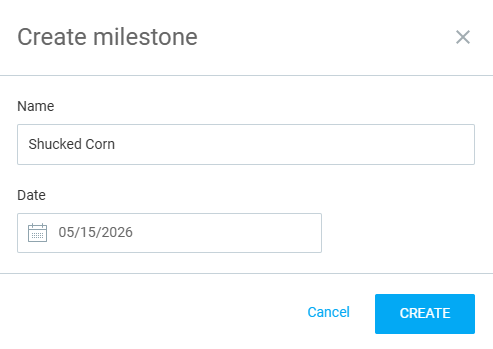
Clicking within the project matrix and dates allowed me to “add a milestone.” Once the milestone was created, it was added to the schedule.
Clicking the + Member link allowed me to assign an employee to a project. While creating the assignment, I could tag the employee with a task, time period, hours, start time, and more. The task itself could also be repeated weekly, which was a nice touch.
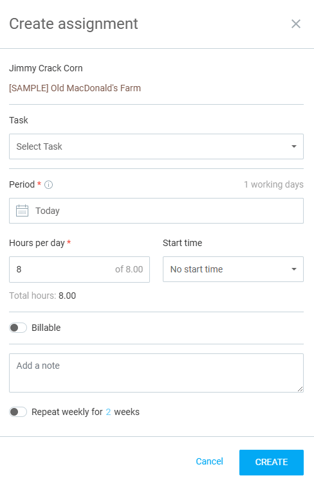
I was also able to filter by published and unpublished schedules or view the respective schedules for specific teams. I could also seek projects or clients using a search bar.
Unfortunately, I was unable to edit the schedule on the app.
In summary, the scheduling tool was fairly basic. That said, a basic schedule works fine for companies seeking simplicity. However, if you’re looking for AI-led scheduling, automation, open shifts, or other advanced features, Clockify may not be the greatest fit.
How Do Timecards Work?
Score: 7.8/10
Timecards are split across several tabs, including Time Tracker, Calendar, and Reports.
The Time Tracker tab allows my employees to record their time entries. Punches can be recorded via start/stop. Records are kept below and totaled in the top-right banner of that table.
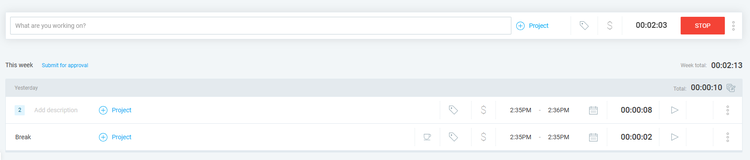
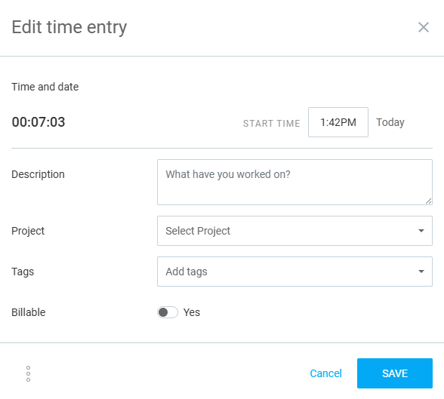
The Calendar tab showed a record of all entries. Clicking an individual time entry allowed me to edit the description, project, and tags, and to identify whether the project was billable.
The true timecards are found under the Reports tab. Within, I could see the total hours worked, split between billable and non-billable hours. Additionally, the data can be assembled in a number of ways, including team, client, project, task, tag, status, description, kiosk, and more.
Based on the pay rate, the amount is also shown along the top-left banner.
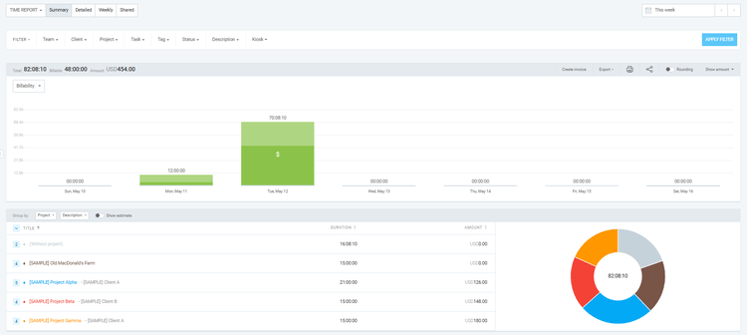
The billable/non-billable split and financial amounts shown in Reports are now paid features. Clockify requires the Basic plan or higher to mark time as billable, set billable rates, and calculate total amounts earned. Free users can still view their time entries, but those billing details are no longer available.
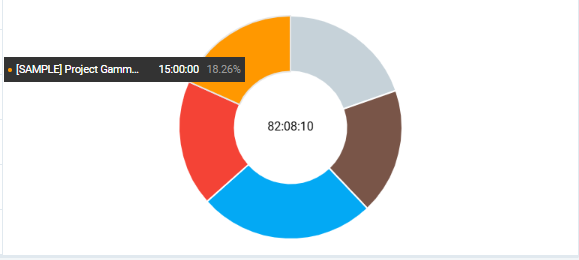
A pie chart in the bottom-right corner showcases how time has been split between projects.
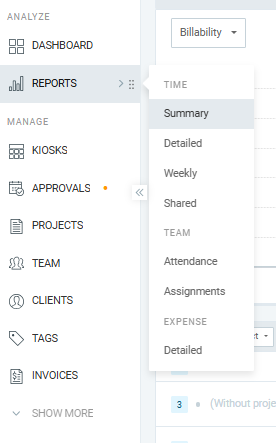
Upon clicking the Reports tab, I was prompted with numerous drop-down options, including summary, detailed, weekly, and shared. Additionally, the team view can be filtered by attendance and assignments.
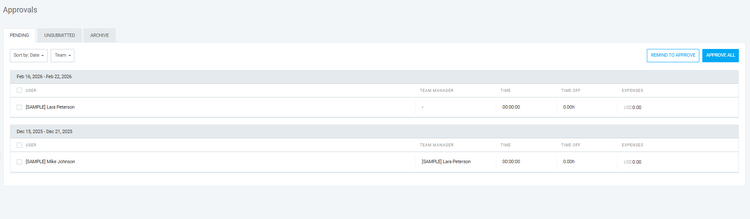
To approve timecards, I clicked the Approval tab.
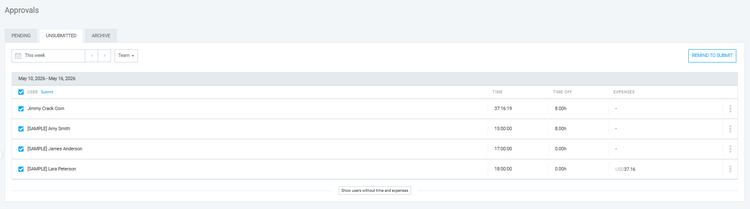
Within the approval screen, I was able to view timecards by categories, such as pending, unsubmitted, and archive. Data could also be sorted by date and team. Finally, I was able to set a personal reminder to approve timecards at a later date.
Clockify’s timesheets are multilayered, with many options, views, and filters. They’re chock-full of data and insights that may prove beneficial to companies seeking insights. However, to record, review, and approve data, users have to click multiple tabs (Time Tracker, Reports, Approvals, etc.). Outside of that, the timesheets were quite nice.
Where to Find the Timesheet View
Hidden near the bottom of the menu was a Timesheet tab. Here, I was able to see my hours worked across numerous days. This view proved helpful, but I still needed to work across multiple tabs to record, review, and approve time.

How Does the Clockify Kiosk Work?
Score: 7.5/10
Clockify's Kiosk is designed for employees who clock in and out from a shared device, such as a tablet, phone, or computer. The feature is available on paid plans only. As part of Clockify's April 2026 Free-plan changes, Kiosk moved off the Free plan and now requires Basic or higher.
Setting up a kiosk starts in Workspace Settings, where Kiosk must first be enabled. From there, admins can open the Kiosks page, create a kiosk, give it a name, assign employees, and choose a default project for tracked time. The kiosk can then be opened through a shared link on practically any browser-based device.
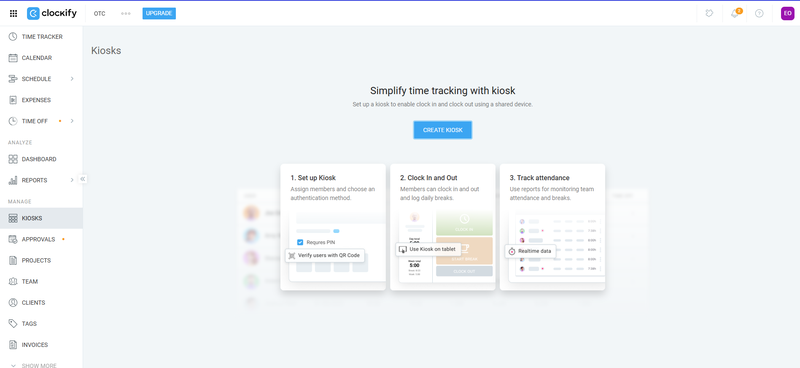
For PIN clock-ins, employees select their profile, enter their personal four- or six-digit PIN, and click Clock in. The same process is used to clock out. PIN authentication is available on Basic and higher plans, while QR-code authentication requires Standard or above.
Clockify also allows employees to track breaks directly from the kiosk. After selecting their profile and entering their PIN, employees can tap Start break. Clockify automatically clocks them out of work and begins a separate break timer. Tapping Finish break ends the break and clocks the employee back in.
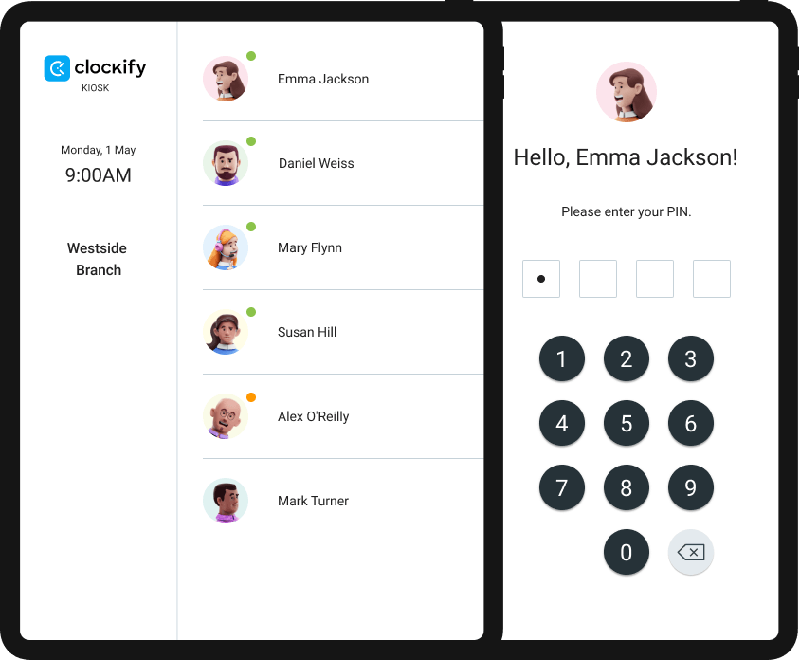
Those entries flow into Clockify's reports. Managers can review kiosk time in Summary, Weekly, and Detailed reports and filter entries by kiosk. Breaks are also identified separately, making it easier to see when employees were working versus taking a break.
One cost to watch is Clockify's limited members. Employees without their own email login can use Kiosk-only accounts, but each active limited member requires a separately paid seat. Prices range from $0.79 to $2.39 per limited seat per month with annual billing, or $0.99 to $2.99 with monthly billing, depending on the plan.
Overall, Clockify's Kiosk provides a fairly straightforward shared clock-in option for hourly and onsite teams. PIN clock-ins, break tracking, and reporting cover the essentials well. However, Kiosk is no longer included with the Free plan, and businesses using limited members need to factor the additional per-seat cost into their pricing.
What Kind of Customer Support Does Clockify Offer?
Score: 7.2/10
Support is a very important part of any time tracking company. It’s crucially important to have a real person available if/when problems arise.
Clicking the question mark icon in the top-right corner opened the customer support tab.
The initial screen was a help center with a number of help pages and featured articles.
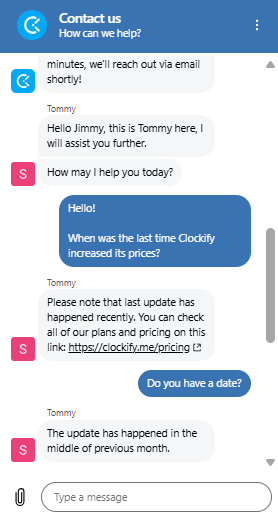
I clicked the Start Chat button and was directed to a virtual chat assistant.
I asked, “When was the last time Clockify raised its prices?” The virtual assistant allowed me to escalate the matter to a human. After entering my name, email address, and issue, I was connected with Tommy nearly instantly.
Unfortunately, Tommy danced around the question, stating that “the last update happened recently,” before directing me to the pricing page.
I refocused my question to ask for a date, but Tommy was unable to provide a specific date.
While the answer wasn’t precise, the quick reply and the human support's attentiveness were exceptional!
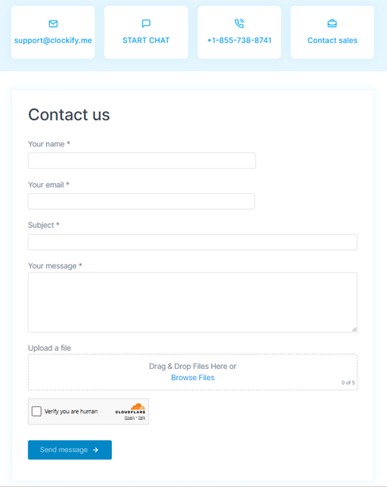
Outside of the live chat, Clockify offers an email address, phone number, contact us form, and a separate email address for its sales team. This transparency is appreciated, as many of the time tracking sites I’ve reviewed tend to hide their contact information.
How Do You Manage Time Off?
Score: 7.5/10
To implement time off, I clicked the Time Off tab. Before moving forward, I had to establish a new policy. Upon doing so, I was prompted to enter the policy’s name, assignees, time unit, define whether requests require approval, accrual settings, and more.
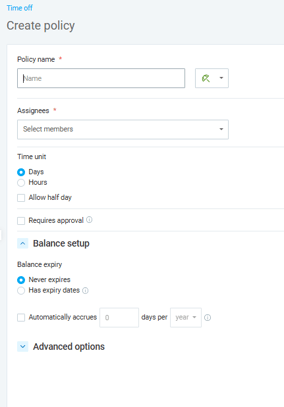
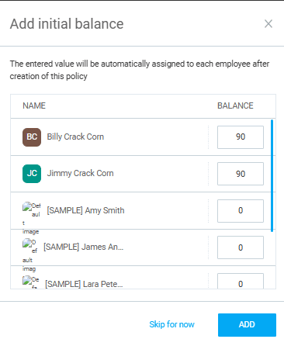
Once established, I was able to add an initial balance of hours to my employees. Once finalized, the plan appeared under the Policies tab.
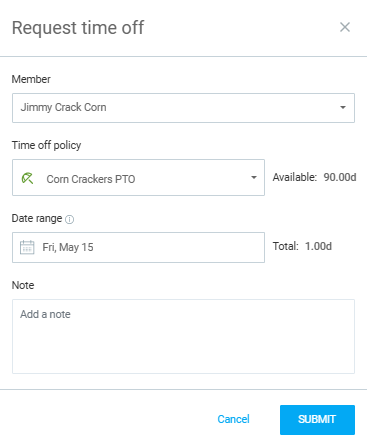
In the top-right corner of the page, I clicked Request Time Off. From there, I was able to select the applicable team member, time-off policy, date range, and enter a note.
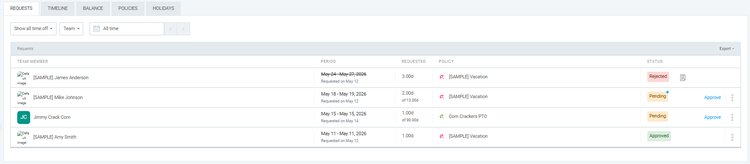
Once the request was submitted, a manager could approve it via the Requests tab.
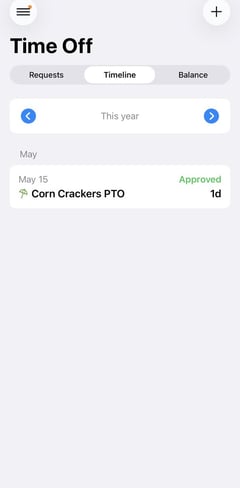
Once the PTO request was approved, it appeared on my calendar accordingly. As soon as the request was approved, a push notification was sent to my phone.
Overall, the time off tool was very simple. I was able to set it up and assign time off in just a few minutes.
How Does Payroll Integration Work?
Score: 6.8/10
Clockify does not include its own payroll system, but it does offer a direct QuickBooks Online integration. On the Standard plan and above, businesses can send tracked time entries from Clockify into supported QuickBooks Online accounts for billing and accounting. However, the standard integration does not work with QuickBooks accounts that have payroll enabled.
For QuickBooks Payroll users, Clockify offers a separate QuickBooks Payroll add-on. It also requires the Standard plan or higher and costs an additional $6.99 per month for the workspace. The add-on allows businesses to send Clockify time entries into QuickBooks accounts with payroll enabled.
To start the process, I had to review everything in my Reports tab and ensure everything was accurate.
Before moving forward, I had to review any unsubmitted timesheets and approve them via the Approvals tab.
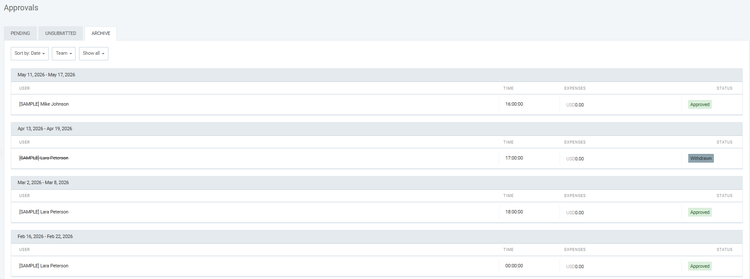
All approved timesheets are available under the Archive tab.
Finally, after some clicking around, I located the Export button while working through the Invoices tab. This took some work on my end, and this needs to be remedied, Clockify!

Businesses can also export Clockify reports for use with payroll and accounting software. Free users are limited to PDF exports, while CSV and Excel exports require the Basic plan or higher.
Honestly, the process was fairly clunky, requiring reviews in the Reports and Approvals tabs and additional navigation before I reached the export options. The QuickBooks integration provides a more direct path for supported accounts, but businesses using other payroll providers will generally still rely on exported data and outside software.
For businesses looking for a more unified solution, those extra steps can create additional work and potential points of failure, especially compared to platforms like OnTheClock, where time tracking and payroll can operate within the same system.
What Add-Ons Does Clockify Offer?
Score: 6.0/10
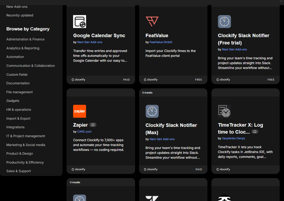
Clockify’s parent company, CAKE.com, offers a large marketplace of integrations and add-ons. To access them, I clicked the puzzle piece and was met with a search engine devoted to add-ons.
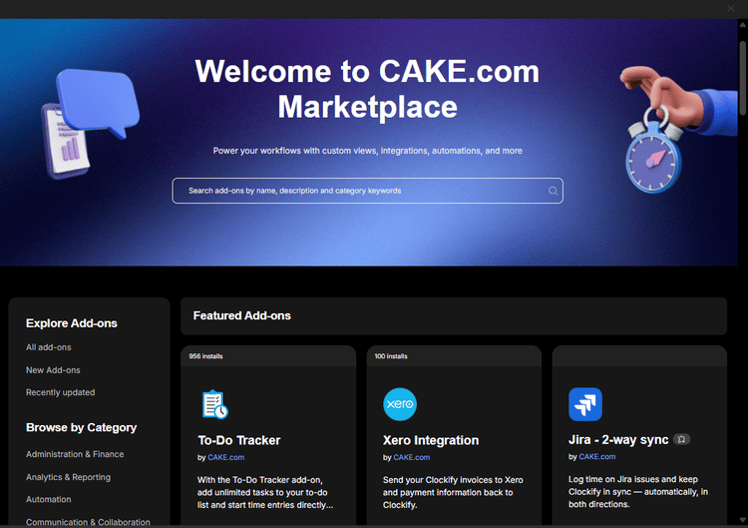
The menu was quite overwhelming, with 16 integration categories. There were so many options that a search engine was needed.
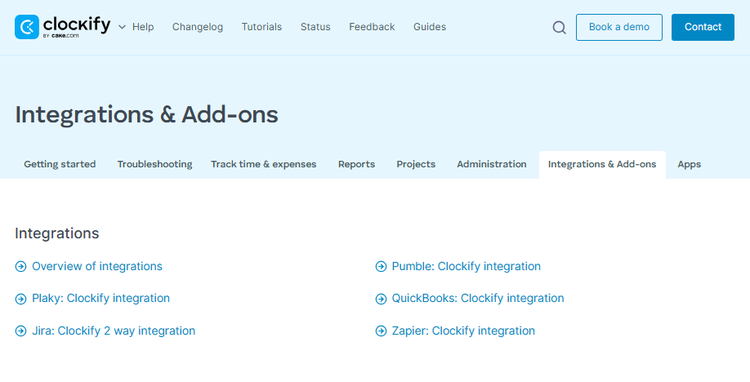
The Integrations and add-ons page offered more information on the primary integrations, including Plaky, Jira, Pumble, QuickBooks, and Zapier.
Clockify does not have a comprehensive, built-in real-time team chat tool. Instead, CAKE.com offers Pumble for team communication, and the Clockify integration can send time tracking updates into Pumble chats.
Businesses that want the broader CAKE.com ecosystem can also purchase the CAKE.com Bundle for $12.99 per seat per month when billed annually or $15.99 with monthly billing. The bundle includes the Enterprise versions of Clockify for time tracking, Pumble for team communication, and Plaky for project management.
Clockify also offered a YouTube video summarizing the solution’s time tracking integrations.

I typed “Time Tracking” into the search engine and was met with 20 different options, including a Google Calendar sync, FeatValue, Zapier, TimeTracker X, and more.
I clicked the Invoice Generator add-on, and the landing page provided general information and a price of $9.99 per month.
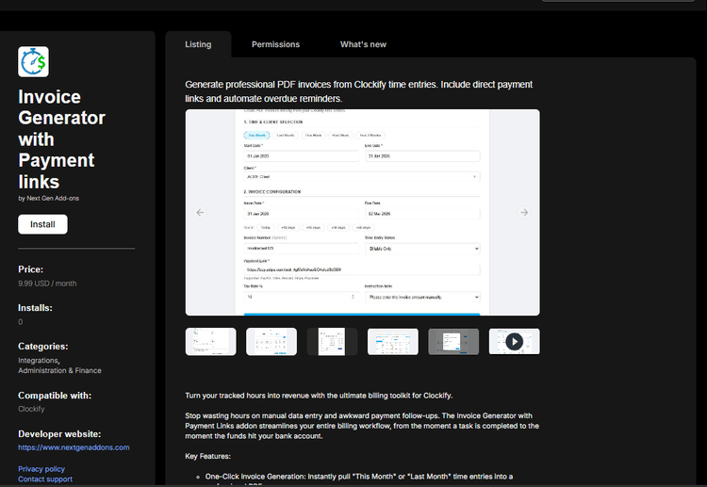
While these add-ons make Clockify more flexible, they also introduce complexity and can increase the overall cost. Pricing for individual marketplace add-ons is shown within each add-on’s description, making it difficult to understand the total cost without opening the tools individually.
What Are the Pros and Cons of Using Clockify?
Here’s the short version of where Clockify performs well and where the platform creates the most friction.
Pros
- Powerful Time Tracking and Reporting Features: Clockify offers much more than a simple start/stop timer. Users can track time using timers, manual entries, calendars, kiosks, and timesheets, and generate detailed reports by project, client, tag, billable hours, and team activity. Businesses that rely heavily on reporting and billable-hour tracking will likely appreciate the depth of available data.
- Simple Employee Setup and Onboarding: Adding employees is quick and intuitive. Managers can invite team members by email, and new users can begin tracking time with minimal setup. The onboarding process is straightforward and does not require extensive configuration before teams can get started.
- Free Plan Still Covers Solo Users and Teams of Five or Fewer: Clockify's Free plan can still work well for freelancers and very small teams that mainly need basic time tracking, projects, and PDF reports. The five-user limit makes it less useful for growing teams, but smaller groups can still use the core tracking tools without paying for a subscription.
- Flexible Project and Billable Time Management: Clockify was clearly designed for project-based work. Paid users can assign projects, tasks, billable rates, clients, and tags while organizing work across multiple teams and workflows. This flexibility works particularly well for agencies, consultants, and service-based businesses.
- Responsive Human Customer Support: While the support experience may not always provide perfect answers, reaching a real person was quick and straightforward. Clockify also offers multiple support channels, including live chat, email, phone, and a knowledge base, which is more transparent than many competitors.
Cons
- No Built-In Payroll Processing: Clockify does not process payroll itself. It offers a direct QuickBooks Online integration and a separate QuickBooks Payroll add-on, but businesses using other payroll providers will generally need to review hours, approve time, and move data into outside payroll software.
- Scheduling Tools Feel Basic: Clockify includes scheduling on the Pro plan and above, but it lacks many advanced workforce management features businesses often want as they grow. Tools such as open shifts, shift swapping, scheduling automation, and AI-assisted scheduling are either limited or unavailable.
- Free Plan Was Cut Back in 2026: Clockify's Free plan is now capped at five active users, and reports can only cover a maximum 31-day range at a time. CSV and Excel exports, billable rates, and several other business tools also require a paid plan.
- Navigation Can Feel Fragmented: Important workflows are spread across multiple tabs and screens. Time tracking, approvals, reports, payroll workflows, and scheduling often require users to bounce between several areas of the platform. For new users, this can create unnecessary friction.
- Add-Ons and Integrations Can Increase Complexity: Clockify offers a large ecosystem of integrations and extensions, but understanding which tools are needed can become overwhelming. Some add-ons carry separate pricing, making total expenses harder to predict upfront.
- Some Users Report Mobile Sync Issues: I did not experience a major syncing problem during my initial mobile test, but user reviews tell a more mixed story. Reviewers on G2 and Capterra report occasional lag and delays when syncing time between the mobile and desktop apps.
- Limited Built-In Communication Tools: Clockify does not include a comprehensive real-time team chat system. CAKE.com offers Pumble for team communication, but businesses that want messaging alongside time tracking need another product or the broader CAKE.com ecosystem.
- Interface Prioritizes Function Over Polish: Clockify delivers a lot of information, but some areas of the interface feel utilitarian rather than streamlined. The dashboard and mobile experience work well enough, but they can feel somewhat basic compared to competitors' more action-oriented dashboards.
What Do Real Users Say About Clockify?
User feedback on Clockify generally follows the same pattern I found during testing: people like the flexible time tracking, project organization, and reporting, but some find the experience less polished as their needs become more complex.
On G2, Clockify currently holds a 4.5/5 rating from 200 reviews. Users frequently praise its ease of use, reporting, and ability to organize time by client and project, although mobile performance and interface friction appear among the recurring complaints.
Celeste G., for example, described Clockify as easy to set up and said she can quickly see how much time she spent across different projects.
Capterra paints an even stronger picture, with Clockify rated 4.8/5 across more than 9,200 reviews. Users frequently highlight straightforward time tracking, detailed reporting, and strong value for freelancers and project-based teams. Mobile syncing does come up as a pain point in some reviews, particularly when users move between desktop and mobile.
One Capterra reviewer described Clockify as dependable and flexible for managing client work and billable hours, while another specifically reported problems with mobile syncing.
Trustpilot tells a more mixed story. Clockify currently has a 3.2/5 rating from 80 reviews, and recent feedback became noticeably more negative after the 2026 changes to the Free plan. Several reviews posted from June through August complained about previously free features moving behind paid tiers, including billable rates and CSV/Excel exports. Some longtime users also criticized how the changes were communicated, while Clockify responded that affected workspaces had received in-app notifications in advance.
The mobile app still performs well overall in the app stores. Clockify currently holds 4.6/5 from about 4,300 ratings on Apple's App Store, while Google Play shows roughly 4.3/5 from about 2,800 reviews.
Overall, user sentiment remains strongest around Clockify's core time tracking, project organization, and reporting tools. The more recent criticism is less about whether Clockify can track time and more about mobile reliability, workflow friction, and the tighter limits placed on the Free plan in 2026.
How Does Clockify Compare to OnTheClock?
To understand where Clockify fits, it helps to compare it to a simpler, all-in-one alternative like OnTheClock.
Clockify Alternatives
Clockify works well for businesses that need flexible time tracking, project organization, and detailed reporting, but it may not fit every team.
Businesses that want built-in payroll, more advanced employee scheduling, simpler workforce management, or fewer paid tiers may want to compare other options before committing. Some alternatives focus more heavily on hourly employees, while others are better suited for project management, field teams, or businesses that need time tracking and payroll to work together.
The right choice depends on what you need most. A freelancer tracking billable projects may have very different priorities than a restaurant, construction company, or growing hourly team managing schedules, PTO, overtime, and payroll.
For a deeper look at the available options, see our full guide to the best Clockify alternatives, where we compare competing platforms based on features, pricing, usability, and the types of businesses they serve best.
Clockify FAQ
How much does Clockify cost per month?
Clockify costs $0 for up to five active users, while paid plans start at $3.99 per seat per month billed annually or $4.99 monthly. Higher tiers add time off, scheduling, GPS tracking, screenshots, security controls, and other features, with Enterprise costing $11.99 annually or $14.99 monthly per seat.
Is Clockify really free?
Yes, Clockify has a permanent Free plan for up to five active users. It includes unlimited time tracking and projects, but the 2026 changes removed features such as billable rates, CSV/Excel exports, Kiosk, and invoicing from the Free tier. Reports are also limited to a maximum 31-day range.
Which is better, Toggl or Clockify?
Neither is better for every business. Clockify is generally less expensive and offers features such as Kiosk, GPS tracking, and screenshots on paid plans, while Toggl Track emphasizes a streamlined time tracking experience and deeper analytics.
Is Clockify safe to use?
Clockify uses Amazon Web Services (AWS) hosting and 256-bit SSL encryption and states that it is ISO 27001 certified, SOC 2 Type II compliant, and General Data Protection Regulation (GDPR) compliant. Enterprise adds SSO and audit logs. Pro includes optional screenshots and GPS tracking, but admins must enable them, and users are notified when monitoring is activated.
Can Clockify run payroll?
No, Clockify does not process payroll itself. It can send tracked time into QuickBooks Online, and a separate $6.99-per-month QuickBooks Payroll add-on supports QuickBooks accounts with payroll enabled. Businesses using other payroll systems generally need to export or transfer their approved time data into outside payroll software.
Does Clockify have a kiosk mode?
Yes, Clockify offers a Kiosk for employees clocking in and out on shared devices. Kiosk requires a paid plan and supports PIN-based clock-ins and break tracking. Kiosk-only “limited members” are billed separately, starting at $0.79 per seat per month annually or $0.99 with monthly billing.
What’s the Final Verdict on Clockify?
Clockify is a flexible but somewhat fragmented platform.
It’s designed for businesses that need more than basic time tracking and want visibility into projects, billable hours, and where work time is being spent. Features such as project tracking, customizable reports, time-off management, kiosks, and multiple time-entry methods make it a strong fit for organizations that manage client work or track labor across multiple projects.
Where Clockify stands out most is its flexibility. Users can organize work through projects, tasks, tags, and clients, and use multiple tracking methods to generate detailed reports that provide meaningful insight into productivity and labor allocation.
But that flexibility comes with trade-offs.
Clockify is not a fully unified workforce management system. Payroll requires exports and third-party tools, several workforce features are distributed across higher-priced tiers, and certain workflows require navigating multiple screens and tabs. As businesses grow, the platform can begin to feel more fragmented than streamlined.
It’s also not built around simplicity. Businesses that simply want an easy way to track time, manage schedules, and process payroll may find themselves clicking through more menus and workflows than expected.
Clockify is best for:
- Teams that bill by project or client
- Agencies, consultants, and service-based businesses
- Businesses that need detailed reporting and project visibility
Clockify is not ideal for:
- Businesses looking for built-in payroll without extra steps
- Teams needing advanced workforce scheduling capabilities
- Companies that want a simple, all-in-one workforce management platform
Bottom line
Clockify is a strong option if project tracking and reporting are your top priorities. If you need flexible time tracking with detailed project insights, Clockify delivers. If you want to track time, run payroll, schedule employees, and manage your workforce without juggling systems or moving between multiple screens, OnTheClock gets you there faster with fewer headaches.