
Jump to section
Try OnTheClock Free
Save time and make payroll effortless with our easy-to-use, affordable employee time tracking app.
Try It FreeConnecteam is a workforce management platform built primarily for deskless and field-based teams. It combines time tracking, scheduling, employee communication, task management, and human resources (HR) tools into a mobile-first system designed to streamline day-to-day operations. Many businesses turn to platforms like Connecteam when they need a better way to manage remote teams, track work in the field, and replace disconnected tools with a single solution.
The short answer from this Connecteam review: Connecteam earns an 8.6/10. It's a strong mobile-first choice for field and deskless teams that need scheduling, chat, and task tools in one app, but costs rise as you add hubs and users, and it has no built-in payroll.
In this honest review, I break down how Connecteam performs across key areas like usability, pricing, time tracking, communication, and overall functionality. The goal is simple: to give you a clear, real-world understanding of where Connecteam excels, where it can create friction, and whether it's the right fit for your business.
Key Takeaways: Connecteam Review
- ✔Connecteam earns 8.6/10 in our review and works best for field teams needing time tracking, scheduling, and communication.
- ✔Costs increase with additional hubs and users, so businesses should price the full setup before choosing a plan.
- ✔Connecteam has no built-in payroll, requiring a separate payroll provider through integrations or time-data exports.
- ✔Teams with up to 10 users get a free plan with access to all hubs and most features.
- ✔Scheduling stands out at 9.5/10, with easy shift creation, duplication, and publishing to employees.
Verdict: Is Connecteam Worth It?
Score: 8.6/10
Connecteam delivers a robust workforce management platform with a strong focus on mobile functionality, team communication, and operational workflows for deskless teams. For businesses managing employees in the field, it offers a wide range of tools, including time tracking, scheduling, task management, and internal communication, all within a single platform.
One of Connecteam's biggest strengths is its mobile-first design. Employees can clock in, manage tasks, communicate with their teams, and access important updates directly from their phones. This makes it especially effective for industries such as construction, cleaning services, logistics, and other field-based operations.
Time tracking is reliable and feature-rich, with options for GPS tracking, geofencing, and job-based tracking. Managers can monitor attendance, review timesheets, and maintain accountability across multiple job sites with ease.
Connecteam also stands out for its built-in communication and operations tools. Features like chat, announcements, surveys, and task management allow businesses to centralize not just time tracking, but day-to-day workflows and employee engagement.
Another advantage is its flexibility. Custom forms, checklists, and workflows allow businesses to tailor the platform to their specific operations, which can be a major benefit for teams with unique processes.
That said, Connecteam's feature set is divided into multiple hubs (Operations, Communications, HR & Skills), and businesses often need access to more than one hub to unlock its full potential. This can add complexity and increase costs as your team grows.
Pricing is a flat monthly rate for up to 30 users, then per user after that, which can scale quickly for larger teams. Beyond 30 users, each additional user adds $0.80 to $5 per month, depending on the plan and billing cycle.
While pricing is reasonable for small teams, costs increase quickly as additional users and feature hubs are added.
Connecteam also does not offer built-in payroll, meaning businesses must rely on integrations or external systems to process employee wages. For companies looking for a fully unified payroll solution, this can be a limitation.
Overall, Connecteam earns an 8.6/10 for its strong mobile experience, powerful communication tools, and operational flexibility. While its feature segmentation and pricing structure can create some friction, it remains a highly capable solution for managing deskless and field-based teams.
If you're managing a remote or field workforce and need a mobile-first platform with strong communication and operational tools, Connecteam is a great fit. If you're looking for a simpler, more consolidated system with built-in payroll and fewer moving parts, you may want to explore more unified workforce management platforms.
Connecteam Pricing: How Much Does It Cost?
Score: 8/10
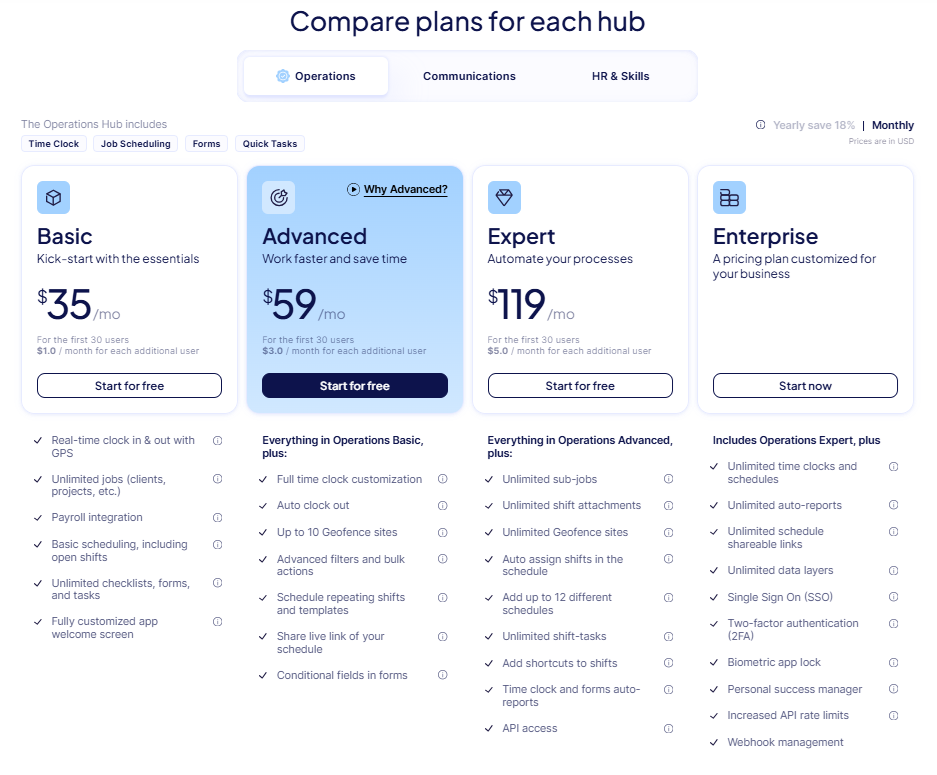
For businesses with up to 10 users, Connecteam offers a Small Business Plan that is free for life and includes access to all of its hubs and most of its features. For larger teams, Connecteam offers several paid tiers, including Basic, Advanced, Expert, and Enterprise – all four options carry the same price tag for the first 30 employees with a per-user charge for each additional employee after that.
As of October 2026, the Basic plan is offered at $35 per month when billed monthly, or $29 per month when billed annually. This includes a time clock with GPS functionality, payroll integration, basic scheduling, and more.
The Advanced tier is available for $59 per month billed monthly ($49 billed annually). It offers auto clock-outs, up to 10 geofencing sites, repeating shifts, and more.
The Expert plan is available for $119 per month billed monthly ($99 billed annually) and offers unlimited shift attachments, up to 12 schedules, application programming interface (API) access, and more.
Finally, the Enterprise offering requires a one-on-one conversation with sales to secure.
By comparison, OnTheClock's flat pricing model keeps total cost significantly lower. With OnTheClock, 10 employees cost $45/month, with all core features included — no tier upgrades or add-ons required. For cost-sensitive teams, this pricing structure may represent a meaningful difference compared to platforms that require tier upgrades for core features.
Additionally, Connecteam is organized by hubs. Each hub is priced individually. So, if a company wanted to expand and use the Communications and HR & Skills hubs, the price would scale accordingly, tripling with all three hubs. For example, on monthly billing, the cost for all three hubs would be $105 per month on Basic; $177 on Advanced; and $357 on Expert.
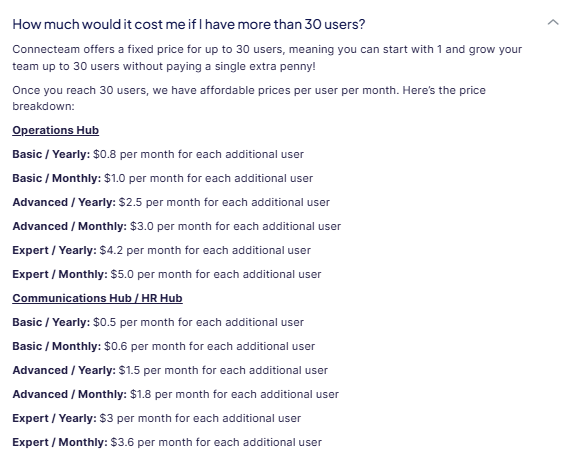
And, if you exceed 30 users, the Basic plan costs an additional $0.80-$1.00 per user per month, the Advanced costs $2.50-$3.00, and the Expert costs $4.20-$5.00 per user, depending on whether you're billed annually or monthly.
How Do You Get Started on a Web Browser?
Score: 8.5/10
I started by visiting the Connecteam website to create an account. The primary headline touted the ability to "Manage your team in one app."
The website also insists Connecteam "provides the tools necessary to connect deskless teams, simplify everyday work, and keep operations running smoothly." This messaging positions Connecteam as a one-stop shop for small businesses seeking an all-in-one workforce management solution.
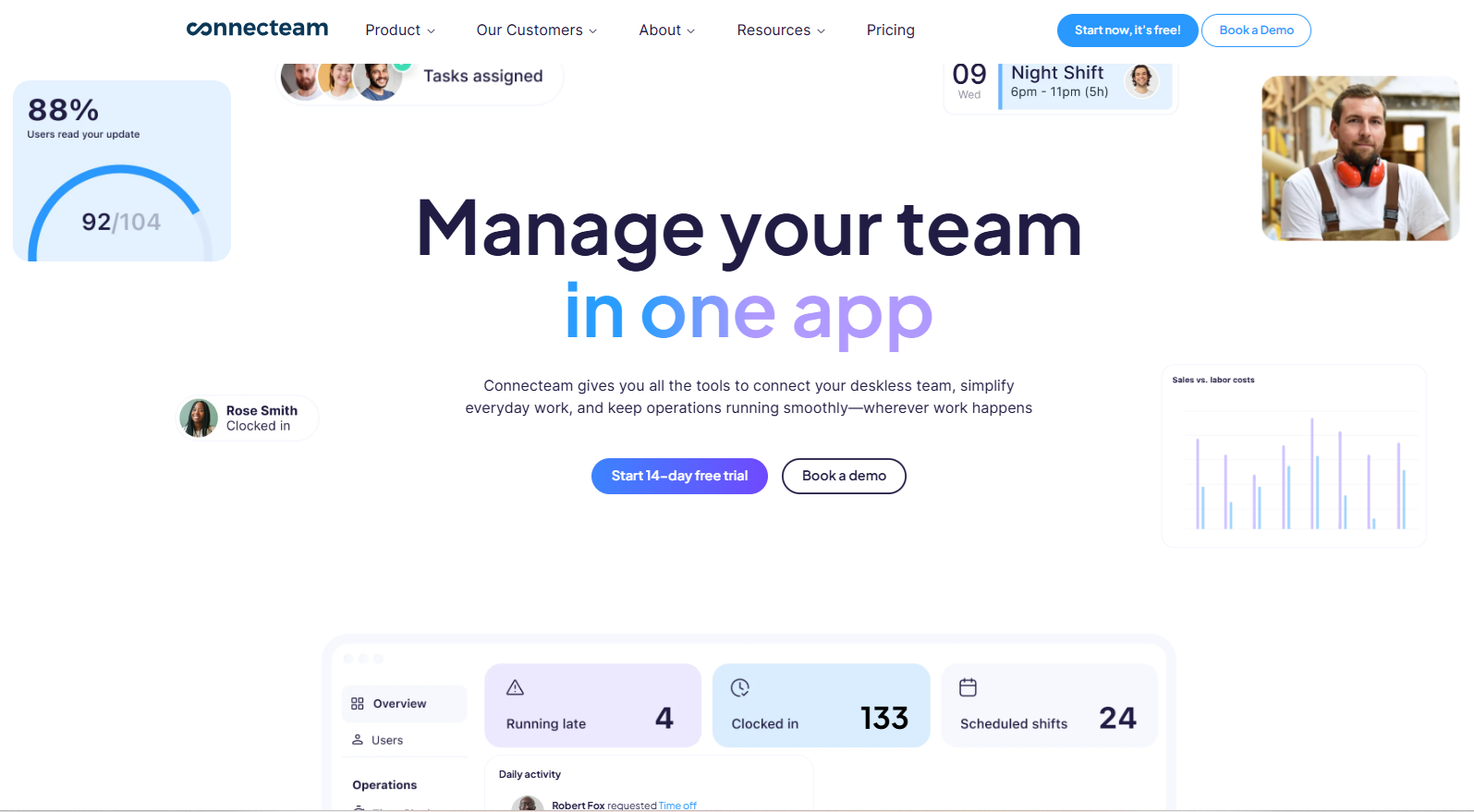
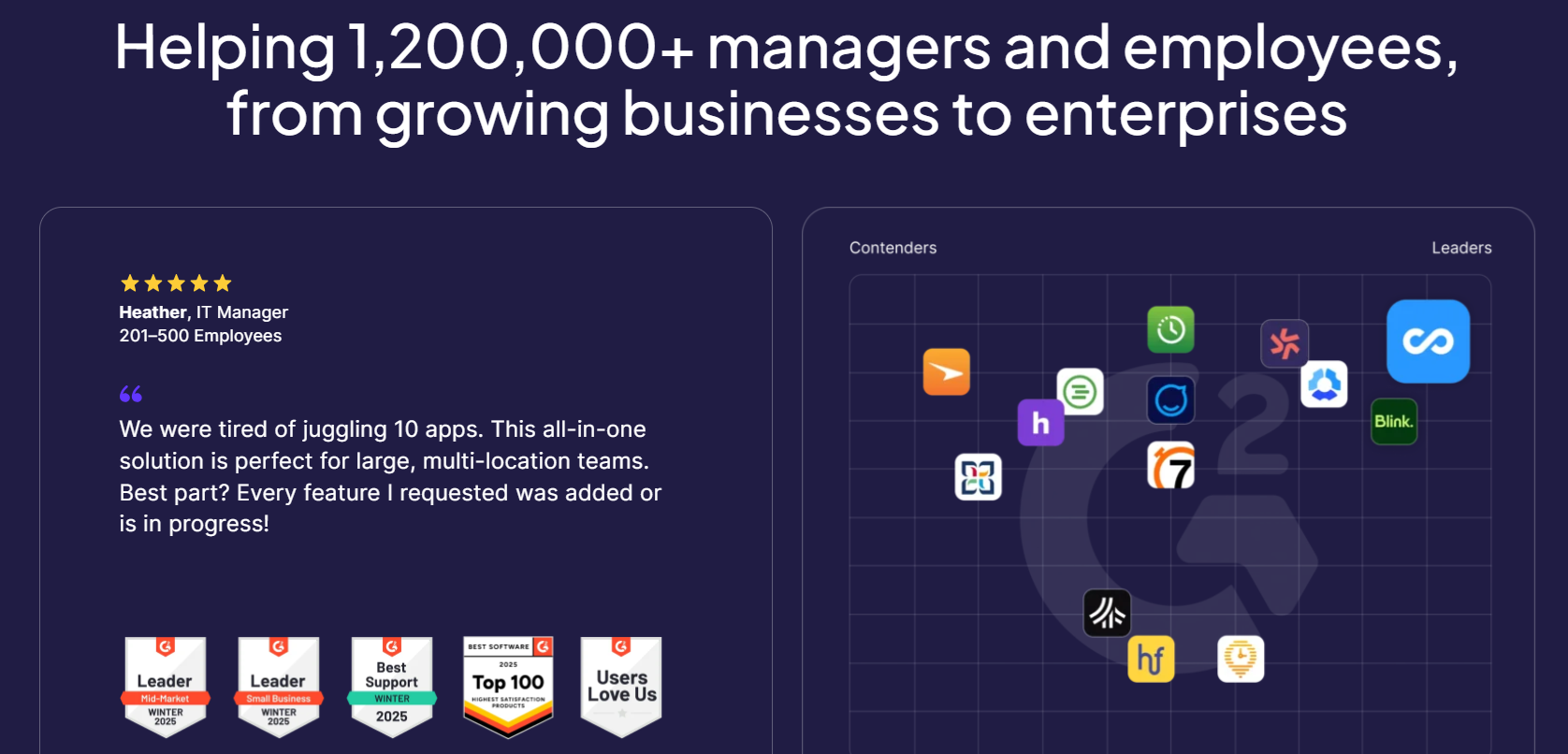
Scrolling down the page, I encountered reviews from popular third-party sites; landing pages for scheduling, time tracking, daily operations, internal communications, training, HR, and more; industry references; reviews; statistics; partnering companies; and much more.
While a bit busy, the homepage offers interested customers a wealth of resources and information.
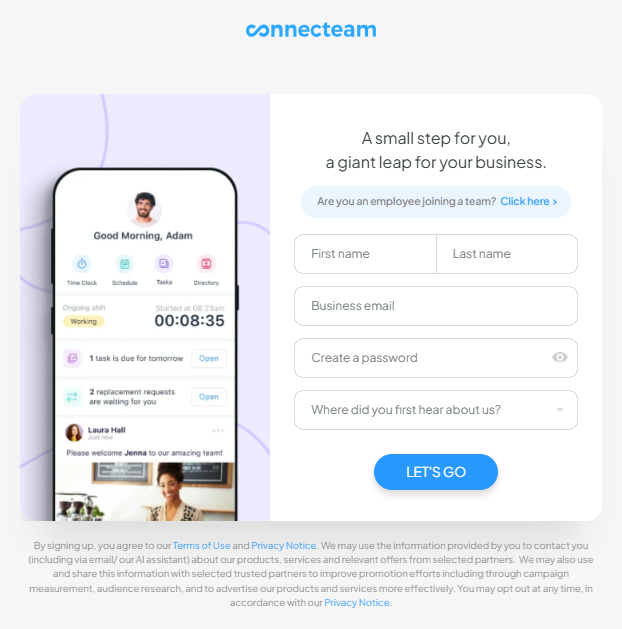
Clicking the "Start now, It's free!" button led me to a sign-up page. To proceed, I had to enter my name, business email address, create a password, and indicate how I heard about the software.
I was then prompted to customize the app, with the promise that I could complete the process in one minute. I entered my address, title, company size, industry, and locations. Then, I was prompted to input the features I was most interested in. The final steps allowed me to enter my website, logo, and mobile phone number.
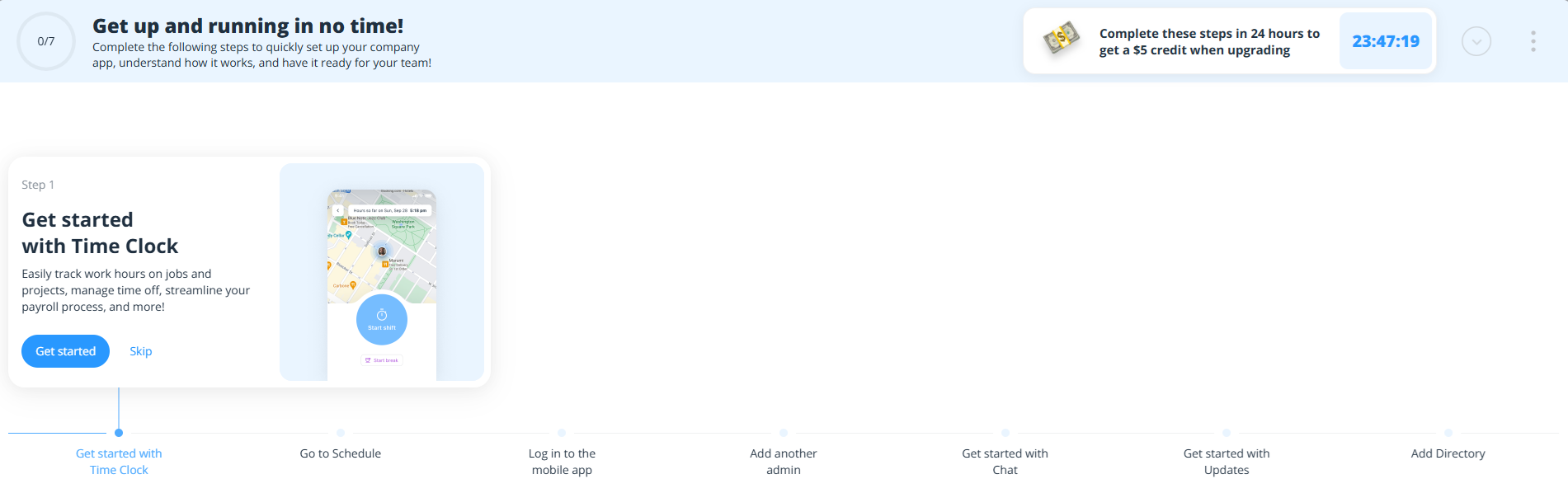
Then, a five-minute setup video autoplayed. The human-led visual tour was a nice touch, albeit a bit on the long side!
Yet another nice touch: Connecteam entices users to get set up promptly – offering a $5 credit for customers who upgrade within 24 hours of signing up!
The setup process was fairly simple and easy to navigate. I was able to get set up in just a matter of minutes.
How Do I Get Started on the Mobile App?
Score: 8/10
While I was watching the welcome video on the web, I received a link for the mobile app. After advancing beyond the two-factor authentication, I landed on the dashboard.
.png?width=215&height=466&name=Connecteam%20App%201%20(2).png)
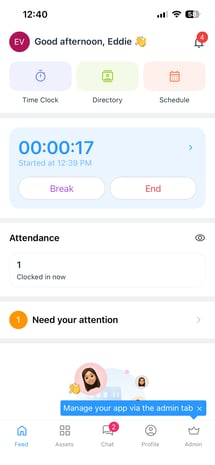
The dashboard was simple – featuring a time clock, directory, and schedule along the top border. An employee onboarding request was flagged on the top third of the page, and the bottom of the page offered numerous tutorials.
The very bottom margin was occupied by icons that open shortcuts to the dashboard (feed), assets, chat, profile, and admin.
Clicking Clock In immediately punched my time.
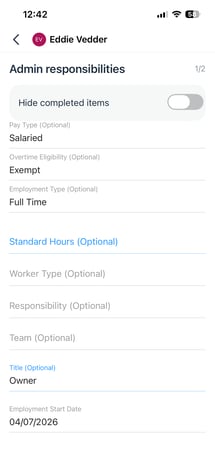
I clicked the onboarding guide and began configuring my admin's profile. To do so, I had to identify my employee's pay type, overtime eligibility, employment type, standard hours, worker type, start date, and more.
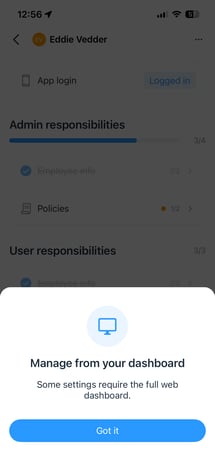
I was able to set up my admin fairly quickly. However, I was unable to complete the policies portion because it had to be done online.
Overall, the initial app experience was simple to navigate, albeit a bit basic.
How Do You Add Employees?
Score: 8.5/10
To add an employee, I clicked the Users tab in the menu, then clicked Add Users. I was given multiple options, including importing users, adding users manually, user integrations, etc.
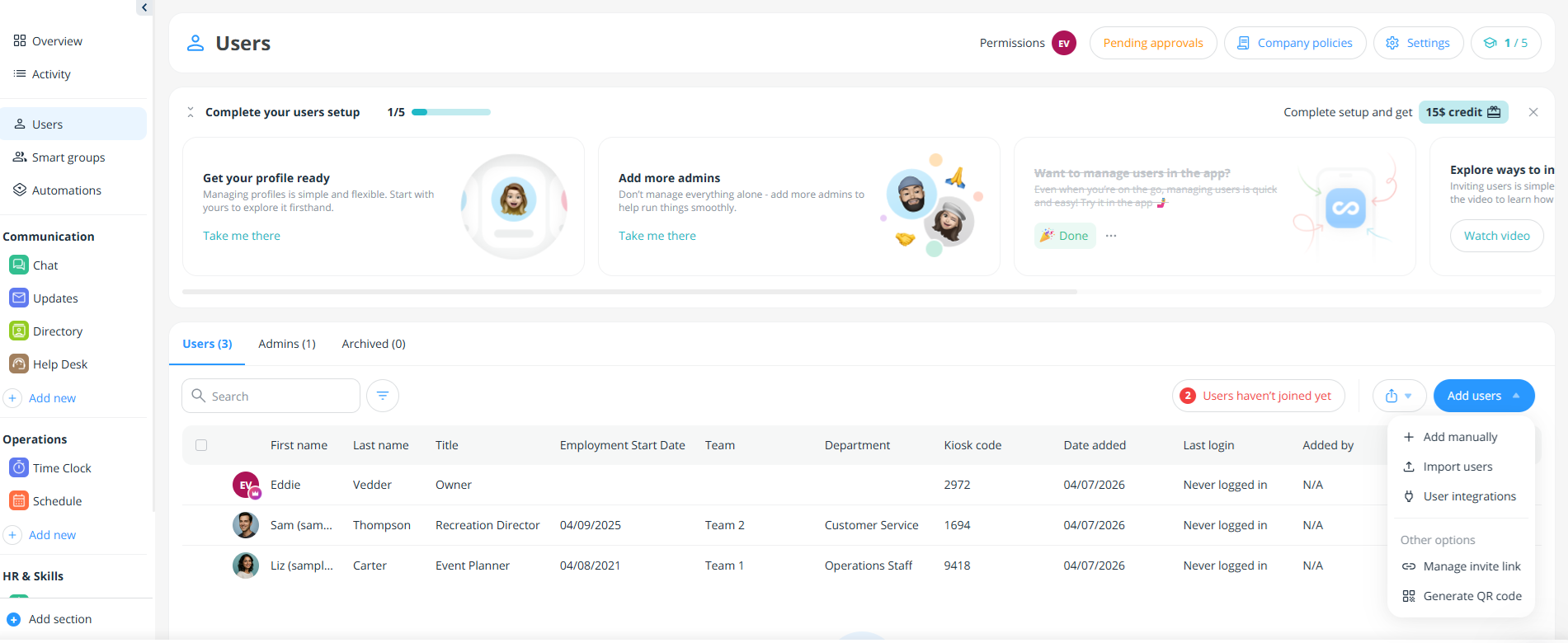
The next screen allowed me to add users individually or in bulk. All I had to do was enter their name and phone number, and they were now part of the team.
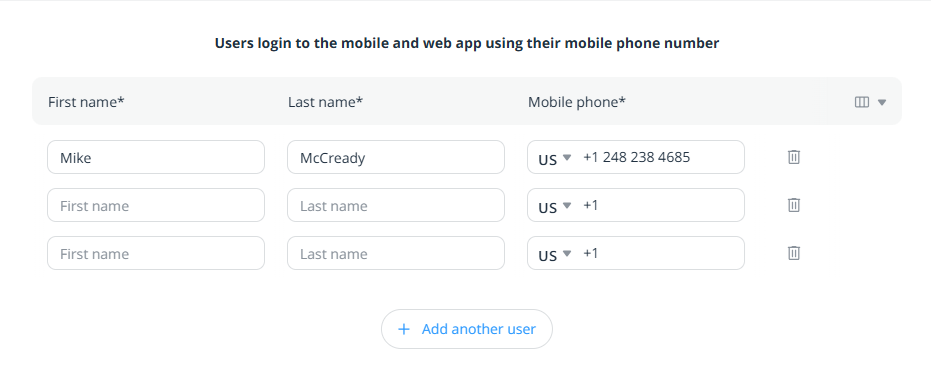
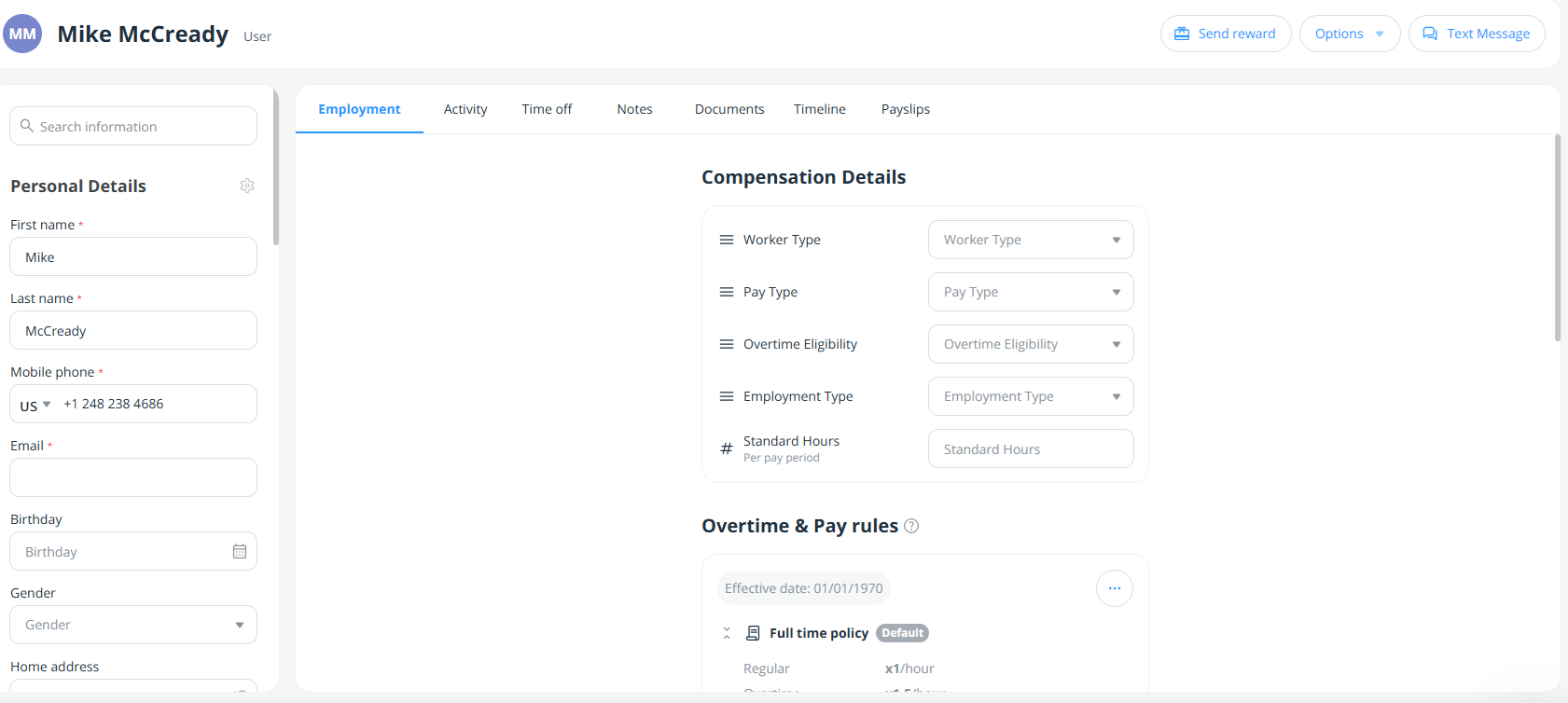
Each new employee is assigned a Kiosk code, but admins must enter the rest of their details, including worker type, pay type, overtime eligibility, employment type, standard hours, etc. Other options, available as you scroll down, include overtime hours, pay rate, scheduling rules, and payment information.
On the app, adding employees was fairly simple. I clicked the Team tab and then the + icon in the top-right corner. From there, I was asked whether I wanted to add a team member manually or via my contacts list. When adding an employee, I was asked to enter their name, email address, and phone number. I could also toggle on an alert asking them to join via the app.
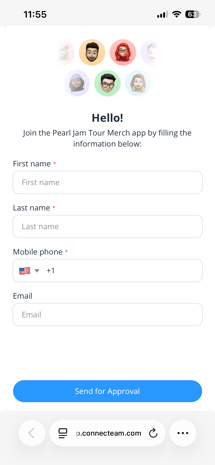
Adding employees on both the web and app was easy and quick. I was able to get new employees up and running in just minutes. Great job, Connecteam!
How Does Scheduling Work?
Score: 9.5/10
After setting up my account and adding employees, I navigated to the Schedule tab to begin creating a schedule.
The guide insisted I could set up a schedule in two easy steps, showing me how to add a shift title, jobs, users, address, notes, and shift tag.
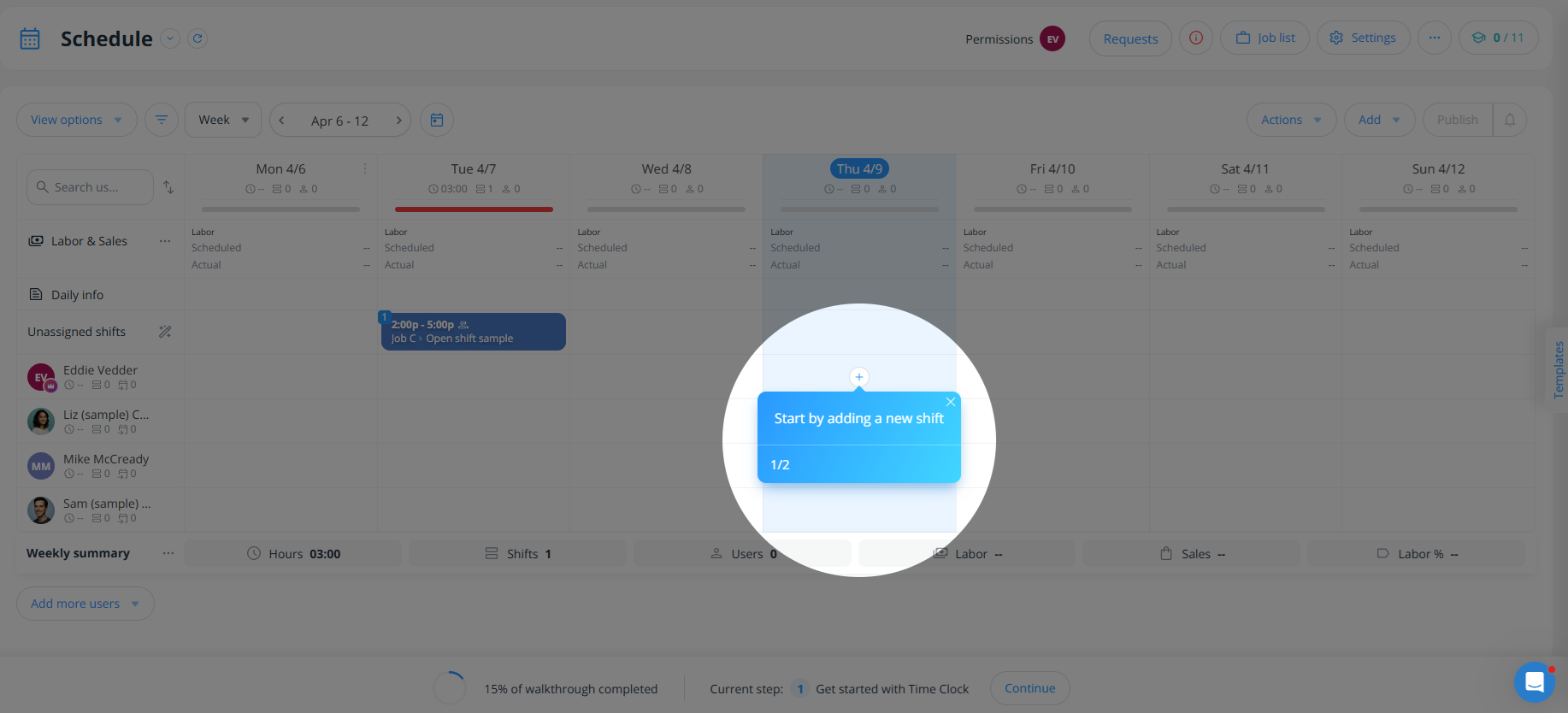
When creating a shift, I needed to input a date, start and finish times, shift title, job, add users, etc. I could also include a note, attach a file/image, add a field, and more. To share the schedule, I hit the blue publish button in the bottom-left of the screen.
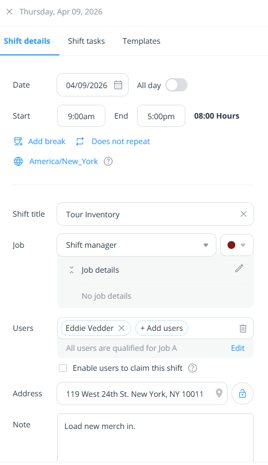
To copy the shift to another employee or day, I clicked the three dots and selected Duplicate. I could then drag the duplicated schedule to the desired employee/day.
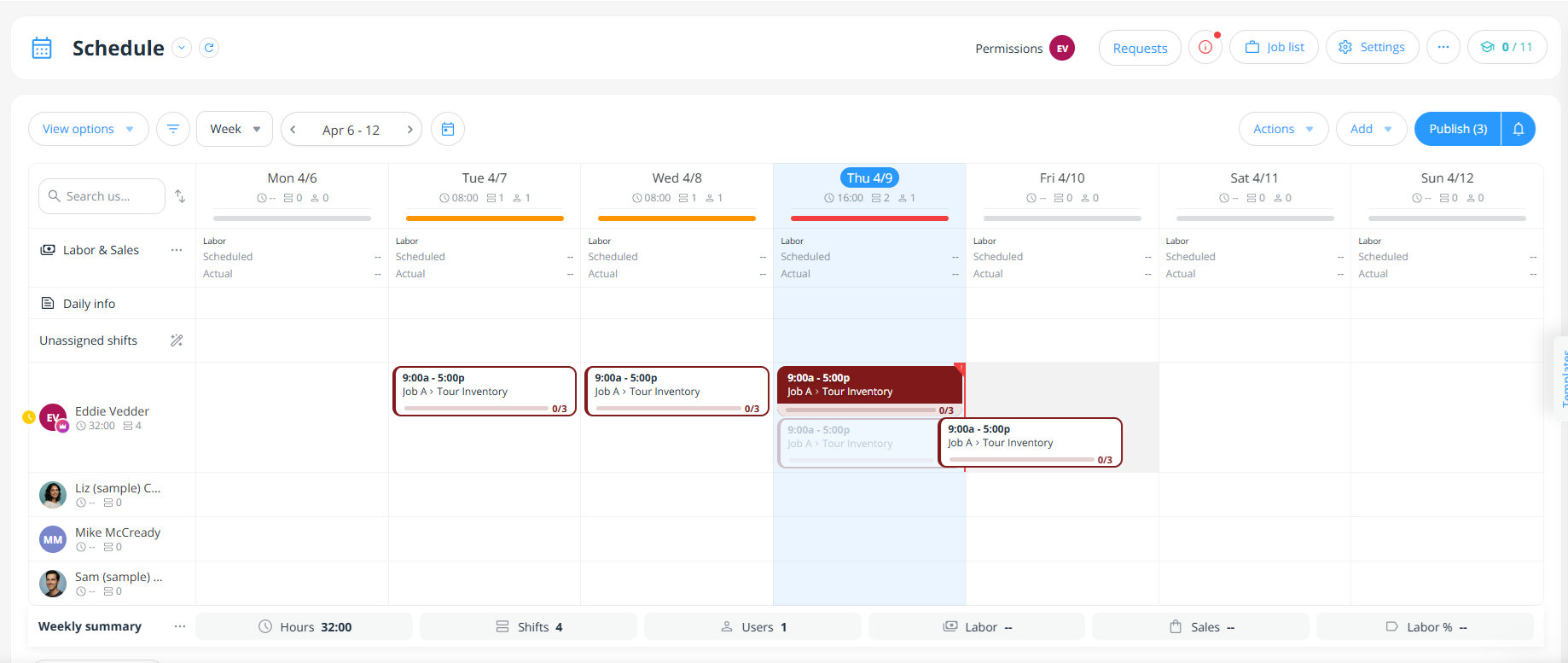
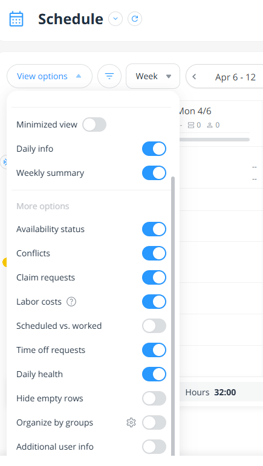
Connecteam offers many options. For example, users can filter the view by users, job, and lists. The schedule can be configured by day, week, or month and can be toggled forward or backward by weeks at a time. Other options include availability, conflicts, claim requests, labor costs, scheduled vs. worked, and more.
At the bottom of the screen, the number of hours, shifts, and users was displayed – a nice "at-a-glance" feature.

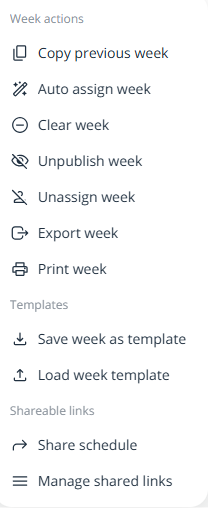
Finally, Connecteam allows users to easily copy, assign, unpublish, and export weeks, and more. Schedules can also be shared with a single click.
The scheduling tool was extremely intuitive. I was able to quickly make a schedule, copy it for the following week, and inform employees effectively and efficiently. Well done, Connecteam!
How Do Timecards Work?
Score: 8.2/10
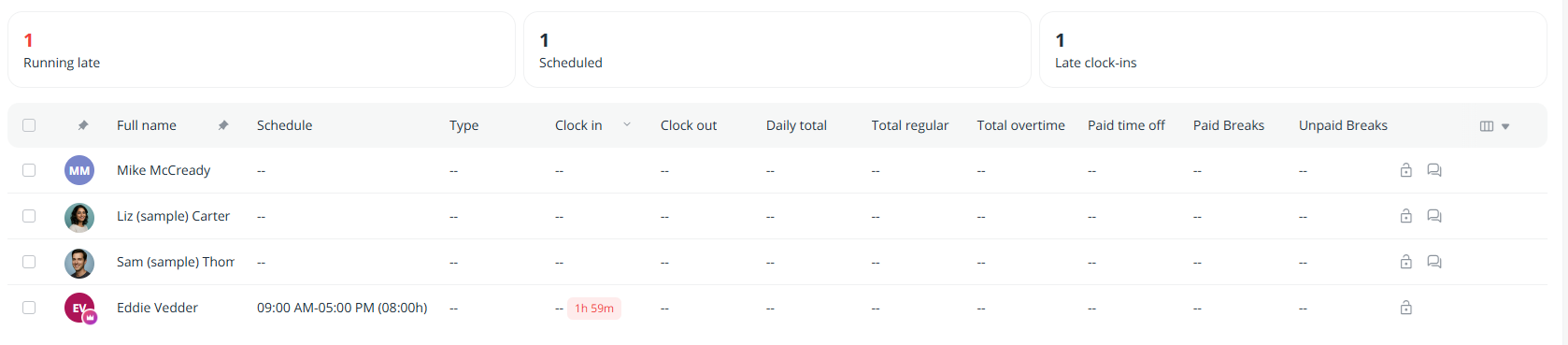
Punches and time records are accessible via the left-margin menu, under Time Clock.
The initial screen lists each employee, their schedule, time records, the daily total, regular total, overtime, paid time off, breaks, and more.
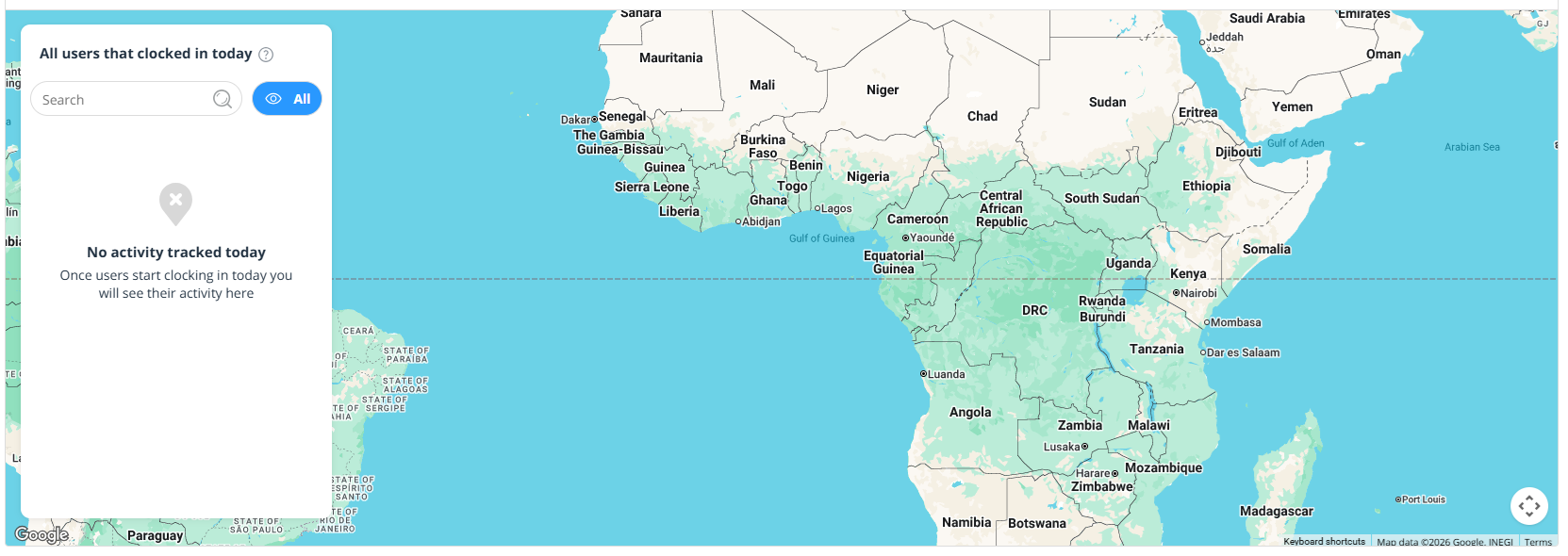
Scrolling down, I encountered a map that showed where employees clocked in and what they were doing.
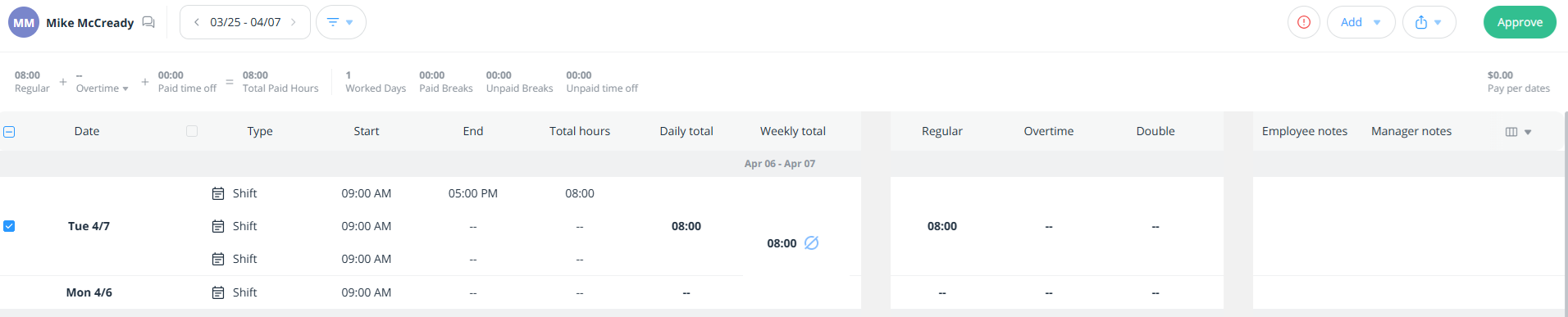
Clicking an employee's name opens their individual timesheet. Within, admins are able to add, edit, or delete time records dating back as far as two weeks.
I clicked the date and was then prompted to add a shift or a break. In just a few clicks, I was able to add shifts to specific employees.
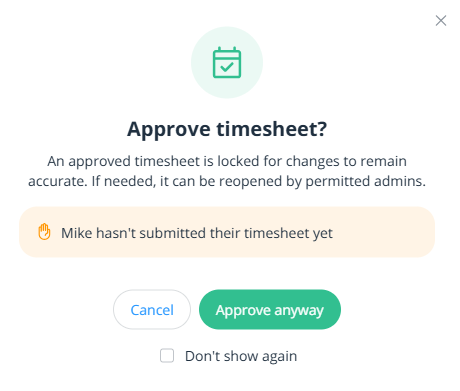
Once the time edits are completed, they need to be approved by an admin. Approved timesheets are locked and can only be reopened by admins.
The bottom of the timesheet section offers numerous tutorial videos, covering basics, essentials, settings, and more. Connecteam offers $15 off to users who complete all five training videos.

Connecteam's timesheets were easy to navigate and digest. Overall, I appreciated the various views and configurable options.
What Kind of Customer Support Does Connecteam Offer?
Score: 7.8/10
Support is a very important part of any time tracking company. It's crucially important to have a real person available if/when problems arise.
I located Connecteam's customer support by clicking the Quote button in the bottom-right corner of the web interface. Within, I was offered numerous options, including the ability to send a message, submit a feature request, search for help, peruse product releases, and more.
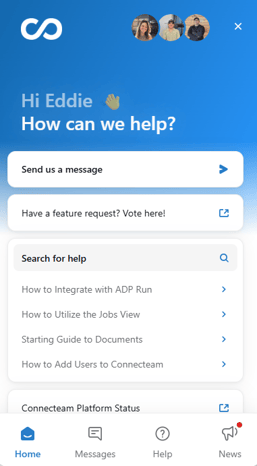
At the bottom of the help widget are four icons that offer shortcuts to Home, Messages, Help, and News.
Clicking Messages led me to an AI chat. I clicked the chat and was asked to identify the scope of my problem. I selected product-related questions. Then, I was prompted to identify the size of my company. Then, finally, I asked, "When was the last time Connecteam raised its prices?"
The AI chat was unable to answer the question. So, I escalated the conversation to a live support rep. Chris joined the chat within five minutes. He responded that prices last went up in 2025. That particular update also sunset a 50% discount for certain hubs that had previously existed.
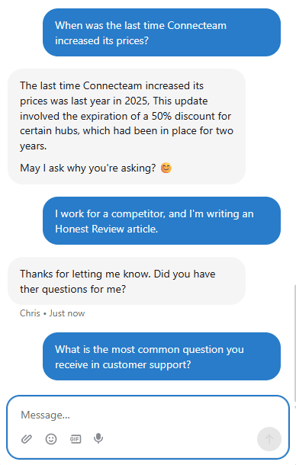
Chris was a lot of fun to interact with and even closed the chat with a GIF.
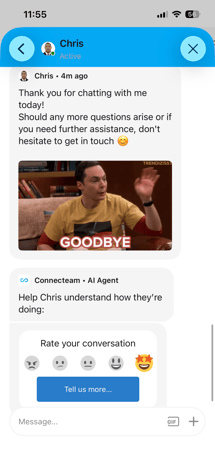
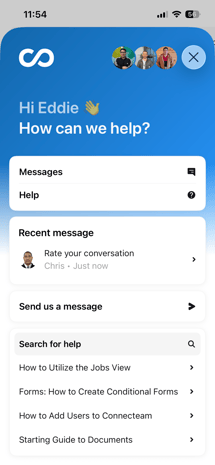
After my interaction with Chris, I opened the mobile app and was pleasantly surprised to discover the interface was very similar. In fact, my interaction with Chris was already accessible on the app, and I was invited to rate the conversation (I gave him the highest rating possible!).
How Does In-App Chat Work?
Score: 9/10
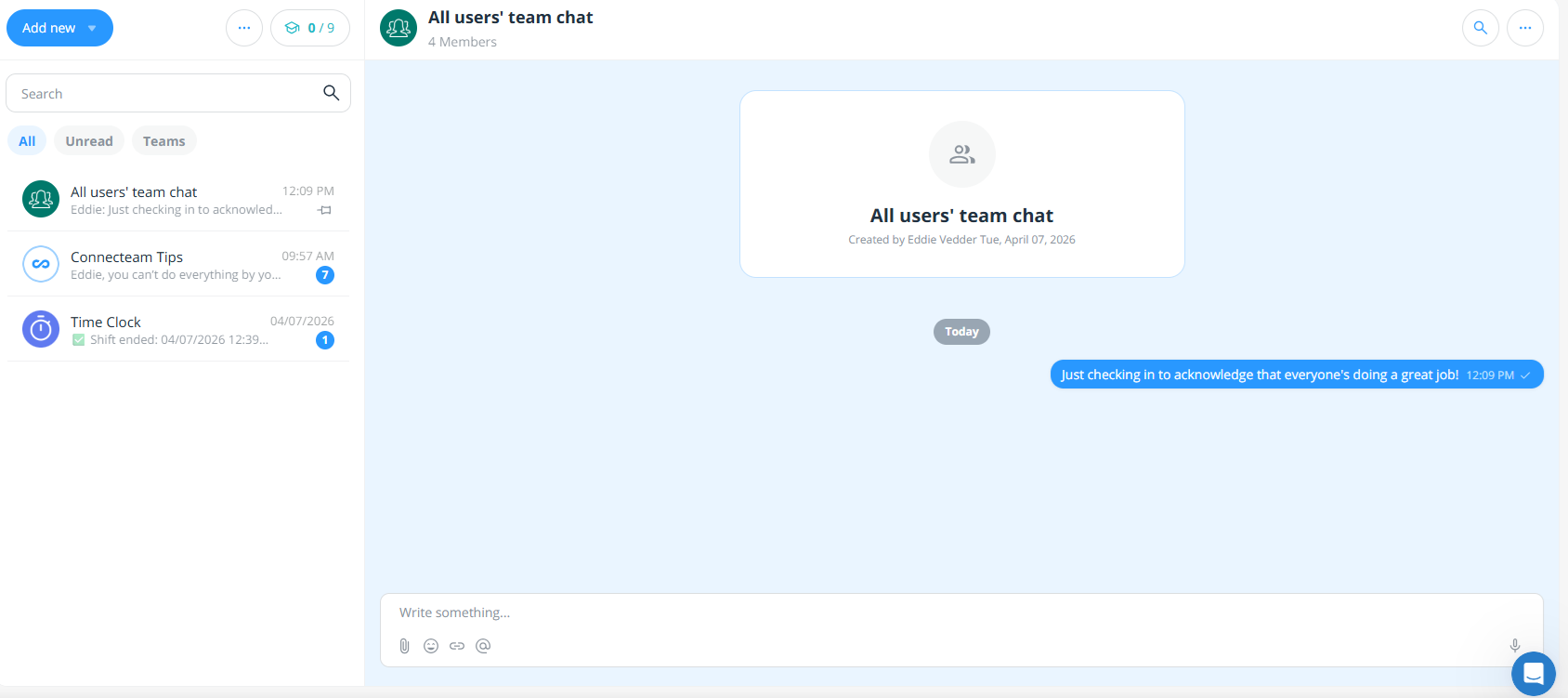
To access the chat function, I clicked the Chat tab in the left-hand menu. The interface allowed me to view an internal chat, Connecteam's tips, and time clock summaries.
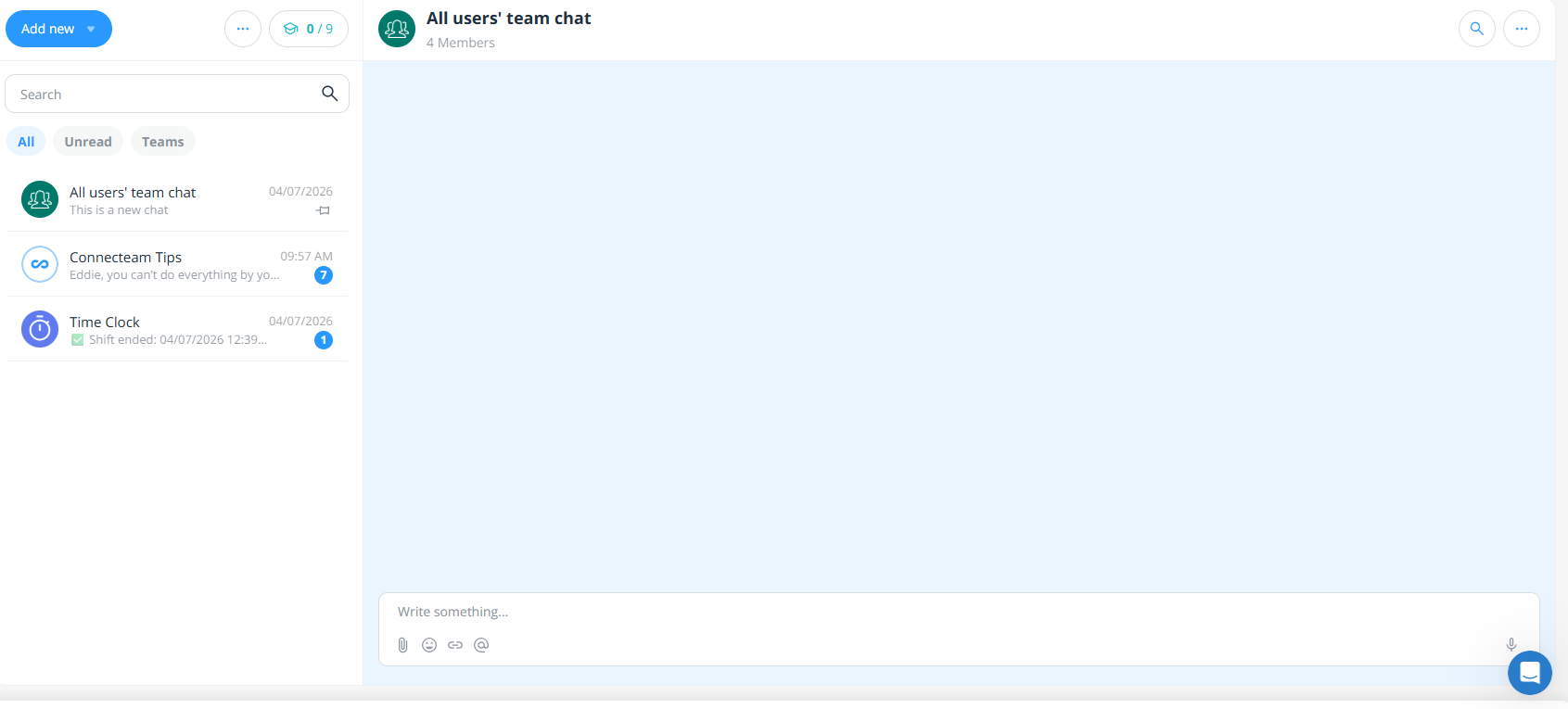
Once I sent a message to the entire team, the message was timestamped and appeared on everyone's app.
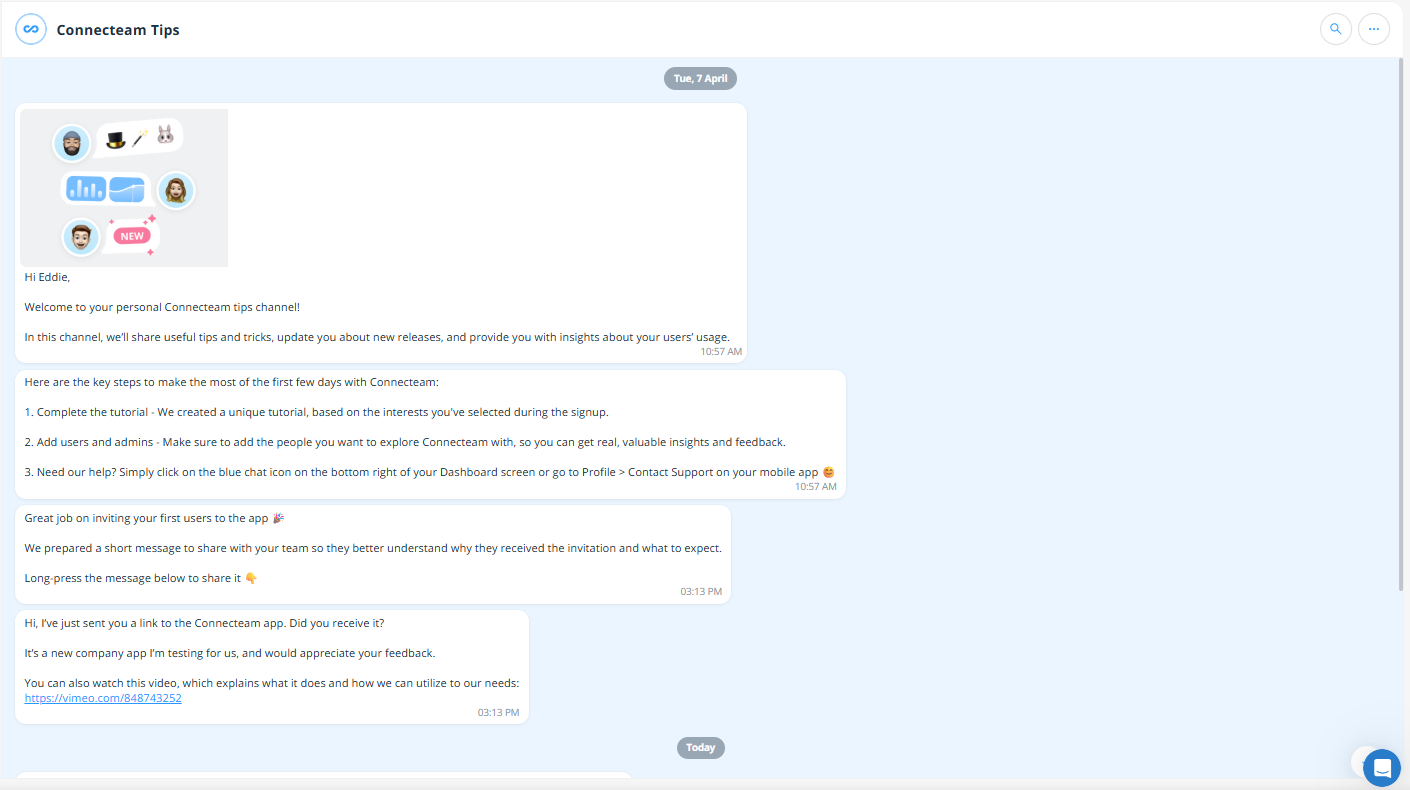
Connecteam's Tips chat offers lots of valuable information, including texts celebrating my progress, another inviting me to experiment with a new app, testimonial videos, and more.
These texts seemed personalized to my company, which made me feel welcome.
Finally, the Time Clock thread shows completed shifts, complete with a summary of the exact time record, total hours, and any details.
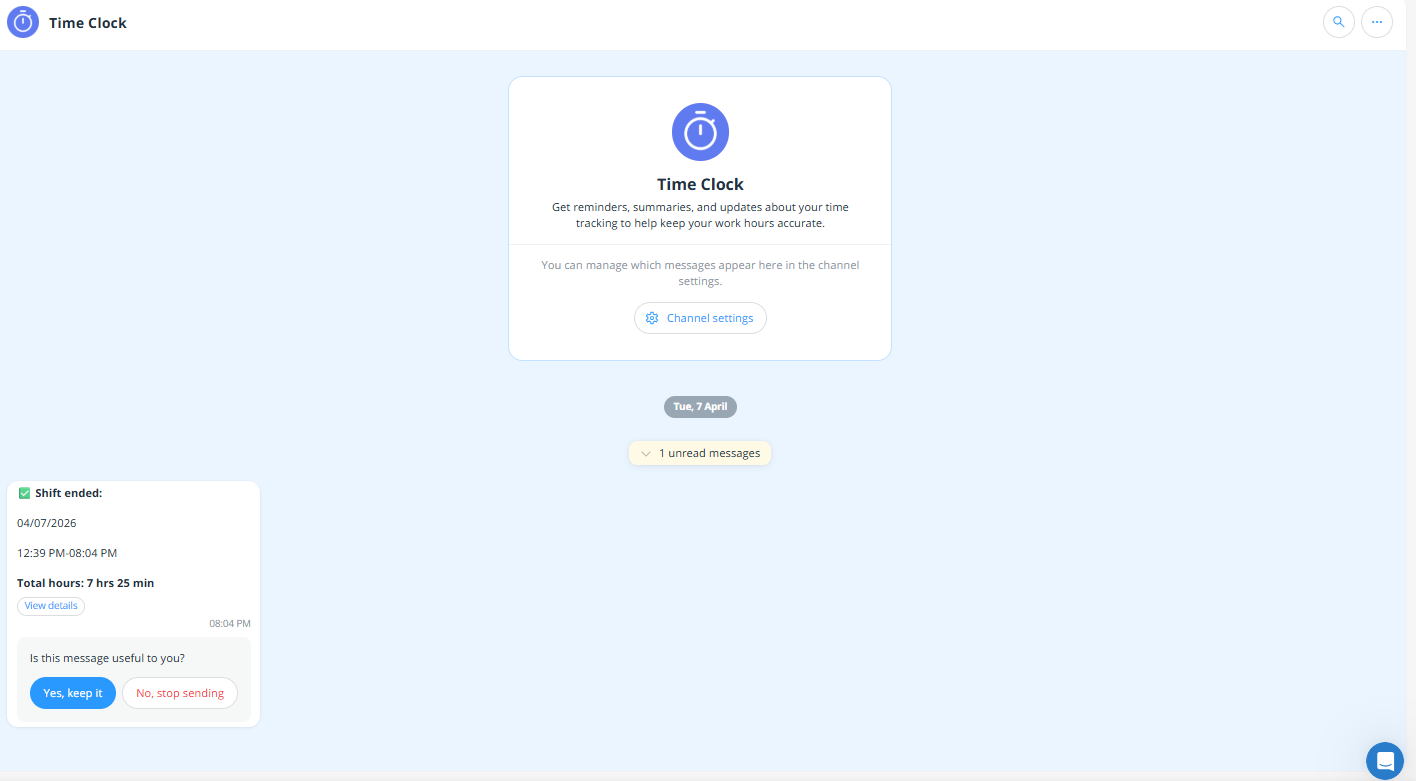
Connecteam's chat feature was adequate. The three-thread approach offers a unique experience, sprinkling in external messages along with the basic internal team chat.
How Do You Manage Time Off?
Score: 8.2/10
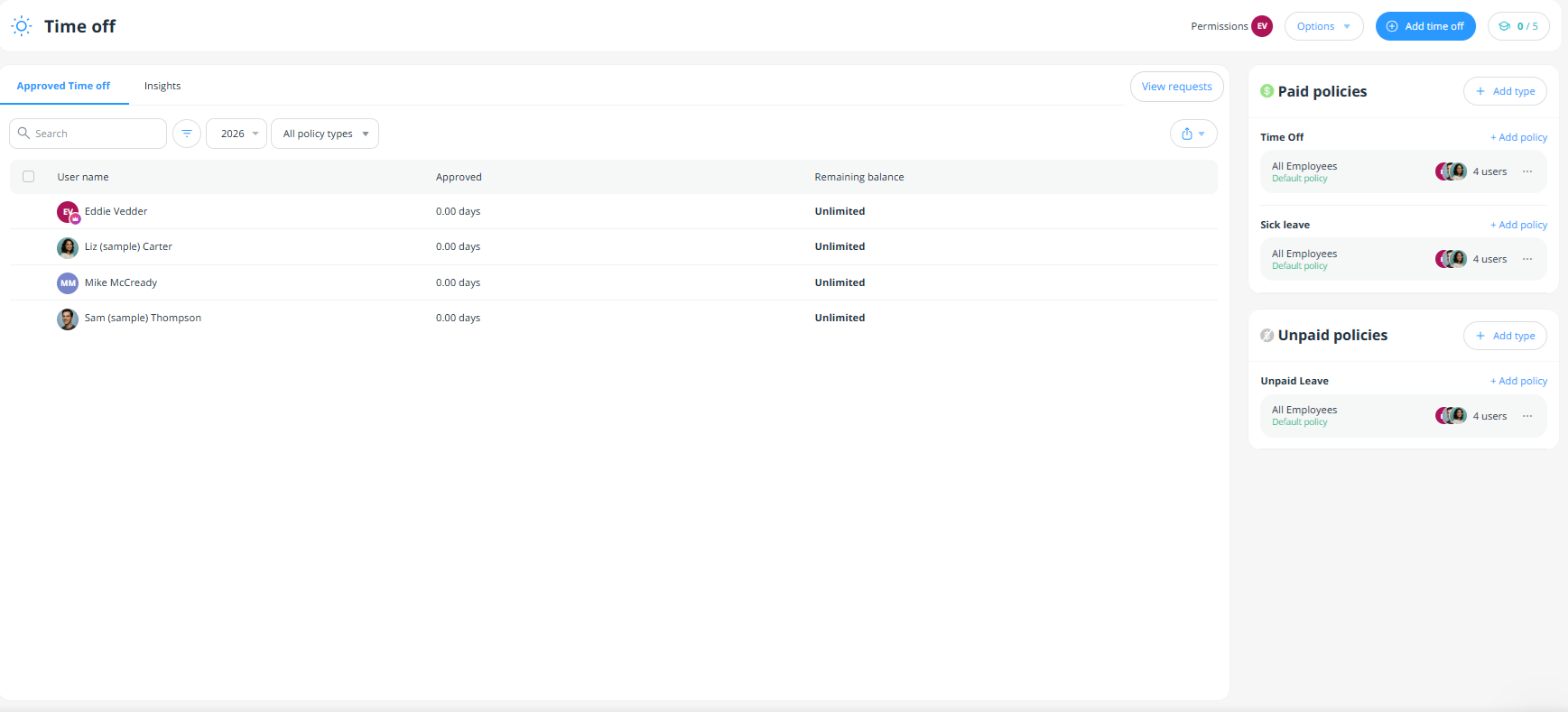
To implement time off, I clicked the Time Off tab. Before assigning time off, I had to establish the company's paid and unpaid policies.
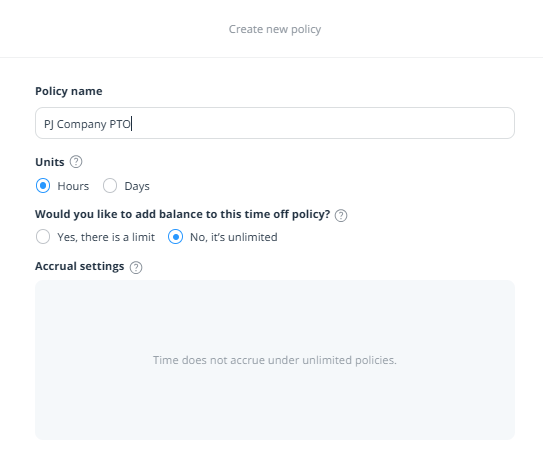
While establishing my policy, I first clicked Paid Policy. Within, I was able to name the policy, set up the incremental unit (hours or days), define work days, establish admin approval (or not), set limitations, and establish a waiting period.
When establishing a limit, I was able to select a fixed amount or accruing hours.
I was then able to select the employees I wanted to assign the policy to or establish the policy as the default.
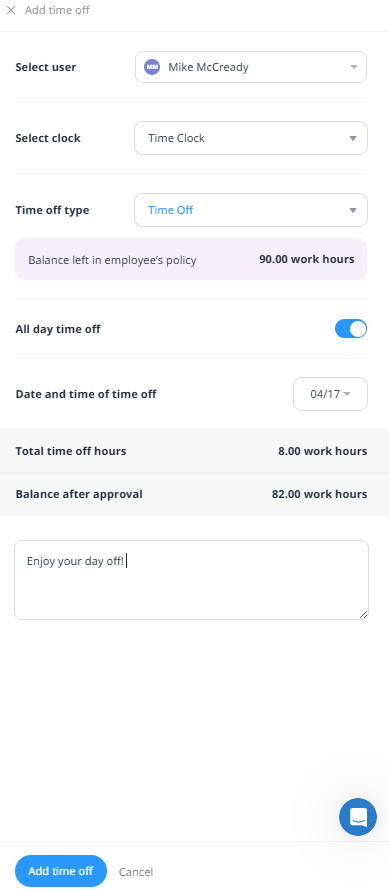
Upon clicking the Add time off button, I was able to easily select the user, clock, time off type, and complete my request.
Once approved, the employee's paid time off (PTO) was now shown on the Time Off interface.
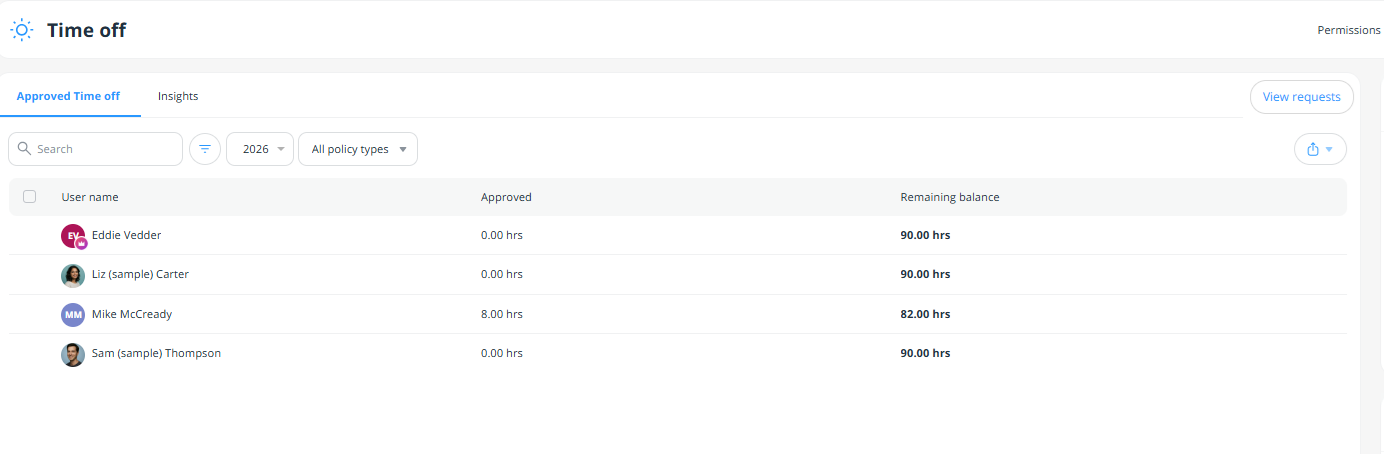
Overall, the time off tool was simple enough. There was some extra clicking involved in setting up the policy and assigning it, but I was able to figure it out rather quickly.
How Does Payroll Integration Work?
Score: 8/10
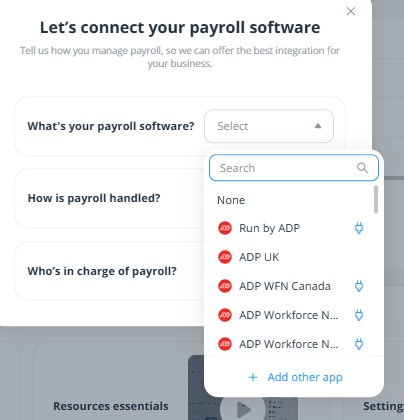
Connecteam does not offer an in-house payroll element.
However, it offers numerous payroll integrations with third-party providers, including QuickBooks Online, Gusto, Xero, and others.
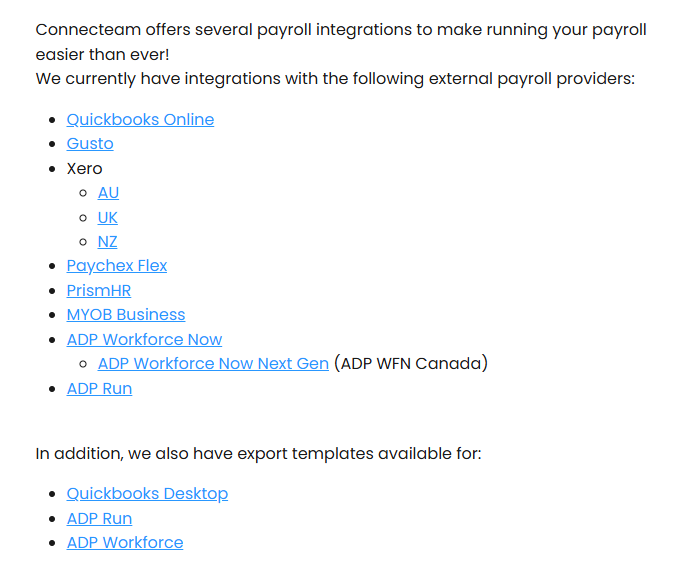
There is a Payroll Totals tab that provides an export of all payroll data. Such data can be configured to accommodate a number of needs, including excluding users with no entries, job codes, and more.
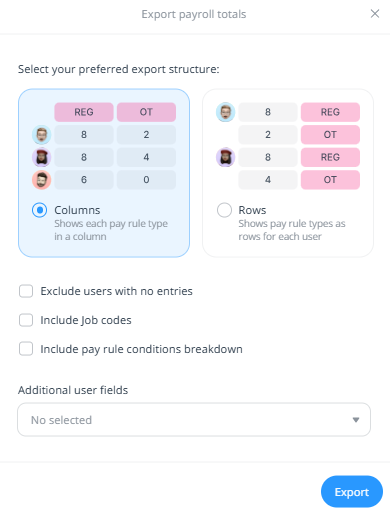
Once the appropriate data was selected, the exporter tool allowed me to further customize the process.
What Add-Ons Does Connecteam Offer?
Score: 7.5/10
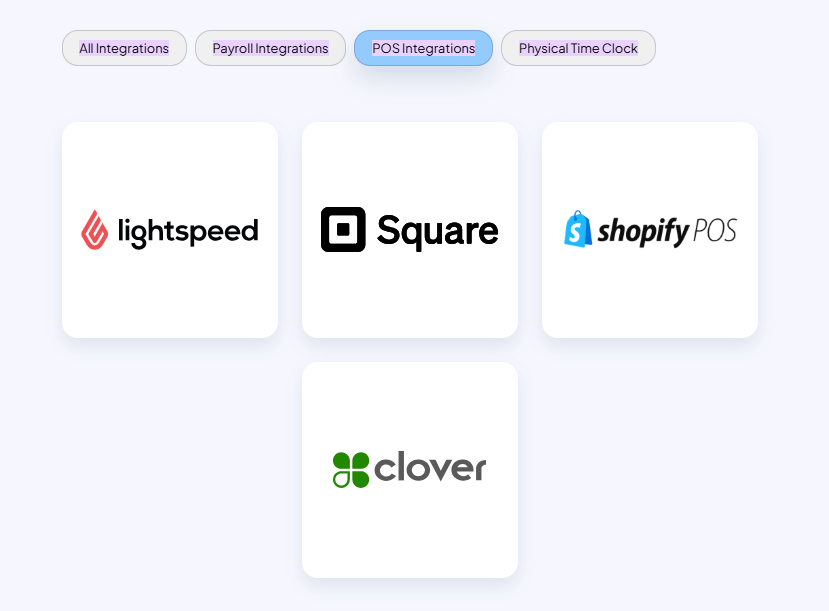
Connecteam doesn't necessarily offer add-ons, though it does offer several integrations for payroll, point-of-sale (POS), and time clock.
We've already mentioned some of the payroll integrations. For POS, Connecteam integrates with Lightspeed, Square, Clover, and others. For time clocks, the tool matches with ATS and Synel.
How Does Connecteam Handle Follow-Ups and Outreach?
Score: 7.5/10
Upon signing up, I immediately received a welcome email and a setup tutorial. The email included a human-led video, which was nice, providing me with step-by-step instructions on how to proceed.
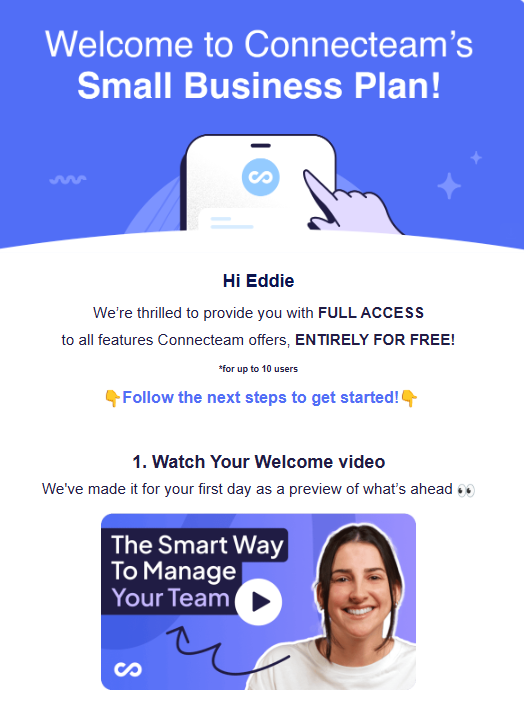
Connecteam's outreach extends well beyond email. The internal chat quickly sent push notifications to the team about employees' birthdays, punch reminders, missed logins, internal chat logs, and more.
What Are the Pros and Cons of Using Connecteam?
Connecteam is a workforce management platform built primarily for deskless and field-based teams. It combines time tracking, scheduling, employee communication, task management, and HR tools into a mobile-first system, making it especially effective for businesses with remote or on-the-go employees. Its broad feature set and strong mobile experience make it appealing for operations-heavy teams, but feature segmentation and per-user pricing can create complexity as businesses scale.
Pros of Using Connecteam
- All-in-One Platform for Deskless Teams – Connecteam brings together time tracking, scheduling, communication, task management, and HR tools in one system. This makes it a strong fit for businesses that want to manage operations, employees, and workflows from a single platform.
- Mobile-First Experience – The platform is designed with mobile users in mind. Employees can clock in, view schedules, complete tasks, and communicate with managers directly from their phones, making it ideal for field teams and remote workers.
- Strong Team Communication Tools – Connecteam includes built-in chat, updates, surveys, and announcements. These tools help businesses keep employees informed and engaged without relying on third-party communication apps.
- Task and Operations Management Features – Beyond time tracking, Connecteam allows managers to assign tasks, create checklists, and track progress in real time. This is especially valuable for businesses that need operational visibility across multiple job sites or teams.
- Customizable Workflows and Forms – Businesses can create custom forms, checklists, and processes tailored to their operations. This flexibility makes it easier to standardize workflows and improve accountability.
Cons of Using Connecteam
- Feature Segmentation Across Hubs – Connecteam divides its features into separate "hubs" (Operations, Communications, HR & Skills). Businesses often need multiple hubs to unlock full functionality, which can increase complexity and cost.
- Per-User Pricing Can Add Up – While base plans include up to 30 users, each additional user adds up to $5 per month, depending on the plan, which can significantly raise total expenses for growing teams – especially when adding additional hubs.
- Can Feel Overbuilt for Simple Needs – For businesses that only need basic time tracking and scheduling, Connecteam's wide range of features may feel overwhelming or unnecessary.
- Learning Curve for Full Setup – While basic functions are easy to use, configuring workflows, tasks, and custom forms can take time during onboarding.
- No Built-In Payroll – Connecteam does not offer native payroll processing, requiring businesses to rely on integrations or external payroll providers.
- Key Tools Locked to Higher Tiers – Features like auto clock-out, extra geofence sites, auto-reports, and API access are only available on the Advanced or Expert plans, which may limit functionality for smaller teams.
What Do Real Users Say About Connecteam?
Looking beyond marketing claims, user reviews paint a fairly consistent picture of Connecteam.
Across platforms like G2, Capterra, Google Play, and the Apple App Store, many users highlight Connecteam's strong mobile experience, wide feature set, and ability to manage multiple aspects of their operations in one place. Customers frequently mention how useful it is for coordinating field teams, tracking time, assigning tasks, and communicating with employees without relying on multiple apps.
Managers often point to the value of Connecteam's communication tools and operational features. Built-in chat, updates, checklists, and task management help streamline workflows and improve accountability across teams, especially for businesses with employees working in different locations. The ability to customize forms and processes is also commonly cited as a major advantage for companies with specific operational needs.
That said, reviews also reveal a few consistent friction points. Some users note that Connecteam's features are spread across multiple hubs, which can make the platform feel more complex than simpler time-tracking tools. Others mention that costs can increase as teams grow, particularly when multiple hubs or advanced features are required. There are also occasional comments about a learning curve during initial setup and limited built-in payroll functionality.
Overall, real users tend to agree that Connecteam is best suited for businesses managing deskless or field-based teams that need more than just time tracking. Companies looking for a simpler, more streamlined solution with fewer moving parts may prefer a more consolidated workforce management platform.
For example, the most relevant review on G2, where Connecteam has a 4.6-star rating from 3,500-plus reviews, comes from Oren K. on April 4, 2026, who writes, "I find Connecteam incredibly useful for chatting and updating clients and making quick announcements whenever needed. The mobile-friendly aspect of the software is amazing for our staff working in the field. The feature of clock in and clock out, along with GPS tracking, is unique and valuable for ensuring our employees' attendance is real and for tracking the field team's specific work locations. The initial setup was quite smooth and simple, which I really appreciated."
On Capterra, where Connecteam has a 4.6-star rating based on 5,000-plus reviews, Davids F. writes, on April 8, 2026, "My overall experience with Connecteam has been very positive. It is a practical and reliable tool for managing employees, especially when teams work in different locations. The GPS-based clock-in gives extra confidence that attendance is accurate, and the downloadable reports make administration much easier. The platform helps organize daily work, improve visibility, and reduce manual follow-up. Although there is a small learning curve in the beginning, once everything is set up, it becomes a very useful solution for team management."
On Apple, where Connecteam has 4.9 stars on nearly 60,000 ratings, one reviewer wrote, on March 18, 2026, "I love everything about it. I've been using this app for three years now, and it's pretty awesome. Only thing I wish it had is the totals for each employees the end of the year for tax stuff."
How Does Connecteam Compare to OnTheClock?
| Feature | Connecteam | OnTheClock |
|---|---|---|
| Mobile Experience | The platform is designed with a mobile-first approach, allowing employees to clock in, manage tasks, communicate, and view schedules directly from their phones. While highly functional for field teams, the depth of features can make navigation feel more complex for new users. | The mobile app supports time tracking, scheduling, PTO, and payroll workflows through a streamlined interface. Managers can also access broader team visibility and administrative controls directly from the app. |
| Desktop Clock-Ins | Employees can clock in through the web browser, kiosk mode, or mobile app. While desktop functionality is available, the platform is primarily optimized for mobile use, which may limit flexibility for office-based teams. | Fully supported across desktop and laptop devices with built-in admin controls and minimal configuration required. |
| Time Tracking | Connecteam includes time tracking with GPS, geofencing, job tracking, and automated timesheets. However, some advanced features and reporting capabilities are tied to higher-tier plans or specific hubs. | Core time tracking includes approvals, edits, reporting, PTO tracking, and user permissions without requiring tier upgrades for essential tools. |
| Payroll Functionality | Connecteam does not offer built-in payroll. Businesses must export time data or integrate with third-party payroll providers to process employee wages. | Offers integrated payroll as an optional add-on, allowing timecards and payroll data to operate within the same system. It also integrates with major payroll providers, if preferred. |
| User Roles & Permissions | Role-based permissions are available with admin and manager controls. However, advanced permissions, workflows, and automation tools are often tied to specific hubs or higher-tier plans. | Owner, administrator, manager, and employee roles are available on every plan, with no tier upgrades required. |
| Customer Support Access | Support is available through chat and help resources, with faster response times typically reserved for higher-tier plans. Phone support is limited or not always available across all tiers. | Phone, chat, and email support are available to all subscribers. |
| Time Clock Kiosk | Connecteam offers a kiosk app for shared devices that lets employees clock in from a central location, with optional GPS and verification features. | A dedicated kiosk mode is designed for shared devices with built-in admin controls. |
| API Access | Connecteam provides integrations and API access depending on plan level, allowing businesses to connect external systems and customize workflows. | API access is available to businesses that need custom workflows or integrations. |
| Pricing Structure | Connecteam charges a flat monthly price for the first 30 users, then a per-user fee, and separates features into multiple hubs (Operations, Communications, HR). Costs can increase as businesses add users, hubs, or advanced features. | Pricing uses a flat base fee plus a per-employee cost, with core time tracking and scheduling features included without locking key tools behind higher tiers. |
What's the Final Verdict on Connecteam?
Connecteam is a powerful workforce management platform built primarily for deskless and field-based teams. It brings together time tracking, scheduling, communication, task management, and HR tools into a single mobile-first system, making it a highly capable solution for managing day-to-day operations in dynamic work environments.
Where Connecteam stands out most is in its mobile experience and operational flexibility. The platform is designed for employees on the go, allowing them to clock in, complete tasks, communicate with managers, and access important updates directly from their phones. For businesses managing teams across multiple job sites, this level of accessibility is a major advantage.
The platform also benefits from strong built-in communication and operations tools. Features like chat, announcements, checklists, and task management help businesses centralize workflows and improve accountability without relying on separate systems. The ability to customize forms and processes further enhances its value for companies with unique operational needs.
Another advantage is its broad feature set. Connecteam goes beyond basic time tracking by offering tools that support employee engagement, training, and day-to-day operations, making it a versatile solution for growing teams.
That said, Connecteam can feel more complex than simpler workforce management tools. Its features are divided into multiple hubs, and businesses often need access to more than one to unlock full functionality. This can create both a learning curve during setup and increased costs as your team grows.
Pricing is flat for up to 30 employees, then adds a per-user charge of $0.80 to $5, depending on the plan. Combined with its hub-based structure, costs can rise quickly as businesses grow or expand functionality.
Connecteam also lacks built-in payroll, requiring businesses to rely on integrations or external systems to process employee wages. For companies looking for a fully unified payroll solution, this can be a limitation.
Connecteam is best for:
- Field-based and deskless teams
- Construction, cleaning, logistics, and service businesses
- Companies needing strong communication and task management tools
Connecteam is not ideal for:
- Businesses looking for simple, lightweight time tracking
- Companies that want built-in payroll
- Teams that prefer a single, fully consolidated system without multiple feature hubs
Overall, Connecteam earns an 8.6/10 for its strong mobile functionality, robust communication tools, and operational flexibility. It's a great fit for businesses managing remote or field teams that need more than just time tracking.
If you're looking for a mobile-first platform that combines time tracking, communication, and operations management, Connecteam is a strong option. If you need more predictable pricing, fewer feature layers, and built-in payroll within a single streamlined system, you may benefit from a more fully consolidated workforce management platform.
If you're looking for a more streamlined way to manage time tracking, scheduling, and payroll without feature hubs or tier upgrades, try OnTheClock free for 30 days. No credit card required.
Frequently Asked Questions About Connecteam
How Much Does Connecteam Cost Per Month?
As of October 2026, Connecteam's Operations Hub costs $35 per month on Basic, $59 on Advanced, and $119 on Expert when billed monthly, or $29, $49, and $99 billed annually. Each price covers the first 30 users, then adds $0.80 to $5 per extra user. Each hub is priced separately.
Is Connecteam Reliable?
Reviewers rate Connecteam highly. It holds 4.6 stars on G2 from 3,500-plus reviews, 4.6 stars on Capterra from 5,000-plus reviews, and 4.9 stars on the Apple App Store from nearly 60,000 ratings. In our test, the mobile time clock punched in immediately, and a live support rep joined the chat within five minutes.
What Companies Use Connecteam?
Connecteam says more than 80,000 businesses use it, from small teams to global enterprises. It's built for deskless and field-based teams in industries such as construction, cleaning, logistics, and other service businesses. Customers featured on its homepage include B&B Beverages and NAE Cleaning Solutions.
Is Connecteam Free?
Yes, for small teams. Connecteam's Small Business Plan is free for life for up to 10 users and includes all hubs. Teams with fewer than 30 users can switch to a free Limited plan with each hub's essentials after the 14-day trial. Larger teams need a paid plan, starting at $29 per month billed annually.
