Most time tracking tools answer one simple question: When did your employees work? Hubstaff tries to answer a much different question: How do I know not only when employees are working, but what they’re doing while they’re on the clock?
With tools for time tracking, activity monitoring, GPS tracking, scheduling, and payroll prep, Hubstaff aims to give managers a detailed view of daily operations, especially for remote and distributed teams.
Where most time tracking tools stop at hours worked, Hubstaff goes a step further. It focuses on visibility into productivity, using features, such as app tracking, activity levels, and optional screenshots to paint a clearer picture of how time is being spent. For some businesses, that level of insight can improve accountability and reduce guesswork. For others, it may introduce complexity or raise concerns around oversight.
In this honest review, I walk through how Hubstaff actually performs in practice — from pricing and setup to time tracking, payroll workflows, and day-to-day usability. The goal is straightforward: give you a real-world look at where Hubstaff stands out, where it falls short, and whether it fits your business's operations.
Verdict: Is Hubstaff Worth It?
Score: 7.2/10
Hubstaff is a powerful time tracking platform built for businesses that want visibility into productivity, not just hours worked. Its biggest strength lies in its ability to track activity, monitor workflows, and provide detailed insights into how employees spend their time.
Time tracking itself is strong and reliable. Features like activity monitoring, app and URL tracking, screenshots, and GPS tracking give managers a high level of oversight, particularly for remote or distributed teams. For companies that prioritize accountability and performance tracking, this level of detail is a clear advantage.
Another key benefit is its flexibility around payments. Hubstaff lets you calculate wages, review time worked, and prepare payments based on tracked hours, reducing manual work during payroll prep.
The onboarding experience also raises concerns. Despite marketing a free trial with no credit card required, I was prompted to enter payment information before gaining full access.
Additionally, Hubstaff is powerful, but it’s not simple. And for many businesses, that trade-off matters more than the features themselves. Hubstaff is also not a fully unified workforce management solution. Payroll is not built in, meaning taxes are not handled within the platform, and businesses must rely on integrations or manual processes to complete payroll.
Costs can also increase quickly. Many features, such as advanced tracking, location tools, and insights, are tied to higher-tier plans or paid add-ons, which can significantly raise the total cost as your team grows.
The platform can also feel more complex than necessary for businesses that simply want a straightforward time tracking solution. Between add-ons, monitoring features, and configuration options, there are more moving parts compared to simpler tools.
Overall, Hubstaff earns a 7.2/10. It’s a strong option for businesses that want deep visibility into employee activity and productivity, but for companies looking for a more streamlined, all-in-one system with built-in payroll and predictable pricing, simpler alternatives are available.
How Much Does Hubstaff Cost?
Score: 6.8/10
Hubstaff offers four tiers: Starter, Grow, Team, and Enterprise.
The Starter plan costs $7 per seat per month and offers time tracking, time sheets, activity levels, limited screenshots, limited app and URL tracking, and more.
The Grow plan costs $9 per seat per month and includes reports, budgets, expenses, and more.
The Team plan is $12 per seat per month. It includes everything in the previous plans, including unlimited screenshots, payments and payroll, unlimited integrations, scheduling, time off, and more.
Finally, the Enterprise plan is $25 per employee per month and offers SOC 2 compliance, account provisioning, and more.
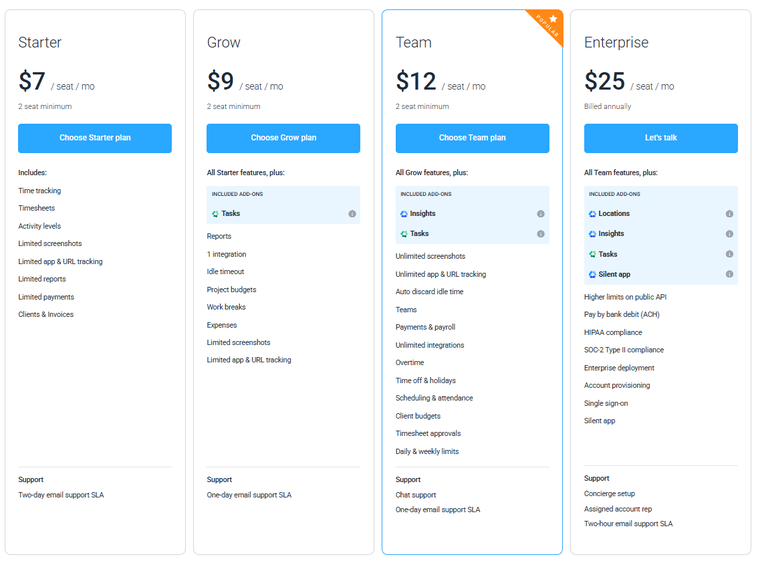
By comparison, OnTheClock’s flat pricing model keeps total cost significantly lower. With OnTheClock, 10 employees cost $45/month with all core features included — no tier upgrades or add-ons required. For cost-sensitive teams, this pricing structure creates a meaningful gap compared to OnTheClock, where core features are included upfront, and payroll doesn’t require additional subscriptions.
To operate with the same features as OnTheClock, most users would need to opt for the Team plan and incorporate add-ons. For a 10-person company, that may cost as much as $245 per month, which pales in comparison to the $45 you’d spend with OnTheClock. That’s not a small difference; it’s a completely different pricing echelon.
How Do You Get Started on a Web Browser?
Score: 6.5/10
I started by visiting the Hubstaff website (http://hubstaff.com) to create an account. The website identified Hubstaff as “Time tracking software for the global/hybrid workforce.”
The introductory page further posed its solution as “integrated employee time tracking, productivity metrics, and automated payroll for distributed teams.”
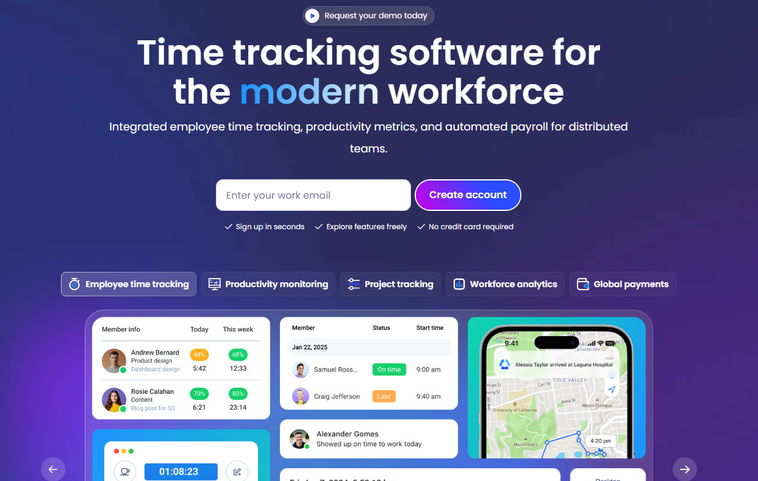
Scrolling down the page, I encountered graphics showcasing employee time tracking, productivity monitoring, project tracking, and more.
Statistics tout Hubstaff’s effectiveness, including 140,000+ global users, 65 million hours tracked, 15 million tasks completed, and more, along with case studies from three companies.
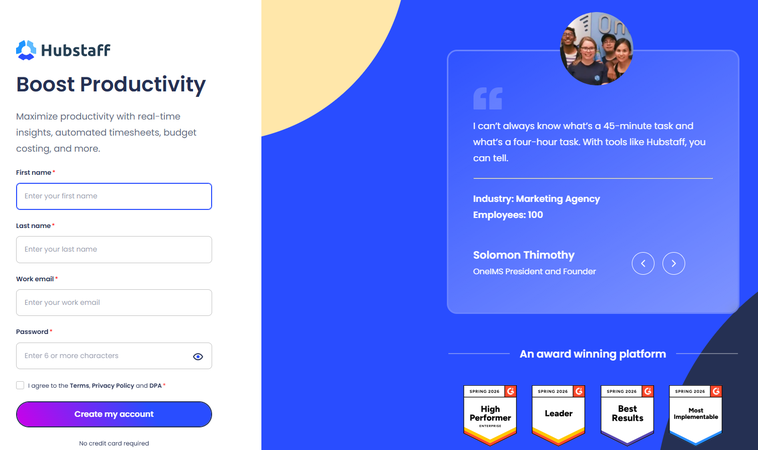
Clicking the "Try it Free" button led me to a startup page. Here, I was able to begin my trial by entering my name, work email address, and password.
After verifying the account via email, I was encouraged to create my organization.
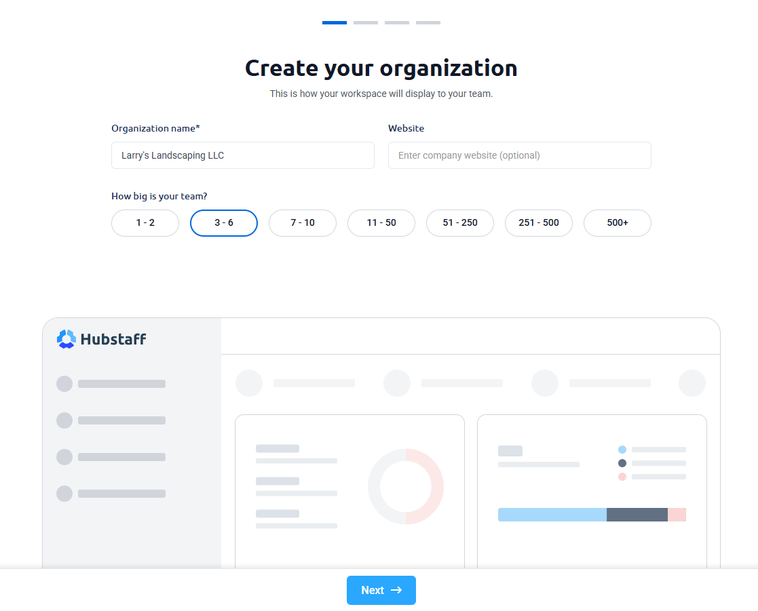
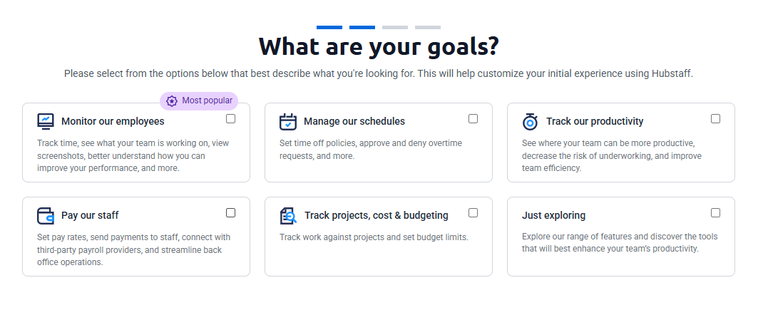
The setup page asked me to prioritize my goals, selecting between monitoring employees, managing schedules, tracking productivity, and more. I was then encouraged to invite my first manager or other users, to the platform.
Then I was taken to the pricing page, where I was encouraged to select the plan that made the most sense for me.
After selecting my plan, I was prompted to choose any add-ons. Multiple options were presented, including insights, tasks, data retention, and more.
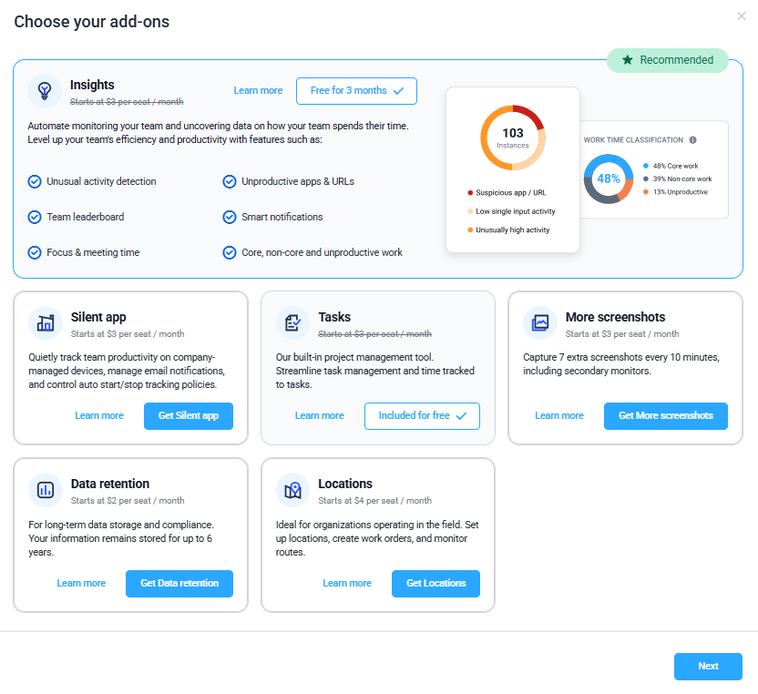
Then, surprisingly, I was met with an invoice page that required a credit card number. This contradicts the platform’s “no credit card required” messaging and may feel misleading during onboarding.
After inputting my credit card, I was asked to sign up for specific reports, shown how to review team insights, approve a time sheet, set up limits, create teams, and invite members.
Before landing on the dashboard, I was greeted with a 1-minute welcome video.
In summary, the web setup was fairly straightforward; however, the requirement to enter a credit card number before starting my trial is misleading. This contradicts the platform’s “no credit card required” messaging and creates unnecessary friction during onboarding. This left me with a bad taste in my mouth as I started setting up my account.
How Do I Get Started on the Mobile App?
Score: 7/10
I was able to download the Hubstaff app from the App Store without issue. After logging in, I landed on the timer, which featured a large timer button and shortcuts to projects and work orders. I did find it odd that I didn’t start on the dashboard.
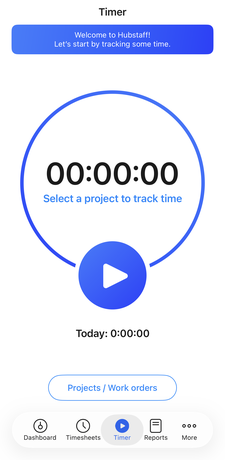
The bottom of the app offered shortcuts to time sheets, a timer, reports, and more. The dashboard view is split between “me” and “team.” Clicking the team function doesn’t change the interface, yet it changes the destination of each button, including create projects, invite members, and view all.
The bottom half of the screen showcases activity at a glance. Scrolling down, I was met with nothing other than an extended background graphic.
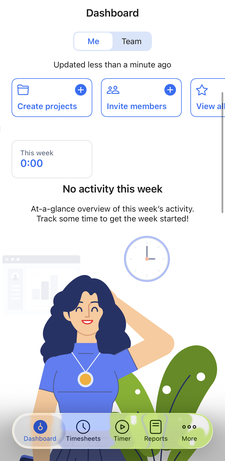
Overall, the initial app experience was simple to navigate, albeit a bit basic. The dashboard simply offered the ability to track time and view basic activity, but it lacks the depth and control available on a desktop.
How Do You Add Employees?
Score: 8.5/10
To add an employee, I clicked the People tab and then clicked Add Members.
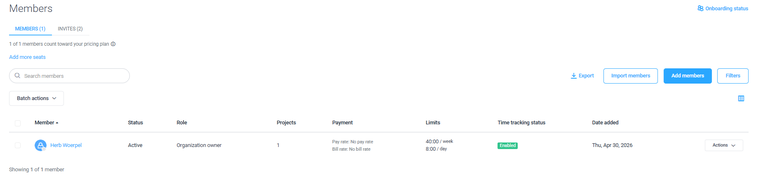
The pop-up screen encouraged me to enter my employee’s email address, pay rate, role, and any projects the employee should be connected to.
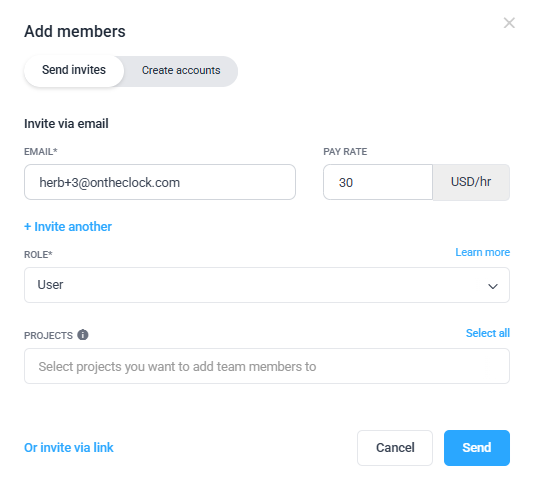
The email my employees received was simple to navigate, with one call-to-action button to join.
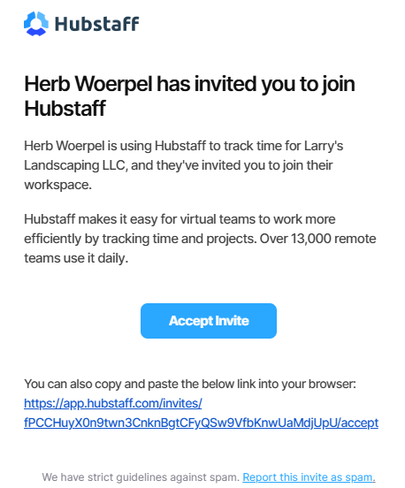
Clicking the Invites tab showed me all of the employees who have been welcomed to the team but have yet to join.
Once all employees were added, I could view my entire team by clicking Employee List.
On the app, I simply clicked Invite Members, and a similar screen appeared. The process was easy and simple.
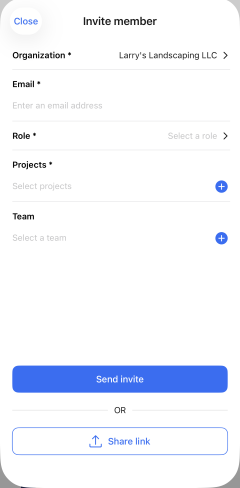
Adding employees was a breeze. Approval via email was easy and everything went smoothly, as planned.
How Does Scheduling Work?
Score: 7.2/10
After setting up my account and adding employees, I navigated to the Calendar tab to begin creating a schedule.
Within the scheduling interface, I encountered a matrix with the days along the top, in columns, and the employees occupying rows along the left.
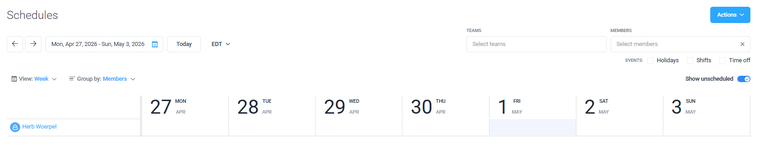
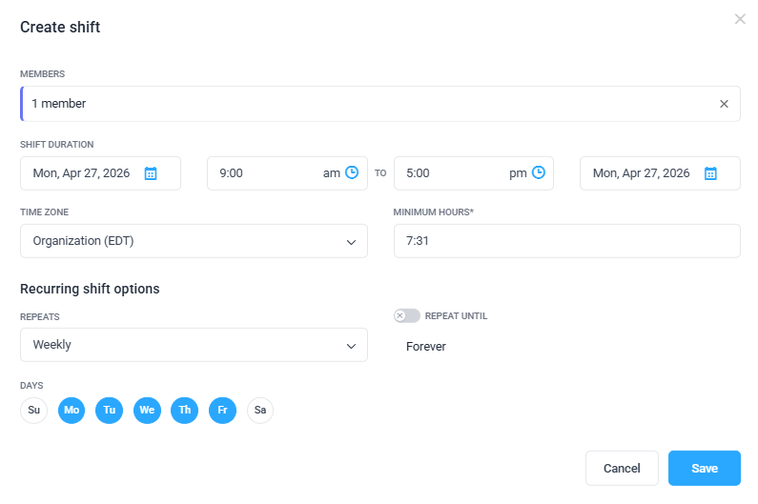
To create a schedule, I clicked the square that meshed with the employee and day. Then, I was asked to input a date, time range, time zone, and more. I was also able to easily assign this shift to repeat across various days and determine how long the repeated shift would occur.
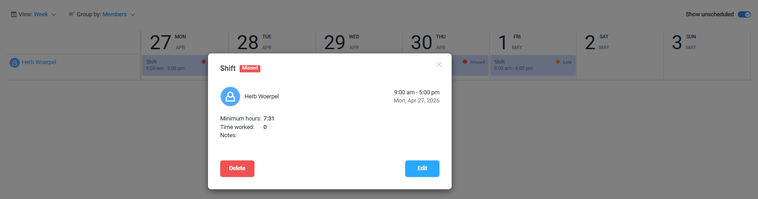
Once the data had been entered, the shift appeared on the calendar. Clicking a date allowed me to easily edit or delete the shift.
The view can be filtered by month, week, or day; grouped by members or time; and can be assembled by specific teams or members. Unscheduled shifts can be toggled on or off as well.
On the app, the view was similar, showing all shifts scheduled for that day or the next three days. An employee’s shift is shown, with all hours and the time frame clearly marked in blue.
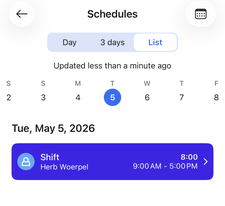
Hubstaff's scheduling tool is fairly basic. That said, a basic schedule works fine for companies seeking simplicity. So, if you’re looking for AI-led scheduling, automation, open shifts, or other advanced features, Hubstaff may not be the greatest fit.
How Do Timecards Work?
Score: 7/10
Punches are accessible via the left-margin menu, under Time Sheets.
The initial screen encouraged me to review my time sheet approval process. So, I clicked that prompt and dug in.

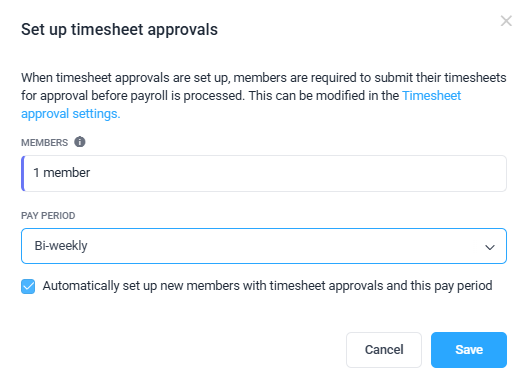
When I clicked that link, I was taken to a tutorial showing me how to set up my time sheet process. I was prompted to select the specific members that required approval. I was also able to automatically set up new members with the same process, which was a nice touch.
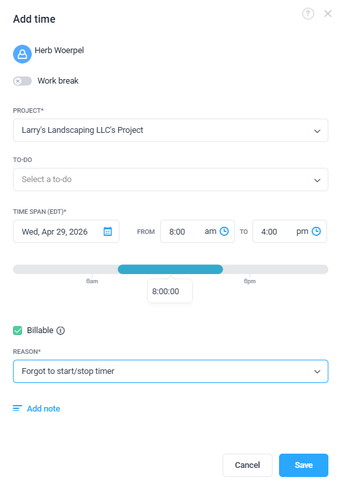
To add a manual punch, I pressed Add Time. The prompt allowed me to enter a project, a to-do, and the time span. I could select whether to identify the job as billable and enter a reason for entering time manually. All of these are nice, quick-select options on a timecard.
I was able to add eight hours for the day prior fairly easily.
Once I added the hours (or my employee had worked their hours), they appeared on my time sheet tab. The view is very easy to navigate and observe with the total hours along the right column.
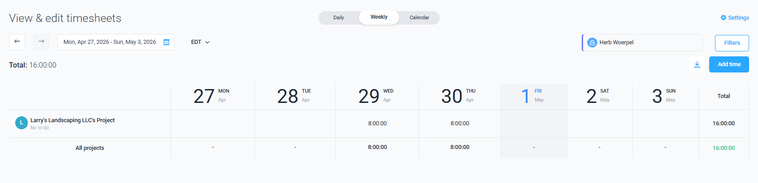
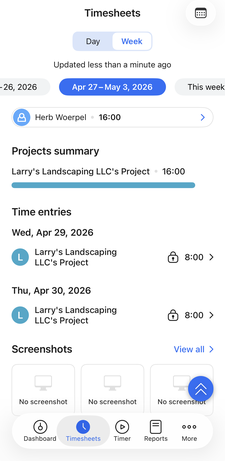
Time sheets on the app appeared very similar, with all time entries, total hours, and more. Time sheets can be viewed by day or week and can be filtered to show past, current, or future weeks.
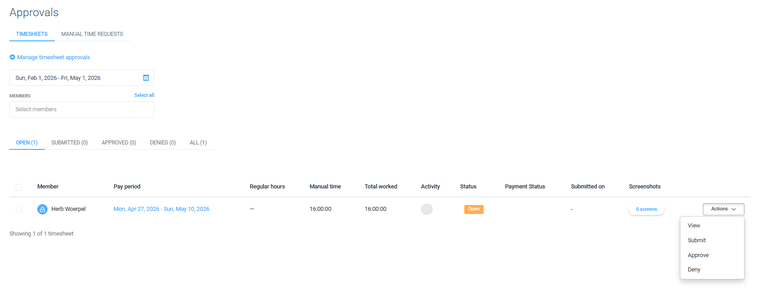
To approve timecards, I click the Approval tab under the time sheets grouping.
Within the approval screen, I was able to view timecards by member and filter by status, including open, submitted, approved, and denied. By clicking the Actions button, I could view, submit, approve, or deny the request. The process was easy to complete; however, I wish the action button was more prominent and defined.
What Kind of Customer Support Does Hubstaff Offer?
Score: 6/10
Support is a very important part of any time tracking company. It’s crucially important to have a real person available if/when problems arise.
Clicking the account icon in the top-right corner opened a support tab. The initial screen was a help center with a number of help pages and featured articles.
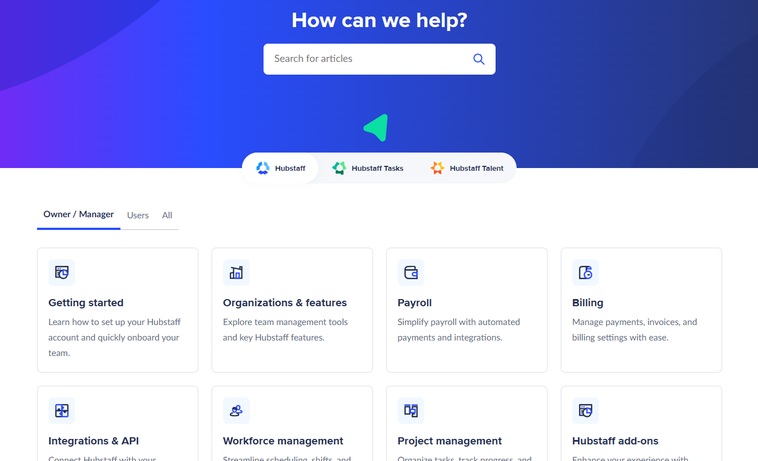
Scrolling nearly to the bottom of the page, I encountered a Contact Support button. Within, I found the live chat.
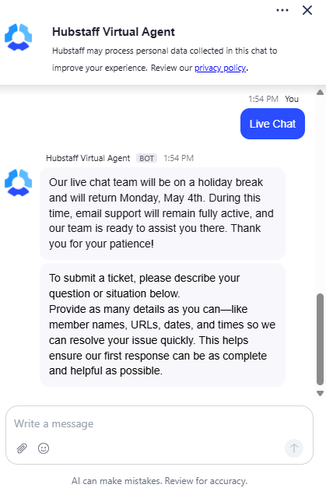
I asked the virtual agent, “When was the last time Hubstaff raised its prices?” When the virtual agent couldn't answer my question, I escalated the chat to a live agent, or at least I attempted to. I was surprised to learn that – at 2 p.m. EDT on Thursday, April 30 – the live chat was nonfunctional until Monday morning.
This is problematic, especially if I had a serious problem that needed attention. Not a good look, Hubstaff…
How Does In-App Chat Work?
Score: N/A
Hubstaff does not have a comprehensive, built-in real-time team chat tool.
How Do You Manage Time Off?
Score: 7.5/10
To implement time off, I clicked the Settings tab, then Policies, and finally Time Off. This was a bit confusing, as I assumed the time-off feature would be under People or Time Sheets.
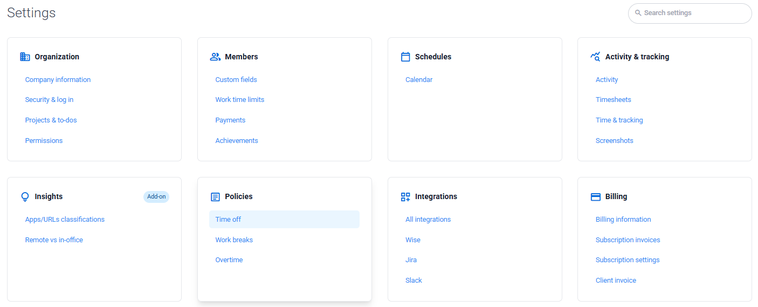
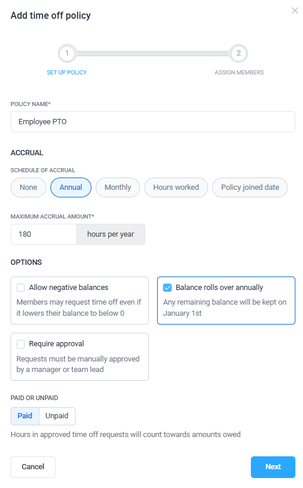
When establishing the policy, I selected a title, accrual period, maximum accrual amount, whether negative balances are allowed, if balances roll over annually, and more. Finally, I was asked to assign members to the policy.
Once the policy was established, clicking the Actions box allowed me to edit the policy, add or remove members, archive it, or remove it altogether.
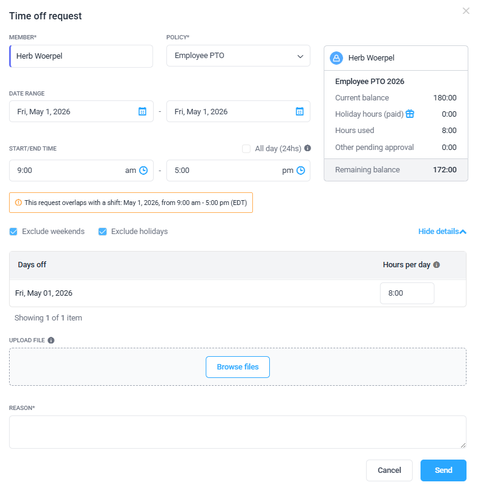
To request time off, I clicked the calendar, then the Actions tab, and then the Add Time Off request. Inside, I was able to define the request by selecting the policy, date range, start and end time, hours per day, reason, and more. I was even able to upload a file, if needed. When I attempted to submit the request, I was required to provide a reason. This was a fairly comprehensive approach -- nicely done, Hubstaff!
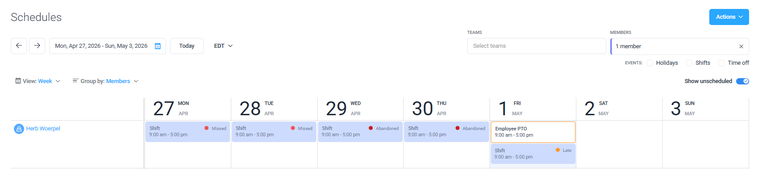
Once the PTO request was approved, it appeared on my calendar accordingly.
Overall, the time off tool was very simple. I was able to set it up and assign time off in just a few minutes.
How Does Payroll Integration Work?
Score: 6.8/10
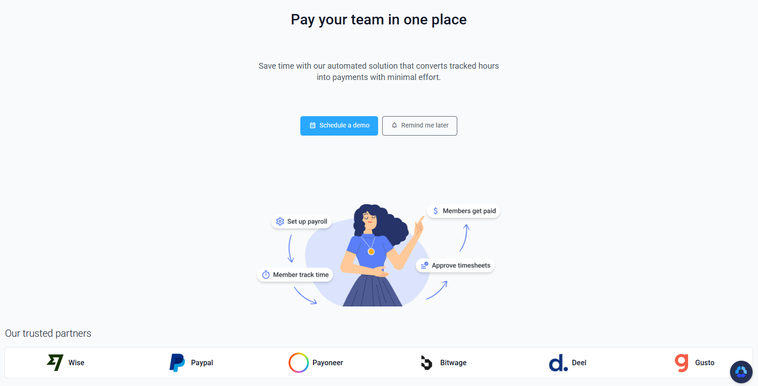
By clicking the Financials tab, I was taken to a landing page that encouraged me to book a demo. The bottom of the page showcased a number of Hubstaff’s payroll partners, including Wise, PayPal, Gusto, and more.
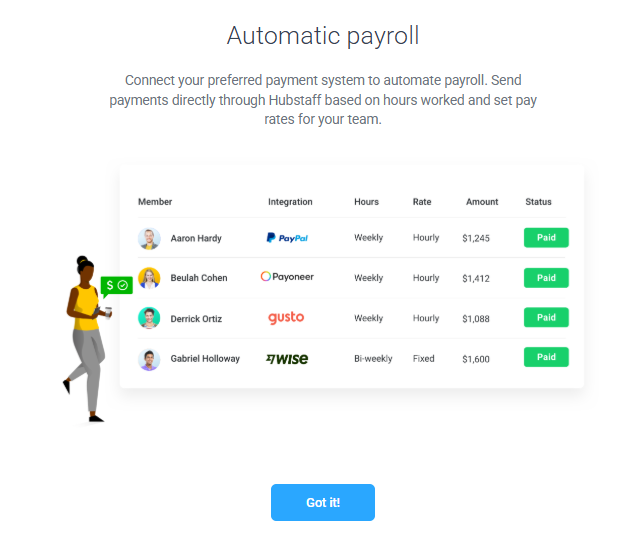
Clicking the Manage Payroll tab below led me to an integration connection page.
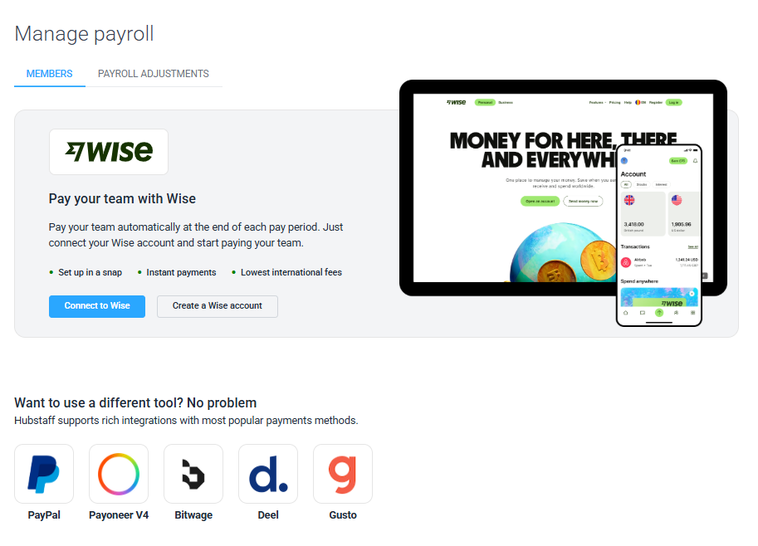
Advancing through the process, it appears as though Wise is the preferred integration. The other five options seem to be ancillary options.
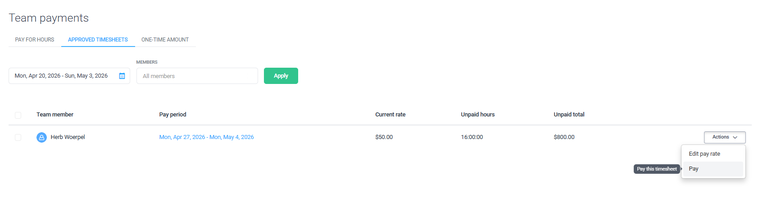
By clicking the next tab, Create Payment, I was able to initiate the payroll framework. To proceed, I first had to approve a time sheet. Then, I was able to review the time worked and transform unpaid hours to paid hours.
However, this is where the limitations become more apparent.
Hubstaff does not offer in-house payroll. Instead, it provides a framework for calculating wages and preparing payments, but taxes are not calculated, and payroll is not fully processed within the platform. After completing the workflow, you’re left with two options: export the data to a payroll provider or handle payments manually.
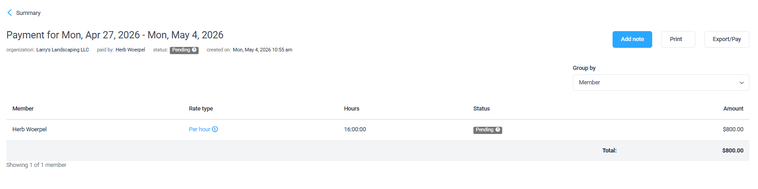
To Hubstaff’s credit, the process itself is relatively straightforward, and exporting data is easy (with multiple export options available). But the overall experience still relies heavily on external systems to complete payroll.
For businesses looking for a more unified solution, this can create additional steps and potential points of failure, especially compared to platforms like OnTheClock, where time tracking and payroll operate within the same system without third-party handoffs.
What Add-Ons Does Hubstaff Offer?
Score: 6.5/10
Hubstaff expands its core time tracking functionality through a range of paid add-ons focused on payroll, compliance, and workforce management. These add-ons are designed to give businesses more control over how time is tracked, approved, and ultimately paid out, but they often come at an additional cost on top of the base subscription.
One of the most notable add-ons is Hubstaff Insights, which lets you view and compare activity benchmarks and define productive and unproductive apps and URLs. This solution costs an additional $2.50 per person per month.
For teams that need more from their time tracking functionality, there’s Hubstaff Tasks. This paid add-on lets Hubstaff time tracking users view tasks in Kanban or Timeline views. This add-on costs an additional $2.50 per user per month.
The Hubstaff Data Retention add-on extends the storage of specific data types in Hubstaff. This add-on costs $1.67 per person per month.
The Locations add-on costs $3.33 per user per month and grants location tracking on mobile, geofencing, work orders, and more.
The Hubstaff Silent add-on is designed for companies that want time tracking and activity monitoring to run automatically in the background with minimal employee interaction. Instead of relying on users to manually clock in and out, this add-on shifts control almost entirely to the system. With auto start/stop time tracking, companies can track time based on predefined schedules or device activity. This means tracking can begin as soon as a device is in use and stop when activity ends, helping reduce missed punches or manual errors. The account provisioning feature allows administrators to create and manage user accounts at scale. Businesses can set up individual or bulk accounts. For larger organizations on Enterprise plans, it integrates with mobile device management (MDM) tools to deploy accounts across company devices more efficiently. Hubstaff Silent costs an additional $2.50 per person per month.
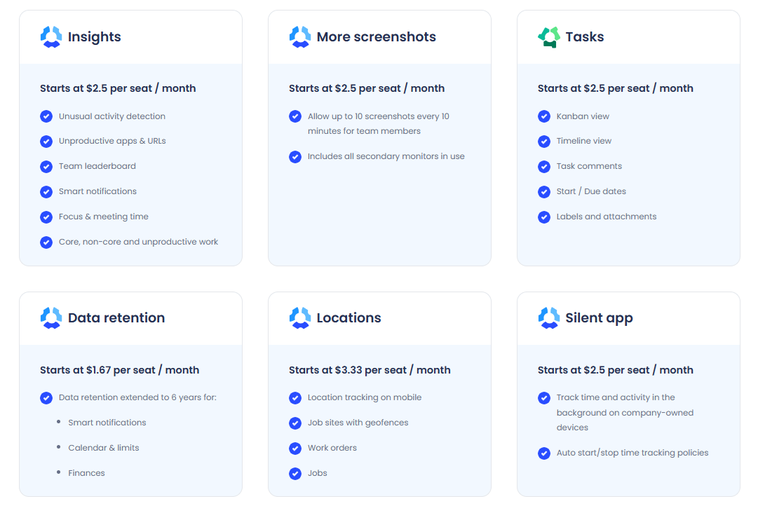
While these add-ons make Hubstaff more flexible, they also introduce complexity and can significantly increase the overall cost. Many features businesses may consider essential, such as location tracking, data retention, and more, aren’t always included in the base plan, which means teams may need to piece together the full solution through multiple upgrades.
Adding all of these would increase the cost by $12.50 per person per month. Across 10 people, that’s an additional $125 per month.
How Does Hubstaff Handle Follow-Ups and Outreach?
Score: 7.2/10
Upon signing up, I immediately received a confirmation email as well as a referral program offering a discount and a payroll pitch. Additional emails focused on onboarding, invitations, activity reports, and more.
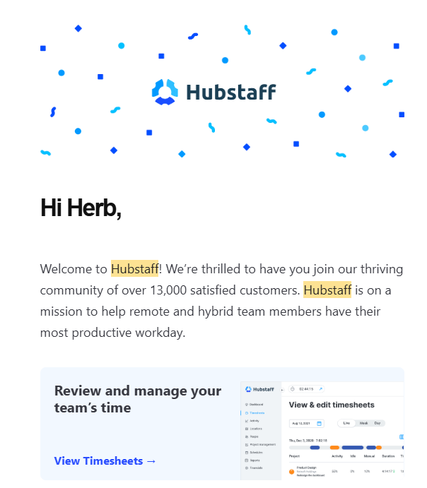
The emails were fairly succinct and to the point, though with all the reports and reminders, they started to add up quickly.
What Are the Pros and Cons of Using Hubstaff?
Pros of Using Hubstaff
- Advanced Time Tracking and Productivity Insights – Hubstaff goes beyond basic clock-in and clock-out functionality. With features like activity tracking, app and URL monitoring, and optional screenshots, managers can see how time is actually being spent throughout the workday.
- Flexible Payroll and Payment Workflows – Hubstaff allows you to calculate wages based on tracked time and prepare payments for employees or contractors. The system makes it easy to review hours, convert them into payable time, and export data for payroll processing.
- Strong GPS and Remote Team Tracking – For field or remote teams, Hubstaff offers GPS tracking and location-based insights. With the right add-ons, businesses can track movement, verify job locations, and monitor work activity outside the office.
- Easy Employee Onboarding and Setup – Adding employees is quick and intuitive. Invites are sent via email, and new users can join and begin tracking time with minimal friction.
- Solid Scheduling and Time-Off Tools – Hubstaff includes built-in scheduling and PTO management. While not overly advanced, these tools are easy to use and cover the basics for most teams.
Cons of Using Hubstaff
- Add-Ons and Tiered Features Increase Cost – Many key features, like location tracking, advanced insights, and data retention, are not included in base plans. Instead, they require paid add-ons, which can significantly increase the total cost as your needs grow.
- No Built-In Payroll System – Hubstaff does not run full payroll in-house. While it helps calculate wages and prepare payments, taxes are not handled within the platform. Businesses must export data to a payroll provider or manage payments manually, creating additional steps.
- Relies on Multiple Systems for Payroll Completion – Because payroll isn’t fully native, businesses often need to rely on third-party tools to complete the process. This adds complexity and increases the risk of errors during handoffs.
- Monitoring Features May Feel Intrusive – Features like screenshots, activity tracking, and app monitoring can create friction with employees if not communicated properly. For some teams, this level of oversight may feel excessive.
- Scheduling and Advanced Features Are Limited – While scheduling works well for basic needs, it lacks more advanced tools like automation, open shifts, or AI-driven scheduling found in other platforms.
- Setup Can Become Complex Over Time – Initial setup is straightforward, but configuring add-ons, permissions, integrations, and workflows can take additional time as you scale.
What Do Real Users Say About Hubstaff?
Looking beyond marketing claims, user feedback on Hubstaff is fairly consistent: It’s a powerful tool for tracking time and monitoring productivity, but it’s not without trade-offs.
Across platforms like G2, Capterra, Google Play, and the Apple App Store, users frequently highlight Hubstaff’s ability to provide detailed visibility into employee activity. Features like screenshots, app and URL tracking, and project-based time tracking are often praised for helping managers understand how work is being performed, not just when it starts and stops.
Many businesses also appreciate how Hubstaff connects time tracking to payroll preparation. By tying hours worked directly to pay calculations, the platform helps reduce manual entry and improve accuracy, especially for teams managing multiple projects or remote employees.
At the same time, reviews surface a few common friction points. Some users note that the platform can feel more focused on monitoring than simplicity, particularly for teams that only need basic time tracking. Others point out that costs can increase as additional features or add-ons are introduced. There are also occasional mentions of limitations around payroll (since it’s not fully built in) and the need to rely on external tools to complete the process.
Overall, real users tend to agree that Hubstaff is best suited for businesses that want deeper insight into productivity and employee activity. Teams looking for a more streamlined, all-in-one solution may find that it introduces more complexity than expected.
For example, the most relevant review on G2, where Hubstaff has a 4.4-star review out of 2,225-plus ratings, comes from Megan O. on April 30, 2026, she writes, “I find Hubstaff incredibly useful for managing all of my employees' time, ensuring accurate reporting for biweekly payroll. The screenshot feature is invaluable as it helps me track employee activity, making sure they are using their time effectively. It also assists me and my employees in tracking different project allocations like admin, account management, client relations, and inbox managing, which keeps us organized and ensures efficient use of our time. The initial setup was really easy, and downloading the Hubstaff app makes clocking in and out seamless.”
On Capterra, where Hubstaff has a 4.5-star rating based on 1,600-plus reviews, Bruno A. writes, on April 3, 2026, “It worked great for my needs. As a professional in the accounting industry, it is a good way to keep your employees' time linked with your QuickBooks payroll.”
On Apple, where Hubstaff has 4.5 stars on 1,500-plus ratings, Gumbie666 wrote, on March 18, 2026, “My work place tracks our time with Hubstaff, and the mobile app makes it easy to track.”
How Does Hubstaff Compare to OnTheClock?
To understand where Hubstaff fits, it helps to compare it to a simpler, all-in-one alternative like OnTheClock.
| Feature | Hubstaff | OnTheClock |
|---|---|---|
| Mobile Experience | Hubstaff’s mobile app focuses primarily on time tracking, with a built-in timer, project selection, and basic reporting. While easy to use, the experience is more limited compared to desktop, and some features, like advanced monitoring or deeper controls, are less accessible on mobile. | The mobile app supports time tracking, scheduling, PTO, and payroll workflows through a streamlined interface. Managers can also access broader team visibility and administrative controls directly from the app. |
| Desktop Clock-Ins | Employees can track time on desktops using a timer-based system, often paired with activity monitoring and screenshots. The desktop experience is a core part of Hubstaff’s platform, especially for productivity tracking. | Fully supported across desktop and laptop devices with built-in admin controls and minimal configuration required. |
| Time Tracking | Hubstaff offers time tracking with activity monitoring, app and URL tracking, and optional screenshots. GPS tracking is available, but features like geofencing and advanced location controls may require add-ons or higher-tier plans. | Core time tracking includes approvals, edits, reporting, PTO tracking, and user permissions without requiring tier upgrades for essential tools. |
| Payroll Functionality | Hubstaff does not offer fully built-in payroll. It allows you to calculate wages and prepare payments, but taxes are not handled within the platform. Businesses must export data or rely on integrations to complete payroll. | Offers integrated payroll as an optional add-on, allowing timecards and payroll data to operate within the same system. It also integrates with major payroll providers, if preferred. |
| User Roles & Permissions | Role-based permissions are available for admins, managers, and users. More advanced controls may depend on the plan level or configuration. | Admin, manager, and view-only roles are available without additional tier requirements. |
| Customer Support Access | Support includes a help center and chat, but live support availability can be limited depending on timing. In testing, live chat was not always available during standard business hours, which may be a concern for time-sensitive issues. | Phone, chat, and email support are available to all subscribers. |
| Time Clock Kiosk | Hubstaff does not offer a traditional shared-device kiosk mode like many workforce tools do. Time tracking is typically tied to individual devices or apps. | A dedicated kiosk mode is designed for shared devices with built-in admin controls. |
| API Access | Hubstaff offers API access and a wide range of integrations, allowing businesses to connect external tools and workflows. | API access is available to businesses that need custom workflows or integrations. |
| Pricing Structure | Hubstaff uses a per-user pricing model with multiple tiers. Many features, such as advanced tracking, location tools, GPS, and insights, are locked behind higher plans or paid add-ons, which can increase total cost as needs grow. | Pricing uses a flat base fee plus a per-employee cost, with core time tracking and scheduling features included without locking key tools behind higher tiers. |
What’s the Final Verdict on Hubstaff?
Hubstaff is a powerful but specialized platform.
It’s designed for businesses that want to go beyond tracking time and instead understand how work is being performed. Features like activity monitoring, screenshots, app tracking, and GPS visibility make it a strong fit for remote teams that prioritize accountability and productivity insights.
Where Hubstaff stands out most is in visibility. If your goal is to monitor workflows, track performance, and gain detailed insight into employee activity, it delivers on that promise.
But that focus comes with trade-offs.
Hubstaff is not a fully unified system. Payroll requires additional tools or manual steps, and many features are tied to higher-tier plans or paid add-ons. As a result, costs can scale quickly, and managing the platform can become more complex over time.
It’s also not built for simplicity. Businesses that just want a clean, reliable way to track time, manage schedules, and run payroll may find Hubstaff’s feature set — and monitoring approach — more than they need.
Hubstaff is best for:
- Teams that bill by project or client
- Businesses that need proof-of-work or accountability
- Companies managing freelancers or global teams
Hubstaff is not ideal for:
- Businesses looking for a simple, plug-and-play time clock
- Teams that want built-in payroll without extra steps
- Companies that prefer predictable pricing without add-ons
Bottom line
Hubstaff is a strong choice if visibility and productivity tracking are your top priorities. If you want to track time, run payroll, and manage your team without juggling systems or add-ons, OnTheClock gets you there faster with fewer headaches.
