

Jump to section
Try OnTheClock Free
Save time and make payroll effortless with our easy-to-use, affordable employee time tracking app.
Try It FreeA time clock kiosk is a shared tablet or computer that employees use to clock in and out at work. A restaurant might put an iPad by the staff entrance, while a repair shop might use a computer near the service bays. Everyone punches in from the same station.
With OnTheClock, employees enter their employee ID at the kiosk to clock in or out. Their punches appear on digital time cards that managers can review before payroll. You can also restrict employees to approved devices if you want them to punch from a specific kiosk.
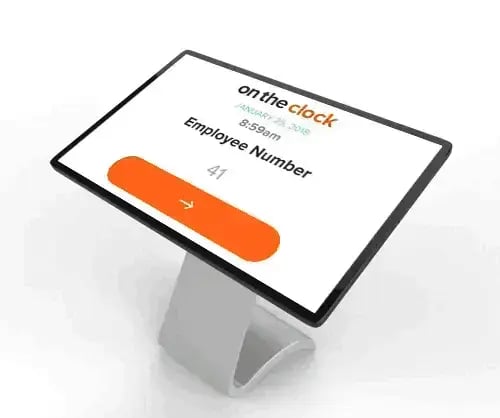
Can you use an iPad, Android tablet, or computer as a time clock kiosk?
Yes. You can use the OnTheClock app on a shared iPad or Android tablet, or register a desktop or laptop as a browser-based kiosk. Choose a device that can stay in a spot employees pass when they start and end their shifts, with reliable internet access.
| Device | How to use it as a time clock | Example setup |
|---|---|---|
| iPad | Open Group Punch Mode in the OnTheClock app. | A wall-mounted clock-in station by the staff entrance. |
| Android tablet | Open Group Punch Mode in the OnTheClock app. | A tablet on a stand in a break room or stockroom. |
| Desktop or laptop | Register the device as a kiosk through the OnTheClock website. | An existing computer at a front desk or in a shop office. |
How to set up a time clock kiosk with OnTheClock
Start by turning on Kiosk Punching in a web browser. Then set up the device your employees will use.
1. Turn on Kiosk Punching
Sign in to OnTheClock as an administrator in a web browser. Go to Settings > Time Clock Settings and turn on Kiosk Punching under Kiosk Settings.
2. Set up your shared tablet or computer
- On an iPad or Android tablet: Open the OnTheClock app on the shared device and sign in as an administrator. Go to More > Group Punch Mode and confirm if prompted.
- On a desktop or laptop: Sign in as an administrator in the browser on the device you want to use. Go to Settings > Time Clock Settings > Employee Punch Site, select Register, then sign out to start kiosk mode.
3. Test a clock-in and clock-out
Have an employee enter their employee ID and clock in and out. Check their time card to confirm both punches came through. If you plan to mount a tablet, run the test from the spot where it will be installed so you can check the connection there.
For more detail, see how to set up Group Punch kiosks in OnTheClock.
How to require employees to clock in from the kiosk
Setting up the kiosk gives employees a shared place to clock in. To require an employee to use that device, have them clock in from the kiosk first. Then open Location & Security in the employee’s profile and approve the kiosk in their punch device history.
For example, if shop employees should clock in from the tablet by the entrance, approve that tablet for those employees. If an employee works at two locations, you can approve the devices they’re allowed to use at both.
What happens to employees’ hours after they clock out?
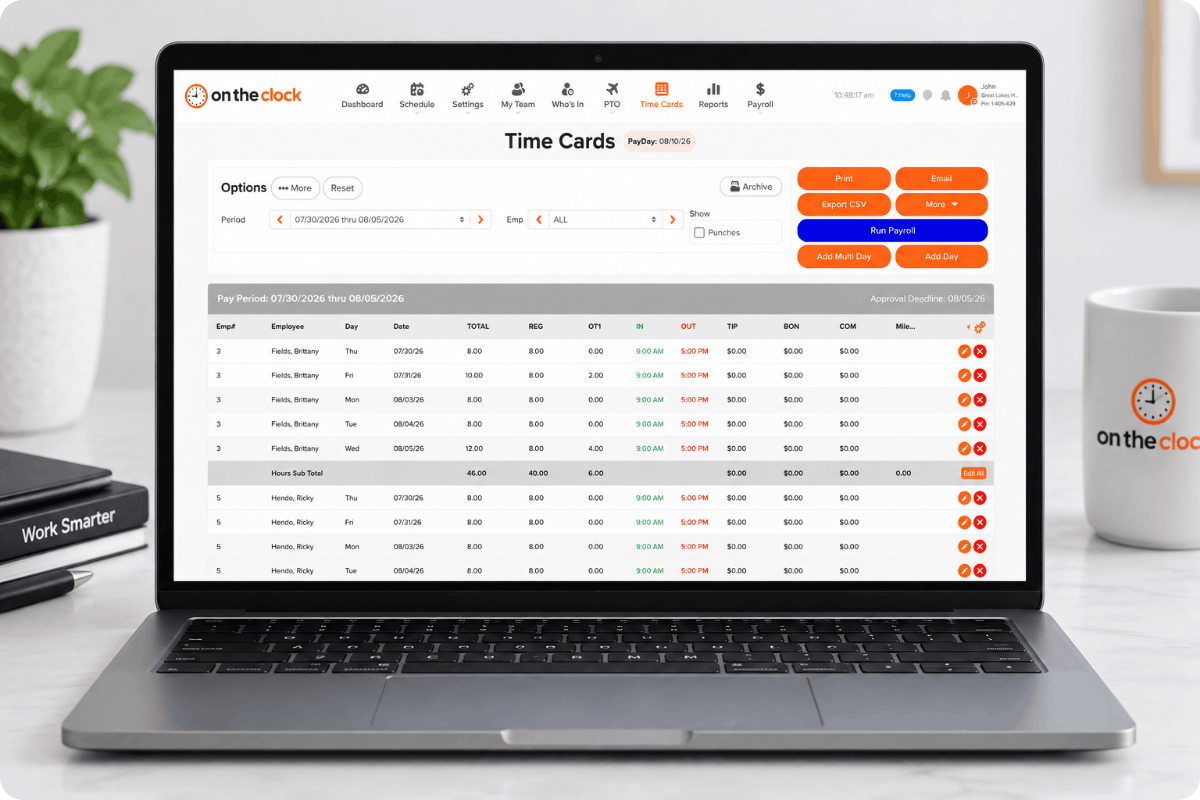
Clock-ins and clock-outs from the kiosk appear on each employee’s digital time card. During the shift, managers can use Who’s In to see who’s currently clocked in. Before payday, they can review time cards and check for missing punches. If you use OnTheClock Payroll, approved hours can flow directly into payroll.
Try the clock-in workflow on a shared device you already have. Start your 30-day free trial of OnTheClock.
Time clock kiosk FAQs
Do employees need a phone to clock in?
No. Employees can clock in and out on the shared kiosk using their employee ID. They don’t need to install an app on a personal phone to use the kiosk.
Do employees need a four-digit PIN?
OnTheClock kiosks use the employee ID from the employee’s profile. The ID can contain letters, numbers, or both, and it can be longer or shorter than four characters.
Can you set up a time clock kiosk at more than one location?
Yes. You can register multiple kiosks in OnTheClock. If you manage a location remotely, you can generate a one-time code for a manager to register a device there. Each new device needs its own code.
Can a regular computer serve as an employee time clock?
Yes. You can register an internet-connected desktop or laptop as an OnTheClock kiosk through its web browser. Employees can then clock in and out from that computer using their employee ID.