
Jump to section
Try OnTheClock Free
Save time and make payroll effortless with our easy-to-use, affordable employee time tracking app.
Try It FreeKey Takeaways
- ✔The best HVAC time clock is the one techs will use from a phone in the field that stamps each punch with GPS and turns those hours into clean payroll and job costs.
- ✔OnTheClock fits most small HVAC shops: GPS, scheduling, job costing, and payroll exports are available for one affordable price -- $5 base plus $4 per user per month, nothing is locked behind a higher tier.
- ✔Bigger crews running commercial installs lean toward ClockShark, which is built around crew clock-in and construction-phase cost codes.
- ✔If proving a tech was on-site is the whole problem, Workyard emphasizes detailed GPS location and travel records for job-site verification.
- ✔Already inside QuickBooks? QuickBooks Time integrates directly with QuickBooks to streamline payroll.
The best time clock software for an HVAC business is the one your techs will actually open on a phone at 7 a.m. in a customer's driveway. These solutions excel at turning taps into clean payroll, showing you exactly where the hours went. That's the whole job. Everything else is a feature list.
Picture a Friday. One tech swapped a blower motor across town, drove to an emergency no-cool call, then finished at a maintenance contract two suburbs over. Three sites, a lot of windshield time, and a time sheet that says "8 to 5." You're left guessing what to bill, what to pay, and whether the drive between stops counted. Multiply that by six techs, and you've got hours of cleanup before anyone gets paid right.
No single tool wins every situation. So, below we break down the best pick for each type of HVAC shop, starting with the solution that fits most.
What HVAC Owners Actually Want
You want to trust the hours. That's the root of it all. When a tech clocks in from a rooftop unit, you want to know they were really there, not sitting at a gas station two miles away.
After trust comes the money question: Which jobs actually make a profit? A clock that ties labor to each service call answers that. One that dumps every hour into a single bucket leaves you pricing work on a hunch. Travel between job sites during the workday generally counts as compensable time even if it is not billable to customers. And because HVAC techs drive all day, you want the windshield time captured too, so travel hours are recorded and can be separated from customer-billable time.
When HVAC owners pick a time clock, they're really trying to make payroll honest and job costs visible. But the right pick shifts with what you need most. Some shops live and die on GPS proof; others just want something cheap their crew members won't fight. That's why there's no single winner here, only the best solution for each type of company.
Quick Picks: The Best Time Clock Software for HVAC at a Glance
-
OnTheClock: Best for small HVAC shops that want it simple
-
ClockShark: Best for bigger crews and project installs
-
Workyard: Best for proving techs were on-site
-
Timeero: Best for drive time and mileage
-
Jobber: Best all-in-one for HVAC
-
QuickBooks Time: Best if you already use QuickBooks
-
Jibble: Best free option
-
Buddy Punch: Best for built-in payroll
How We Evaluated the Best Time Clock Software for HVAC
We didn't score these tools on feature-sheet length; we compared every option against the nine things HVAC owners keep raising via what we call the OnTheClock HVAC Time Clock Checklist:
-
Mobile clock-in techs will use: One tap from a personal phone, or the whole system dies on day two.
-
GPS and geofencing: Location-stamped punches help document where technicians clock in, while configured geofences can restrict off-site punches.
-
Job and cost-code tracking: Switch jobs midday without clocking out, so labor is assigned to the correct service call.
-
Offline and drive-time capture: Check whether offline punches and travel between jobs can be recorded when service is unavailable.
-
Scheduling and dispatch: Confirm whether the tool offers employee scheduling, field-service dispatch, or both.
-
Payroll integration: Clean export to QuickBooks, Gusto, ADP, and Paychex. Overtime is handled as well.
-
Crew clock-in: One lead clocks in a whole crew on a big install.
-
Set up an entire crew with our help: Fast rollout, and a real human is available to help when something breaks.
-
Price for a small crew: Fair cost for a three- to 15-tech shop without a heavy base fee or gated features.
OnTheClock earns the small-shop recommendation because its base plan combines GPS and geofencing, job tracking, employee scheduling, overtime alerts, PTO, and payroll integrations. Shops needing offline punches, crew-wide clock-ins, or advanced project costing should compare dedicated field-service products. That breadth at $5 base plus $4 per user per month is the basis for the small-shop label, not a ranking against the other picks. Each of those solutions serves its own situations best.
The Best Time Clock Software for HVAC
Here are the best time clock software solutions for HVAC. For each one, we cover whom it fits best, where it stands out, and where it may not be the right move.

OnTheClock: Best for Small HVAC Shops that Want it Simple
Available on: Web, iOS, Android
Why OnTheClock Is Best for Small HVAC Shops
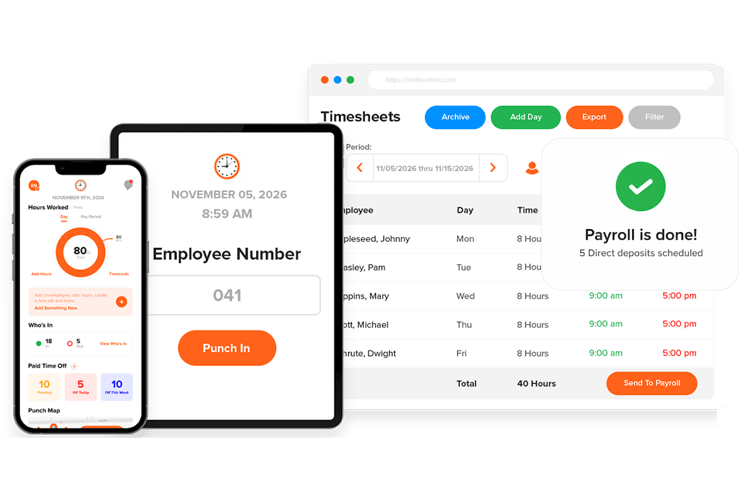
Picture the shop this is built for. Several trucks, maybe 10, and the owner is also the dispatcher and the one chasing time sheets on Sunday night. OnTheClock fits that person. Techs clock in from a phone; GPS and geofencing help document where they clock in, and they switch jobs throughout the day without clocking out and back in.
Here's the part that matters for a small shop: You don't pick a tier. GPS, geofencing, scheduling, PTO, and overtime alerts as a tech nears 40 hours come standard. Exports to QuickBooks, Gusto, ADP, and Paychex all come in the one plan as well. A 10-tech shop pays $45 per month for the time clock. ClockShark Standard costs $137 per month for 10 users at its listed rates. You get the field features without the field-software price tag.
Why OnTheClock Is Different
Most tools make you climb a pricing ladder to reach the features HVAC work needs. Geofencing on one tier, job costing on the next, payroll export two tiers up. OnTheClock skips the ladder. One plan, $5 base plus $4 per user, and all features in the box.
That changes who it's for. Picture the owner who bought a heavy platform, paid for dispatch, CRM, and marketing modules, and used about one-third of them. That owner tends to land here and stay.
Where it falls short is worth mentioning as well. The app needs internet or Wi-Fi to clock in and sync, so a tech deep in a mechanical room with no signal can hit a wall. And if you want construction-grade job costing with phases and budgets, this is lighter than ClockShark or Workyard. For a service shop that wants accurate hours and clean payroll without the overhead, that's a fair trade.
What Makes it Different for HVAC? One plan covers the field tech's whole day: GPS-stamped punches, mid-job switching, and overtime alerts, so you're not surprised by payday. Start your free trial without a credit card.
Key Features
Pros
Cons
Pricing
- 30-day free trial, no credit card is required at sign-up.
- $5/month base plus $4 per user/month (see how OnTheClock pricing works). Optional payroll: $40/month base plus $6 per employee/month, with a one-time $250 implementation fee

ClockShark: Best for Bigger Crews and Project Installs
Available on: Web, iOS, Android
Most HVAC work is in and out the same day. A capacitor here, a no-cool call there. But some shops live in a different world: commercial retrofits, new construction tie-ins, and multiday installs where one job runs for weeks and three crews touch it are common. That's where ClockShark earns its spot.
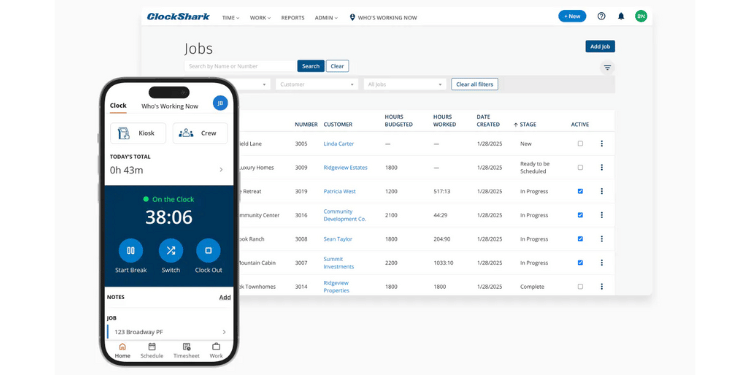
It was built for field crews, and it shows. Workers tap to clock in, switch between jobs without clocking out, and their hours land against the appropriate job and cost code. A foreman can clock in a whole crew at once. GPS can document job locations, and punches keep working offline and sync when the signal returns. It also ties into QuickBooks Online and Desktop, which still run a lot of back offices. For an owner trying to figure out whether a big install actually made money, that job-level detail is the whole point.
That depth was designed around construction phases, so for a three-truck shop doing mostly residential service, ClockShark can feel like more tool than the job needs. The price runs higher than most of this list, too: a $42 base on Standard or $63 on Pro before you add a single user, at $9.50-$11.50 per employee/month depending on the plan. If you're small and fast-moving, you'll feel that. But if you're running real projects with crews and want labor tied tight to each one, it's worth the money.
Key Features
Pros
Cons
Pricing
- 14-day free trial
- Standard: $42/month base plus $9.50 per user/month; Pro: $63/month base plus $11.50 per user/month.

Workyard: Best for Documenting Techs' On-Site Visits
Available on: Web, iOS, Android
Some owners don't have a payroll problem; they have a proof problem. A customer swears the tech showed up at noon, the tech says 10, and the invoice is now a fight. Workyard exists for that exact headache.
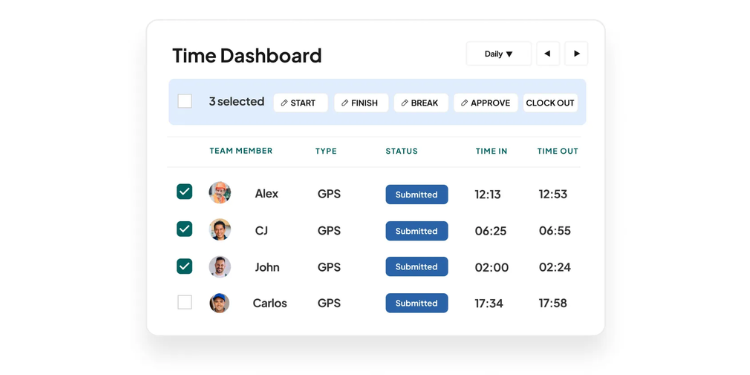
Workyard emphasizes detailed GPS records and the ability to distinguish travel from on-site job time for billing and cost analysis. Depending on configuration, location-based time tracking can help automate arrivals and departures, but employers must still record and pay all time actually worked, including compensable travel between jobs. Owners get real-time labor costs as the day progresses, and hours are automatically assigned to the correct project. One Workyard customer put it plainly: Before the tool, they had no way of knowing when a worker actually left the shop and reached the site. Now they see it on a map.
That accuracy comes with caveats worth saying out loud. GPS still struggles indoors, underground, and in dense areas, so treat it as strong verification rather than a perfect dot on a map. Some reviewers also flag battery drain and a clunky cancellation process, and there's a required admin seat that nudges the floor price up. If your biggest concern is documenting arrivals and departures, its detailed location records merit consideration.
Key Features
Pros
Cons
Pricing
- 14-day free trial, no credit card
- $50/month base plus per-user (around $6 to $13 per user by plan); confirm current rate at signup

Timeero: Best for Drive Time and Mileage
Available on: Web, iOS, Android
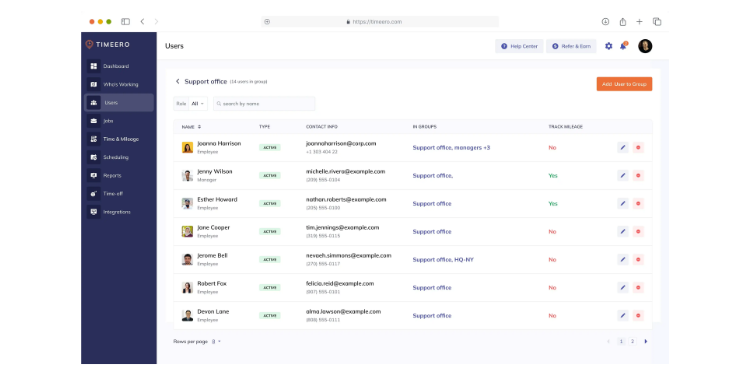
HVAC techs drive. A lot. Five calls across a metro means real miles, and those miles are either tracked or they're money you never see again. Timeero is the tool that automatically catches them.
Where most apps stamp a location at clock-in and stop there, Timeero follows the route. Its optional Segmented Tracking add-on logs each stop, travel time, and distance between jobs, helping create mileage records to support reimbursement calculations. Movement detection can help distinguish between driving and walking; review records to assess accuracy. For a shop that reimburses techs or bills mileage to commercial clients, that's hours of manual logging gone.
The catch is tiering. Segmented Tracking starts at an additional $5 per user/month on Pro and Premium, so the entry-level subscription does not include the featured timeline. A few reviewers also feel it's tuned for larger teams, with less customization for a one-person operation. But if windshield time is leaking from your books, Timeero can help you create detailed mileage and travel records. Workyard emphasizes location and project visibility, while Timeero focuses on mileage tracking.
Key Features
Pros
Cons
Pricing
- 14-day free trial
- Basic: $6/user/month (up to 10 users); Pro: $9/user/month; Premium: $12/user/month. Optional Segmented Tracking starts at $5/user/month on Pro and Premium

Jobber: Best All-in-One for HVAC
Available on: Web, iOS, Android
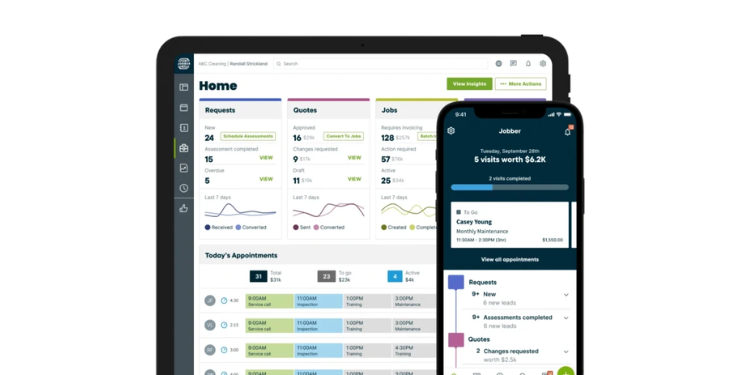
Sometimes the time clock isn't really the problem. The problem is that scheduling lives in one place, invoices in another, customer history in a third, and the clock somewhere else again. Jobber pulls all of it into a single platform and offers a broader field-service workflow alongside employee time tracking.
It runs scheduling, dispatch, quoting, invoicing, a customer hub, and payments, with the time clock as one piece of the machine. Techs clock in from the field, and Jobber records their GPS locations at each punch on the Connect plan and up. Worth acknowledging a common myth here: Jobber offers location-based job timers on eligible plans; verify plan access and whether those timers meet employee payroll timekeeping requirements. What it doesn't do on its own is continuous vehicle tracking; that needs a separate add-on like Force Fleet Tracking. Jobber advertises Core and team subscriptions; confirm the current U.S. month-to-month prices and the number of included users before comparing them with other field-service products.
There are some cautions to keep in mind: Jobber is a platform first, a time clock second. Its native clock controls are lighter than a dedicated tool's, and the per-user math can sting, since adding one helper to an individual plan bumps you up to a team plan. For a shop that wants the whole operation in one login and a clock that's good enough, that's an easy trade.
Key Features
Pros
Cons
Pricing
- 14-day free trial
- Core and team plans available; confirm monthly pricing and included users

QuickBooks Time: Best if You Already Use QuickBooks
Available on: Web, iOS, Android
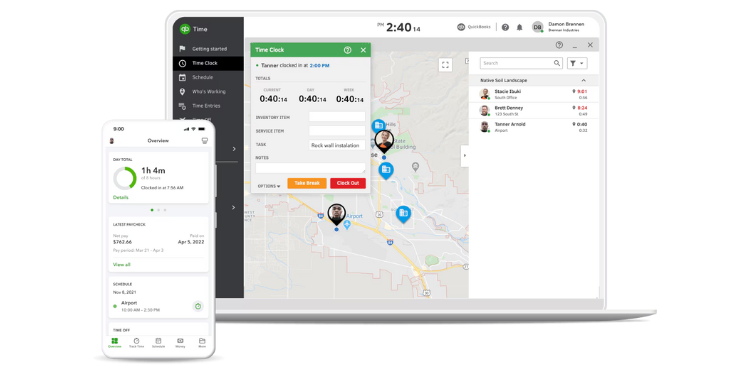
If your books already live in QuickBooks, this is the tool that saves you the most aggravation. The reason is one feature: native integration. Approved hours can flow into QuickBooks for payroll and invoicing without manual re-entry, and that's the entire reason to choose it.
Field features include a mobile GPS clock, a time kiosk, scheduling, and an offline mode that can sync when connectivity returns. Confirm which geofencing capabilities are available with each plan; do not assume the kiosk provides facial-recognition verification. Intuit says the sync can shave a few hours off a payroll run, and for a shop already fluent in QuickBooks, that rings true.
Now the honest math. QuickBooks Time is among the priciest options here. Premium costs $20/month base plus $10 per user/month, and Elite costs $40/month base plus $12 per user/month. You also still pay for QuickBooks itself. And the value mostly evaporates if you're not already in the QuickBooks world, where cheaper tools do the field job just as well. Test GPS accuracy at your actual sites during the free trial.
Key Features
Pros
Cons
Pricing
- Free trial available
- Premium: $20/month base plus $10/user/month; Elite: $40/month base plus $12/user/month. QuickBooks Online subscription required

Jibble: Best Free Option
Available on: Web, iOS, Android
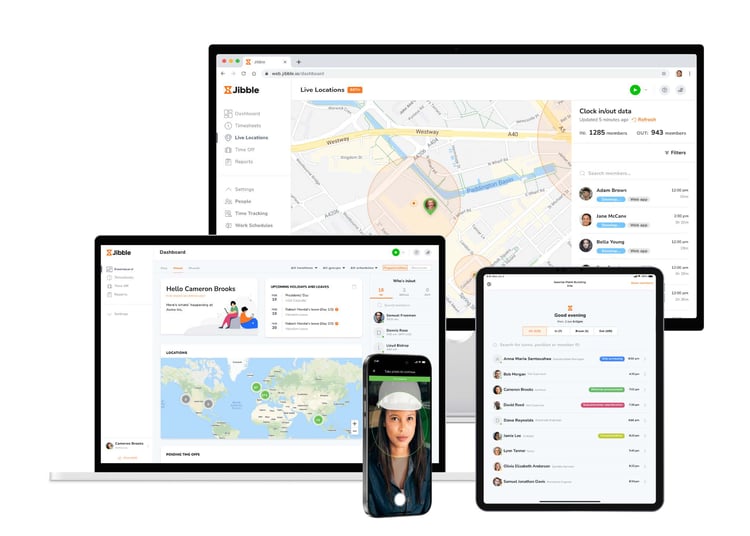
Maybe you're not ready to pay for a time clock yet. You just want to stop techs from rounding their own hours up and have it cost nothing. Jibble is the real answer here, because its free plan isn't a teaser.
Free means free, for unlimited users, with GPS included. You get mobile punches, kiosk mode, facial recognition that can help deter buddy punching, and automated time sheets without a bill or a trial clock ticking down. That beats the other "free" options on a technicality that matters: Connecteam's free plan caps at 10 users, and Homebase's free tier is limited to a single location, while Jibble doesn't cap headcount at all. A growing shop won't outrun the free plan by hiring.
Field depth is the price of free. Jibble's free plan includes basic GPS tracking and geofencing, but some advanced location and workforce management features may require a paid subscription. Paid plans start at $3.49 per user per month for Essential, followed by Growth at $5.99 and Pro at $10.99 with monthly billing. Job costing is lighter than a dedicated field tool, and teams should verify any kiosk-device limitations. For a small shop that mostly needs accurate punches and location records at no cost, none of that is a dealbreaker.
Key Features
Pros
Cons
Pricing
- Free: $0, unlimited users
- Essential: $3.49 per user/month
- Growth: $5.99 per user/month
- Pro: $10.99 per user/month

Buddy Punch: Best for Built-in Payroll
Available on: Web, iOS, Android
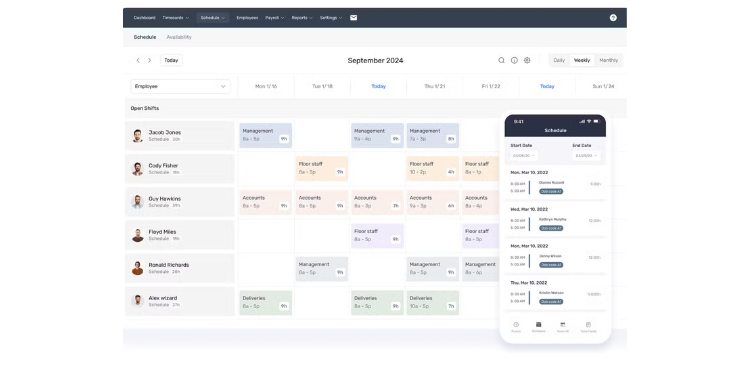
Here's a question that shapes many buying decisions: Do you want to track time and run payroll in the same place? If so, Buddy Punch is the pick, because it offers a built-in payroll service alongside time tracking and scheduling.
It gives you three ways to handle pay, and the flexibility is the appeal. Download a payroll-formatted report and key it in yourself. Push hours to QuickBooks, ADP, Gusto, or Paychex through an integration. Or turn on Buddy Punch's own payroll add-on and pay your techs directly, with tax filing handled. On the tracking side, you get GPS, geofencing on Pro and up, job codes through a clock-in dropdown, and drag-and-drop scheduling. Reviewers consistently rate it 4.8 out of 5 for being simple enough that crews don't fight it.
The limits center on the software's depth. Buddy Punch handles job costing through custom job and project codes you assign at clock-in, which is plenty for tracking labor by service call, but it doesn't go as deep as the phase-and-budget structure ClockShark or Workyard offer, so a shop running complex, multiphase project costing may outgrow it. The $19 monthly base fee also makes it pricey per head for a tiny team, while scheduling costs extra on Starter and is included with Pro and Advanced. GPS punch records and advanced location features differ by plan. For an owner who wants clocking and paychecks under one roof, those are easy limits to live with.
Key Features
Pros
Cons
Pricing
- 14-day free trial, no credit card
- Starter: $5.99/user/month; Pro: $7.99/user/month; Advanced: $13.99/user/month, each plus a $19 monthly base fee
Side-by-Side Comparison
| Tool | Best For | Pricing | Key Strengths | Top Integrations |
|---|---|---|---|---|
| OnTheClock | Small HVAC shops, simple and complete | $5 base + $4/user/month | All features in one plan, GPS, scheduling | QuickBooks, Gusto, ADP, Paychex |
| ClockShark | Bigger crews, project installs | $42 base + $9.50/user (Standard) | Crew clock-in, phase cost codes, offline | QuickBooks Online and Desktop |
| Workyard | Documenting job-site visits | $50 base + ~$6 to $13/user | Detailed GPS records, drive-versus-job time | QuickBooks, Gusto, ADP |
| Timeero | Drive time and mileage | From $6/user/month; Segmented Tracking extra | Automatic mileage; optional segmented trips | QuickBooks, ADP, Gusto, Paychex |
| Jobber | All-in-one for HVAC | Confirm monthly plan prices and user limits | Scheduling, invoicing, CRM, GPS | QuickBooks Online |
| QuickBooks Time | Shops already on QuickBooks | $20 base + $10/user/month (Premium) | QuickBooks payroll integration, GPS map | QuickBooks Online and Payroll |
| Jibble | Free time tracking | Free for unlimited users; paid plans start at $3.49/user/month | Free unlimited users, GPS, facial recognition | QuickBooks, Gusto, ADP |
| Buddy Punch | Built-in payroll | $19 base + $5.99/user/month (Starter) | Clock-to-paycheck, three payroll paths | QuickBooks, ADP, Gusto, Paychex |
Pricing and comparison information reviewed October 2026; rates reflect standard month-to-month subscriptions where confirmed, excluding promotions. Confirm any pricing identified as unverified directly with the vendor.
What's the Best Time Clock Software for HVAC?
The best option isn't the one with the longest feature list; it's the one that fits the situation you're actually in.
Start with one question: What's the thing that bugs you most on payroll day? Most owners shop for features they might need someday and end up with a heavy toolbox full of instruments their crews will never use. Don't do that. Fix the bottleneck in front of you first.
- Running a small service shop and tired of chasing time sheets? Start with OnTheClock.
- Fighting customers over whether a tech showed up? Workyard provides detailed GPS records to investigate those disputes.
- Watching mileage and drive time leak off your invoices? Look at Timeero.
- Want scheduling, invoicing, and the clock in one login? That's Jobber.
- Already doing everything in QuickBooks? QuickBooks Time keeps it together.
Your answer points to your pick. The right time clock removes the friction from the problem you hit most, and once those hurdles are gone, the rest of the week gets lighter.
What Is HVAC Time Clock Software?
HVAC time clock software is a mobile-first tool that lets field technicians clock in and out from a phone, stamps each punch with GPS location, and turns those hours into payroll and job records. It replaces paper time sheets and the honor system.
For an HVAC shop, the value is in the field details. Depending on the product and settings, the software can document visits across job sites, tie their hours to specific service calls, and flag overtime before it catches you by surprise on payday. The simple version: It answers who worked, where, on what, and for how long without you asking.
Who Needs HVAC Time Clock Software?
Any HVAC business with technicians working from multiple offices needs it. The moment your crew clocks in from driveways and rooftops instead of one shop door, paper time sheets and guesswork start costing real money.
The math tends to come out to three or four field techs. Below that, an owner can almost keep it in their head. Above it, the missed punches, rounded hours, and untracked drive time add up quickly. Residential service shops, commercial contractors, and installation crews all land here. If you're chasing techs for their hours every Friday, you're the audience.
Why HVAC Businesses Rely on Time Clock Software
HVAC work happens everywhere except the office, which is exactly why accurate hours are hard to track. Techs start at scattered sites, drive between calls, and work in basements and on rooftops where nobody's watching the clock but them. Trust alone doesn't scale past a few employees.
The old way leaks money quietly. A few padded minutes per tech per day, buddy punching, travel time not recorded, and labor that never got tied to the job that ate it compound quickly. A GPS time clock replaces the honor system with a record: when and where a device recorded a punch, and which job the hours were assigned to. That record is what makes payroll defensible and job costing real.
Key Features HVAC Time Clock Software Should Have
Before you compare prices, make sure any tool you're weighing covers the basics that HVAC work demands.
-
Mobile clock-ins: from a phone in the field, not a wall terminal.
-
GPS and geofencing: Location-stamped punches can document job-site locations, and configured geofences may restrict off-site punching.
-
Job and cost-code tracking: Hours are attached to specific service calls, not a daily lump.
-
Offline mode: Punches still record in low-signal spots and sync later.
-
Overtime alerts: A heads-up as a tech nears 40 hours in a workweek.
-
Payroll integration: Hours export cleanly to your payroll provider.
How to Choose the Proper Time Clock Software for HVAC
Step 1: Start with where your techs actually work. Map a normal day before you shop. If your crew reports to one shop and stays put, almost any clock will do, and you can shop on price alone. But HVAC rarely works that way. Techs scatter to job sites, drive between calls, and rarely touch a desk. That field reality immediately rules out wall-mounted terminals and desk-bound software, and it pushes you toward mobile-first tools with GPS. Get this step right, and you cut your list in half before you've compared a single price.
Step 2: Decide how much GPS proof you actually need. GPS capabilities vary by product and configuration. A simple location stamp at clock-in tells you roughly where a tech punched. Geofencing goes further, blocking or auto-triggering punches based on whether a user is inside a site's boundary. More detailed tracking, such as Workyard's, may help distinguish driving from time on a job site. Be honest about your real problem. If customers dispute arrival times or you suspect off-site punching, pay for stronger GPS. If you just want a reasonable record, a basic location stamp is plenty, and you'll save money skipping the precision you don't need.
Step 3: Check how it handles job and cost codes. This is where HVAC shops silently lose money. A tech who works three calls in a day needs to switch between jobs without clocking out and back in, so each job counts as its own labor hour. Without that, every hour piles into one bucket, and job costing becomes a guess. Look for midday job switching and ask how cost codes work. Service shops doing quick calls need simple job tags. Shops running multiday commercial installs need deeper phase and budget costing, the kind ClockShark and Workyard are built around. Match the depth to your work, not the sales demo.
Step 4: Test it offline before you trust it. HVAC techs work in the exact places where cell signal dies. Mechanical rooms, basements, the inside of a rooftop unit, rural service routes, etc. A clock that needs a live connection to record a punch will fail your crew right when they need it. During the trial, have a tech clock in with the phone in airplane mode, then reconnect and confirm the punch synced correctly. Some tools handle this gracefully, and some lose the punch entirely. You want to find that out on a test, not on payday.
Step 5: Match it to your payroll, not the other way around. The clock should feed payroll without manual re-entry because every hour you retype is an hour you could mistype. If you already run QuickBooks, a tool with native two-way sync, such as QuickBooks Time, saves real time on reconciliation. If you use Gusto, ADP, or Paychex, confirm the export drops in cleanly. And if you'd rather run everything in one place, a tool with built-in payroll, like Buddy Punch or OnTheClock, does clock and paycheck together. Map your payroll first, then pick the clock that fits it.
Step 6: Add up the real monthly cost, not the sticker price. The headline price rarely tells the truth. Watch for a base fee on top of per-user pricing, features locked behind higher tiers, and the jump that hits when you add your first or fifth employee. A platform that looks cheap at one user can triple when you staff up. Build the cost for your actual headcount with the features you actually need turned on and then compare. A single base-plus-user number with everything included, like OnTheClock's, is often cheaper than a "low" sticker price that nickel-and-dimes you on add-ons.
Step 7: Run a real trial with one crew before you commit. Adoption is the whole game. The best tool on Earth is worthless if your techs won't open it, and you can't learn that from a sales demo. Pick one crew, test the tool for as much of a normal pay period as the trial allows, and watch what happens. Do punches come through clean? Does the GPS hold up on your routes? Do the techs complain or shrug and use it? Their reaction tells you more than any feature comparison. Roll out to everyone only after one crew has lived with it through a complete punch-to-payroll cycle when possible.
Tips for Implementing HVAC Time Clock Software Successfully
-
Roll it out to one crew first. Don't flip the switch company-wide on day one. Pick a single crew, ideally one with a lead who's open to it, and run them on the new system for a full pay period. They'll surface the real-world snags before they hit your whole team. Once that crew is clocking clean, expand. A staged rollout turns your early adopters into the people who train everyone else.
-
Train techs on their phones, not in a meeting. Your technicians will use the app on the same phones they'll use in the field, so train them there. Walk each person through clocking in, switching jobs, and clocking out on their own devices until they've done it once without help. Five minutes of hands-on beats an hour of screen time. The goal is muscle memory, not understanding.
-
Set overtime alerts from day one. HVAC schedules swing hard with the seasons, and a heat wave can push techs past 40 hours before anyone notices. Under the FLSA, those hours must be paid at time-and-a-half, and the requirement can't be waived by agreement. Turn on alerts that flag a tech approaching 40 hours, so you can manage it in real time instead of absorbing the surprise on payday.
Frequently Asked Questions
What is the best time clock software for HVAC?
For most HVAC shops, OnTheClock is the best fit because it combines GPS, scheduling, job costing, and payroll exports into one plan at a $5 base plus $4 per user per month , with nothing gated to a higher tier. But the best pick depends on your biggest pain. Bigger crews running project installs do better with ClockShark, shops fighting arrival disputes want Workyard's precise GPS, and QuickBooks users get the most from QuickBooks Time.
Do HVAC techs need GPS time tracking?
In most cases, yes. HVAC technicians work at sites away from any office, so GPS-stamped punches provide useful location evidence, though other verification methods exist and GPS alone does not establish employee identity or completed work. Such records can help investigate customer disputes over arrival times and discourage off-site clock-ins. If your entire crew reports to a single location, you can skip it.
How much does HVAC time clock software cost?
Most options range from free to about $13 per user per month, often with an additional monthly base fee. Jibble is free for unlimited users; OnTheClock runs $5 base plus $4 per user per month; and field-heavy tools, like ClockShark and Workyard, charge a $42-$50 base plus higher per-user rates. Always build the cost for your actual headcount with the features you need enabled, since base fees and tier gates affect the true price.
Can a time clock app track drive time between jobs?
Yes, and for HVAC it's a feature worth paying for. Tools like Timeero automatically track mileage and routes between job sites. Its optional Segmented Tracking add-on can distinguish time spent driving from time spent at each job site. Both categories may count as compensable work time. That matters when you reimburse techs for mileage or bill travel to commercial clients. Without it, drive time tends to vanish from your records.
Will a time clock work where my techs have no cell signal?
Many will. Offline mode lets a tech record a punch with no connection, then syncs it once the phone reconnects, which matters in basements, mechanical rooms, and rural areas. Not every app does this well, and some lose the punch entirely. Test it during your trial by clocking in with the phone in airplane mode, then reconnecting to confirm the punch saved.
Does time clock software help with overtime and labor law?
It helps, but it doesn't replace your judgment. Good software flags techs approaching 40 hours and automatically calculates overtime, which makes FLSA compliance far easier. Under federal law, nonexempt employees earn time-and-a-half for hours over 40 in a workweek, and that can't be waived. The software gives you the record and the alerts; you still set the policy.
Start Tracking Time for Free
Stop chasing time sheets every Friday. Give your HVAC crew a mobile clock with GPS, job tracking, and payroll exports in one simple plan.
Start your 30-day free trial without a credit card.
