/** * FAQ Accordion * Handles expand/collapse behavior for FAQ items */ * Schema */
Skip to content
Herb WoerpelJun 25, 2026 8:57:13 AM25 min read

Best Time Tracking Software for Skilled Trades in 2026


TABLE OF CONTENTS
loading...

Put Every Trade Hour on the Right Job

Give your crew one-tap GPS punches that tie to the job and export clean to payroll. See your real labor cost on every project.

Try It Free

Key Takeaways

  • OnTheClock is the best pick for small trade businesses. One plan at $5 a month plus $4 per user covers GPS punches, job costing, scheduling, and overtime alerts.
  • Your crews work where you can't watch them. GPS and geofencing prove a tech punched in at the job, not the parking lot down the road.
  • Hours that don't tie to a job hide your losses. Job costing shows which work makes money and which quietly bleeds it.
  • Real free plans exist. busybusy tracks unlimited users for free with GPS-tagged punches and job costing built in.
  • Drive time is real money. Crews that hop between sites can log mileage automatically for reimbursement and job costs.

For skilled trades, the best time tracking software earns its keep at one moment: when a week of scattered job site hours has to turn into an accurate paycheck and an honest job cost at once. Catch the hours right the first time, tie each one to the job, and payroll stops being a guessing game.

Picture the old way. A plumber scribbles start times on a truck notepad. An apprentice forgets to clock out after a late water heater swap. By Friday, the office rebuilds the whole week from memory and group texts. Now picture the turn. Every tech taps a phone, the punch carries a GPS stamp, and the hours land on the right job before the foreman leaves the site. That gap, paper guesswork against real proof, is the whole difference for a trade shop. Reviewers on G2 and Capterra keep raising the same three pains: hours they can't verify across job sites, labor that never ties back to the job, and missed punches that wreck payroll.

No single tool wins for every trade. Below are seven picks, each matched to a real situation, starting with the one for small trade businesses.

What Skilled Trades Actually Want From Time Tracking

Trades want proof first. When a tech swears they were on site at 7 a.m., you need a record that backs it without a phone call. That one need shapes almost every other choice on this list.

They also want hours that land on the right job. A crew might hit three addresses in a day, and the labor on each one decides whether that job made money. Strong GPS time tracking plus job tags turn raw punches into numbers you can bid against next time.

And they want it simple in the field. Your techs wear gloves, climb ladders, and work in the rain, so the punch has to be one tap. The right pick shifts with whichever of these you feel most.

Quick Picks: The Best Time Tracking Software for Skilled Trades at a Glance

  • OnTheClock: Best for small trade businesses

  • Workyard: Best for job costing accuracy

  • busybusy: Best free option for field crews

  • Connecteam: Best for all-in-one field teams

  • Timeero: Best for mileage and drive time

  • Buddy Punch: Best for buddy punch prevention

  • Hubstaff: Best for GPS field oversight

How We Evaluated the Best Time Tracking Software for Skilled Trades

We judged each tool on what actually matters when your people work on rooftops, in crawl spaces, and across town, not on feature-sheet length. We compared every option against the eight needs trade shops keep raising, what we call the OnTheClock Skilled Trades Checklist:

  • Location proof: GPS and geofencing that confirm a tech punched in at the real job site.

  • Job costing: hours tagged to each job so you see labor cost per project.

  • Mobile punching: a one-tap phone clock that works in gloves, sun, and rain.

  • Drive time and mileage: automatic logs for crews moving between sites.

  • Overtime alerts: daily and weekly flags that catch FLSA overtime before payday.

  • Clean payroll export: hours that leave the system ready for pay, no rekeying.

  • Punch verification: photo, PIN, or face capture that stops buddy punching.

  • Total cost: the real base fee plus per-user math as crews grow and shrink.

OnTheClock earns the small-trades slot here because it covers the whole checklist in one base plan: GPS and geofencing, kiosk and mobile punching, job costing, scheduling, PTO, and overtime alerts, with none of it held back for a higher tier. That breadth at $5 base plus $4 per user is the basis for the small-trades label, not a ranking against the other picks. Each tool below serves its own situation best.

The Best Time Tracking Software for Skilled Trades

Below, the best time tracking software for skilled trades, with the right pick for each situation. For each one, we cover who it fits best, where it stands out, and where it may not be the right move.

1

OnTheClock: Best for Small Trade Businesses

Available on: Web, iOS, Android

ontheclock-desktop-screenshot

Why OnTheClock Is Best for Small Trade Businesses

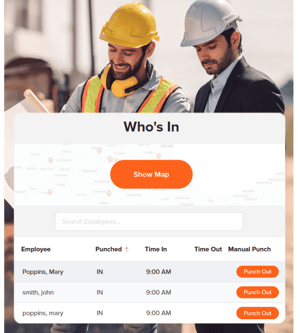
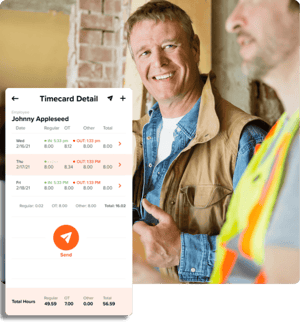
OnTheClock fits the lean trade shop that runs a few crews and a small back office. Picture a six-tech electrical contractor bouncing between service calls and a remodel. The owner needs proof of hours, labor tied to each job, and a clean payroll file, not a platform that takes a week to learn. OnTheClock gives a tech a punch button on their own phone, stamps it with GPS, and drops the hours onto the right job for the office to approve in minutes.

It covers the full checklist in the base plan. GPS, geofencing, and IP rules confirm the punch location. Kiosk mode with a PIN handles a shared shop tablet. Job and project costing show labor per job, overtime alerts flag the 40-hour line, and tip, bonus, commission, and mileage tracking come standard. Reviewers single out the support team, who answer by phone, chat, or email without a wait, which matters most on payroll night.

Why OnTheClock Is Different

One plan, no fine print. You pay a $5 base a month plus $4 per user, and the location controls, job costing, scheduling, PTO, and overtime tools are all included, not gated behind a pricier tier. For a 10-tech shop, that's $45 a month with every feature on. Need pay runs in the same place? Add OnTheClock Payroll for a $40 base a month plus $6 per employee.

It stays honest about the trade-off. Punches need an internet or Wi-Fi connection, so a remote site with no signal needs the offline workaround or a shop kiosk. Crews that want deep custom dashboards may find the reporting lighter than a heavy enterprise suite. For most small trade teams, the simple, low cost is the point. It integrates with Gusto, QuickBooks, ADP, Paychex, and SurePayroll for the rest.

Key Features

GPS, geofencing, and IP punch controls
Job and project costing
Kiosk, mobile, and web punching
Overtime alerts and punch rounding
Tip, bonus, commission, and mileage tracking

Pros

Every core feature in one base plan
Low, predictable per-user price
Job costing without a higher tier
Fast, free phone and chat support
30-day free trial, no credit card

Cons

Punches need an internet or Wi-Fi connection
Reporting is lighter than enterprise suites
Payroll add-on is a newer offering

Pricing

2

Workyard: Best for Job Costing Accuracy

Available on: Web, iOS, Android

workyard-homepage

Why Workyard Is Best for Job Costing Accuracy

Workyard was built for the field, and it shows in the labor numbers. The app runs the most precise GPS time tracking it can manage, then tags every minute to the right project based on where the work happens. For a contractor who bids tight and wants to know which jobs actually cleared a profit, that detail is the draw. One electrical company on its site reports saving roughly $2,500 in inflated payroll from a single crew.

Price is the thing to weigh. Workyard charges a $50 monthly company base fee on top of per-user pricing, so a tiny crew feels it more than a big one. The Starter plan covers GPS time tracking at $8 per user a month, while the deeper labor cost and profitability reporting sits on the higher tier at $16 per user a month. For a shop that lives and dies on accurate job costs, the math still works. If you want a lighter clock first, weigh it against a field service time clock built for smaller teams.

Key Features

Precise GPS time tracking
Automatic job and cost code tagging
Geofenced auto clock-in
Scheduling and project tracking

Pros

Deep, accurate labor cost data
Strong GPS built for the field
Automatic hours-to-job tagging
14-day free trial, no credit card

Cons

$50 monthly base hits small crews
Full cost reporting on the higher tier
More tool than a one-truck shop needs

Pricing

  • 14-day free trial, no credit card
  • Starter $8 per user a month plus a $50 company base; higher tier $16 per user a month
3

busybusy: Best Free Option for Field Crews

Available on: Web, iOS, Android

busybusy-homepage

Why busybusy Is Best Free Option for Field Crews

Start with busybusy when the budget is zero but the stakes aren't. The free plan covers unlimited users, tags every clock-in and clock-out to a GPS location, and includes job costing tools, all at $0. Built for construction and the trades, it speaks the language of cost codes and crews out of the box. For a growing plumbing or concrete outfit putting its first techs on an app, that's a real time clock with location proof for nothing.

Know where free stops. The Pro plan at $9.99 per user a month adds analytics, scheduling, photo documentation, and richer GPS breadcrumbs, and Premium at $14.99 per user a month layers on progress tracking, daily reports, and BusyPayroll powered by Gusto. Free also keeps location detail lighter than the paid breadcrumb trails. For pure, cheap punch tracking with job costing baked in, few tools match it.

Key Features

Free for unlimited users
GPS-tagged clock-in and clock-out
Job costing on the free plan
Photo documentation on paid plans

Pros

Genuinely free for unlimited users
Built for construction and trades
Job costing even on free
Simple mobile punching for crews

Cons

Free GPS detail is limited
Built-in payroll is a Premium add-on
Scheduling needs a paid plan

Pricing

  • Free forever for unlimited users
  • Pro $9.99 per user a month; Premium $14.99 per user a month
4

Connecteam: Best for All-in-One Field Teams

Available on: Web, iOS, Android

connecteam-homepage-screenshot

Why Connecteam Is Best for All-in-One Field Teams

Connecteam puts the whole field operation on one app. A crew clocks in with a GPS stamp, reads the day's schedule, fills out a safety checklist, and chats with the office, all without juggling separate logins. For a trade shop that wants time tracking plus communication and forms in a single place, that bundle is the pull. The GPS time clock records where each punch happens, and geofencing can auto clock-out a tech who leaves the site.

Read the structure before you buy. Connecteam sells in three hubs, Operations, Communications, and HR, so a shop that needs the clock and chat may pay for two. The free Small Business plan is genuinely useful and covers all features, but it caps at 10 users, and the Basic paid tier starts at $29 a month for the first 30 users billed annually. For deskless trade teams that want everything in one app, the value is real once you map which hubs you need.

Key Features

GPS time clock with geofencing
Scheduling, chat, and tasks
Forms and checklists for field work
Mobile-first deskless design

Pros

One app for the whole field crew
Free for up to 10 users
Strong mobile punch reliability
Safety forms built in

Cons

Hub pricing can mean paying twice
Free plan caps at 10 users
Many modules can overwhelm a small office

Pricing

  • Free Small Business plan for up to 10 users
  • Basic from $29 a month for the first 30 users (billed annually), then per user
5

Timeero: Best for Mileage and Drive Time

Available on: Web, iOS, Android

Timeero-homepage-1

Why Timeero Is Best for Mileage and Drive Time

Timeero earns its slot the moment your crew spends as much time driving as drilling. It tracks time and GPS like the others, then logs the miles between stops automatically, so a tech who hits five service calls has an accurate mileage record for reimbursement and job costs. For HVAC, plumbing, and service trades that rack up windshield time, that automatic drive log is the standout. Trade owners from electrical and contracting shops point to the route and location view as a daily win.

Mind the tiers. Mileage and basic GPS time tracking start on the Basic plan, which caps at 10 users, while geofencing, job tracking, scheduling, and payroll integrations sit on the Pro plan. Timeero charges a flat per-user rate with no base fee, so the math stays simple as you add techs. If drive time is a real cost center for your shop, few clocks handle it this cleanly.

Key Features

Automatic mileage tracking
GPS time clock with routes
Geofencing on the Pro plan
Job tracking and scheduling

Pros

Standout automatic mileage logs
Flat per-user rate, no base fee
Clear route and location view
14-day free trial, no credit card

Cons

Geofencing needs the Pro plan
Basic plan caps at 10 users
No built-in payroll, export only

Pricing

  • 14-day free trial, no credit card
  • Basic from $4 per user a month; Pro $9 per user a month; Premium $12 per user a month
6

Buddy Punch: Best for Buddy Punch Prevention

Available on: Web, iOS, Android

buddy-punch-homepage-screenshot

Why Buddy Punch Is Best for Buddy Punch Prevention

Buddy Punch goes after one specific kind of theft. The name says it all. Every punch can require a photo or a facial recognition match, so a tech can't clock in for a buddy who's still in bed. On a shared shop tablet or a job site kiosk, that one check shuts down the most common form of time theft in the trades. It adds geofencing and job codes on top for location and cost tracking.

Watch the small-team math. A $19 base a month rides on top of the per-user price, so a four-tech shop feels it more than a 40-tech one. The Starter plan covers time tracking and geofences at $4.49 per user a month billed annually, while facial recognition lands on the Pro plan at $5.99 per user a month. If you mainly want the photo proof, compare it with other photo-punch time clocks before you commit.

Key Features

Facial recognition and photo punches
GPS and geofencing
Kiosk and mobile clock-in
Job codes and basic job costing

Pros

Strong buddy punch prevention
Simple, clean interface
Low starting per-user price
Reliable automatic punch-out alerts

Cons

$19 base fee hits small teams hardest
Facial recognition needs the Pro plan
Lighter job costing than trade-built tools

Pricing

  • 14-day free trial
  • Starter $4.49 per user plus a $19 base a month (billed annually); Pro $5.99 per user
7

Hubstaff: Best for GPS Field Oversight

Available on: Web, iOS, Android

Hubstaff-homepage

Why Hubstaff Is Best for GPS Field Oversight

Hubstaff fits the trade shop that wants to see where every crew is during the workday. Set each project address as a job site, and the app auto clocks a tech in and out as they arrive and leave. The GPS trail and activity view show who's on which job without a single check-in call. For an owner running several crews across town, that live oversight is the draw.

Its standout is the hands-free job-site geofencing paired with project budgets and invoicing. The honest caution: GPS, scheduling, and geofencing all sit on the Grow plan, not the cheapest tier, and the productivity screenshots can feel like heavy monitoring for a tech in the field. There's also a two-seat minimum, even for a one-person test.

Key Features

GPS job sites that auto clock crews in and out
Geofencing for field teams
Project budgets and invoicing
Productivity and activity insight

Pros

Auto clock-in at each job site
Live view of crews across town
Project budgets and invoicing built in
14-day free trial, no credit card

Cons

GPS and geofencing need the Grow plan
Screenshots can feel like heavy monitoring
Two-seat minimum even for one user

Pricing

  • 14-day free trial, no credit card
  • Starter $4.99 per user a month (billed annually); GPS on the Grow plan at $7.50 per user

Side-by-Side Comparison

Tool Best For Pricing Key Strengths Top Integrations
OnTheClock Best for small trade businesses $5 base + $4/user GPS, job costing, scheduling, overtime alerts Gusto, QuickBooks, ADP, Paychex
Workyard Job costing accuracy $8/user + $50 base Precise GPS and labor cost data QuickBooks, ADP, Gusto
busybusy Free option for field crews Free; paid from $9.99/user Free GPS punches and job costing QuickBooks, Gusto, Sage
Connecteam All-in-one field teams Free to 10; $29+ monthly Time, chat, forms in one app Gusto, QuickBooks, Paychex
Timeero Mileage and drive time Per user from $4; no base Automatic mileage and routes QuickBooks, Gusto, ADP
Buddy Punch Buddy punch prevention $19 base + $4.49/user Facial recognition punches QuickBooks, Gusto, Paychex
Hubstaff GPS field oversight $4.99 to $10/user GPS job sites, geofencing, project budgets QuickBooks, Gusto, PayPal, Deel

Comparison data verified June 2026 against each vendor's own site; subject to change by respective providers.

What's the Best Time Tracking Software for Skilled Trades?

The best option depends on where your hours leak, not on the longest feature list. Start with one question: what breaks most often on payroll day?

  • Need every core feature in one cheap plan? OnTheClock fits small trade businesses.
  • Want to know which jobs make money? Workyard sharpens your labor costs.
  • Have no software budget yet? busybusy tracks unlimited crews for free.

Match the tool to your biggest problem, and the rest of the decision gets easier.

What Is Time Tracking Software for Skilled Trades?

Time tracking software for skilled trades records when techs start and stop, where they punch, and which job each hour belongs to. It swaps paper sheets and tailgate notes for a digital record you can prove.

For trades, it adds the parts a basic clock skips: GPS proof for off-site work, job tags for cost tracking, and exports that feed payroll clean. The simple point is one trusted record that pays the tech and prices the job.

Who Needs Time Tracking Software in the Skilled Trades?

Any trade shop with crews working away from the office needs it. The moment your profit depends on hours you can't see, guesswork costs you money. The threshold is low, often as few as three techs.

Electricians, plumbers, HVAC techs, carpenters, welders, and landscapers all qualify. If you're chasing punches by text on payday, you're the audience.

Why Skilled Trades Rely on Time Tracking Software

Your techs earn money on other people's property. A vague time sheet turns into a payroll fight and a job you can't price right next time, so accurate punches with location proof end the argument before it starts. Tie those hours to the job and you finally see your real labor cost.

The old way fails twice over. A missed punch becomes a wrong paycheck and a wrong job cost on the same day, and federal rules expect accurate hour records anyway. The U.S. Department of Labor requires employers to keep complete and accurate time records under the FLSA recordkeeping rules. Good software keeps those records and exports them clean to scheduling and payroll.

How Time Tracking Software Works for Skilled Trades

It starts at the punch. A tech opens an app on a phone or a shared tablet, taps clock-in, and the software stamps the time, the GPS location, and the job. No paper, no rounding up in their head.

From there the hours flow. The system tallies regular and overtime hours, holds them against the schedule, and tags each one to its job for costing. At the end of the week, the office approves the time sheets and exports clean totals to payroll and accounting. The same record that pays the tech also tells you what the job really cost.

Key Features Skilled Trades Time Tracking Software Should Have

Before you compare prices, make sure any tool covers the basics the trades actually need.

  • GPS and geofencing: proof a tech punched in at the real job site.

  • Job and cost codes: hours tagged to each job so you see labor per project.

  • Mobile clock-in: a one-tap phone punch for crews who never see the office.

  • Overtime alerts: daily and weekly flags that catch the 40-hour line before payday.

  • Photo or PIN punches: a check that stops buddy punching on shared devices.

  • Clean payroll export: hours that move to pay and accounting without a manual fix.

Pro Tip: Set up your job and cost codes before go-live. Clean codes turn one hours export into both a payroll file and a labor cost report per job.

How to Choose the Proper Time Tracking Software for Skilled Trades

Step 1: Count your techs and active job sites, then do the pricing math. Start with real numbers. Count the techs you run in a busy week and the job sites they cover, because per-user pricing decides your true cost, not the headline rate.

Run two quotes side by side. A 10-tech shop on OnTheClock pays a $5 base plus $4 per user, or $45 a month, with every feature on. The same 10 techs on Workyard's Starter plan run $8 per user plus a $50 base, or $130 a month, before the higher cost reporting tier.

Now factor churn. Trades add and drop seasonal help, so favor tools that bill only for active users and let you deactivate a tech without a penalty.

Step 2: Name the single problem that costs you most. Pick one. Disputed hours, jobs you can't cost, and buddy punching each point to a different tool, and chasing all three at once leads to an overbuilt plan you won't use.

Be honest about the dollars. If you lose a few hours a week to padded punches across a six-tech crew at $30 an hour, that's real money. If you can't tell which jobs cleared a profit, job costing is your lever.

Write the top problem down before you demo anything. It keeps a slick sales call from selling you features that don't fix your leak.

Step 3: Match the punch method to where techs actually work. Field crews need a one-tap phone punch. A shared shop needs a kiosk with a PIN or a photo. An apprentice on a long site may only need a simple mobile clock.

Most shops mix all three. OnTheClock, busybusy, and Connecteam each support mobile, kiosk, and web punching, so one account can cover a service tech and a shop crew at once.

Test the punch on a cheap tablet and a tech's own phone before you roll it out. The device that fails in the cold or the rain is the one that creates the missed punch you're trying to prevent.

Step 4: Demand job costing that ties hours to the work. This is the trade-specific step. The hours mean little until they sit on a job, because the labor on each project decides your margin and your next bid.

Confirm how each tool tags hours. OnTheClock and busybusy include job costing without a top tier, Workyard makes labor cost its whole pitch, and Hubstaff ties hours to job sites with project budgets. Ask for a sample labor cost report you could actually use.

Pull one finished job through the trial. If the report shows true cost against your bid, you've found your number.

Step 5: Check drive time and mileage capture. Trades live in trucks. A tech who hits five calls in a day racks up miles that count for reimbursement and job costs, so a tool that logs them automatically saves a stack of manual entry.

Decide how much it matters. If your crews drive between sites all day, Timeero's automatic mileage log is a real edge, and OnTheClock tracks mileage in its base plan too.

Match the federal mileage rate in the tool so reimbursements stay consistent and defensible. One bad mileage guess per tech per week adds up fast.

Step 6: Pre-configure overtime rules before your first run. Overtime errors are the most common payroll complaint reviewers raise. Long install days push techs past 40 hours fast, and the Fair Labor Standards Act requires at least time and a half for those hours, per the U.S. Department of Labor.

Set the rules before payday, not after. A tool with daily and weekly overtime alerts, like OnTheClock, warns you while you can still adjust a schedule rather than eat the cost.

Map your state rules too. Some states add daily overtime past eight hours, so confirm the software can hold both the federal and the state line for nonexempt techs.

Step 7: Confirm the payroll and accounting export path. Trace one hour from punch to paycheck to job report. The hours have to leave the system clean, because a wrong number here pays a tech wrong and prices a job wrong at the same time.

Check the named integrations. OnTheClock exports to Gusto, QuickBooks, ADP, Paychex, and SurePayroll, while Hubstaff connects to QuickBooks, Gusto, PayPal, and Deel. If you want pay in the same tool, OnTheClock Payroll adds it for a $40 base plus $6 per employee.

Run a test export during the trial. A file that needs hand-editing every week is a hidden labor cost no demo will mention.

Step 8: Test the tool through a full pay period before you commit. A 14-day or 30-day trial only proves something if you run real punches through it. Put one crew on it for a complete pay cycle, punch to payroll.

Watch the rough edges. Time how long approvals take, count the missed punches, and check whether support answers fast when a punch goes wrong on payday.

Then add up the true monthly cost with your real headcount. The right tool feels boring by the end of the trial, because nothing broke.

Pro Tip: Run your trial during your busiest stretch, not a slow week. A tool that holds up under your peak job load is the one that holds up on payroll day.

Tips for Implementing Time Tracking Software in the Skilled Trades

  • Train the crew leads first. Show each foreman the punch and approval flow before go-live, so they can coach their own techs on day one instead of calling the office.

  • Set geofences per job site early. Draw the approved zone before the crew arrives, so the first punch already carries location proof you can tie to the job.

  • Lock overtime and break rules from the start. Configure them before your first payroll run and check them against the federal overtime standard, so the export comes out clean.

Pro Tip: Put a one-page punch guide in every truck. One clear sheet at the job site prevents a week of missed punches across the whole crew.

Frequently Asked Questions

What is the best time tracking software for skilled trades?


OnTheClock is the best time tracking software for small trade businesses. One plan at $5 base a month plus $4 per user covers GPS punches, geofencing, kiosk mode, job costing, scheduling, and overtime alerts, with no features held back for a higher tier. Larger shops may prefer Workyard for deep job costing or busybusy for a free field option.

How do skilled trades track hours across multiple job sites?


Trades use a mobile app or a shared kiosk with GPS and geofencing. The tech punches in on a phone or tablet, the software stamps the location, and a geofence can block or flag a clock-in outside the job's approved zone. That gives you proof the hours happened where the time sheet says.

Can time tracking software tie labor hours to specific jobs for skilled trades?


Yes. Job and cost codes let a tech tag each punch to the job they're working, so the system rolls up labor cost per project. OnTheClock and busybusy include job costing without a top tier, and Workyard builds its whole product around accurate labor cost data. That shows you which jobs make money.

Does time tracking software track drive time and mileage for trade crews?


Yes. Tools like Timeero log miles automatically between job sites using GPS, and OnTheClock tracks mileage in its base plan. Match the federal mileage rate in the tool so reimbursements stay consistent. Automatic logs save your techs from reconstructing routes from memory at the end of the week.

How much does time tracking software for skilled trades cost?


Most tools charge a base fee plus a per-user rate. OnTheClock is $5 base a month plus $4 per user. Workyard runs $8 per user plus a $50 base, and Hubstaff runs $4.99 per user on Starter, with GPS on the Grow plan at $7.50 per user. busybusy offers a free plan for unlimited users with GPS and job costing.

Does skilled trades time tracking software integrate with payroll?


Yes. OnTheClock exports to Gusto, QuickBooks, ADP, Paychex, and SurePayroll, and offers its own payroll add-on for a $40 base plus $6 per employee. Hubstaff connects to QuickBooks, Gusto, PayPal, and Deel. Clean payroll exports keep the same hours feeding both pay and your job cost reports.

Track Every Trade Hour With Proof

Stop chasing punches and guessing at job costs. Give your trade crew GPS-verified hours that tie to the job and export clean to payroll.
No credit card required, and you'll be set up in minutes.

Start Tracking Time for Free
avatar
Herb Woerpel
Herb Woerpel is a writer and content strategist at OnTheClock with 17+ years of experience in journalism and business communications. He specializes in workforce management, employee time tracking, and payroll compliance — translating complex labor regulations and HR processes into clear, practical guidance for small business owners and managers.

Before joining OnTheClock, Herb served as Senior Editor of ACHR News and Editor in Chief of Engineered Systems Magazine, two of the most respected trade publications in the mechanical contracting and HVAC industry. Leading editorial operations at both outlets gave him a deep understanding of how field-based, hourly, and contractor workforces actually operate, which directly informs how he writes about time tracking and payroll.

At OnTheClock, Herb works alongside HR professionals, payroll administrators, and business owners daily, giving him firsthand insight into the compliance challenges and operational realities that small businesses navigate every week.

RELATED ARTICLES