

Jump to section
Try OnTheClock Free
Save time and make payroll effortless with our easy-to-use, affordable employee time tracking app.
Try It FreeKey Takeaways
- ✔OnTheClock is the best time tracking software for small vision centers, with kiosk punching, scheduling, PTO, and commission tracking in one base plan.
- ✔Buddy punching is preventable. Photo capture, PIN kiosks, fingerprint readers, and device restrictions verify who actually punched at the front desk.
- ✔Real free plans exist. Homebase covers one location with up to 10 employees, and Jibble covers unlimited users with caps on extras.
- ✔Check the payroll connection first. A clock that syncs with QuickBooks, Gusto, or ADP ends payroll-night retyping for good.
- ✔Run any trial through one full pay period before you decide.
The best time tracking software for vision centers treats your front desk like what it is: a shared workstation where opticians, techs, and receptionists punch in and out between patients. The job is plain. Record every hour accurately, verify who punched, and send clean time sheets to payroll without slowing down a full waiting room.
Most time tracking tools weren't built for an optical floor. They were built for job sites that need GPS breadcrumb trails, or for offices where everyone sits at one desk all day. A vision center is neither. Your staff move between the exam lane, the optical bench, and the front counter, and the paper time sheet taped by the break room can't keep up. Seven minutes of early punching per shift sounds harmless. Across four hourly staff at $18 an hour, it adds up to roughly $2,200 a year in paid time nobody worked.
No single tool wins every situation, so each pick below is matched to the practice it serves best. Seven earned a slot.
What Vision Centers Actually Want From Time Tracking
Accuracy without friction. That's the whole ask. A receptionist clocking in at 8:55 a.m. shouldn't need a manual, and a tech finishing a late contact lens fitting shouldn't lose those minutes because the paper sheet went home with someone else. Practice managers tell review sites the same three stories. Punches appear when nobody was working. Hours scatter across the front desk and the optical bench. Payroll night becomes an evening of rebuilding the week from memory.
There's a wrinkle other industries don't have. Opticians often earn commissions on frame and lens sales, so the right tool tracks earnings beside hours instead of forcing a second spreadsheet. Practices that already track staff hours digitally, like the medical offices we work with through time tracking for medical practices, close payroll in minutes instead of evenings.
The right pick shifts with what you need most. A single optical shop has different math than a three-location chain with shared staff.
Quick Picks: The Best Time Tracking Software for Vision Centers at a Glance
-
OnTheClock: Best for small vision centers
-
Homebase: Best for single-location optical shops
-
Buddy Punch: Best for photo-verified punches
-
Deputy: Best for multilocation vision centers
-
When I Work: Best for scheduling-first front desks
-
Jibble: Best free plan
-
Connecteam: Best all-in-one team app
How We Evaluated the Best Time Tracking Software for Vision Centers
We judged each time tracking tool on what actually matters between the exam lane and the optical counter, on feature-sheet truth rather than feature-sheet length. We compared every option against the eight needs vision centers keep raising, what we call the OnTheClock Vision Center Checklist:
-
Front-desk punching: A kiosk or shared-device clock that works between patients.
-
Punch verification: Photo, PIN, fingerprint, or device controls that stop buddy punching.
-
Shift-edge controls: Blocks early punches and closes forgotten ones automatically.
-
Scheduling: Builds and shares front desk, tech, and optician shifts in one view.
-
PTO tracking: Requests, approvals, and balances inside the same tool.
-
Overtime alerts: Warnings before the week closes, never after.
-
Payroll connection: Syncs to QuickBooks, Gusto, ADP, or Paychex, or runs payroll itself.
-
Price: A monthly number a one- or two-doctor practice can justify.
OnTheClock earns the top spot because it covers all eight needs in a single base plan. Kiosk and mobile punching, device and IP restrictions, scheduling, PTO, overtime calculations, and commission tracking all come standard. None of it is held back for a higher tier. That breadth at the base price is the basis for the "Best for Small Vision Centers" label, never a ranking against the other picks. Each of those serves its own situation best.
The Best Time Tracking Software for Vision Centers
Below, the best time tracking software for vision centers, with the right pick for each situation. For each one, we cover who it fits best, where it stands out, and where it may fall short.

OnTheClock: Best for Small Vision Centers
Available on: Web, iOS, Android
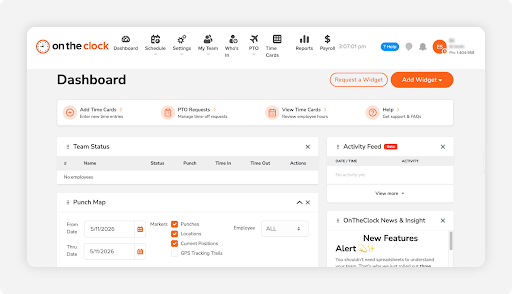
Why OnTheClock Is Best for Small Vision Centers
One plan, one login, every hour accounted for. OnTheClock fits the independent practice where the office manager runs payroll between patient calls and nobody has time to learn enterprise software. Staff punch in on a counter tablet in kiosk mode, on the office computer, or on their phones, and the time sheet builds itself while the waiting room stays moving.
It covers all eight needs on the Vision Center Checklist in the base plan, and it's the only pick here that tracks tips, bonuses, and commissions beside hours. That matters when your opticians earn a cut of frame sales. More than 16,000 companies run on OnTheClock, and 2,500 customers rate it 4.8 stars. You can start a free 30-day trial without a credit card and have punches flowing the same afternoon.
Why OnTheClock Is Different
There's no fine print to outsmart. Prevent-early-punching rules, automatic punch-outs, device and computer restrictions, Wi-Fi and IP limits, GPS, geofencing, scheduling, and PTO all ship in the one plan. Heavier platforms gate half of that behind their top tier. Here, the controls that stop shift-edge creep at the front desk come standard, and an optional fingerprint reader adds biometric verification for less than a dollar per user.
The honest trade-offs: OnTheClock needs an internet or Wi-Fi connection to punch, and text message alerts carry a small extra fee. It also tracks your staff rather than your patients, so appointment booking stays in your practice management system.
Key Features
Pros
Cons
Pricing
- 30-day free trial, no credit card
- $5/month base plus $4 per user/month (see how OnTheClock pricing works)
- Optional payroll: $40/month base plus $6 per employee/month

Homebase: Best for Single-Location Optical Shops
Available on: Web, iOS, Android
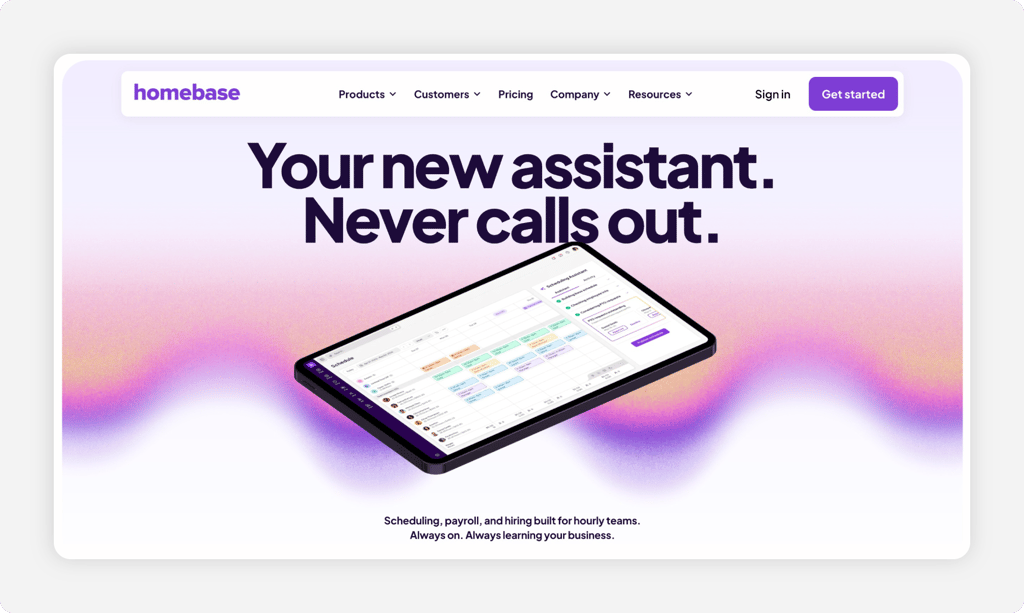
Why Homebase Is Best for Single-Location Optical Shops
A single optical shop with eight staff doesn't need enterprise software. Homebase built its free Basic plan for exactly that shop: one location and up to 10 employees. The plan includes scheduling, team messaging, and a time clock that runs on tablets, computers, and POS devices. Because paid tiers price per location instead of per person, a growing headcount never raises the bill.
Know the limits going in. The free plan stores time sheets for only 90 days, photo capture on punches and late alerts live in the paid Essentials tier, and PTO policy controls sit two tiers up. Reviewers on Capterra also note the GPS stamps only the punch moment and the offline mode can be unreliable. Our full Homebase review covers where it shines and where it stalls.
Key Features
Pros
Cons
Pricing
- Free Basic plan (1 location, up to 10 employees); 14-day All-in-One trial, no credit card
- Essentials $30/month per location ($24 billed annually); payroll add-on $39/month plus $6 per employee

Buddy Punch: Best for Photo-Verified Punches
Available on: Web, iOS, Android

Why Buddy Punch Is Best for Photo-Verified Punches
Buddy Punch answers the one question every shared time clock raises: who actually punched? On its Pro plan, the webcam snaps a photo with every punch, and you review the faces right beside the time stamps. Add PIN kiosks, QR codes, and Face ID on iOS, and a favor between coworkers at the front desk stops being invisible. Its own healthcare page shows practice managers praising the QuickBooks sync in Capterra reviews, and payroll connections reach ADP, Gusto, Paychex, Paylocity, and Workday.
The catch comes at billing time. Every plan carries a base fee on top of the per-user rate. The photo and kiosk verification that defines the product sits in the Pro tier, there's no free plan, and annual billing locks you in until the term ends. Weigh those against the Buddy Punch alternatives before you commit.
Key Features
Pros
Cons
Pricing
- Free trial, no credit card required
- Starter $4.49/user/month billed annually ($5.49 monthly) plus $19/month base; Pro $5.99/user ($6.99 monthly) plus $19 base; payroll add-on $6/user plus $39 base

Deputy: Best for Multilocation Vision Centers
Available on: Web, iOS, Android
Why Deputy Is Best for Multilocation Vision Centers
Run three locations and the problems multiply. Deputy was built for that scale. An iPad kiosk with touchless facial recognition sits at each front desk, and it keeps working offline for up to 24 hours if the internet drops. A live dashboard shows who's on shift across every store. Micro-scheduling even splits one shift across areas, so a floater can cover the optical floor in the morning and the front desk after lunch. Break compliance alerts and shift attestation records help multistate chains keep clean labor law records.
Two caveats deserve attention. Monthly plans carry a minimum spend, and Deputy bills a full month for any employee you add or archive mid-month, which stings practices with seasonal part-timers. Reviewers on Capterra also cite chat-only support as a sore spot. If those give you pause, compare the Deputy alternatives first.
Key Features
Pros
Cons
Pricing
- Free trial up to 31 days, no credit card
- Lite $5/user/month; Core $6.50/user/month; Pro $9/user/month; $30/month minimum on monthly plans; payroll add-on $8/user plus $49/month base

When I Work: Best for Scheduling-First Front Desks
Available on: Web, iOS, Android
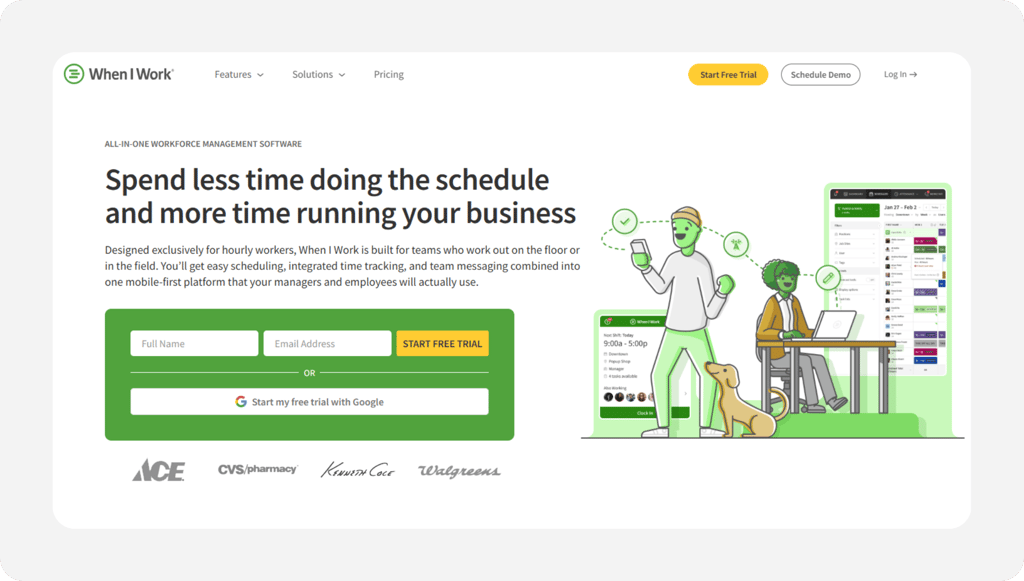
Why When I Work Is Best for Scheduling-First Front Desks
Some practices live and die by the schedule. If your weekly headache is covering Saturdays and evening hours with part-timers, When I Work starts where you hurt. Auto scheduling builds the week in minutes. OpenShifts let staff claim uncovered slots, and shift swaps handle call-outs without a single phone call. The time clock then ties every punch to the shift it belongs to, with GPS and geofence clock-in, and every plan allows unlimited users.
Where it falls short: time tracking is an add-on, never the core. The Time Tracking and Attendance toggle costs extra on every tier, and the price of that add-on isn't published on the pricing page; it appears at signup. Reviewers also report notification reliability gaps. Our When I Work review walks through the full trade-offs.
Key Features
Pros
Cons
Pricing
- 14-day free trial, no credit card
- Essentials $2.50/user/month; Pro $5/user/month; Premium $8/user/month; Time Tracking & Attendance is a paid add-on priced at signup

Jibble: Best Free Plan
Available on: Web, iOS, Android
Why Jibble Is Best for a Free Plan
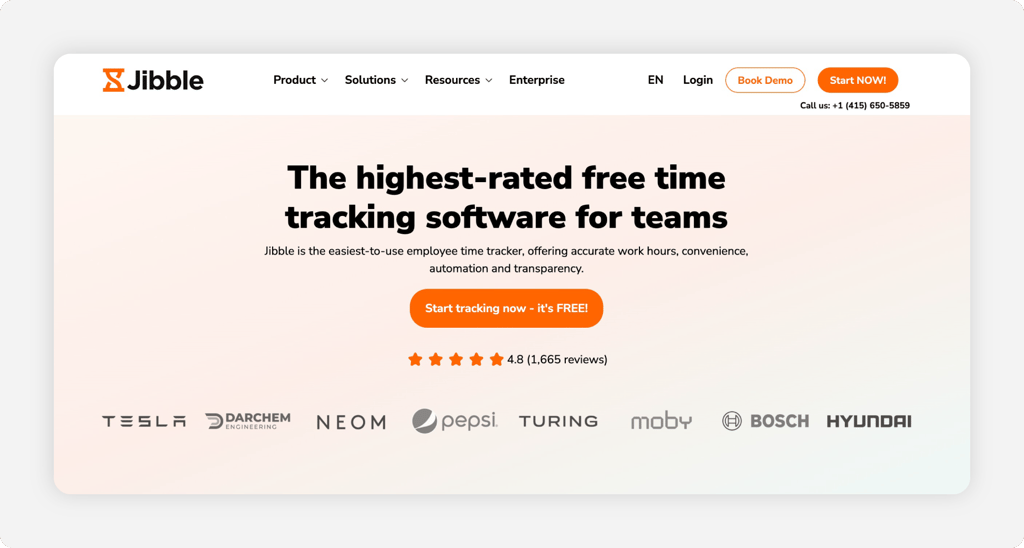
Free rarely means free in this category. Jibble is the exception: unlimited users, forever, with a facial recognition kiosk, PIN backup, NFC and RFID punching, GPS tracking, and an offline mode that syncs when the connection returns. For a vision center watching every dollar, that's a working punch clock at zero cost, and the paid tiers add unlimited geofences and custom policies when you outgrow it.
The caps are the honest fine print. The free plan allows two geofences, one kiosk, and one work schedule, which fits a single store and pinches anything bigger. Shift scheduling is still marked as coming soon even on paid tiers, so schedule builders need another tool for now, and reviewers report the kiosk can slow down at busy clock-in moments.
Key Features
Pros
Cons
Pricing
- Free plan, unlimited users; 14-day full-feature trial
- Premium $4.49/user/month; Ultimate $7.99/user/month

Connecteam: Best All-in-One Team App
Available on: Web, iOS, Android
Why Connecteam Is the Best All-in-One Team App
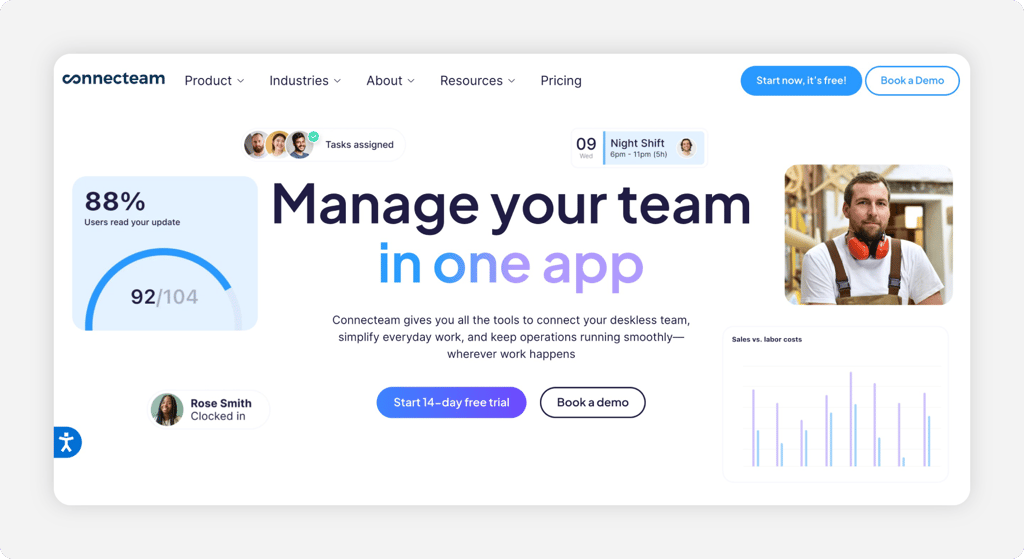
Connecteam fits the vision center that wants one app to run the whole team, not just the punches. Staff clock in from a shared tablet kiosk or their phones, and the same app carries scheduling, team chat, task checklists, and digital forms for opening and closing routines. If your office manager juggles a punch clock, a group text, and a paper schedule, this folds all three into a single login.
The standout is breadth: front desk and lab staff can punch, see the schedule, message the manager, and complete a daily checklist without switching tools. The honest caution is that the same breadth can overwhelm a small office, and geofencing plus full clock customization sit on the Advanced tier. Start with the modules you need and turn on the rest as the practice grows.
Key Features
Pros
Cons
Pricing
- Free Small Business Plan for up to 10 users
- Basic from $29 a month for the first 30 users (billed annually), then per user
Side-by-Side Comparison
| Tool | Best For | Pricing | Key Strengths | Top Integrations |
|---|---|---|---|---|
| OnTheClock | Small vision centers | $5 base + $4/user | Kiosk and punch controls, scheduling, PTO, commission tracking in one plan | Gusto, QuickBooks, ADP, Paychex, SurePayroll |
| Homebase | Single-location optical shops | Free (1 location, up to 10 staff); Essentials $30 a month per location | Free plan, POS clock-in, team messaging | POS systems, payroll add-on |
| Buddy Punch | Photo-verified punches | $19 base + $4.49/user (annual) | Webcam photos on punches, PIN/QR kiosk, Face ID | QuickBooks, ADP, Gusto, Paychex, Workday |
| Deputy | Multilocation vision centers | Lite $5/user ($30 a month minimum) | Facial-recognition kiosk, offline mode, break compliance | Payroll and POS systems, Paycor payroll add-on |
| When I Work | Scheduling-first front desks | $2.50/user + paid attendance add-on | Schedule-linked clock, shift swaps, unlimited users | Payroll and POS integrations, Rippling partner |
| Jibble | Best free plan | Free; Premium $4.49/user | Unlimited free users, facial kiosk, NFC/RFID | QuickBooks Online, Xero, Slack, Microsoft Teams |
| Connecteam | All-in-one team app | Free to 10; $29+ monthly | Kiosk and mobile clock-in, scheduling, chat, tasks, and forms in one app | QuickBooks, Gusto, Paychex |
Comparison data verified June 2026 against each vendor's own site; subject to change by respective providers.
What's the Best Time Tracking Software for a Vision Center?
The best option isn't the longest feature list; it's the one that fixes the friction your practice hits most. Seven tools made this list because each one removes a different kind of friction.
Start with one question: what breaks first on a busy Saturday?
- You want every feature in one base plan with nothing gated: pick OnTheClock.
- You run one shop with 10 or fewer staff and want free: pick Homebase, or Jibble if your team is larger.
- You run two or more locations with shared staff: pick Deputy.
The right tool removes the problem you trip over weekly. Everything else is decoration.
What Is Time Tracking Software for Vision Centers?
Time tracking software records when each employee starts work, takes breaks, and finishes, then turns those punches into time sheets payroll can use. Staff clock in on a tablet kiosk, a computer, or their phones, and the software calculates regular hours and overtime automatically.
For a vision center, it adds the pieces paper can't offer: verification that the right person punched, schedules for front desk and optical staff, PTO balances, and a direct line into payroll. The simple point: hours get recorded once, correctly, and nobody retypes them.
Who Needs Time Tracking Software in a Vision Center?
Any practice paying hourly wages benefits, and the math changes fast around five employees. With one or two staff, a shared spreadsheet might limp along. At five or more hourly people split across a front desk, exam lanes, and an optical counter, the manual method starts leaking real money.
An independent optometry practice with two doctors, six hourly staff, and Saturday hours is the textbook case. So is an optical retail chain juggling part-timers across stores. If you're chasing missed punches or rebuilding hours from memory every other Friday, you're the audience.
Why Vision Centers Rely on Time Tracking Software
A vision center is half clinic, half retail store, and both halves run on hourly labor. Payroll is usually the largest controllable expense in the practice, so a few percent of phantom hours each month quietly eats the margin that frame sales worked hard to build.
The old way fails in predictable spots: a punch nobody can verify, an overtime week nobody saw coming, and a schedule that lives on a whiteboard. Federal rules raise the stakes, since the Department of Labor requires accurate records of hours worked for every nonexempt employee. Software replaces all of it with one system, and pairing the clock with employee shift scheduling catches coverage gaps before patients notice them.
Key Features Vision Center Time Tracking Software Should Have
Before comparing prices, make sure any tool on your shortlist covers the basics:
-
Kiosk mode: A shared tablet or computer at the front desk where everyone punches.
-
Punch verification: Photos, PINs, fingerprints, or device restrictions that prove who clocked in.
-
Shift-edge controls: Rules that block early punches and close forgotten ones.
-
Scheduling: Shifts for receptionists, techs, and opticians in one view.
-
Overtime alerts: A warning at 35 hours beats a surprise at 47.
-
Payroll integration: Direct sync to QuickBooks, Gusto, ADP, or your provider of choice.
How to Choose the Proper Time Tracking Software for Vision Centers
Step 1: Count your people and do the math.
Start with headcount. A vision center with nine hourly staff pays $41 a month with OnTheClock ($5 base plus $4 per user). The same team costs $0 with Homebase Basic at one location, and $59 a month with Buddy Punch's annual Starter plan ($19 base plus $4.49 per user). Three very different bills for nine people.
Now project a year out. Hiring a tenth person costs $4 more per month on a per-user plan and nothing on a per-location plan, but opening a second location flips that math completely. Homebase jumps from free to $30 per month per location the day store two opens, while OnTheClock's price only moves when people do.
Watch for fees that hide outside the headline rate. Base fees, minimum spends, paid add-ons for the actual time clock, and full-month billing for mid-month hires all change the real total. Write the true monthly number for your exact roster before comparing anything else.
Step 2: Name the problem you're solving first.
Write down the one thing that hurts most before you compare features. If punches appear when nobody was working, you need verification. If payroll night means retyping hours into QuickBooks, you need a payroll connection. If Saturday coverage keeps collapsing, you need scheduling tied to the clock.
This single sentence does more filtering than any review site. A practice bleeding money to shift-edge creep should weight punch controls over everything; OnTheClock and Homebase's higher tiers both block early clock-ins. A practice with a buddy punching suspicion should weight photo or biometric verification, which points to Buddy Punch, Deputy, or a fingerprint reader.
Resist solving problems you don't have. GPS breadcrumb trails matter for mobile crews, but your staff work inside one building. Paying for unused controls is the quietest form of overspending.
Step 3: Match the punch method to your front desk.
Decide where punches will physically happen. A counter tablet in kiosk mode works for most vision centers because staff pass the front desk anyway. Phones suit a two-store practice that shares staff between locations. A web clock on the office computer works when you'd rather not buy any hardware at all.
Think about the patient standing at the counter while someone clocks in. A punch should take five seconds, never a queue. Facial recognition kiosks from Deputy and Jibble clear that bar when they're quick, though reviewers note Jibble's kiosk can lag at rush moments. A simple PIN pad never lags.
Step 4: Decide how you'll verify who punched.
Pick a verification method that matches how much you trust the honor system. Photo capture shows you a face next to every punch. PIN codes and fingerprint readers stop casual favors between coworkers. Device and IP restrictions keep punches inside the building entirely.
Each method carries a cost and a culture signal. Buddy Punch's webcam photos require its Pro tier. Deputy's face unlock requires Core. OnTheClock includes device, computer, IP, and Wi-Fi restrictions in the base plan and offers fingerprint readers at $0.50 per user per month. Tell the team why you're adding verification: accurate paychecks protect the honest majority.
Step 5: Check the payroll connection before you commit.
List your payroll provider first, then shop. OnTheClock syncs with Gusto, QuickBooks, ADP, Paychex, and SurePayroll, and Connecteam connects to QuickBooks, Gusto, and Paychex. A clock that can't talk to your payroll system just moves the retyping to a different screen.
Test the sync during the trial, never after the purchase. Push one real pay period from the time clock into payroll and count the corrections. Ten minutes of checking here saves a recurring hour every other Friday, which at $25 an hour of admin time is about $650 a year.
Step 6: Plan for Saturdays, part-timers, and the year-end rush.
Vision centers run on retail hours. Saturday shifts, evening appointments, and the December surge of patients spending year-end FSA dollars all demand more scheduling flexibility than a weekday office ever needs. Make sure the tool can build split shifts, swap coverage fast, and warn you before overtime lands.
Seasonal part-timers add a billing wrinkle. Deputy bills a full month for anyone added or archived mid-month, while OnTheClock only counts employees active within 20 days of the billing date. If you staff up for back-to-school exam season and trim in February, those policies decide your true cost.
Step 7: Run the trial through one full pay period.
Run the trial until the first complete payroll lands, then judge. OnTheClock's 30-day trial covers two full biweekly pay cycles with no credit card. If clean time sheets reach payroll twice in a row without an edit marathon, you've found your tool.
Use real conditions during the test. Everyone punches digitally, the old paper sheet stays in a drawer for backup only, and the office manager pulls the report on payroll day exactly as they would going forward. A tool that survives a real pay period at a busy practice has passed the only test that counts.
Tips for Implementing Time Tracking Software in Your Vision Center
-
Pick one punch method and announce a start date. Mixed methods breed confusion. Tell the team that starting Monday, everyone punches on the front desk tablet, and show each person the 10-second routine during a slow hour.
-
Run paper and digital side by side for two weeks. The overlap catches setup mistakes while the stakes are low. Once two pay periods match, retire the paper sheet for good.
-
Put your rounding and break rules in writing. Federal recordkeeping rules under the FLSA, summarized in DOL Fact Sheet #21, require accurate daily and weekly hour records for every nonexempt employee. Time cards must be kept for two years. Your software stores all of it automatically once the rules are set.
Frequently Asked Questions
What is the best time tracking software for vision centers?
OnTheClock is the best time tracking software for small vision centers. It covers kiosk punching, punch verification controls, scheduling, PTO, overtime alerts, and commission tracking in one base plan at $5 per month plus $4 per user. Homebase, Buddy Punch, Deputy, When I Work, Jibble, and Connecteam each fit a specific situation, from free single-location plans to multilocation chains.
Can vision center staff clock in on a shared tablet at the front desk?
Yes. Kiosk mode turns one tablet or computer at the front desk into a shared punch clock for the whole team. OnTheClock, Deputy, Connecteam, Buddy Punch, and Jibble all offer kiosk punching, and most add a PIN, photo, or facial check so each punch is tied to the right person.
How do vision centers stop buddy punching?
Buddy punching stops when punches require proof. Photo capture shows a face beside every time stamp, PIN codes and fingerprint readers block punches by anyone else, and device or IP restrictions keep clock-ins inside the building. OnTheClock includes device restrictions in its base plan, Buddy Punch photographs every punch on its Pro plan, and Deputy and Jibble use facial recognition kiosks.
How much does time tracking software cost for a small vision center?
A nine-person vision center pays about $41 a month with OnTheClock ($5 base plus $4 per user). The same team costs $0 with Homebase Basic at a single location and about $59 a month with Buddy Punch's annual Starter plan. Watch for base fees, minimum spends, and paid add-ons, since they often matter more than the per-user rate.
Does time tracking software sync with QuickBooks and other payroll providers?
Most leading tools do. OnTheClock syncs with Gusto, QuickBooks, ADP, Paychex, and SurePayroll, and can also run payroll itself. Buddy Punch connects to ADP, Gusto, Paychex, Paylocity, and Workday, and Connecteam connects to QuickBooks, Gusto, and Paychex. Always test the sync with one real pay period during your trial.
How long should a vision center keep employee time records?
Under the FLSA, payroll records must be kept for at least three years, and the time cards behind wage calculations must be kept for two years. Time tracking software stores these records automatically, which makes an audit or a wage dispute far easier to answer than a box of paper time sheets.
Ready to See Every Hour Clearly?
Give your vision center a time clock that verifies every punch, schedules every Saturday, and lands clean time sheets in payroll.
No credit card required, and you'll be set up in minutes.
