.png?width=300&name=pay-adjustment-hero%20(1).png)
%20(1).webp)
.png)
Jump to section
Switching Payroll? We'll Do the Heavy Lifting
Hands-on implementation support to move your payroll data, set up your account, and guide your first payroll run.
Request a DemoPayroll rarely goes exactly according to plan, and despite all your efforts to keep it between the lines, a few abnormalities are, well, normal.
Someone earns a bonus, another employee gets a raise, or another worker's hours are finally sorted out after a mistake that happened three weeks ago. None of that means your payroll process is broken. It means you're running a business with actual humans in it, and pay adjustments are just the mechanism for handling the stuff that falls outside a standard paycheck.
Some adjustments are planned. Others happen because something needs to be corrected. Either way, the goal is the same: make sure employees are paid the right amount without turning a routine payroll change into a bigger project.
This article covers the most common types of pay adjustments, why they happen, and how to handle them in OnTheClock
What Is a Pay Adjustment?
A pay adjustment is a change to an employee's normal compensation, whether it's a one-time addition, correction, or an ongoing change to how they're paid.
Some adjustments are one-time events tied to a specific payroll. Others are ongoing changes to how an employee gets paid going forward. Knowing which kind you're dealing with determines how you handle it.
Common Types of Pay Adjustments
Bonuses and Commissions: Extra pay tied to performance, a sale, or a specific milestone, separate from regular wages.
Back Pay: Compensation owed for hours or wages that should have been paid earlier but weren't.
Retroactive Pay: Similar to back pay, usually tied to a raise or rate change that should have applied to a prior pay period.
Reimbursements: Repaying an employee for an out-of-pocket business expense.
Pay Rate Changes: A raise, promotion, or any other change to an employee's ongoing pay rate.
Deduction Changes: Adjustments to a recurring deduction, like updating a benefits contribution or a garnishment amount.
Corrections: Fixing an error from a prior payroll, including a missed hour, an incorrect rate, or a duplicate entry. (If you want the deeper dive on corrections specifically, we've got a full guide on that.)
Why Pay Adjustments Happen
-
An employee earned a bonus or commission outside their regular pay.
-
A raise or promotion needs to take effect, sometimes retroactively.
-
Someone was underpaid and needs back pay.
-
An employee needs reimbursement for a business expense.
-
A deduction, like a benefits contribution, changed.
-
A payroll error needs to be corrected.
-
An employee is being terminated and needs a final paycheck.
None of these is unusual. They're just not things a standard, scheduled payroll run is built to catch on its own; they need to be entered.
How to Process a Pay Adjustment in OnTheClock
The path you take depends on whether the adjustment is a one-time addition to an existing paycheck or an ongoing change to how someone gets paid.
The easiest way to determine how to process an adjustment is to ask one question: Is this a one-time change, a separate payment, or an ongoing change?
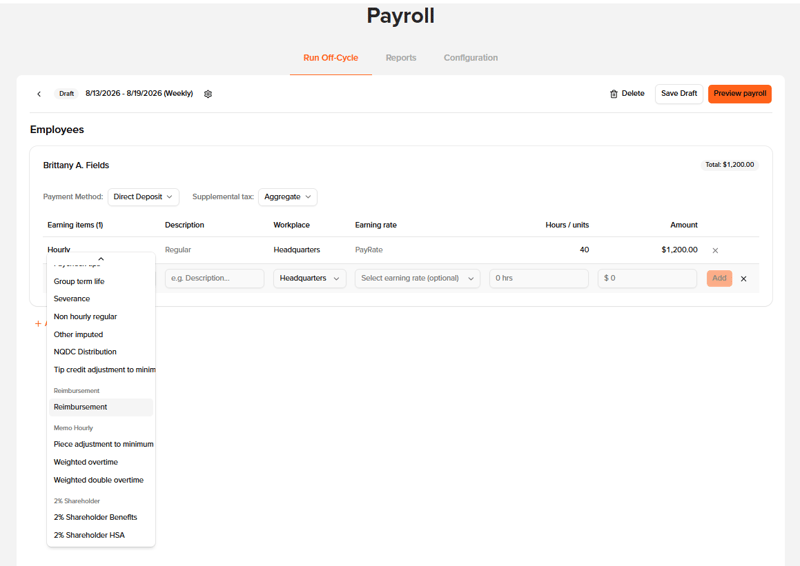
For a one-time adjustment on an upcoming, already-scheduled payroll
If you're adding something like a bonus or a reimbursement to a payroll that hasn't been submitted yet:
-
Open your current, unsubmitted payroll batch.
-
Select the employee who needs the adjustment.
-
Add the appropriate earning code (bonus, commission, reimbursement, or other applicable code).
-
Enter the amount.
-
Preview payroll to confirm it looks correct.
-
Submit payroll as usual.
For an adjustment outside your regular payroll schedule
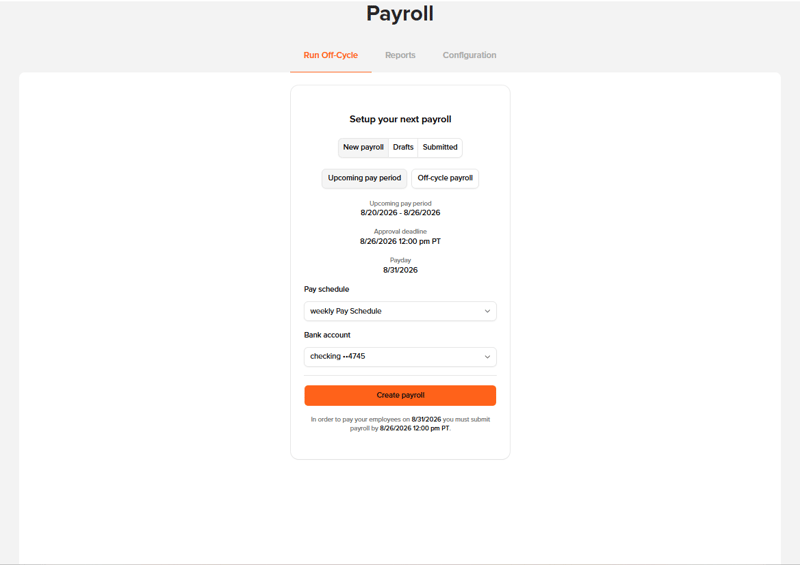
If payroll has already been submitted, or the adjustment needs to go out before your next scheduled run, an off-cycle payroll is the tool for the job. Off-cycle payrolls are commonly used for bonus payments, reimbursements, correcting an underpayment, or issuing a final payment to a terminated employee.
-
Log in as the administrator.
-
Click the Payroll icon.
-
Select Run Off-cycle.
-
Click Off-cycle Payroll.
-
Fill in the payroll details.
-
Click Create Payroll.
-
Click Add Employee.
-
Add the appropriate payroll item and earning code.
-
Preview payroll.
-
Submit.
For an ongoing pay rate change (like a raise)
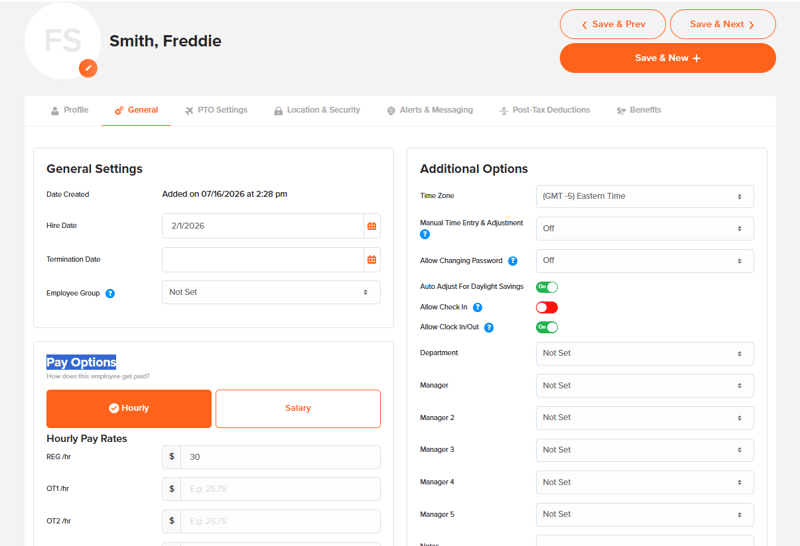
This one isn't a payroll-batch adjustment at all. It's a change to the employee's profile, so every future paycheck reflects it automatically.
-
Log in as the administrator.
-
Click My Team.
-
Select the employee.
-
Go to General, then Pay Options.
-
Update their hourly rate or salary amount.
-
Save your changes.
Once that's saved, you don't have to remember to reapply it every pay period. It just becomes the new normal.
A Few Things Worth Knowing
-
OnTheClock currently tracks one pay rate per employee. If someone's rate is changing, update it directly on their profile rather than layering a second rate on top of it.
-
Bonuses and commissions may be subject to different withholding rules than regular wages. If you're unsure how a specific payment should be handled, check with your payroll team or tax professional before submitting payroll.
-
If a mistake happened and you're not sure whether it calls for a correction or a new adjustment, that's exactly the kind of question your support team would rather answer before payroll runs than after.
Why This Matters More Than it Seems
A pay adjustment is a pretty small technical action. Add an earning code, update a rate, submit a payroll, etc. But it represents something that matters to the person on the other end of it: a bonus they earned, a raise they've been waiting on, or a mistake that finally got fixed.
The easier the process is on your end, the faster it appears correctly on someone's paycheck. That's really the whole point.
Ready to Simplify Payroll and Pay Adjustments? Save Time and Money with OnTheClock Payroll
If you haven’t signed up for OnTheClock Payroll yet, our 2026 year-end offer can help make the switch easier.
Start your OnTheClock Payroll enrollment before Dec. 31, 2026, and you'll receive:
-
Four Months of Free Payroll: a Significant Value. Your first four months of OnTheClock Payroll are free, beginning with the month of your first payroll run.
-
Free Time Tracking for Salaried Employees: We'll waive the monthly time tracking fee for each salaried employee on your OnTheClock Payroll account.
-
Hands-On Payroll Implementation: There is a one-time $250 implementation fee. That covers hands-on work from our payroll implementation team to help get your account set up and ready for your first payroll run. Enrollment must begin before Dec. 31, 2026, to qualify for this year-end offer.
Need an Easier Way to Handle PTO?
Manage time-off requests effortlessly with OnTheClock.
Frequently Asked Questions About Pay Adjustments
What's the difference between a pay adjustment and a payroll correction?
A pay adjustment usually adds something new to pay, like a bonus or a rate change. A correction fixes something that was already wrong, such as a missed hour or an incorrect rate on a past paycheck.
Can I add a bonus to a payroll that hasn't been submitted yet?
Yes. Open the current payroll batch, add the appropriate earning code for the employee, enter the amount, and submit as normal.
What if I need to pay someone outside my regular payroll schedule?
Use an off-cycle payroll. It's commonly used for bonuses, reimbursements, correcting an underpayment, or a final payment for a terminated employee.
How do I give an employee a raise?
Update their pay rate directly on their employee profile under Pay Options. This applies to all future paychecks automatically, so you don't need to re-enter it every pay period.
Does OnTheClock support multiple pay rates for the same employee?
Currently, OnTheClock tracks one pay rate per employee.
%20(1).webp?width=290&name=Untitled%20(400%20x%20476%20px)%20(1).webp)