%20(1).webp)
Jump to section
Switching Payroll? We'll Do the Heavy Lifting
Hands-on implementation support to move your payroll data, set up your account, and guide your first payroll run.
Request a DemoLet's talk about paper checks for a second.
Someone has to print them. Someone has to sign them. Someone has to hand them out or mail them, and then hope nobody loses one on the way to the bank. And if an employee's out sick on payday? Now you're holding onto a check, texting them about it, or driving it over yourself.
Direct deposit skips all of that. Money shows up in the right account on payday without anyone having to print, distribute, or deposit a paper check.
Direct deposits are included in OnTheClock Payroll.
Here's how to set it up in OnTheClock, both as the payroll administrator and as an employee.
What Direct Deposit Actually Requires
There are two pieces to this, and they're separate:
- Your company connects a bank account, so OnTheClock Payroll can pull funds to pay your team.
- Each employee adds their own bank account so their paycheck lands in the right place.
Both need to happen before you can run a payroll with direct deposit. Let's walk through each one.
Step 1: Connect Your Company's Bank Account
This is the account payroll will draft funds from, covering wages, taxes, and payroll fees. Only an administrator can set this up.
- Log in to OnTheClock.
- Navigate to Payroll, then Configuration.
- Click Payment Method.
- Click Add Bank Account.
- Choose how you want to verify the account:
- Link with Plaid for instant verification.
- Enter the account details manually.
- If you go the manual route, enter the routing and account numbers, then confirm the account number a second time. This may take three to five business days to clear the system.
- Click Submit Account Details.
- To make this account the default for payroll purposes, click the three dots next to it and select Change to Default.
A couple of things worth knowing before you do this: you can keep more than one account on file and switch which one is marked as default (useful if you want a separate account for bonus payrolls), but deleting an account is permanent. There's no confirmation warning and no undo, so double-check before you remove one.
Step 2: Have Employees Add Their Own Direct Deposit Info
Once your company account is connected, each employee needs to complete their own payroll setup, including their payment method. This happens on their end, inside their own OnTheClock account.
Here's what employees will see and do:
- Log in to OnTheClock and click Pay Settings (or Finalize Your Setup, if that's the prompt they see first).
- Enter personal information: name, birth date, SSN, address, and W-2 paperless acknowledgment.
- Enter payment method. This is where they add their own bank account for direct deposit.
- Enter tax withholding information (their W-4 details).
Employees can find their W-4 anytime under Tax Documents, and it's worth reminding your team to revisit it after a major life event like a marriage or a new dependent.
Step 3: Check Who Still Needs to Finish Setup
You don't have to chase people down one by one to find out who's done. As an administrator or manager:
- Click My Team, then Team Directory.
- Look under Payroll Status for each employee.
- Blocking means something's missing on their profile. Complete means they're good to go.
- Hover over the info icon next to a blocking status to see exactly what's missing.
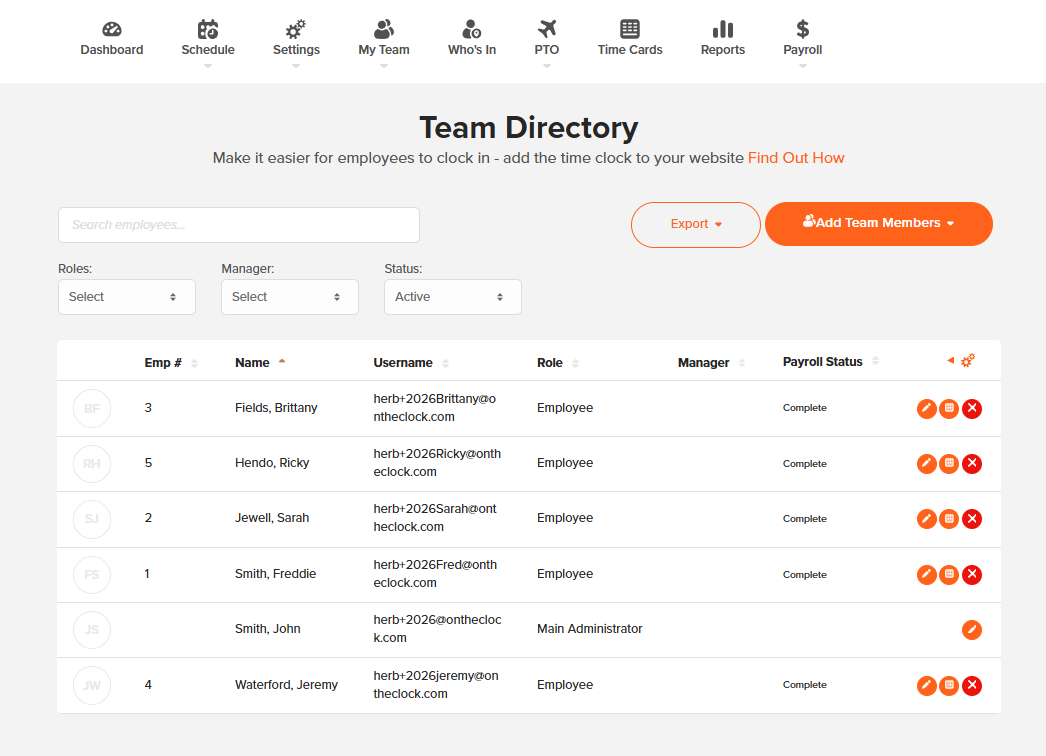
If someone's still blocking, point them back to Pay Settings so they can finish entering their information. You won't be able to include them in a payroll run with direct deposit until that's done.
A Few Things to Know Before Your First Payroll Run
- Plaid verification is instant. Manual entry takes three to five business days to prenote and verify, so if you're on a deadline, plan for that lead time, especially for a new hire's first paycheck.
- The account marked Default is the one used to draft your payroll funds. If you have more than one connected, make sure the right one is set before you run payroll.
- Your own company status page will flag a missing bank account as a blocking issue if it hasn't been added yet, right alongside things like missing tax setup or filing authorization. Worth checking that page if you're not sure what's holding up your first run.
Why Bother With Direct Deposit at All?
Beyond skipping the check-printing routine, direct deposit means:
- Employees get paid on time even if they're not physically in the building on payday.
- There's no physical check to lose, forget to cash, or have someone ask you to reissue.
- Pay stubs are available digitally, so employees can check their own history without asking you for a copy.
It's one of those changes that doesn't feel like a big deal until you're the one who no longer has to deal with the alternative.
Ready to Simplify Payroll and Direct Deposit? Save Time and Money With OnTheClock Payroll
If you're not on OnTheClock Payroll yet, our 2026 year-end offer can help make the switch easier.
Start your OnTheClock Payroll enrollment before Dec. 31, 2026, and you'll receive:
- Four Months of Free Payroll: a Significant Value. Your first four months of OnTheClock Payroll are free, beginning with the month of your first payroll run.
- Free Time Tracking for Salaried Employees. We'll waive the monthly time tracking fee for each salaried employee on your OnTheClock Payroll account.
- Hands-On Payroll Implementation. There is a one-time $250 implementation fee. That covers hands-on work from our payroll implementation team to help get your account set up and ready for your first payroll run.
- Enrollment must begin before Dec. 31, 2026, to qualify for this year-end offer.
Ready to Simplify Your Payroll Process?
Turn timecards into paychecks in just a few clicks with OnTheClock Payroll.
Frequently Asked Questions About Direct Deposit Setup
Who can add or update the company's payroll bank account?
Only administrators with access to payroll settings can add, update, change, or remove payroll bank accounts.
Can employees add their own bank account?
Yes. Employees enter their own payment method during their payroll setup in Pay Settings, separate from the company's payroll funding account.
How long does bank account verification take?
Linking with Plaid is instant. Manually entering account details takes three to five business days to prenote and verify.
What happens if an employee hasn't finished their payroll setup?
Their profile will show as blocking under payroll status, and they can't be included in a direct deposit payroll run until they finish entering their information.
Can I delete a bank account once it's added?
Yes, but deletion is permanent and there's no confirmation warning, so make sure the account is no longer needed first.
%20(1).webp?width=290&name=Untitled%20(400%20x%20476%20px)%20(1).webp)