
Jump to section
From Clock-In to Payroll in One Click
Over 18,000 businesses trust OnTheClock to track time, stop buddy punching, and send accurate hours straight to QuickBooks and ADP.
Try It FreeKey Takeaways
- ✔Check your QuickBooks version first. Some time tracking apps connect directly to QuickBooks Online but require an export or importer for Desktop.
- ✔Check what the sync sends. An app may transfer total hours while leaving overtime, PTO, or job details for you to handle.
- ✔Choose a tool that fits your team. OnTheClock focuses on small hourly teams, ClockShark on field crews, and Harvest on client billing.
- ✔Calculate the full cost. A free time tracker may require a paid plan or add-on to connect with QuickBooks.
- ✔Test the connection during the trial. Send sample timecards with regular hours, overtime, and PTO to see where each item lands.
QuickBooks serves millions of customers worldwide. That reach ensures there’s no shortage of time tracking software claiming to “work with QuickBooks.”
The catch? The phrase “work with QuickBooks” can mean many different things.
If you’re already running payroll or managing your books in QuickBooks, tracking hours in another app shouldn’t create another job at the end of the week. Approved time should move where it needs to go without someone copying hours from a time sheet, correcting time sheet errors, or rebuilding the same payroll data by hand.
That’s where the right QuickBooks time tracking integration earns its keep.
Here, I looked at nine time tracking apps that work with QuickBooks, showcasing what each connection actually does, how much manual work remains, what each solution costs, and where the limitations start showing up.
Compare the Nine Best Time Tracking Software Options That Integrate With QuickBooks
| Software | Best for | Summary | Capterra Rating | Sync type | Free Trial |
|---|---|---|---|---|---|
| OnTheClock | Small hourly teams | Combines time tracking, scheduling, PTO, GPS, and job costing, with support for both QuickBooks Online and Desktop. | 4.7 | Native QBO; Desktop importer | 30 days |
| QuickBooks Time | Businesses already using QuickBooks | Keeps time tracking inside the QuickBooks ecosystem, with hours flowing into payroll and invoicing without a separate third-party integration. | 4.7 | Native ecosystem; Desktop direct/Web Connector | 30 days |
| Clockify | Teams that want free time tracking | Offers free time tracking for small teams, with a paid QuickBooks Online integration for sending hours, projects, and billable details. | 4.8 | Native QBO | 7 days |
| Buddy Punch | Break compliance and preventing buddy punching | Offers Face ID, photo punches, geofencing, and break controls across its plans while supporting payroll transfers to QuickBooks Online and Desktop. | 4.8 | Native QBO; Desktop Web Connector | 14 days |
| Hubstaff | Remote, computer-based teams | Tracks hours alongside activity levels, screenshots, and app usage, then automatically sends tracked time to QuickBooks Online. | 4.5 | Automatic QBO sync; Desktop export | 14 days |
| Harvest | Freelancers and client billing | Turns tracked time and expenses into client invoices that can be sent to QuickBooks Online along with recorded payments. | 4.5 | Native invoice sync | 30 days |
| Deputy | Restaurants and retail teams | Combines employee scheduling, POS integrations, and auto-scheduling with QuickBooks support for approved payroll hours. | 4.6 | Native QBO; Desktop export | Up to 31 days |
| ClockShark | Construction and field crews | Tracks labor by customer, job, and task so contractors can send more detailed job and time data into QuickBooks. | 4.7 | QBO integration; Desktop export | 14 days |
| BigTime | Agencies and professional services firms | Combines time, expenses, invoicing, and project financials, with two-way QuickBooks workflows for professional services firms. | 4.6 | Cloud sync; Desktop Sync Agent | Demo only |
How We Chose These Tools
We focused on how each time tracking tool connects to QuickBooks and what happens once the connection is established. That included whether the integration is native; whether it supports QuickBooks Online, QuickBooks Desktop, or both; and what data moves between the two systems when time is synced.
We also looked at setup effort. A direct connection that takes a few clicks is different from a workflow that requires exports, imports, field mapping, or extra steps every pay period.
Price transparency mattered, too. If a company clearly publishes what the time tracking plan and QuickBooks-compatible features cost, it’s easier for a small business to understand the real monthly expense before signing up.

OnTheClock
- Best for: Small hourly teams
- Capterra rating: 4.7
- Starting cost: $5/month base fee + $4/employee/month
- Free trial: Yes: 30 days, no credit card is required at sign-up
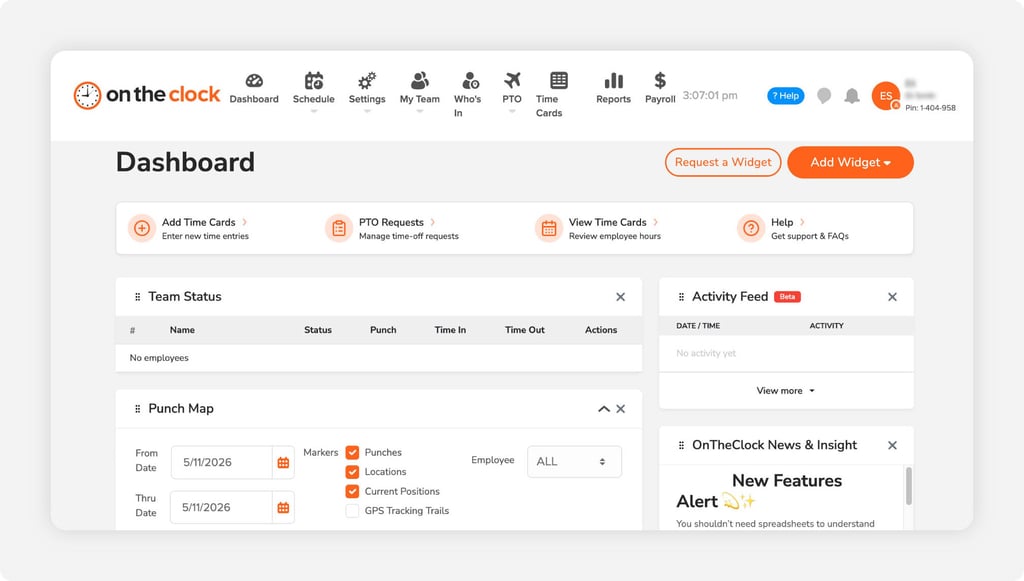
OnTheClock provides small teams time tracking, GPS and geofencing, scheduling, PTO, overtime, and job costing under one plan.
It works with both QBO and QuickBooks Desktop, but the connections work differently. OnTheClock connects directly with QBO Essentials, Plus, and Advanced and works with any QuickBooks Payroll tier. After reviewing timecards, managers can send hours directly to QuickBooks.
The catch is that only the total hours are transferred.
QuickBooks Desktop, on the other hand, uses OnTheClock’s Windows importer. Managers export their timecards, then send the data into QuickBooks through the importer. Regular hours, overtime, and PTO can be sent to their matching QuickBooks payroll items.
The Desktop process takes a few more steps, but it preserves more payroll categories than the Online connection.
Key Features

QuickBooks Time
- Best for: Businesses already using QuickBooks Online who are not price conscious
- Capterra rating: 4.7
- Starting cost: $20/month base fee + $10/user/month
- Free trial: Yes. 30 days, no credit card required
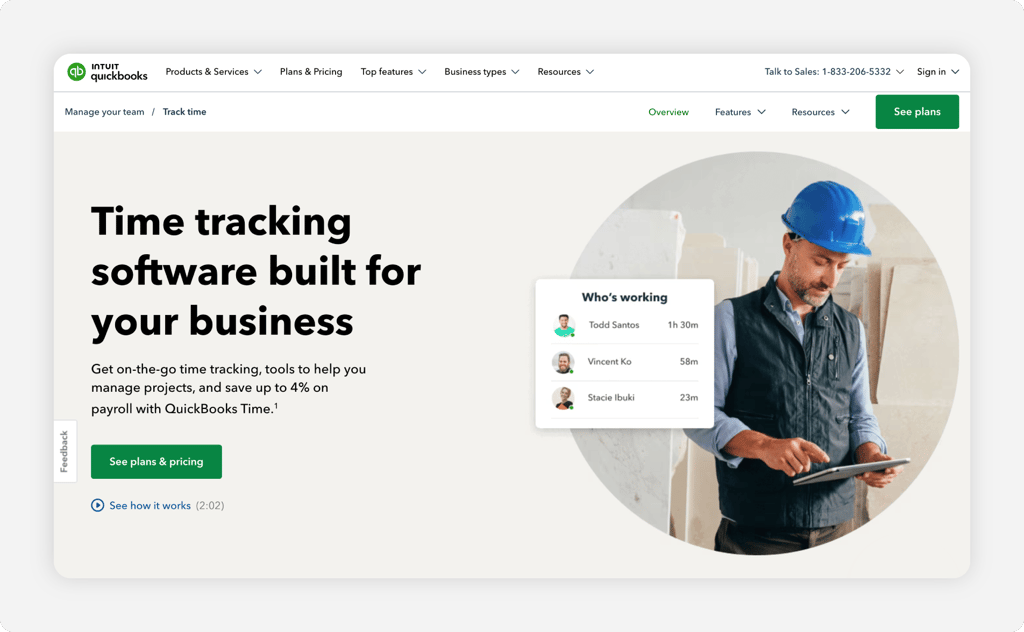
QuickBooks Time has one advantage the other tools on this list can’t fully match: It is already part of the QuickBooks ecosystem. There is no separate third-party integration to maintain, and tracked time can flow into QuickBooks payroll and invoicing. A QBO account is required, though.
QuickBooks can also send employees, customers, jobs, service items, classes, and payroll items to QuickBooks Time. For payroll, regular hours, overtime, and time off can be mapped to their matching payroll items.
The catch is the price. As of July 1, 2026, QuickBooks Time Premium increased from $8 to $10 per user per month, plus a $20 monthly base fee. The Elite tier costs even more: $40 per month plus $12 per user. You can read our full breakdown of the QuickBooks Time 2026 price increase.
Key Features

Clockify
- Best for: Teams that want a free time tracker with the option to add QuickBooks later
- Capterra rating: 4.8
- Starting cost: Free; standard QuickBooks Online integration starts at $5.49/user/month, billed annually; QuickBooks Payroll requires a separate $6.99/workspace/month add-on
- Free trial: Yes: 7 days, no credit card required
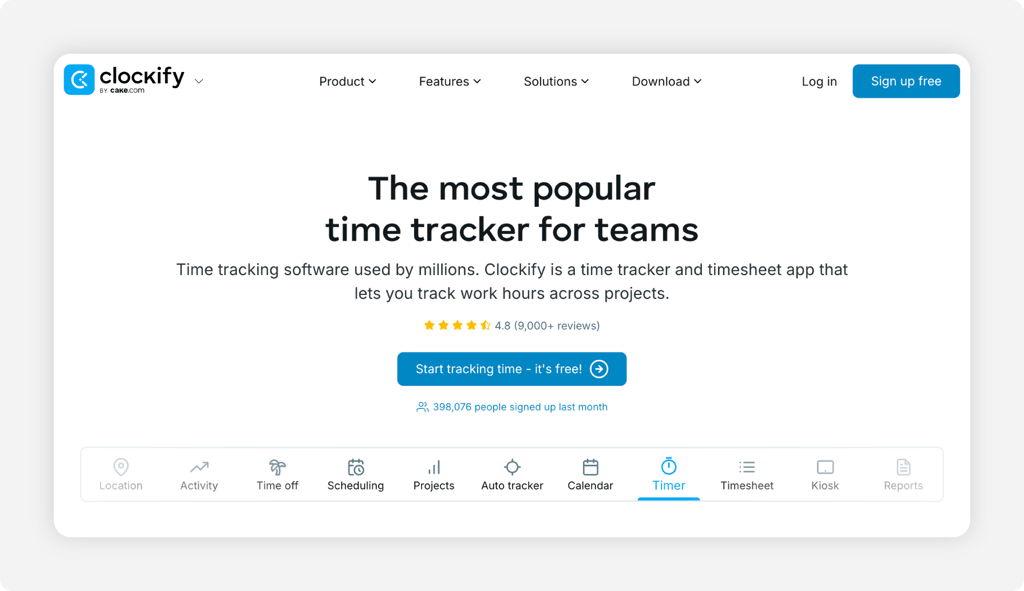
Clockify stands out because you can start tracking time for free. Its Free plan supports up to five users, making it one of the few options on this list you can keep using without a monthly bill.
The catch is that QuickBooks integration requires Clockify Standard or higher, starting at $5.49 per user per month when billed annually.
The Standard plan’s direct integration works with QBO Essentials, Plus, and Advanced, but not QuickBooks Desktop or QuickBooks Online accounts with Payroll enabled.
When enabled, Clockify can send user names, dates, customers or projects, time durations, descriptions, billable status, and billable rates to QuickBooks. Tasks do not transfer.
QuickBooks Payroll uses a separate add-on that costs $6.99 per workspace per month.
Key Features

Buddy Punch
- Best for: Break compliance and preventing buddy punching
- Capterra rating: 4.8
- Starting cost: $19/month base fee + $4.99/user/month when billed annually; Pro features start at $6.99/user/month
- Free trial: Yes; 14 days, no credit card required
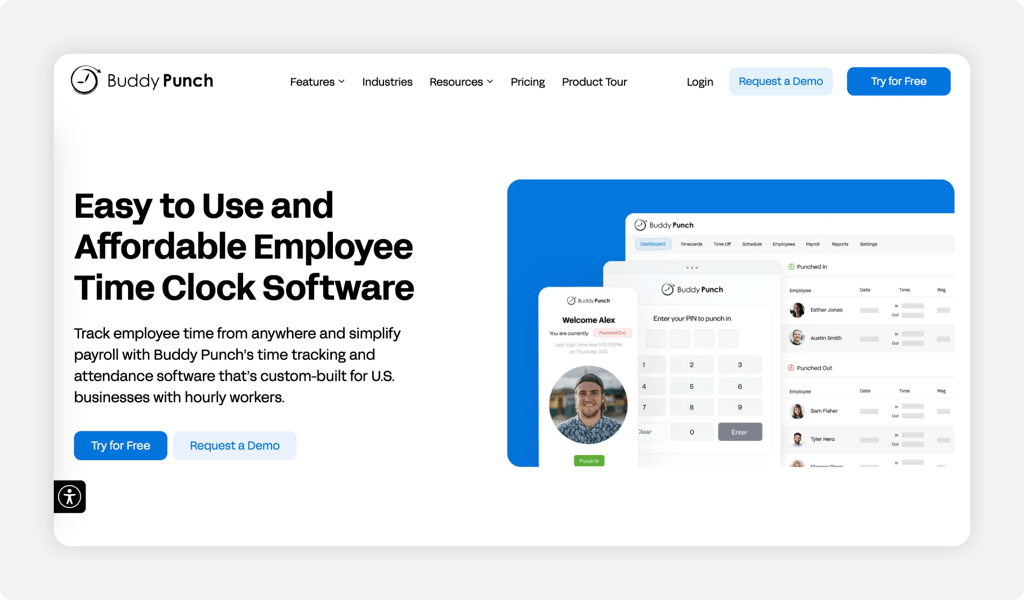
Buddy Punch puts more focus on controlling how employees clock in. Its Starter plan includes Face ID, which can verify an employee before they clock in or out on supported devices. The Pro plan adds webcam photos on punches, geofencing, and PIN/kiosk punching, giving employers additional ways to control and verify punches. These tools make it harder for one employee to punch in for someone else.
Break controls are another strength. Buddy Punch can track paid and unpaid breaks and automatically deduct unpaid breaks based on rules you set. Its Pro plan also includes more advanced break compliance tools for meal and rest breaks, waivers, and automatic premium pay.
Buddy Punch connects directly with QuickBooks Online Essentials, Plus, and Advanced and also supports QuickBooks Desktop through the QuickBooks Web Connector. The QuickBooks integrations allow businesses to send employee time to QuickBooks for payroll processing.
Key Features

Hubstaff
- Best for: Remote, computer-based teams
- Capterra rating: 4.5
- Starting cost: $4.99/user/month billed annually; QuickBooks integration requires Team at $10/user/month (billed annually)
- Free trial: Yes: 14 days, no credit card required
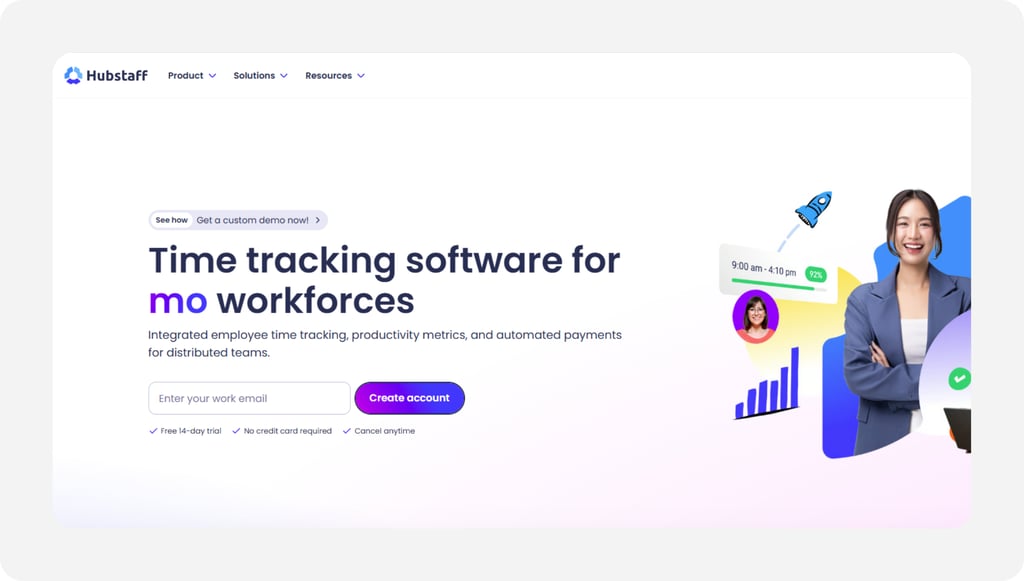
Hubstaff is built for teams that do most of their work on a computer. Along with tracking hours, it can record activity levels, optional screenshots, and the apps and websites employees use while the timer is running.
Its QuickBooks Online integration is available on the Team plan and higher, starting at $10 per user per month when billed annually. Hubstaff can connect QuickBooks employees to Hubstaff users and QuickBooks customers to Hubstaff projects, allowing tracked time to flow into QuickBooks for payroll.
QuickBooks Desktop is less clear. Hubstaff's current integrations page says tracked time can be exported to both QuickBooks Online and QuickBooks Desktop, while its primary setup documentation focuses on QuickBooks Online. Businesses that rely on QuickBooks Desktop should confirm the current workflow before choosing Hubstaff specifically for that integration.
Key Features

Harvest
- Best for: Freelancers and teams that bill clients by the hour
- Capterra rating: 4.5
- Starting cost: Free; Teams start at $9/user/month, billed annually
- Free trial: Yes; 30 days, no credit card required
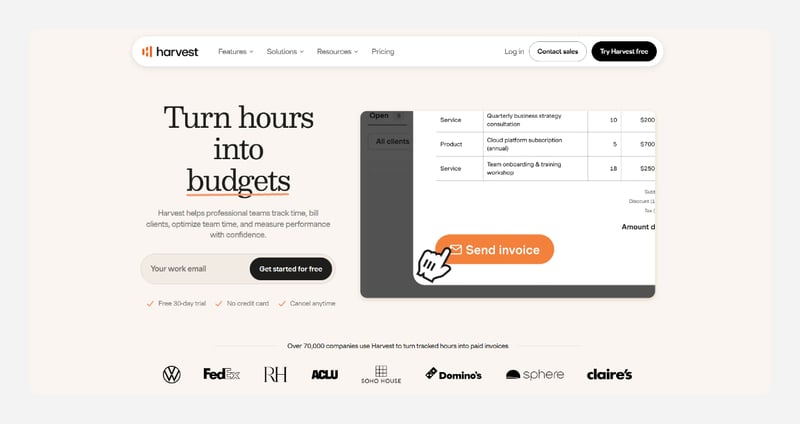
Harvest connects time tracking directly to client billing. You can turn tracked hours and expenses into invoices, then automatically copy those invoices to QuickBooks Online. When a client pays a Harvest invoice, the payment can also be copied to QuickBooks.
The key distinction is that Harvest's QuickBooks integration is built around invoices and payments rather than raw time-sheet data. Tracked time and project expenses can be added to Harvest invoices, which then sync with QuickBooks Online.
Harvest offers a Free plan for one user and up to two projects. Teams that need unlimited seats can upgrade to the Teams plan, starting at $9 per user per month when billed annually.
Key Features

Deputy
- Best for: Restaurants and retail teams
- Capterra rating: 4.6
- Starting cost: $5/user/month; auto-scheduling starts at $6.50/user/month
- Free trial: Yes: up to 31 days, no credit card required
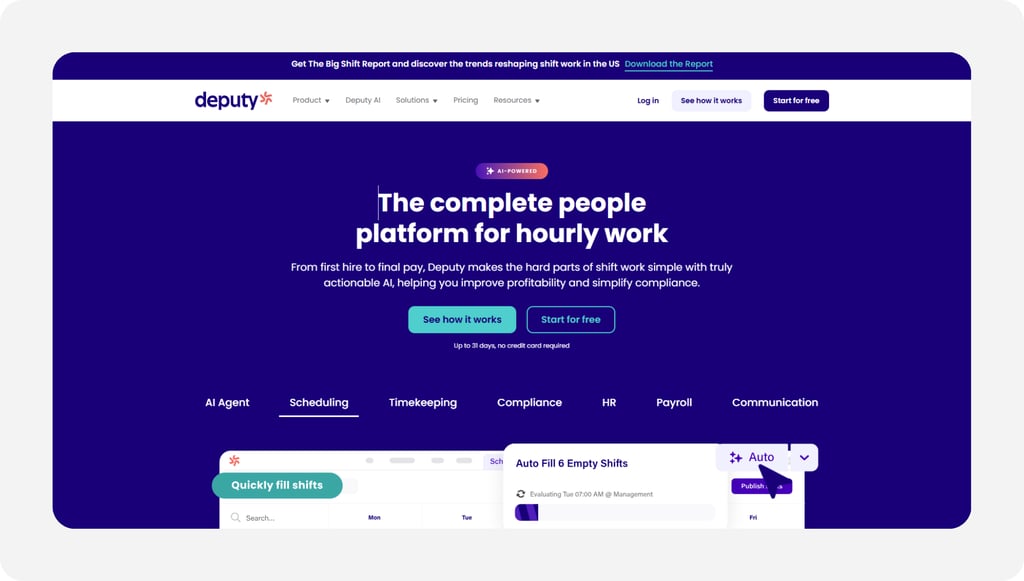
Deputy is built around shift-based businesses, such as restaurants and retail stores. With supported point of sale (POS) integrations, employee clock-ins can flow from the POS into Deputy, while sales data can help managers plan staffing around busy and slow periods.
Its Core plan adds auto-scheduling, which can build shifts around staff availability, demand, and labor costs. That makes Deputy more useful for businesses where staffing needs change throughout the week.
Deputy connects directly with QuickBooks Online and can export regular hours, overtime, holiday pay, and shift differentials. It also supports QuickBooks Desktop, but via an export workflow rather than a direct connection. Leave time sheets do not transfer to Desktop.
Key Features

ClockShark
- Best for: Construction and field crews
- Capterra rating: 4.7
- Starting cost: $8/user/month plus a $40 monthly base fee
- Free trial: Yes; 14 days
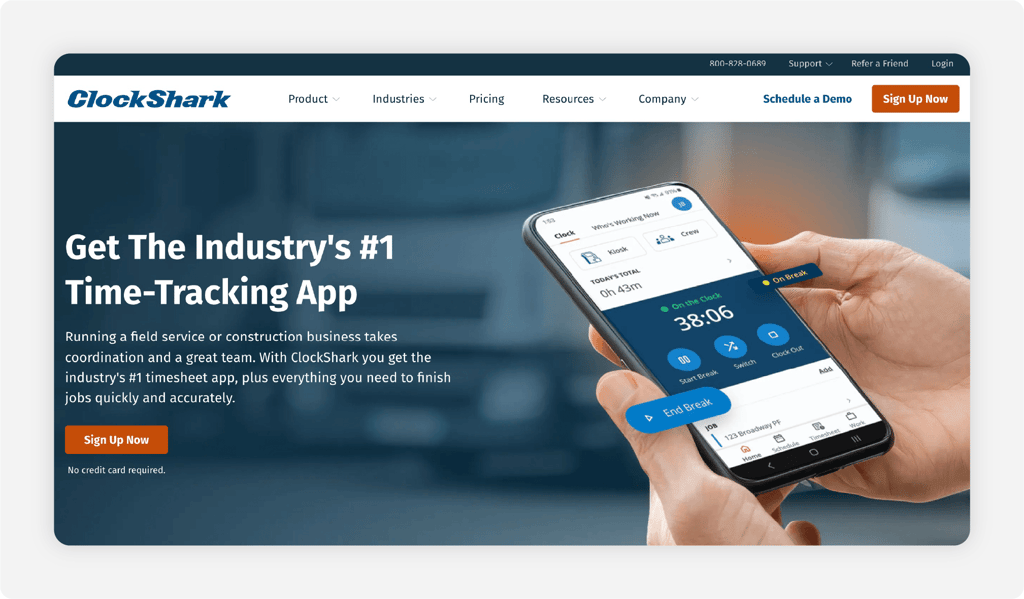
ClockShark is built around jobs, crews, and field work. Employees can track time against specific jobs and tasks, giving managers a clearer view of where labor hours are going before those hours reach payroll.
Its QuickBooks Online integration can sync employees, customers, jobs, service items, and time. That makes it useful for contractors who need labor tied to the right customer or job, rather than sending a single block of hours into QuickBooks.
ClockShark also supports QuickBooks Desktop through its Desktop integration. Jobs and service items can be used to organize labor, while approved time is exported back to QuickBooks for payroll and job costing.
The main advantage is that job information stays attached to the time entry. For a construction company tracking several crews across different sites, that gives QuickBooks more useful labor data than a basic employee-hours sync.
Key Features

BigTime
- Best for: Agencies and professional services firms
- Capterra rating: 4.6
- Starting cost: $20/user/month
- Free trial: Not publicly listed; personalized demo available
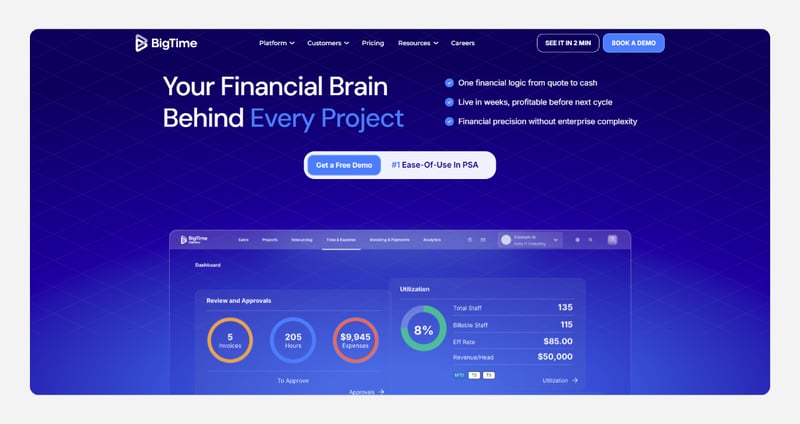
BigTime goes beyond basic time tracking. It combines time and expense tracking with invoicing and project management, while optional tools add quoting, resource planning, and portfolio management.
It supports both QuickBooks Online and QuickBooks Desktop. BigTime can pull in clients, projects, employees, vendors, and service items from QuickBooks, then send approved time, expenses, and invoices back.
QuickBooks Online connects directly through the cloud, but new data from QuickBooks must be synced manually. QuickBooks Desktop uses BigTime’s Sync Agent, which can automatically check for changes in the company file.
Key Features
Choosing the Right Time Tracking Software for Your Team
The best time tracking software for QuickBooks is not always the one with the longest feature list. What matters is how well it fits your version of QuickBooks, your payroll process, and how your employees track time.
Step 1: Start With Your QuickBooks Version (Online or Desktop)
First, check whether you use QuickBooks Online or QuickBooks Desktop.
This matters because not every time tracking app works with both. Some connect directly with QuickBooks Online but do not support Desktop. Others work with Desktop via an importer or file export rather than a direct connection.
In my experience, this is one of the easiest details to miss. A company may say its software “works with QuickBooks,” but that does not always mean every version is supported the same way.
Before comparing features or prices, confirm that the time tracker is compatible with your version of QuickBooks and test the connection. That can quickly remove several options from your list.
Step 2: Confirm How the Integration Actually Sends Your Hours
Next, look at how your hours move into QuickBooks.
Some apps send approved time directly. Others make you export a file and import it yourself. Even direct integrations can differ in what they send.
In my experience, this is where the details matter most. One tool may send only total hours, while another can also send overtime, PTO, customers, jobs, or service items.
Check exactly what transfers before you sign up. The fewer fields you have to fix by hand after each sync, the more useful the integration will be.
Step 3: Match It to How You Run Payroll
Think about what happens after employees submit their hours.
If you run payroll in QuickBooks, the fields in your time tracking software should match the fields you use in payroll. Regular hours should go to regular hours, overtime should go to overtime, and PTO should land in the correct time-off category. The same applies to jobs, service items, classes, or other payroll details you rely on.
This matters because a sync can technically “work” and still leave you with cleanup. If all hours arrive as one total, for example, you may still have to separate overtime or PTO by hand before running payroll.
In my experience, this is one of the most important things to test. The closer the fields match between both systems, the less time you spend fixing data after every sync and the lower the chance of payroll errors.
Step 4: Set Your Budget, Including Free Options
Next, look at the full cost, not just the advertised starting price.
Some time tracking apps charge a base fee plus a per-user rate. Others charge only per user. Free plans can also be useful, but the QuickBooks integration is often locked behind a paid plan.
That is why I recommend pricing the software based on your actual team size. A tool that looks inexpensive for three employees can become much more expensive with 20.
Also check whether features such as payroll integrations, scheduling, PTO, or job costing require a higher plan. The best value is not always the cheapest option. It is the one that gives you the QuickBooks connection and features you need without paying for tools you will not use.
Step 5: Test the QuickBooks Sync During the Free Trial
During the trial, you should first check that the time tracking software works for your team. Have employees clock in and out, track breaks, submit time off, and use the app the same way they would during a normal workweek.
Once you know the time clock fits your workflow, test the QuickBooks connection. Send a few completed timecards with regular hours, overtime, and PTO, then check where that information lands.
Make sure the right employees, hours, and payroll categories match. If something does not transfer, find out whether it is a setup issue or a limitation of the integration.
Frequently Asked Questions
Does QuickBooks Have Time Tracking?
Yes. QuickBooks Online Essentials, Plus, and Advanced include basic time tracking for recording hours and billable time. Businesses that need a full employee time clock can use QuickBooks Time, which adds features such as clock-ins, scheduling, PTO, GPS, and mobile time tracking.
Is TSheets Owned by QuickBooks?
Yes. Intuit, the company behind QuickBooks, acquired TSheets in 2018 and later renamed it QuickBooks Time. The product is no longer sold under the TSheets name.
Does QuickBooks Have a Time Clock App?
Yes. Employees can clock in and out using the QuickBooks Workforce app, formerly known as the QuickBooks Time mobile app. They can also switch jobs, take breaks, submit timesheets, and manage time off from their phones.
How Much Is a QuickBooks Time Clock?
QuickBooks Time Premium costs $20 per month plus $10 per user per month at its standard price. Elite costs $40 per month plus $12 per user. QuickBooks sometimes offers introductory discounts, so the price shown when you sign up may be lower for the first few months.
Can I Use Clockify With QuickBooks?
Yes, but you need Clockify Standard or higher. The integration works with QuickBooks Online Essentials, Plus, and Advanced, but not QuickBooks Desktop. If your QuickBooks account has Payroll enabled, you need Clockify's separate QuickBooks Payroll add-on.
Does QuickBooks Time Tracking Work With Desktop?
Yes. Intuit still provides a QuickBooks Time connection for supported QuickBooks Desktop for Windows setups. However, Intuit's current QuickBooks Time pricing page says a QuickBooks Online account is required for new subscriptions. If you only use Desktop, confirm your account is eligible before purchasing QuickBooks Time.