

Jump to section
Try OnTheClock Free
Save time and make payroll effortless with our easy-to-use, affordable employee time tracking app.
Try It FreeKey Takeaways
- ✔OnTheClock is the No. 1 pick for small accounting and CPA firms: punch clock, scheduling, PTO, and overtime alerts all ship in one $5 base plus $4 per user plan.
- ✔Busy season is the real test. The right time clock flags a seasonal preparer drifting past 40 hours on Wednesday, while there's still time to act.
- ✔Match the tool to your stack. QuickBooks Time fits firms living in QuickBooks Online, and Timesheets.com tracks billable and payroll hours side by side.
- ✔Free options are real. Jibble is free for unlimited users, and Connecteam's Small Business Plan is free for up to 10 people.
- ✔Every price below was verified on each vendor's own site in October 2026. Trial your pick through one full pay period before January.
The best time clock software for accountants pays for itself in one season: It captures every hour your admins and seasonal preparers work between January and April 15, flags overtime before the week closes, and lands clean time sheets in QuickBooks without retyping. The job sounds simple: Prove the hours, pay them right, and get back to client work.
So here's a question most partners can't answer in March: How many hours did your own staff work last week? You can pull a client's quarterly estimates from memory. But your receptionist's Tuesday, your bookkeeper's half-day Friday, and your seasonal preparer's 47-hour week live on sticky notes and goodwill. Firms that bill time for a living still lose track of their own.
No single tool fits every firm, so I matched seven time clocks to seven situations. Here's the right pick for each one.
What Accounting Firms Actually Want From a Time Clock
Three things, in this order. First, no overtime surprises: When a nonexempt preparer hits hour 38 on a Wednesday in February, the firm wants an alert that day, while the workload can still move. Second, no lost hours: time recorded at the punch, with each entry tied to a person and a minute. Third, no payroll-night rebuild: hours that flow into QuickBooks, Gusto, or ADP without anyone retyping a column of numbers.
There's a fourth want underneath those three. An accounting firm's roster is mixed: salaried CPAs, an hourly office manager, a part-time bookkeeper, and a wave of seasonal staff every spring. One system has to hold all of them, charge fairly when headcount swings, and keep records an auditor would accept. That's the standard we held every tool to, the same one we apply to time tracking for accountants ourselves.
Your firm won't weigh all four needs equally. The right pick depends on which one costs you the most today.
Quick Picks: The Best Time Clock Software for Accountants at a Glance
-
OnTheClock: Best for small accounting and CPA firms
-
QuickBooks Time: Best for firms running QuickBooks Online
-
Timesheets.com: Best for billable and payroll hours together
-
Buddy Punch: Best for photo-verified punches
-
When I Work: Best for tax-season shift scheduling
-
Jibble: Best free time clock
-
Connecteam: Best all-in-one for firms under 10
How We Evaluated the Best Time Clock Software for Accountants
We judged each time clock on what actually matters inside a firm between January and April, not on feature-sheet length. We compared every option against the eight needs accounting firms keep raising, using what we call the OnTheClock Accounting Firm Checklist:
-
A true punch clock: Clock in and out from a desk, front-office kiosk, or phone, with each punch stamped to the minute.
-
Overtime alerts: Warnings that fire mid-week, before a 47-hour week becomes a payroll-night discovery.
-
Seasonal flexibility: Add preparers in January, remove them in May, and pay only for active people.
-
Accounting-stack integrations: Exports or direct syncs to QuickBooks, Gusto, ADP, Paychex, and similar tools.
-
PTO tracking: Requests, accruals, and balances in the same system as the hours.
-
Punch controls: IP or device restrictions, photos, or biometrics, so a punch proves presence.
-
Audit-ready records: Time data that satisfies federal recordkeeping rules with an edit trail.
-
Predictable pricing: A monthly bill a partner can explain to a client with no quote calls.
OnTheClock earns the top spot because it covers all eight of these needs in a single base plan: web, kiosk, and mobile punching; overtime alerts; scheduling; PTO; GPS and IP punch controls; and payroll integrations, with none of the time clock features held back for a higher tier. That depth at $5 base plus $4 per user is the basis for the small-firm label, not a ranking against the other picks. Each of those serves its own situation best.
The Best Time Clock Software for Accountants
Below, the seven best time clocks for accounting firms, with the right pick for each situation. For each one, I cover who it fits best, where it stands out, and where it may not be the right move.

OnTheClock: Best for Small Accounting and CPA Firms
Available on: Web, iOS, Android
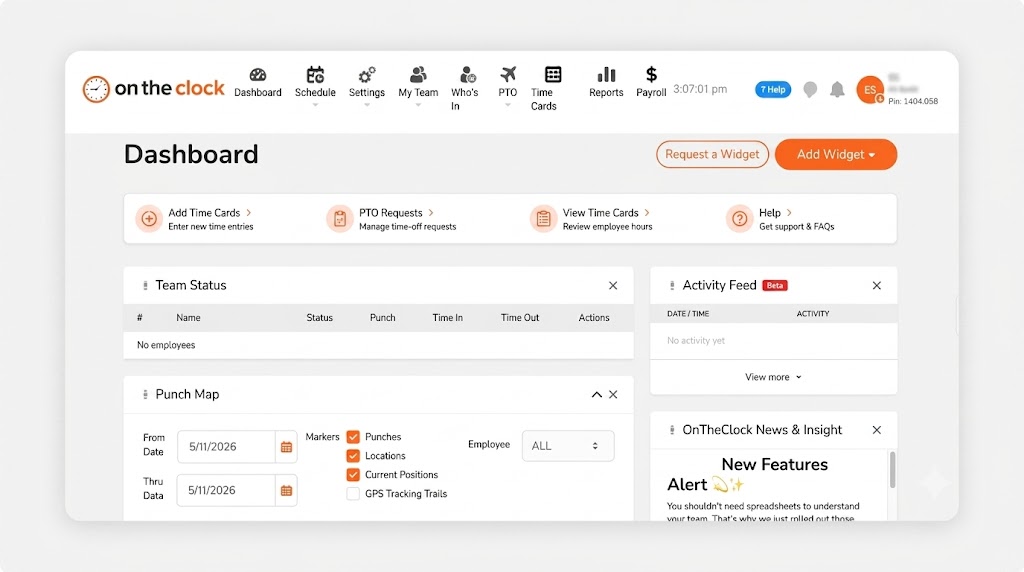
Why OnTheClock Is Best for Small Accounting and CPA Firms
Picture a six-person CPA firm: two partners, an office manager, a bookkeeper, and two admins, plus three seasonal preparers every spring. OnTheClock covers that whole roster from one screen. Office staff punch in from their desks with IP and device restrictions on. The seasonal crew punches from a front-desk kiosk or their phones, and the office manager sees overtime building before Friday. Hours then sync to QuickBooks, Gusto, ADP, Paychex, SurePayroll, or Thomson Reuters.
The whole Accounting Firm Checklist sits in the one base plan: punch clock, overtime alerts, scheduling, PTO, punch controls, and integrations, with nothing gated behind a higher tier. More than 16,000 companies run on it, and it holds a 4.8-star rating across 2,500 reviews. You can try OnTheClock free for 30 days; no credit card is needed at sign-up.
Why OnTheClock Is Different
The math stays small and stays put. That six-person firm pays $5 plus $24, so $29 a month. Add three preparers for tax season and the bill rises to $41; remove them in May and it drops back automatically, because billing follows your active employee list. There's no annual seat contract to ride out and no quote call to schedule.
We've heard from firms that moved off bigger platforms after one busy season of paying for modules nobody opened. The honest trade-offs: OnTheClock needs an internet or Wi-Fi connection to punch. And it tracks hours for payroll rather than client billing rates, so invoicing stays in your accounting software, where it lives anyway.
Key Features
Pros
Cons
Pricing
- 30-day free trial, no credit card is required at sign-up
- $5/month base plus $4 per user/month (see how OnTheClock pricing works)

QuickBooks Time: Best for Firms Running QuickBooks Online
Available on: Web, iOS, Android
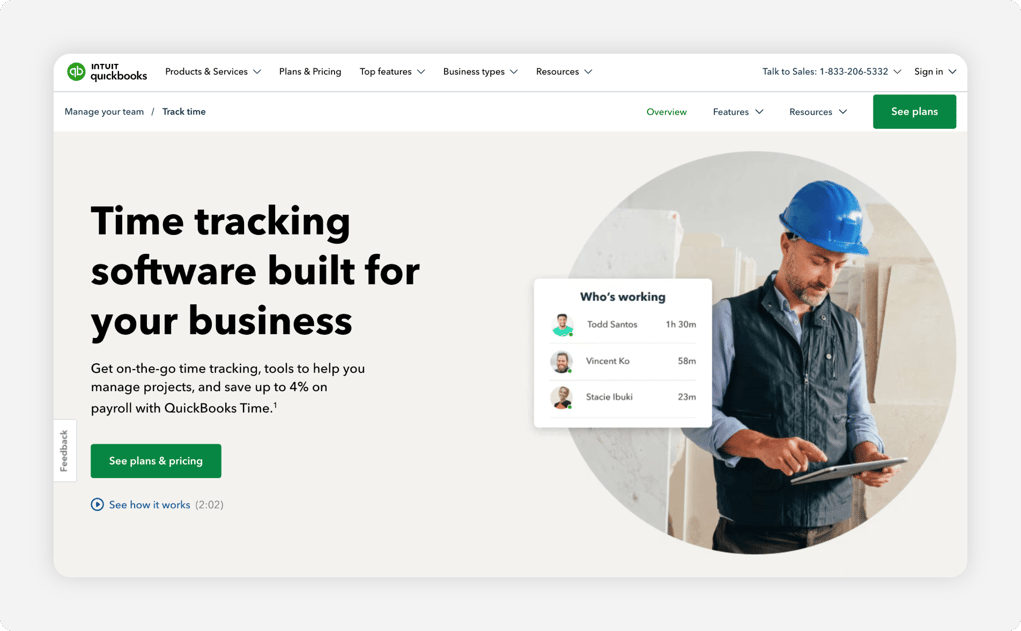
Why QuickBooks Time Is Best for Firms Running QuickBooks Online
If your firm's books, payroll, and half your client work already live in QuickBooks Online, QuickBooks Time keeps the hours in the family. Staff punch in through the Workforce app or a tablet kiosk at the front desk, and approved time flows straight into QuickBooks payroll and invoicing with no export step. For a firm that opens QuickBooks before its email, that native sync is the whole argument.
Know this before you sign up: A QuickBooks Online account is required, so the real monthly cost is the Time plan plus your QuickBooks subscription. Premium runs $20 base plus $10 per user, Elite runs $40 plus $12, and geofencing only comes with Elite. Reviewers on Capterra also gripe about app freezes and uneven support since the Intuit acquisition. If the total stack price stings, see these QuickBooks Time alternatives.
Key Features
Pros
Cons
Pricing
- Free trial, no credit card is required at sign-up
- Premium: $20/month base plus $10 per user/month; Elite: $40/month base plus $12 per user/month (QuickBooks Online account required)

Timesheets.com: Best for Billable and Payroll Hours Together
Available on: Web (works in any mobile browser)
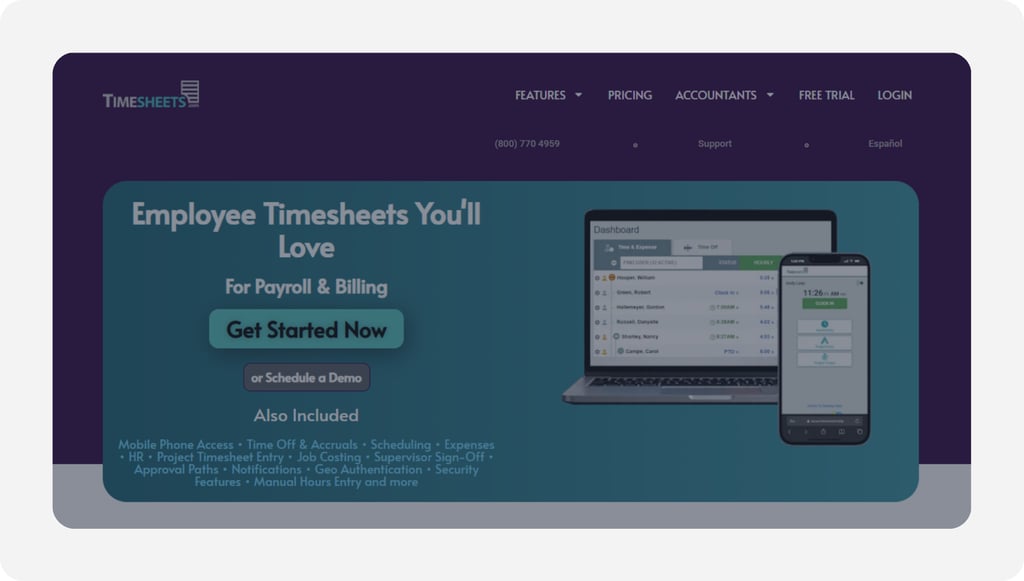
Why Timesheets.com Is Best for Billable and Payroll Hours Together
Accounting firms track two clocks at once: the payroll clock for staff wages and the billing clock for client work. Timesheets.com is built around exactly that split. It runs an hourly time sheet for punches, breaks, and PTO, and a separate project time sheet with bill and cost rates per client and per person. The audit trail logs every edit with an IP address, which fits a profession that answers to auditors. The vendor even points its seasonal billing at tax preparers: pay month to month for just the people you need.
The catch: Reviewers on Capterra call the interface dated, and there's no native phone app, so everything runs through a browser. Photo Timestamp, the punch-photo option, also adds $1 per user. At $5.50 per user with no base fee, a four-person firm pays $22 a month, which forgives a lot of old-fashioned screens.
Key Features
Pros
Cons
Pricing
- Free trial, no credit card required
- $5.50 per user/month, no base fee (nonprofits $4.40)

Buddy Punch: Best for Photo-Verified Punches
Available on: Web, iOS, Android
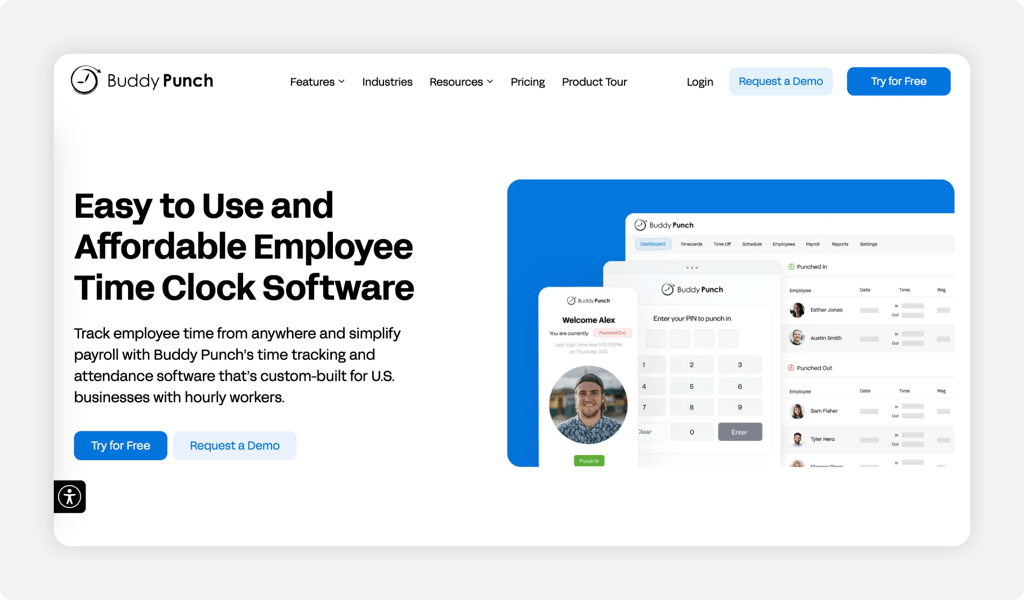
Why Buddy Punch Is Best for Photo-Verified Punches
Seasonal preparers you hired in January are punching a clock by February, and you may not know all their faces yet. Buddy Punch answers that with verification: Its Pro plan snaps a webcam photo at every punch, runs a PIN kiosk on a shared front-office device, and supports QR code punch-ins. For a firm that staffs up fast each spring, that photo trail ends buddy punching arguments before they start.
One thing to plan around is the cost of advanced punch verification. Buddy Punch's Pro plan costs $7.99 per user per month, plus a $19 monthly base fee, and includes webcam punch photos, geofencing, and employee scheduling. Starter costs $5.99 per user per month plus the same base fee, but doesn't include every Pro feature. There's no permanent free plan, although a 14-day free trial is available. Compare it with our list of Buddy Punch alternatives.
Key Features
Pros
Cons
Pricing
- 14-day free trial, no credit card
- Starter: $5.99 per user per month + $19 monthly base fee
- Pro: $7.99 per user per month + $19 monthly base fee
- Advanced: $13.99 per user per month + $19 monthly base fee

When I Work: Best for Tax-Season Shift Scheduling
Available on: Web, iOS, Android
Why When I Work Is Best for Tax-Season Shift Scheduling
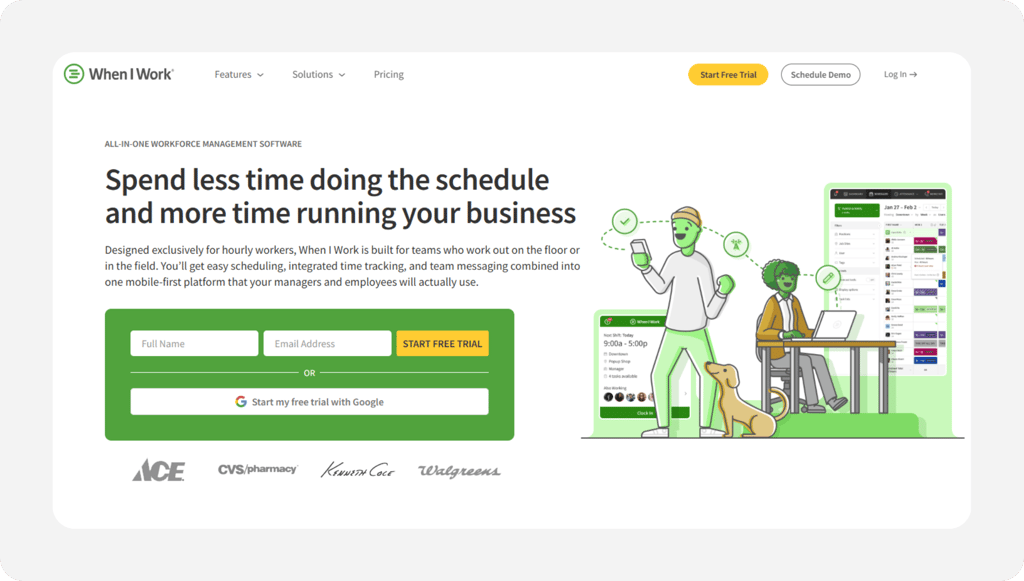
Some firms' time problem is really a coverage problem. A tax office running extended hours from February through April 15 has to schedule evening preparers, Saturday front-desk coverage, and appointment-week surges before any punch matters. When I Work starts there: Schedules build in minutes from templates, and staff swap shifts from their phones. The time clock layers on top with GPS and geofencing so the punch matches the shift.
When I Work's Essentials plan starts at $2.50 per user per month, while Pro costs $5 and Premium costs $8. Its published pricing includes employee scheduling, time and attendance, and team messaging, although businesses should confirm which advanced features are available with their selected plan. Firms that primarily need a punch clock rather than a scheduling platform may want to compare alternatives.
Key Features
Pros
Cons
Pricing
- 14-day free trial, no credit card
- Essentials: $2.50 per user per month
- Pro: $5 per user per month
- Premium: $8 per user per month
- Time and attendance included in published plan descriptions

Jibble: Best Free Time Clock
Available on: Web, iOS, Android
Why Jibble Is the Best Free Time Clock for Accountants
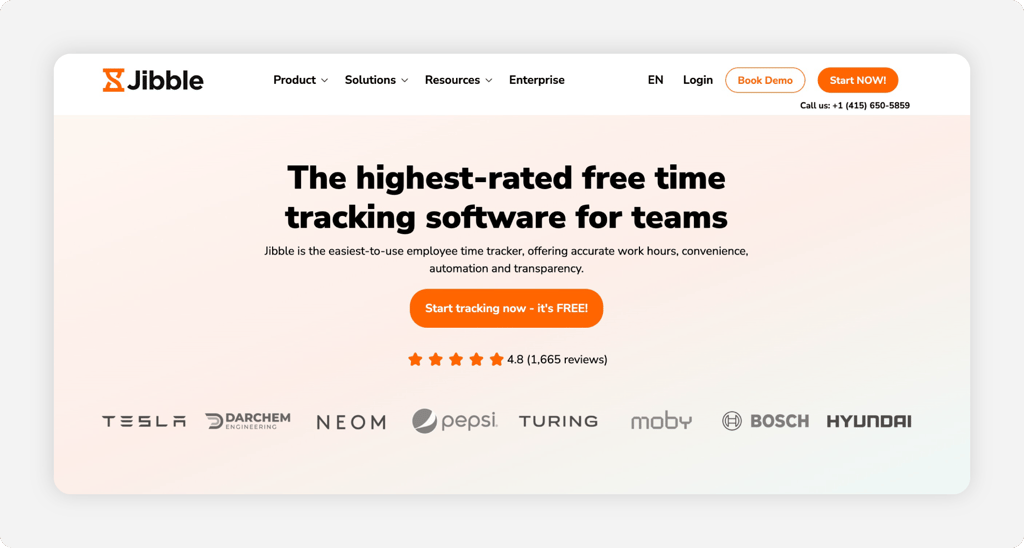
Jibble offers free time tracking for unlimited users, making it an attractive option for accounting firms that want to control software costs. Its platform includes automated time sheets, mobile clock-ins, shared kiosks, facial recognition, GPS-based attendance tools, and offline tracking.
For accounting firms with seasonal employees, Jibble provides a way to track hours without automatically increasing monthly subscription costs as the team grows. Businesses that need additional features can upgrade to Essential for $3.49 per user per month, Growth for $5.99, or Pro for $10.99 with monthly billing. However, firms should confirm whether each plan's scheduling, leave management, and reporting capabilities meet their needs before relying on Jibble as their primary attendance system. Our Jibble review explores these considerations in more detail.
Key Features
Pros
Cons
Pricing
- Free: $0, unlimited users
- Essential: $3.49 per user/month
- Growth: $5.99 per user/month
- Pro: $10.99 per user/month

Connecteam: Best All-in-One for Firms Under 10
Available on: Web, iOS, Android
Why Connecteam Is Best All-in-One for Firms Under 10
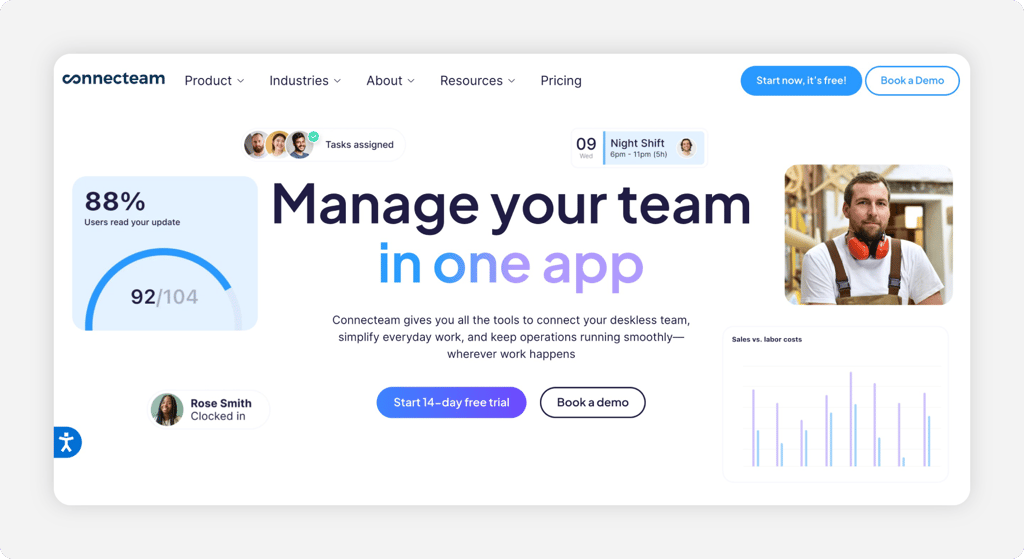
Connecteam treats the time clock as one tool in a bigger toolbox. Its Small Business Plan gives a firm with up to 10 people the time clock, kiosk station, GPS stamps, scheduling, team chat, forms, and even training courses, free for life. For a small practice that also wants a clean way to message staff and store onboarding documents, that's three subscriptions replaced by zero.
Where it falls short: There's no offline punching, so a dropped connection means a missed punch, and the free plan leaves out the ADP payroll integration. For teams with more than 10 users, Connecteam's Operations Basic plan starts at $35 per month for the first 30 users, with additional users costing $1 each per month. Operations, Communications, and HR & Skills are separate hubs, so businesses may need multiple subscriptions depending on the features they want. Our Connecteam review walks through that pricing math.
Key Features
Pros
Cons
Pricing
- Small Business Plan: free for up to 10 users; 14-day free trial of paid plans
- Operations Basic: $35 per month for the first 30 users, plus $1 per additional user per month.
Side-by-Side Comparison
| Tool | Best For | Pricing | Key Strengths | Top Integrations |
|---|---|---|---|---|
| OnTheClock | Small accounting and CPA firms | $5 base + $4/user/month | All features in one plan; overtime alerts; kiosk; PTO | QuickBooks, Gusto, ADP, Paychex, SurePayroll, Thomson Reuters |
| QuickBooks Time | Firms running QuickBooks Online | $20 base + $10/user/month (Premium) | Native QuickBooks sync; tablet kiosk | QuickBooks Online, Payroll, and Desktop |
| Timesheets.com | Billable and payroll hours together | $5.50/user/month, no base fee | Bill and cost rates; audit trail; seasonal billing | QuickBooks, Gusto, Paychex, ADP exports |
| Buddy Punch | Photo-verified punches | Starter: $19 base + $5.99/user/month; Pro: $19 base + $7.99/user/month; Advanced: $19 base + $13.99/user/month | Webcam punch photos; PIN kiosk; QR codes | Payroll provider syncs; built-in payroll add-on |
| When I Work | Tax-season shift scheduling | Essentials: $2.50/user/month; time and attendance included | Fast schedule building; shift swaps; GPS clock | Rippling (preferred partner); payroll and POS integrations |
| Jibble | Free time clock | Free for unlimited users; paid plans start at $3.49/user/month | Free kiosk with face recognition; offline mode | Unlimited integrations on the free plan |
| Connecteam | All-in-one for firms under 10 | Free up to 10 users; Operations Basic: $35/month for up to 30 users, plus $1/additional user | Clock plus chat, forms, and training in one app | Payroll integrations (ADP excluded on free plan) |
Comparison data verified October 2026 against each vendor's own site; subject to change by respective providers.
What's the Best Time Clock Software for Accountants?
The best option is the one that fixes your firm's friction; it's rarely the longest feature list. Seven tools made this list because each one wins a different situation.
Start with one question: What broke last busy season?
- Overtime surprises, lost hours, or payroll-night rework at a small firm: OnTheClock covers all eight checklist needs for $5 plus $4 per user.
- Everything already lives in QuickBooks Online: QuickBooks Time keeps punches, payroll, and invoices in one ecosystem.
- Billable client hours matter as much as payroll hours: Timesheets.com runs both time sheets side by side.
- A software budget of zero: Jibble (any size) or Connecteam (up to 10 people) will do the job free.
Pick for the problem you have, and the rest of the features become a bonus.
What Is Time Clock Software for Accounting Firms?
Time clock software is a digital punch clock. Employees clock in and out from a computer, phone, or shared kiosk, and the software builds time sheets automatically, calculates overtime, and exports hours to payroll. Each punch carries a timestamp and, depending on settings, a GPS point, an IP address, or a photo.
For an accounting firm, it replaces the honor-system spreadsheet with a record. The hours your bookkeeper worked stop being a memory exercise and become data that flows into QuickBooks or Gusto in minutes, with an edit trail behind every number.
Who Needs Time Clock Software at an Accounting Firm?
Even firms with one hourly employee can benefit from the addition of time tracking software. The partners may be salaried and exempt, but the receptionist, the office manager, the bookkeeper, and every seasonal preparer paid by the hour need their time recorded each day. Two people on a spreadsheet is survivable; eight people in tax season is how hours get lost.
The math changes quickly. A solo CPA with one assistant can wing it. A firm running extended February hours with five hourly staff and three temps can't. If you're chasing signatures on paper time sheets in April, you're the audience.
Why Accounting Firms Rely on Time Clock Software
Accountants sell precision, and clients expect the firm's own house to match. Margins depend on it, too: Wages are the largest expense line at most practices, and a few unrecorded hours each week quietly reprice the whole season.
The old way fails at the edges. A preparer stays late three nights, writes nothing down, and the firm either underpays her or eats an overtime claim it can't verify. Software replaces that gamble with punches, alerts, and approvals, the same way time tracking for bookkeepers turns a Friday reconciliation chore into a two-minute review.
Key Features Accounting Firm Time Clock Software Should Have
Before comparing prices, make sure any tool on your shortlist covers the basics:
-
Multiple punch methods: desk browser, phone app, and a shared kiosk for seasonal staff.
-
Overtime alerts: notifications that fire mid-week, not a report you read after payroll closes.
-
Punch verification: IP or device restrictions, photos, or biometrics, so punches happen at the office.
-
Payroll integrations: direct syncs or clean exports to QuickBooks, Gusto, ADP, or Paychex.
-
PTO tracking: accruals and requests in the same system, so April vacation math is already done.
-
Audit trail: a log of every edit, who made it, and when, in case anyone ever asks.
How to Choose the Proper Time Clock Software for Your Accounting Firm
Step 1: Count your year-round and seasonal headcount, then run the math
Write down two numbers: people on payroll in October, and people on payroll in March. Many of the prices in this list depend on those numbers, and the spread between vendors is wider than it looks. An eight-person firm pays $37 a month with OnTheClock ($5 plus eight times $4). The same firm pays $100 on QuickBooks Time Premium ($20 plus eight times $10) before the required QuickBooks Online subscription, $66.92 on Buddy Punch Starter, and $44 flat on Timesheets.com.
Now run the March number. At 12 people, OnTheClock is $53, Timesheets.com is $66, and QuickBooks Time Premium is $140 plus QuickBooks. Per-user pricing punishes the busy season, so a firm that doubles each spring should weigh this step heavily. Flat-tier pricing, like Connecteam's $35 for up to 30 users, flips the math once you pass roughly 10 year-round staff.
Five minutes with a calculator here saves a renegotiation in February.
Step 2: Name the problem that hurts most
Firms buy time clocks for different reasons, and the reason should pick the tool. If last April ended with a surprise overtime check, you need mid-week alerts and daily totals: that's OnTheClock's core. If the pain is hours that never got billed to clients, you need bill rates on time entries, which is Timesheets.com territory. If you genuinely don't know whether the Saturday temp was in the office when she punched, verification features, like Buddy Punch's photos, matter most.
Be honest about the second-place problem too. Most firms have two. A tool that solves your biggest pain and ignores the runner-up will get replaced in a year, so check the comparison table above for coverage, not just the headline feature.
Step 3: Decide how each person will punch
Walk your office in your head. Desk staff punch fastest from a browser with an IP restriction, so punches only register from the office network. Seasonal preparers sharing two spare desks do better with a tablet kiosk by the door and a PIN each. A remote bookkeeper needs a phone app, ideally with GPS or geofencing so you can see the punch came from her home office and skip the awkward questions.
Match the tool to that map. OnTheClock and QuickBooks Time cover all three modes; Timesheets.com handles browser and kiosk but has no native app; Jibble's free kiosk with face recognition is the standout for shared devices. A tool your people find awkward to punch into becomes a tool they forget to punch into or refuse to use.
Step 4: Check who on your roster is owed overtime
Licensed CPAs doing accounting work are generally exempt professionals under federal rules, but the exemption is narrow. The Department of Labor's Fact Sheet #17D covers accounting as a learned profession while noting that the exemption turns on duties and salary, not job titles. Your receptionist, office manager, bookkeeping clerks, and most seasonal preparers are typically nonexempt, which means time-and-a-half past 40 hours and a legal duty to record their hours each day.
Count your nonexempt people before you shop. If it's more than two, overtime alerts become especially valuable. For a preparer earning $22 an hour, 10 hours of overtime would cost $330 in overtime wages. Catching those hours before they're worked gives managers an opportunity to adjust schedules and better control labor costs.
Step 5: Match the tool to your accounting stack
You already own half the workflow, so the time clock has to meet it. QuickBooks Online firms get the shortest path from QuickBooks Time, though OnTheClock and Timesheets.com sync with QuickBooks, too. Gusto, ADP, or Paychex shops should confirm a direct integration rather than a CSV export; OnTheClock connects to all three. And check the specific plan tier, since Connecteam's free tier leaves ADP out.
Run one test during the trial: Push a real pay period's hours into your payroll system and count the manual touches. Zero or one is the goal. If you're retyping numbers, the integration is a brochure line, and retyping is where transposition errors are born.
Step 6: Price the seasonal swing, then check the exit
Tax practices breathe in and out, and billing models punish or forgive that. OnTheClock bills based on active employees, so adding four seasonal preparers from January through April increases the firm's time tracking costs by $64 over those four months ($4 per employee per month). This is in addition to the firm's existing subscription costs. Once those employees are removed from billing, the additional charges end.
Timesheets.com sells month to month and names seasonal tax preparers as a use case. Buddy Punch's cheaper annual rate locks for the year, and Jibble's annual plans sell seats you can reassign but still own for 12 months.
Read the removal rules, too. OnTheClock drops a user from billing when they're removed 20 days before the billing date; other vendors prorate differently or not at all. The cheapest sticker price with a rigid contract usually loses to a slightly higher rate you can shrink in May.
Step 7: Trial through a full pay period before January
Every tool on this list offers a free trial, and most need no credit card. Use the trial in November or December, not mid-season, and run it across at least one complete pay period in parallel with your current method. Compare the two outputs to the dollar. The differences you find are the errors the old system was hiding.
Stress-test the failure paths while you're at it. Have someone miss a punch and watch the correction flow. Push one person past 40 hours and time the alert. Export to payroll and count the clicks. Fifteen minutes of deliberate breakage tells you more than a feature tour ever will, and by Jan. 2, the system is muscle memory instead of an experiment.
Tips for Implementing Time Clock Software at Your Accounting Firm
-
Start in the slow season. Roll out in late fall, when a missed punch costs nothing and staff have attention to spare. By the time January files in, punching is habit and the seasonal hires just copy what they see.
-
Write the rules down first. Decide who approves time sheet edits, how missed punches get corrected, and when overtime needs sign-off. The software enforces whatever policy you give it; a vague policy just gets automated faster.
-
Keep the records the law expects. Federal rules require employers to record hours worked each day and total hours each workweek for nonexempt employees. Under the FLSA, payroll records generally must be retained for at least three years, while supporting records, including timecards and work schedules, must be retained for at least two years. State laws may require longer retention periods.
Frequently Asked Questions
What's the best time clock software for accountants?
OnTheClock is the best time clock software for small accounting and CPA firms because it covers punching, overtime alerts, scheduling, PTO, and payroll integrations in one $5 base plus $4 per user plan. QuickBooks Time fits firms that run on QuickBooks Online, Timesheets.com fits firms tracking billable and payroll hours together, and Jibble offers the strongest free plan.
Do accounting firms legally need to track employee hours?
Yes, for nonexempt employees. The Fair Labor Standards Act requires employers to record hours worked each day and total hours each workweek. Federal regulations generally require payroll records to be retained for at least three years and supporting timekeeping records for at least two years. State requirements may be stricter. Employers can use any accurate timekeeping method, including a digital punch clock.
Are accountants entitled to overtime pay?
It depends on duties and salary, not titles. Licensed CPAs performing accounting work are generally exempt learned professionals under federal rules. Accounting clerks, bookkeepers, receptionists, and many seasonal tax preparers are typically nonexempt, so they earn time-and-a-half past 40 hours in a workweek. When in doubt, review the Department of Labor's guidance or ask an employment attorney.
Can time clock software track billable hours and payroll hours?
Some tools do both. Timesheets.com runs separate time sheets for payroll punches and billable client work with bill and cost rates, and QuickBooks Time pushes hours to both payroll and invoicing inside QuickBooks. Pure punch clocks like OnTheClock track payroll hours and job costing, while client invoicing stays in your accounting software.
How much does time clock software cost for a small accounting firm?
A 10-person firm pays about $45 a month on OnTheClock, $55 on Timesheets.com, $78.90 on Buddy Punch Starter, and $120 plus a QuickBooks Online subscription on QuickBooks Time Premium. Jibble's free plan and Connecteam's free Small Business Plan bring that to $0 for firms that fit their limits. All prices were verified on vendor sites in October 2026.
Does OnTheClock integrate with QuickBooks?
Yes. OnTheClock syncs time sheets to QuickBooks, and also integrates with Gusto, ADP, Paychex, SurePayroll, and Thomson Reuters, plus CSV and PDF exports for anything else. Hours approved in OnTheClock land in your payroll run without retyping.
Ready for a Busy Season Without Time Sheet Chaos?
Give your firm the same precision you give your clients. Track every hour, catch overtime early, and send clean time sheets straight to payroll.
No credit card is required at sign-up, and you'll be set up in minutes.
