

Jump to section
Try OnTheClock Free
Save time and make payroll effortless with our easy-to-use, affordable employee time tracking app.
Try It FreeKey Takeaways
- ✔OnTheClock is the best time clock software for small call center teams: $5 base plus $4 per user covers kiosk punching, early-punch controls, scheduling, and PTO in one plan.
- ✔Minutes are the money. Six extra minutes a day across 12 agents costs about $378 a month at $15 an hour, and most managers never see it leak.
- ✔Work-related boot-up time is paid time. DOL Fact Sheet #64 explains that time spent starting computers and loading applications necessary for call center work generally counts as compensable work time.
- ✔Shared desks invite buddy punching. PIN kiosks, photo verification, and device restrictions are what actually stop it.
- ✔Test any tool through one full pay period before you commit. Payroll day is where a time clock earns its keep.
The best time clock software for call centers closes the gap between scheduled hours and paid hours, one punch at a time. Before you compare a single feature, run the math on that gap. Twelve agents who each pick up six extra minutes a day they didn't work, through early punches and rounded-up time sheets, add about 25 unearned hours a month. At $15 an hour, that's $378 a month and more than $4,500 a year.
Paper sign-in sheets and shared spreadsheets can't plug that leak. They can't prove who sat down at 7:58 a.m., flag the agent drifting into overtime on a Thursday, or tell you whether a home agent was on the queue or off it.
Seven tools can. We matched each one to the call center it fits best, starting with the best pick for small teams.
What Call Center Managers Actually Want
Managers tell review sites the same three stories. The first is the minutes story: Agents punch in early, round up, or linger after sign-off, and payroll quietly absorbs it. The second is the shared-desk story: One agent taps in for another who's still parking, and nobody can prove it later. The third is the payroll-night story: Someone reconstructs a week of hours from memory because the schedule says one thing and the time sheet says another.
A proper time clock answers all three with punch records tied to a person, a device, and a minute. Pair it with employee shift scheduling, and you can also see the gap between who was supposed to work and who actually did, while the shift is still running.
No single tool wins every situation, though. The right pick shifts with your team size, your floor setup, and the problem that hurts most.
Quick Picks: The Best Time Clock Software for Call Centers at a Glance
-
OnTheClock: Best for small call center teams
-
Deputy: Best for around-the-clock coverage
-
When I Work: Best for filling open shifts fast
-
Buddy Punch: Best for stopping buddy punching
-
Connecteam: Best for keeping remote agents connected
-
QuickBooks Time: Best for QuickBooks payroll users
-
Jibble: Best free plan for unlimited users
How We Evaluated the Best Time Clock Software for Call Centers
We judged each time clock on what actually matters on a call center floor, not on feature-sheet length. We compared every option against the eight needs call center managers keep raising using what we call the OnTheClock Call Center Checklist:
-
Punch accuracy: Web, kiosk, and mobile punches recorded to the minute.
-
Shared-desk controls: PIN kiosks plus device, computer, and IP restrictions that tie each punch to a seat.
-
Punch verification: Photo, fingerprint, or facial checks that make buddy punching pointless.
-
Shift-edge controls: Early-punch blocks, automatic punch-outs, and fair rounding rules.
-
Break and overtime tracking: Paid rest breaks recorded and overtime flagged before it lands on payroll.
-
Scheduling fit: Shift building that matches staffing to call volume.
-
Remote-agent support: A clean way for home agents to punch with location or device proof.
-
Total monthly cost: The base fee plus per-user math at real call center headcounts.
OnTheClock earns the top spot because it covers all eight of these needs in a single base plan: kiosk, web, and mobile punching; device and IP restrictions; early-punch prevention; punch rounding; automatic breaks; overtime alerts; scheduling; and PTO, with none of it held back for a higher tier. That depth at the base price is the basis for the Best for Small Call Center Teams label, not a ranking against the other picks. Each of those serves its own situation best.
The Best Time Clock Software for Call Centers
Below are the best time clock software for call centers with the right pick for each situation. For each one, we cover who it fits best, where it stands out, and where it may not be the right move.

OnTheClock: Best for Small Call Center Teams
Available on: Web, iOS, Android
Why OnTheClock Is Best for Small Call Center Teams
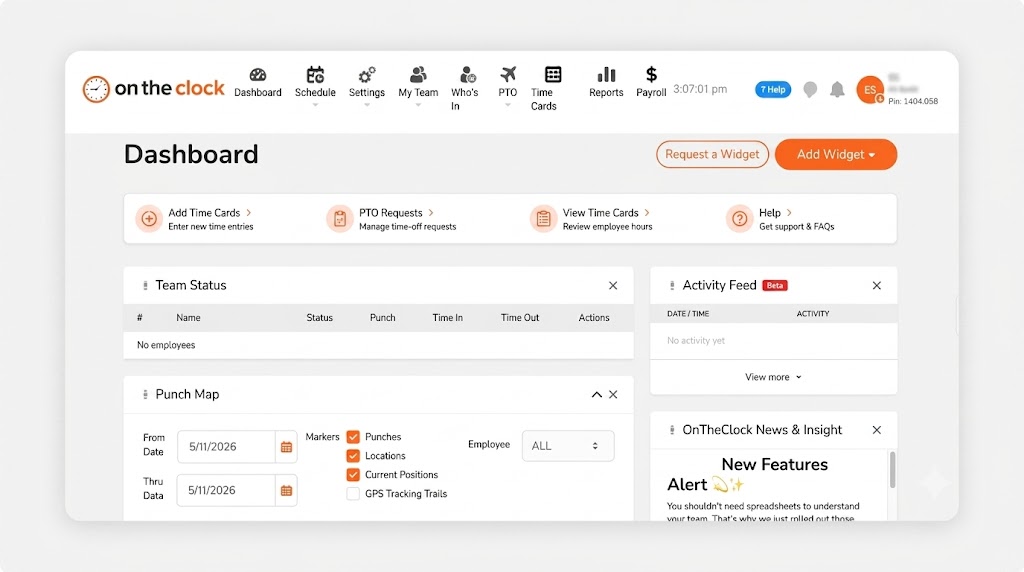
Think of Marisol, who runs a 15-seat answering service with agents sharing eight desks across two shifts. She needs punches tied to a seat, not a promise. OnTheClock gives her a PIN kiosk on a cheap tablet, web punching locked to approved computers and IP addresses, and a who's-in dashboard that shows the floor in real time. Her agents punch in seconds. She stops guessing.
The top spot comes down to coverage: OnTheClock checks all eight Call Center Checklist needs in its base plan, including the shift-edge controls (early-punch prevention, automatic punch-outs, and punch rounding) that other tools reserve for upper tiers. More than 18,000 companies trust OnTheClock to manage employee time, attendance, and payroll. You can start a free, 30-day trial and have the kiosk running before the next shift change.
Why OnTheClock Is Different
OnTheClock keeps its pricing straightforward. One plan, $5 base plus $4 per user per month, and every feature rides along: GPS and geofencing for home agents, automatic break rules, overtime alerts, scheduling, PTO, and payroll integrations. A 12-agent team pays $53 a month. Nothing on that list jumps to a higher tier later, because there's no higher tier to jump to.
They're honest about the limits, too. OnTheClock needs an internet or Wi-Fi connection to punch, text alerts bill separately, and a floor of 200 agents that wants demand forecasting will outgrow it. For the small team that wants every punch control in one plan, it's the simplest path on this list.
Key Features
Pros
Cons
Pricing
- 30-day free trial, no credit card
- $5/month base plus $4 per user/month (see how OnTheClock pricing works)
- Optional payroll: $40/month base plus $6 per employee/month, with a one-time $250 implementation fee

Deputy: Best for Round-the-Clock Coverage
Available on: Web, iOS, Android
Why Deputy Is Best for Around-the-Clock Coverage
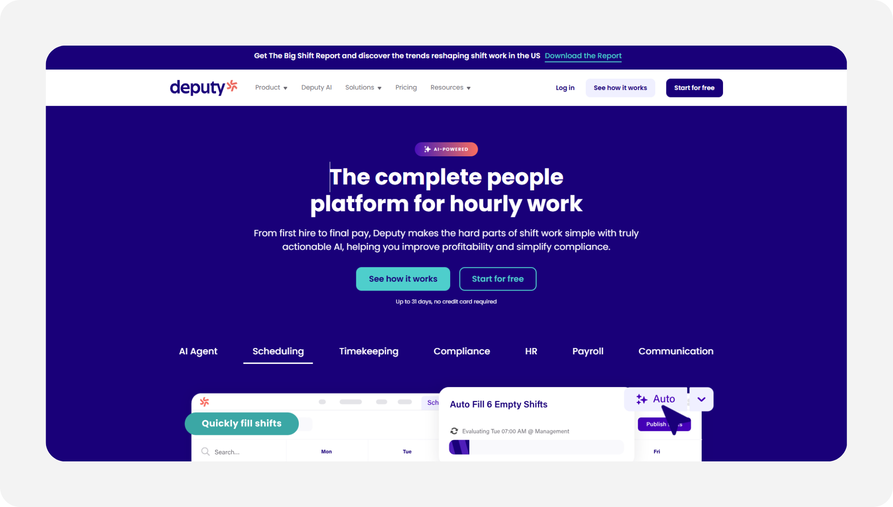
Who covers the 2 a.m. queue on Sunday? If that question runs your week, Deputy fits. Its auto-scheduling builds shifts from demand forecasting, and micro-scheduling splits a single shift across queues so agents sit where the calls actually are. Agents punch in from a phone or an on-site tablet kiosk, and the Core plan adds face-unlock biometrics so an overnight skeleton crew can't punch for each other. One Deputy customer reports late arrivals dropped 80% after the switch.
Watch the bill, though. Monthly plans carry a $30 minimum spend, users added or archived mid-month are billed for the full month, and Capterra reviewers report slow responses from chat-based support. If Deputy still feels heavy for your floor, here are some Deputy alternatives that may be worth a look.
Key Features
Pros
Cons
Pricing
- Free trial up to 31 days, no credit card
- Lite $5 per user/month; Core $6.50; Pro $9; $30 monthly minimum on monthly plans

When I Work: Best for Filling Open Shifts Fast
Available on: Web, iOS, Android
Why When I Work Is Best for Filling Open Shifts Fast
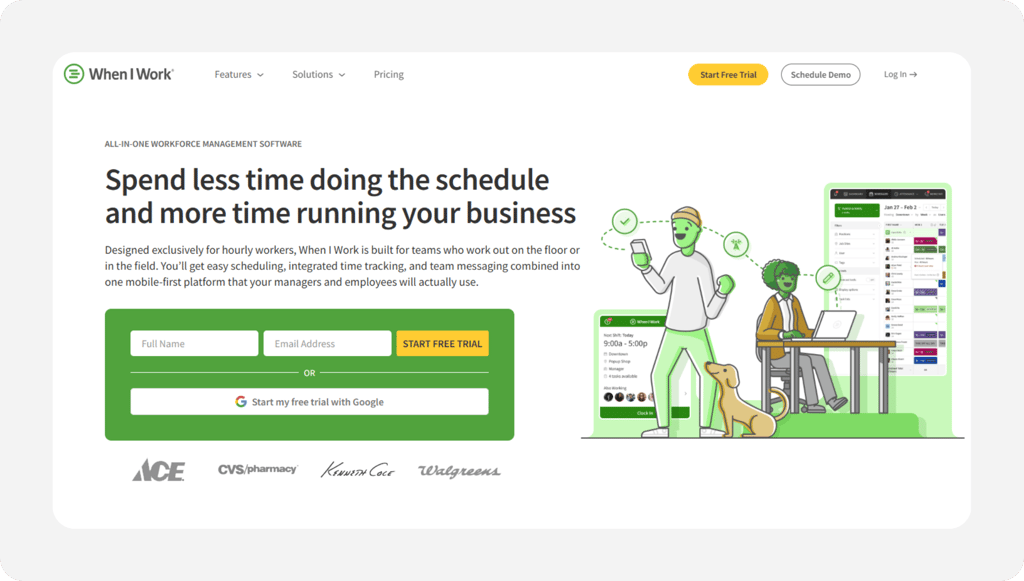
An empty seat at 8 a.m. is a queue full of angry callers by 8:15 a.m. When I Work attacks the no-show problem head-on. OpenShifts broadcasts an unfilled slot to qualified agents, shift swaps are cleared with one manager approval, and the Pro plan lets staff report callouts in the app so you hear about a gap before the phones do. Its time clock turns any approved device into a punch station, and the vendor says teams report three times fewer no-shows.
Time tracking and attendance are included in When I Work's plans, allowing employees to clock in and out alongside their scheduled shifts. Capterra reviewers say notifications sometimes arrive late, which stings when the whole pitch is speed. Weigh some When I Work alternatives before you decide.
Key Features
Pros
Cons
Pricing
- 14-day free trial, no credit card
- Essentials $2.50 per user/month; Pro $5; Premium $8; time tracking and attendance included

Buddy Punch: Best for Stopping Buddy Punching
Available on: Web, iOS, Android
Why Buddy Punch Is Best for Stopping Buddy Punching
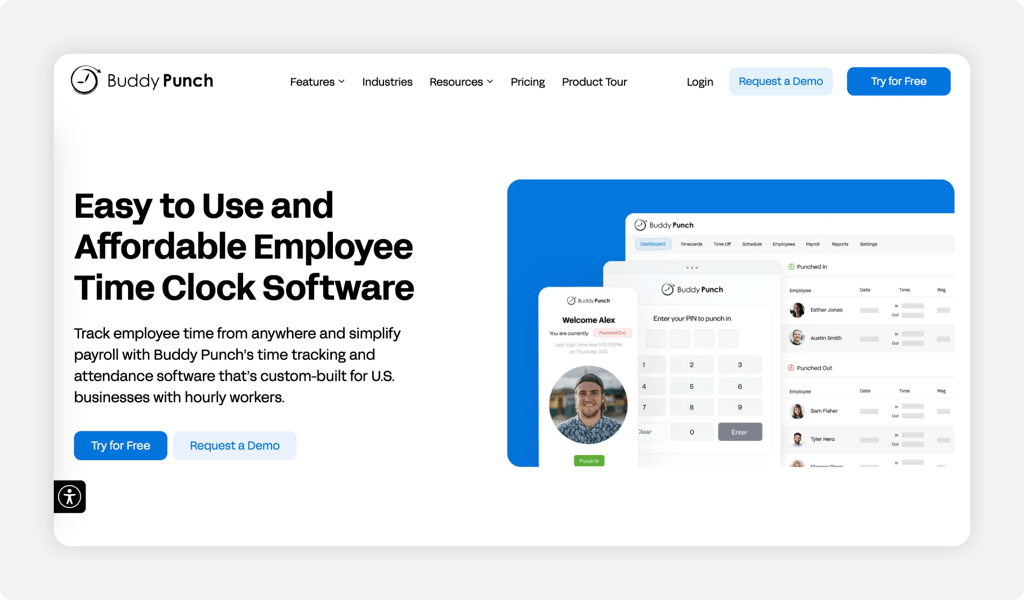
It's 3:59 p.m. and a punch lands for an agent who's still in the parking lot. That move thrives on shared desks, and ending it is this tool's whole identity. The name says it all. Buddy Punch snaps a webcam photo at every punch, runs PIN and QR kiosks on shared devices, and supports Face ID on iOS, so every time stamp comes with a face attached. Managers approve or question punches from one screen instead of interrogating the floor on Friday.
The honest part: The verification trio of photo, kiosk, and QR sits on the Pro plan, and every plan carries a $19 monthly base fee before your first agent. Our full Buddy Punch review breaks down where the fees land.
Key Features
Pros
Cons
Pricing
- 14-day free trial, no credit card
- Starter $4.99 per user/month billed annually ($5.99 monthly) plus $19/month base; Pro $6.99 annually ($7.99 monthly) plus base; payroll add-on $8 per user/month plus $49/month base.

Connecteam: Best for Keeping Remote Agents Connected
Available on: Web, iOS, Android
Why Connecteam Is Best for Keeping Remote Agents Connected
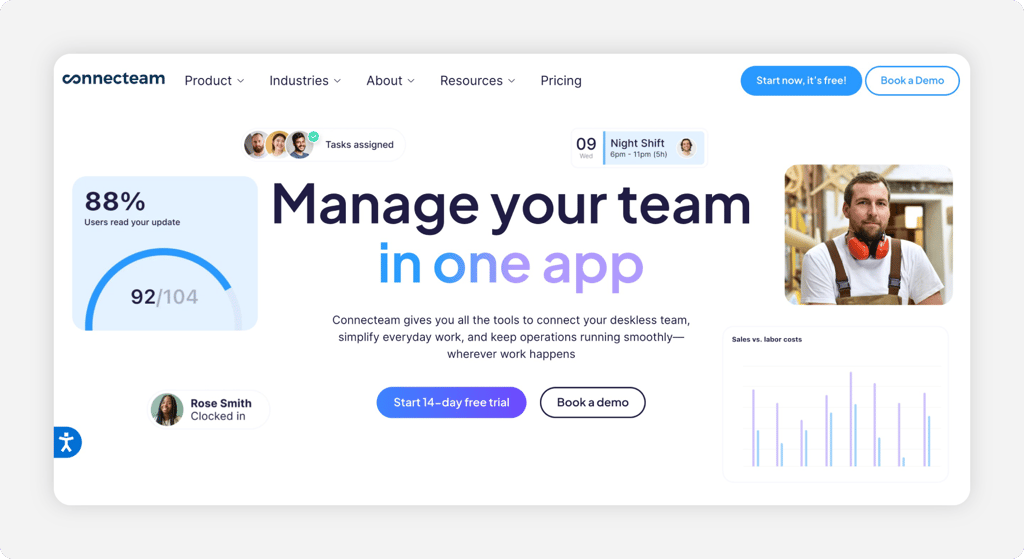
Half of your seats might be kitchen tables now. Connecteam treats that as the starting point, not an edge case. Agents clock in and out from their phones with a GPS stamp, managers push updates through a company feed with read confirmation, and chat keeps queue announcements off personal group texts. Forms and checklists handle QA sign-offs in the same app, so a distributed team can work from one place. Teams of 10 or fewer get the whole platform free.
One catch worth planning around: There's no offline punching. The product also comes in separately priced hubs, so a team that wants time tracking, chat, and training can end up buying two or three of them. Our Connecteam review walks through the hub math.
Key Features
Pros
Cons
Pricing
- 14-day free trial, no credit card; free Small Business Plan for up to 10 users
- Paid plans vary by hub and features, with time tracking costs depending on the selected package.

QuickBooks Time: Best for QuickBooks Payroll Users
Available on: Web, iOS, Android
Why QuickBooks Time Is Best for QuickBooks Payroll Users
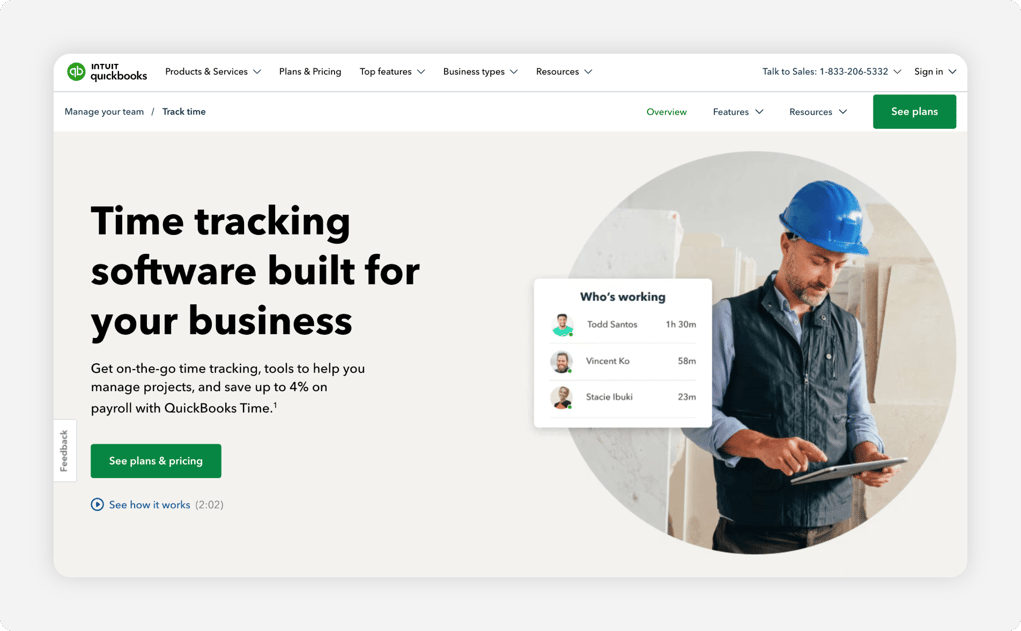
If your books already live in QuickBooks, your time clock can live there too. QuickBooks Time runs a punch kiosk on any tablet or desktop with a browser, tracks GPS through the Workforce app, and automatically enters approved hours into QuickBooks Online and QuickBooks Payroll. The who's-working view shows the floor at a glance, and time off, alerts, and scheduling come standard on both plans. For a QuickBooks shop, payroll night shrinks to a review and a click.
Budget note: You'll need an active QuickBooks Online account. The base fees run $20-$40 per month on top of per-user pricing, and Capterra reviewers gripe that a kiosk computer may need re-registration after updates. Geofencing also waits on the Elite tier. Compare some QuickBooks Time alternatives before committing.
Key Features
Pros
Cons
Pricing
- Free trial, no credit card
- Premium $20/month base plus $10 per user/month; Elite $40/month base plus $12 per user/month; QuickBooks Online account required

Jibble: Best Free Plan for Unlimited Users
Available on: Web, iOS, Android
Why Jibble Has the Best Free Plan for Unlimited Users
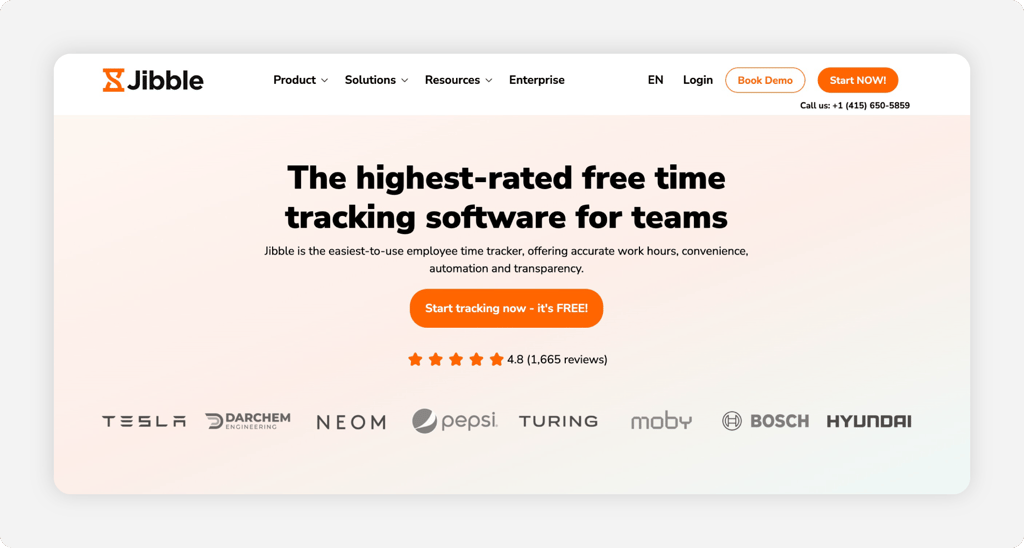
Zero software budget? You can still retire the paper sign-in sheet today. Jibble's free plan covers unlimited users and includes the parts that matter: automated time sheets, custom breaks, overtime rules, GPS capture, and a kiosk with facial recognition and spoof prevention. There's even an offline mode that saves mobile punches and syncs them when the connection returns. For a startup support team or a seasonal overflow floor, free here means usable, no headcount cap attached.
It isn't perfect. The free plan stops at two geofenced locations and one kiosk. Time rounding and custom policies require a paid upgrade, and reviewers say the facial check can feel slow when a whole shift queues up at once. Our Jibble review covers where free ends.
Key Features
Pros
Cons
Pricing
- Free plan, unlimited users; 14-day full-feature trial
- Paid upgrades available; pricing depends on the selected plan and billing arrangement.
Side-by-Side Comparison
| Tool | Best For | Pricing | Key Strengths | Top Integrations |
|---|---|---|---|---|
| OnTheClock | Small call center teams | $5 base + $4/user/month | Kiosk and IP controls, early-punch prevention, scheduling, PTO in one plan | Gusto, QuickBooks, ADP, Paychex, SurePayroll |
| Deputy | Round-the-clock coverage | Lite $5/user/month; Core $6.50 ($30/month minimum) | Auto-scheduling, demand forecasting, biometric kiosk | Paycor payroll add-on, QuickBooks |
| When I Work | Filling open shifts fast | From $2.50/user/month; time tracking included | OpenShifts, swaps, overtime warnings, messaging | ADP, Gusto, QuickBooks, Rippling |
| Buddy Punch | Stopping buddy punching | Starter $4.99/user/month + $19 base (annual) | Webcam photo punches, PIN and QR kiosks | Payroll and accounting platforms, Zapier |
| Connecteam | Keeping remote agents connected | Free up to 10 users; paid time-tracking pricing varies by package | GPS time clock, chat hub, forms and checklists | Payroll sync on Basic tier |
| QuickBooks Time | QuickBooks payroll users |
Premium $20 base + $10/user/month |
Tablet kiosk, GPS, direct QuickBooks sync | QuickBooks Online, QuickBooks Payroll |
| Jibble | Free plan for unlimited users | Free for unlimited users; paid upgrades available | Facial-recognition kiosk, NFC/RFID, offline mode | QuickBooks Online, Slack, Microsoft Teams |
Comparison information reviewed October 2026; pricing and plan inclusions may vary and should be confirmed with each provider.
What's the Best Time Clock Software for Call Centers?
The best option isn't the longest feature list; it's the one that fixes the friction your floor hits every day. Start with one question: where do you lose the most money or sleep?
- If you want every punch control in one cheap plan, pick OnTheClock.
- If you staff queues around the clock, pick Deputy.
- If no-shows wreck your mornings, pick When I Work.
- If shared desks invite badge games, pick Buddy Punch.
- If your agents work from home, pick Connecteam.
- If payroll lives in QuickBooks, pick QuickBooks Time.
- If the budget is zero, pick Jibble.
The right tool removes the friction you hit most. The wrong one just adds a login.
What Is Call Center Time Clock Software?
Call center time clock software is a digital punch clock that records when each agent starts work, takes breaks, and signs off, then turns those punches into payroll-ready time sheets. Agents punch from a shared kiosk, an approved computer, or a phone app, and every entry carries a time stamp tied to one person.
For call centers, it does one extra job: it captures the start of the workday correctly. Under DOL Fact Sheet #64, an agent's paid day begins with booting the computer and loading applications, so the clock has to be running before the first call ever rings.
Who Needs Time Clock Software for Call Centers?
Any call center paying five or more hourly agents needs one. Below that, a spreadsheet survives. Above it, the math flips fast: more agents means more shift edges, break records, and chances for six quiet minutes to leak per person per day.
Answering services, help desks, appointment-setting teams, dispatch centers, and remote support crews all fit the profile. If you've ever rebuilt a week of hours from memory, chased a mystery punch, or eaten an overtime surprise, you're the audience.
Why Call Centers Rely on Time Clock Software
Call centers run on thin margins and tight coverage. Labor is the largest line item in the budget, and the schedule only earns money when the right agents are actually in their seats. A time clock turns attendance from a feeling into a record.
The old way fails quietly: a sign-in sheet says 8 a.m., the phone system says 8:11 a.m., and payroll pays the sheet. Punch records with device, IP, or GPS proof replace that argument with a fact, and they settle pay disputes in seconds instead of meetings.
Key Features Call Center Time Clock Software Should Have
Before you compare prices, make sure any tool on your shortlist covers the basics:
-
Kiosk punching: A shared tablet or desktop clock-in point with PIN, photo, or facial verification.
-
Device and IP restrictions: Punches allowed only from approved computers, networks, or locations.
-
Shift-edge controls: Early-punch blocks, automatic punch-outs, and consistent rounding rules.
-
Break tracking: Paid rest breaks are recorded automatically, and meal periods are kept clean.
-
Overtime alerts: Warnings before an agent crosses 40 hours, not after.
-
Payroll integration: Hours that flow to your payroll provider without retyping.
How to Choose the Proper Time Clock Software for Call Centers
Step 1: Count seats, agents, and shifts, then run the monthly math
Pricing models punish the wrong headcount. Per-user tools charge for every agent on the roster, not every desk, so a 15-agent floor sharing eight desks pays for 15. Base-fee tools add a flat charge before the first agent. Run your real number through each model before you fall for a demo.
Take 15 agents. OnTheClock costs $65 per month ($5 base plus 15 employees at $4 each). Buddy Punch Starter on annual billing costs approximately $94 ($19 base plus 15 employees at $4.99 each). QuickBooks Time Premium costs $170 ($20 base plus 15 employees at $10 each). Same floor, well over double the spend, before a single extra feature gets used.
Now stress the math at your growth number. If you'll hit 25 agents by December, price that today. A tool that's cheap at 10 users and painful at 30 is a migration waiting to happen.
Step 2: Name the leak you're plugging first
Every floor has one bleed that outranks the rest. For some, it's shift-edge minutes: early punches and rounded time sheets that cost $378 a month, per our opening math. For others it's no-shows that wreck service levels, buddy punching at shared desks, or payroll nights spent reconciling schedules against reality.
Rank your top problem honestly, because the tools specialize. When I Work is built around coverage gaps. Buddy Punch is built around punch fraud. Deputy is built around demand-matched scheduling. OnTheClock covers the whole checklist for small teams. Buying the wrong specialty means paying for a strength you'll never use while your real leak keeps dripping.
Step 3: Match the punch method to your floor
A call center has three kinds of seats, and each punches differently. Shared desks want a kiosk by the door: one tablet, PINs or photos, no logins to juggle. Assigned seats want web punching locked to approved computers or the office IP range, so the punch proves presence. Home agents want a mobile app with GPS or device restrictions, so working the queue and claiming to work the queue stay distinguishable.
Walk your actual floor before you shortlist. If 20 agents funnel through a single entrance, a single kiosk beats 20 browser logins. If your team is fully remote, kiosk features are dead weight, and IP controls plus GPS become the whole game. Mixed floors need a tool that does both without charging twice.
Step 4: Lock down the shift edges
The first and last five minutes of every shift are where payroll leaks. An agent who punches in at 7:54 a.m. for an 8 a.m. shift collects six unworked minutes, and a forgotten punch-out at day's end can hand over hours. Look for early-punch prevention, automatic punch-outs, and rounding rules you set once and apply evenly.
The math from the intro bears repeating: six minutes a day across 12 agents is roughly 25 hours a month, about $378 at $15 an hour. Shift-edge controls are the single highest-return feature on the checklist, and they're also the controls most often gated to premium tiers. Check which tier they fall under before you compare sticker prices.
Step 5: Check the federal boxes before you buy
Call centers have their own page in federal labor law. DOL Fact Sheet #64 says the paid workday starts with the first principal activity, and for agents that includes booting the computer and downloading work applications. It also confirms short rest breaks of 20 minutes or less count as paid hours worked, and that daily and weekly records must cover pre-shift and post-shift work.
Your time clock has to support all three: a punch flow that starts before login, break tracking that keeps paid rest separate from unpaid meals, and records you can produce if anyone ever asks. A tool that can't show pre-shift minutes leaves you exposed to a wage claim.
Step 6: Make payroll the finish line, not another project
Punch data only pays off when it lands in payroll untouched. Check that your shortlist exports directly to your provider, whether that's Gusto, QuickBooks, ADP, Paychex, or SurePayroll, and that overtime and PTO ride along with regular hours.
Retyping is the hidden cost. A bookkeeper hand-entering 15 time sheets at three minutes each spends 45 minutes per run, which is 90 minutes a month on a biweekly cycle. At $25 an hour, that's $37.50 a month spent copying numbers a $5 integration moves in one click, with a typo risk on every keystroke.
Step 7: Run the trial through one full pay period.
A demo shows the happy path. A pay period shows the truth. Every tool on this list offers a free trial or a free plan, so make the trial do real work: run the kiosk at the 4 p.m. shift change, let a missed punch happen and watch the fix, trigger an overtime alert on purpose, and export one real payroll file.
Then ask the two people who matter. If your slowest-to-adopt agent can punch without help by day three, and the person who runs payroll says the export saved them an evening, you've found your tool. If either one shrugs, keep shopping while the trial is still free.
Tips for Implementing Call Center Time Clock Software Successfully
-
Write the punch policy before day one. Decide your rounding rule, your early-punch window, and what happens after a missed punch, then put it in writing. Agents accept a clock faster when the rules are visible and applied consistently to everyone.
-
Train at the kiosk, not in a meeting. A two-minute walkthrough at the actual device beats a slide deck. Have each agent punch in, start a break, and punch out once with a supervisor watching, and the questions disappear by day two.
-
Keep records like an auditor is coming. Federal rules require daily and weekly records of all hours worked, including pre-shift and post-shift activity, per DOL Fact Sheet #22. Set your reports to archive automatically so the proof exists without anyone remembering to save it.
Frequently Asked Questions
What is the best time clock software for call centers?
OnTheClock is the best time clock software for small call center teams. Its $5 base plus $4 per user plan includes kiosk punching, device and IP restrictions, early-punch prevention, scheduling, and PTO with nothing gated to higher tiers. Deputy fits 24/7 floors best, and Jibble offers the strongest free plan for unlimited users.
Do call center agents get paid for computer boot-up time?
Yes. DOL Fact Sheet #64 says a call center agent's workday starts with the first principal activity, and that includes starting the computer and downloading work instructions, applications, and work emails. Your time clock should capture those minutes, because they're compensable hours under federal labor law.
How do call centers stop buddy punching at shared desks?
Verification at the punch. PIN kiosks, webcam photos, fingerprint readers, and facial recognition all tie the punch to the person, not the badge. Buddy Punch photographs every punch, Deputy and Jibble run facial checks at the kiosk, and OnTheClock supports PIN kiosks, fingerprint readers, and device restrictions. Pick one layer and enforce it evenly.
Can remote call center agents use time clock software at home?
Yes. Remote agents punch from a phone app or browser, and the software adds proof: GPS stamps, device restrictions, or approved IP addresses. OnTheClock, Connecteam, and Jibble all handle home punching in their base or free plans, so a hybrid floor can run office kiosks and remote punches in one system.
Are short breaks paid time in a call center?
Yes. Rest breaks of 20 minutes or less count as paid hours worked under DOL Fact Sheet #64, and they're common in call center work. Real meal periods of roughly 30 minutes or more can be unpaid when the agent is fully relieved of duty. Your time clock should record both types separately.
How much does time clock software for call centers cost?
Anywhere from free to about $10 per user per month. Jibble is free for unlimited users, Connecteam is free up to 10 users, and OnTheClock costs $5 base plus $4 per user with everything included. For a 15-agent team, costs can range from $0 with an eligible free plan to $170 or more per month, depending on the provider, plan, and additional fees.
Stop Paying for Minutes Nobody Worked
Give your call center a time clock that proves every punch, flags overtime early, and hands payroll a finished time sheet.
No credit card is required at sign-up, and you'll be set up in minutes.
