
Jump to section
Try OnTheClock Free
Save time and make payroll effortless with our easy-to-use, affordable employee time tracking app.
Try It FreeKey Takeaways
- ✔OnTheClock is the best time clock software for small church staffs: $5 base plus $4 per user covers punching, scheduling, and PTO, and churches can request an extra discount.
- ✔Free can be real. Homebase runs a full punch clock at $0 for one campus with up to 10 employees, and Jibble's free kiosk covers unlimited users.
- ✔Hours should follow ministries. Job codes that split time across nursery, worship, and facilities turn time sheets into budget reports your board can actually use.
- ✔Watch the pricing model, not just the price. Per-location plans and 30-user blocks make a nine-person staff pay for seats and sites it doesn't have.
- ✔Sort volunteers from employees first. Federal labor law treats them differently, and your time clock should, too.
For a church office, the best time clock software does three things: it captures every paid hour from a mixed crew of part-timers, keeps volunteer hours out of payroll records, and costs little enough to survive the budget committee. Tools like OnTheClock, Homebase, and Buddy Punch all clear that bar in 2026; they just do it differently.
The old way looks like this. A custodian writes "Tues, 4ish to 8" on a paper time sheet. The nursery coordinator texts her hours two days after payroll closed. The bookkeeper spends Thursday night rebuilding the week from memory and grace.
The new way takes one tablet and one app. Staff punch in, hours are recorded on a time sheet automatically, and payroll takes 20 minutes instead of an evening. Seven tools made our final list, and each one earns its slot for a different kind of church.
What Church Administrators Actually Want From a Time Clock
Proof without policing. A church staff runs on trust, but trust doesn't satisfy an auditor, a finance committee, or a grant report. Administrators want a record that shows the childcare workers, custodians, and office assistants worked the hours they were paid for, captured without making anyone feel surveilled in a building built on goodwill.
They also want one system for a messy mix of people. A typical church payroll includes salaried pastors, a part-time bookkeeper, hourly nursery staff who work only on Sundays and Wednesdays, and a facilities crew that rotates between buildings. Many of those staffers are also members who volunteer extra hours, which is exactly why time tracking at nonprofits needs a clear distinction between paid time and volunteer time.
And they want the price to make sense for a nine-person staff. The right pick shifts with what you need most: a free single-campus plan, ministry-level hour tracking, or one affordable system that does the whole job.
Quick Picks: The Best Time Clock Software for Churches at a Glance
-
OnTheClock: Best for small church staffs
-
Buddy Punch: Best for tracking hours by ministry
-
Homebase: Best free plan for one campus
-
Connecteam: Best for staff communication
-
When I Work: Best for Sunday shift swaps
-
QuickBooks Time: Best for churches on QuickBooks
-
Jibble: Best free kiosk for shared spaces
How We Evaluated the Best Time Clock Software for Churches
We judged each time clock on what actually matters in a church office, not on feature-sheet length. We compared every option against the eight needs church administrators keep raising using what we call the OnTheClock Church Checklist:
-
Punch flexibility: a shared kiosk for Sunday staff, phones for facilities, web for the office.
-
Mixed-staff fit: handles salaried clergy, hourly part-timers, and volunteers without forcing one mold.
-
Ministry-level tracking: splits hours by department or job code to keep budgets honest.
-
Scheduling: builds rotating Sunday and midweek shifts without a spreadsheet.
-
PTO tracking: accruals and requests for the staff who've earned them.
-
Overtime alerts: warns you before a facilities week turns into time-and-a-half.
-
Payroll handoff: hours flow to Gusto, QuickBooks, ADP, or your church payroll provider without retyping.
-
Price for a small staff: what 10 employees actually cost per month, fees included.
OnTheClock earns the top spot because it covers all eight needs in a single base plan: kiosk and mobile punching, GPS controls, scheduling, PTO, overtime alerts, and payroll integrations, with none of it held back for a higher tier. That breadth at $5 plus $4 per user is the basis for the small-church-staff label, not a ranking against the other picks. Each of those serves its own situation best.
The Best Time Clock Software for Churches
Here are seven of the best time clock software options for churches, each suited to a different need. For each one, we cover whom it fits best, where it stands out, and where it may not be the right move.

OnTheClock: Best for Small Church Staffs
Available on: Web, iOS, Android
Why OnTheClock Is Best for Small Church Staffs
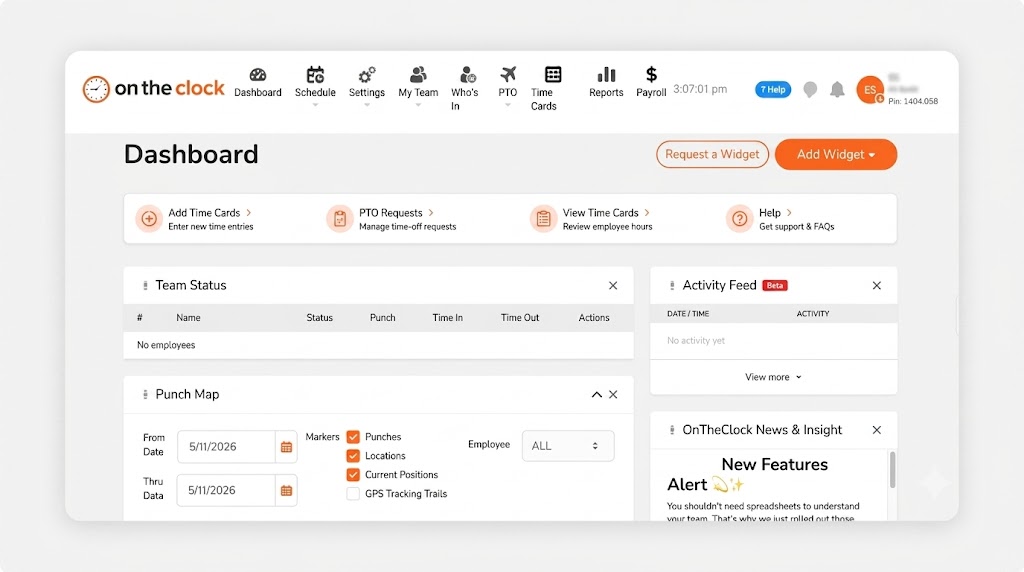
Most church offices don't have an HR department. They have one administrator who also orders the bulletins, books the fellowship hall, and runs payroll on Thursday. OnTheClock is built for that person. Staff members punch in from a shared kiosk tablet, their phones, or an office computer, and every punch is recorded on a digital time sheet with overtime automatically calculated.
OnTheClock's standard time tracking plan covers the core features on our checklist. Drag-and-drop scheduling handles the Sunday rotation, and PTO tracking covers the staff who accrue it. GPS and geofencing help verify that facilities crews punch in from the appropriate location. Hours can be exported or transferred through supported integrations with payroll providers such as Gusto, QuickBooks, ADP, and Paychex. More than 16,000 companies trust OnTheClock to manage employee time, attendance, scheduling, and payroll. Churches can contact the team for a nonprofit discount. You can start a free, 30-day trial without a credit card.
Why OnTheClock Is Different
OnTheClock keeps pricing straightforward. Its standard time tracking plan costs $5 per month plus $4 per user and includes core features such as scheduling, PTO management, GPS tracking, and overtime alerts. A church with nine hourly employees pays $41 a month before the discount. OnTheClock doesn't use feature-based pricing tiers, so its core time tracking, scheduling, PTO, GPS, and workforce management features are included in the standard time tracking plan. Optional in-house payroll runs $40 base plus $6 per employee if you'd rather pay your team in the same place you track them.
Plenty of churches land here after a bigger platform nickel-and-dimed them: a base fee here, a per-location charge there, a feature gate on the one thing they needed. The honest trade-off is simpler. OnTheClock needs an internet or Wi-Fi connection to punch, and its reporting is lighter than what enterprise workforce suites offer. For a staff of 25 or fewer, that's rarely the thing that matters.
Key Features
Pros
Cons
Pricing
- 30-day free trial, no credit card
- $5/month base plus $4 per user/month (see how OnTheClock pricing works)
- Optional payroll: $40/month base plus $6 per employee/month

Buddy Punch: Best for Tracking Hours by Ministry
Available on: Web, iOS, Android
Why Buddy Punch Is Best for Tracking Hours by Ministry
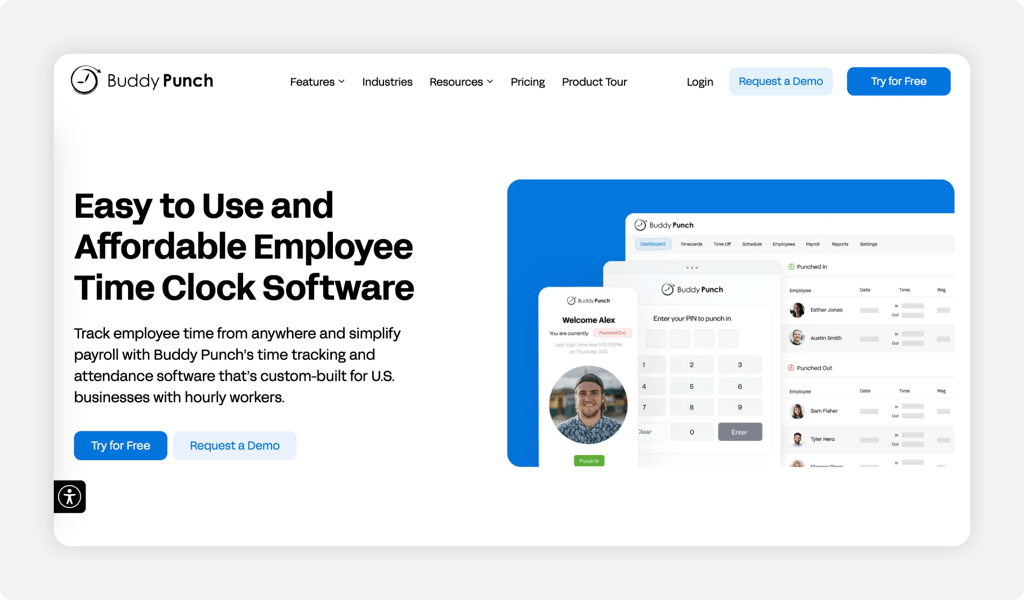
Which ministry did those 14 hours belong to? If your board or a grant report needs the answer, Buddy Punch is the pick. Its job codes let staff tag every punch to a ministry area (worship, children's ministry, admin) or an event (Sunday service, wedding, outreach), so you can run a report showing exactly where paid hours went. A finance director at one religious institution reported real savings just from overtime errors disappearing.
It also fits the building well. Buddy Punch supports mobile and shared-device time tracking, with PIN/kiosk punching and QR code scanning available on its Pro plan, and salaried staff can skip punching entirely by entering duration. Two things to budget for: The $19 monthly base fee is steep for tiny teams. Scheduling is available as an add-on with Starter and included with Pro. Here's our full Buddy Punch review if you want a deeper look.
Key Features
Pros
Cons
Pricing
- 14-day free trial, no credit card
- Starter: $5.99 per user/month plus a $19 monthly base fee.
- Pro: $7.99 per user/month plus a $19 monthly base fee. Includes scheduling and geofencing.

Homebase: Best Free Plan for One Campus
Available on: Web, iOS, Android
Why Homebase Is the Best Free Plan for One Campus
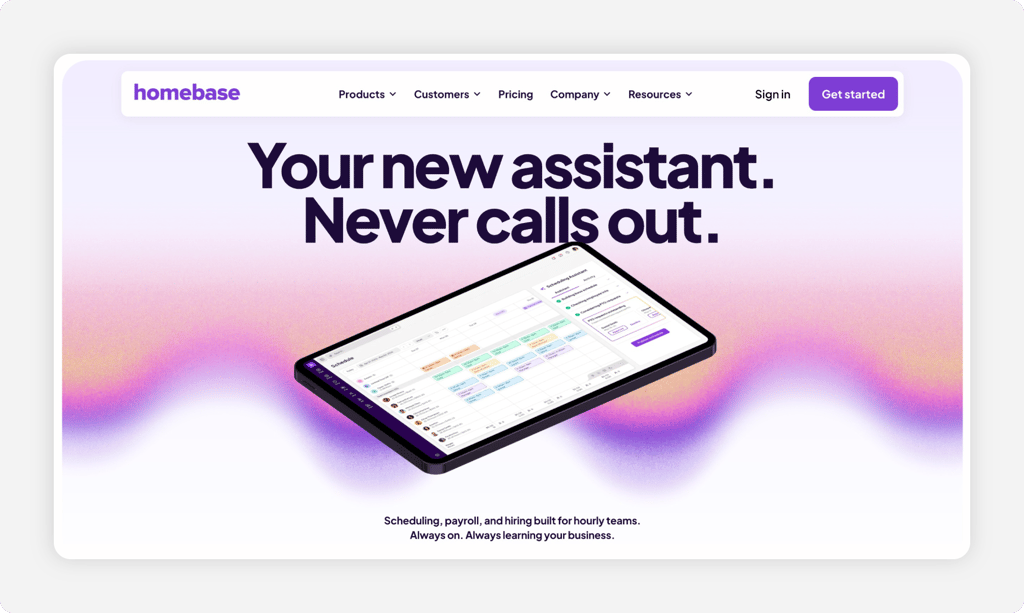
Free rarely means free in this category. Homebase is the exception, with conditions. Its Basic plan costs $0 forever for one location with up to 10 employees, and it includes a working time clock on tablets, computers, and POS devices, plus basic scheduling. For a single-campus church with a small hourly crew, that's a real punch clock for the price of nothing.
The conditions matter, though. Free time sheet storage stops at 90 days, which is thin for an organization subject to an annual audit. GPS-checked mobile punching and photo capture start on the Essentials plan at $30 per month. Every paid tier is priced per location, so a second campus changes the math fast. Our Homebase review breaks down where the free plan ends.
Key Features
Pros
Cons
Pricing
- Basic: free for one location, up to 10 employees
- Essentials: $30/month per location, unlimited employees

Connecteam: Best for Staff Communication
Available on: Web, iOS, Android
Why Connecteam Is Best for Staff Communication
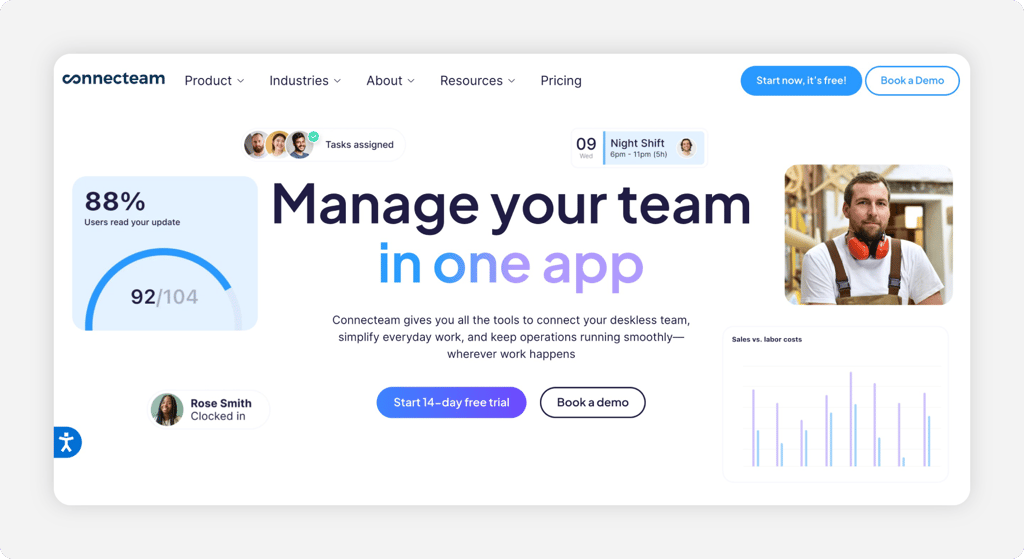
Your custodian most likely isn't checking email every hour. Neither are most of the Sunday crew. Connecteam solves the announcement and punching problems in the same app: a GPS time clock sits next to built-in chat, a company feed, and a staff directory, so "the boiler inspection moved to Tuesday" actually reaches the person mopping the fellowship hall. Its Small Business Plan makes the case stronger: Every hub and every feature is free for up to 10 users.
Growth is where the bill gets complicated. Once a church exceeds 10 users, Connecteam's paid offerings are divided into three separately priced hubs: Operations, Communications, and HR. Each plan covers the first 30 users, whether the church has 11 or 29 employees. An 11-person staff pays the same $35 monthly fee as a 30-person team. Adding a second Basic hub brings that total to $70 per month. One caution from reviewers: the sheer number of features can overwhelm a part-time administrator who just wants time sheets.
Key Features
Pros
Cons
Pricing
- Small Business Plan: free for up to 10 users; 14-day trial of paid tiers
- Operations Basic: $35/month for the first 30 users

When I Work: Best for Sunday Shift Swaps
Available on: Web, iOS, Android
Why When I Work Is Best for Sunday Shift Swaps
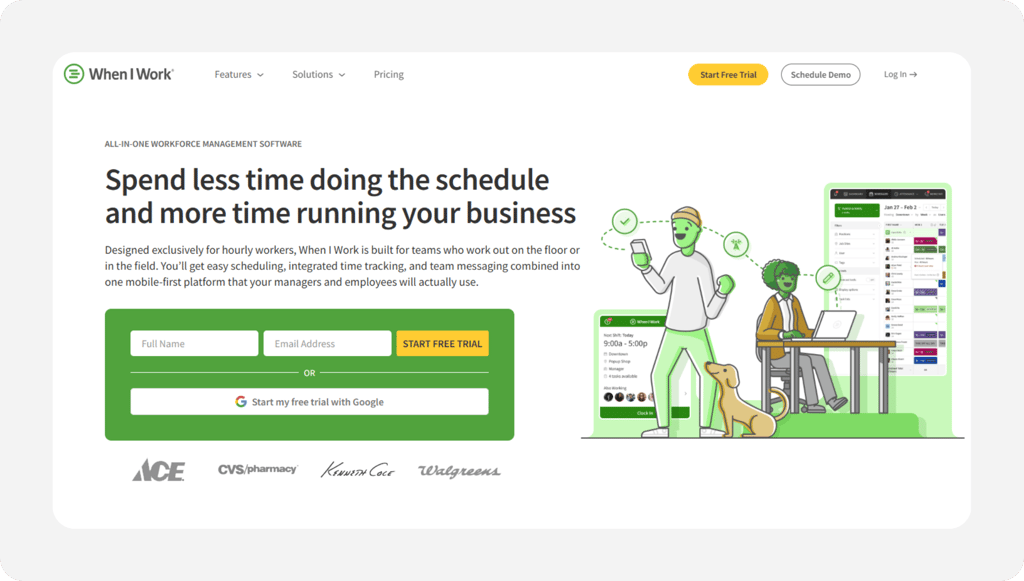
Sunday staffing usually breaks at 9 p.m. on Saturday, when a nursery worker texts that she's sick. When I Work is built for exactly that moment. Workers swap shifts, claim OpenShifts, and cover for each other in the app, with the manager approving from a phone rather than working a call list. For churches juggling rotating child care and hospitality crews, that self-service swap flow is the standout.
The caution sits in the fine print: When I Work combines employee scheduling, shift swaps, team messaging, and time and attendance tools in one platform. Plans start at $2.50 per user per month. Our When I Work review walks through the full cost picture.
Key Features
Pros
Cons
Pricing
- 14-day free trial, no credit card
- Essentials: From $2.50/user/month; Pro: From $5/user/month; Premium: From $8/user/month. Pricing may vary depending on time tracking and attendance features selected.

QuickBooks Time: Best for Churches on QuickBooks
Available on: Web, iOS, Android
Why QuickBooks Time Is Best for Churches on QuickBooks
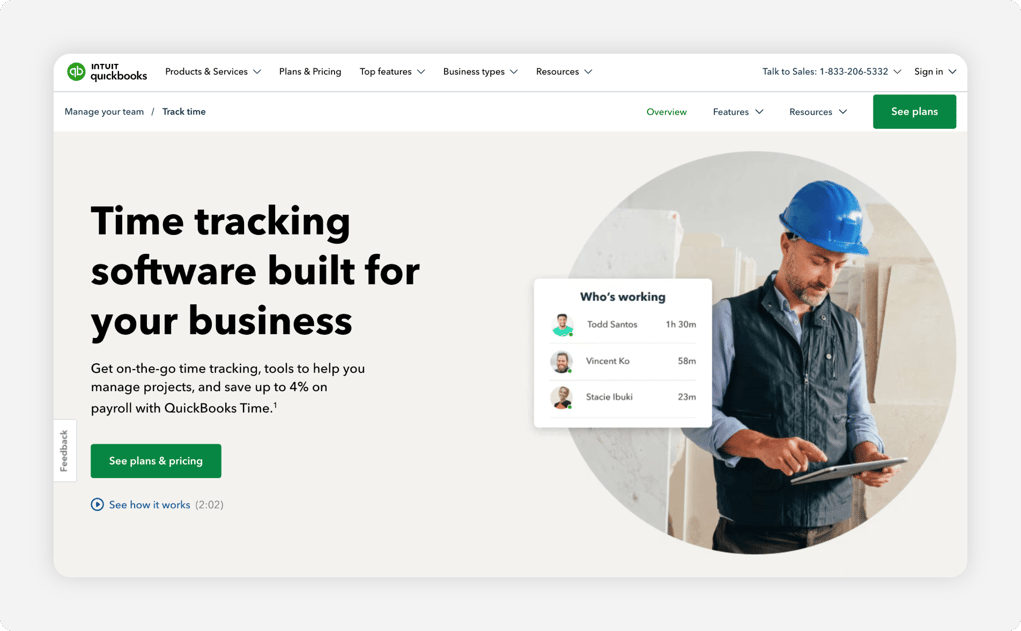
If your bookkeeper already lives in QuickBooks Online, this is the path of least resistance. QuickBooks Time drops approved hours directly into the books and payroll your church already runs, with a kiosk that works on any tablet or laptop, GPS on mobile punches, and schedules built by job or shift. No manual exports, retyping, or Thursday-night reconciliation.
Before you commit, know what the convenience costs. The Premium plan costs $20 per month plus $10 per user, while Elite costs $40 per month plus $12 per user. A QuickBooks Online subscription is also required, and geofencing is held back for the Elite tier. QuickBooks Time's current pricing makes it important to calculate the full monthly cost before subscribing. If the total gives you pause, here are the strongest QuickBooks Time alternatives.
Key Features
Pros
Cons
Pricing
- Premium: $20/month base plus $10 per user/month
- Elite: $40/month base plus $12 per user/month; QuickBooks Online subscription required

Jibble: Best Free Kiosk for Shared Spaces
Available on: Web, iOS, Android
Why Jibble Is the Best Free Kiosk for Shared Spaces
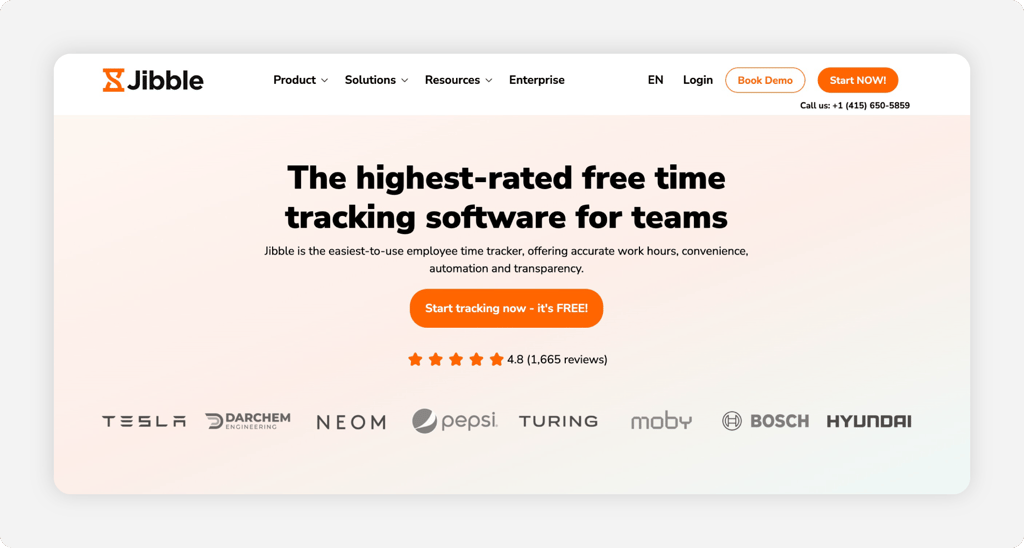
Picture a tablet mounted by the office door. Every part-timer who walks in, from the sound tech to the weekday preschool aide, taps it, gets verified by facial recognition or PIN, and is on the clock. Jibble does that for free, for an unlimited number of users, with automated time sheets, overtime rules, GPS tracking, and two geofences included. For churches with many part-timers and almost no software budget, that's the whole pitch.
Where it stumbles is structure. The free plan includes one kiosk and one work schedule. Churches that need multiple kiosks, additional work schedules, or PTO accruals may require Premium, while Ultimate provides advanced capabilities and priority support. The free tier is generous; just know its walls before you build on it.
Key Features
Pros
Cons
Pricing
- Free plan: unlimited users, forever
- Premium and Ultimate offer additional paid features, with monthly subscription pricing varying by plan.
Side-by-Side Comparison
| Tool | Best For | Pricing | Key Strengths | Top Integrations |
|---|---|---|---|---|
| OnTheClock | Small church staffs | $5 base + $4/user/month | Kiosk, GPS, scheduling, PTO in one plan; church discount | Gusto, QuickBooks, ADP, Paychex |
| Buddy Punch | Tracking hours by ministry | Starter: $5.99/user/month + $19/month base fee | Job codes by ministry; PIN/kiosk and QR punching on Pro | QuickBooks, Gusto, ADP, Paychex |
| Homebase | Free plan for one campus | Free; paid from $30/month per location | Free time clock and scheduling for up to 10 employees | QuickBooks, Gusto, ADP, POS systems |
| Connecteam | Staff communication | Free for up to 10 users; Operations Basic: $35/month for the first 30 users | Chat and updates beside a GPS time clock | QuickBooks, Gusto, Paychex, Xero |
| When I Work | Sunday shift swaps | From $2.50/user/month; attendance pricing may vary | Self-service swaps, covers, and OpenShifts | QuickBooks, Gusto, ADP, Square, Rippling |
| QuickBooks Time | Churches on QuickBooks | $20 base + $10/user/month | Native QuickBooks sync; kiosk on any tablet | QuickBooks Online, QuickBooks Payroll |
| Jibble | Free kiosk for shared spaces | Free for unlimited users; paid Premium and Ultimate monthly subscriptions available. | Free facial-recognition kiosk, unlimited users | QuickBooks, Slack, Microsoft Teams |
Pricing and comparison data reviewed October 2026 against official vendor websites. All listed prices reflect monthly subscriptions. Prices and features are subject to change.
What's the Best Time Clock Software for Your Church?
The best option fits your situation, not the one with the longest feature list. Start with one question: What breaks most often on payroll week?
- If you want every tool (kiosk, scheduling, PTO, GPS) in one affordable plan with a church discount, start with OnTheClock.
- If your board wants hours split by ministry for budgets or grants, Buddy Punch's job codes do that cleanly.
- If the budget is $0 and you're one campus with 10 or fewer employees, Homebase or Jibble will carry you.
The right tool removes the friction you hit most. Everything else is decoration.
What Is Time Clock Software for Churches?
Time clock software is digital punch clock software. Employees clock in and out on a phone, a computer, or a shared tablet, and the software automatically builds their time sheets, calculates overtime, and sends final hours to payroll. No paper cards, no math, no chasing.
For churches, it adds two things paper often struggles to provide: documentation and separation. Digital time records give auditors and finance committees a clearer record of paid hours while helping churches distinguish employee time from volunteer activities.
Who Needs Time Clock Software at a Church?
Any church with hourly employees. The math changes around three or four paid part-timers: That's when texted hours, paper time sheets, and memory start costing real money in overpaid minutes and payroll-night rework. A church paying eight people doesn't need an HR platform; it needs accurate punches.
Think of the nursery staff who work two services, the custodian who covers three buildings, the weekday preschool aides, and the audio/video tech who is paid by the event. If you're chasing any of their hours by text on Thursday, you're the audience.
Why Churches Rely on Time Clock Software
Church work happens everywhere except a desk. Staff members move between the sanctuary, classrooms, kitchen, and parking lot, and their hours are funded by donations that members trust the church to steward. Every overpaid hour is somebody's tithe.
The old way fails quietly. A paper time sheet rounds 3:40 up to four o'clock. Nobody catches it, fifty-two weeks in a row. Time clock software replaces guesswork with timestamps, while features like GPS punch controls help verify where facilities employees were when they clocked in, without requiring constant supervision.
Key Features Church Time Clock Software Should Have
Before comparing prices, make sure any tool you trial covers the basics:
-
Kiosk mode: one shared tablet or computer where Sunday staff punch in and out with a PIN or fingerprint scan.
-
Mobile punching with GPS: for facilities staff moving between buildings.
-
Department or job tracking: tags hours to nursery, worship, or admin for honest budgets.
-
Scheduling: rotating Sunday and midweek shifts, visible on staff phones.
-
PTO tracking: accruals and requests for eligible staff, handled in the same system.
-
Payroll integration: hours flow to Gusto, QuickBooks, ADP, or your provider without retyping.
How to Choose the Proper Time Clock Software for Churches
Step 1: Count your paid people, not your people
A church of 400 members might have nine paid staff. Software is priced on the nine, so start there. List everyone who gets a paycheck: pastors, the bookkeeper, nursery workers, custodians, the AV tech. Mark each one salaried or hourly, because the hourly group is who the time clock is really for.
Now run the monthly math on that real number. Nine hourly employees on OnTheClock cost $5 plus nine times $4, or $41 a month, before the church discount. The same nine are free on Homebase (one campus), Connecteam, and Jibble. On Buddy Punch's Starter plan they cost $19 plus nine times $5.99, about $73 per month. On QuickBooks Time Premium, $20 plus nine times $10 lands at $110, plus the required QuickBooks Online subscription. The paid options in these examples range from $41 to $110 per month before discounts or required subscriptions.
Step 2: Name the problem that costs you the most
Pick one. Maybe it's the paper time sheets that arrive smudged and rounded up, the Sunday no-show you didn't hear about until the nursery was short, or facilities workers who quietly hit 44 hours and triggered time-and-a-half that nobody budgeted for.
Your biggest leak picks your tool. Rounded paper hours point to any punch clock on this list; the cheapest fix wins. No-show chaos points to When I Work's swap-and-cover flow. Surprise overtime points to OnTheClock or Buddy Punch, both of which alert you before an employee crosses 40 hours instead of after.
Step 3: Decide where punches happen
Walk the building before you pick the software. Office staff can punch from their desks on the web. Sunday part-timers do better with one shared kiosk tablet by the office door, punching by PIN, QR code, or face scan. A custodian covering three buildings needs mobile punching with GPS so the record shows where each punch happened.
Match the tool to that map. Every pick on this list runs a kiosk, but the details differ: Buddy Punch's PIN/kiosk and QR punching require Pro, Jibble's free plan allows exactly one kiosk, and Homebase's free time clock runs on tablets and computers but saves GPS mobile punching for paid tiers. Discovering that a time clock doesn't support your preferred devices after rollout can lead to frustration, additional costs, or an unnecessary software switch.
Step 4: Separate employees from volunteers before you buy
Federal labor law allows people to volunteer freely at religious and charitable nonprofits, but it draws a hard line: Paid, nonexempt employees must have their hours tracked and paid, including overtime. The Department of Labor's Fact Sheet #14A on nonprofits and the FLSA explains the boundary, and it gets sharp when the same person does both: Employees may volunteer for religious organizations under certain circumstances, but paid employees generally cannot volunteer to perform the same types of services they are employed to provide. For example, a paid nursery worker generally cannot perform additional nursery duties as an unpaid volunteer.
Configure your time tracking system to distinguish paid work from legitimate volunteer activities. Churches should ensure employees are compensated for all hours legally considered work, even when those employees also volunteer for the organization.
Step 5: Check the payroll handoff
Every hour you track has to land in payroll eventually, and retyping is where errors breed. If you run payroll through Gusto, QuickBooks, ADP, or Paychex, confirm the available export or integration options; OnTheClock supports transferring hours to these providers. If you use a church-specific payroll provider, confirm the tool exports a clean CSV your provider accepts before you commit.
Quantify the stakes while you're at it. A bookkeeper who spends three hours per biweekly payroll retyping and reconciling hours, at $22 an hour, costs the church about $143 a month. The integration that removes that step pays for the software several times over.
Step 6: Do the pricing math on the model, not the sticker
Pricing models hide the real number. Per-location plans look cheap until campus two: Homebase jumps from $0 to $30 per location per month. Block pricing bills you for capacity you don't use: Connecteam's $35 Operations Basic plan covers 30 users, whether you have 11 or 29 users. Plan tiers can affect the features available, so verify what each subscription includes.
Per-user pricing is the easiest to predict, and it's where a discount compounds. OnTheClock's churches and nonprofits discount comes off a bill that's already $41 for nine employees. Ask every vendor on your shortlist one question: What will my exact headcount cost in month 13, after the promo pricing ends?
Step 7: Run the trial through a full pay period, including a Sunday
A demo on a quiet Tuesday proves nothing. Run the trial across one complete pay period so it survives a real Sunday morning: six part-timers punching the kiosk between services, a swapped nursery shift, a custodian clocking in from the annex. Then run payroll from the data it produced.
Score the trial on three outcomes: every punch captured without help, hours landed in payroll without retyping, and the staff didn't revolt. OnTheClock gives you 30 days for that test, two full biweekly cycles, where most tools on this list give you 14. Use all of it.
Tips for Implementing Time Clock Software at Your Church
-
Lead with stewardship, not surveillance. Tell staff the why: Accurate hours protect them (every minute paid) and the church (every donated dollar accounted for). Framing decides whether the kiosk feels like a tool or a trap.
-
Start with the hourly crew only. Don't force pastors and salaried staff to punch on day one. Get the nursery, facilities, and office part-timers comfortable first, then expand if leadership wants salaried-hour tracking later.
-
Write down your timekeeping rules as you set them up. Rounding, breaks, who approves time sheets, and how long records are kept. The Department of Labor's recordkeeping rules under the FLSA states that employers generally must retain payroll records for at least three years and supporting records, including time cards and work schedules, for at least two years. Keep these requirements in mind when evaluating software that limits time sheet storage.
Frequently Asked Questions
What's the best time clock software for churches?
OnTheClock is the best time clock software for small church staff. Its $5 base plus $4 per user plan includes kiosk punching, GPS controls, scheduling, and PTO tracking, and churches can request a nonprofit discount. Buddy Punch is best for tracking hours by ministry, and Homebase offers the best free plan for one campus.
Can church volunteers use time clock software too?
They can, but keep volunteer hours out of your payroll records. Legitimate volunteer activities are treated differently from paid work under federal labor law. Keep accurate records distinguishing the two, and compensate employees for all hours legally considered work, including when they also volunteer for the organization.
How much does time clock software for churches cost?
Time clock software for churches ranges from free plans to subscriptions costing more than $100 per month, depending on the number of employees, required features, and base fees. Homebase and Jibble offer free options, while Connecteam is free for up to 10 users. OnTheClock costs $5 per month plus $4 per employee, making the monthly cost $41 for nine employees before any church discount.
Do churches have to track hours for part-time employees?
Yes, for nonexempt hourly employees. Wage and hour rules require accurate records of hours worked and overtime pay when covered employees work more than 40 hours in a week, and that payroll records be kept for at least three years. A digital time clock makes both automatic.
Can church staff clock in from their phones?
Yes. Every tool on this list offers mobile punching on iOS and Android, and most add GPS stamps so you can confirm a punch happened at the building. Staff without smartphones can use a shared kiosk tablet or a desktop computer instead.
Does OnTheClock offer a discount for churches?
Yes. OnTheClock offers special nonprofit pricing for churches, schools, and government organizations, in addition to its standard $5 base plus $4 per-user rate. Contact the OnTheClock team through the pricing page to request the discount for your church.
Spend Sunday on People, Not Paper Time Sheets
Give your staff a punch clock that works and your bookkeeper a payroll night that ends early. Try OnTheClock free for 30 days and ask about church pricing.
No credit card is required at sign-up, and you'll be set up in minutes.
