Key Takeaways
- ✔OnTheClock is the top pick for small nonprofits. It costs $4 per employee per month plus a $5 base fee, nonprofit discount eligibility can be confirmed with the team, and a 30-day free trial is offered with no credit card required at sign-up.
- ✔The best tool captures every hour accurately and affordably, helping payroll reviews and grant-funded labor documentation.
- ✔No single tool wins for everyone. The right solution changes with your budget, staff, and whether your people work on-site or in the field.
- ✔Free options exist. Jibble offers a free plan with unlimited users, and Homebase is free for one location with up to 10 employees. Confirm Sandtime’s current free-plan limits.
- ✔Many hourly nonprofit employees are covered by federal wage and hour rules, so it's important to keep accurate time records for nonexempt staff.
The best time clock software for a nonprofit accurately captures every hour, is affordable, holds up during payroll runs, and is easy to decipher when a funder asks where the hours went. Federal labor laws require covered employers to keep payroll records for at least three years and records used to calculate wages, such as timecards and work schedules, for at least two years, so the tool has to get those records right the first time.
Picture the end of a pay period at a small nonprofit. You've got hourly staff, a few part-timers, and someone whose salary is split between a state grant and your general fund. Their punches live in three places. Payroll is due Friday, every dollar is already promised to a program, and one wrong number results in a report you'll have to fix later. A clock that can't keep those hours straight turns a 20-minute task into a lost afternoon.
So the "best" pick depends on what bites hardest for you: price, simplicity, field staff, or payroll. Below, we break down the best time clock software for nonprofits by the situation you're actually in.
What Nonprofits Actually Want
Nonprofits aren't chasing the longest feature list; they want hours they can trust.
A clock that records time correctly means payroll runs clean, and a board member asking about staff costs gets a straight answer. That's the first thing. The second is money: Most nonprofits run on tight, restricted budgets, so the tool itself has to be affordable, and many vendors offer a nonprofit discount that makes it cheaper still.
Then there's proof. When part of a paycheck comes from a grant, you need to show how those hours were spent. Some nonprofits also want to count volunteer hours for their annual report. No single tool nails it all, so the right pick shifts with what you need most.
Quick Picks: The Best Time Clock Software for Nonprofits at a Glance
-
OnTheClock: Best for small nonprofits
-
Jibble: Best free for tight budgets
-
Homebase: Best for ease of use
-
Buddy Punch: Best for tracking hours by program
-
Connecteam: Best all-in-one for deskless teams
-
QuickBooks Time: Best for QuickBooks payroll
-
Deputy: Best for field and program staff
-
Sandtime: Best free time tracking software for nonprofits
How We Compared the Best Time Clock Software for Nonprofits
We judged each tool on what actually matters to a nonprofit, not on feature sheet length. We compared every option against the seven needs nonprofits keep raising, reading verified vendor pricing pages and checking reviews on G2 and Capterra:
-
Nonprofit price and discount: Whether it's cheap enough for a tight budget and does it offer a free tier or nonprofit discount.
-
Ease of use: Whether nontechnical staff and volunteers can clock in without training.
-
Tracking hours by program or grant: Whether you can tag hours and document funded time accordingly.
-
Funder and board reporting: Whether the reports are clear enough for a board or a grant report.
-
Payroll integration: Whether it connects to QuickBooks, Gusto, ADP, or Paychex.
-
Mobile and GPS: Whether staff can clock in from a phone with GPS for off-site work.
-
PTO and overtime: Whether it tracks paid time off (PTO) and calculates overtime correctly.
We ranked OnTheClock first for small nonprofits because it combines low per-user pricing, nonprofit discount eligibility, mobile and kiosk punching, payroll integrations, PTO tracking, and GPS tools with direct nonprofit support without forcing a small team into a heavier all-in-one operations platform to get them. That breadth at a low base price is the basis for the label, not a ranking against the other picks. Each of those best serves its own situation.
The Best Time Clock Software for Nonprofits
Here, we list the best time clock software for nonprofits with the right pick for each situation. For each one, we cover whom it fits best, where it stands out, and where it may not be the right move.

OnTheClock: Best for Small Nonprofits
Available on: Web, iOS, Android
Why OnTheClock Is Best for Small Nonprofits
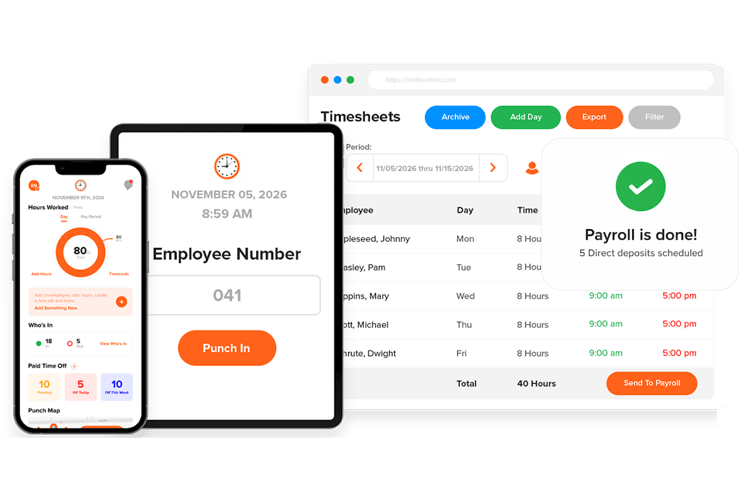
Small nonprofits cherish every dollar, so price matters first. OnTheClock charges $4 per employee per month plus a $5 base fee. A 10-person nonprofit pays $45 per month before the nonprofit discount is applied, and organizations can ask the team about current eligibility. OnTheClock states it serves more than 300 nonprofits, including schools, libraries, and churches, and that nonprofits can contact its team about available discount programs.
Setup is the other reason. A small nonprofit rarely has IT staff, so the clock has to be simple. Employees punch in from a phone, a shared tablet kiosk, or the web, and the hours automatically enter time sheets for approval. PTO tracking is built in, and support is handled in-house, so when a question comes up, a person answers.
Why OnTheClock Is Different
Most tools on this list are built for the general small-business market and then pointed at nonprofits. OnTheClock leans directly into the nonprofit relationship. Nonprofits can ask the team about its current discount terms. That does not change how the software works, but it makes the total cost worth checking before choosing a plan.
On the feature side, OnTheClock covers what a nonprofit office needs without the bloat: GPS and geofencing for off-site staff, IP-address restrictions, scheduling, and overtime calculations. It connects to QuickBooks, Gusto, ADP, and Paychex, so approved hours can be transferred with less manual entry. A faith-based nonprofit with a dozen staff across a main office and food pantry can run the whole thing from one screen. Where it stops: OnTheClock tracks hours by job and project, but nonprofits should verify whether its exports meet their grant-allocation needs; formal fund accounting may require a separate system. If federal grant reporting is your core problem, read the FAQ on grant compliance below.
Key Features
Pros
Cons
Pricing
- 30-day free trial, no credit card is required
- $5/month base plus $4 per user/month; nonprofit discounts subject to eligibility (see how OnTheClock pricing works)
- Optional full-service payroll: $40/month base plus $6 per employee/month, with a one-time $250 implementation fee

Jibble: Best Free for Tight Budgets
Available on: Web, iOS, Android, kiosk
Why Jibble Is Best for Tight Budgets
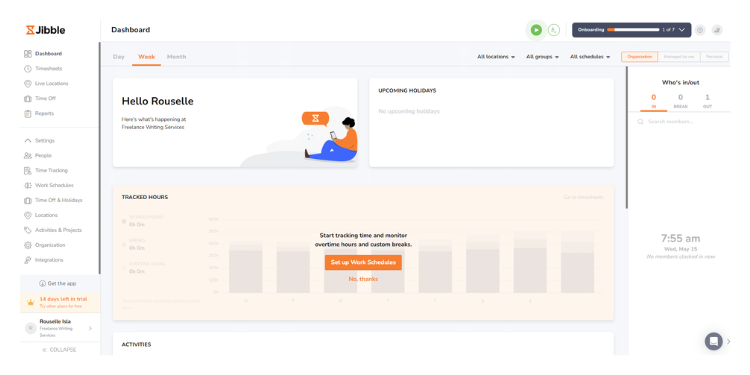
Free time tracking usually means limited features. Jibble breaks that rule. It's a real time clock that's free for unlimited users, and the free plan covers mobile and kiosk punching, GPS, and facial recognition to help deter buddy punching, all at no cost. For a grassroots nonprofit or an all-volunteer group, that can be the whole solution.
If you outgrow free, Jibble offers Essential, Growth, and Pro paid plans; ask the vendor to confirm current nonprofit discount eligibility and terms. A small literacy nonprofit running a reading program across three library branches can use available facial recognition features to support punch reviews without paying for a subscription. Reviewers do flag occasional mobile sync glitches, so test it on your team's actual phones during the free run before you commit.
Key Features
Pros
Cons
Pricing
- Free forever for unlimited users
- Essential $3.49/user/month; Growth $5.99/user/month; Pro $10.99/user/month (excluding tax). Confirm nonprofit discounts

Homebase: Best for Ease of Use
Available on: Web, iOS, Android, tablet
Why Homebase Is Best for Ease of Use
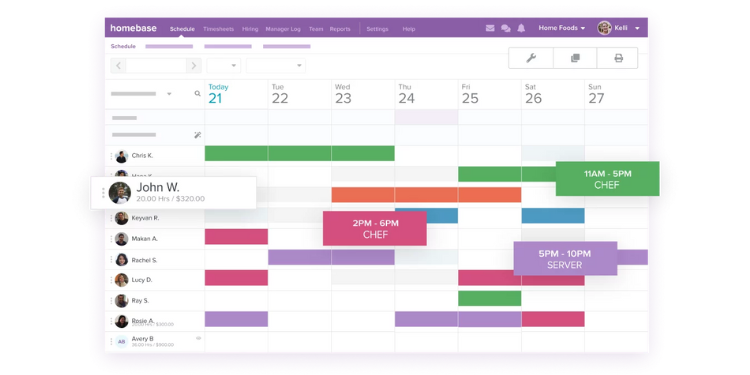
Some teams just need a clock that works without a manual. Homebase is that. The interface is clean, the mobile app is straightforward, and a new hire can figure out how to punch in without help. For a community center or a single-site shelter with a rotating hourly staff, that simplicity is the whole point.
The free, Basic plan handles one location with up to 10 employees, which fits a lot of nonprofits that operate out of one building. It includes scheduling, time tracking, and a team messaging tool, so managers can post a schedule and staff can swap shifts in the same app. The limit shows up if you run multiple sites: Homebase prices by location, so a nonprofit with several program offices pays more, and some controls, like geofencing, are only available on paid tiers.
Key Features
Pros
Cons
Pricing
- Free Basic plan for one location, up to 10 employees
- Essentials $30/location/month; Plus $70; All-in-One $120. Optional payroll: $49/month base plus $6/employee paid

Buddy Punch: Best for Tracking Hours by Program
Available on: Web, iOS, Android, kiosk
Why Buddy Punch Is Best for Tracking Hours by Program
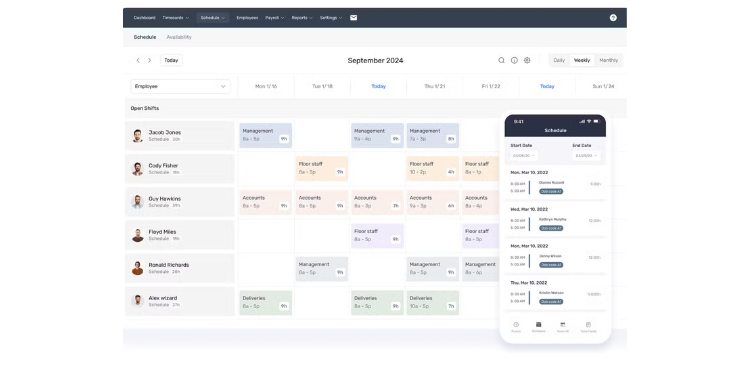
When a position is paid from a specific grant, you have to prove how many hours were worked. Buddy Punch is built for that. Staff can select a program or job when clocking in, and managers can review hours by job or program to check budgets. That's a practical way to keep a grant-funded role from quietly exceeding its hours before you notice.
It's also a serious clock. Buddy Punch offers GPS, geofencing, photo-on-punch, and IP restrictions on eligible plans to help deter buddy punching, and it integrates with QuickBooks, ADP, Paychex, Gusto, and 200-plus other tools. However, let's be honest about what this is: program budget tracking, not formal fund accounting. Buddy Punch tags and totals hours by code; it doesn't produce a grant compliance report on its own. And the $19 monthly base fee greatly impacts the smallest teams.
Key Features
Pros
Cons
Pricing
- 14-day free trial
- Starter $5.99/user/month; Pro $7.99/user/month; Advanced $13.99/user/month, plus a $19 monthly base fee. Confirm checkout rates

Connecteam: Best All-in-One for Deskless Teams
Available on: Web, iOS, Android, kiosk
Why Connecteam Is Best for Deskless Teams
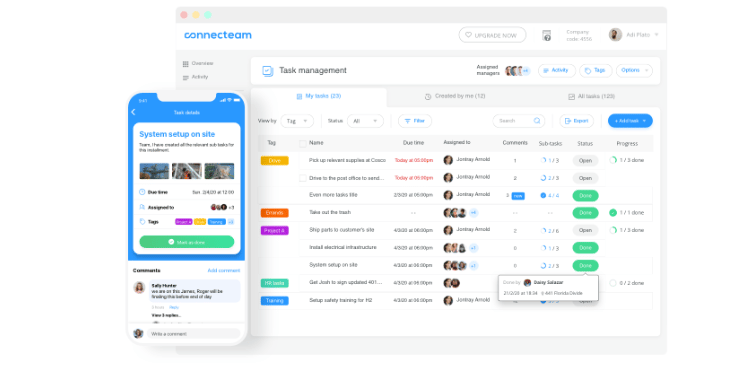
Outreach workers, drivers, and program staff spend their days in the field, not at a computer. Connecteam is built mobile-first for exactly that. Staff clock in from their phones, check the schedule, read a message from a coordinator, and finish a training module without ever logging into a desktop. For a nonprofit running meal delivery or community outreach, that's one app instead of four.
The free Small Business plan covers up to 10 users and includes the features in that tier, making it suitable for a small program team. Above that, paid plans start at a fixed monthly price for the first 30 users, so the cost doesn't climb per head as fast as some rivals. The catch is that the strongest features, including advanced reporting and live GPS, are only available on the higher paid tiers, so map your needs to a plan before you sign.
Key Features
Pros
Cons
Pricing
- Free for up to 10 users
- Operations Basic $35/month; Advanced $59/month; Expert $119/month for the first 30 users. Extra users and separately purchased hubs may cost more

QuickBooks Time: Best for QuickBooks Payroll
Available on: Web, iOS, Android, kiosk
Why QuickBooks Time Is Best for QuickBooks Shops
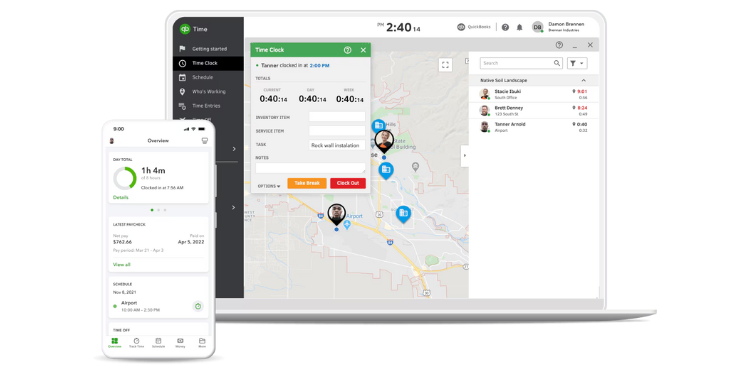
If your bookkeeper already lives in QuickBooks, a clock that plugs right in saves real work. QuickBooks Time, formerly TSheets, syncs hours directly into QuickBooks Online for payroll and lets you map time to classes and projects, which helps when you allocate costs across programs. Staff clock in on mobile or desktop, or at a shared kiosk, and managers approve time in the Workforce app.
The Elite plan adds geofencing and advanced project tracking that compares actual hours with project estimates. A mid-size nonprofit with a finance team that closes the books in QuickBooks every month gets the tightest link between hours worked and dollars reported. Watch the cost, though: QuickBooks Time charges a monthly base fee plus a per-user fee, and geofencing is only available on the pricier Elite tier, so it's rarely the cheapest option for a small team.
Key Features
Pros
Cons
Pricing
- 30-day free trial
- Premium: $20 monthly base fee plus $10 per user/month
- A QuickBooks Online account is also required to use QuickBooks Time.

Deputy: Best for Field and Program Staff
Available on: Web, iOS, Android, kiosk
Why Deputy Is Best for Field and Program Staff
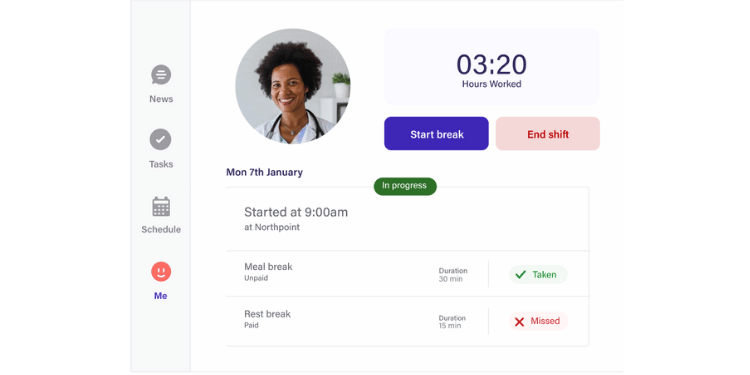
Shift scheduling and attendance proof are Deputy's core strengths. Service nonprofits run on shifts: a shelter overnight, a clinic front desk, a weekend program, etc. Managers build schedules and publish them to staff's phones, and employees clock in with GPS, facial recognition, or a kiosk with identity-verification controls that support punch reviews. For a nonprofit with staff rotating through several program sites, that's accountability without hovering.
Deputy also handles compliance well. It may require staff to confirm breaks and meal periods at clock-out, thereby creating a record that supports compliance with federal labor law. It connects to QuickBooks, ADP, Gusto, Xero, and Square, so approved hours flow cleanly into payroll. The trade-off is cost and setup: Deputy has no free plan, and advanced features and optional add-ons can increase the total cost, so it's better for organizations past the smallest stage.
Key Features
Pros
Cons
Pricing
- Free trial available; confirm trial length
- Lite $5/user/month; Core $6.50/user/month; Pro $9/user/month, with a $30 monthly minimum

Sandtime: Best Free Time Tracking Software for Nonprofits
Available on: Web, mobile, desktop, Chrome extension, Slack
Why Sandtime Is the Best Free Time Tracking Software for Nonprofits
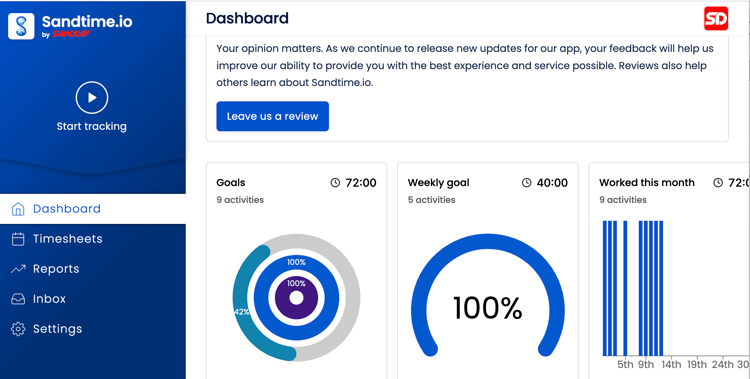
For nonprofits operating on tight budgets, every dollar matters. Sandtime.io is built for organizations that need reliable time records without adding another recurring software expense. The core product is advertised as free, no credit card required, which may suit small nonprofit and volunteer-led teams. Confirm its current free-plan user limits and included features before choosing it.
Sandtime.io helps teams record work as it happens and turn those hours into clean timesheets and reports later. Teams can clock in from mobile devices, the web, Chrome Extension, or Slack, while administrators can approve time sheets, track PTO, report on hours, and keep a clear view of where staff or volunteer time is going. It is a practical solution for organizations that need accurate time tracking, simple reporting, and audit-ready records without employee surveillance, screenshots, or GPS tracking.
Key Features
Pros
Cons
Pricing
- Free core product; confirm current plan terms
- Confirm current free-plan user limits
- No credit card is required at sign-up
Side-by-Side Comparison
| Tool | Best For | Pricing | Key Strengths | Top Integrations |
|---|---|---|---|---|
| OnTheClock | Small nonprofits | $5 base + $4/user/month | Affordable, easy to use, U.S.-based support | QuickBooks, Gusto, ADP, Paychex |
| Jibble | Free for tight budgets | Free; Essential $3.49/user/month; Growth $5.99; Pro $10.99 | Free unlimited users, facial recognition | QuickBooks, Gusto, Xero |
| Homebase | Ease of use | Free for 1 location, up to 10 employees; Essentials $30/location/month | Simple, scheduling built in | QuickBooks, ADP, Paychex |
| Buddy Punch | Tracking hours by program | Starter $5.99/user/month + $19 base | Job codes, program-level time reports | QuickBooks, ADP, Gusto, Paychex |
| Connecteam | All-in-one deskless | Free up to 10 users; Operations Basic $35/month for first 30 users | Clock, schedule, chat in one app | QuickBooks, Gusto, Paychex |
| QuickBooks Time | QuickBooks payroll | $20 base + $10/user/month | Native QuickBooks sync | QuickBooks Online, QuickBooks Payroll |
| Deputy | Field and program staff | Lite $5/user/month; $30 minimum | Scheduling, compliance attestations | QuickBooks, ADP, Gusto, Xero |
| Sandtime | Free time tracking for nonprofits | Free | Free core product, time sheets, reporting, Slack and Chrome Extension; verify plan limits | Slack, Chrome Extension |
Pricing and feature information reviewed October 2026 against available vendor documentation. Prices reflect month-to-month subscriptions where confirmed; verify nonprofit discounts and optional fees directly with providers.
What's the Best Time Clock Software for Nonprofits?
The best option isn't the one with the longest feature list; it's the one that fixes the friction you encounter most often.
Start with one question: What slows you down right now? Many nonprofits buy features they might use someday, only to end up with software that's heavier than they need and a team that avoids it. Focus on your current bottleneck instead.
- Is your budget the hard limit? Look at Sandtime, Jibble, or Homebase, which are free to start.
- Do you just want a simple solution with no training? Go with Homebase or OnTheClock.
- Do you need to track hours by program or grant? Buddy Punch may be the best option.
- Are your staff members out in the field on phones? Connecteam or Deputy is a great fit.
- Do you run everything through QuickBooks already? QuickBooks Time is your best option.
Your answer points to your pick. The right time clock for your nonprofit removes the friction you encounter most often. Fix that, and payroll stops eating your week.
What Is Time Clock Software?
Time clock software records when your employees start and stop work. Instead of a paper sheet or punch card, staff clock in from a phone, tablet kiosk, or computer, and their hours are automatically entered into a digital time sheet.
For a nonprofit, that record does double duty. It feeds payroll so people get paid correctly, and it creates proof of hours worked, which matters when those hours are tied to a grant or reported to a board. Most tools add scheduling, PTO tracking, and overtime calculations on top.
Who at a Nonprofit Needs Time Clock Software?
Any nonprofit with hourly employees needs it. That includes shelters, food banks, clinics, schools, churches, libraries, and community centers that pay staff by the hour.
The person who feels the pain is usually the executive director, operations or HR manager, or finance lead. They're the ones reconciling punches, running payroll, and answering a funder's questions about staff costs. Salaried-only nonprofits have less need, since federal labor law doesn't require tracking hours for exempt employees, though many still do so for grant reporting.
Why Nonprofits Rely on Time Clock Software
For a nonprofit, accurate hours aren't a nice-to-have. A single payroll error can divert money from programs that need it, while incomplete time records can complicate grant reporting and audits.
Manual tracking makes both risks worse. Paper sheets and spreadsheets invite missed punches, rounding errors, and buddy punching, where one employee clocks in for another. Time clock software removes much of that by capturing each punch with a timestamp, location, or photo. The result is documented hours the finance team can review and reconcile. You can read more in our complete guide to employee time tracking.
Key Features Nonprofit Time Clock Software Should Have
Before you compare prices, know which features actually matter for a nonprofit. Here's the short checklist:
-
Affordable pricing or a nonprofit discount: Can the software fit within a restricted budget?
-
Simple clock-in: by mobile, kiosk, and web for nontechnical staff.
-
Job or program tagging: so you can see where funded hours go.
-
Payroll integration: with QuickBooks, Gusto, ADP, or Paychex.
-
PTO and overtime tracking: that follows federal labor law.
-
GPS or geofencing: if any staff work offsite.
How to Choose the Right Time Clock Software for Your Nonprofit
Step 1: Name your two biggest problems. Before you look at a single tool, write down the two things that hurt the most right now. Maybe it's payroll errors, maybe it's proving grant hours, maybe it's staff who forget to clock in. Everything else is secondary. This list keeps you from buying features you'll never use, which is the most common and most expensive mistake nonprofits make. The tool that fixes your top two problems is almost always the right one.
Step 2: Set your real budget. Figure out what you can actually spend per month, and remember to count the base fee, not just the per-user price. A $4-per-user tool with a $19 base fee costs more than the sticker suggests for a small team. Then ask every vendor about a nonprofit discount, and confirm current terms and eligibility. Compare the final month-to-month cost rather than assuming any specific discount.
Step 3: Check the payroll connection. Look at how you run payroll today, then confirm the time clock connects to it. If you use QuickBooks, Gusto, ADP, or Paychex, a native integration means approved hours move to pay without anyone retyping them. Retyping is where errors creep in, and errors cost a nonprofit money and trust. If a tool doesn't connect to your payroll, cross it off, no matter how nice it looks.
Step 4: Match the clock-in method to your staff. Think about where your people actually work. Office staff can punch from a computer, but field and program staff need a mobile app, and a shared site might need a tablet kiosk. If anyone works off-site, look for GPS or geofencing, so managers can review location information associated with punches. The best method is the one your specific team will actually use without complaining.
Step 5: Confirm it tracks what funders and boards need. If any staff time is paid by a grant or a specific program, you need to tag and report those hours. Check whether the tool lets you assign hours to a job, program, or grant code, and whether its reports are clear enough to attach to a funder report or hand to your board. This is where general business tools often fall short for nonprofits, so test it with a real example before you commit.
Step 6: Run a free trial with real staff. Never buy on a demo alone. Almost every tool offers a free trial, so use it: Have two or three actual employees clock in for a full week on their own devices. You'll learn more from one real week than from any feature list. Watch for missed punches, confusing screens, and sync problems. If staff struggle in the trial, they'll struggle after you pay, so trust what you see.
Tips for Rolling Out Time Clock Software Successfully
-
Tell staff why before you launch. People resist new tracking when it feels like surveillance. Explain that accurate hours protect their paychecks and help the nonprofit keep its funding. When staff understand the clock works for them, too, adoption gets far easier.
-
Start with one team or site. Don't switch the whole organization at once. Pick one program or location, work out the kinks for a week or two, then roll out everywhere with lessons already learned. A small first step prevents a big organization-wide mess.
-
Set up payroll and program codes first. Before the first real punch, connect your payroll integration and create your job or grant codes. For grant-funded roles, keep your records in line with federal time-and-effort rules under 2 CFR 200.430. Getting this right on day one means hours flow correctly from the start.
Frequently Asked Questions
Do nonprofits have to track employee hours?
Yes, for nonexempt employees. The U.S. Department of Labor requires covered employers, including nonprofits, to maintain accurate records of hours worked and wages paid. Payroll records generally must be kept for at least three years, while records used to calculate wages, such as timecards and work schedules, should be kept for at least two years. Salaried-exempt employees generally do not require the same hour-by-hour tracking under the FLSA, though many nonprofits still track their time for grant reporting. See the DOL's overtime exemption fact sheet for the exempt-status rules.
What's the best free time clock software for a nonprofit?
Jibble offers free tracking for unlimited users; Sandtime advertises a free core product, but verify its current user limits. Sandtime.io is a good fit for nonprofits that want free, privacy-first time tracking across mobile, web, desktop, Chrome Extension, and Slack, while Jibble is better for teams that specifically need kiosk punching, GPS, or identity-verification features.
Do time clock apps offer nonprofit discounts?
Many do. Some vendors offer nonprofit discounts. Contact OnTheClock, Jibble, and other providers to verify current eligibility, percentage discounts, and terms. You usually claim it by contacting the vendor with proof of your nonprofit status.
How do nonprofits track staff hours across multiple grants?
Most time clocks let you tag hours to a job, program, or grant code, so you can see how much funded time each role used. Tools like Buddy Punch can help managers review program-level hours against a budget. For formal federal grant compliance, the standard is time-and-effort documentation under the federal Uniform Guidance (2 CFR 200.430), which requires records that accurately reflect work charged to each award. Time clock reports may support this documentation, but organizations must also maintain adequate payroll allocations, accounting controls, and supporting records.
Can a time clock track volunteer hours?
Some can log volunteer hours alongside staff hours, but dedicated volunteer-management tools are usually a better fit for large volunteer programs. For your annual IRS Form 990, note that volunteer time is not reported as revenue; full-form filers report the number of volunteers, which you can describe in the program accomplishments section. If counting volunteer hours matters to you, test that feature specifically before making a decision.
Do nonprofits have to pay overtime?
Often, yes. Under the federal Fair Labor Standards Act, nonexempt employees earn overtime at 1.5 times their regular rate for hours over 40 in a workweek. The current salary threshold for exempt status is $684 per week ($35,568 per year). A time clock with configurable overtime calculations can help maintain accurate pay records, but employers should review hours worked, pay rates, and applicable federal and state requirements. State rules can be stricter than federal rules, so check with your state labor department.
How much does nonprofit time clock software cost?
Costs vary from free plans to paid subscriptions with base and per-user fees. Free options like Sandtime, Jibble, and Homebase cover the basics. Mid-range tools like OnTheClock run a few dollars per user plus a small base fee, with nonprofit discounts subject to eligibility. The total depends on your headcount, the features you need, and whether you qualify for a discount.
Start Tracking Time for Free
Join the 300-plus nonprofits already using OnTheClock to keep payroll right and grant hours clean. Start your free, 30-day trial, then contact us to apply your nonprofit discount.
No credit card is required at sign-up, and you'll be set up in minutes.
